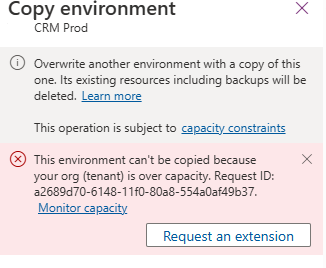
When trying to overwrite another environment with a copy of Prod, the system prevented the operation due to exceeding tenant capacity limits.
This copy operation is subject to environment and storage capacity constraints.
We raised a Microsoft Support Ticket and learned that we can resolve this issue by either purchasing additional storage or requesting free temporary storage to complete the copy operation.
We need to raise another support ticket for temporary storage, that includes below details
The amount of storage we need
The duration for which it should be available
The reason for the request
The maximum duration that can be requested is 6 months.
The maximum storage that can be requested is 200 % of what is purchased.
Thanks to Microsoft, within few mins of raising the support ticket we were provided the additional temporary storage.
We got our environment extended for 6 months with 200 GB additional capacity that allowed us to complete our copy environment.
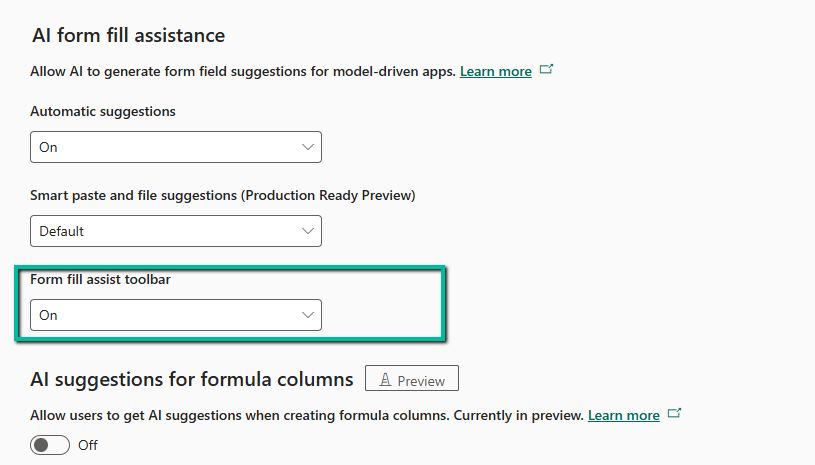
We tried the AI Form Filling Assistance feature in model-driven Power Apps and found it very helpful. One part that we liked the most was the toolbar and file (preview). This makes it much easier to fill forms using information from uploaded documents.
To enable this feature, go to:
Environment → Settings → Features → Form fill assist toolbar (AI Form Fill Assistance)
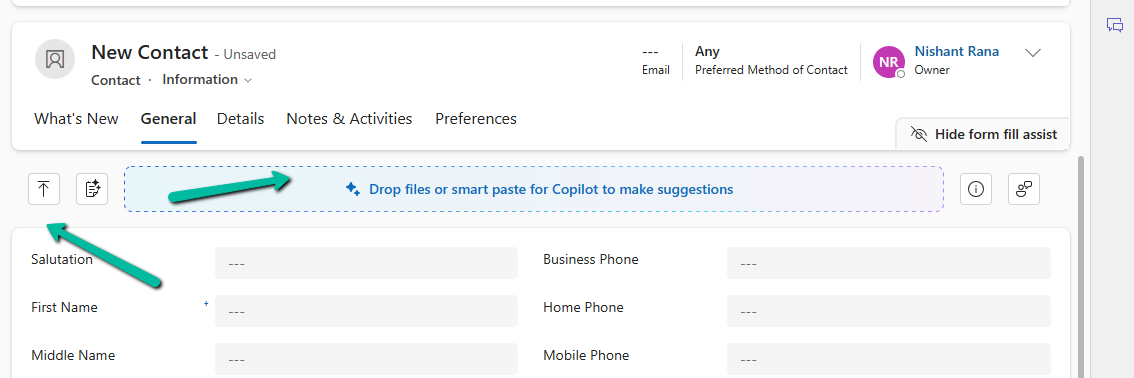
Once enabled, we can simply upload or drag and drop a file — like a PDF, Word document, or image — and the assistant will read the file and suggest values for different form fields.
When we upload / drop a file like a PDF, Word, or image, the assistant reads the file and gives us suggestions to fill the form.
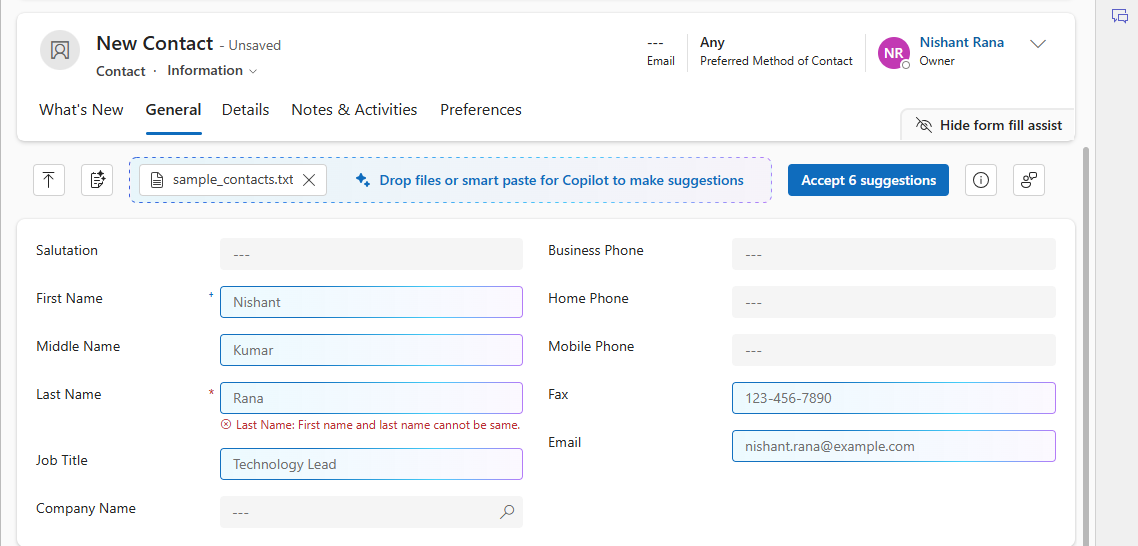
For example, if we upload the following file:
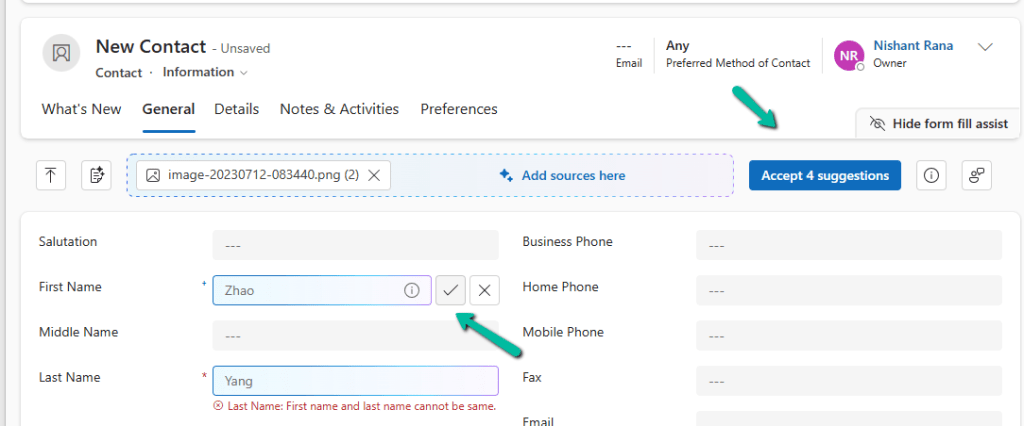
We can see that the assistant picks up values like First Name, Last Name, City, and Country, and populates them into our contact record.
Either we can accept all the suggestions using the Accept suggestions button on the tool bar or can select the suggested value for the individual fields by clicking yes next to it.
The assistant works at the tab level. For example, if we switch to the Details tab and upload the same image again, we might see fields like Birthday get populated — depending on what data is available and which fields are present in that tab.
The different file types supported are – .txt, .docx, .csv, .pdf, .png, .jpg, .jpeg, .bmp.
Let us now try uploading the below text file.
We can see it picking the first record and populating the details on the form.
This makes it simple and fast to enter data — especially when we are working with leads, contacts, or records that are usually based on data from documents or scanned forms.
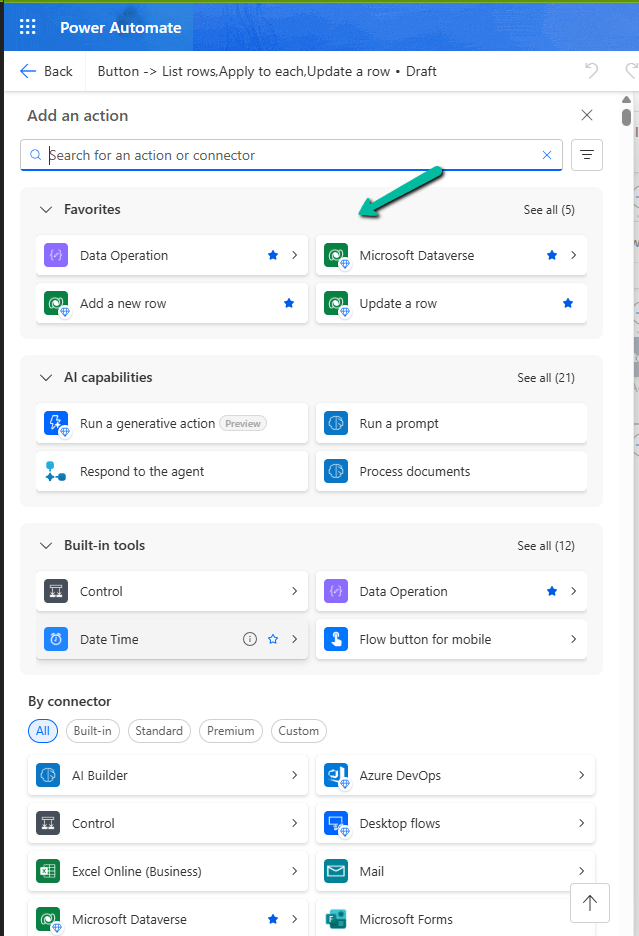
With this new update in Power Automate, it’s now easier for us to find and use the actions and connectors we need. We can also quickly access tools and AI features while building flows. This helps save time and makes the flow-building experience smoother.
Here is a screenshot of the new connector and action pane in Power Automate, below we have added Dataverse connector and some of its action as favorites.
Earlier, when we clicked on the plus sign (+) to add a new action in our flow, it opened a big list of actions and connectors. It was hard to find the ones we used often, and we had to scroll a lot.
Now, with the new design, things are much easier. We can do the following:
– Mark any connector or action as a ‘Favorite’. These favorites will always show up at the top in a new Favorites section.
– Quickly see useful AI tools like ‘Run a prompt’ or ‘Process documents’ in a special AI section.
– Easily find basic tools like Control, Data Operation, and JSON under the Built-in tools section.
This change helps us find what we need faster. It’s especially useful if we often use the same connectors like Microsoft Dataverse or Excel.
While reviewing our Dataverse environment’s storage usage, we noticed something surprising—over 13 GB of our file capacity was being consumed by the WebResourceBase table alone. This table typically stores JavaScript files, HTML web resources, images, and other files tied to customizations in Dynamics 365. However, the volume was unexpectedly high, prompting us to investigate further.
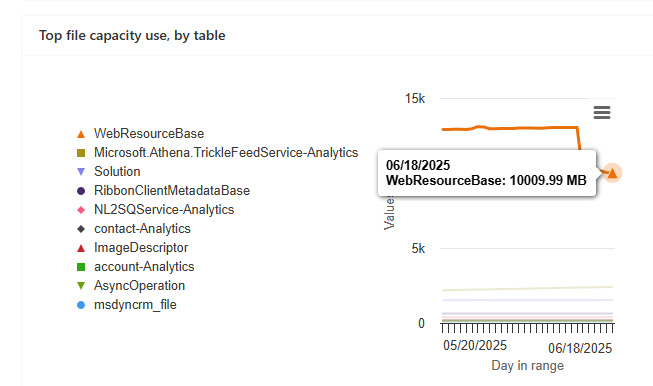
We started by examining the capacity usage charts available under:
Power Platform Admin Center > Resources > Capacity > File Usage
It was evident that the WebResourceBase table was consistently occupying around 13,027 MB (13 GB), far more than any other table.
Realizing that this wasn’t just normal customization data, we raised a support request with Microsoft to understand what was happening behind the scenes.
After a quick investigation, Microsoft Support responded with the following:
“Upon review, we have found that the WebResourceBase table is indeed occupying a significant amount of storage—13.027 GB. There are instances of ‘orphaned’ WebResourceBase records, which can occur due to solution uninstalls or as leftover artifacts from other entities that depend on WebResources. To address this issue, we can run a script to remove these orphaned web resources, which will help in reducing the storage used in your environment.”
These “orphaned” records are essentially detached or unused web resources—files that are no longer tied to any solution or customization but remain in storage. They commonly appear in environments where unmanaged solutions are frequently installed and removed.
Upon our approval, Microsoft executed a backend script to safely identify and remove these orphaned entries.
Post-Cleanup Results –
Before: 13,027 MB
After: 10009MB
Recovered: 3,018 MB (~3 GB)
This led to around a 24 percent reduction in the file capacity used by the WebResourceBase table.
Microsoft also confirmed that no further reduction was possible at this time—the remaining content is either actively referenced or structurally required by the platform.
When working with historical or test data in Dynamics 365 Field Service, we often come across the need to clean up old Work Orders and their related records. While it might seem straightforward to just delete the Work Order, there are quite a few interdependent entities and plugin validations that can make this task tricky.
We wanted to delete all msdyn_workorder records created before a certain date along with their related child records such as:
Work Order Products
Work Order Services
Work Order Incidents
Bookable Resource Bookings
Time Entries, Service Tasks, Resolutions, etc.
The Field Service solution has many plugins that enforce business rules during deletion.
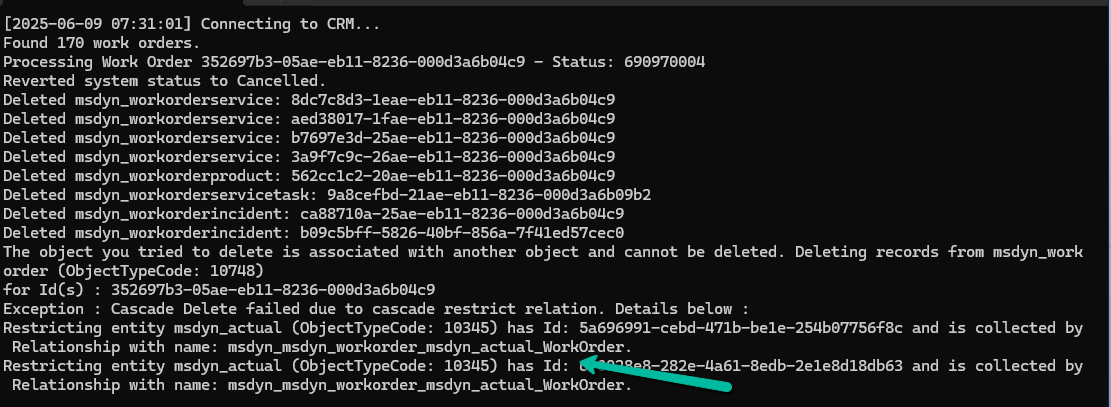
If a Work Order is in a Posted state (msdyn_systemstatus = 690970004), attempting to delete any of its child records will throw errors like:
Failed to delete msdyn_workorderproduct {GUID}: A record can’t be deleted if the work order has been posted.
So to delete the Posted work order, we had to update its status to Cancelled.
If the Work Order has any associated Bookable Resource Booking records, deletion is blocked:
Work order can’t be deleted because there are associated Resource Booking records. Please delete these records first.
And while deleting Bookings, we might hit even deeper integration issues, like this one from a virtual entity plugin
This error originates from the FnO Virtual Entity plugin and usually appears if the user linked to the Booking doesn’t exist in the FnO system — a hard blocker for environments with dual-write enabled.
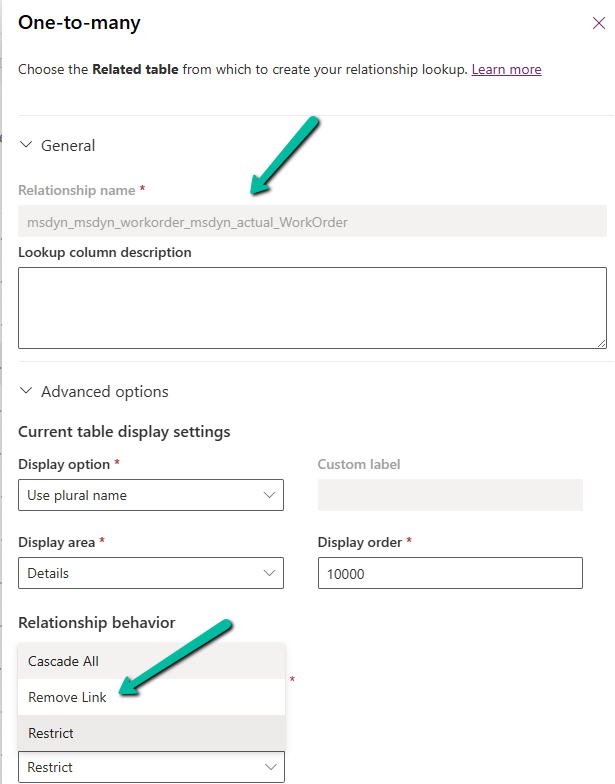
Also, we had to temporarily change the Delete action to Remove Link from Restrict for the relationship between msdyn_workorder and msdyn_actual_workorder.
Here’s a high-level overview of what we did:
Fetched work orders based on our criteria. Loop through each work order:
Revert the status if it is Posted (so it becomes deletable)
Delete all child records in a proper order
Delete the Work Order itself
Below is the sample code we used for deleting the work orders and its associated records successfully.
   public void DeleteAllWorkOrders()
        {

            QueryExpression query = new QueryExpression("msdyn_workorder");
            query.ColumnSet = new ColumnSet("msdyn_workorderid", "msdyn_name", "createdon", "msdyn_systemstatus");

            query.Criteria = new FilterExpression();
            query.Criteria.Conditions.Add(
                new ConditionExpression("createdon", ConditionOperator.LessThan, new DateTime(2025, 1, 1))
            );
            query.Orders.Add(new OrderExpression("createdon", OrderType.Descending));
            var workOrders = _service.RetrieveMultiple(query).Entities;
            Console.WriteLine($"Found {workOrders.Count} work orders.");

            try
            {
                foreach (var wo in workOrders)
                {
                    var woId = wo.Id;
                    var systemStatusCode = wo.Contains("msdyn_systemstatus") ? ((OptionSetValue)wo["msdyn_systemstatus"]).Value : 0;
                    try
                    {
                        //// 1. If Posted revert status
                        if (systemStatusCode == 690970004) // Posted
                        {
                            var revert = new Entity("msdyn_workorder", woId)
                            {
                                ["msdyn_systemstatus"] = new OptionSetValue(690970005) // Canceled
                            };

                            _service.Update(revert);
                            Console.WriteLine("Reverted system status to Cancelled.");
                        }

                        // 2. Delete dependencies
                        DeleteRelatedRecords("msdyn_workorderservice", "msdyn_workorder", woId);
                        DeleteRelatedRecords("msdyn_workorderproduct", "msdyn_workorder", woId);
                        DeleteRelatedRecords("msdyn_workorderservicetask", "msdyn_workorder", woId);
                        DeleteRelatedRecords("msdyn_workorderincident", "msdyn_workorder", woId);
                        DeleteRelatedRecords("msdyn_workorderresolution", "msdyn_workorder", woId);
                        DeleteRelatedRecords("bookableresourcebooking", "msdyn_workorder", woId);
                        DeleteRelatedRecords("msdyn_timeentry", "msdyn_workorder", woId);

                        // 3. Delete the Work Order
                        _service.Delete("msdyn_workorder", woId);
                        Console.WriteLine($"Deleted Work Order: {woId}\n");
                    }
                    catch (Exception ex)
                    {
                        Console.WriteLine($"Error processing Work Order {woId}: {ex.Message}");
                        Console.WriteLine("Continuing with the next Work Order...\n");
                    }
                }
            }
            catch(Exception ex)
            {
                Console.WriteLine(ex.Message);
            }

            Console.WriteLine("All Work Orders cleaned up.");
            Console.WriteLine("Press any key to continue !");
        }

        private void DeleteRelatedRecords(string entityName, string lookupField, Guid workOrderId)
        {
            var query = new QueryExpression(entityName)
            {
                ColumnSet = new ColumnSet(false),
                Criteria =
            {
                Conditions =
                {
                    new ConditionExpression(lookupField, ConditionOperator.Equal, workOrderId)
                }
            }
            };

            var records = _service.RetrieveMultiple(query).Entities;

            foreach (var record in records)
            {
                try
                {
                    _service.Delete(entityName, record.Id);
                    Console.WriteLine($"Deleted {entityName}: {record.Id}");
                }
                catch (Exception ex)
                {
                    Console.WriteLine($"Failed to delete {entityName} {record.Id}: {ex.Message}");
                }
            }
        }
Recently, we had a requirement to track the Current and Previous contracts for a Contact in our Dataverse environment. To achieve this, we created two separate N:1 relationships between the Contact and Contract tables
custom_currentcontractid → Contact’s Current Contract
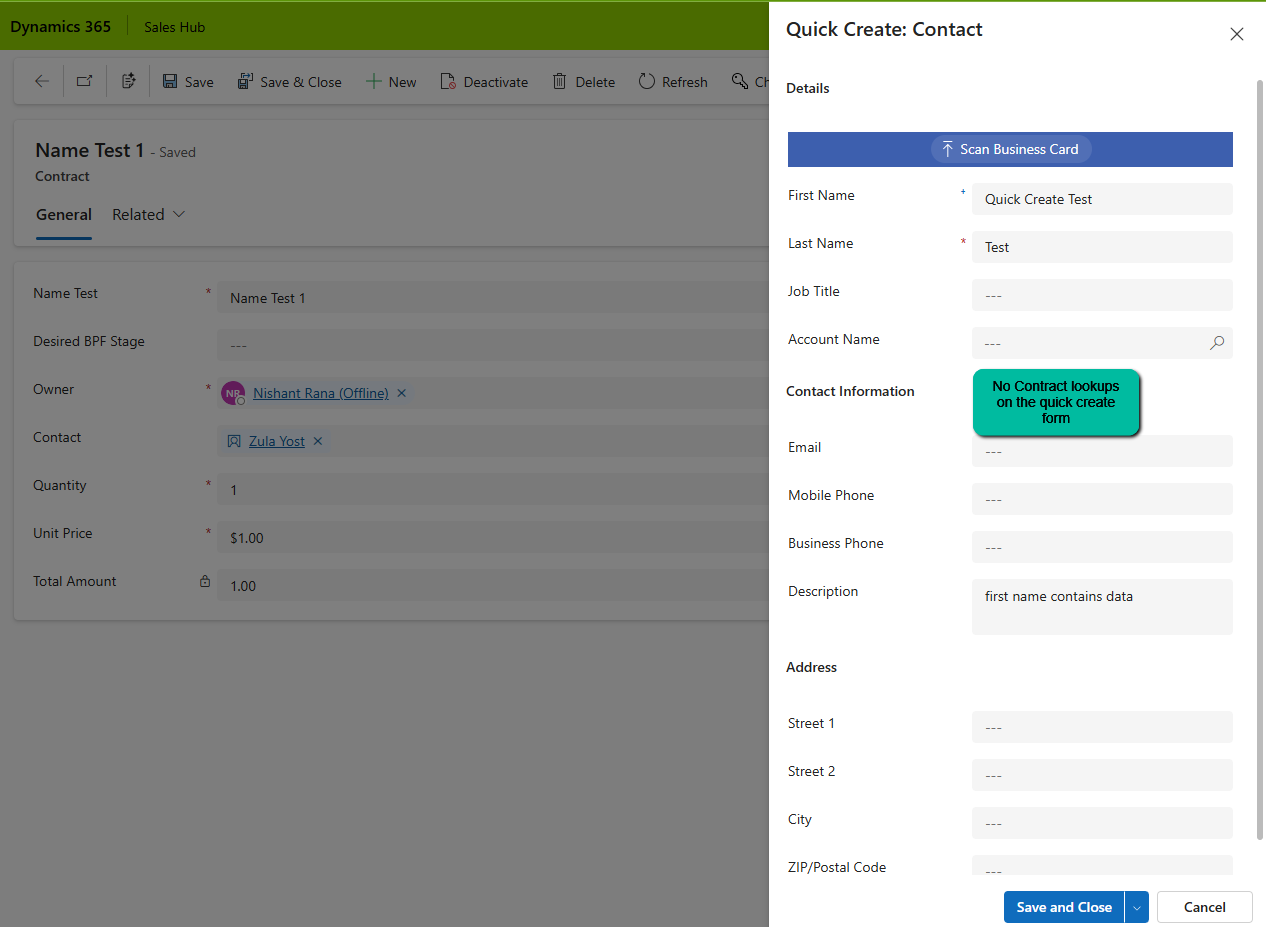
Soon after, we noticed a strange issue: “When creating a Contact from a Contract record (via the Quick Create form), both Current Contract and Previous Contract fields were being automatically populated — with the same Contract record”. This was unexpected, especially since neither field was present on the Quick Create form!
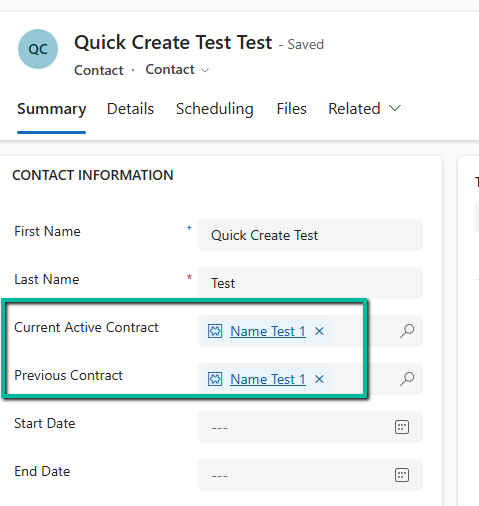
After saving and closing, when we open the record, we can see both the lookup auto-populated with the contract record in context.
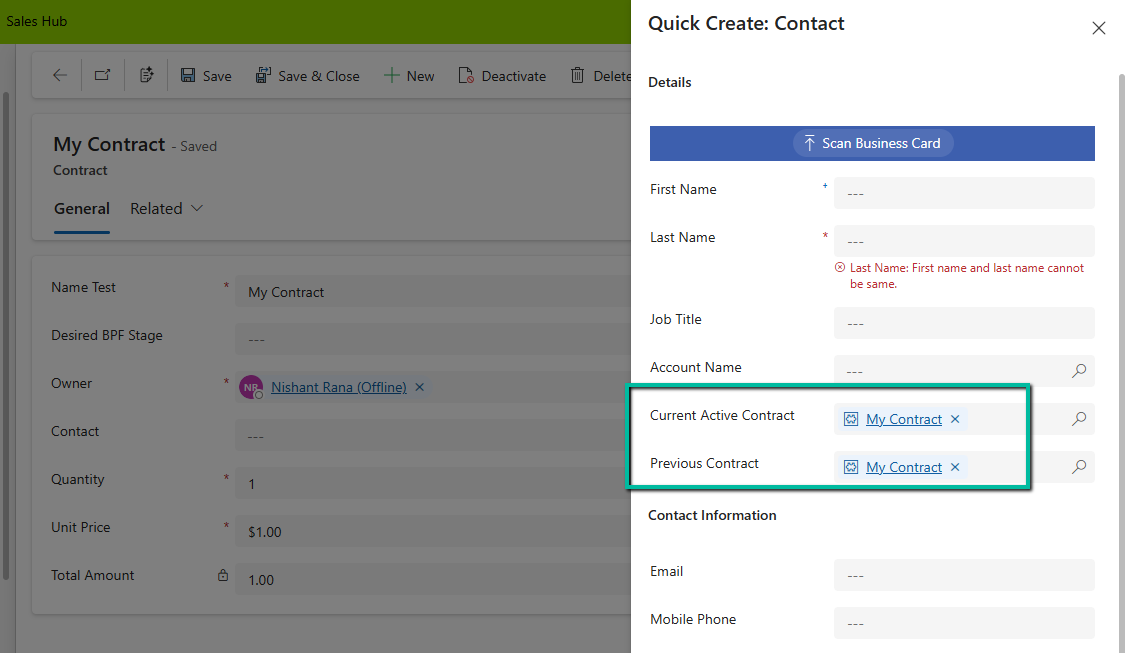
On adding these lookups in the Quick Create form, we can see that Dataverse is auto-populating it with the contract in context.
When we open a Quick Create form from a record (in our case, from a Contract), Dataverse passes the entity reference context to the Quick Create form. And here’s the catch, If the target entity (Contact) has multiple lookups to the source entity (Contract), Dataverse tries to populate them all.
This behavior is based on relationship metadata, not on what’s visible on the form. So even though we didn’t include the Current Active Contract or Previous Contract on the Quick Create form, Dataverse filled both with the same value.
If we have the fields on the quick create form we can make use of JavaScript on the onload to clear the values.
function clearBothContractLookups(executionContext) {
    var formContext = executionContext.getFormContext();

    // Check if in Quick Create mode (formType = 1)
    if (formContext.ui.getFormType() === 1) {
        var parentRecord = formContext.data.entity.getEntityReference();

        // If opened from a Contact, clear BOTH lookups
        if (parentRecord && parentRecord.entityType === "contact") {
            // Clear Current Contract
            if (formContext.getAttribute("new_currentcontract")) {
                formContext.getAttribute("new_currentcontract").setValue(null);
            }

            // Clear Previous Contract
            if (formContext.getAttribute("new_previouscontract")) {
                formContext.getAttribute("new_previouscontract").setValue(null);
            }
        }
    }
}
However, like in our case as we did not have these fields on the quick create form, and we didn’t want to have these populated during the creation of the Contract, as these fields were supposed to be populated later, we wrote a Pre-Create Plugin on Pre Operation for it.
public class ClearBothContractLookups : IPlugin
{
    public void Execute(IServiceProvider serviceProvider)
    {
        IPluginExecutionContext context = (IPluginExecutionContext)serviceProvider.GetService(typeof(IPluginExecutionContext));

        if (context.InputParameters.Contains("Target") && context.InputParameters["Target"] is Entity)
        {
            Entity contact = (Entity)context.InputParameters["Target"];

               // Clear BOTH fields if they exist
                if (contact.Contains("new_currentcontract"))
                    contact["new_currentcontract"] = null;

                if (contact.Contains("new_previouscontract"))
                    contact["new_previouscontract"] = null;

              // or remove them from the input parameters
                  contact.Attributes.Remove("new_currentcontract");
                  contact.Attributes.Remove("new_previouscontract");

            }
        }
    }
}

















 Nishant Rana's Weblog