Enable / Disable (turn on / turn off) multiple cloud flows – Dataverse


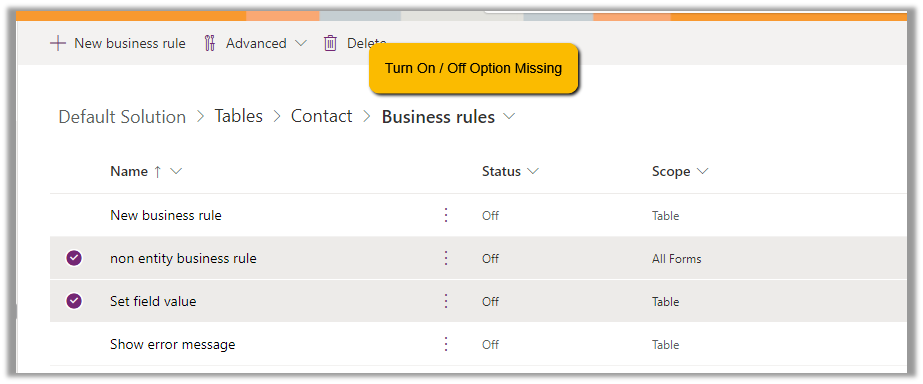
Within the Maker Portal, we can only turn on / turn off one cloud flow at a time.

If we select multiple flows, we do not see that option.

Here we can make use of XrmToolBox’s Bulk Data Update plugin.

Get the required cloud flows to be disabled from the Workflow table having Category as Modern Flow.

Select the required cloud flows (or all flows returned), navigate to the Set State tab, and set the appropriate Status and click on Update records.

Or, from the Advanced Find also we can look for the Processes with the Category as the Modern Flow

And use Activate and Deactivate options (here for a few flows we faced issues while trying to activate even though we used the proper account for doing so)

Hope it helps..

Advertisements

Transitioning from Unmanaged to Managed Solution (Dynamics 365 / Dataverse)


Microsoft has always recommended managed solution(s), apart from the some of benefits that managed solutions offer over unmanaged, Microsoft is also adding features to the managed solution, making it easy for teams to adopt and transition to Managed solutions, like focusing on making the solution import faster and adding ALM-specific features to it.

Let us take a simple example to see it working –

Suppose we have 2 environments, a Test and a Managed environment.

The test environment has 2 unmanaged solutions from different publisher that is already deployed to the target environment as unmanaged.

Source

Target

Ideally, we should be creating 2 copies of production environments, one for creating the new unmanaged solution (s) containing the components to be converted to managed and the other environment where the unmanaged solution (s) will be converted to managed and will be used for testing and validation.

Ref – Dynamics 365 FastTrack Architecture Insights – ALM Transitioning from Unmanaged to Managed Solutions

https://learn.microsoft.com/en-us/shows/dynamics-365-fasttrack-architecture-insights/alm-transitioning-from-unmanaged-to-managed-solutions

Now let us create a new unmanaged solution in the source environment that will combine the components we have in Pub 1 and Pub 2 unmanaged solutions.

Here we can use the wonderful XrmToolBox plugin – Solutions Components Mover.

https://prajapatiamit.medium.com/move-the-components-between-customization-solutions-in-d365-customer-engagement-crm-solution-8f17a1fafb2b

Select source solutions and the target solution (combined) in our case, and click on Copy Components.

Here we have selected all the component types.

Back in our TestEnv, we can see the components of the solution added from Pub 1 and Pub 2 solutions to the combined solution.

Let us export the combined solution as managed.

The other way to create the combined solution would be to “Include all objects” for unmanaged components like custom tables. For managed components, like out-of-the-box tables lead, contact, case, etc, we’d only select the components customized.

Run the below command, to connect to the destination (managedenv) environment.

https://learn.microsoft.com/en-us/power-platform/developer/cli/reference/auth#pac-auth-create

Run the below command, to convert the unmanaged solution to managed.

https://learn.microsoft.com/en-us/power-platform/developer/cli/reference/solution#–convert-to-managed–cm

We can see the managed solution imported successfully to our target environment.

For quick reference –

Unmanaged

Managed

Unmanaged solutions are intended to be used in the development environment.

Managed solutions are intended to be distributed and installed.

Unmanaged solutions can be exported either as managed or unmanaged.

Managed solutions cannot be exported

Components can be directly edited within an unmanaged solution.

Components inside the managed solutions cannot be edited directly. Editing can only be done in the corresponding unmanaged solution or an additional unmanaged solution in dev and then exported and imported as managed in the target environment.

The unmanaged solution can be seen as the source code

A managed solution can be seen as a compiled code.

Deleting an unmanaged solution only deletes the solution container, all unmanaged customizations remain in effect and are applied to the default solution of the environment

Deleting a managed solution removes the customizations from the environment.


Benefits

Benefits

Unmanaged solutions allow for real-time customization directly within the environment.

The managed solution secures the solution components in the environment, by restricting the user from making changes or removing components from it.

Developers can make changes on the fly without the need for importing/exporting solutions

Ability to uninstall/roll back. In case of issues or undesired changes, managed solutions make it easier to roll back to a previous version. This can be crucial for maintaining system stability and ensuring minimal disruption to ongoing operations


The managed solution supports layering allowing multiple solutions to be installed simultaneously without conflicts.


Clearly defined component ownership in the case of multiple publishers/solutions.


Improved solution import performance with reduced performance impact on the environment.

Check the below links for more details

https://learn.microsoft.com/en-us/shows/dynamics-365-fasttrack-architecture-insights/alm-transitioning-from-unmanaged-to-managed-solutions

https://learn.microsoft.com/en-us/power-platform/alm/move-from-unmanaged-managed-alm#convert-an-unmanaged-solution-to-managed

Hope it helps..

Advertisements

Failed deleting solution. Solution dependencies exist, cannot uninstall / Remove unmanaged layer– Dynamics 365 / Dataverse


Recently while trying to delete a managed solution from one of our environments, we got the below error.


Failed deleting solution MainManagedSolution. Solution dependencies exist, cannot uninstall.

Click on View Dependencies.


Click on See solution layers


We can see Active Contacts has a dependency on the custom column, and it is part of an unmanaged layer (default solution) in this case.

Click on Remove active customizations

This will delete the unmanaged customization done in the Active Contact view in the environment. (removes the custom column from the Active Contact view)


Trying again, this time we can delete the Managed solution.

Get more details – Remove an unmanaged layer

Hope it helps..

Advertisements

Enable classic editor for build/release pipelines in Azure DevOps


If you see the classic editor option missing, while creating the pipeline, it is because it would be disabled in the organization settings.

To enable it navigate to Organization Settings >> Pipelines >> Settings

After switching off the settings, we can see the classic editor option.

Get more details –

Hope it helps..

Advertisements

Write an email (Copilot) in Dynamics 365 Customer Service


Using the Write an email functionality of Copilot in Dynamics 365 Customer Service, the agents can quickly create responses, which they can use for their email.

To enable it navigate to Customer Service admin center >> Agent experience >> Productivity >> Copilot help pane (Manage)

Check the For email option and save.

We can see the Write an email tab added to the Copilot help pane. It gets enabled in the context of an email record.

As soon as we open an email, we get predefined prompts like Suggest a call, Request more information along with the option to describe what exactly we are looking for.

Here we have selected Resolve the customer’s problem prompt.

As we have an Average order shipment time case record associated with the email, the copilot refers to the existing published Knowledge base articles specific to shipment to generate the appropriate response.

The corresponding knowledge article.

The agent can click on Copy to copy the response to an email, can review and edit it further (if required), or can start over and can select a different prompt to generate a different response.

Get more details here

Hope it helps..

Advertisements

Ask a Question (Copilot) in Dynamics 365 Customer Service


Agents can use the “Ask a question” functionality from within the Copilot help pane, to ask questions for quick resolution of the case.

To enable it navigate to Customer Service admin center >> Agent Experience >> Productivity >> Copilot help pane (preview) (Manage)

Check Make Copilot available to agents option and save the settings.

Back in Customer Service Hub (or any other apps where we have Copilot enabled), we can see the Ask a Question tab in the Copilot help pane.

We can then post our questions, specific to the case in hand.

Below we can see we have asked for any policy about defective items and the response we received.

It also mentions the source from which it got the response.

The copilot uses the internal (Published) Knowledge Articles to generate the responses.

If we go back to the setting where we enabled the Copilot help pane, we can see the message at the top about the knowledge base articles being used. Apart from the internal Knowledge base, a maximum of 5 trusted domains can be configured and can be used to produce the result.

Get all the details here

Hope it helps.. 

Advertisements