REVIEW: Microsoft Dynamics CRM 2013 Marketing Automation


Hi,

I was very happy to receive the eBook of Microsoft Dynamic CRM 2013 Marketing Automation (Packt Publishing by Alok Singh and Sandeep Chanda) for review few days back.

7227EN_cov

It a mini guide focusing on the Marketing Module of CRM 2013, with around 100 pages divided into 6 chapters. It starts by explaining the challenges faced in marketing and how CRM 2013 can address those challenges. It then explains in detail various feature available in Microsoft Dynamics CRM 2013 that can be leveraged to successful implement the marketing module.It also talks about two of the most popular third party marketplace solution available for marketing module of CRM i.e. ClickDimensions and CoreMotives.

The book is very informative and clearly explains everything that there is in Marketing Module of CRM 2013. The authors are expert and we can clearly see their authority in the subject.

It a must read guide for all the CRM professionals.

Grab your copy here

http://goo.gl/2Ze97E

Bye.


CRM 2013 – Workflow to set the current date and time


Hosk's avatarHosk's Dynamic Blog

This question has popped up in the forums now and again so I thought I would write a blog post on it.

The solution on how to do this is simple, once you know where to look and how it works.  I can understand why some people struggle to find the answer to the question of setting a date field to the current date and time because you don’t see it mentioned very often and it isn’t obvious.

To set the a Date Time value in CRM to a when the workflow was run you can use the dynamic value

Process

Execution Time

This basically does what is says on the tin and sets a Date time value to Execution time of the workflow.

workflow for current date and time

Open up your workflow and choose the Update, select Account entity

To set a field

Select the field and in the example above, I clicked into…

View original post 67 more words

The request for security token could not be satisfied because authentication failed error in CRM while developing Visual Web Part in SharePoint 2013.


Hi,

We recently developed a Visual Web Part which was using OrganizationService to interact with CRM.

We were initially using Network Credentials for OrganizationService and were setting appropriate username, password and domain. Later we changed it to Default Credentials and set the AppPool identity of the SharePoint portal’s app pool to a CRM User with appropriate access. It was then we started getting this error.

The reason was SharePoint web configuration settings has Identity Impersonation set as true.

If impersonation is set as true, then IIS uses the ‘NT AUTHORITY\IUSR’ but if disabled IIS will run under whatever account been set in the identity pool.

So one way of fixing the issue was setting impersonation as false.

Hope it helps.


Fix: NodeRunner.exe processes consume lots of RAM (memory) and CPU


tjenho's avatarTjen Sharepoint Blog

I started SharePoint 2013 development recently. Initially, I only got dual core CPU and 4 GB RAM and as you probably know, it runs very slow. I’m not curious about it cause I expect the performance when you install SharePoint 2013 with less than minimum recommended hardware specification.

Issue

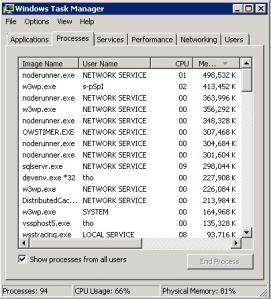
Then .. I fed up with it and upgrade the RAM to 8 GB, but funny things my development box is still runs very slow. I looked into my task manager and found something like below. Several NodeRunner.exe processes consume lots of Memory and CPU.

TaskManagerNodeRunner

Solution

  1. Open SharePoint 2013 Management Shell and type in:
    Set-SPEnterpriseSearchService -PerformanceLevel Reduced
  2. Open NodeRunner process configuration file below in Notepad
    C:Program FilesMicrosoft Office Servers15.0SearchRuntime1.0noderunner.exe.config.
    Update <nodeRunnerSettings memoryLimitMegabytes=”0″ />.
    This is the configuration to limit NodeRunner process memory usage, replace to acceptable number like 100 or 150.
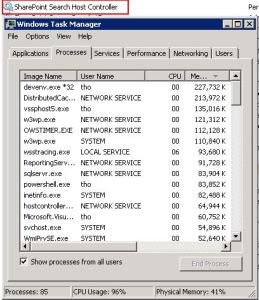
  3. Restart SharePoint Search Host Controller service.
    TaskManagerNodeRunner2

NOTE: I’ve…

View original post 52 more words

Simple example of configuring Enterprise library Caching Block.


Download the Enterprise Library 5 from here

http://www.microsoft.com/en-in/download/details.aspx?id=15104

Create a new windows application.

We need the configuration information to setup the caching.

Open the EntLib Configuration console.

Open the app.config file of the windows application created.

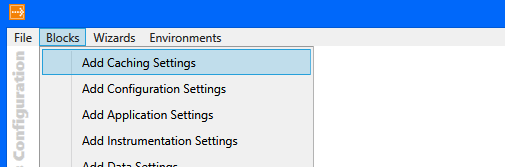
Select Blocks à Add Caching Settings

It will add the required configuration information to the config file of the windows application.

Sample code implementing Caching block to save dictionary object in Cache.


public static class Configuration
{
public static Dictionary<string, string> GetConfigSettings()
{
// get the cache manager
ICacheManager cacheManager = CacheFactory.GetCacheManager();
var configSettings = (Dictionary<string, string>)cacheManager["configSettings"];

if (configSettings == null)
{
configSettings = new Dictionary<string, string>();
configSettings.Add("key1", "value1");
configSettings.Add("key2", "value2");

// add the dictionary object
cacheManager.Add("configSettings", configSettings);
}
else
{
// get from the configsettings object from the cache
configSettings = (Dictionary<string, string>) cacheManager["configSettings"];
}

return configSettings;
}
}

Bye.


PlatformNotSupportedException error while writing unit test for SharePoint 2013.


Hi,

Got the below error while writing unit test.

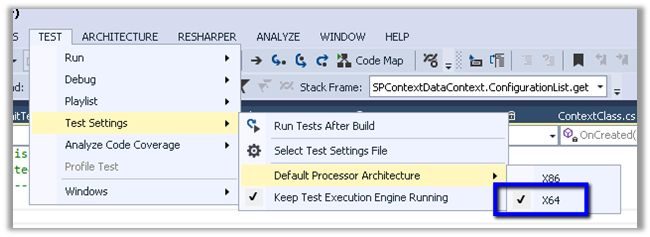
The solution was to set the Default Processor Architecture of the test project to X64.

Hope this helps.