Fixed – CRM service call returned an error: The server is busy and the request was not completed. Try again later while inserting records using CRM Destination Component of KingswaySoft’s SSIS Integration Toolkit for Dynamics 365


While running one of our package we got the below error in few of the records

“CRM service call returned an error: CRM service call returned an error: The server is busy and the request was not completed. Try again later. (Error Code: -2147180543, Detail Message: The server is busy and the request was not completed. Try again later.)”

“CRM service call returned an error: CRM service call returned an error: The request channel timed out while waiting for a reply after 00:01:59.7991956. Increase the timeout value passed to the call to Request or increase the SendTimeout value on the Binding. The time allotted to this operation may have been a portion of a longer timeout. (Error Type / Reason: Timeout)”

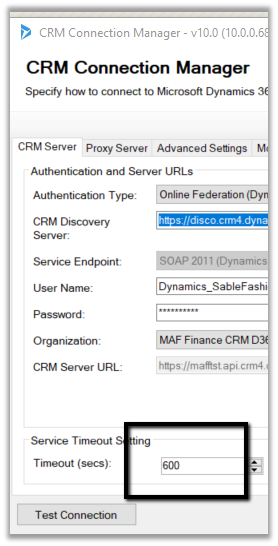
One way to get around this error is to increase the Timeout (secs) in the Service Timeout Setting of CRM Connection Manager.

We updated it to 600 seconds and the number of records that failed got drastically reduced.

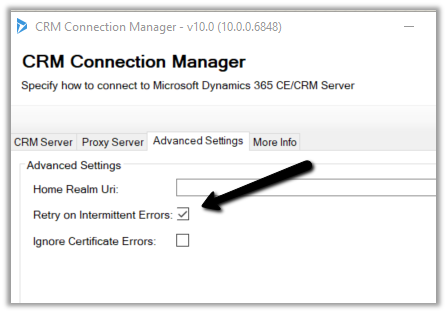
Also make sure that following option is checked

Hope it helps..

Advertisements

Lookup not getting set while using CRM Destination Component of KingswaySoft’s SSIS Integration Toolkit for Dynamics 365


Recently while inserting a custom entity (Transaction) records using the CRM Destination Component we realized that Contact’s lookup was not being set.

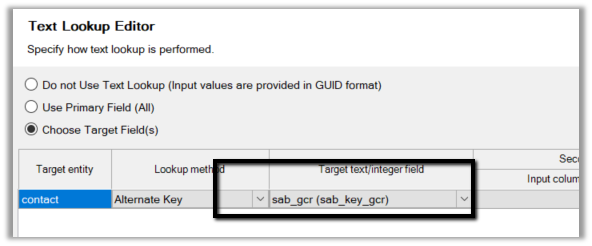
We were using Alternate Key to set the lookup as shown below

To get it working we had to uncheck the Remove Unresolvable References option from the Optional Settings of CRM Destination Component. It seemed that it ignored it, even though values were there for the GCR (alternate key field) in the input source.

https://www.kingswaysoft.com/products/ssis-integration-toolkit-for-microsoft-dynamics-365/help-manual/crm/destination

I think it might not be working as expected in case if lookup is done using Alternate Key.

BTW, I would strongly recommend using KingswaySoft’s SSIS Integration Toolkit for any or all data integration tasks. It is definitely the best tool out there.

Give it a try à

https://www.kingswaysoft.com/products/ssis-integration-toolkit-for-microsoft-dynamics-365/download

Hope it helps..

Dynamics 365 CE (CRM) Data Anonymization: Anonymize sandbox data (copied from production) to meet data security standards like GDPR


Prashant Maurya's avatarPrashant Kumar Maurya

We all have faced situation in when we need to replicated Dynamics 365 production environment to a lower/sandbox environment for distinct reasons like

  1. To reproduce and debug productions issue in a lower environment.
  2. To create a preprod environment replica of production environment.
  3. To create a development environment from production environment. etc.

And to protect confidential customer data we do masking of confidential information before we share this environment to dev/test/support/another team. This masking activity is very tedious and time-consuming, one can do it manually or can right some code logic to do so.

Thanks to KingswaySoft, they have created an excellent SSIS component “Data Anonymizer” that can make things simple.

How to use Data Anonymizer Step by Step: I assume that the person reading this blog has basic knowledge of SSIS, as it is very focused on Data Anonymizer component.

  1. Before you start you also need another component

View original post 162 more words

Fixed – View Designer not showing SSIS Package in Design mode in Visual Studio


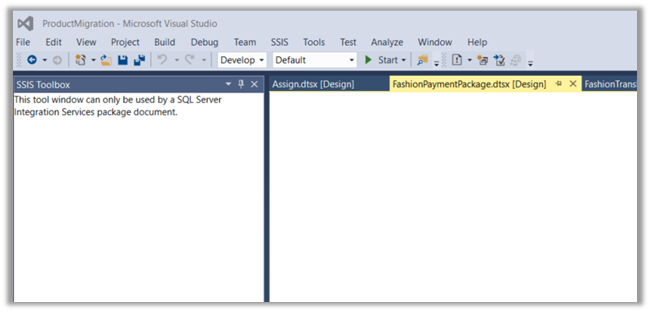
Time to time we’d see our Package not opening in Designer mode in Visual Studio.

To fix this,

Add the package again in the solution or restart the Visual Studio.

Hope it helps..

Advertisements

Security Nuances with Manager Based Hierarchy in Dynamics 365


Interesting read on Manager Based Hierarchy ..

Debajit's avatarDebajit's Dynamic CRM Blog

Manager Hierarchy was introduced way back with 2015 Online Update 1. And you might be wondering why this blog after years this feature has been introduced?

Well I can assure you, you won’t be disappointed after reading this blog. In this blog I will explain in detail the manager security nuances from my personal experience with project implementations and training. I am not going to explain how Manager security works. I am just going to explain the security nuances and how it works in multiple scenarios.

To explain my point, I have the below data set-up in my environment.

To put in simple terms, any of the records which does not meet the above four conditions is not affected by Manager Hierarchy. So the records which the reportee gains access due to his security prvileges (Business Unit/ Parent child/ organization) are not affected by this. Confused? Don’t worry. We will…

View original post 365 more words

How to – Use Lookup Transformation and Cache Transformation in SSIS for Dynamics 365 (using Kingswaysoft)


Recently while working in data migration project, we had a requirement to insert a record in CRM from SQL Database and assign it to the team insert.

For e.g.

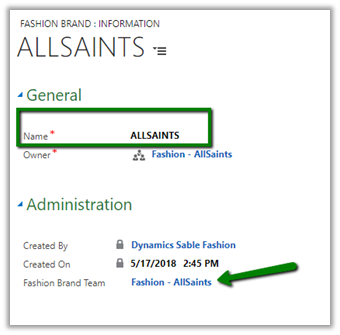
We had a Transaction Record that had a Brand lookup in it i.e. n – 1 relationship.

And the Brand record had a lookup of Team in it again n – 1. So basically, while inserting the transaction record we wanted to assign the record to the team of the corresponding brand in it.

So, for this, we had to set the owner id and owner id type field while inserting the record.

And for owner id i.e. team GUID we had to do a lookup on the Brand entity.

To achieve so, we did the following step

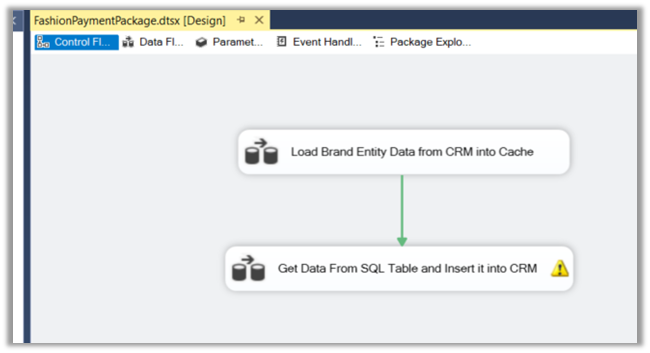
Added 2 Data flow task in the Control Flow, one for Caching the Brand entity’s detail and other for using the fetching data from SQL DB, Lookup Transformation task and inserting the data into CRM.
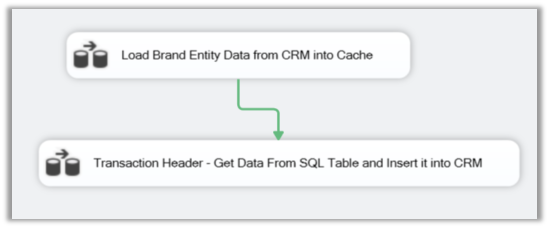
For the first data flow task,

We added the Dynamics CRM Source and fetched the Brand Name and Team Lookup’ GUID field.
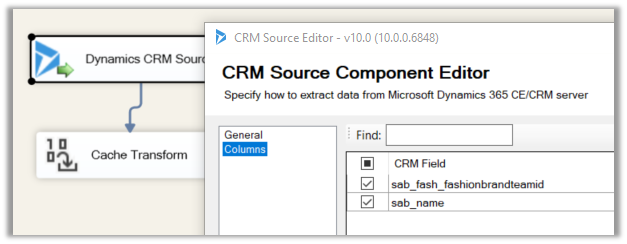
name field which will be used for mapping and teamid field whose value we need from it.

Then we added a Cache Transform task with following details,
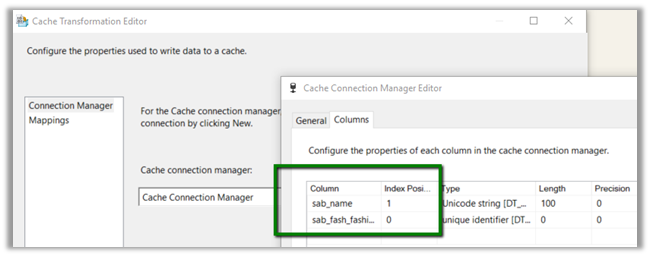
Now for our second data task flow,
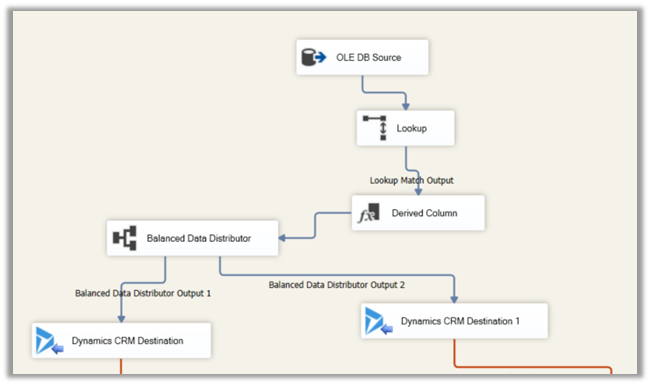
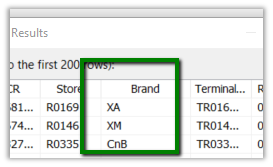
First, we added the OLE DB Source to fetch data from the source SQL View, having Brand (string) column in it.
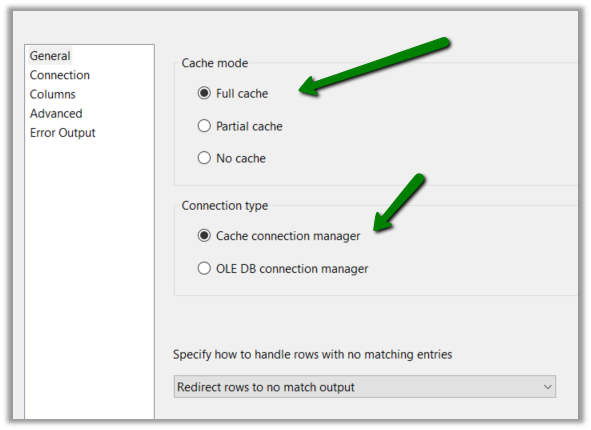
Then we added the Lookup Transformation task with following properties,
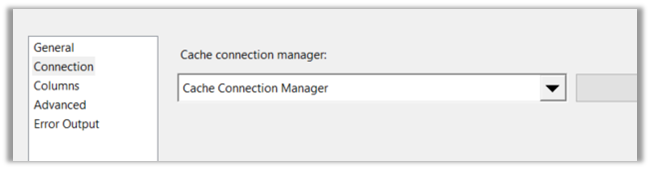
Setting Connection to Cache Connection Manager defined earlier.
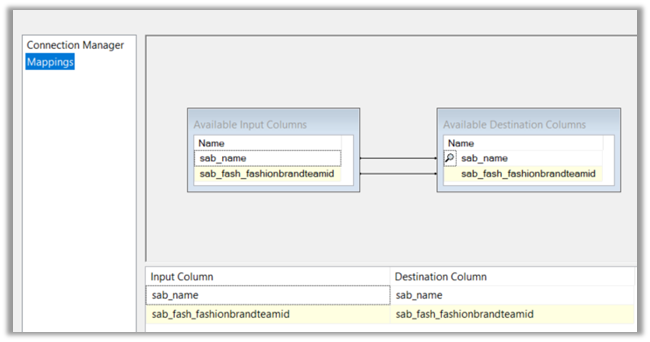
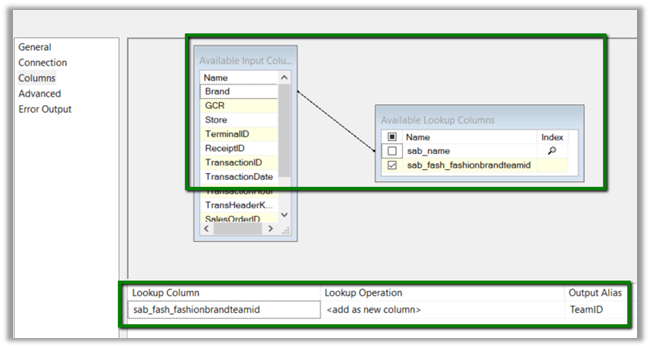
Now the most important part, the columns properties. Here we defined the mapping between the Brand field of the SQL View and name field of the Brand Entity of CRM and selected the teamid field as the lookup column whose value we would like to fetch as shown below.
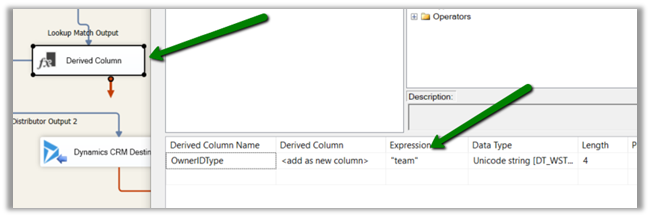
Then we added Derived Column task to add one more column for specifying ownerid type field to be used in CRM Destination Component while mapping. We defined the field type as string and hardcoded the value as “team”.
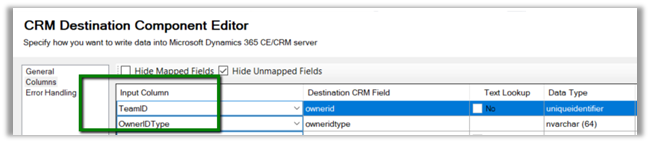
And as the final step mapped the above fields to the corresponding ownerid and owneridtype field in CRM Destination Component for Create operation.
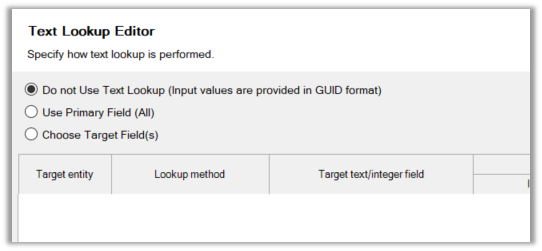
For ownerid, we selected the below option as we were setting the GUID of the team.
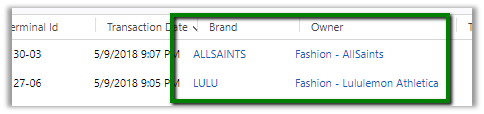
On running the package, we can see the transaction records getting created and properly assigned to the corresponding team of the brand.

The transaction record with Team set as Owner.
Brand record with Team lookup in it.
Hope it helps..

Advertisements