How to – Use RetrieveRecordChangeHistoryRequest to get Audit Detail in Dynamics 365 CE


Just sharing a sample code to retrieve the Audit Detail using RetrieveRecordChangeHistoryRequest.

RetrieveRecordChangeHistoryRequest changeRequest = new RetrieveRecordChangeHistoryRequest();
changeRequest.Target = new EntityReference("entitySchemaName", "entityId"));
RetrieveRecordChangeHistoryResponse changeResponse =
(RetrieveRecordChangeHistoryResponse)_service.Execute(changeRequest);

AuditDetailCollection auditDetailCollection = changeResponse.AuditDetailCollection;

foreach (AttributeAuditDetail attrAuditDetail in auditDetailCollection.AuditDetails)
{
var auditRecord = attrAuditDetail.AuditRecord;

Console.WriteLine("Entity: " + ((EntityReference)auditRecord.Attributes["objectid"]).LogicalName);
Console.WriteLine("Operation: " + auditRecord.FormattedValues["operation"]);
Console.WriteLine("Action: " + auditRecord.FormattedValues["action"]);

var newValueEntity = attrAuditDetail.NewValue;

foreach(var attrNewValue in newValueEntity.Attributes)
{
Console.WriteLine("New Key: " + attrNewValue.Key + "New Value: " + attrNewValue.Value);
}

var oldValueEntity = attrAuditDetail.OldValue;

foreach (var attrOldValue in oldValueEntity.Attributes)
{
Console.WriteLine("Old Key: " + attrOldValue.Key + "Old Value: " + attrOldValue.Value);
}
}


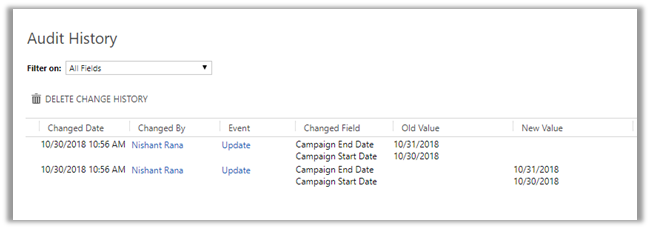
The record whose Audit History we are retrieving :
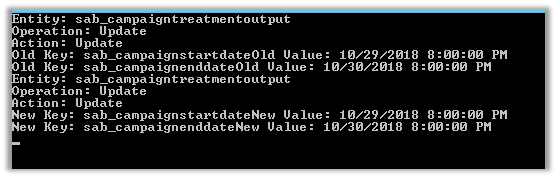
Output :
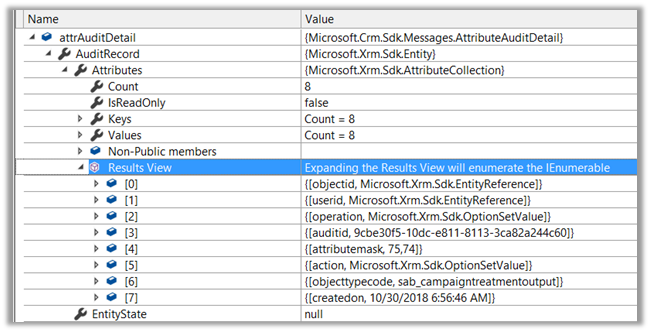
AuditDetail.AuditRecord :
AuditDetail.OldValue n NewValue:

Hope it helps..

Advertisements

Using the Content Access Level for KB Articles in Customer Self-Service Portal


Suppose we have already configured Portal, created contacts and associated KB article to the Portal.

Now the scenario we want to implement is we want a particular user to have access to all the KB article and another user to only specific KB Articles.

For this, we will make use of Content Access Level concept of the portals.

Content access level can be assigned to KB Article and can also be assigned to the Contact Users.

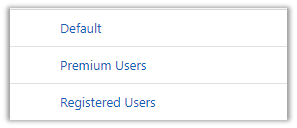
There are 3 content access levels OOB, we can also create our own content access levels.

We have 2 users in our portal, one user we have assigned Default content access level and to another user, we have assigned Premium Users content access level.

Now let us associate content access level to the KB Article.

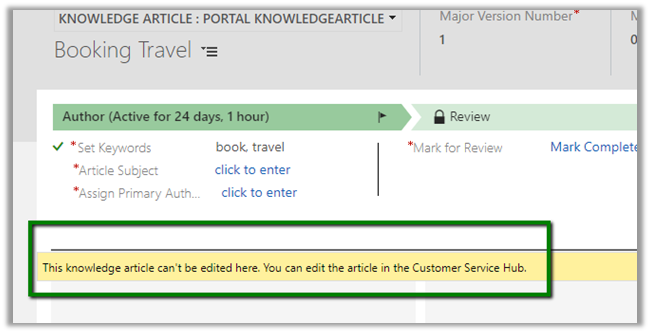
If we try to edit the KB Article in the Web, we will be presented with the following information

Let us open the Customer Service Hub

The other challenge we will face here is the default and the only form being displayed inside the Customer Service Hub for the KB Article doesn’t include the section or sub-grid for Content Access Level.

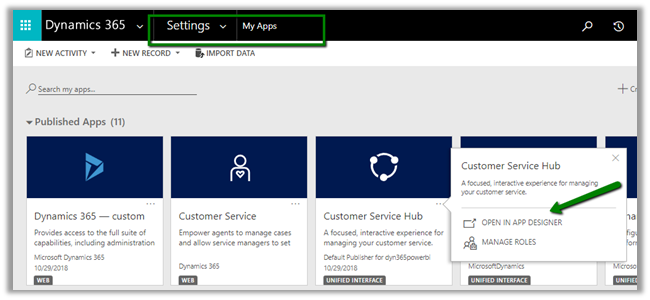
To add the Portal Interactive Experience Form, open the Customer Service Hub app in app designer (Settings à My Apps) and add the form, followed by Publish.

Now let us update our KB Article and associate content access levels.

Now the most important step, enabling the Content Access Levels for the website.

Navigate to Portals à Site Settings and set Value field as True.

With all the required configuration done, let us search for the keyword booking in the portal for both the users.

  • User 1 (on the left)à Default Users CAL and User 2 à Premium Users CAL
  • Booking Travel KB Article à Premium Users CAL.

The article is accessible only to User 2.

Now search for Instruction Manuals and Drivers KB Article which has both Default and Premium Users CAL.

As expected the article is accessible to both the users

More articles on Portals

https://nishantrana.me/2017/03/07/portal-blog-post-list/

Hope it helps..

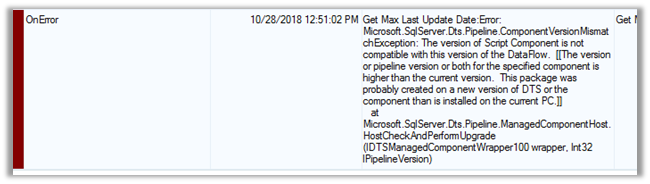
Solved – Microsoft.SqlServer.Dts.Pipeline.ComponentVersionMismatchException: The version of the Script Component is not compatible with this version of the DataFlow


While trying to run one of our SSIS Packages from SQL Server Job, which had script component in it, we got the below error. It was running fine within the SSDT in our Dev Machine. In fact, the other packages deployed to SSISDB were also running fine, the ones which were not using the Script Component.

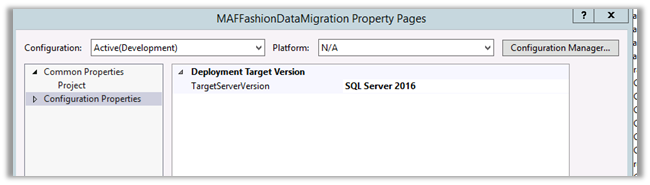
To fix it, we updated the project version of SSDT to match the SQL Server where we were deploying the package inside Project Properties.

To find the SQL Server version.

And deployed
only that package instead of the project in SSISDB.

However, on running the package from within the SQL Server again, threw the same error. We tried a few other things like opening the same package in SSDT in the Server and then try deploying that particular package from there. We also tried by deleting the existing the script component in the package and using the script component that was available in the toolbox in SSDT in the Server.

The package clearly showed the difference in the version for the Script Component. However again deploying that single updated package gave the same mismatch exception.

Eventually, we then deployed the Project (after updating the Target SQL Server version to the Server’s SQL version) and not the individual package. And it ran successfully this time.

So basically we need to make sure our target version is correct and deploy the entire Project to fix this issue in our case.

Hope it helps..

Advertisements

Azure: Copy data from one database to another using Azure Data Factory – II


Ajit Patra's avatarAjit Patra

In the previous post, we discussed how to create Azure SQL Server and Azure SQL Database. Now that we are ready with source data/table and destination table, let’s create Azure Data Factory to copy the data.

3. Azure Data Factory:

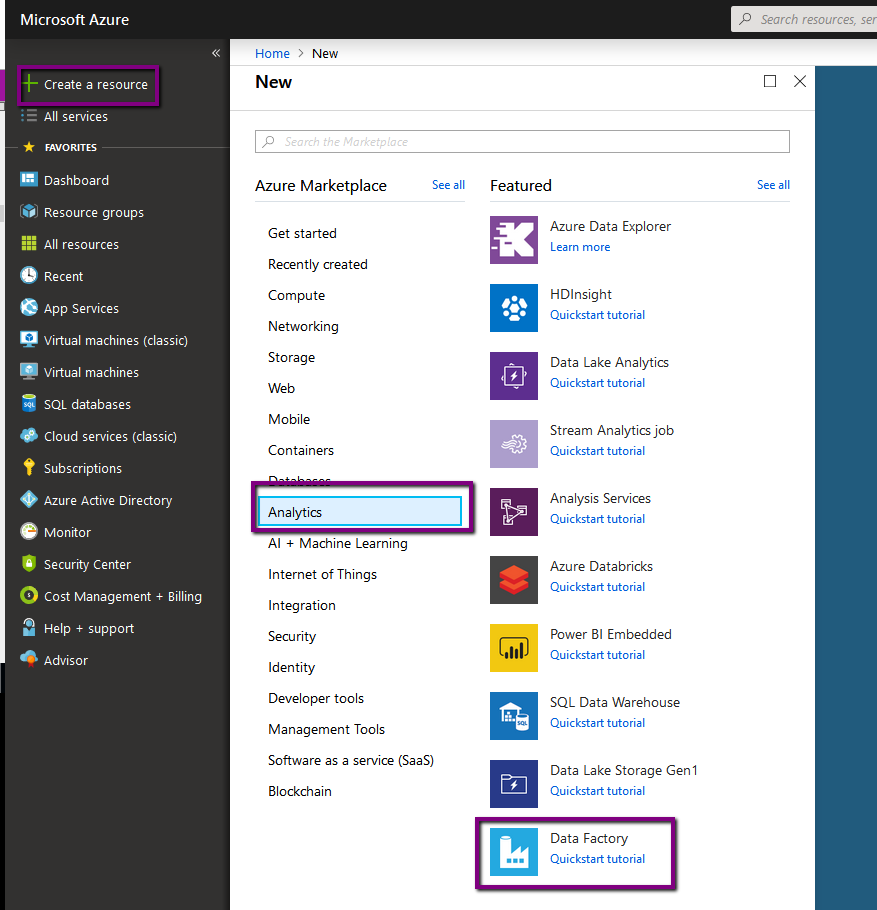
Click on Create a resource –> Analytics –> Data Factory

aa

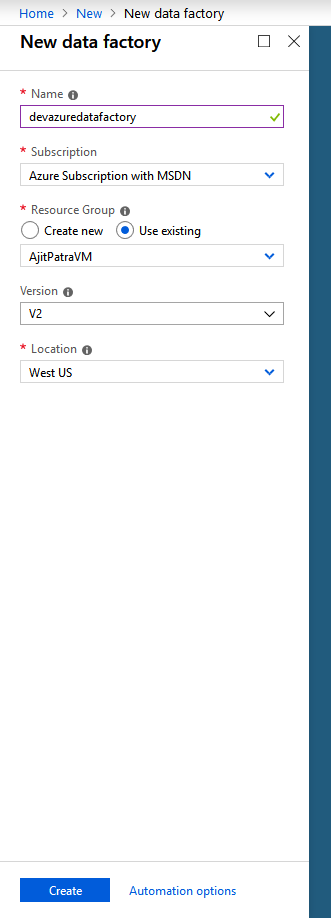
Fill the mandatory fields and click Create

a1

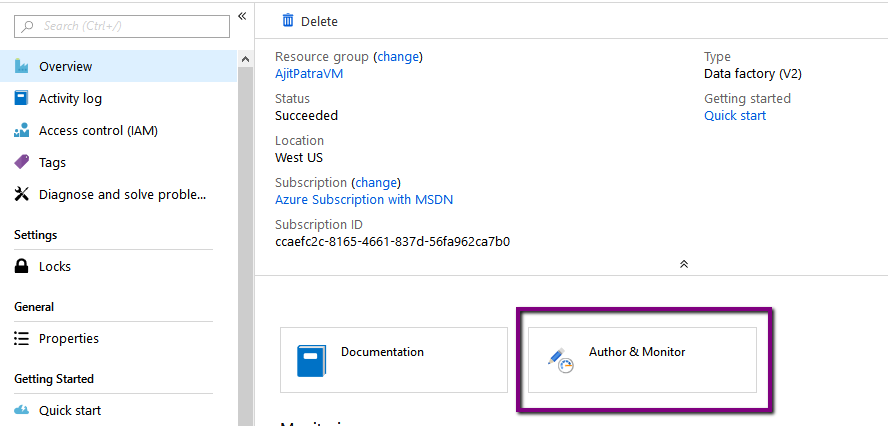
After creating data factory, let’s browse it.Click on Author and Monitor.

aaaa

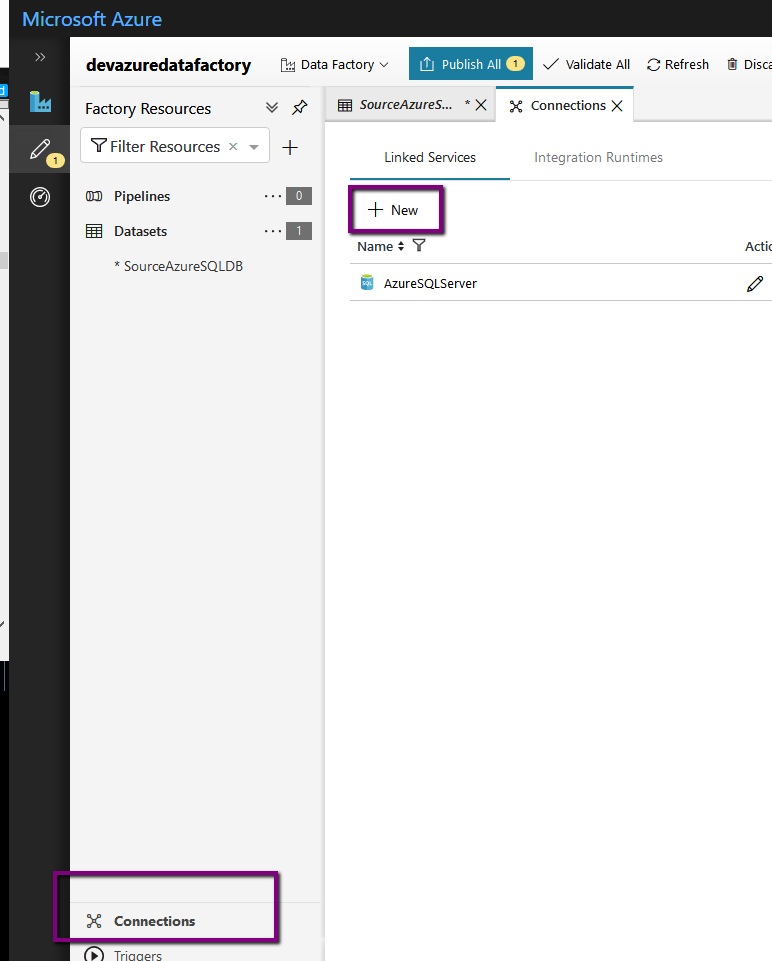
Click on Author icon on the left –> Click on Connections –> Click on +New under Linked Services tab to create a new linked service.

bb

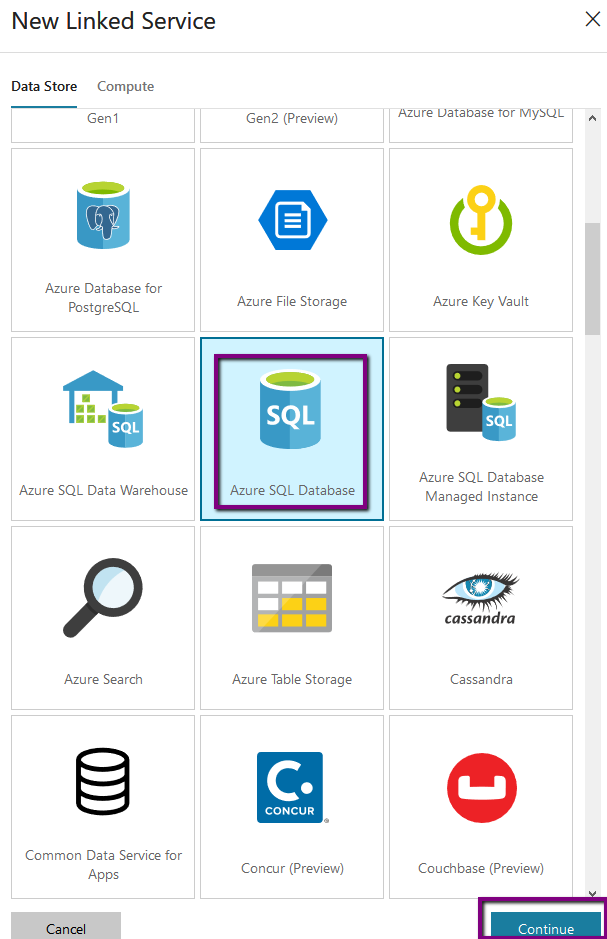
Select Azure SQL Database — >Click Continue.

cc

Fill the mandatory fields in the next screen. Fill below details on the screen from the previous post:

  • Server Name: Azure SQL Server
  • Database Name: SourceSQLDB
  • Username and Password: SQL Authentication Credential used while setting up Azure SQL server

Click on Test Connection. Once it’s successful…

View original post 682 more words

Fixed – Windows 10 Remote Desktop (RDP) not saving credentials.


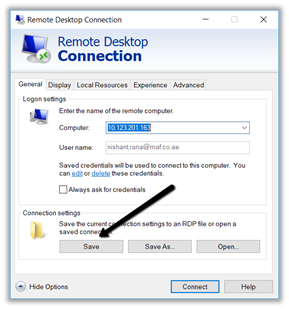
Recently even after saving the credentials in connection settings to an RDP file, every time we were opening it, it was asking us to enter the password.

The below steps helped us to fix the issue.

Open Windows Group Policy Editor (gpedit.msc) from the command prompt.

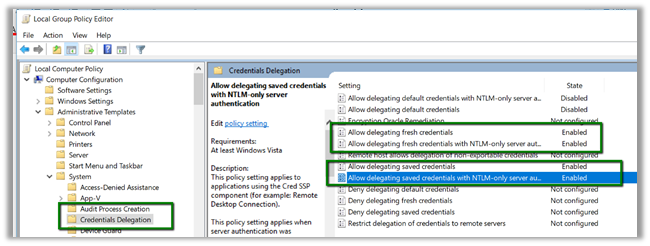
Go to Local Computer Policy – Administrative Templates – System – Credentials Delegation.

Click on Allow delegating fresh credentials, select the option Enabled. Click on Show button and add the value TERMSRV/*

Repeat the step for

  • Allow delegating fresh credentials with NTML – Only server authentication
  • Allow delegation saved credentials
  • Allow delegating saved credentials with NTML – Only server authentication

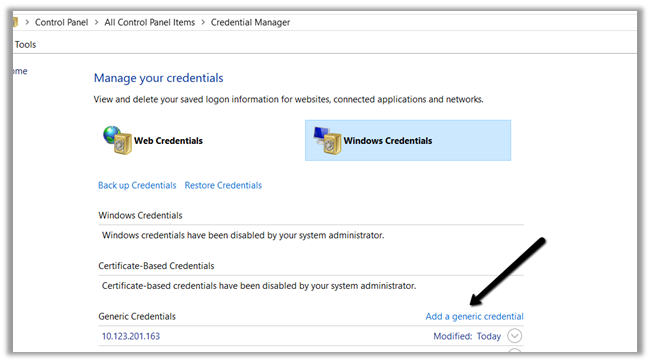
Then open Credential Manager from the command prompt and a windows credential.

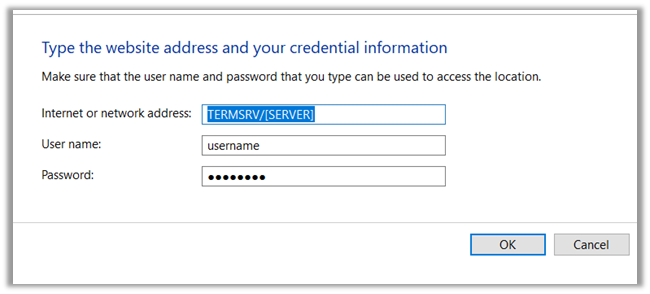
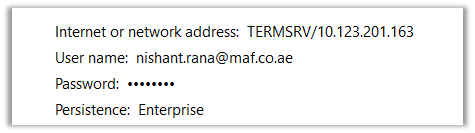
Add a generic credential as shown below

e.g.

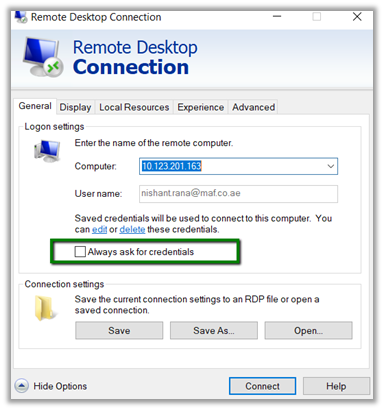
Lastly make sure prompt for credentials is set to 0.

After making these changes we were able take RDP to the server without it asking for password.

Hope it helps..

Advertisements
Advertisements

Deploying Package to SQL Server Integration Services Catalog (SSISDB) from Visual Studio (SSDT)

Deploying packages to SQL Server from SSDT is straightforward. We can either deploy the project or an individual SSIS Package i.e. Project Deployment or Package Deployment. (SQL Server 2016 Onwards).

Here we will see the package deployment.

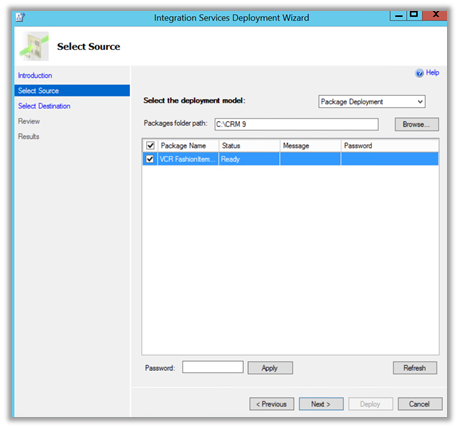
Right-click the package that we would like to deploy and select Deploy Package.

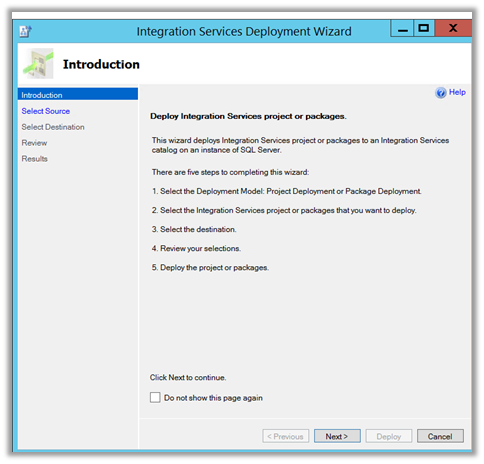
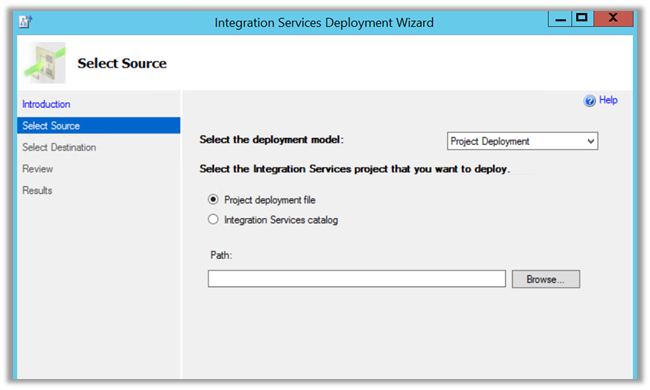
This opens the Integration Services Deployment Wizard

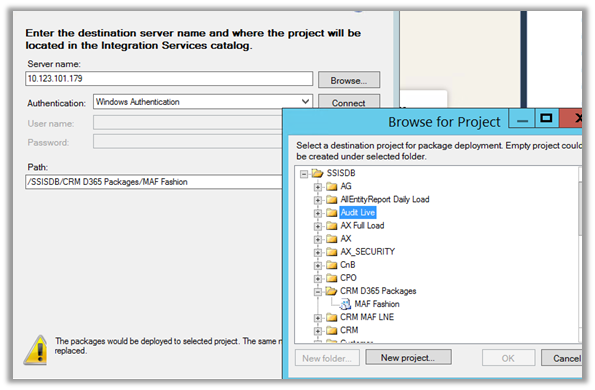
Click on Next and Specify Server Name and the credentials to connect to the SQL Server an click on Connect.

For the Path specify the existing Project or create a new Project in SSID where we would like to deploy our packages.

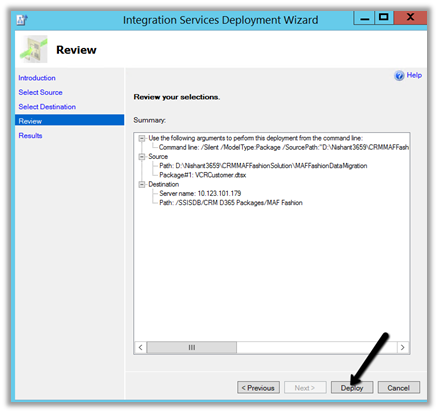
Review the details and if all the information is correct, click on Deploy.

The result page would show the status of the deployment.

Inside Integration Service Catalogs we can see our Package Deployed.

Another option for deploying the package is through the Deploy Project option of the Project inside SQL Server Management Studio’s SSIDB node.

It will open the Integration Service Deployment Wizard.

And after selecting the Package folder we can click on Next and follow the wizard as we had done earlier to deploy the package.

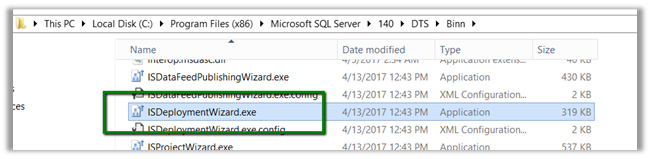
We can also run the Wizard directly from Windows Explorer or command prompt – IsDeploymentWizard.exe

Through Stored Procedure à

catalog.deploy_packages

[catalog].[deploy_packages] [ @folder_name = ] folder_name, [ @project_name = ] project_name, [ @packages_table = ] packages_table, [ @operation_id OUTPUT ] operation_id OUTPUT ]

Through Management Object Model API.

Hope it helps..