Sample Code to retrieve instances using Online Management API in Dynamics 365 Customer Engagement


With version 9.0 of Dynamics 365 CE we now have Online Admin API that supports the following operations like Create, Retrieve, Delete, Backup and Restore instances. The user needs to have the Global Administrator or Service Administrator role in the Office 365 tenant to perform these operations.

As a first step we need to register the application with Azure Active Directory.

https://nishantrana.me/2016/11/13/register-a-dynamics-365-app-with-azure-active-directory/

and get the values for

Client Id and Authority.

Get the Service URL here

https://docs.microsoft.com/en-us/dynamics365/customer-engagement/developer/online-management-api/get-started-online-management-api#service-url

Sharing a sample code which can be used to retrieve all the instances in a specific tenant.

The sample code: –


public class MySampleApp
{

private const string Resource = "https://admin.services.crm.dynamics.com/";

// username and password
private const string UserName = "username.onmicrosoft.com";
private const string Password = "password";

// client id and authority of the application registered
private const string ClientId = "b2c5028d-57e6-4df7-9940-3243214948b";
private const string Authority = "https://login.microsoftonline.com/3432432e2-5fbe-4b78-a55a-bcb342d4f859/";

private static AuthenticationResult _authResult;

private static void Main(string[] args)
{
var authContext = new AuthenticationContext(Authority, false);
var credentials = new UserCredential(UserName, Password);

// Get the token
_authResult = authContext.AcquireToken(Resource, ClientId, credentials);

Task.WaitAll(Task.Run(async () => await GetInstances()));
}

private static async Task GetInstances()
{
var httpClient = new HttpClient
{
BaseAddress = new Uri(Resource),
Timeout = new TimeSpan(0, 2, 0)
};

httpClient.DefaultRequestHeaders.Add("OData-MaxVersion", "4.0");
httpClient.DefaultRequestHeaders.Add("OData-Version", "4.0");
httpClient.DefaultRequestHeaders.Accept.Add(new MediaTypeWithQualityHeaderValue("application/json"));
httpClient.DefaultRequestHeaders.Authorization = new AuthenticationHeaderValue("Bearer",
_authResult.AccessToken);

var retrieveResponse =
await httpClient.GetAsync("/api/v1/instances");

if (retrieveResponse.IsSuccessStatusCode)
{
var jRetrieveResponse =
retrieveResponse.Content.ReadAsStringAsync().Result;

var result = JArray.Parse(jRetrieveResponse);
foreach (var data in result)
Console.Write("Id " + data["Id"] + "\nUnique Name " + data["UniqueName"]);
}
}
}

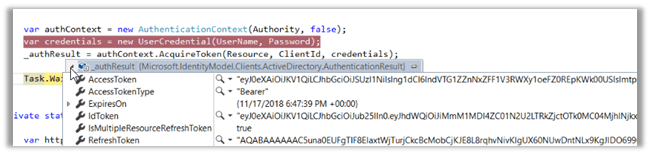
Result: –
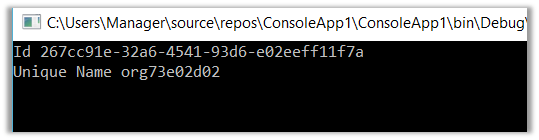
The other properties: –

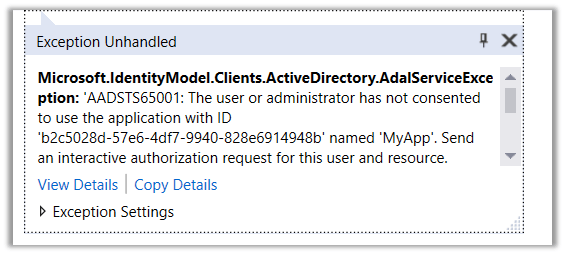
Microsoft.IdentityModel.Clients.ActiveDirectory.AdalServiceException: ‘AADSTS65001: The user or administrator has not consented to use the application error in Dynamics 365 CE


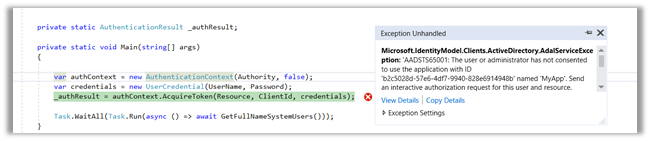
Suppose, we have just registered an application in Azure Active Directory and trying to acquire the token and get the below error

Microsoft.IdentityModel.Clients.ActiveDirectory.AdalServiceException: ‘AADSTS65001: The user or administrator has not consented to use the application with ID ‘b2c5028d-57e6-4df7-9940-828e6914948b’ named ‘MyApp’. Send an interactive authorization request for this user and resource.

This is because admin consent is required before the application can be used. This could be granted by global administrator.

One of the ways to do so is through the URL with the specific format as shown below

https://login.microsoftonline.com/[tenantid]/oauth2/authorize?client_id=[appId]&response_type=code&redirect_uri=[redirctURL]&resource=[resourceURL]&prompt=admin_consent


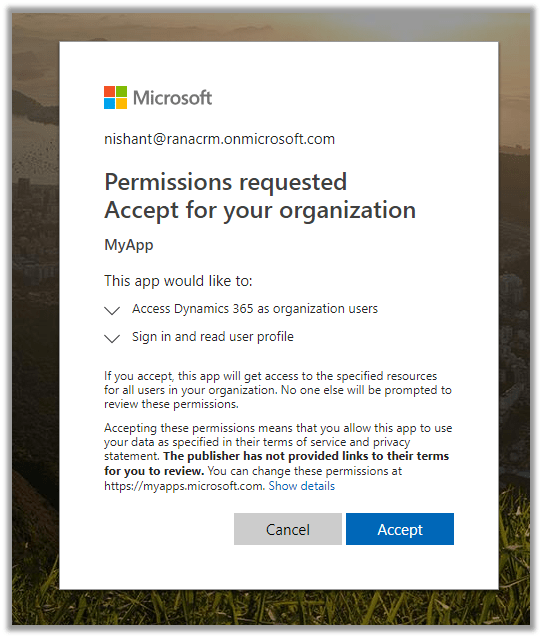
Pasting this URL in the browser will prompt for the credential, login will global administrator and we will be presented with the following consent box

Clicking on Accept will grant the required permission to the application registered.

Hope it helps..

Azure: Execute SSIS Package using Azure Data Factory – Part 2


Ajit Patra's avatarAjit Patra

In the previous post, we created the required Azure resources. In the last step of the previous post, we created Azure SSIS IR which is basically responsible for creating SSISDB in the Azure SQL Server where we’ll deploy the SSIS package.

In this demo, we are going to execute a SSIS package which will load the data from source table ([SalesLT].[Customer]) to the destination table([dbo].[Customer]). So, let’s create the Customer table in destination database with the same schema as that of Customer table in source database using the below script.


Once done, let’s create one SSIS package using SSDT which will load the data from [sourcedev].[SalesLT].[Customer] to
[destinationdev].[dbo].[Customer].

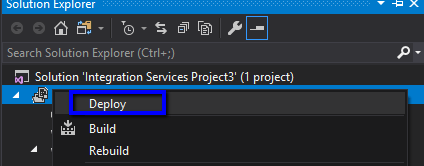
After creating the package, let’s deploy the package from SSDT to the SSISDB database using Deployment Wizard. In Solution Explorer,Right Click on the Project and Click Deploy.

Fill the Azure SQL Server name, credential and click on Connect

View original post 387 more words

Sample code to use RetrievePrincipalAccess Function to get the access rights of the team or user in Dynamics 365 CE


We can use RetrievePrincipalAccess function in Web API to get the access rights of either a user or team on a specific record.

The sample code:


var req = new XMLHttpRequest();

req.open("GET", Xrm.Page.context.getClientUrl() + "/api/data/v9.1/systemusers(D38F5B76-C22E-4256-AF90-CFD14B6589BF)"+
"/Microsoft.Dynamics.CRM.RetrievePrincipalAccess(Target =@Target)?"+ 
"@Target={ 'accountid': '8CB09F67-EB90-E811-A963-000D3AD1CBD6', '@odata.type': 'Microsoft.Dynamics.CRM.account' } ", false);

req.setRequestHeader("OData-MaxVersion", "4.0");
req.setRequestHeader("OData-Version", "4.0");
req.setRequestHeader("Accept", "application/json");
req.setRequestHeader("Content-Type", "application/json; charset=utf-8");
req.onreadystatechange = function () {
if (this.readyState === 4) {
req.onreadystatechange = null;
if (this.status === 200) { 
var results = JSON.parse(this.response);
} else { 
Xrm.Utility.alertDialog(this.statusText);
}
}
};
req.send();

Result:

Hope it helps..

Limitations of Business Rule with Mobile App


Phani Rajasekhar's avatarPhani Rajasekhar

One of our customer reported that couple of Business Rules are not working in Mobile app which are working perfectly in Web application. Spent so much time to understand the problem with Mobile app and finally figured out that one tab on the contact form is not loaded in mobile app because of maximum 5 tabs allowed limitations. Some fields that we are referring in the  business rules are part of this missing tab. So, business rule trying to lock (unlock, mandatory, setvalue etc.,) the field which is not loaded on the form and failing. Finally we decided to create a new form by considering the limitations with mobile app and the business rules that we implemented.

Below are the limitations of Forms in mobile app

  • You shouldn’t have more than 75 fields on the Form
  • You shouldn’t have more than 5 tabs on the Form
  • You shouldn’t have more…

View original post 46 more words

Fixed – The following job steps cannot be reached with the current job step flow logic in SSIS


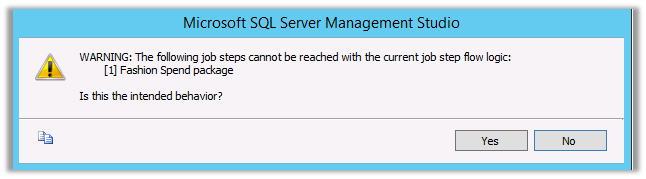
Recently while scheduling our SSIS Packages in SQL Server Agent Jobs we got the below error

WARNING: The following job steps cannot be reached with the current job step flow logic:

[1] Fashion Spend package

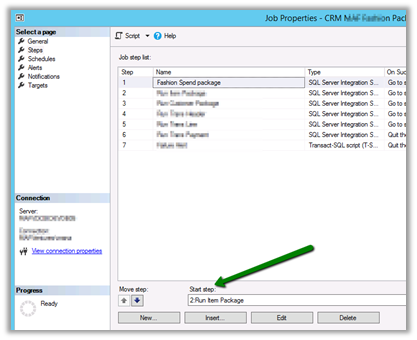
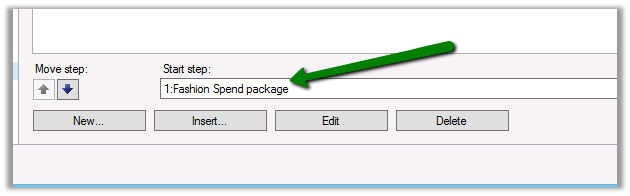
We just need to make sure that we have set correct package in the Start Step properties in Job Properties Dialog Box

To: –

Hope it helps..

Advertisements