Using the PowerApps checker PowerShell Module to validate the solution


Using PowerApps Checker PowerShell Module we can perform the solution check functionality from outside the PowerApps Maker Portal. This can be useful for automated build and release pipelines. Apart from that some of the notable capabilities of the module include

  • Support for both managed and unmanaged solution.
  • Support for On-Premise.
  • Support for more than one solution at a time.

To get started à

Open the PowerShell (as administrator) and install the module

  • install-module Microsoft.PowerApps.Checker.Powershell

Next, we need to register an Azure Active Directory application in a tenant with PowerApps or Dynamics 365 licensing, even if it is on-premise environment (solution) against which we want to run it.

  • Login to Azure Portal

https://portal.azure.com

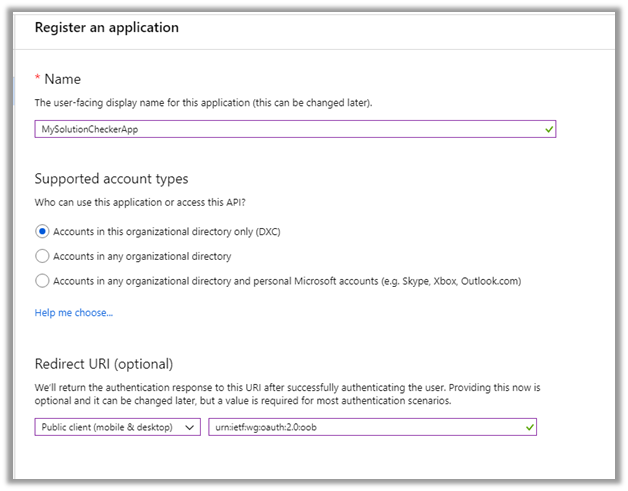
  • Click on New registration to register a new application

  • Provide the below details

Redirect URI

  • Type: Public client (mobile & desktop)
  • Redirect URI: urn:ietf:wg:oauth:2.0:oob
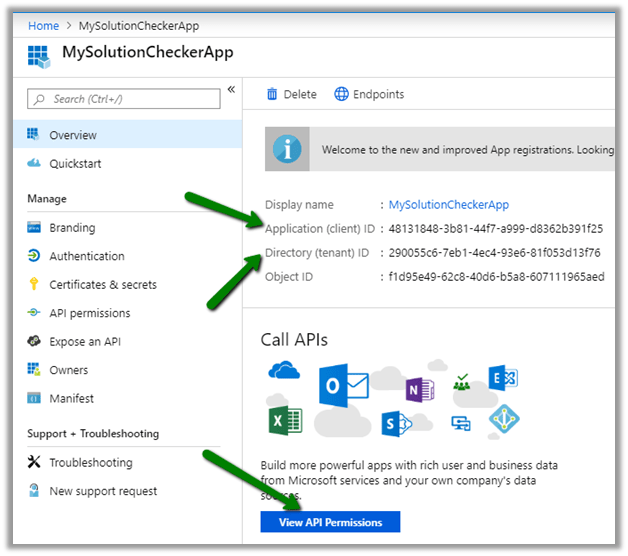
Copy the values of Application id and Directory (tenant) Id which we will use later and click on View API Permission to give the required permission to the app.
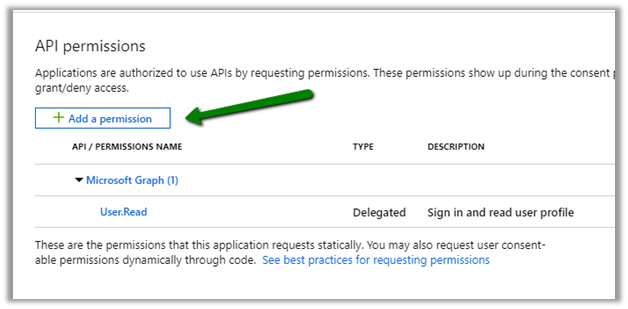
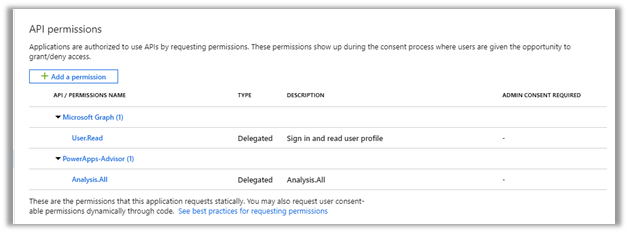
Click on Add a permission (we’d see Sign and read user profile added by default)
API level permissions to the PowerApps-Advisor first party Microsoft AAD application

  • Application permissions to Analysis.All

Permissions à
PowerApps solution checker uses Solution checker rule set. Here we are getting all the rulesets available passing our tenant’s id.
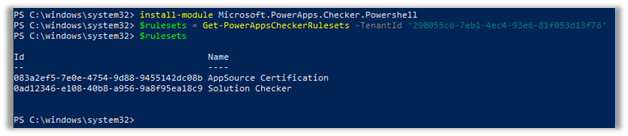
  • $rulesets = Get-PowerAppsCheckerRulesets -TenantId ‘290055c6-7eb1-4ec4-93e6-81f053d13f76’

We wil be using Solution Checker rule set here.

  • $rulesetToUse = $rulesets | where Name -EQ ‘Solution Checker’

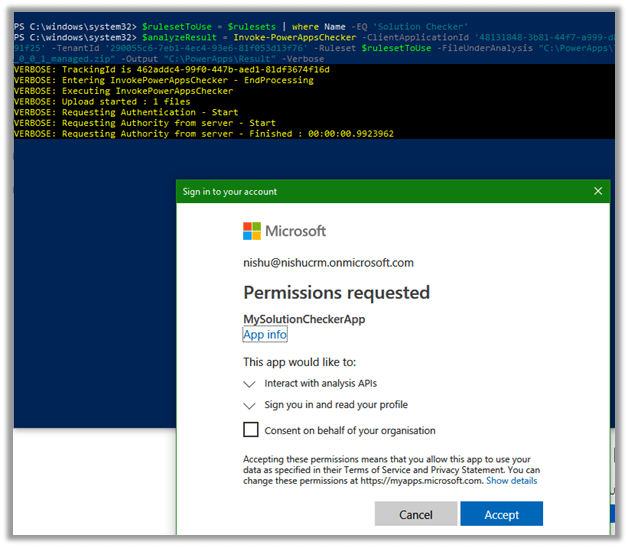
Now let us run it against the Solution Zip file as shown below

  • $analyzeResult = Invoke-PowerAppsChecker –ClientApplicationId ‘48131848-3b81-44f7-a999-d8362b391f25’ –TenantId ‘290055c6-7eb1-4ec4-93e6-81f053d13f76’ –Ruleset $rulesetToUse –FileUnderAnalysis “C:\PowerApps\Test_1_0_0_1_managed.zip” –Output “C:\PowerApps\Result” -Verbose

Give the required consent
We can see the results download at the path specified

Result is in JSON format

IssueSummary to get the quick overview
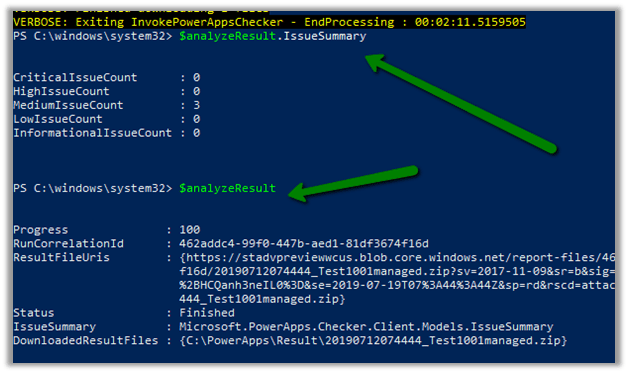
Get all the details here

https://docs.microsoft.com/en-in/powershell/powerapps/overview?view=pa-ps-latest

Hope it helps..

Using PowerApps Solution Checker from the PowerApps maker portal


The PowerApps Solution Checker feature released for general availability on May 2019, can be used to perform static analysis of the Unmanaged solution for components like plugin, web resources, custom workflow activities and provide guidelines and recommendations around the issues found.

To get started à

Sign in to PowerApps maker portal

https://make.powerapps.com/home

Select the Solutions in the left navigation pane and click on Install to install the Solution checker.

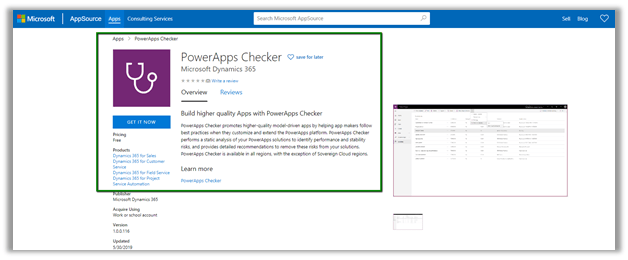
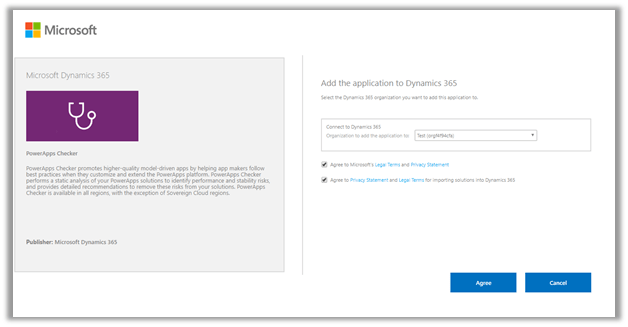
Click on GET IT NOW from the AppSource, specify the instance and the PowerApps Checker Solution will be installed in that Instance.

This will install the PowerApps Checker solution for the selected instance.

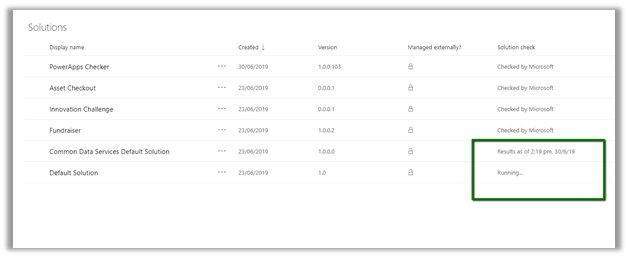
After the installation is done, we’d see the Solution checker menu enabled for the unmanaged solution.

Click on Run to run the test

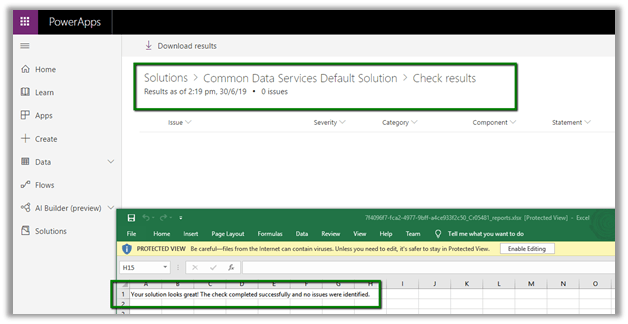
We can see the results in the portal and can download the same as shown below.

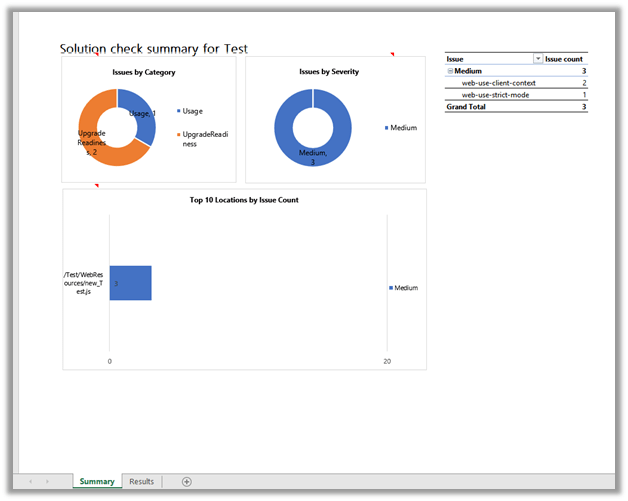
Result of running it against another solution in which we are still using Xrm.Page object model à

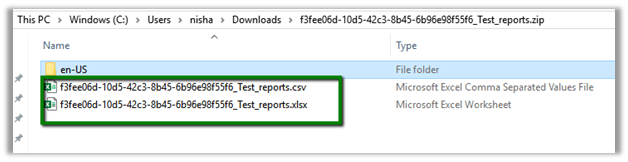
The results will be available in both Excel and CSV format on the download

csv à

Excel will include a report as wellà

In the next post, we will see how to use the PowerApps Checker PowerShell Module to validate the solutions.

https://nishantrana.me/2019/07/12/using-the-powerapps-checker-powershell-module-to-validate-the-solution/

Hope it helps..

Fixed – Package Deployer (USD) not connecting to CRM Organization


Hi, while trying to set up USD in the Dynamics 365 Online environment

We were facing the issue with the USD’s Package Deployer, after login, it was showing the Organizations but on trying to connect to them, it was again taking back to the login screen.

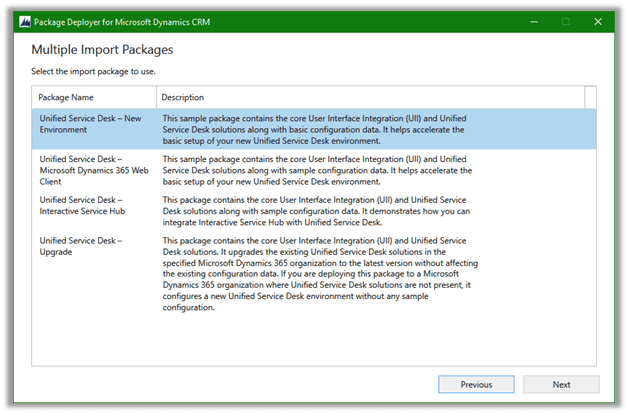
This was because we were using below old version of the Package Deployer

Dynamics365-USD-2.2.0.755-PackageDeployer

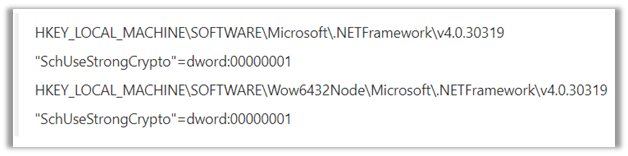
To get it working as suggested by Microsoft we had to update the registry and add the following key – “SchUseStrongCrpto

This makes the .NET application, in our case, the older version of the Package Deployer to use TLS 1.2 required for connecting to Version 9.0 of Dynamics 365.

After making the registry change, we were able to move forward.

We will not be facing the same issue with newer version of USD

https://community.dynamics.com/365/customerservice/b/unifiedservicedeskblog/posts/unified-service-desk-4-1-general-availability

Hope it helps.

Thanks Microsoft for the MVP (Business Applications) award once again!


Thanks Microsoft for this recognition and thanks to all the wonderful and passionate Dynamics 365 (CRM) professionals who have inspired and motivated me and others for several years, to keep learning and contributing in the community and to grow in the process!

Dynamic CRM – User Profile Migration


Check out the new XrmToolBox tool – User Profile Migration

rahultiwary's avatarRahul Tiwary CRM Blogs

Recently, I have been working on a project which has lot of users belongs to different BU’s having different roles and they are part of multiple Teams. Now, once we are done with UAT it was time to go and configure PROD. The timeline to go live was very strict and we have more than 1000+ users which must be configured with their respective BU’s, roles and Teams as per UAT. Cloning was not an option for us. So, we decided to come up with a tool which will download all enabled Users with their Business Unit, Roles assigned to them and Teams they belong to in an xml format from UAT. And once all the deployment steps are completed, we just uploaded the downloaded xml with the tool that we built which will find the users in target system and assign security role and Teams as per the xml.

View original post 247 more words

Getting FormContext in Power Apps Custom Component framework–Gotchas!


Debajit's avatarDebajit's Dynamic CRM Blog

Before I proceed further some disclaimers here. If you are thinking from the title that I have been able to resolve the problem completely, unfortunately it’s not. My approach works for certain scenarios and not for all scenarios and I will explain where it works and where it doesn’t. And this is of the time I am writing this blog. Very soon Microsoft may release something much simpler.

Ever since I wrote the article on in-depth walkthrough of Power Apps custom control, I have been flooded with questions and one of them was – “How do I get the formContext inside my custom control code so that I can interact with other attributes on the form?”. And in the series of blogs, I have used Xrm.Page construct to access some attributes on the form and as we all know, it has been deprecated. Honestly when I used Xrm.Page I…

View original post 822 more words