New Admin Trial (subscription-based) experience – Dynamics 365


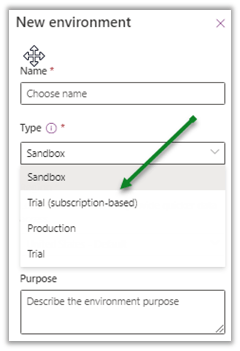
Recently a new Trial (subscription-based) environment option added to the tenants in the Power Platform Admin Center

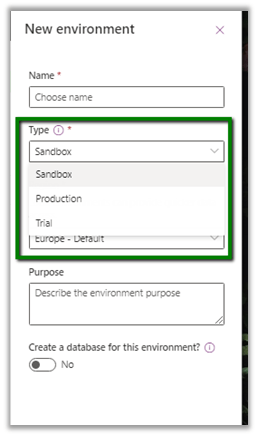
Earlier we were limited to below options –

These new trial types are created and controlled by tenant administrators, as a result of signing up for a trial subscription and can be added to the existing tenant.

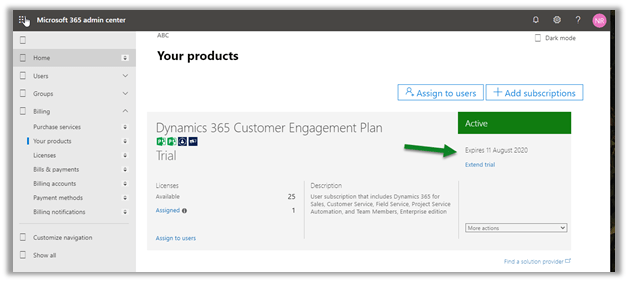
This new environment follows the trial subscription lifecycle (which is typically 30 days) and can be extended from the admin center.

https://admin.microsoft.com/Adminportal/Home#/subscriptions

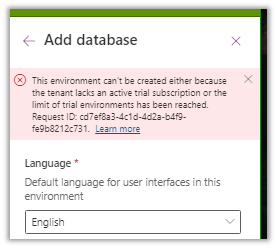
  • A total of 3 trial environments can be created.
  • Trying to create 4th will give us the below error

Get more details here

https://docs.microsoft.com/en-us/power-platform/admin/trial-environments

Hope it helps..

Notes on Adobe Campaign Classic V6 – Delivery


Continuing the previous post on Planning and Segmentation, here we have some of the important points with regards to delivery in Adobe Campaign Classic.

Kindly refer to the PluralSight course –Getting started with Adobe Campaign V6 to learn in-depth.

  • Different delivery channels supported are Email, SMS, Mobile App Pushes, Social Media, etc.
  • All the interaction with recipients is tracked as activities.
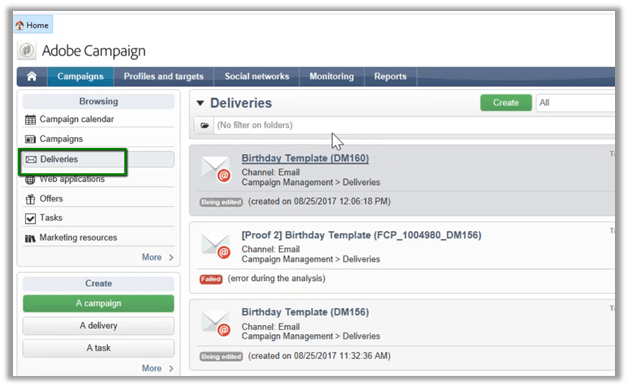
  • To create the delivery, navigate to Deliveries inside the Campaigns tab, and click on create.

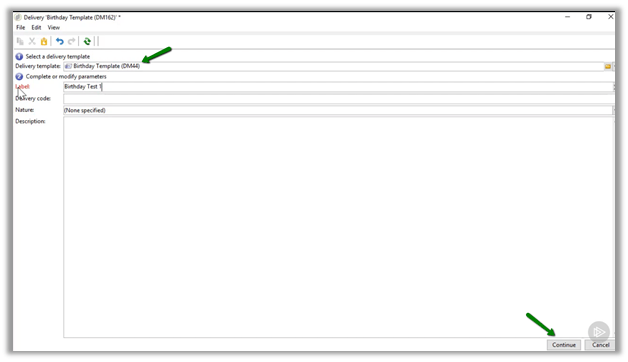
  • For delivery, we can select an existing delivery template for the Delivery template field. Below we have Birthday Template selected.

  • Clicking on continue will open the edit screen.
  • Below is how the default content editor looks like.

  • Content editing mode can be changed to another mode inside the Advanced tab. Here DCE stands for Digital Content Editor.

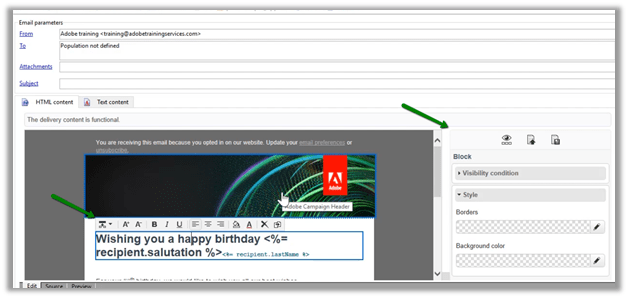
  • Switching to Digital Content Editor adds a new pane on the right side, which makes it easy to specify the properties of the elements selected in the template and a few more controls/options added on the top of the selected control.

  • Once done with the editing we can save the template. The next step will be to use the step in the Campaign’s Workflow.
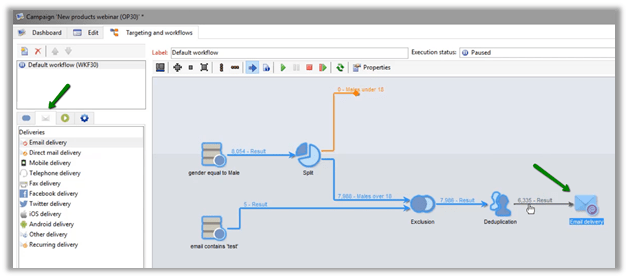
  • Navigate to the Deliveries tab, and drag the Email delivery step in the workflow after the deduplication step.

  • Next double click the Email delivery step to edit it, which allows us to select and add the template we created earlier to it.

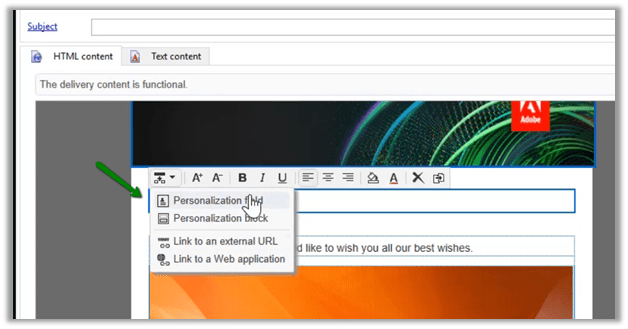
  • We can edit the email content. In the below screen we have selected the personalization field, the value for which will be picked from the recipient record targeted in the delivery.

  • It allows us to select the fields in Recipient (personalization)

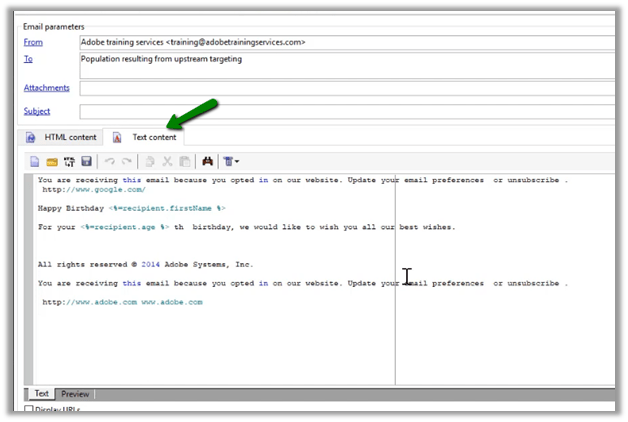
  • Along with HTML Content, Text content can be defined for the scenario where HTML is restricted.

  • We can also add personalization for email parameters – Sender Address, From, Reply Address and Reply Address Text as shown below.

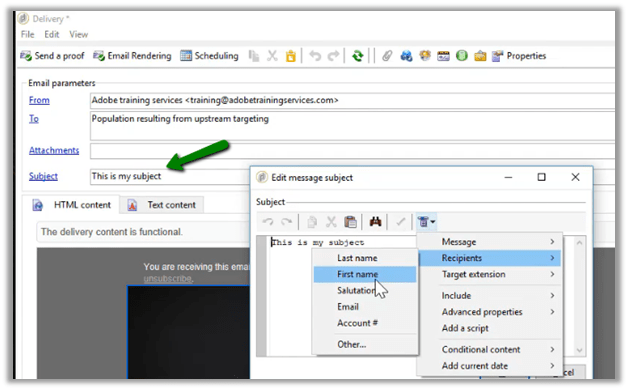
  • Personalization can also be added to the Subject line

  • The To field of the email i.e. Target comes from the result of the targeting steps specified in the workflow

  • It can also be further modified in the Select Target window when needed.

  • We can use the Preview tab to test the email message by using the Test personalization option.
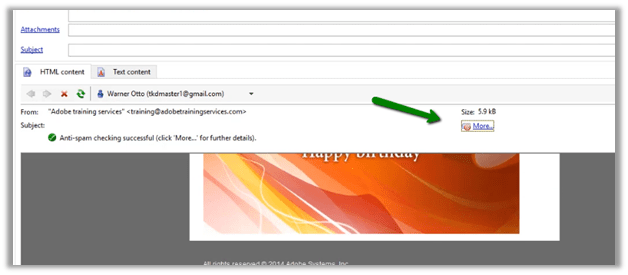
  • Preview option also provide additional details like anti-spam details

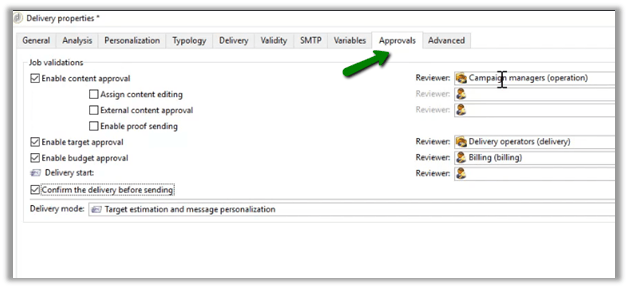
  • We can also specify approvals for the email before they are sent. Select the Properties option.

  • Select the Approvals Tab, to specify the type of approval and the reviewers’ details

Thus we saw how to create and use email templates in the workflow, configure email and its properties, etc. Next, we’d explore running this campaign.

Hope it helps..

Use column comparison in D365 CE/Power Apps/CDS queries


Observations on new column comparison feature in Dynamics 365

Prashant Maurya's avatarPrashant Kumar Maurya

Microsoft has finally given option to compare two columns while querying data from D365 CE/Power Apps/CDS. Here I am sharing my experiences and examples of how it can be used from various channels

  1. Power Apps UI
  2. Web API
  3. Fetch XML
  4. SDK API (.net)

Power Apps UI: This feature is not yet available in PowerApps UI (Advance Find), hope It will be available soon

Web API: This is a sample example of how you can compare columns of various data types in web API

  1. String field to String field: here is the sample where I compared “firstname” column with “lastname” and “mobilephone” with “telephone1″ and it worked like a charm <a rel=”noreferrer noopener” href=”https://<https://<<YourOrganization>>/api/data/v9.1/contacts?$filter=firstname eq lastname and mobilephone eq telephone1&$select=firstname,lastname
  2. Other data types: I tried other data type field comparisons as mentioned below
    • DateTime – ex. createdon – modifiedon
    • Whole Number (Integer)
    • Option Set (Picklist)
    • Two Options (Boolean)
    • Floating…

View original post 434 more words

Compare two columns in QueryExpression in Dynamics 365/ CDS SDK


The QueryExpression examples !

Debajit's avatarDebajit's Dynamic CRM Blog

Follow my blog for more interesting topics on Dynamics 365, Portals and Power Platform. For training and consulting, write to us at info@xrmforyou.com

A long awaited feature which has been asked by customers for over a decade has been finally introduced in the platform. And today I referred a blog post by my friend and fellow MVP Nishant Rana on how you can compare two columns in fetchxml.

In this blog article I am going to discuss on how we can compare two columns in QueryExpression.

To use the SDK API in your custom code make sure you install the latest SDK assemblies from Nuget. I have installed latest version 9.0.2.26 of Microsoft.CrmSdk.CoreAssemblies in my project. Prepare a query expression to filter the necessary set of records from any entity. Here I am retrieving data from contact. You can see below is the new construct available to compare two attributes

View original post 221 more words

The new Column comparison in queries in Dynamics 365 / PowerApps


Column Comparison is one of the best features that has been recently added to the product.

Column comparison allows us to compare values of 2 different columns in our query be it Fetch XML, Web API, or through SDK API.

Sharing some of the basic examples that we tried using our favorite  FetchXML Builder

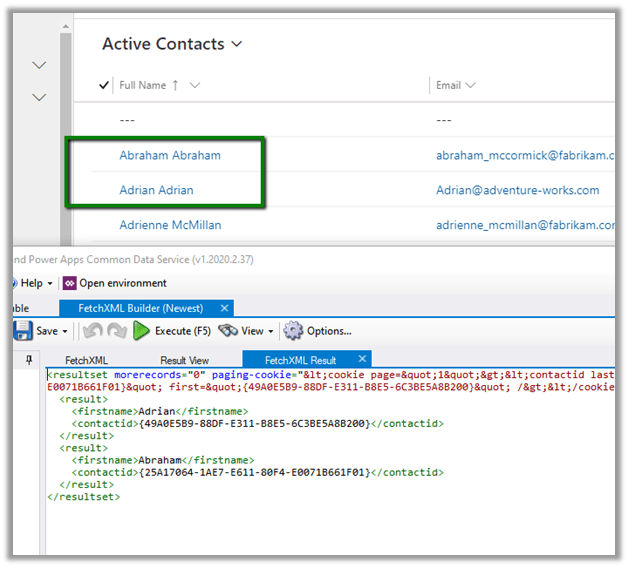
  • If we run the following query “Find all contact which has the first name equal to the last name”

The result –

  • Find all contact where the first name is not equal to last name

The result –

The operators supported are –

Equal LessEqual GreaterEqual
Not Equal LessThan GreaterThan
  • Only 2 columns can be compared.
  • Only compatible attribute types can be compared.
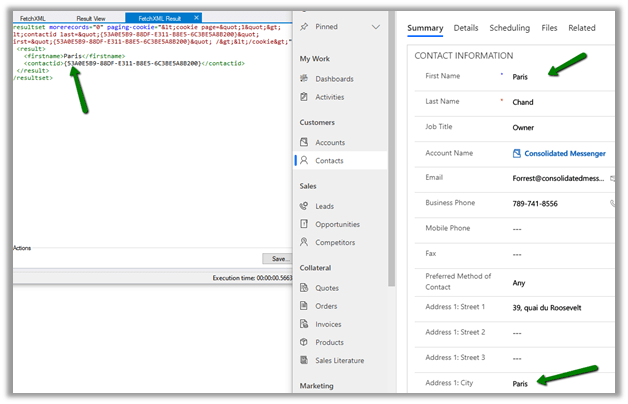
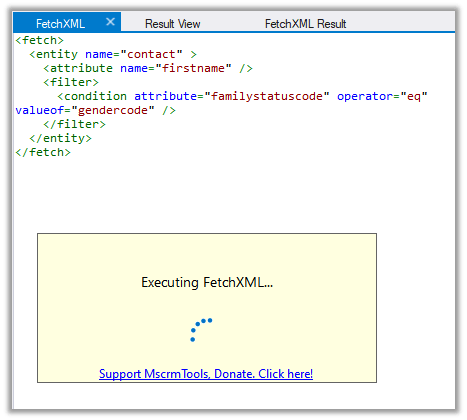
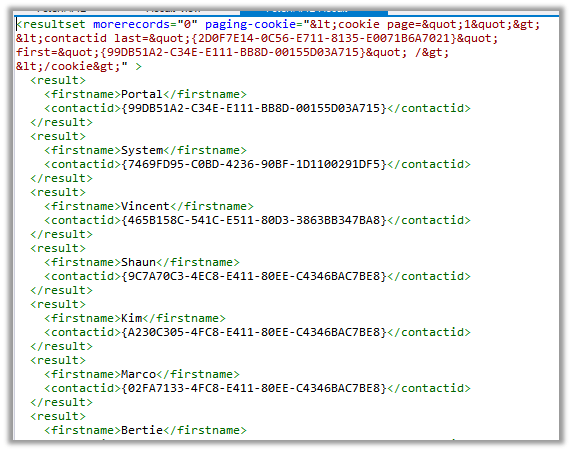
  • E.g. “Find all contact where the first name is equal to address 1 city”

The result

It works as both are string attributes.

  • If we try comparing text field with options set, we will get below error message

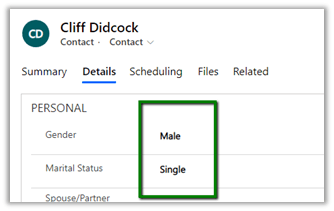
  • Two option set can be compared as they represent the same type integer

Both having value 1

  • Comparing date fields

  • We are getting the result

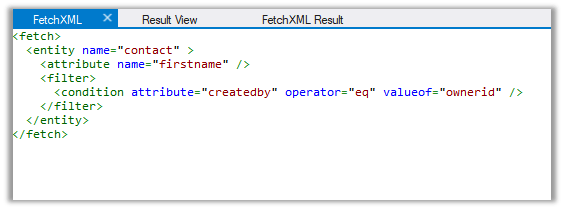
  • For the lookups, comparing created by and owner id

works as expected.

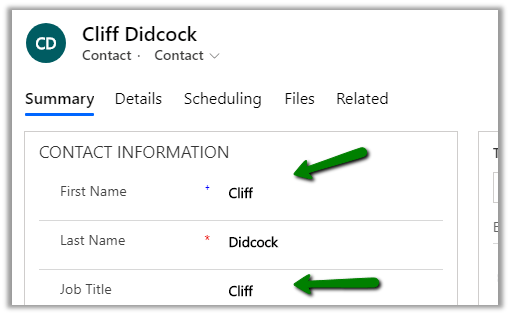
  • For the below record we have the First name and job title as null

And here for below record, we have the same value for First Name and Job title.

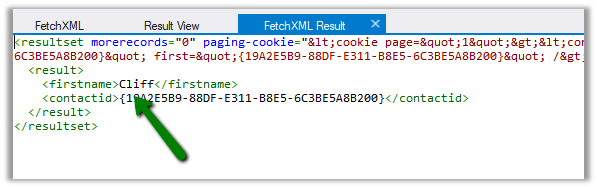
On running the below query – find all contact where the first name is equal to the job title.

We get only one result. It ignored the blank (null) record.

Get all the details here

https://docs.microsoft.com/en-us/powerapps/developer/common-data-service/column-comparison

Hope it helps..

Notes on Adobe Campaign Classic V6 – Planning and Segmentation


I am going through the Getting Started with Adobe Campaign V6 Pluralsight course by Otto Warner (which I would highly recommend) to understand the basics of Adobe Campaign.

The course covers V6 of the Adobe Campaign Classic. (the latest version is V7).

Adobe Campaign Classic is the original on-premise version of the product, the newer online-based is called Adobe Campaign Standard.

The below article list down all the differences between them

https://adobeexchangeec.zendesk.com/hc/en-us/articles/360020072212-Adobe-Campaign-Getting-started-with-your-integration

Below are some of the points that I have noted down from the course for quick reference

  • Adobe Campaign provides marketing automation and outbound communication capability.
  • Adobe Campaign Client Console which is a rich client needs to be installed in PC, which connects to the Adobe Instance.
  • Below is the screenshot of the client.

  • Below are how the campaigns are organized within Adobe Campaign. It starts with Plan, which can have multiple Programs, which in turn can have multiple campaigns in it.
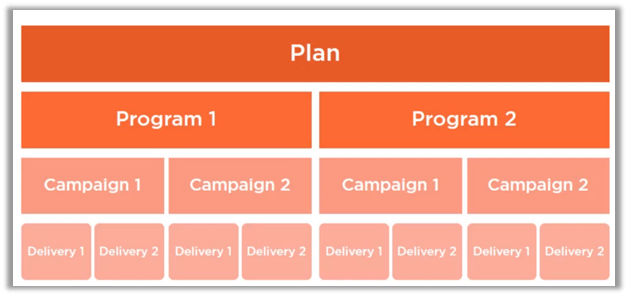
  • Plan can be thought of as a calendar period, the program defines the actions to be taken with that calendar period and campaign centralizing all the aspects related to marketing campaign specifying target, delivery, etc.

  • To create a plan, we can navigate to Campaigns tab in the client app, and select Create à Plans

  • Below is how the new Plan screen looks like

  • A new program can be added from within the Plan’s calendar.

  • Or can be created from Create option as shown below

  • The program screen looks similar to the plan.

  • The below screen shows the Webinars program for the Plan – August 2017’s calendar view.

  • A new campaign can be added from within the Program or we can use the Create option.

  • The campaign has additional details like campaign template and main channels as shown below.

  • Below is how the dashboard of the saved campaign looks like.

  • The edit tab for the campaign allows assigning the campaign to a user.
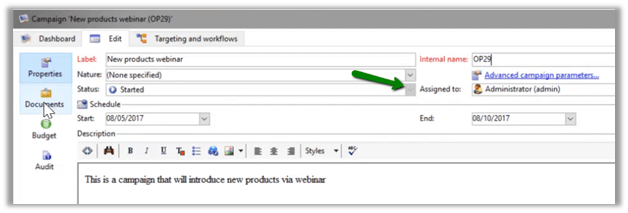
  • It allows provision for attaching the documents

  • We can also manage the budgetary aspect of the campaign, which could be used for reporting.

  • It also provides the Audit capabilities.

  • The targeting and workflows tab is where the actual orchestration happens

  • Below is the folder structure created for Plans (August 2017) and Programs (Webinar and Win-Backs) within the plan.

  • Recipients are the records against which campaign will be executed.
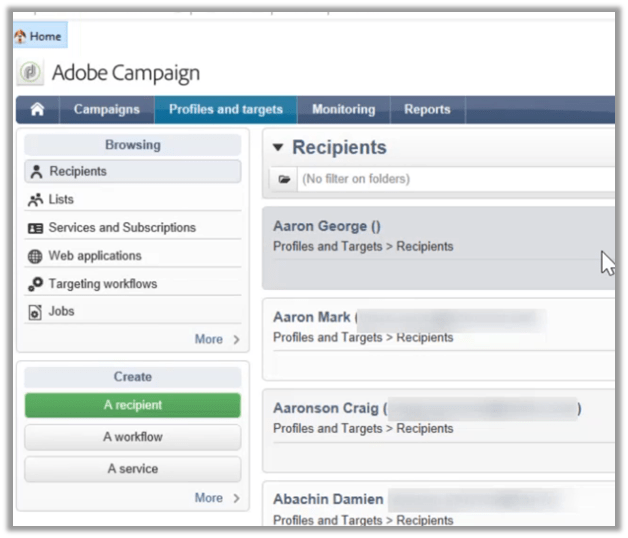
  • For recipients, custom fields can be added by admin.
  • New recipients can be created manually or can be imported from different sources.

  • Coming back to Campaign’s Targeting and workflows tab, we can see different components in the Targeting section, that can be used to define the workflow.
  • Query and Read list step are used for specifying the base target, this is where the workflow would usually start.

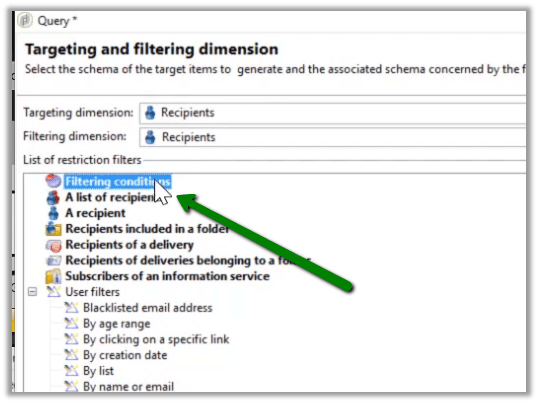
  • For Query step, below are the different filters that can be applied

  • Here user defined filters can also be applied.

  • Filtering conditions restriction filter can be used to define filter conditions.
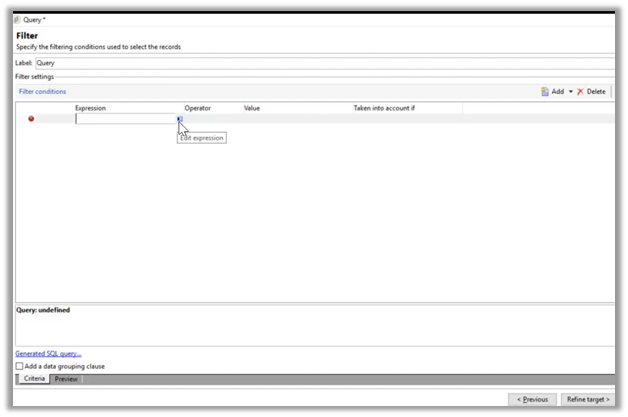
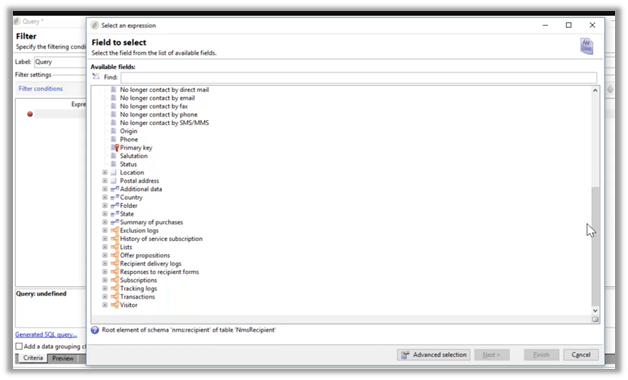
  • The expression editor allows selecting different fields either from the same target or from the related records.
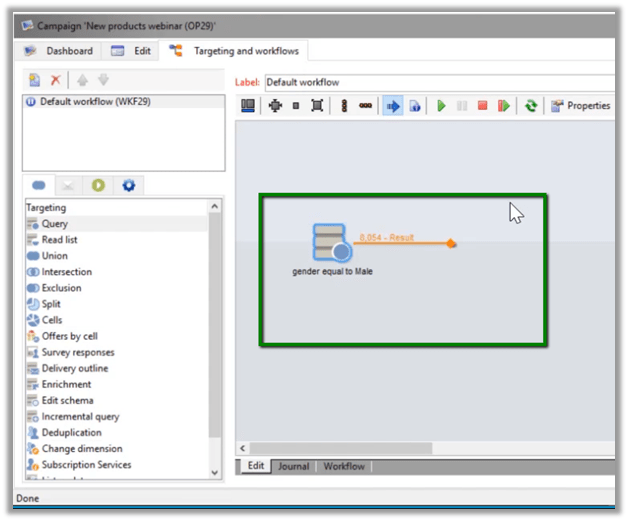
  • Below is the filter condition defined “Gender equal to male”, here multiple filter conditions can be defined and grouped.

  • Below is how the query step looks within the workflow panel.
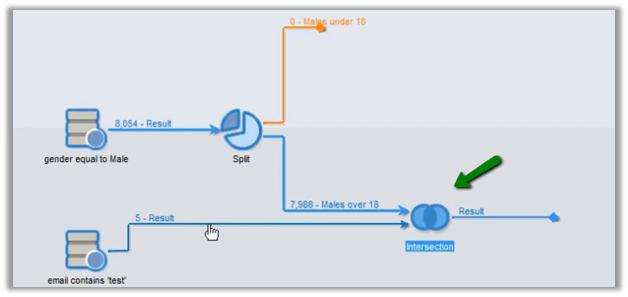
  • The split step can be used to further divide the list. Say e.g. we want to split males base list into above 18 and below 18 years of age.

  • Union step can be used to combine the result of multiple queries.

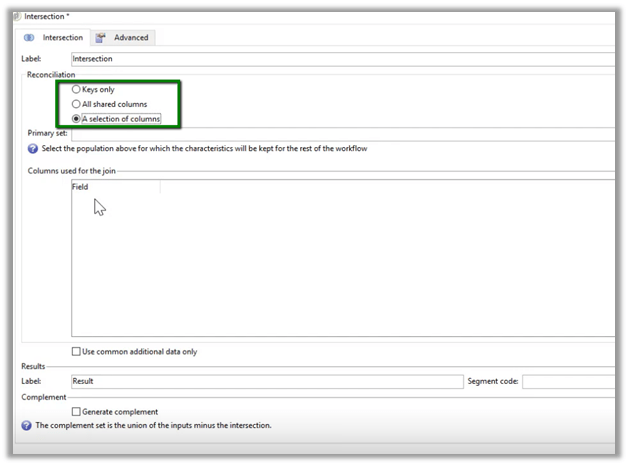
  • With the intersection step, we can define reconciliation criteria either based on the key, shared columns, or specific columns.
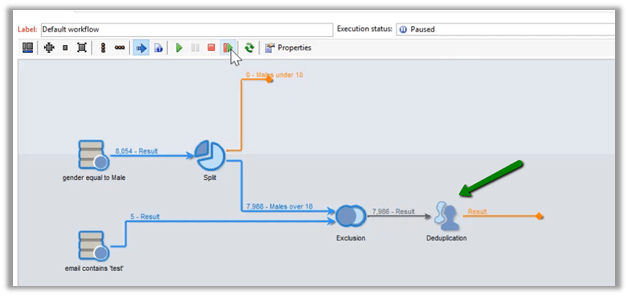
  • With the exclusion step, we can define what records to be removed from the primary set.

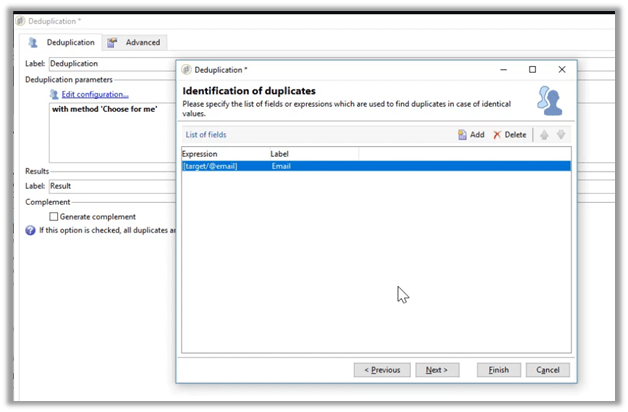
  • Deduplication step as the name suggests, can be used to remove duplicate records based on criteria defined.
Here we looked into some of the basics of Adobe Campaign with regards to Plan, Program, and Campaign and how the targeting works.

Next, I’d learn about the delivery aspect and how to run the campaign and share my notes on the same.

Hope it helps..