

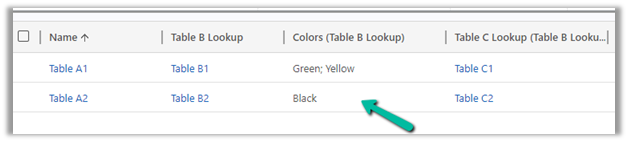
Continuing our previous example, here we have added a new choice field in Table B.
Here Table A has a lookup of Table B which has the new multichoice column added to it. (Also Table B has a lookup of Table C in it)
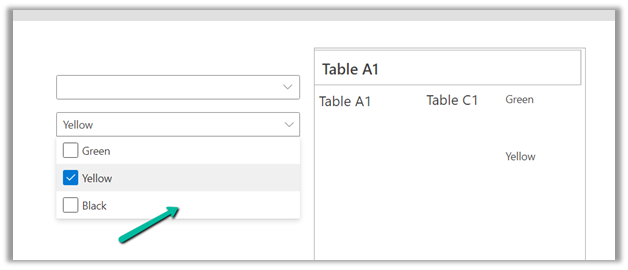
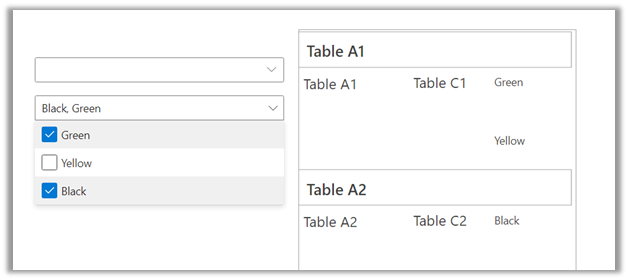
Based on the values selected in the multiple-choice field’s combo box we will filter the gallery.

The syntax to bind the multichoice column to the combo box.
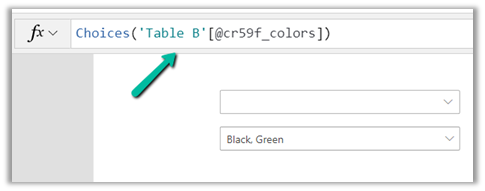
Choices(Table[@choicecolumn])
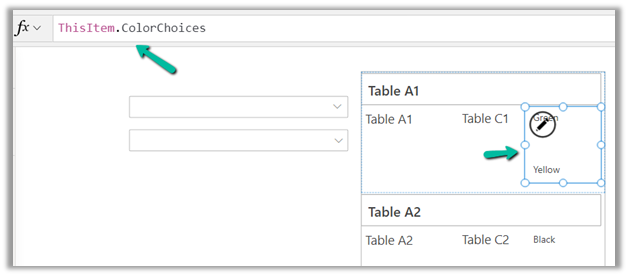
First, for the Items property of the Main Gallery, we have added the new column ColorChoices to Table A using the AddColumns and the Lookup function.
Then filtered based on selected items of the combo color choices, using the new ColorChoices column added.

ChoiceColumn[@Value] in comboBox.SelectedItems
We have also used the newly added ColorChoices column to bind it to the gallery inside the main gallery as it would have multiple values.
The result –
Thanks to –
- Display Choices (Multi-select option set column) of dataverse in Canvas App Gallery
- PowerApps Multiple Filters on Gallery
- https://debajmecrm.com/how-to-show-columns-from-multiple-tables-in-a-canvas-app-gallery-or-table/
- https://debajmecrm.com/how-to-use-addcolumns-with-lookup-fields-of-sharepoint-in-power-apps/
Hope it helps..
Discover more from Nishant Rana's Weblog
Subscribe to get the latest posts sent to your email.
Share It -


 Nishant Rana's Weblog
Awesome. Thank you!
LikeLike