In the last post, we had set up the trial version of Dynamics 365 Customer Insights.
https://nishantrana.me/2022/01/26/how-to-set-up-dynamics-365-customer-insights-trial/
Currently, our trial instance has no data.
We can ingest data into Dynamics 365 Customer Insights from Microsoft Dataverse either using Microsoft Power Query (Dataverse Connector)

or Microsoft Dataverse import method.

The Microsoft Dataverse import method doesn’t copy the data into the Customer Insights / Audience Insights Data Lake, however, it doesn’t allow for Extract, Transform, Load (ETL) as in the case of Microsoft Power Query data source.
Select Audience Insights >> Data >> Data Sources >> Choose your import method – Microsoft Dataverse
Provide a name to the data source and click on Next.

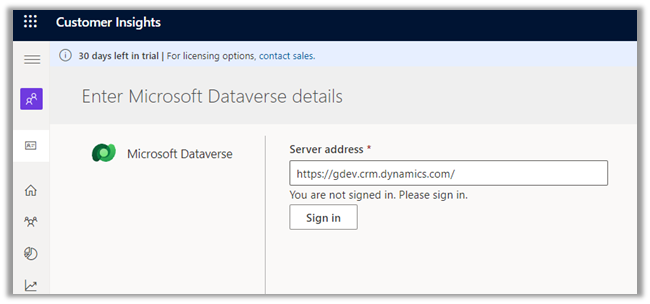
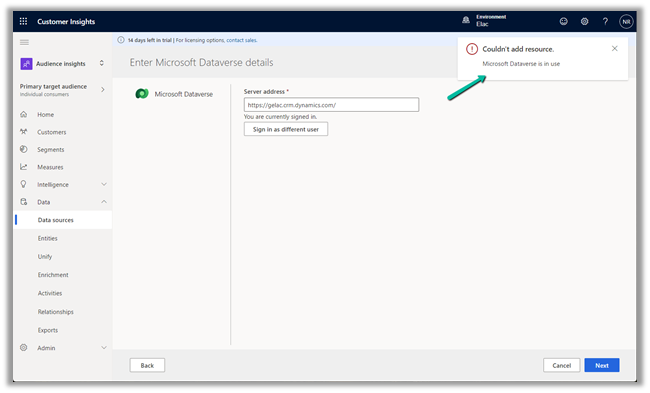
Enter the Server address, Sign in, and click on Next.
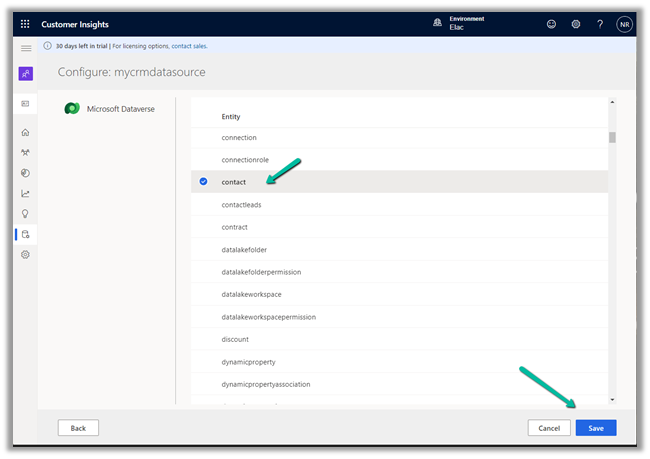
Select the Entity, here we have selected the contact entity for now.
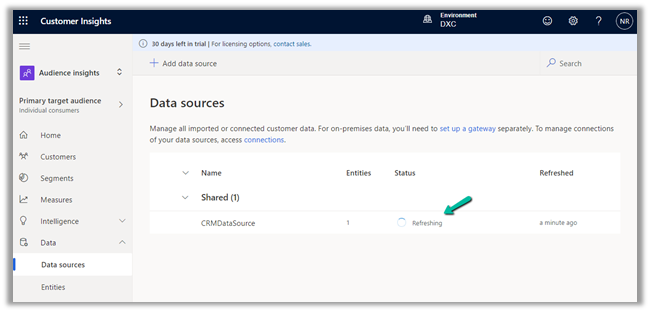
We can see the data source is being refreshed.
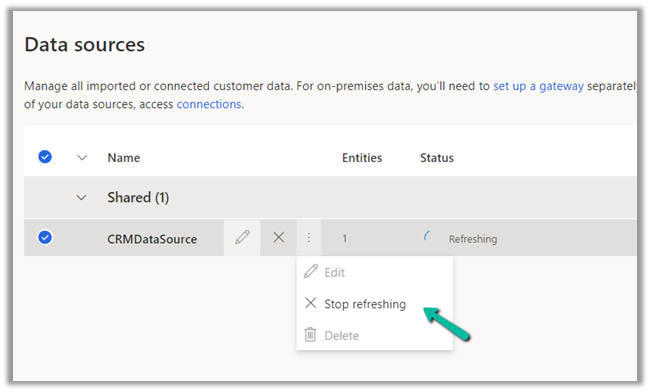
We have the option of stopping the refresh.
We are having 100 records in our contact entity inside CRM.

It took around 5 hours for the refresh to complete successfully.

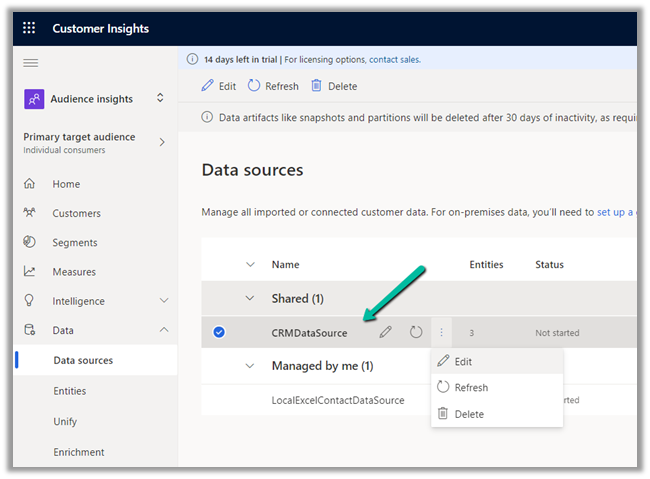
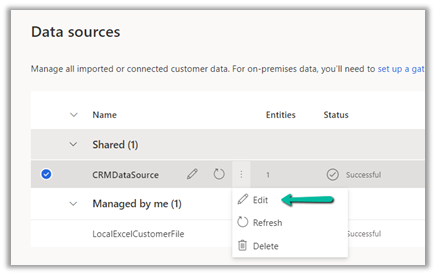
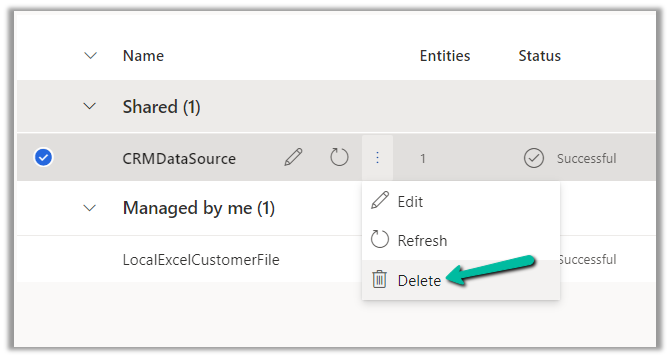
We have the option of Edit, Refresh and Delete on the Data Source after the successful refresh.

We can see the contact entity available within Data >> Entities section
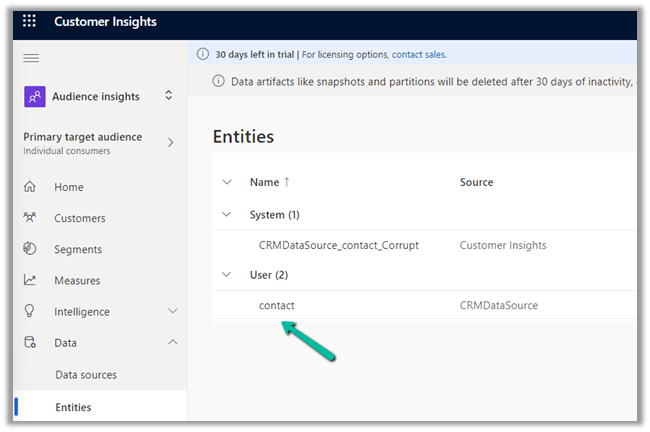
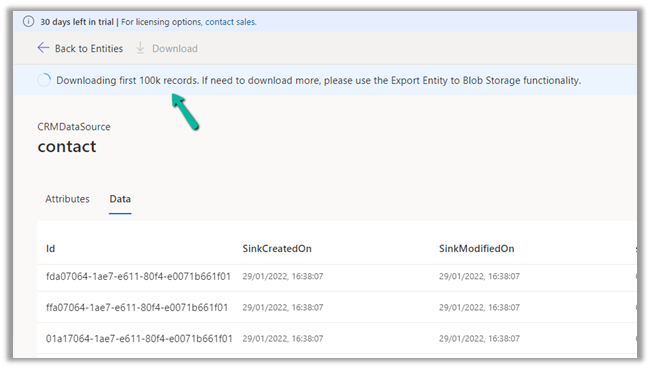
Clicking on contact, we can see the Attributes used and Data in it as well as the option to download the data.


The download will be downloading the first 100K records.
Now when it comes to creating a unified customer profile through (MMM) i.e. mapping, matching, and merging, it requires a minimum of 2 entities to be there, to generate the Customer Profile.
In the next post, we will import some sample contact data from a local excel file and use it for further configuring our customer profile.
How to – Import Data from local data files to Dynamics 365 Customer Insights
How to – Unify (Map, Match and Merge) Entities in Dynamics 365 Customer Insights
Hope it helps..





 Nishant Rana's Weblog