How to – Use OverriddenCreatedOn or Record Created On field to update Created On field in Dynamics 365


overriddencreatedon

While working in data migration project, when creating records in the target system, we would want the “created on” field to hold the original value instead of it being set to the actual value when it was created in the target system, which is set by the system or the platform itself.

Suppose we are having the “created on” field in our source SQL Server Table and we are creating the lead records in our target Dynamics 365 organization using KingswaySoft’s CRM Destination Component.

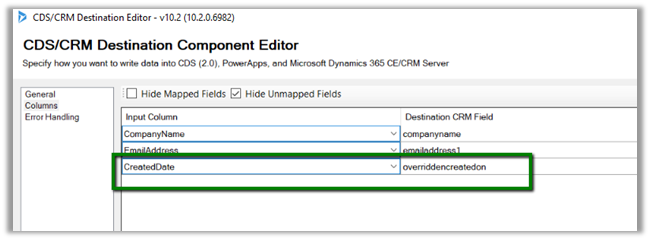
Here we have mapped the CreatedDate of our source table to overrriddecnreatedon field of Lead entity.
On executing the package, back inside Dynamics 365, we can see the following values for Created On and Record Created On (overrriddecnreatedon) field for the lead records.
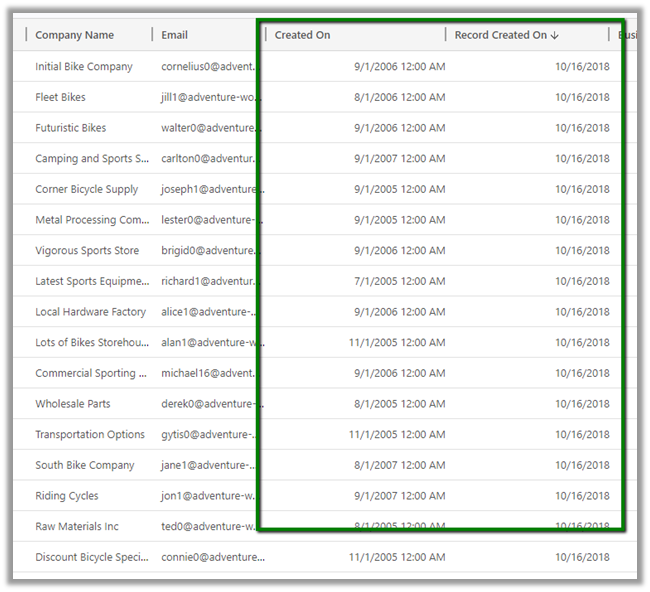
Record created on will have the time when the record was created in Dynamics 365 and Created On field will have the values that we passed from our source SQL Table.

Get all the details here

https://blogs.msdn.microsoft.com/emeadcrmsupport/2012/08/01/the-truth-about-override-created-on-or-created-by-for-records-during-data-import/

Hope it helps..
Advertisements

Data Flow Transformations in SSIS


SSIS has various data flow transformation components that make it easy to manipulate the source data before it can be sent to the destination for processing.

Below are some of the most frequently used one

  • Data Conversion

For changing the data type of the source column.

Simply select the input column and then specify the data type for it.

For e.g., if our source has one of the date columns as a string, we can apply Data Conversion transformation to convert its data type to Date.

  • Derived Column

Can be used if we want to apply the expression to the source column and create a new column or update the existing column.

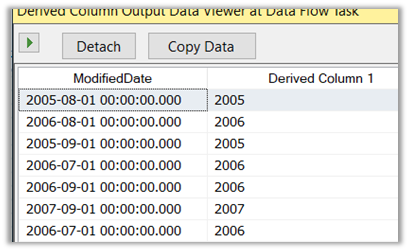
For e.g. we are interested in the Year part of the Modified Date column. For this we can use the Year Date/Time function, get the year part and add it as a new column.

  • Percentage Sampling and Row Sampling

To reduce the number of rows in the pipeline.

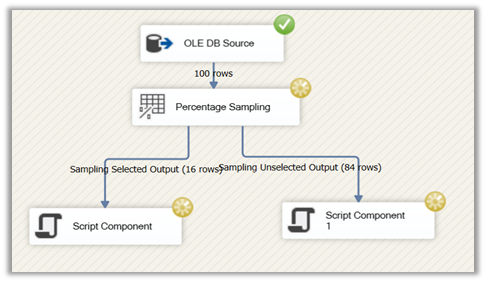
Percentage Sampling allows us to define the percentage of rows for sampling. It generates two output, one output for the rows that are selected and the other for the unselected.

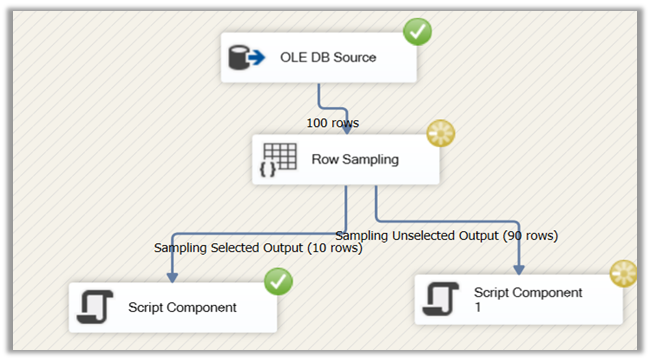
Similarly, Rows Sampling allows us to specify the number of rows directly instead of a percentage. It also gives the option to select the columns.

  • Multicast

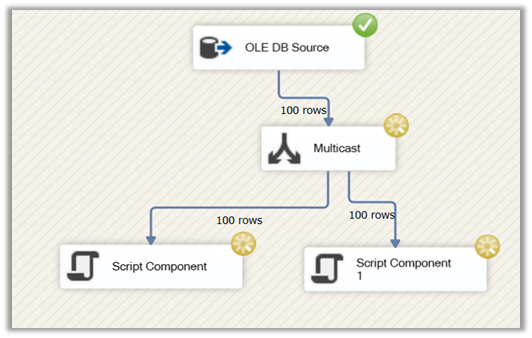
Multicast can be used to pass the same data to multiple destination as shown below.

Sort transformation can be used to specify sorting for the data. In the case of SQL, we can specify sort in the query itself however in case of working with flat files, this function can be handy.

To perform aggregation on the source data we can use Aggregation transformation.

  • Union All

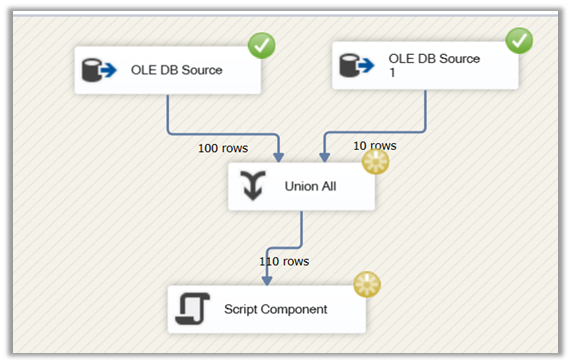
Union All allows us to combine data from multiple sources. Here the column structure should be identical of the sources. The data from the first source is passed to the destination, followed by the data from the second.

We’d covered some of the common transformation components in this post, in the next post we’d try to cover the remaining frequently used transformation.

Hope it helps..
How to – Stop SSIS Package Execution in SSISDB


Suppose a package has been running for quite a long time or has been mistakenly run and we would like to stop its execution.

To do so

  • Right Click on SSISDB
  • Select All Execution Reports

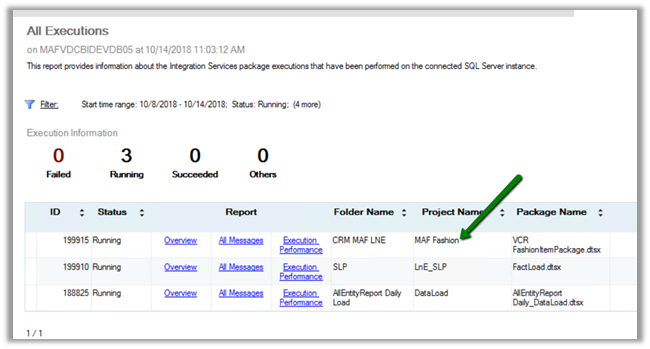
  • Filter it to see all the Running packages

  • We can see our all the running packages there.

  • Now to stop any specific package, right click SSISDB and select Active Operations

  • From the Active Operation window, select the running job and click on Stop button to stop its execution.

  • Another option is to use the stored procedure à get the operation id of the running package and execute the stored procedure

Exec catalog.stop_operation  @operation_id = 199915


Hope it helps..
Using Alternate Key to set Lookup in SSIS (KingswaySoft)


Alternate Keys which were introduced with CRM 2015 Update 1, gave us the ability to Upsert and Update records, by defining one or more fields as Alternate Key and use that field(s) instead of relying only on Primary Key.

Alternate Keys can also be used for setting or updating the lookup instead of GUID.

CDS\CRM Destination Component in KingswaySoft SSIS Integration Toolkit allows us the option of specifying the Alternate Key for updating the lookup field.

Suppose we have Contact entity with following Alternate Key defined in it

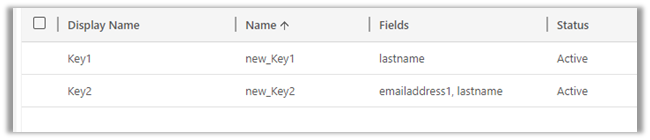
  • Key1 on field last name
  • Key2 on 2 fields emailaddress1 and last name

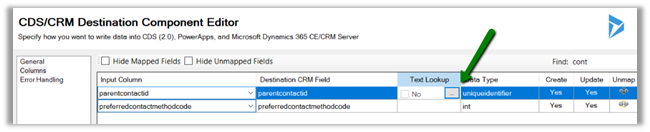
Within the CDS/CRM Destination Component Editor for the lookup field, click on ellipsis for the Text Lookup column. Here we have selected parent contact field inside Lead Entity.

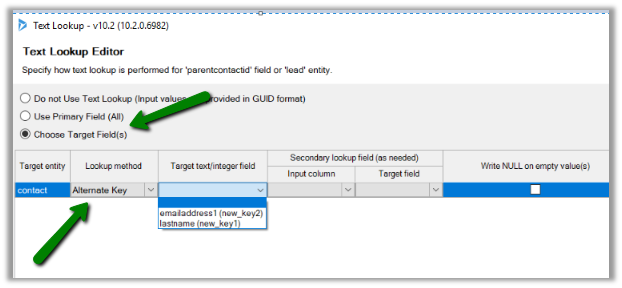
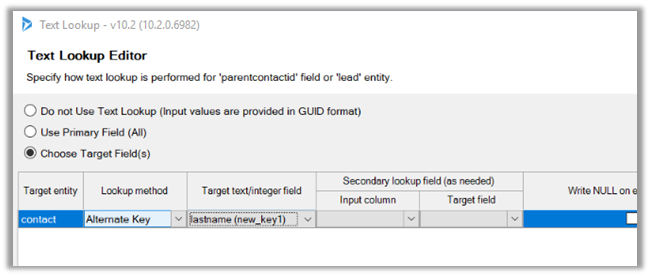
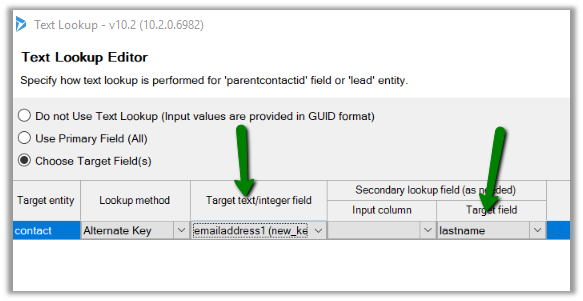
Inside Text Lookup Editor, select the option “Choose Target Field(s)”, in lookup method select Alternate Key and we will see both our alternate keys listed there.

  • Key1 on field lastname

  • Key 2 on emailaddress 1 and last name

One thing I have observed that it doesn’t list the alternate key if it is defined by using more than 2 fields. Looks like it is by design.

Hope it helps..
Using KingswaySoft’s CDS/CRM Source component to get Audit information in Dynamics 365 CE (SSIS)


Kingsway’s CDS/CRM Source component and has Source Type property having an AuditLogs value that can be used to get the Audit details from Dynamics 365 CE.

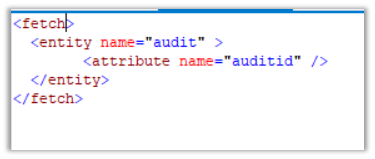
Below we have set the Source Type as AuditLogs in the CDS/CRM Source Component Editor and provided the FetchXML for the entity for which we would like to retrieve the audit information.

To get all the audit records, we can run it against Audit entity.

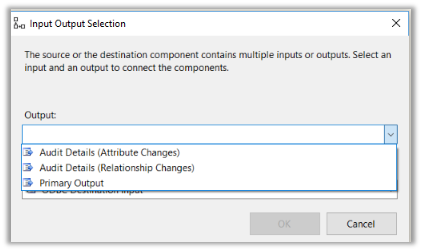
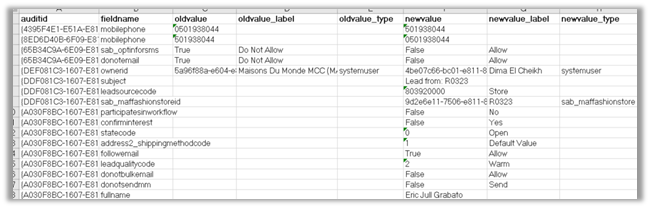
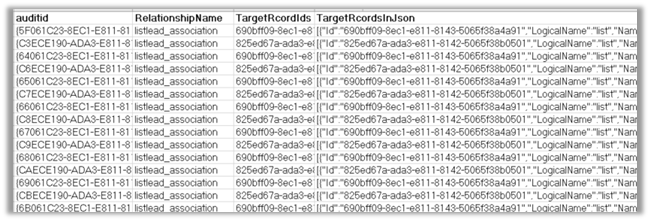
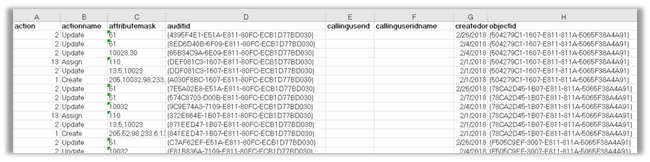
For AuditLogs source type there are 3 types of output:

  1. Audit Details (Attribute Changes) – Contains field level changes.

  1. Audit Details (Relationship Changes) – Contains relationship changes.

  1. Primary Output – Contains entity level audit information.

Hope it helps..

How to – Easily map OptionSet using CRM OptionSet Mapping Editor in SSIS


Just want to share my experience of using KingswaySoft’s OptionSet Mapping Editor and how easy and efficient it makes to migrate data in Microsoft Dynamics 365 CE.

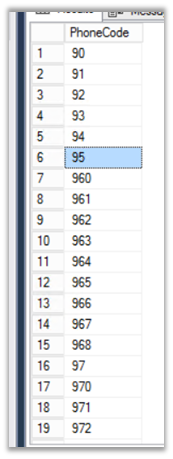
Here our SQL (OLE DB Source) was having following values for Phone Code field. Here we are doing upsert for the Contact entity.

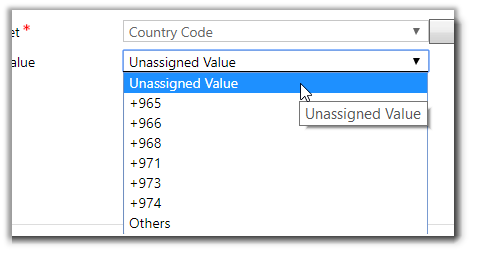
However inside CRM, we were only maintaining or dealing with few of the values as shown below for the corresponding field.

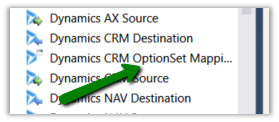
To deal with this situation, inside SSIS Package, drag the Dynamics CRM OptionSet Mapping component.

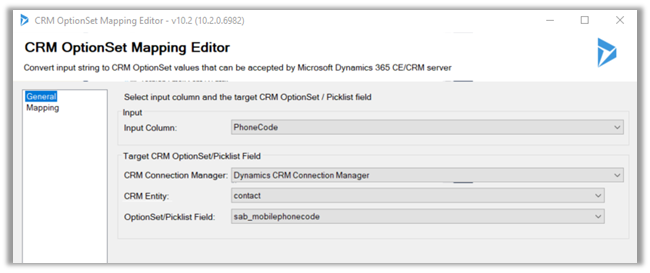
In General page, specify the input column of the table and for target properties, specify the CRM Connection Manager, Entity and the field to which we are mapping the input to.

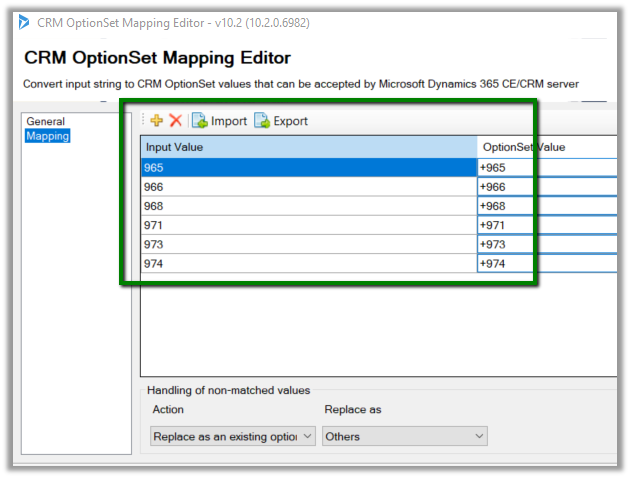
Here we need to explicitly define input value and option set value mapping, for each of the option set values for the field inside CRM, because the source doesn’t have the “+” appended to it i.e. unmatched values only.

Here we have defined the mapping

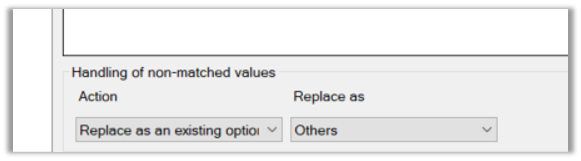
Now for the extra values that source have, we want it to map it to Others option set value inside CRM.

For this in Action Drop-Down select “Replace as an existing option” and in “Replace as” select the Others option set value.

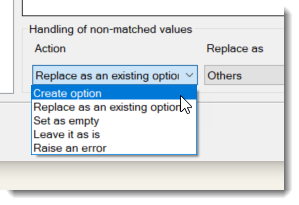
If we want to create the missing input value as an option set value we can use Create Option Action

  • Set as empty will simply ignore the unmatched input values and would pass blank for them.
  • Leave it as is will not do any manipulation and will pass the input values as it is.
  • Raise an error as the name suggests will throw an exception.

Get all the details here

https://www.kingswaysoft.com/products/ssis-integration-toolkit-for-microsoft-dynamics-365/help-manual/crm/optionset-mapping

Hope it helps..

Advertisements