Using Diff Detector component for working with incremental data in SSIS (Dynamics 365 CE)


Diff Detector component of KingswaySoft’s SSIS Productivity Pack makes it extremely easy \ efficient to work with incremental data.

Let us take a simple example to understand its usage

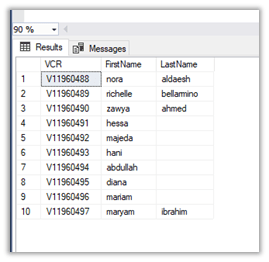
Suppose, we have the following data in our SQL Table (source) that we have already moved to our Dynamics 365 Instance.
Inside CRM à
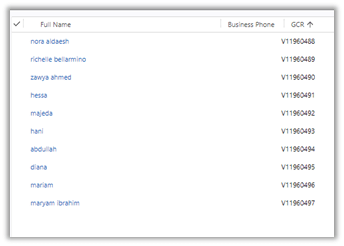
Now let us delete few records say for e.g. 5 from CRM and now we want only those 5 deleted records to be considered for Create by the SSIS Package from the source.

To begin with, first, download the SSIS Productivity Pack

https://www.kingswaysoft.com/products/ssis-productivity-pack

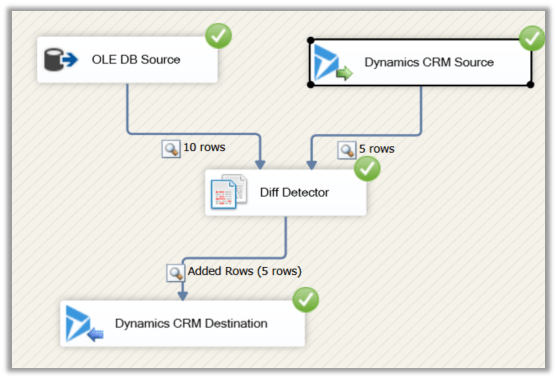
Create the corresponding OLE DB and Dynamics CRM Connection and add the source component for the respective connection, pulling the records from respective sources.

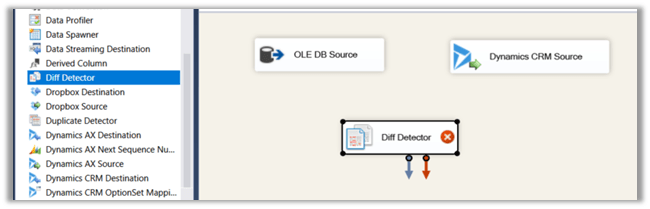
Then drag the Diff Detector component to the Data Flow
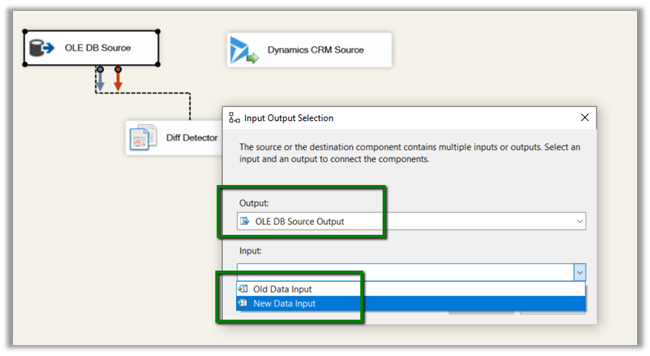
Connect the OLE DB Source to Diff Detector and specify the input as the New Data Input as this is the new data that is being entered, the other option is Old Data. Here the Dynamics CRM Source will be used and set as Old Data that is already existing against which the new data needs to be compared.
Once both the source components are connected to Diff Detector, click on Diff Detector component to edit its properties.

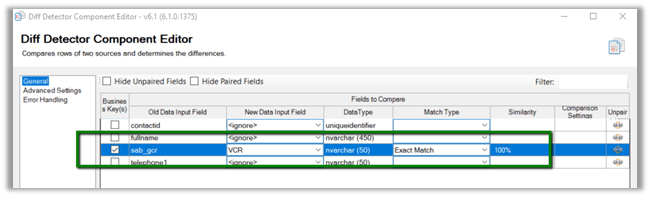
Here we need to define the Key Property, which would be used to compare the data.

Here we have specified one of our alternate keys to be used as Key for comparison with match type Exact Match.
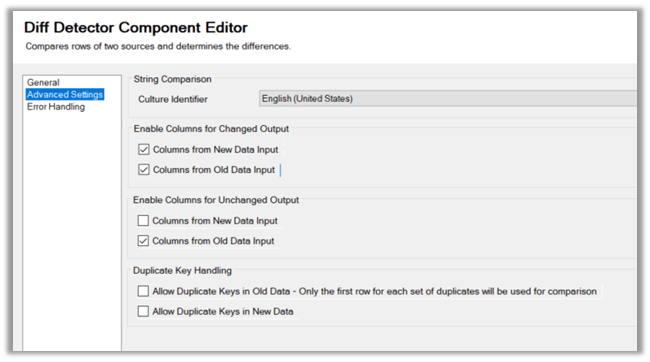
Advanced Settings allows us to define a few more properties
In the end, we have added the CRM Destination Component that will be creating the new records in Dynamics CRM.
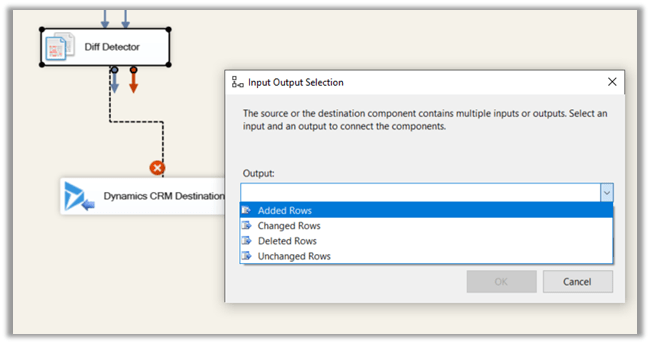
Here we have selected Added Rows i.e. new rows that weren’t found matching with the old existing data inside CRM will be entered or created in CRM. Similarly, we can get the information \ rows that were changed, deleted or are unchanged and use them as per our need.

This is the current state of our source and destination
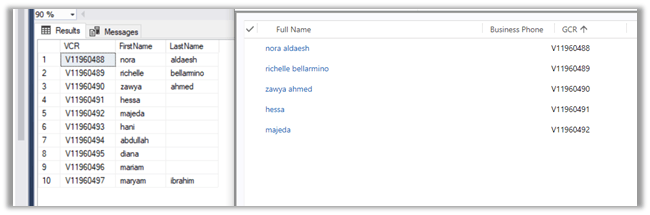
Now let us run our package which should detect 5 new rows to be inserted and create the corresponding records in Dynamics CRM.
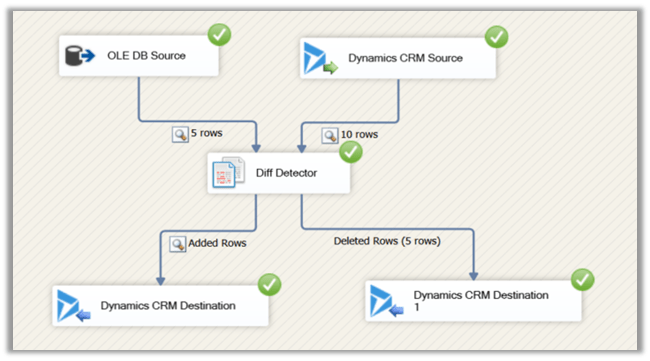
Similarly, if we have deleted few records (say 5) from our source and want them to be deleted in the destination we can add one more destination component that takes as input the deleted rows and deletes them.
Get all the details here

https://www.kingswaysoft.com/products/ssis-productivity-pack/help-manual/data-quality-and-comparison/diff-detector

Hope it helps..

Fixed – CRM service call returned an error: The top attribute can’t be specified with paging attribute page in SSIS Package


We might face this issue while using Dynamics CRM Source Component of SSIS Integration Toolkit

[Dynamics CRM Source] Warning: An exception has occurred while processing the service request, the same request will be attempted again immediately. KingswaySoft.IntegrationToolkit.DynamicsCrm.CrmServiceException: CRM service call returned an error: The top attribute can’t be specified with paging attribute page (Error Code: -2147220989, Detail Message: The top attribute can’t be specified with paging attribute page)

To fix it à

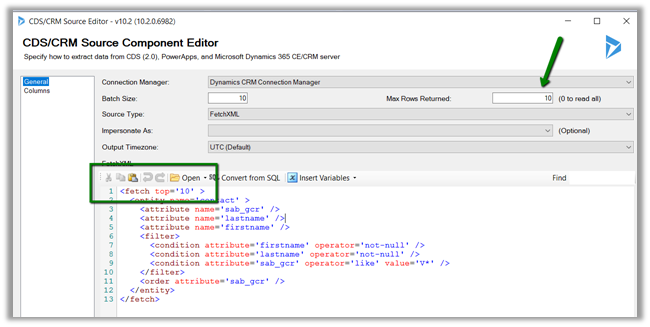
Remove the top attribute from the FetchXML specified and instead use Max Rows Returned property of the Source Component Editor.

https://www.kingswaysoft.com/products/ssis-integration-toolkit-for-microsoft-dynamics-365/help-manual/crm/source

Hope it helps..

Advertisements

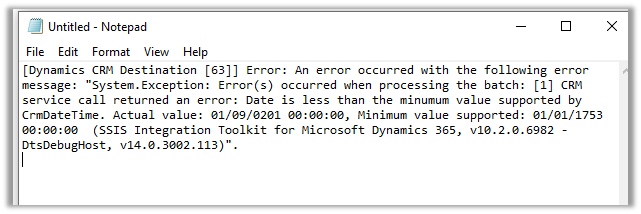
Fixed – CRM service call returned an error: Date is less than the minimum value supported by CrmDateTime. Actual value ‘xyz’- Minimum value supported: 01/01/1753 00:00:00 in SSIS (Dynamics 365)


We got the below while trying to UPSERT contact records from a SQL table to Dynamics 365 CE using Kingswaysoft Dynamics 365 Adapter.

The source table had the Date of birth (DOB) as nvarchar type (string) and one of the rows had the following value stored for DOB à

‘0201-01-09 00:00:00’

Which was resulting into exception while creating record inside Dynamics 365 CE with the above date.

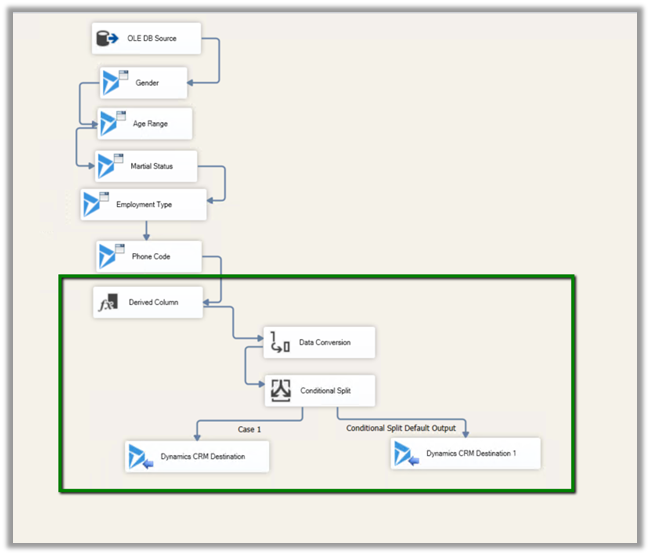
The way we fixed it was to make use of

Derived Column
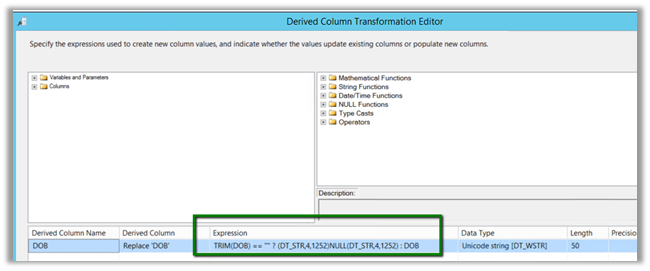
à Converting empty string to null for DOB column. https://nishantrana.me/2018/09/10/cannot-convert-between-unicode-and-non-unicode-string-data-types-error-in-ssis/

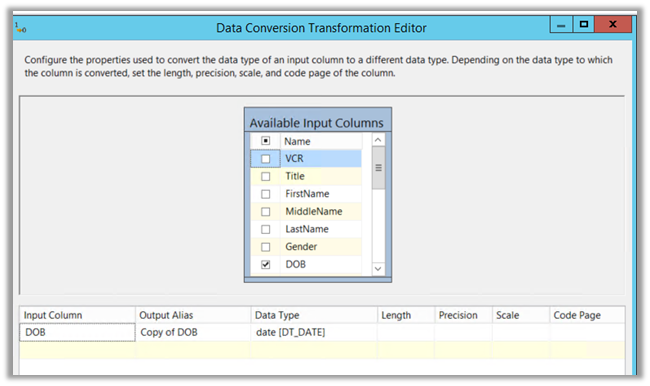
Data Conversion
à Converting it to Date data type for comparison.

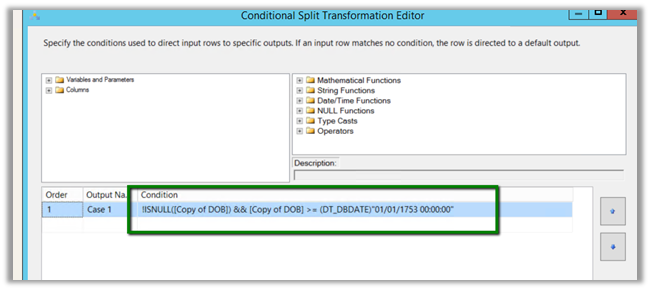
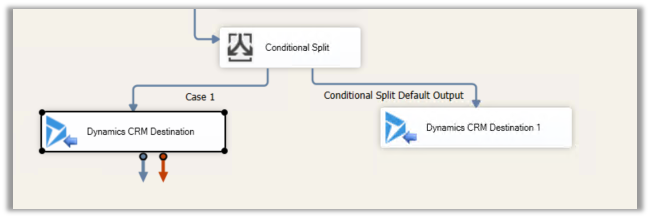
Conditional Split
à Updating DOB field in CRM for only those records having valid date i.e. greater 01/01/1753 00:00:00 and for records having null or date less than 01/01/1753 00:00:00, removing or not using the DOB field for Upsert.

Derived Column à

Data Conversion à Convert it to Date Type which makes it easy for use in Conditional Split Transformation editor for comparison.

Conditional Split à If the DOB is not null and is greater than 01/01/1753

!ISNULL([Copy of DOB]) && [Copy of DOB] >= (DT_DBDATE)”01/01/1753 00:00:00″

Then update the DOB for the record for Case 1 and in case of the DOB being less than 01/01/1753 and null, do not update the field (don’t map the field for update).

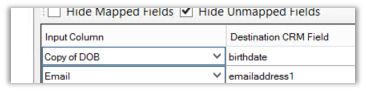
Inside Dynamics CRM Destination component

For Case 1: Map the birthdate field

For default output: Don’t map the field, which will set the field as null as required.

Hope it helps..

Advertisements

Fixed – Cannot convert between unicode and non-unicode string data types error in SSIS


While using the OLE DB Source component in SSIS, on updating its SQL Command we started getting the below error for “Phone” column in our Table.

The fix is to open the Advanced Editor for the OLE DB Source component

Change the Data Type (non-unicode string) for the Phone column inside Output Columns in Input and Output Properties Tab.

Changing the Data Type from Unicode string [DT_WSTR] to string [DT_STR] fixed the issue.

Hope it helps..

Advertisements

How to – convert a blank string to Null for DateTime field – SSIS


Recently while writing an SSIS package, we were getting the below exception.

System.Exception: Error: Failed to set field ‘birthdate’ value to ” for entity ‘contact’ (field type: DateTime, value type: String). System.FormatException: String was not recognized as a valid DateTime. (SSIS Integration Toolkit for Microsoft Dynamics 365, v10.2.0.6972 – DtsDebugHost, v14.0.3025.39)

We were getting the exception because the source table was having the birth date field as a string with blank value instead of null and in the destination table we had the corresponding mapped field as DateTime type.

The fix is to add a Derived Column with the following expression, which converts the blank string to null à

“TRIM(ColumnName) == “” ? (DT_STR,4,1252)NULL(DT_STR,4,1252) : Columnname”


Hope it helps..

Advertisements

Fixed – The process cannot access the file .ispac because it is being used by another process error in Visual Studio (SSIS).


Recently while developing SSIS packages, the Visual Studio (SSDT) got crashed.

After restarting the Visual Studio and trying to execute the package we got the below error.

System.IO.IOException: The process cannot access the file ‘c:\folder\ssisproject.ispac’ because it is being used by another process.

at System.IO.__Error.WinIOError(Int32 errorCode, String maybeFullPath)

at System.IO.File.Delete(String path)

at Microsoft.DataTransformationServices.Project.DataTransformationsProjectBuilder. IncrementalBuildThroughObj(IOutputWindow outputWindow)

at Microsoft.DataTransformationServices.Project.DataTransformationsProjectBuilder.

BuildIncremental(IOutputWindow outputWindow)

ISPAC file is the integration services project deployment file containing the packages and the parameters.

The fix is to open task manager and end the DtsDebugHost.exe task.

DtsDebugHost

DtsDebugHost.exe is the SSIS Debug runtime process that executes the package.

Hope it helps..

Advertisements