Using External Value property of Choice / Option Set Field for Integration – Dynamics 365 / Dataverse


When working with Choice fields (Option Sets) in Dataverse, we mostly use the label and internal numeric value. But there’s also a lesser-known property — External Value — which can be quite handy, especially in integration scenarios.

Below is the Priority column of the case table.

A screenshot of a computer

AI-generated content may be incorrect.

We have Severe, Moderate, and Minor external values specified for High, Normal, and Low choices respectively. These external values could be how the external third-party system is tracking the priority values to which we are integrating.

The external system sends us “priority”:” high” and we map that to the internal value 1 in Dataverse.

While sending data to the external system we convert the internal value to the external code i.e. 1 to. High

Below is how we can read the external values.

     var myServiceClient = new CrmServiceClient(connectionString);     

        if (myServiceClient.IsReady)
        {
            var request = new RetrieveAttributeRequest
            {
                EntityLogicalName = "incident",
                LogicalName = "prioritycode",
                RetrieveAsIfPublished = true
            };

            var response = (RetrieveAttributeResponse)myServiceClient.Execute(request);
            var picklistMetadata = (PicklistAttributeMetadata)response.AttributeMetadata;

            foreach (var option in picklistMetadata.OptionSet.Options)
            {
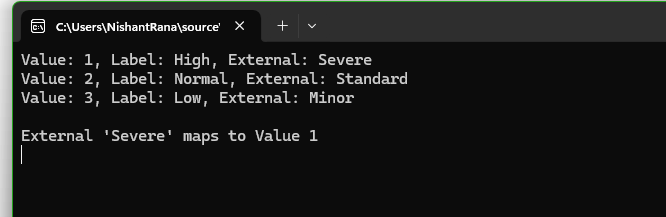
                Console.WriteLine($"Value: {option.Value}, Label: {option.Label?.UserLocalizedLabel?.Label}, External: {option.ExternalValue}");
            }

            string ext = "Severe";
            var match = picklistMetadata.OptionSet.Options.FirstOrDefault(o => o.ExternalValue == ext);
            if (match != null)
            {
                Console.WriteLine($"\nExternal '{ext}' maps to Value {match.Value}");
            }

        }
A screenshot of a computer

AI-generated content may be incorrect.

Using External values, we can decouple integrations from the internal values that we use for our choice column. By using them, we can speak the language of the external system while still maintaining proper structure and metadata within Dataverse.

Hope it helps..

Advertisements

Change Choice / OptionSet value’s text/label using JavaScript    – Dataverse / Dynamics 365


In Dynamics 365, there are instances when we need to dynamically change the labels of option set fields based on specific conditions. For example, we might want to update the label of the “Priority” field option from High to Critical when a case is marked as escalated (Is Escalated = True).

Below is the sample code we can use for it. The code will be registered on the OnLoad for Form and OnChange of Is Escalated field.

	function SetLabel(executionContext)
	{
		 var formContext = executionContext.getFormContext();
		 var isEscalated = formContext.getAttribute("isescalated"); 
		 var optionSetControl = formContext.getControl("prioritycode"); // field is in header and not in form
		 var optionHigh = 1; // high
		 var newLabel = "Critical";
		 
		 if(optionSetControl && isEscalated.getValue() == true)
		 {
			var options = optionSetControl.getOptions();
            for (var i = 0; i < options.length; i++) {
                if (options[i].value === optionHigh) {                   
                    optionSetControl.removeOption(optionHigh);
                    optionSetControl.addOption({
                        text: newLabel,
                        value: optionHigh
                    });
                    break;
                }
            }
		 }		 
	}

On opening the form, we can see the Priority’s value High changed to Critical in case Is Escalated = Yes.

A screenshot of a computer

Description automatically generated

var formContext = executionContext.getFormContext(); = This retrieves the form context from the execution context, which is essential to interact with the form’s attributes and controls.

var isEscalated = formContext.getAttribute(“isescalated”) = The isescalated attribute is used to determine whether the case is escalated.

var optionSetControl = formContext.getControl(“prioritycode”);

  • The current options are retrieved using getOptions().
  • The option with the value 1 (High priority) is removed.
  • A new option with the updated label “Critical” and the same value is added.

However, one interesting thing to note is the Header still shows the old value High, it seems there is no supported way to change the label in case if the field is used in the Header.

Hope it helps..

Advertisements

How to – Deal with OptionSet inside Power BI in Dynamics 365 CE


Updated 8-Sep-2018 –> Please check the Power Query Builder tool of XrmToolBox. Thanks Scott Sewell for informing about this wonderful tool.

Suppose, we have created a Power BI Report which makes use of OptionSet field.

It is on incident entity and we have selected priority code and state code option set fields. The problem is that we only get the value for them, so to get the label either we can manually specify it or use the plugin Power BI Option Set Assistant. We’d see both the methods.

Let us take state code field first and specify label for them manually.

In the Query Editor, select New Query and specify following value and save it.

= #table({“value”,”label”},{{0,”In Progress”},{1,”Resolved”}})

Select the main query and click on Merge Queries

Select statecode and value to map them, specify left outer join for Join Kind as shown below

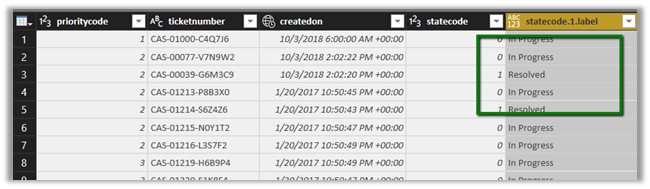
Select the new column added to the query and check the label.

We now have the label specified added as a new column to our query.

Here, for small set of values we can specify the label manually, however if there are too many values this might not be feasible and also if there are changes in OptionSet inside Dynamics 365 CE, we’d have to do it manually here, which makes it difficult to maintain.

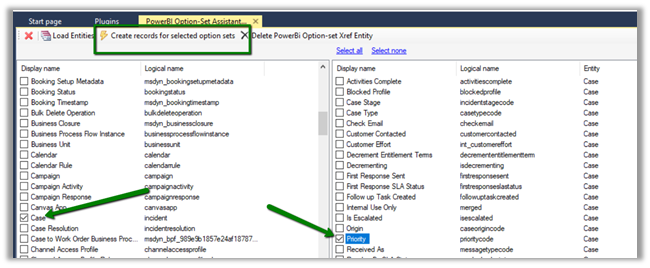
So, let us use the wonderful PowerBI OptionSet Assistant plugin from our favorite XRMToolBox

Install the plugin

Click on Load Entities and select Case Entity.

Select Priority field and click on “Create records for selected option sets

Basically, it will create a new entity named gap_powerbioptionsetrefs entity, which will hold the records corresponding to each of the values of the optionset field selected.

Back in Power BI create a new query and select the gap_powerbioptionsetfrefs entity and save the query.

Now follow the same steps, select the main incidents query and perform merge queries operation as shown below

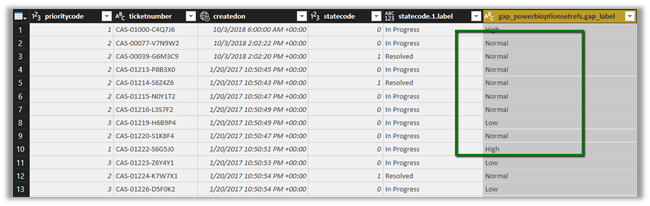
Expand the column to select the label field

Our final query à

Hope it helps..