Recently while trying to retrieve OptionSet Metadata using our favorite KingswaySoft SSIS Toolkit we got the below error.
Same error for prod also – [CDS Source [2]] Error: An error occurred with the following error message: “KingswaySoft.IntegrationToolkit.DynamicsCrm.CrmServiceException: CRM service call returned an error: An error has occurred when retrieving metadata for CRM entity ‘copilotexamplequestion’: The source argument contains duplicate keys. (SSIS Integration Toolkit for Microsoft Dynamics 365, v23.2.2.32701 – DtsDebugHost, v16.0.5270.0)System.ArgumentException. : The source argument contains duplicate keys.”.
Interestingly we were getting this issue while running the package in the UAT and Production environment, it was working fine for the Dev environment. Also, it was OOB Table and we could compare and see it to be the same across all the environments.
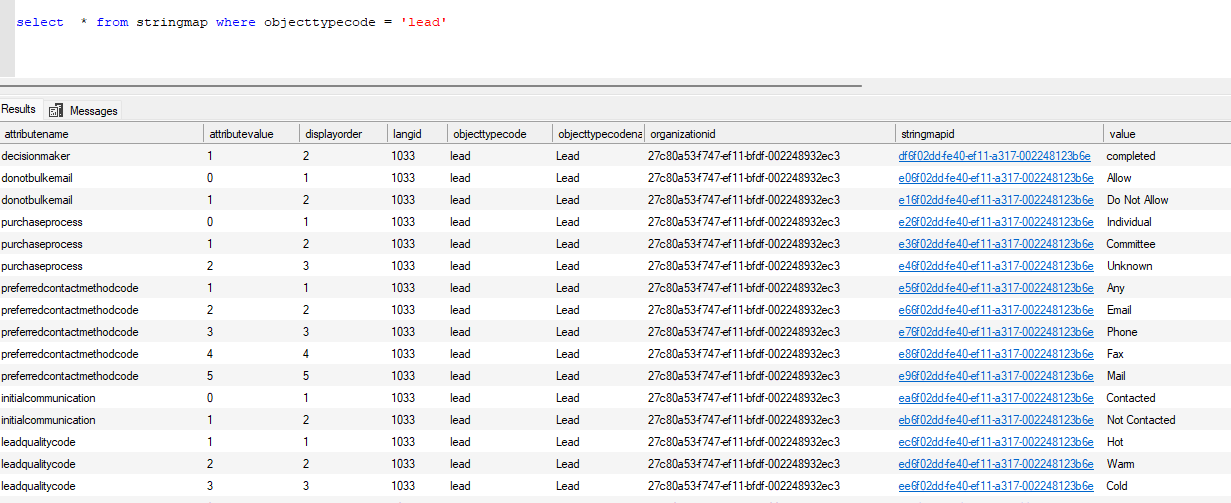
Well, the way we could progress here is to query and get the required details from the stringmap table.
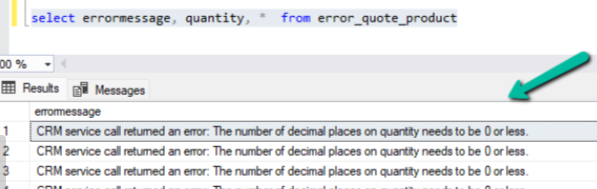
While running an SSIS Package that creates Quote Product records, we got the below error –
CRM service call returned an error: The number of decimal places on quantity needs to be 0 or less
If we see the decimal places seem to be specified properly for the quantity field in the source file as we had other records created properly from the source.
Well this occurs when we try to add Quote Product and specify decimal precision in quantity which is more than what has been specified in the associate product.
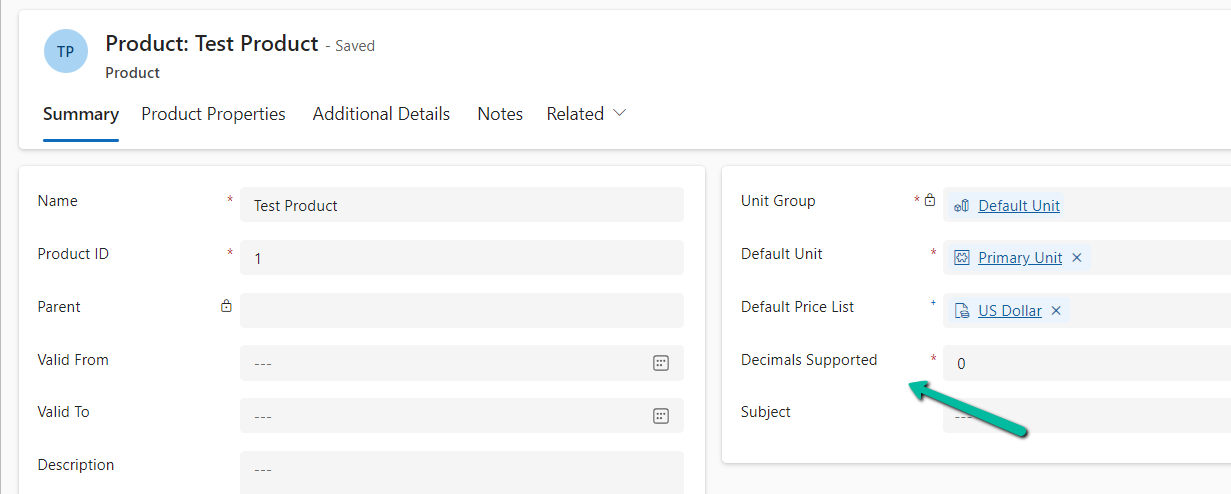
Below we can see the decimal supported is 0 for the product associated to the quote product record.
To fix this problem, either we have to increase the decimal supported value or remove decimal precision from the quantity in the quote product based on the product in question.
With Release Wave 2, we can see the below features added to Grid.
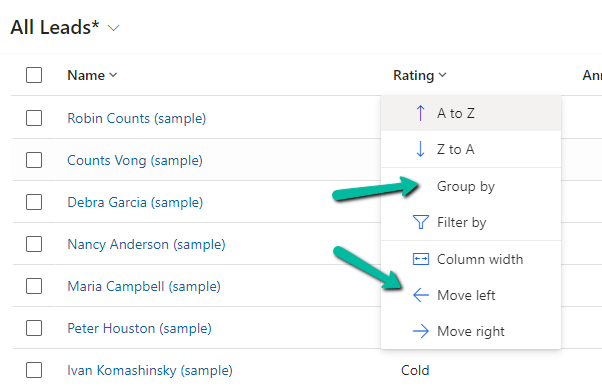
The option to Group By, Column Width, Move Left and Move Right.
Group By (Rating) –
Move Left and Move Right as expected will move the selected column accordingly. Not only that we can also Drag and Drop the columns, here we have dragged the Rating column as the 1st column.
Column Width – allows us to specify the preferred width of the column.
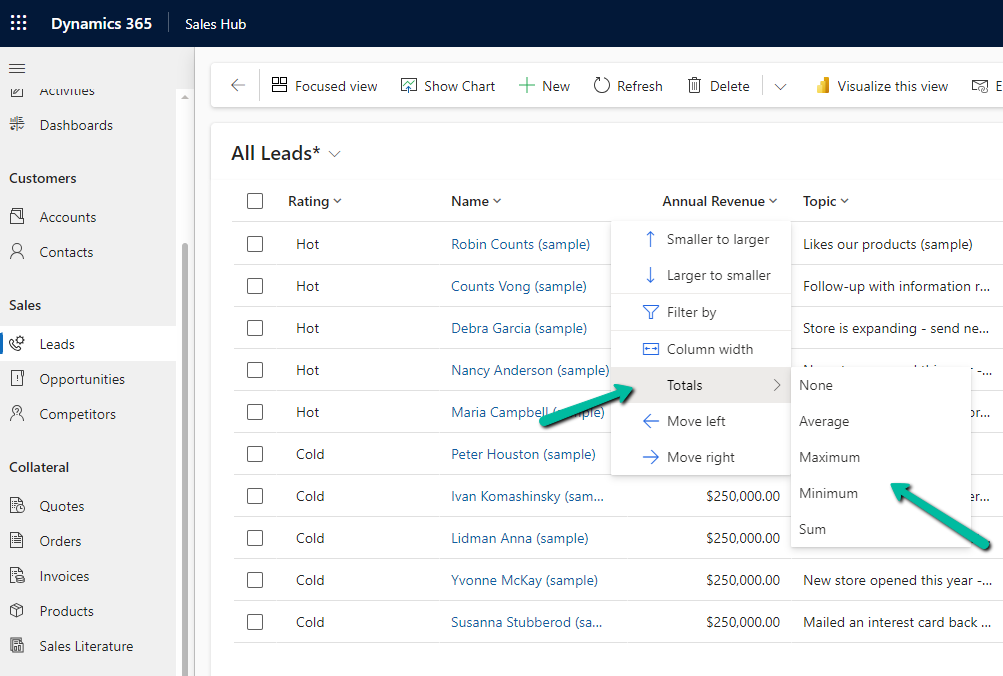
Totals > None, Average, Maximum, Minimum, Sum.
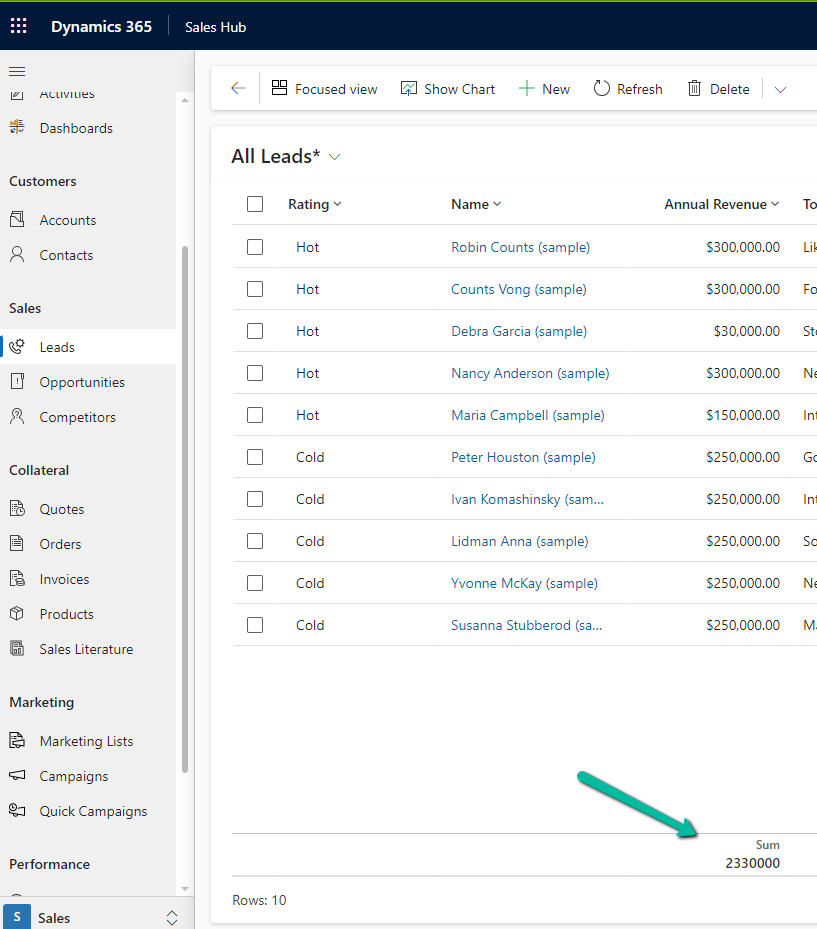
For the numerical column, Annual Revenue in this case we get the option to calculate the total
Selecting Total > Sum, adds a row at the bottom, showing the total sum
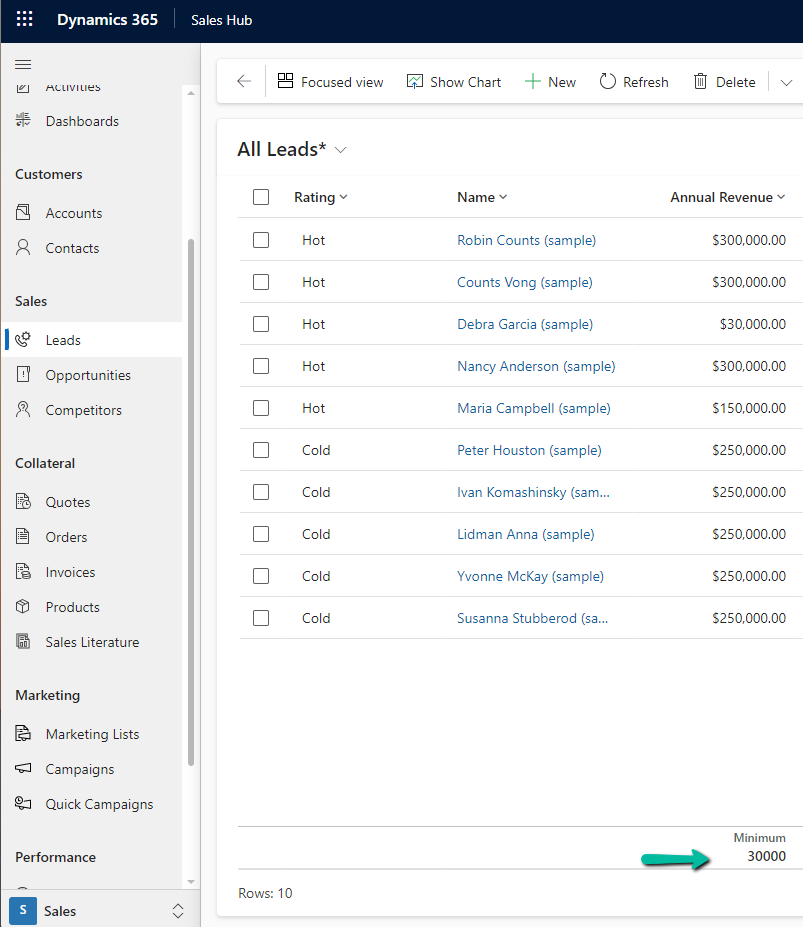
Similarly selecting minimum shows the minimum value.
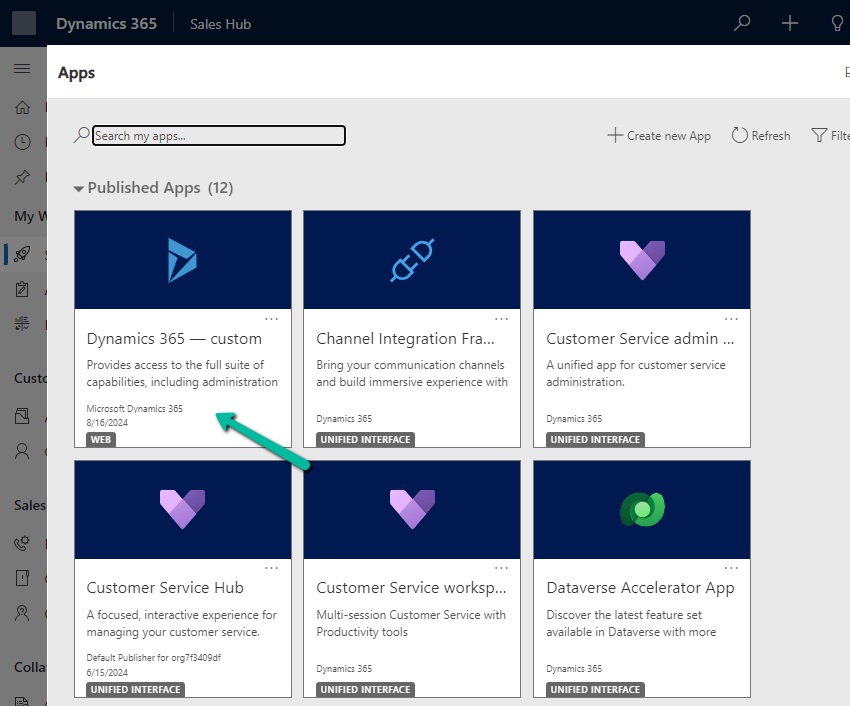
From the Power Platform Admin Center for a particular Environment, through Settings >> Product >> Behaviour >> Show legacy app for admins option, we can control visibility of the Legacy App (Dynamics 365 – Custom) for admins.
If Show legacy app for admins = On –
An admin can see the app
By setting it to Off
We can see the app hidden for the admins also.
The aim is that all the users including admin must use only the modern, model-driven apps.
To enable Copilot for a specific instance of a Rich Text editor field, we first need to create a Web Resource where we need to specify the property we want to update/override as specified in the RTEGlobalConfiguration_Readonly.json, the base read-only configuration file for the Rich Text editor control.
We have created a JavaScript Web Resource file named rtecustom.js.
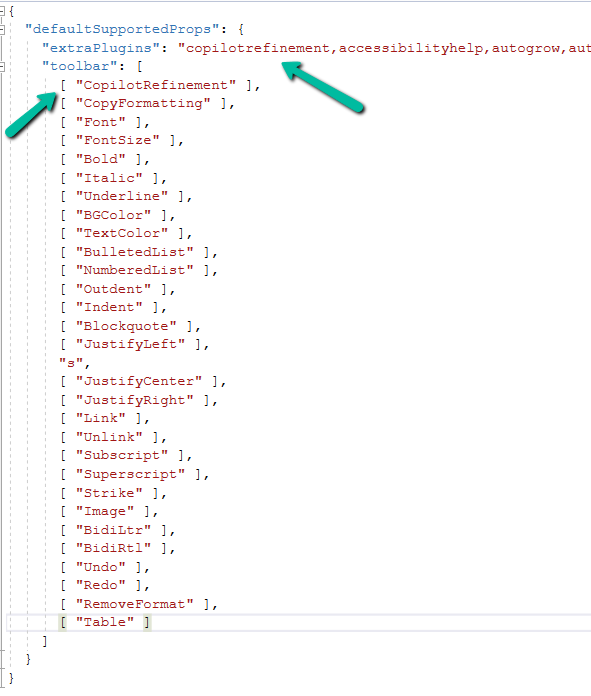
Added the copilitrefinement and CopilotRefinement values to the extraPlugins and toolbar properties existing values as shown to enable copilot.
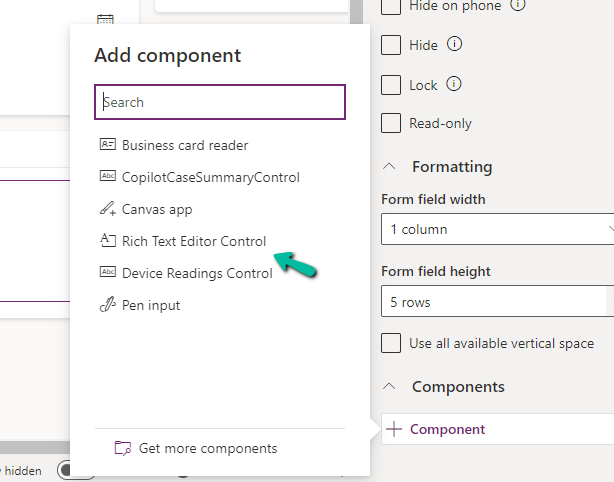
Next, we opened one of the Contact’s forms for Customization, selected the description field, and added the component – “Rich Text Editor Control” to it.
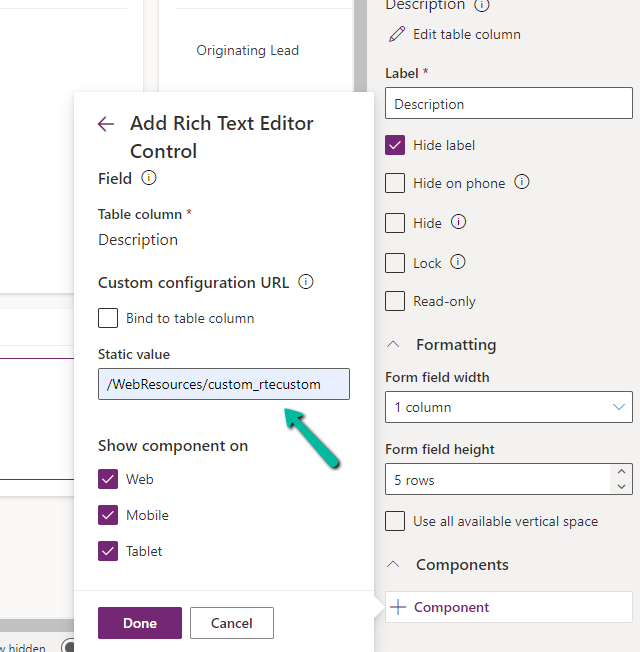
In the Static value property, we specified the relative URL of the Web Resource file. We can also specify the full path but then we would need to update it each time we move it to other environments.
Save and publish the changes.
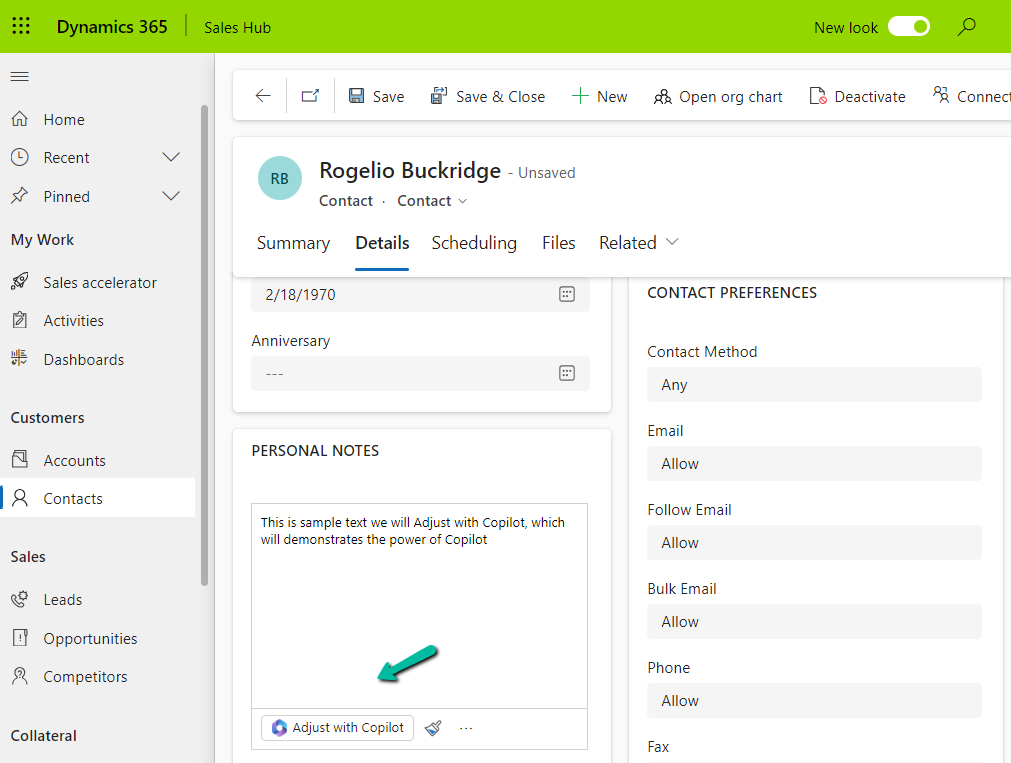
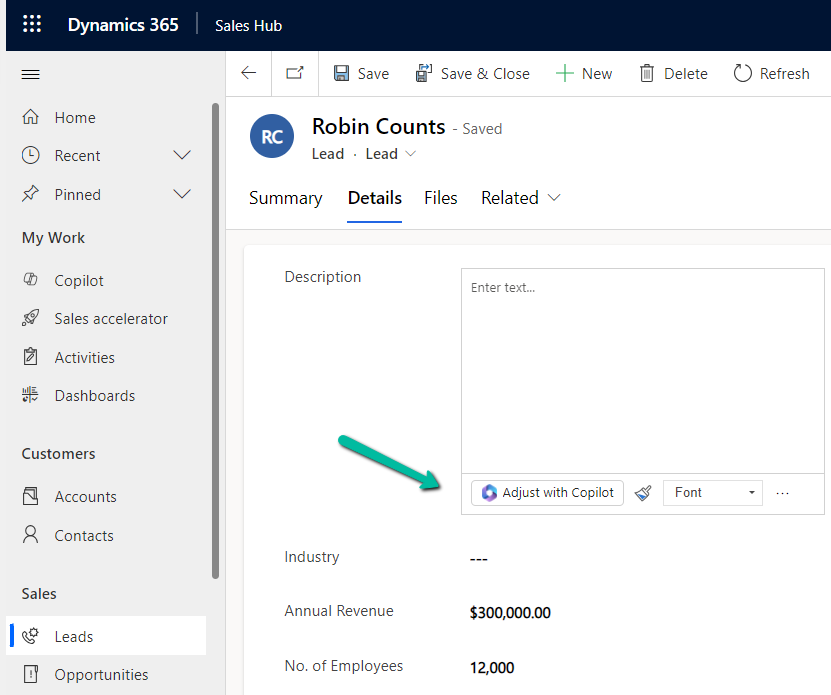
We can see the option Adjust with Copilot added to the toolbar for the control.
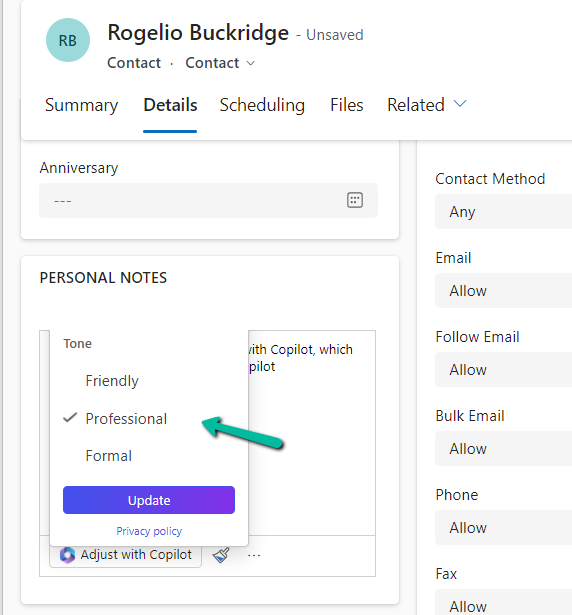
On selecting the text, and clicking on “Adjust with Copilot”, we get the option to update the Tone of the content.
On selecting a Professional tone, the text is updated in the control.
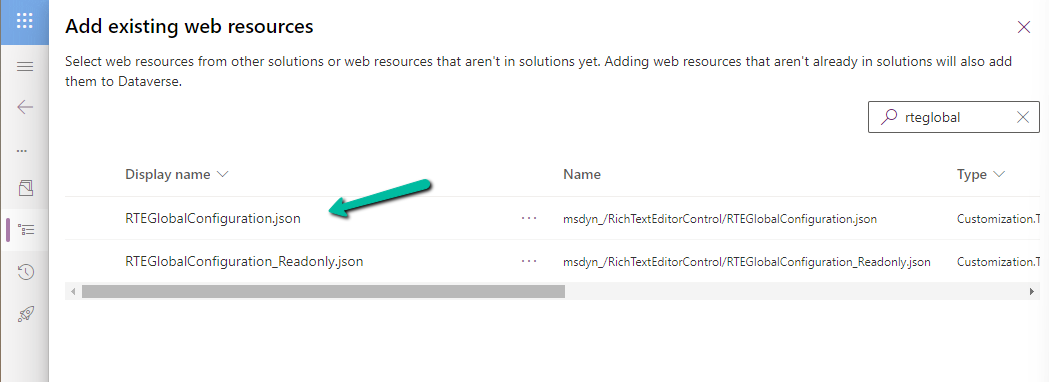
In case we want to apply to all the fields that are using Rich Text Editor Control instead of specifying it for individual fields, we need to update and add the same JSON to the existing RTEGlobalConfiguration.json file.
The file is blank by default, and we can specify properties to it that we want to override.
We updated the RTEGlobalConfiguration.json file, to use the same definition we used earlier for our custom web resource.
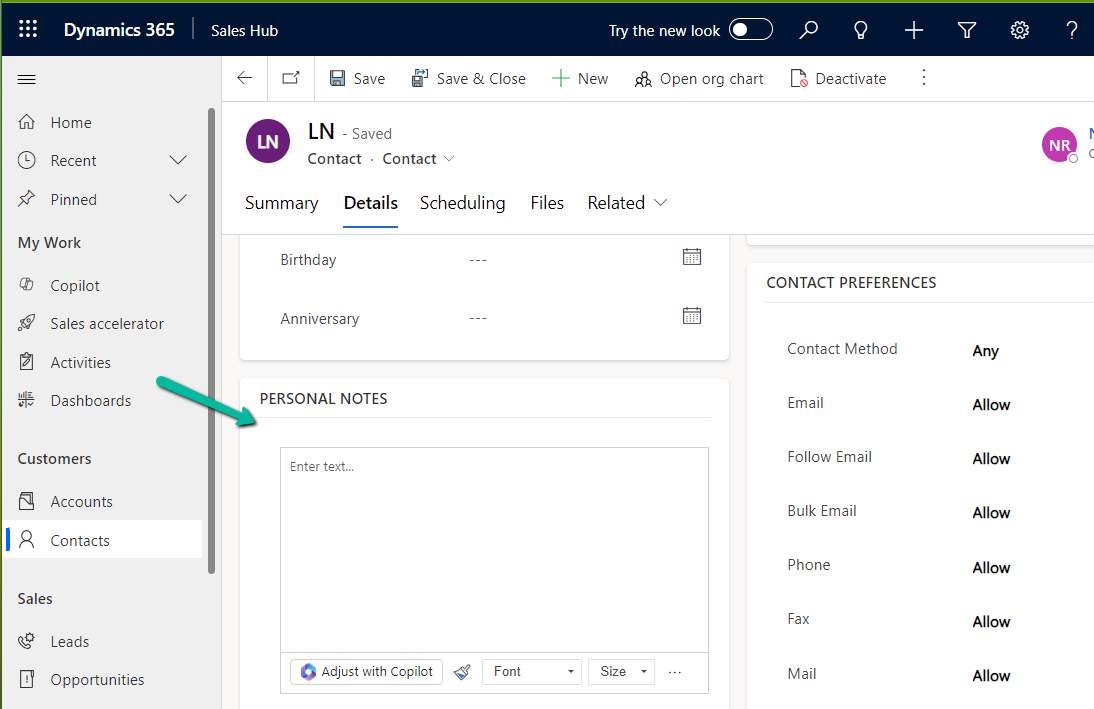
We can see the “Adjust with Copilot” added to the form even without specifying the URL in the static value while customizing the form.
On saving and publishing the changes, we can then see it rendered for all the Rich Text Editor fields.



















 Nishant Rana's Weblog