Business Unit in CRM 2011 – New features


Hi here i am just putting down all the new features that i have found while learning about business unit in CRM 2011.

Root business unit can now be renamed.

As in CRM 4, we cannot delete or disable root business unit. If we try to delete it we get the following message.
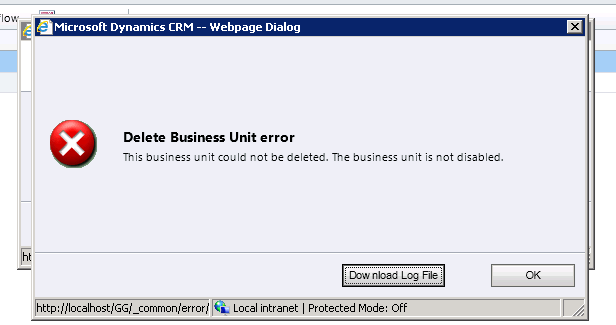
If we try disabling the root business unit we get the following message

Let us create a new business unit and try deleting it.
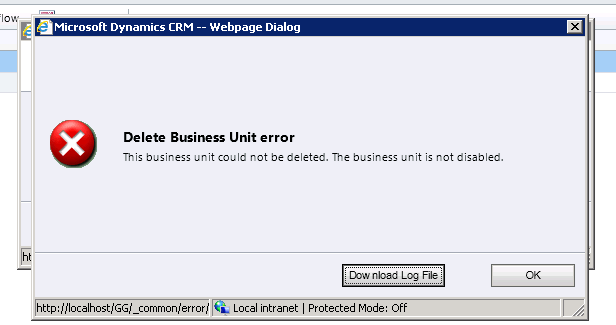
Again the same message that we need to disable it before we can delete it.
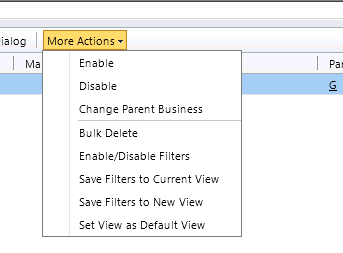
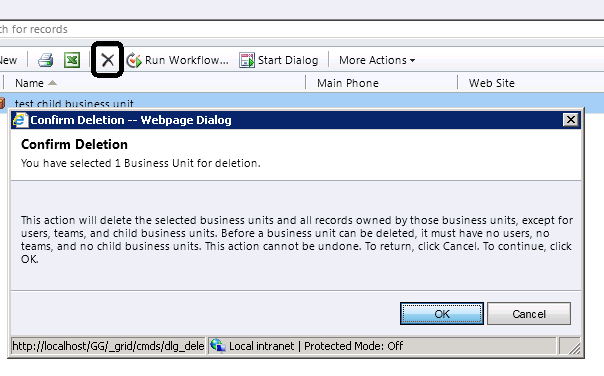
Clicking on Disable from More Actions, disables the record and clicking on delete deletes it.
A default team gets created for every business unit having named same as the business unit.

The user that belongs to business unit automatically becomes the member of the default team created.
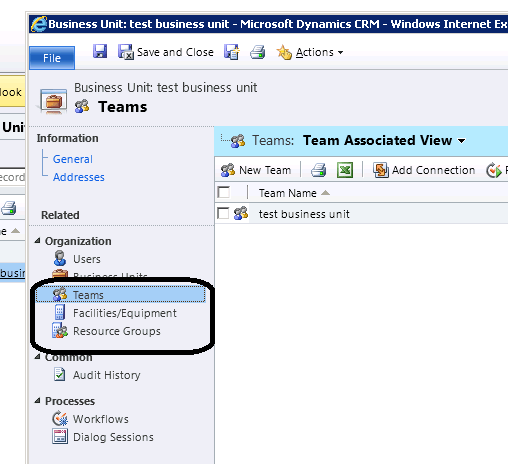
If we try removing the member added to the default team, we get the following error message.
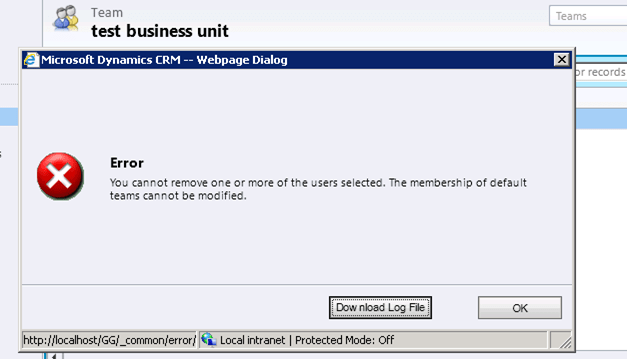
And if we trying adding members to it, we get the following error message

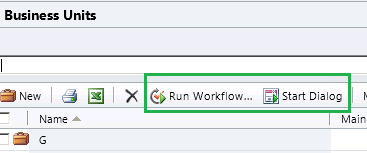
We can write workflows and dialogs against business unit entity.
When a BU is disabled: – Although the Users cannot access MICROSOFT DYNAMICS CRM, the user records themselves are not removed or disabled. Therefore, the licenses of those users will not be withdrawn. If a user is disabled when the Business Unit was disabled, the user must be enabled before he or she can access Microsoft Dynamics CRM after the Business Unit is enabled.

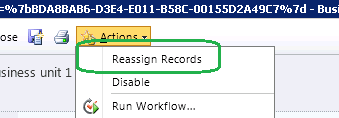
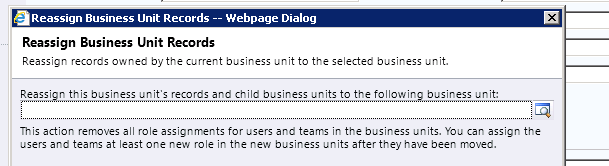
Before we can delete permanently a Business Unit, you must remove any child Business Units, Users or Teams. This can be done by deleting or re-assigning them individually, or by using the Reassign Records option as mentioned above. The exception to this is the default team of the Business Unit, which will be deleted with the Business Unit. Facilities/Equipment and Resource Groups do not have to be removed beforehand (though they can be if you want to preserve them).
Check this informative post also

http://www.magnetism.co.nz/blog/11-03-24/Business_Units_and_Teams_in_Dynamics_CRM_2011.aspx

Hope this helps.

Enabling button in SubGrid on selection of record (SelectionCountRule) in CRM 2011


We had a requirement to have a custom button on a subgrid for an entity, and the button should only be enabled if and only if one record is selected.

It should get disabled in case if no records are selected or more than one record selected.

Used the below ribbondiffxml to achieve that

   <RibbonDiffXml>
        <CustomActions>
          <CustomAction Id="MyOrg.CustomAction" Location="Mscrm.SubGrid.entitySchemaName.MainTab.Management.Controls._children" Sequence="50">
            <CommandUIDefinition>
              <Button Id="MyOrg.Button" ToolTipTitle="Upload Required Document" ToolTipDescription="Upload Required Documents for the Case" Command="MyOrg.Command" Sequence="50" LabelText="Upload Document" Alt="Upload Document To Portal" Image16by16="/_imgs/ribbon/AddEmail_16.png" Image32by32="/_imgs/ribbon/Email_32.png" TemplateAlias="o1" />
            </CommandUIDefinition>
          </CustomAction>
        </CustomActions>
        <Templates>
          <RibbonTemplates Id="Mscrm.Templates"></RibbonTemplates>
        </Templates>
        <CommandDefinitions>
          <CommandDefinition Id="MyOrg.Command">
            <EnableRules>
              <EnableRule Id="MyOrg.EnableRule"></EnableRule>
            </EnableRules>
             <DisplayRules />
            <Actions>
              <JavaScriptFunction Library="$webresource:new_test" FunctionName="showvalue">
                <StringParameter Value="Guid(s) Selected"></StringParameter>
                <CrmParameter Value="SelectedControlSelectedItemIds"></CrmParameter>
              </JavaScriptFunction>
            </Actions>
          </CommandDefinition>
        </CommandDefinitions>
        <RuleDefinitions>
          <TabDisplayRules />
          <DisplayRules />
          <EnableRules>
            <EnableRule Id="MyOrg.EnableRule">
              <SelectionCountRule AppliesTo="SelectedEntity" Maximum="1" Minimum="1"></SelectionCountRule>
            </EnableRule>
          </EnableRules>
        </RuleDefinitions>
        <LocLabels />
      </RibbonDiffXml>
	  

Hope it helps


Sample code for adding a custom button on a custom tab for SubGrid of an entity in ribbon (CRM 2011)


Just replace the schema name of your entity.

 <RibbonDiffXml>
        <CustomActions>
          <CustomAction Id="Sample.SubGrid.entitySchemaName.CustomTab.CustomAction" Location="Mscrm.SubGrid.entitySchemaName.ContextualTabs._children" Sequence="40">
            <CommandUIDefinition>
              <Tab Id="Sample.SubGrid.entitySchemaName.CustomTab" Command="Sample.SubGrid.entitySchemaName.CustomTab" Title="Custom Tab" Description="Custom Tab Description" Sequence="500">
                <Scaling Id="Sample.SubGrid.entitySchemaName.CustomTab.Scaling">
                  <MaxSize Id="Sample.SubGrid.entitySchemaName.CustomTab.FirstGroup.MaxSize" GroupId="Sample.SubGrid.entitySchemaName.CustomTab.FirstGroup" Sequence="10" Size="LargeMedium" />
                </Scaling>
                <Groups Id="Sample.SubGrid.entitySchemaName.CustomTab.Groups">
                  <Group Id="Sample.SubGrid.entitySchemaName.CustomTab.FirstGroup" Command="Sample.SubGrid.entitySchemaName.FirstGroup" Sequence="10" Title="Custom First Group" Template="Mscrm.Templates.3.3">
                    <Controls Id="Sample.SubGrid.entitySchemaName.CustomTab.FirstGroup.Controls">
                      <Button Id="Sample.SubGrid.entitySchemaName.CustomTab.FirstGroup.FirstButton" ToolTipTitle="ButtonToolTipTitle" ToolTipDescription="ToolTipDescription" Command="Sample.SubGrid.entitySchemaName.FirstButton" Sequence="10" LabelText="LabelText" Alt="LabelText" Image16by16="/_imgs/ribbon/AddEmail_16.png" Image32by32="/_imgs/ribbon/Email_32.png" TemplateAlias="o1" />
                    </Controls>
                  </Group>
                </Groups>
              </Tab>
            </CommandUIDefinition>
          </CustomAction>
        </CustomActions>
        <Templates>
          <RibbonTemplates Id="Mscrm.Templates"></RibbonTemplates>
        </Templates>
        <CommandDefinitions>
          <CommandDefinition Id="Sample.SubGrid.entitySchemaName.FirstGroup">
            <EnableRules>
              <EnableRule Id="Mscrm.Enabled " />
            </EnableRules>
            <DisplayRules>
            </DisplayRules>
            <Actions />
          </CommandDefinition>
          <CommandDefinition Id="Sample.SubGrid.entitySchemaName.CustomTab">
            <EnableRules>
              <EnableRule Id="Mscrm.Enabled " />
            </EnableRules>
            <DisplayRules>
            </DisplayRules>
            <Actions />
          </CommandDefinition>
          <CommandDefinition Id="Sample.SubGrid.entitySchemaName.FirstButton">
            <EnableRules />
            <DisplayRules />
            <Actions>
              <JavaScriptFunction Library="$webresource:new_test" FunctionName="showvalue">
                <StringParameter Value="Guid(s) Selected" > </StringParameter>
                <CrmParameter Value="SelectedControlSelectedItemIds"></CrmParameter>
              </JavaScriptFunction>
            </Actions>
          </CommandDefinition>
        </CommandDefinitions>
        <RuleDefinitions>
          <TabDisplayRules>
            <TabDisplayRule TabCommand="Sample.SubGrid.entitySchemaName.CustomTab">
              <EntityRule EntityName="entitySchemaName" Context="SubGridStandard" />
              <EntityRule EntityName="entitySchemaName" Context="SubGridAssociated" />
            </TabDisplayRule>
            <TabDisplayRule TabCommand="Sample.Form.entitySchemaName.CustomTab">
              <EntityRule EntityName="entitySchemaName" Context="Form" AppliesTo="PrimaryEntity" />
            </TabDisplayRule>
            <TabDisplayRule TabCommand="Sample.Grid.entitySchemaName.CustomTab">
              <EntityRule EntityName="entitySchemaName" Context="HomePageGrid" />
            </TabDisplayRule>
          </TabDisplayRules>
          <DisplayRules />
          <EnableRules />
        </RuleDefinitions>
        <LocLabels />
      </RibbonDiffXml>

This is the helpful post

http://dynamicscrm2011.wordpress.com/tag/adding-a-button-to-the-crm-2011-sub-grid-ribbon/

Hope it helps !

Working with SharePointDocumentLocation in CRM 2011.


We had a requirement to associate a SharePointDocumentLocation with a case record when it is created. We wanted to use our own folder structure for it. Something similar to this

Sharepointdocumentlibraryurl/[CustomerName]/[CaseNumber]

i.e. folder name with Customer Name and a subfolder with the name of Case Number.

Normally SharePoint document location is created when we click on Documents on the left navigation pane for the record. It doesn’t get created or auto associated to a SharePoint folder on create of record.

So the solution was to write a plugin in on create event and then create a folder in SharePoint and then associate it with the created record.

The source code for implementing it (just posting the source code i hope it is self explanatory 🙂 )


// following logic within the Post Create plugin of Case (incident)
	 if (this.Context.MessageName.ToUpper() == "CREATE" && Context.InputParameters.Contains("Target")
                && Context.InputParameters["Target"] is Entity)
            {
                Entity targetIncident = (Entity)Context.InputParameters["Target"];

                //// Create doc folder for case
                Guid incidentId = Context.PrimaryEntityId;
                string ticketNumber = targetIncident["ticketnumber"].ToString();
                Guid customerId = ((EntityReference)targetIncident["customerid"]).Id;

                Contact contact = // code to get the contact's fullname

                SharePointHelper sharepoint = new SharePointHelper();
                sharepoint.CreateFolderForCase(organizationService, contact.FullName, ticketNumber, incidentId);
            }

// Helper functions used

	    public string CreateFolderForCase(OrganizationService coreCrmService, string contacFolderName, string caseFolderName, Guid incidentId)
        {
            string docLibraryUrl = "http://SharePointSiteCollection/incident";
            string applicantFolderUrl = docLibraryUrl + "/" + applicantFolderName;
            string caseUrl = applicantFolderUrl + "/" + caseFolderName;

            //// Create folder and subfolder inside SharePoint site
            this.CreateFolderStructure(applicantFolderUrl, caseUrl);

            //// create and associate the url of the folder to SharePointDocumentLocation and the incident record.
            this.CreateAndAssociateSharePointDocumentLocation(coreCrmService, incidentId, caseFolderName, caseUrl);
            return caseUrl;
        }

		private bool CreateFolderStructure(string applicantFolderUrl, string caseFolderUrl)
        {
            if (this.CreateFolder(applicantFolderUrl))
            {
                return this.CreateFolder(caseFolderUrl);
            }

            return false;
        }

		private bool CreateFolder(string folderUrl)
        {
            try
            {
                WebRequest request = WebRequest.Create(folderUrl);
                request.Credentials = this.credentials;
                request.Method = "MKCOL";
                WebResponse response = request.GetResponse();
                response.Close();
            }
            catch(Exception ex)
            {
                TraceHelper.TraceEvent(ex, "CreateFolder", folderUrl, TraceHelper.AMSApplication.AMSService);
            }
            return true;
        }

		public static bool CreateAndAssociateSharePointDocumentLocation(OrganizationService coreCrmService, Guid incidentId, string caseNumber, string sharePointDocumentUrl)
        {
            SharePointDocumentLocation sharePointDocumentLocation = new SharePointDocumentLocation();
            sharePointDocumentLocation.Name = "SharePoint Document Location for " + caseNumber;
            sharePointDocumentLocation.Description = "SharePoint Document Location created for storing documents related to case";
            sharePointDocumentLocation.AbsoluteURL = sharePointDocumentUrl;
            sharePointDocumentLocation.RegardingObjectId = new EntityReference("incident", incidentId);
			coreCrmService.Create(sharePointDocumentLocation);
            return true;
        }

Please refer these wonderful posts that were extremely helpful.

http://charlesemes.blogspot.com/2011/02/create-sharepoint-document-locations-in.html

http://geek.hubkey.com/2007/10/upload-file-to-sharepoint-document.html

Ribbon Editor for CRM 2011


Hi,

I was just reading some of the blogs that i have subscribed to in my rss reader and came to know that ribbon editor tool for CRM 2011 has been released.

http://mscrmtools.blogspot.com/2011/07/new-tool-alpha-ribbon-editor.html


http://erikpool.blogspot.com/2011/10/new-crm-2011-ribbon-editing-tool.html


I think ribbon customization is one of the most complex task in CRM 2011.  Thanks you guys for helping us by building the tool.

Bye..

Adding a button to Document Locations Tab in CRM 2011


After we have configured SharePoint List Component for CRM 2011, and enabled it for the entities, we will have a “documents” link on the left navigation pane of the record. The ribbon will have two buttons Add Location and Edit Location over there.

If we need to add our own button over there, we need to make changes to the “Application Ribbons” in our solution file.

The final output

And the RibbonDiffXML for that

<RibbonDiffXml>
<CustomActions>
<CustomAction Id="AMS_DocumentButton" Location="Mscrm.DocumentsTab.Locations.Controls._children" Sequence="30">
<CommandUIDefinition>
<Button
Id="B_MyFirstButton"
Command="Cmd_JavaScript"
LabelText="My First Button"
ToolTipTitle="My First Button Tool Tip Title"
ToolTipDescription="My First Button Tool Tip Description"
TemplateAlias="o1"
Image16by16="/_imgs/ribbon/saveandclose16.png"
Image32by32="/_imgs/ribbon/saveandclose32.png"/>
</CommandUIDefinition>
</CustomAction>
</CustomActions>
<Templates>
<RibbonTemplates Id="Mscrm.Templates"></RibbonTemplates>
</Templates>
<CommandDefinitions>
<CommandDefinition Id="Cmd_JavaScript">
<EnableRules/>
<DisplayRules/>
<Actions>
<JavaScriptFunction
Library="$webresource:new_test"
FunctionName="testDoc">
</JavaScriptFunction>
</Actions>
</CommandDefinition>
</CommandDefinitions>
<RuleDefinitions>
<TabDisplayRules />
<DisplayRules />
<EnableRules />
</RuleDefinitions>
<LocLabels />
</RibbonDiffXml>

Hope it helps.