Hi,
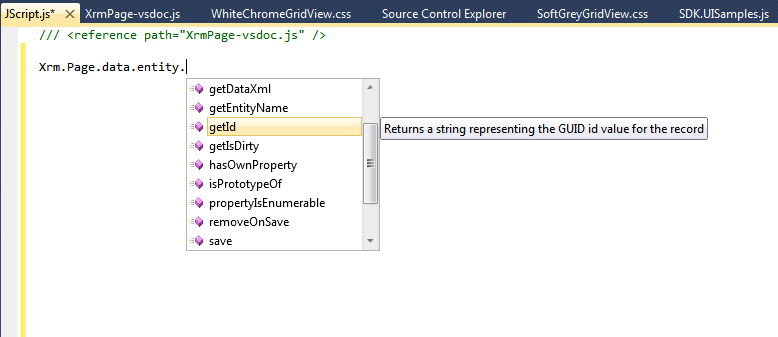
Follow the instructions in the following post to have the IntelliSense while writing JavaScript for CRM 2011.
http://www.patrickverbeeten.com/pages/ContentItemPage.aspx?id=9&item=118&p=true
Bye..

Hi,
Follow the instructions in the following post to have the IntelliSense while writing JavaScript for CRM 2011.
http://www.patrickverbeeten.com/pages/ContentItemPage.aspx?id=9&item=118&p=true
Bye..

The stats helper monkeys at WordPress.com mulled over how this blog did in 2010, and here’s a high level summary of its overall blog health:

The Blog-Health-o-Meter™ reads Wow.
The Louvre Museum has 8.5 million visitors per year. This blog was viewed about 290,000 times in 2010. If it were an exhibit at The Louvre Museum, it would take 12 days for that many people to see it.
In 2010, there were 86 new posts, growing the total archive of this blog to 346 posts. There were 72 pictures uploaded, taking up a total of 158mb. That’s about 1 pictures per week.
The busiest day of the year was November 10th with 1 views. The most popular post that day was Creating Word document using C#.
The top referring sites in 2010 were google.co.in, google.com, social.microsoft.com, social.msdn.microsoft.com, and eggheadcafe.com.
Some visitors came searching, mostly for wpf hyperlink, sharepoint javascript, could not load all isapi filters for site/service. therefore startup aborted., oracle left, and unable to generate a temporary class (result=1)..
These are the posts and pages that got the most views in 2010.
Creating Word document using C# November 2007
32 comments
Using Hyperlink in WPF application March 2009
3 comments
Unable to generate a temporary class (result=1). error CS2001: Source file ‘C:\WINDOWS\TEMP\filename.cs’ could not be found error CS2008: No inputs specified February 2008
30 comments
(Service Unavailable) Could not load all ISAPI filters for site/service. Therefore startup aborted. September 2008
18 comments
Using Left and CharIndex in Oracle October 2007
4 comments

To get the filtered lookup functionality in CRM 2011 we can make use of the
addCustomView Method of Xrm.Page.ui control.

Something similar to this
Here we have a custom entity name Case which has 1-n relationship with Contact Entity.
Now we want to show only those contact records in lookup which are associated with a particular case record.
We can add the code to the onload of the Entity.
// View ID --> Generate and Assign a new guid.

var viewId = "{C0F1DD64-1BF3-450D-BCDE-DF4732DE1606}";

// Set the entity name
 var entityName = "contact";
 // Give a meaningful name to the custom view
 var viewDisplayName = "Case Member View";

// Create the Advanced find query and download the fetch xml
var fetchXml = "<fetch version='1.0' output-format='xml-platform' mapping='logical' distinct='false'>" +
"<entity name='contact'>" +
"<attribute name='fullname' />" +
" <attribute name='contactid' />" +
"<order attribute='fullname' descending='false' />" +
"<filter type='and'>" +
"<condition attribute='new_caseid' operator='eq' uiname='new case' uitype='new_case' value="+caseID+"/>" +
"</filter>" +
"</entity>" +
"</fetch>";

// specify the layout for the results and which field to display
var layoutXml = "<grid name='resultset' " +
"object='1' " +
"jump='name' " +
"select='1' " +
"icon='1' " +
"preview='1'>" +
"<row name='result' " +
"id='contactid'>" +
"<cell name='fullname' " +
"width='100' />" +
"</row>" +
"</grid>";
// specify the schemaname of the lookup control
var lookupControl = Xrm.Page.ui.controls.get('new_clientid');
// set the parameters

lookupControl.addCustomView(viewId, entityName, viewDisplayName, fetchXml, layoutXml, true);

Accessing IFrame through JavaScript
window.frames[0].location
window.frames[“myframename”].location // through name
document.getElementById(‘myframeid’).src // through id
Accessing a div element name myDiv within Iframe
window.frames[“myframename”].document.getElementById(‘myDiv’).innerHTML
document.getElementById(‘myframeid’).contentDocument.getElementById(‘myDiv’).innerHTML
Accessing a div element name myDivInside within Iframe(myfframeid) which itself is inside an Iframe(myframeid)
document.getElementById(‘myframeid’).contentDocument.getElementById(‘myfframeid’).contentWindow.document.getElementById(‘myDivInside’).innerHTML
http://www.dyn-web.com/tutorials/iframes/
Bye.

Hi I had the following iframe defined in one of my aspx page.
<iframe id=”MyIframe” src=”http://www.bing.com” runat=”server” onload=”CallHello();”></iframe>
The page was working fine. However as soon as I specified the same iframe inside a master page, I started getting following error.
| Line 4: </asp:Content> Line 5: <asp:Content ID=”Content2″ ContentPlaceHolderID=”ContentPlaceHolder1″ Runat=”Server”> Line 6: <iframe ….src=http://www.bing.com…. Line 7: </asp:Content>
Line 8: |
So here to resolve the error either remove the runat or onload attribute.
Bye.

To get the value for OptionSet we can use the following function
private
string GetOptionsSetTextOnValue(IOrganizationService service, string entityName, string attributeName, int selectedValue) {
RetrieveAttributeRequest retrieveAttributeRequest = new
RetrieveAttributeRequest {
EntityLogicalName = entityName,
LogicalName = attributeName,
RetrieveAsIfPublished = true
};
// Execute the request.
RetrieveAttributeResponse retrieveAttributeResponse =(RetrieveAttributeResponse) service.Execute(retrieveAttributeRequest);
// Access the retrieved attribute.
Microsoft.Xrm.Sdk.Metadata.PicklistAttributeMetadata retrievedPicklistAttributeMetadata =(Microsoft.Xrm.Sdk.Metadata.PicklistAttributeMetadata)
retrieveAttributeResponse.AttributeMetadata;// Get the current options list for the retrieved attribute.
OptionMetadata[] optionList =retrievedPicklistAttributeMetadata.OptionSet.Options.ToArray();
string selectedOptionLabel = string.Empty;
foreach (OptionMetadata oMD in optionList) {
if (oMD.Value == selectedValue){selectedOptionLabel = oMD.Label.UserLocalizedLabel.Label;
}
}
return selectedOptionLabel;
}
http://www.codeproject.com/Tips/553178/Get-the-OptionsetValue-and-OptionsetText-for-Dynam
Hope it helps !

 Nishant Rana's Weblog