Enable Copilot for the Rich Text Control – Dataverse / Dynamics 365


To enable Copilot for a specific instance of a Rich Text editor field, we first need to create a Web Resource where we need to specify the property we want to update/override as specified in the RTEGlobalConfiguration_Readonly.json, the base read-only configuration file for the Rich Text editor control.

We have created a JavaScript Web Resource file named rtecustom.js.

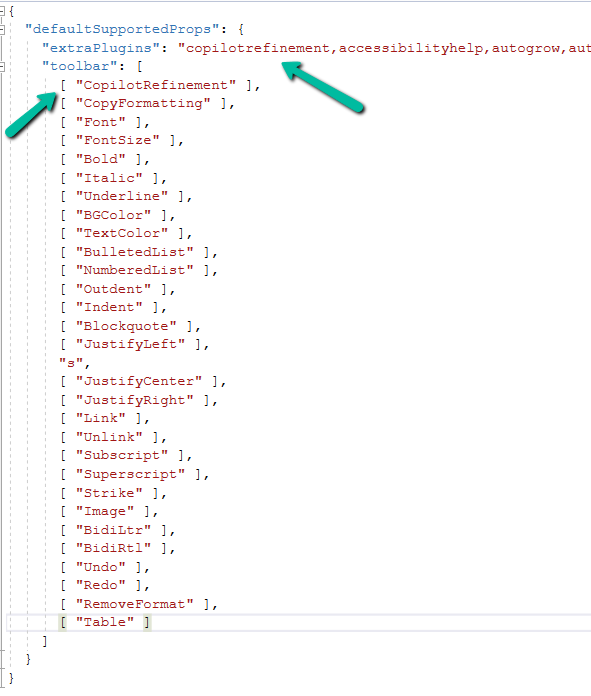
Added the copilitrefinement and CopilotRefinement values to the extraPlugins and toolbar properties existing values as shown to enable copilot.

Refer to the sample configuration file for all the properties and their corresponding values.
A screenshot of a computer program

Description automatically generated
{
  "defaultSupportedProps": {
    "extraPlugins": "copilotrefinement,accessibilityhelp,autogrow,autolink,basicstyles,bidi,blockquote,button,collapser,colorbutton,colordialog,confighelper,contextmenu,copyformatting,dialog,editorplaceholder,filebrowser,filetools,find,floatpanel,font,iframerestrictor,indentblock,justify,notification,panel,panelbutton,pastefromword,quicktable,selectall,stickystyles,superimage,tableresize,tableselection,tabletools,uploadfile,uploadimage,uploadwidget",
    "toolbar": [
      [ "CopilotRefinement" ],
      [ "CopyFormatting" ],
      [ "Font" ],
      [ "FontSize" ],
      [ "Bold" ],
      [ "Italic" ],
      [ "Underline" ],
      [ "BGColor" ],
      [ "TextColor" ],
      [ "BulletedList" ],
      [ "NumberedList" ],
      [ "Outdent" ],
      [ "Indent" ],
      [ "Blockquote" ],
      [ "JustifyLeft" ],
      [ "JustifyCenter" ],
      [ "JustifyRight" ],
      [ "Link" ],
      [ "Unlink" ],
      [ "Subscript" ],
      [ "Superscript" ],
      [ "Strike" ],
      [ "Image" ],
      [ "BidiLtr" ],
      [ "BidiRtl" ],
      [ "Undo" ],
      [ "Redo" ],
      [ "RemoveFormat" ],
      [ "Table" ]
    ]
  }
}

Note down the URL of the Web Resource created.

A screenshot of a computer

Description automatically generated

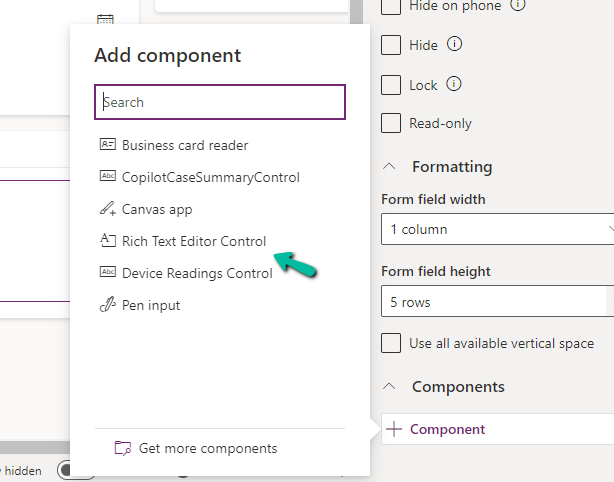
Next, we opened one of the Contact’s forms for Customization, selected the description field, and added the component – “Rich Text Editor Control” to it.

A screenshot of a computer

Description automatically generated
A screenshot of a computer

Description automatically generated

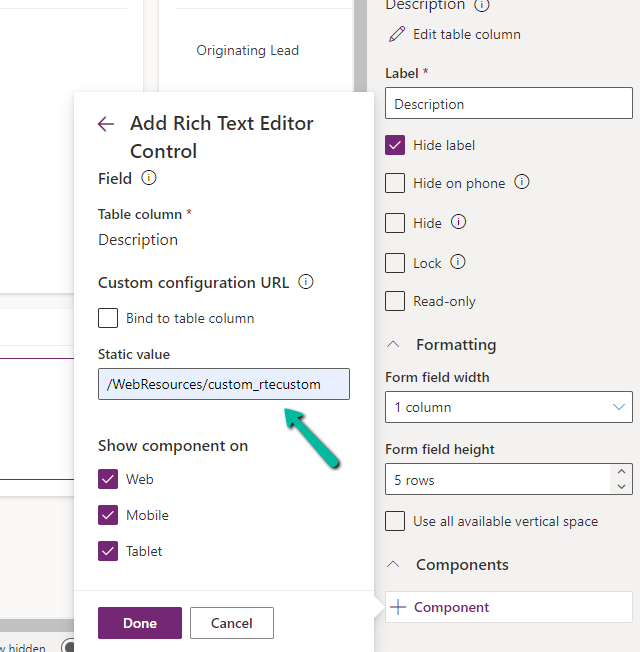
In the Static value property, we specified the relative URL of the Web Resource file. We can also specify the full path but then we would need to update it each time we move it to other environments.
A screenshot of a computer

Description automatically generated

Save and publish the changes.

We can see the option Adjust with Copilot added to the toolbar for the control.
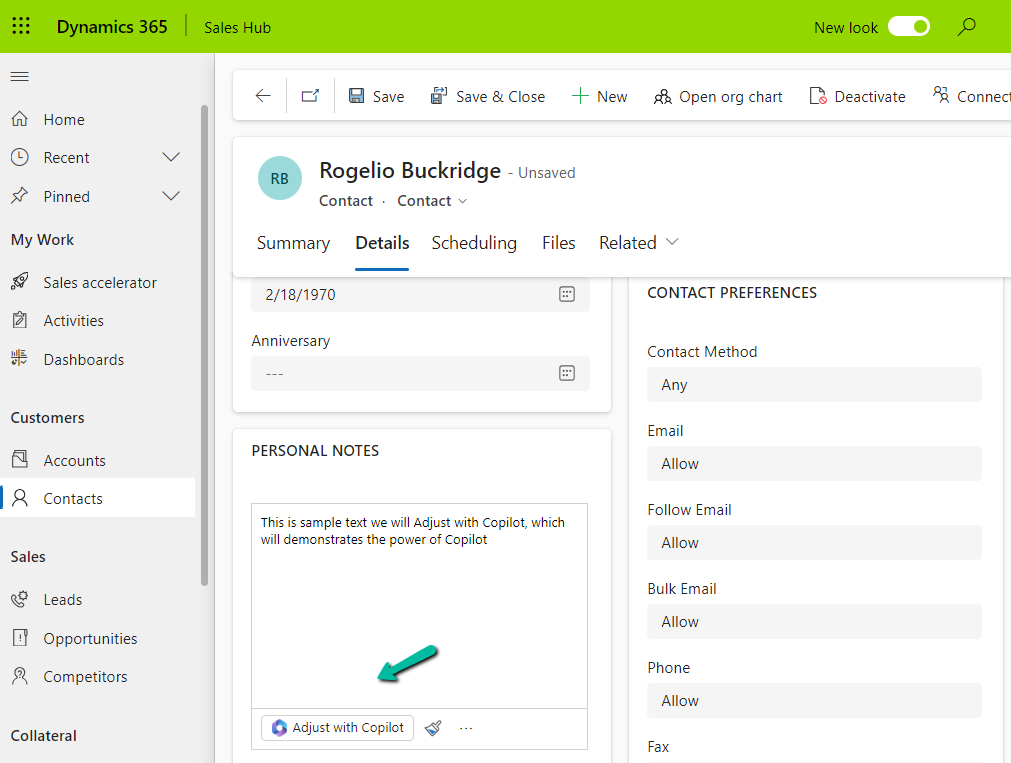
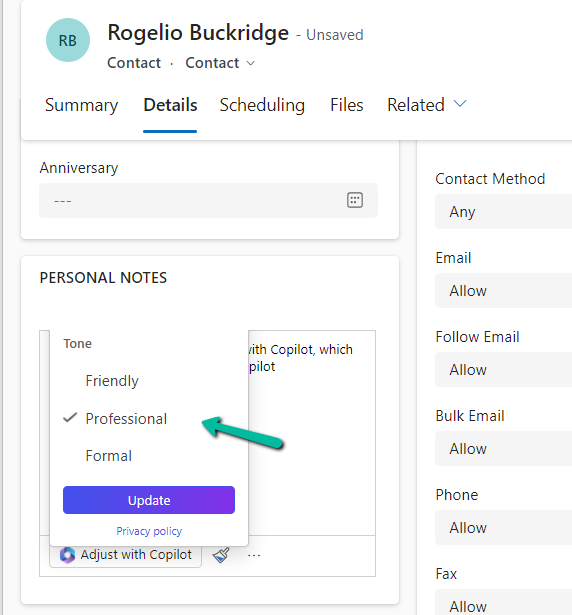
On selecting the text, and clicking on “Adjust with Copilot”, we get the option to update the Tone of the content.
A screenshot of a computer

Description automatically generated

On selecting a Professional tone, the text is updated in the control.

A screenshot of a computer

Description automatically generated

In case we want to apply to all the fields that are using Rich Text Editor Control instead of specifying it for individual fields, we need to update and add the same JSON to the existing RTEGlobalConfiguration.json file.
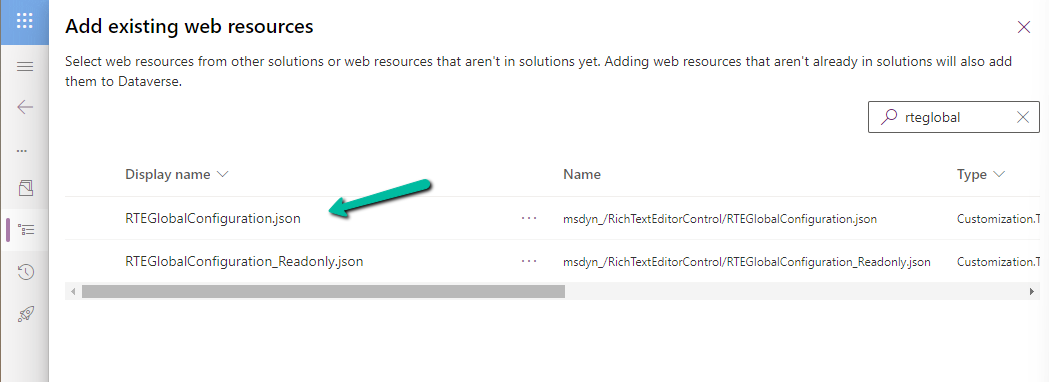
A screenshot of a computer

Description automatically generated

The file is blank by default, and we can specify properties to it that we want to override.

A green screen with black text

Description automatically generated

We updated the RTEGlobalConfiguration.json file, to use the same definition we used earlier for our custom web resource.

A screen shot of a computer

Description automatically generated

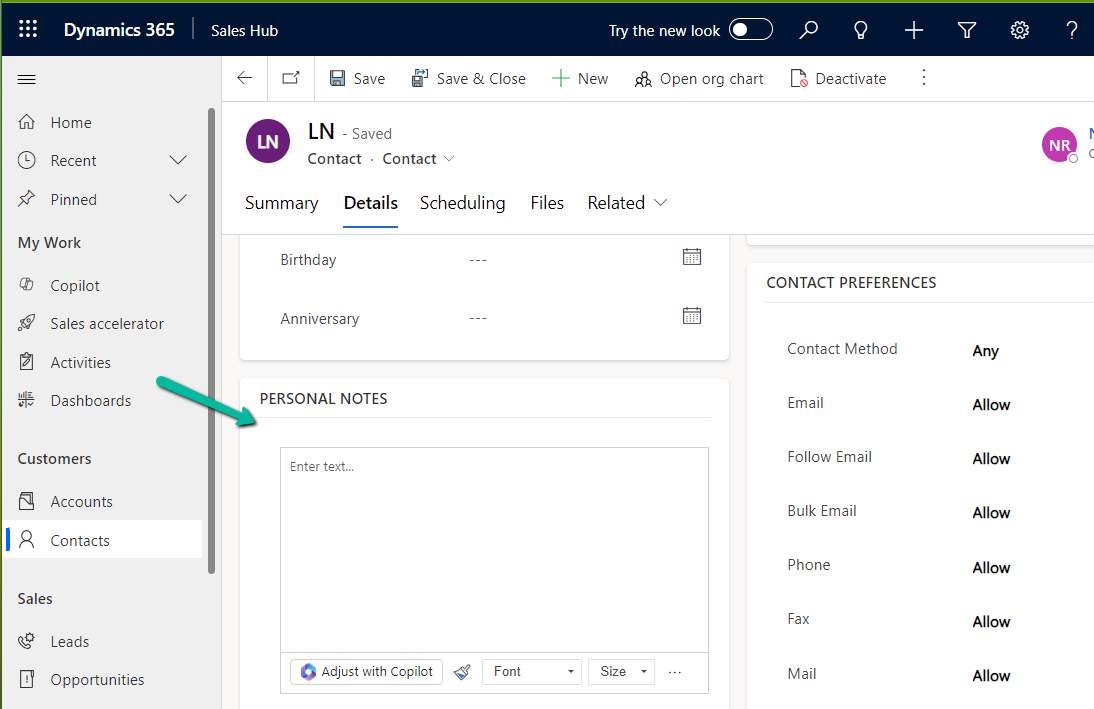
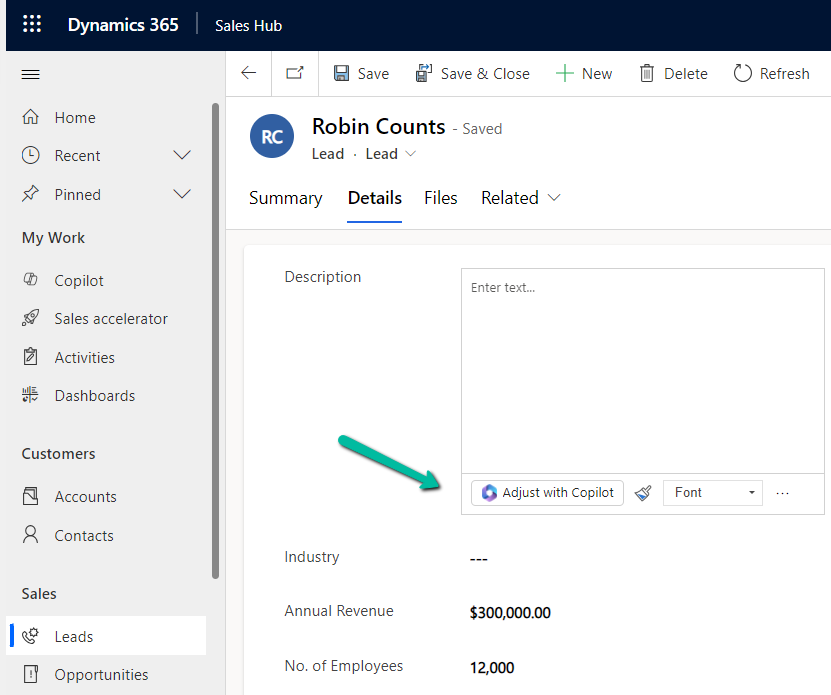
We can see the “Adjust with Copilot” added to the form even without specifying the URL in the static value while customizing the form.

On saving and publishing the changes, we can then see it rendered for all the Rich Text Editor fields.
A screenshot of a computer

Description automatically generated
A screenshot of a computer

Description automatically generated

Also, check – Copilot Control

Hope it helps..

Advertisements

Few points on UTCNow and FormatDateTime – Power Automate / Dataverse


Recently we wrote a flow that will run daily once and will pick all the tasks due in the last 24 hours i.e. schedule end date less than equal to utcNow() and greater than equal to addDays(UTCNow(),-1)

Interestingly we observed one of the task records not picked.

The scheduled end date on the task record was – 2024-07-22T20:00:00Z

And for the flow the filter condition was –

scheduledend le 2024-07-23T20:00:35.5173871Z and scheduledend ge 2024-07-22T20:00:35.5173943Z

If we look at the date for the greater than equal condition, we can see that the seconds part is 35, the exact time when the List rows step would have run, and in case of that particular task record is 00, so it was not picked.

Then we applied the below formatDateTime function, excluding the time part.

(scheduledend le ‘@{formatDateTime(utcNow(),’yyyy-MM-dd’)}’ and scheduledend ge ‘@{formatDateTime(addDays(utcNow(),-1),’yyyy-MM-dd’)}’ and _regardingobjectid_value ne null and statecode eq 0)

Again we saw few tasks not picked,

The records that were not picked had scheduledenddate as

  • 2024-07-25 18:00:00.000
  • 2024-07-25 19:00:00.000

And as per new condition

scheduledend = ‘2024-07-24’ which essentially was

scheduledend = ‘2024-07-24 00:00:00.0000’

Eventually we updated the flow’s Filter Rows condition to include only the hour and minutes, ignoring the seconds/milliseconds because of which we got the issue in the first place.

(scheduledend le ‘@{formatDateTime(utcNow(),’yyyy-MM-dd HH:mm’)}’ and scheduledend ge ‘@{formatDateTime(addDays(utcNow(),-1),’yyyy-MM-dd HH:mm’)}’ and _regardingobjectid_value ne null and statecode eq 0)

One more example for more clarity –

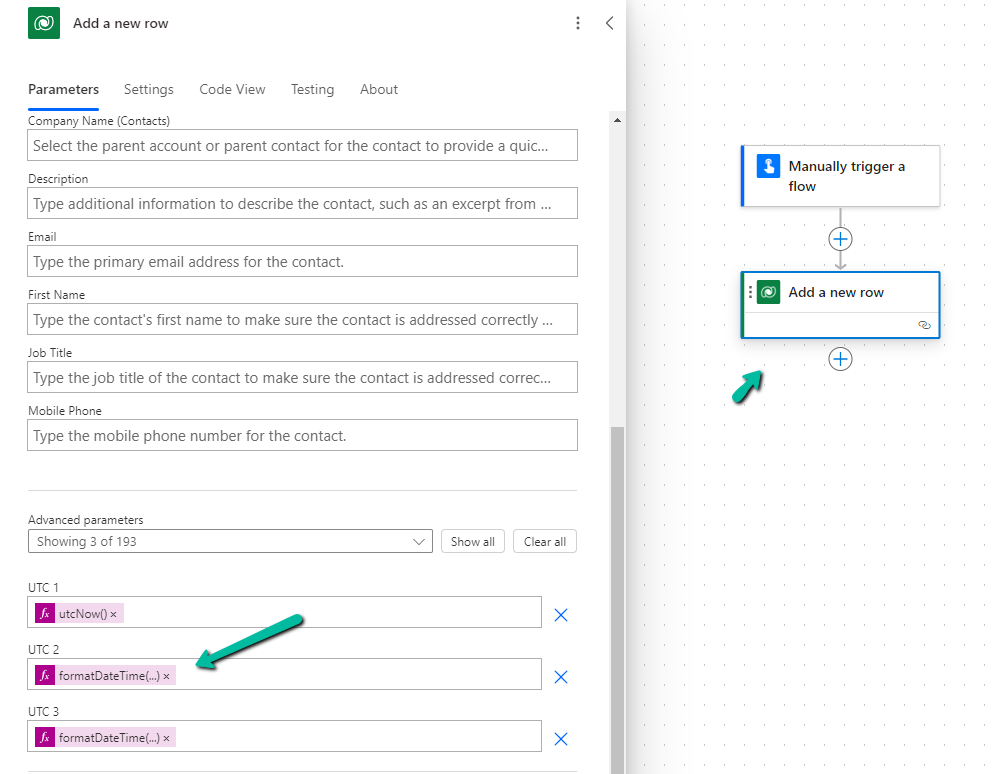
Below we are creating a contact record and setting values for 3 date time fields, UTC1, UTC2, UTC3.

  • UTC1 = utcNow()
  • UTC2 = formatDateTime(utcNow(),’yyyy-MM-dd’)
  • UTC3 = formatDateTime(utcNow(),’yyyy-MM-dd HH:mm’)

The values for those fields inside CRM’s form –

A screenshot of a computer

Description automatically generated

The corresponding values within the Dataverse/ CRM’s database (UTC) –

A screenshot of a computer

Description automatically generated

Hope it helps..

Author a note before saving the form – Timeline (Dynamics 365 / Dataverse)


This feature added to Timeline control allows us to take notes even before creating/saving the record/form.

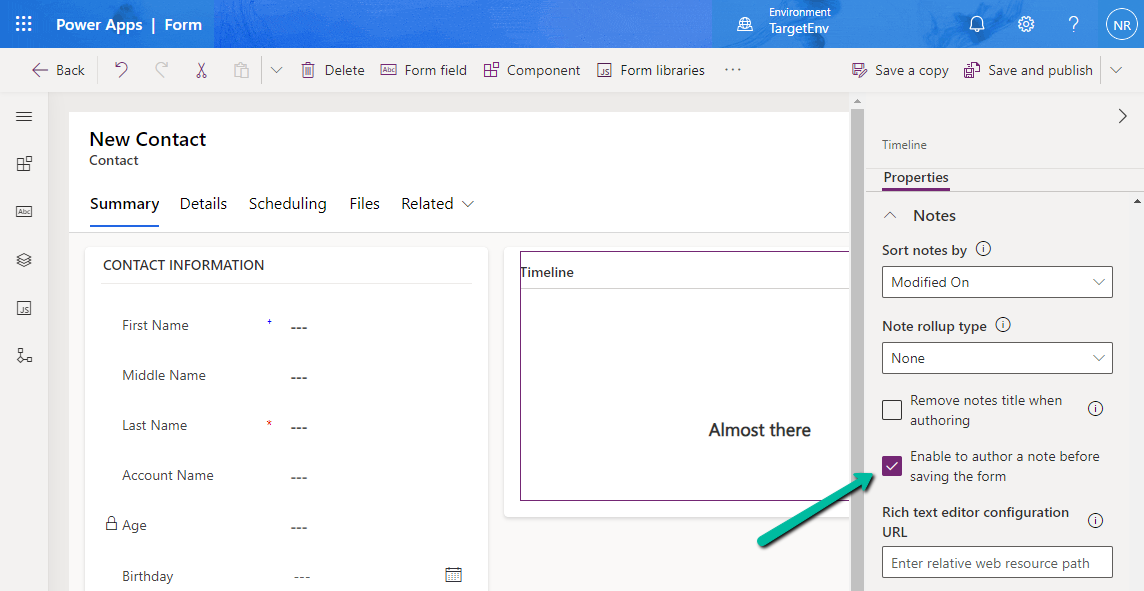
Select the Timeline control, then Notes properties, and check the “Enable to author a note before saving the form” option.

Save and publish the change.

A screenshot of a computer

Description automatically generated

Before –

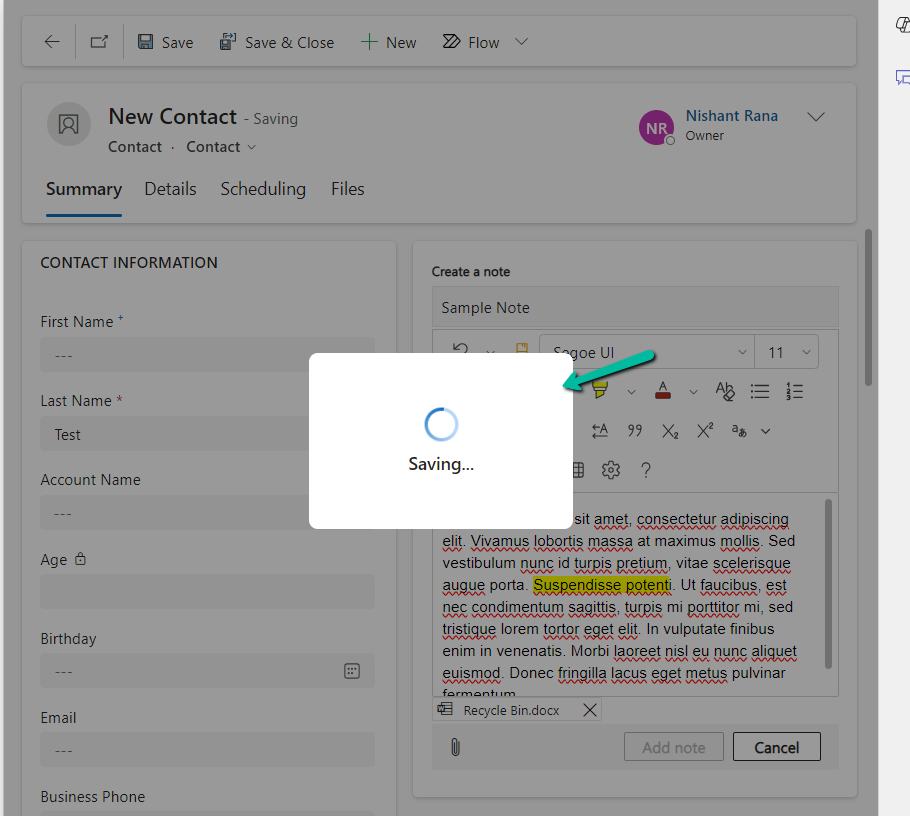
Now after enabling the author note before saving option, we can see the option to create a note enabled on the create form.

A screenshot of a computer

Description automatically generated

We can enter the details and also upload an attachment.

A screenshot of a computer

Description automatically generated

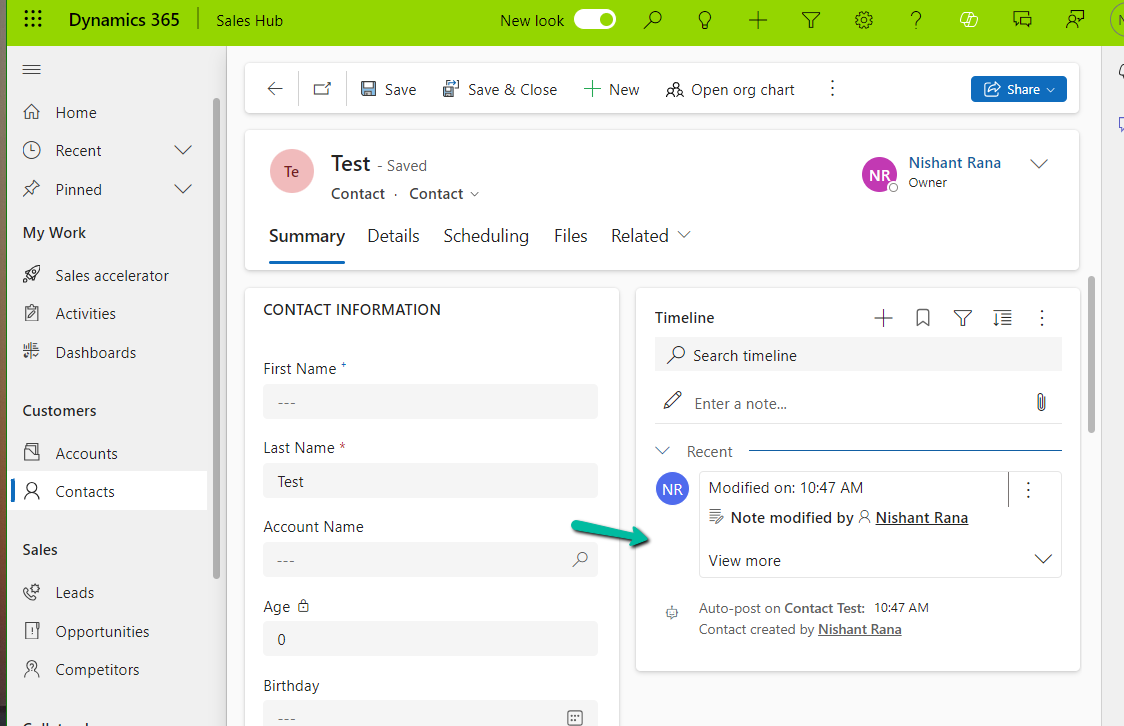
On Saving the record, we can see the notes added to the record.

A screenshot of a computer

Description automatically generated
A screenshot of a computer

Description automatically generated

Also, check

Hope it helps..

Advertisements

Fixed – Access Denied (CryptographicException) on calling SharePoint Online APIs using Azure AD App-Only


While trying to call SharePoint Online APIs using Azure AD App-Only using Certificate Auth we were getting the Access Denied exception.

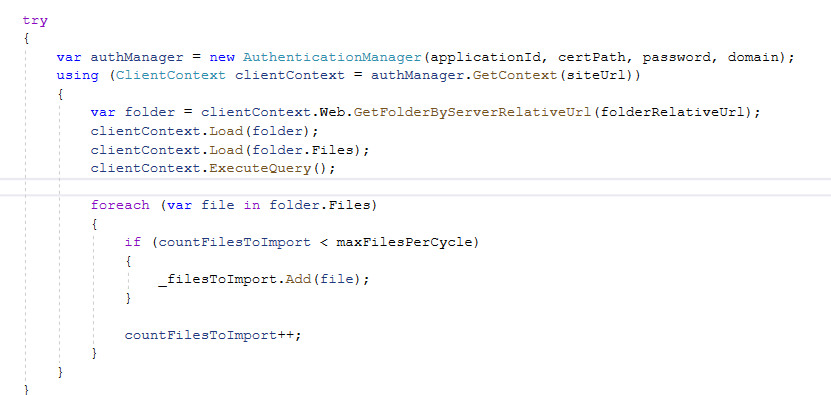
We were creating the ClientContext using the AuthenticationManager class of PnP the Framework and were using Certificate Auth as shown below.

A screenshot of a computer program
Description automatically generated

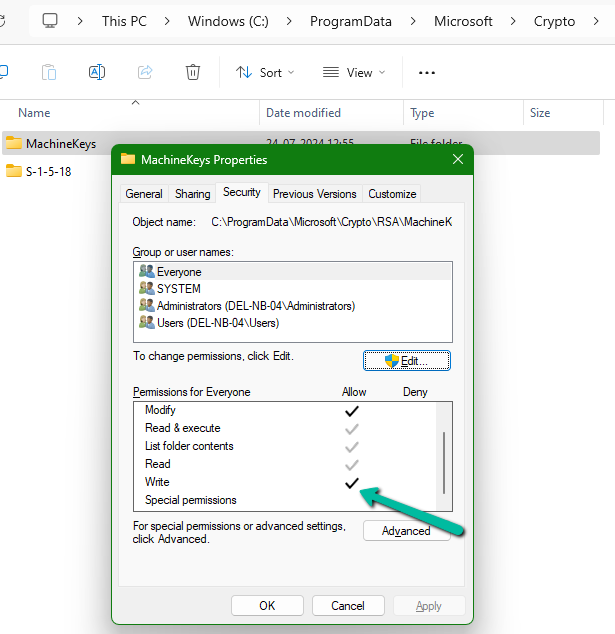
This was because the console app was trying to create a key in the machinekeys folder and the user did not have Write access to it.

C:\ProgramData\Microsoft\Crypto\RSA\MachineKeys

A screenshot of a computer

Description automatically generated

We provided the Write access, which fixed the issue.

A screenshot of a computer

Description automatically generated

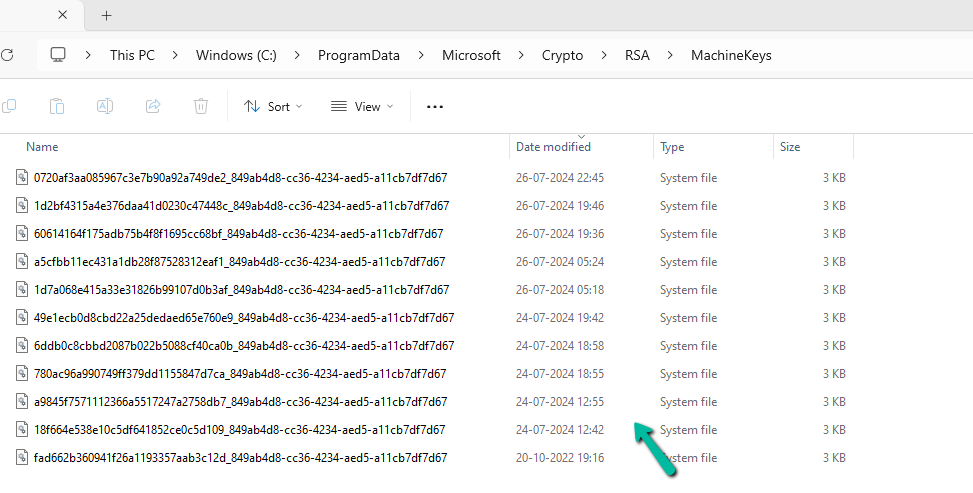
We can see the keys added to that folder and SharePoint Online APIs called successfully

Hope it helps..

Sample code to check if a Folder exists else create it (SharePoint Online / PnP Framework / C#)


Sharing the sample code that we can use for checking if a particular folder exists and if not then create it in SharePoint Online. It uses PnP Framework and Azure Ad App only permissions.

Here we have used the PnP Framework Library in our console application.

We will be checking for and creating the folder at the below location.

A screenshot of a computer

Description automatically generated

On a successful run, we can see the folder named “MyFolder” created the document library.

Below is the sample code

static void Main(string[] args)
        {
            var siteUrl = "https://w72tk.sharepoint.com/sites/MyTeamSite";          
            var applicationId = "d7eaeeb7-ef0a-474d-9b94-567013576c14";
            var password = "xyz";
            var domain = "w72tk.onmicrosoft.com";
            var certPath = @"C:\SharePointApp\MyTestCertificate.pfx";

            var authManager = new AuthenticationManager(applicationId, certPath, password, domain);
            var foldertoCheck = "MyFolder";
            using (var clientContext = authManager.GetContext(siteUrl))
            {
                var currentWeb = clientContext.Web;
                var folderExists = currentWeb.DoesFolderExists(foldertoCheck);
                if (!folderExists)
                {
                    var list = clientContext.Web.Lists.GetByTitle("Documents");
                    list.RootFolder.Folders.Add(foldertoCheck);
                    clientContext.ExecuteQuery();
                }
            }
        }

Refer for more details – https://nishantrana.me/2024/07/30/calling-sharepoint-online-api-using-azure-ad-app-only-permissions-using-certificate-auth/

Hope it helps..

Advertisements

Calling SharePoint Online API using Azure AD App-Only permissions using Certificate Auth


Below are the steps we need to follow to call SharePoint Online API through a Console App (C#).

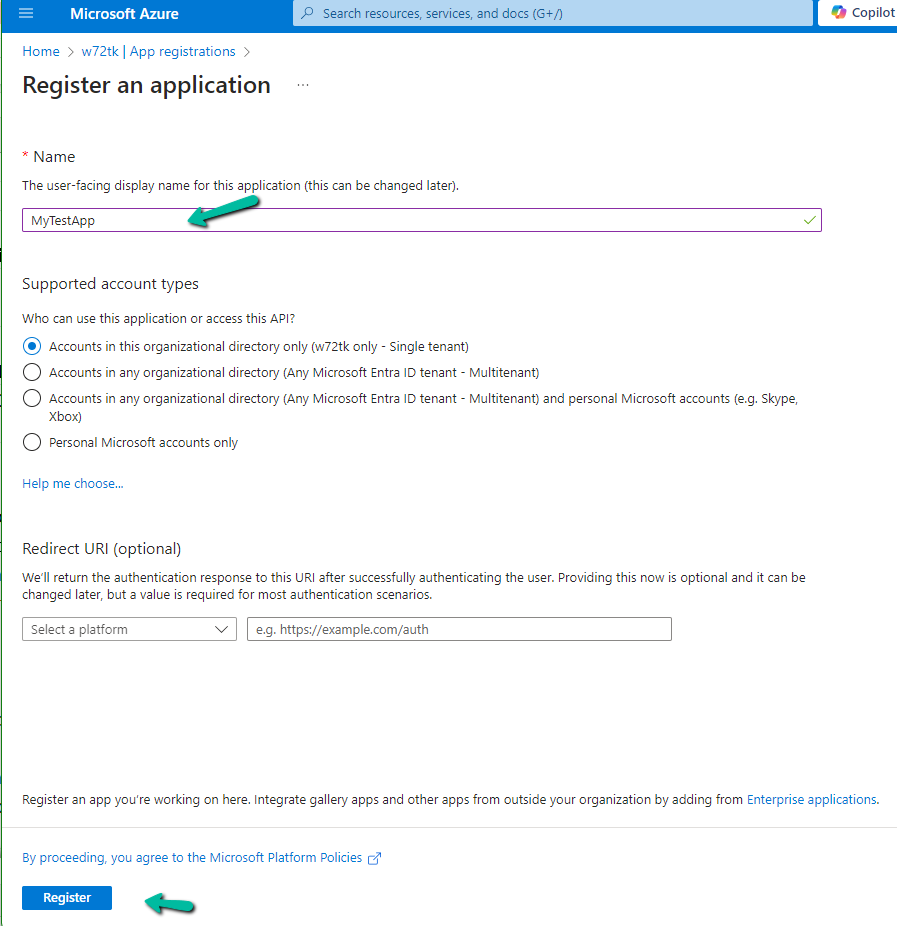
The first step is to register an Azure AD app.

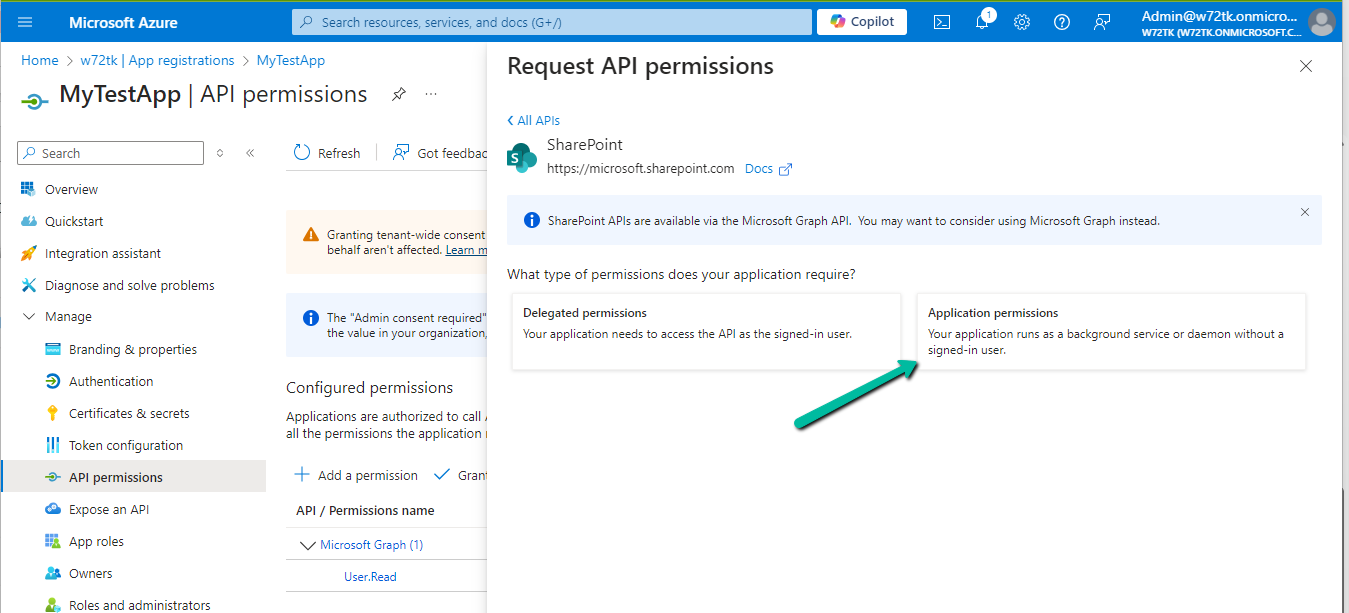
Provide appropriate SharePoint API Permissions

A screenshot of a computer

Description automatically generated

As the console app would run in the background we opted for Application Permissions.

A screenshot of a computer screen

Description automatically generated

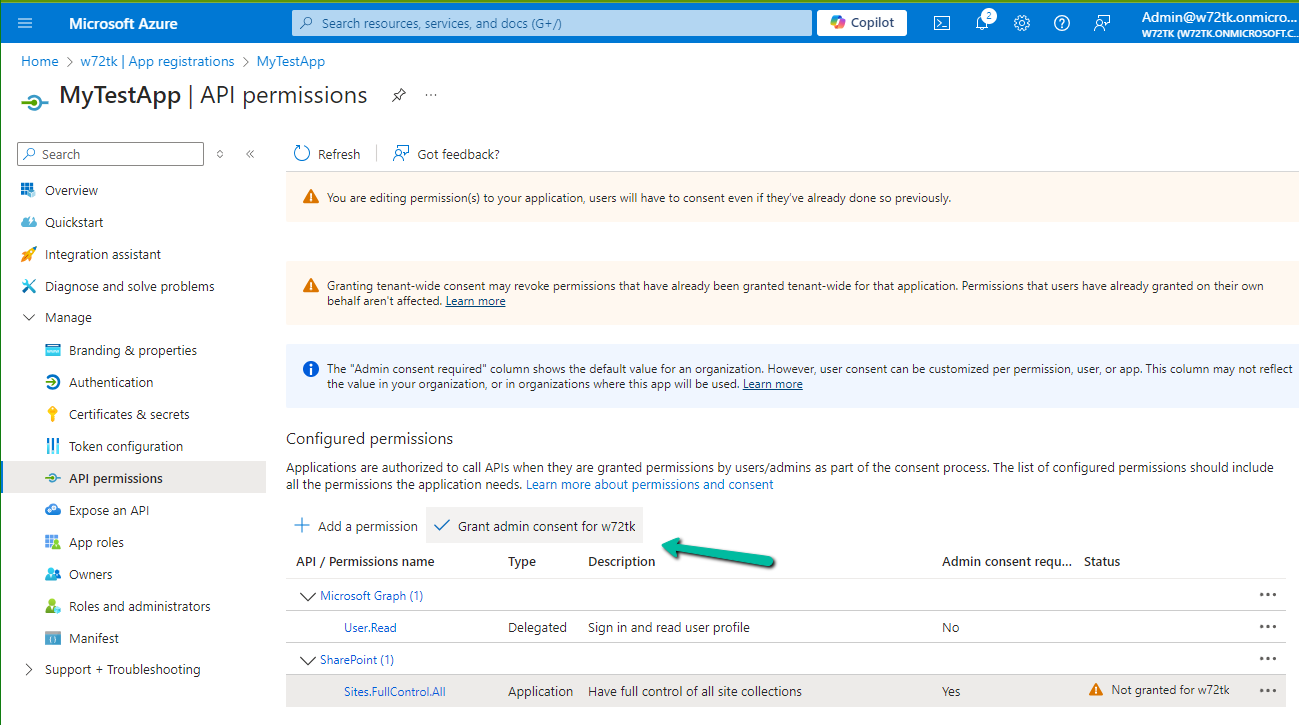
For testing, we opted for Sites.FullControl.All permission.

Also, Grant the admin consent

A screenshot of a computer

Description automatically generated

Next, we need to generate and upload the certificate

Run the below PowerShell script to generate the self-signed certificate

.\Create-SelfSignedCertificate.ps1 -CommonName “MySampleCertificate” -StartDate 2024-01-01 -EndDate 2026-10-01

#Requires -RunAsAdministrator
<#
.SYNOPSIS
Creates a Self Signed Certificate for use in server to server authentication
.DESCRIPTION
.EXAMPLE
.\Create-SelfSignedCertificate.ps1 -CommonName "MyCert" -StartDate 2015-11-21 -EndDate 2017-11-21
This will create a new self signed certificate with the common name "CN=MyCert". During creation you will be asked to provide a password to protect the private key.
.EXAMPLE
.\Create-SelfSignedCertificate.ps1 -CommonName "MyCert" -StartDate 2015-11-21 -EndDate 2017-11-21 -Password (ConvertTo-SecureString -String "MyPassword" -AsPlainText -Force)
This will create a new self signed certificate with the common name "CN=MyCert". The password as specified in the Password parameter will be used to protect the private key
.EXAMPLE
.\Create-SelfSignedCertificate.ps1 -CommonName "MyCert" -StartDate 2015-11-21 -EndDate 2017-11-21 -Force
This will create a new self signed certificate with the common name "CN=MyCert". During creation you will be asked to provide a password to protect the private key. If there is already a certificate with the common name you specified, it will be removed first.
#>
Param(

[Parameter(Mandatory=$true)]
   [string]$CommonName,

[Parameter(Mandatory=$true)]
   [DateTime]$StartDate,

[Parameter(Mandatory=$true)]
   [DateTime]$EndDate,

[Parameter(Mandatory=$false, HelpMessage="Will overwrite existing certificates")]
   [Switch]$Force,

[Parameter(Mandatory=$false)]
   [SecureString]$Password
)

# DO NOT MODIFY BELOW

function CreateSelfSignedCertificate(){

#Remove and existing certificates with the same common name from personal and root stores
    #Need to be very wary of this as could break something
    if($CommonName.ToLower().StartsWith("cn="))
    {
        # Remove CN from common name
        $CommonName = $CommonName.Substring(3)
    }
    $certs = Get-ChildItem -Path Cert:\LocalMachine\my | Where-Object{$_.Subject -eq "CN=$CommonName"}
    if($certs -ne $null -and $certs.Length -gt 0)
    {
        if($Force)
        {

foreach($c in $certs)
            {
                remove-item $c.PSPath
            }
        } else {
            Write-Host -ForegroundColor Red "One or more certificates with the same common name (CN=$CommonName) are already located in the local certificate store. Use -Force to remove them";
            return $false
        }
    }

$name = new-object -com "X509Enrollment.CX500DistinguishedName.1"
    $name.Encode("CN=$CommonName", 0)

$key = new-object -com "X509Enrollment.CX509PrivateKey.1"
    $key.ProviderName = "Microsoft RSA SChannel Cryptographic Provider"
    $key.KeySpec = 1
    $key.Length = 2048
    $key.SecurityDescriptor = "D:PAI(A;;0xd01f01ff;;;SY)(A;;0xd01f01ff;;;BA)(A;;0x80120089;;;NS)"
    $key.MachineContext = 1
    $key.ExportPolicy = 1 # This is required to allow the private key to be exported
    $key.Create()

$serverauthoid = new-object -com "X509Enrollment.CObjectId.1"
    $serverauthoid.InitializeFromValue("1.3.6.1.5.5.7.3.1") # Server Authentication
    $ekuoids = new-object -com "X509Enrollment.CObjectIds.1"
    $ekuoids.add($serverauthoid)
    $ekuext = new-object -com "X509Enrollment.CX509ExtensionEnhancedKeyUsage.1"
    $ekuext.InitializeEncode($ekuoids)

$cert = new-object -com "X509Enrollment.CX509CertificateRequestCertificate.1"
    $cert.InitializeFromPrivateKey(2, $key, "")
    $cert.Subject = $name
    $cert.Issuer = $cert.Subject
    $cert.NotBefore = $StartDate
    $cert.NotAfter = $EndDate
    $cert.X509Extensions.Add($ekuext)
    $cert.Encode()

$enrollment = new-object -com "X509Enrollment.CX509Enrollment.1"
    $enrollment.InitializeFromRequest($cert)
    $certdata = $enrollment.CreateRequest(0)
    $enrollment.InstallResponse(2, $certdata, 0, "")
    return $true
}

function ExportPFXFile()
{
    if($CommonName.ToLower().StartsWith("cn="))
    {
        # Remove CN from common name
        $CommonName = $CommonName.Substring(3)
    }
    if($Password -eq $null)
    {
        $Password = Read-Host -Prompt "Enter Password to protect private key" -AsSecureString
    }
    $cert = Get-ChildItem -Path Cert:\LocalMachine\my | where-object{$_.Subject -eq "CN=$CommonName"}

Export-PfxCertificate -Cert $cert -Password $Password -FilePath "$($CommonName).pfx"
    Export-Certificate -Cert $cert -Type CERT -FilePath "$CommonName.cer"
}

function RemoveCertsFromStore()
{
    # Once the certificates have been been exported we can safely remove them from the store
    if($CommonName.ToLower().StartsWith("cn="))
    {
        # Remove CN from common name
        $CommonName = $CommonName.Substring(3)
    }
    $certs = Get-ChildItem -Path Cert:\LocalMachine\my | Where-Object{$_.Subject -eq "CN=$CommonName"}
    foreach($c in $certs)
    {
        remove-item $c.PSPath
    }
}

if(CreateSelfSignedCertificate)
{
    ExportPFXFile
    RemoveCertsFromStore
}

Specify the password and note it down as it will be used for connection.

Upload the certificate to the Azure AD App registered.

A screenshot of a computer

Description automatically generated

For the console app, we installed the PnP.Framework Nuget Package

A screenshot of a computer

Description automatically generated

The sample code –

           try
            {
                var authManager = new AuthenticationManager(applicationId, certPath, password, domain);
                using (ClientContext clientContext = authManager.GetContext(siteUrl))
                {
                    var folder = clientContext.Web.GetFolderByServerRelativeUrl(folderRelativeUrl);
                    clientContext.Load(folder);
                    clientContext.Load(folder.Files);
                    clientContext.ExecuteQuery();

                    foreach (var file in folder.Files)
                    {
                        if (countFilesToImport < maxFilesPerCycle)
                        {
                            _filesToImport.Add(file);
                        }

                        countFilesToImport++;
                    }
                }
            }
            catch (Exception ex)
            {
                System.Console.WriteLine("Error: " + ex.Message);
                if (ex.InnerException != null)
                {
                    System.Console.WriteLine("Inner Exception: " + ex.InnerException.Message);
                }
            }
        }

We can see our app is successfully connected.

A computer screen shot of a program

Description automatically generated

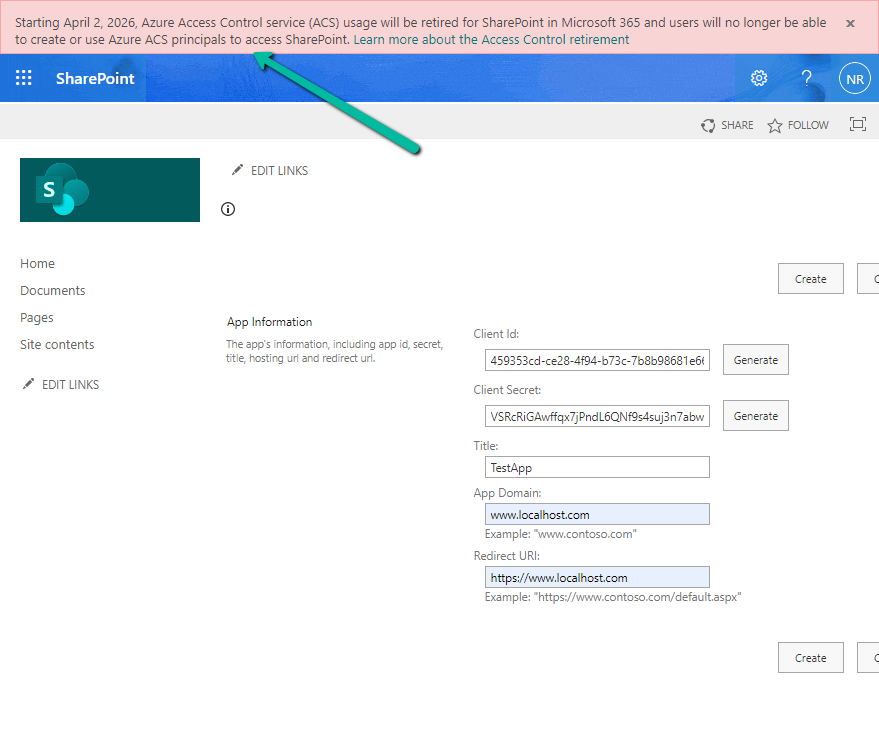
The other option is to use the SharePoint app-only, which is not recommended by Microsoft.

We can see the following message for it.

Starting April 2, 2026, Azure Access Control service (ACS) usage will be retired for SharePoint in Microsoft 365 and users will no longer be able to create or use Azure ACS principals to access SharePoint. Learn more about the Access Control retirement

A screenshot of a computer

Description automatically generated

Get all the details here

Hope it helps..

Advertisements

Nishant Rana's Weblog

Everything related to Microsoft .NET Technology

Skip to content ↓