Scratching your head over why your custom ribbon buttons are not visible or not working as expected–The wonderful Command checker tool from Microsoft might just save your day.


Command checker – another awesome tool in Dynamics 365.

Debajit's avatarDebajit's Dynamic CRM Blog

If you have ever worked in Dynamics 365 implementation then it is almost certain that you must have played around with ribbons. And more often than not you must have faced scenario where you have multiple enable and display rules on the form and not sure why the ribbon button is showing up on the form when it is supposed not to show up or vice versa.

And what we do to resolve it. Well, we play around with the ribbon customizations which takes much more time than other customizations in Dynamics 365. And if it is some custom rule, we would attach debuggers to our custom code and debug and find what is going wrong.

What if I tell you that Microsoft just released something which shall help you identify which of your ribbon rule is evaluating to what in a matter of few mins so that you can…

View original post 441 more words

How to – add an existing project to GitHub through command line


Sharing for quick reference !

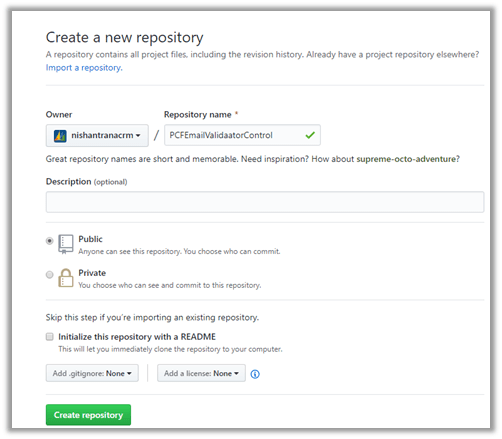
  • Create a new repository in GitHub and copy its URL.

https://github.com/new

  • Go to the project folder and run git init command to initialize the local directory as Git repository. Download Git for Windows

git init

  • Add the files to this new local repository

git add .


  • Commit the files to the local repository


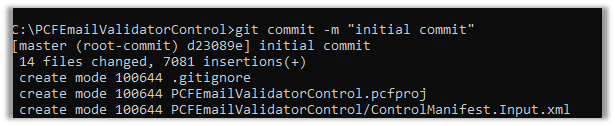
    git commit -m “my first commit”

  • Specify the URL of the remote repository and set the new remote

git remote add origin URL

git remote -v

  • Push the changes to GitHub

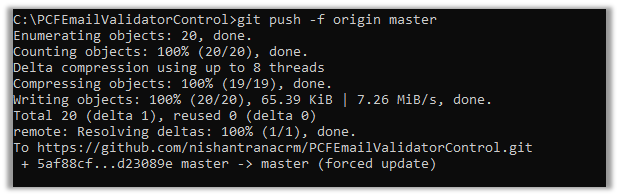
git push origin master

Get all the details here

https://git-scm.com/videos

https://git-scm.com/book/en/v2

Hope it helps..

PCF Control for Email Validation using Email Validator API


The control uses the Email Validator API that checks for fake DNS and regex functions to check email for length and accepted characters.

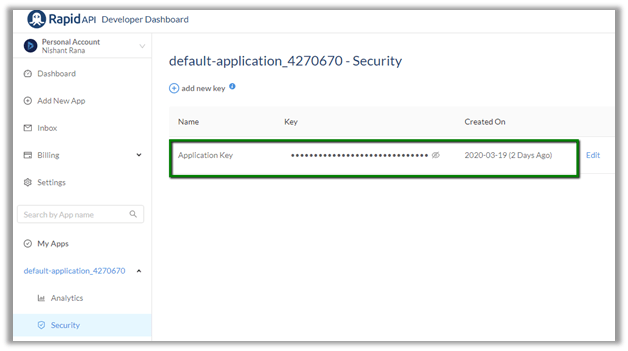
To use the API, Login to RapidAPI and get the API Key.

Use this key for the API property required by the PCF Control to call the API.

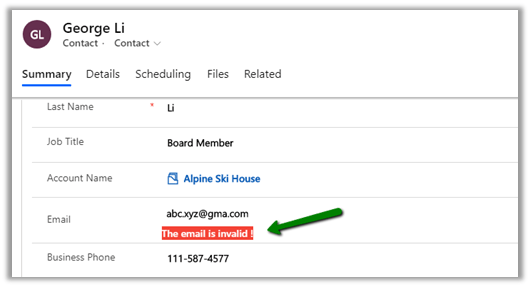
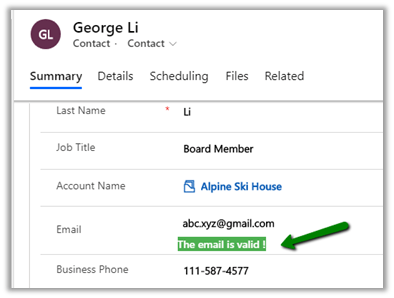
The control will check pass on the email address and based on the response received i.e. isValid true or false, will display the appropriate message just below the field.

The Email Validator API needs to be updated as at times it will show valid domains as invalid. So will not suggest to use this in the production environment.

This control is more of an example of how we can call the APIs, get the response and show the result.

Get the source code here

https://github.com/nishantranacrm/PCFEmailValidatorControl

Hope it helps..

Filtering Enhancements to Views in Dynamics 365 – 2020 Release Wave 1


Below are some of the enhancements added to the filtering experience for the views in 2020 Release Wave 1.

Previously to sort the records we had to click on either the sort icon or the header to sort the records.
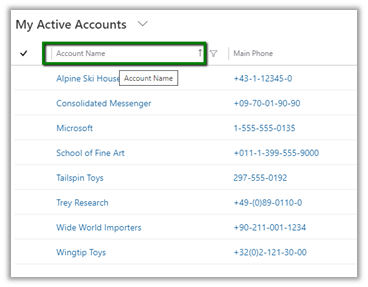
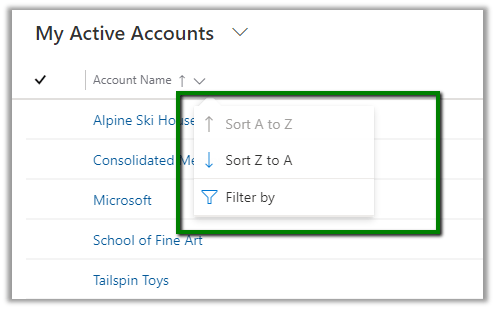
With the 2020 Release Wave 1 clicking on the header or sort or filter symbol with open the below screen with the option of both sort and filter. Also if we see, the options to sort and filter have moved closer to the header text of the column instead of right-aligned in the previous version.
And for filtering also we had to specifically click on the filter icon earlier.
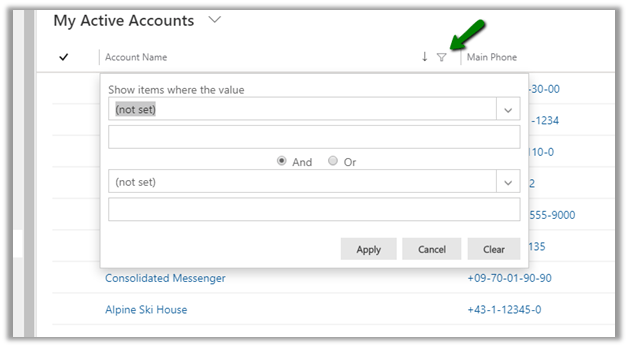
For the text field below filter options will be displayed earlier
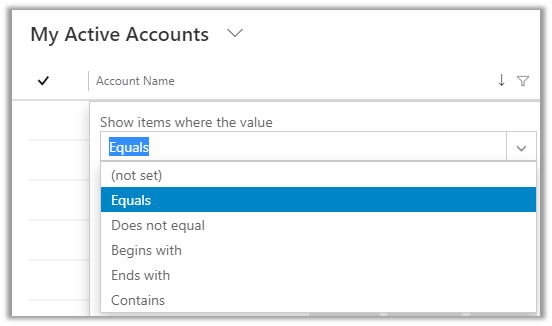
For Wave 1 Release 2020, we need to select Filter By
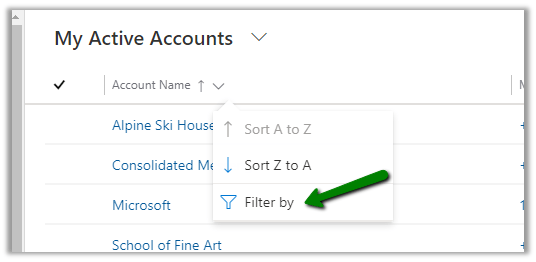
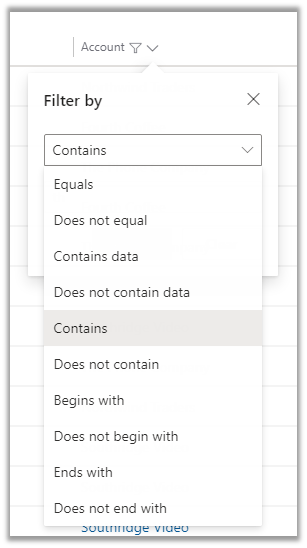
And below are the filter options available for the text fields.
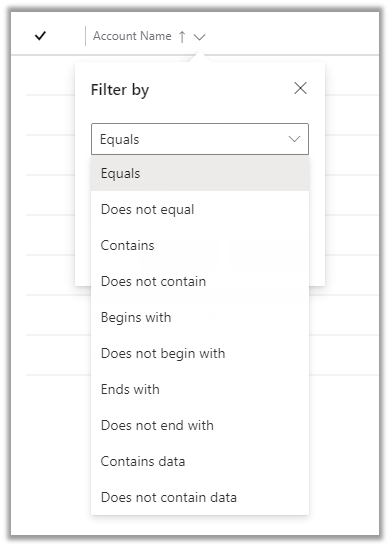
The most helpful here would be the addition of Contains data and Does not contain data filter.

For the Datetime field prior to Wave 1 Release 2020, we had the below very limited filter options available.
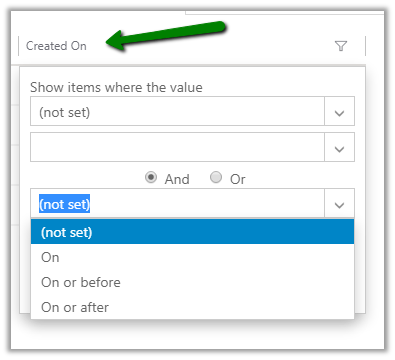
Now in Wave 1 Release 2020, we have the following filter options specific to DateTime field added
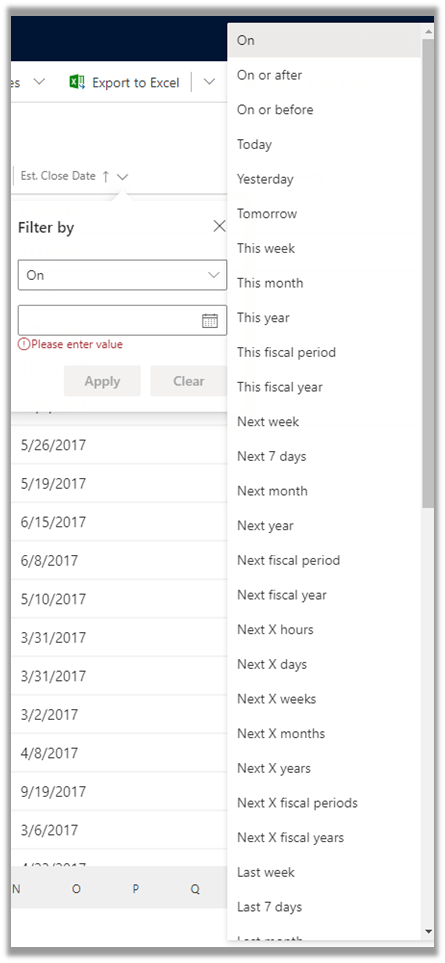
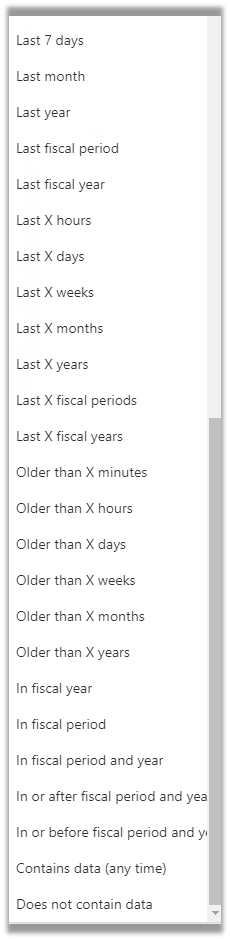
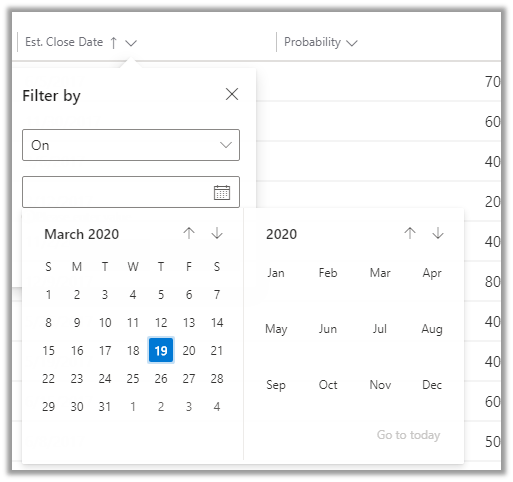
along with updated Calendar View for selecting the date

Earlier à
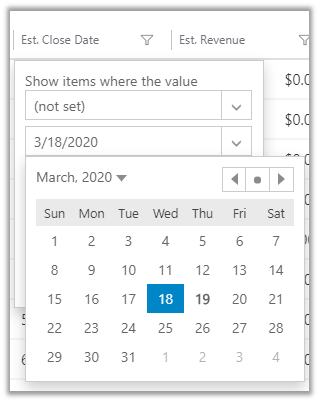
Now à
For Optionset fields

Earlier à
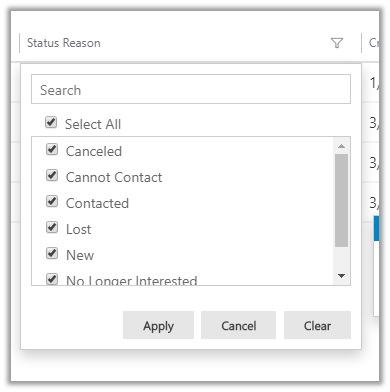
Now à
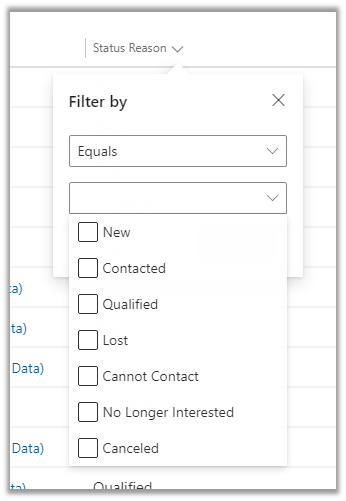
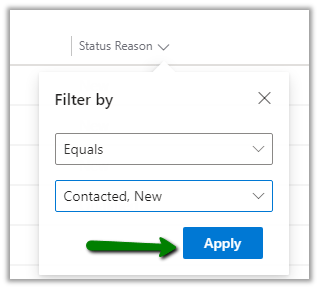
Instead of having all the options selected now it comes as unselected and to apply the filter we need to select the specific value and then click on Apply.
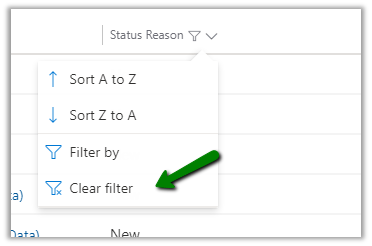
And select Clear Filter to clear the filtering
For Lookups à

Earlier
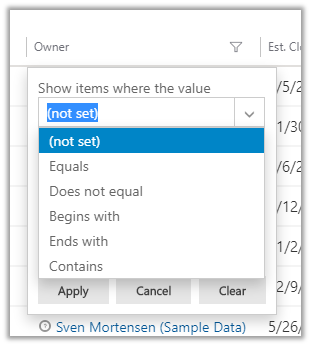
Now à
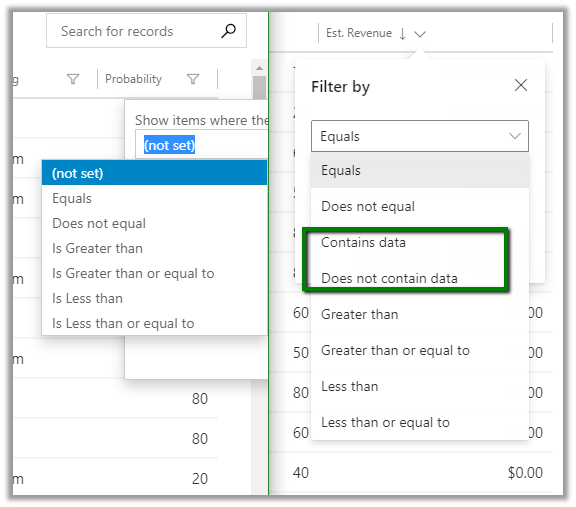
  • For Numeric Field we now have the contains
    data and does not contain data filter options added.
These enhancements specific to filtering will definitely add to more productivity for the users.

Check other blog posts on

Release 2020 Wave 1: https://nishantrana.me/2020-release-wave-1/

Release 2019 Wave 2: https://nishantrana.me/2019/12/31/dynamics-365-2019-release-wave-2-blog-posts/

Hope it helps..

“Change in Default Search behavior in Dynamics 365 in release wave 1”–Inform your customers before it takes them by surprise.


Debajit's avatarDebajit's Dynamic CRM Blog

Well this one came as pure surprise and I got to know of this one only after one of our customer enabled 2020 Release wave 1 feature in one of their SandBox environments and updated us that search on entity grids is not working as excepted.

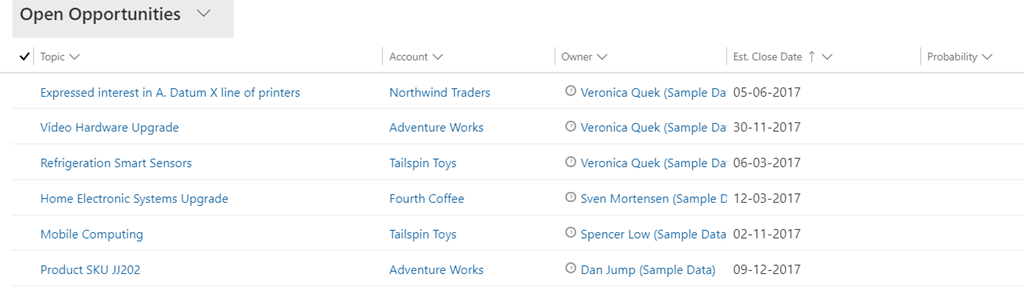
Let me explain the scenario here. My customer was searching in the opportunities grid and the view that he was currently in was “Open Opportunities”. Can’t use my customer environment for this blog. Hence using the screenshots of a vanilla environment with Release Wave 1 2020 enabled.

image

If I search on this view with the word Kitchen, our expectation is Dynamics would use the Quick find view to identify all the records matching with kitchen and show the results. But surprisingly it didn’t happen.

image

However in the list of all opportunities, there is indeed an opportunity with topic “Kitchen appliances”. And as per the…

View original post 286 more words

SLA Enhancements in Dynamics 365 Customer Service – 2020 Release Wave 1


2020 Release Wave 1 adds the new enhanced experience which includes easy to use interface and Power Automate in the Unified Client Interface for the SLA Administration.

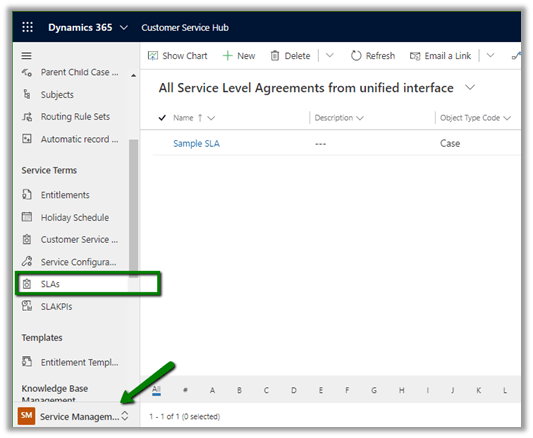
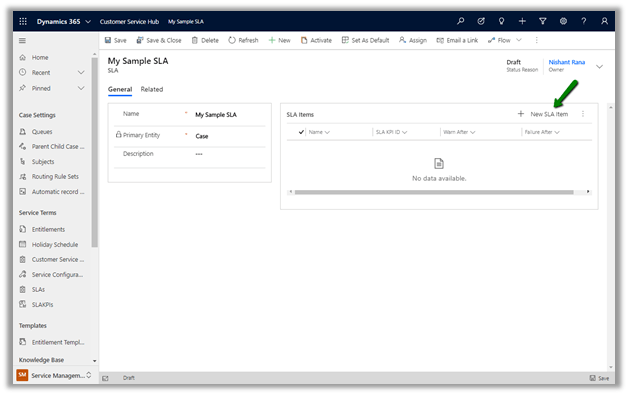
To define SLA, the admin can navigate to Service Management à Service Terms à SLAs.

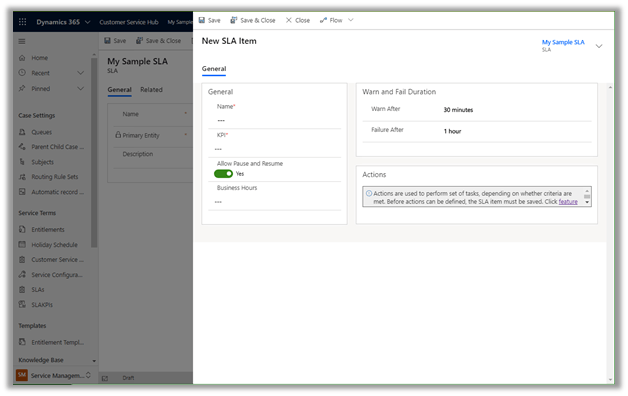
The new SLA Item window now opens in the modal dialog

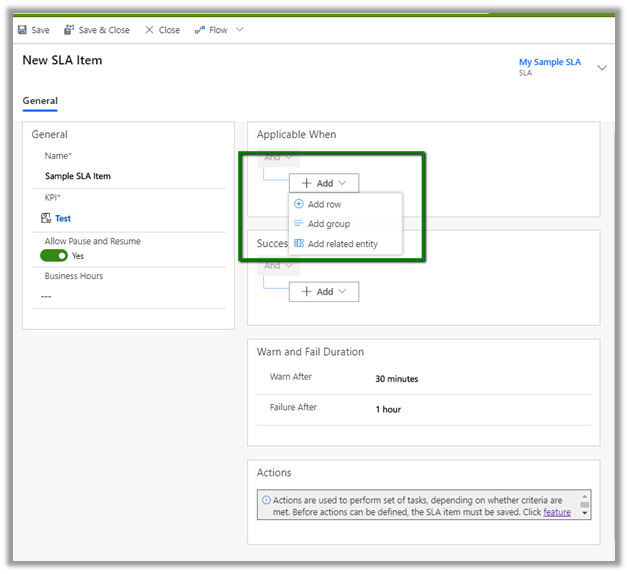
It includes the condition builder

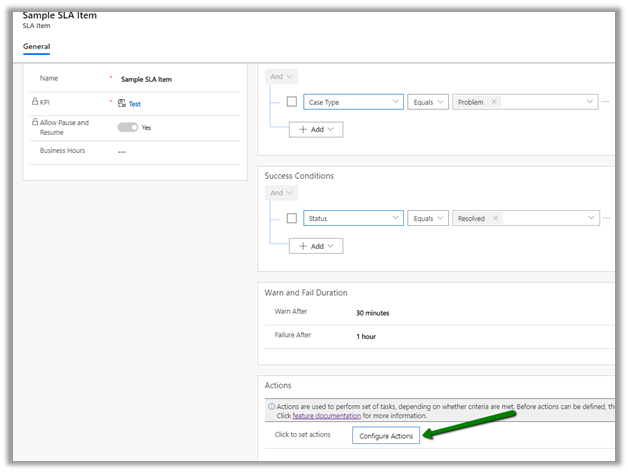
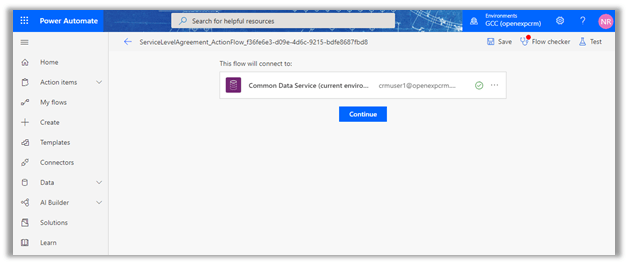
Action now use the Power Automate, here clicking on Configure Actions

takes us to the Power Automate

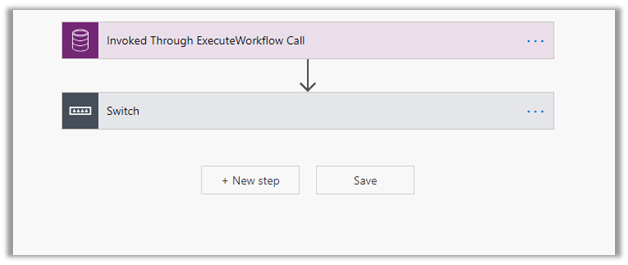
With below flow defined à

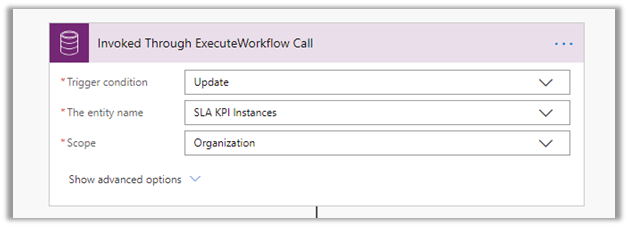
Invoked Through ExecuteWorkflow Call Trigger à

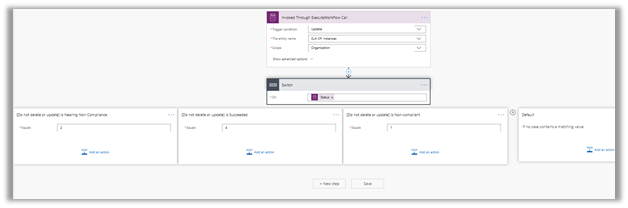
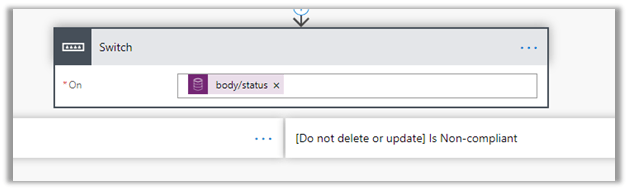
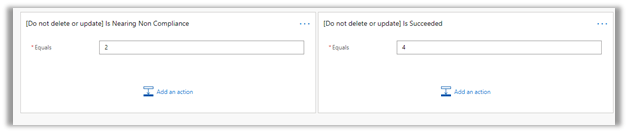
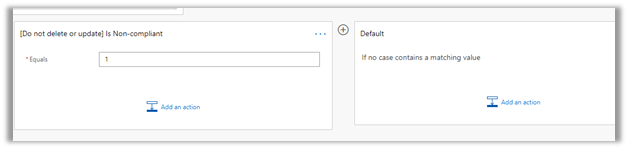
The Switch condition step with four different cases defined.

Here nearing Is Nearing Non-Compliance is where we will define our Warning
Actions.

Is Succeeded = Success Actions.

Is Non-compliant would be used to specify Failure Actions.
And lastly, we can define the Default option.

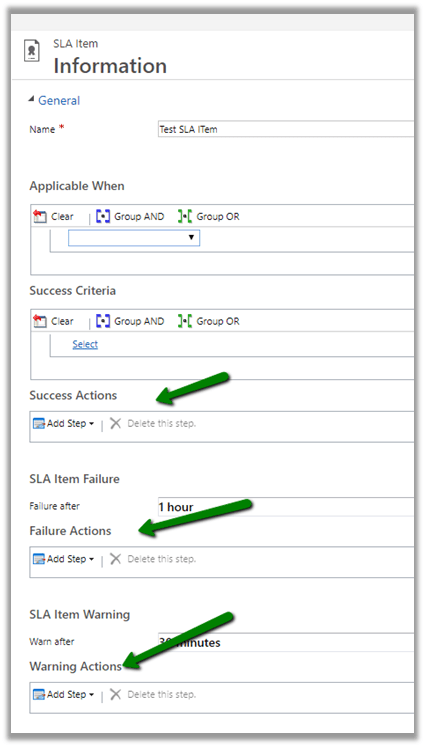
The old SLA Item interface à

Thus, these features bring the unified client interface experience close to the legacy web client.

Check other blog posts on

Release 2020 Wave 1: https://nishantrana.me/2020-release-wave-1/

Release 2019 Wave 2: https://nishantrana.me/2019/12/31/dynamics-365-2019-release-wave-2-blog-posts/

Hope it helps..

Nishant Rana's Weblog

Everything related to Microsoft .NET Technology

Skip to content ↓