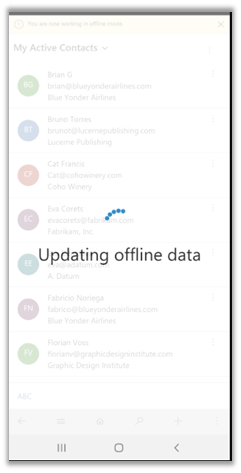
Notes on Dynamics 365 for Phones and Tablets app – Part 10 (Data Download Filter in Mobile Offline)


Check the other articles of this series

In the previous posts, we saw how to configure Mobile Offline Profile and how it works for the end-users in the device.

The number of records that can be downloaded for Mobile Offline for a particular entity (and its related entity) can be specified using the Data Download Filter of Mobile Offline Profile Item record.

The total data available offline to the user will depend on Entity (enabled for offline) + Organization Data Filter applied to it + Mobile Offline Profile + Security roles of that user

Navigate to Settings à Mobile Offline à Mobile Offline Profiles

Let us open the Contact Mobile Offline Profile Item that we had specified earlier.
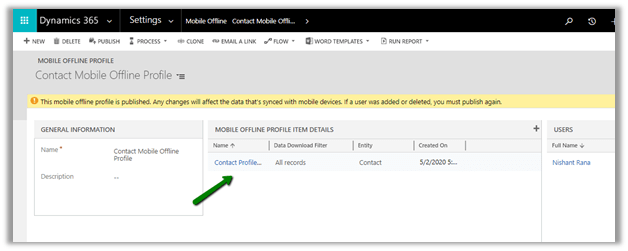
The different options for Data download filter are

  1. All records

Here All records will apply no filtering and all the contact records will be downloaded offline for the configured user.
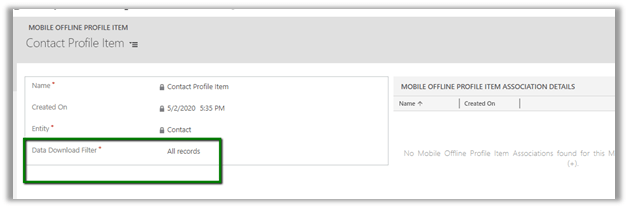
The one important point to remember is that à

The total entity records (contact in this case) downloaded will be governed by the Organization Data download filter for that entity, what we specify in the mobile offline profile (i.e. data download filter) will be applying further filtering to it.

For contact, the criteria specified is Status equal
to Active.

Organization Data Filter criteria would be modified on less than 10 days for most of the entities by default


So, for All Records, we will have all the active contact records downloaded offline.

On publishing the above mobile offline profile, for users in offline mode, all the active contacts will be available.
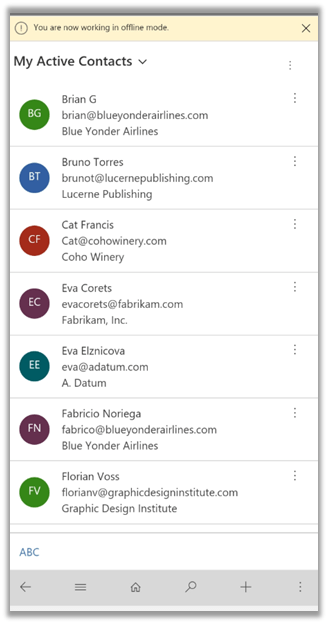
And no inactive contacts will be available as shown below.

  1. Other data filter

Through Other data filter, we can specify what records to be downloaded based on ownership.

Here we have just selected Download my records, which should result in only the active (coming from organization download data filter) contacts owned by the user to be downloaded.

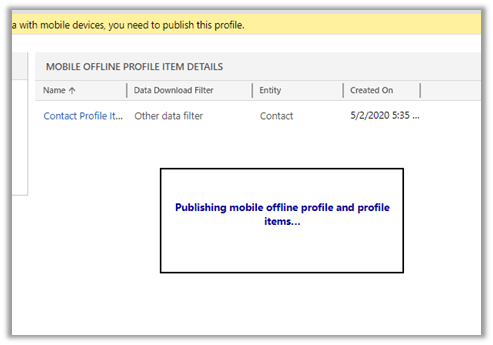
Let us publish it.
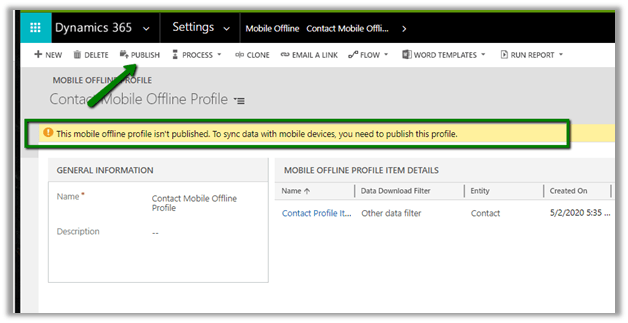
After successful Publish, let us check the same in the Phone App.

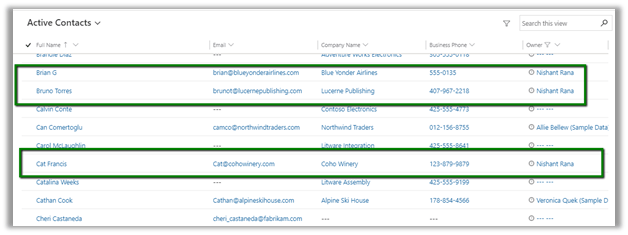
The app shows only the active contact records owned by the user.

Active Contacts view for the same user in Web Application.
  1. Custom data filter

The custom data filter will allow us to define the filter using the Define Profile Item Entity Filter dialog box.
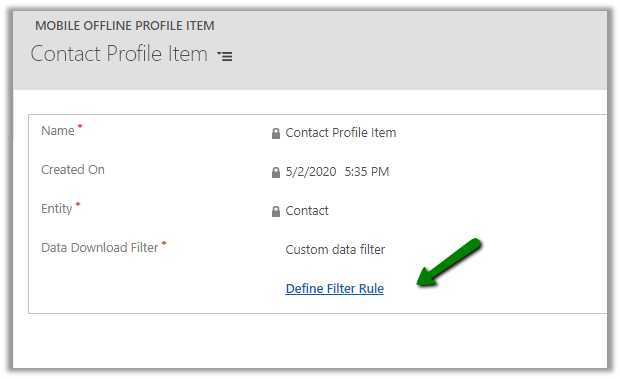
Clicking on Define Filter Rule opens the dialog box for us, wherein we can select the fields of the entity for defining the filter criteria and can group it. We cannot choose related entity fields there.

Here for testing, we have kept the criteria as role equals as the Decision-maker.

Now let us publish the change, and check the data for the user in the mobile app offline.

We just have just one record having a role as the Decision-maker.

Back in the mobile app, the user can see only that one record inside the app.

  1. Download related data only

This option allows us to download related entity data. E.g. with the above contact records, we want to download the related lead records only, for this we will create a new profile item for the lead entity.
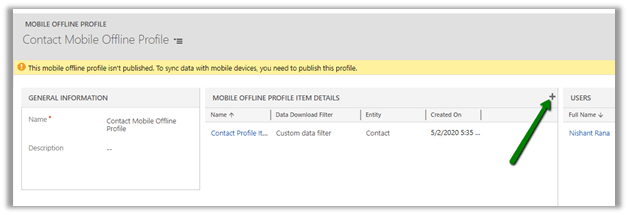
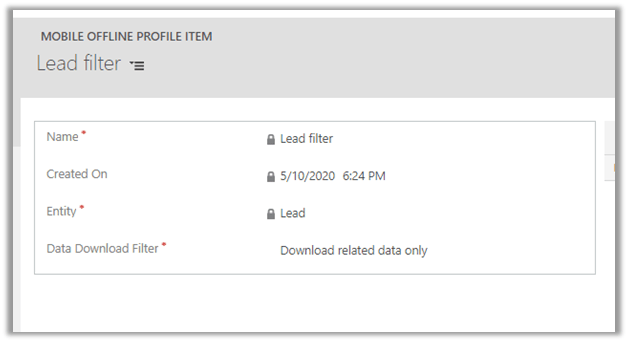
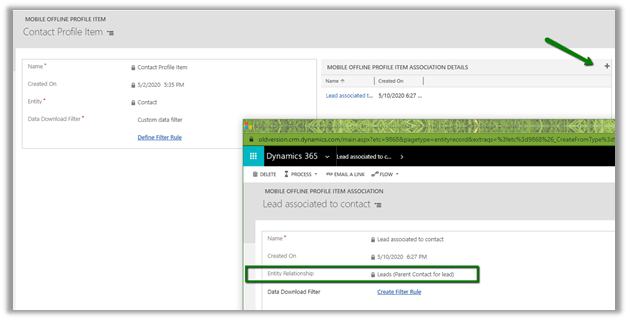
Now back in the Contact profile, add an associated offline profile item and specify the Entity-relationship between contact and lead.
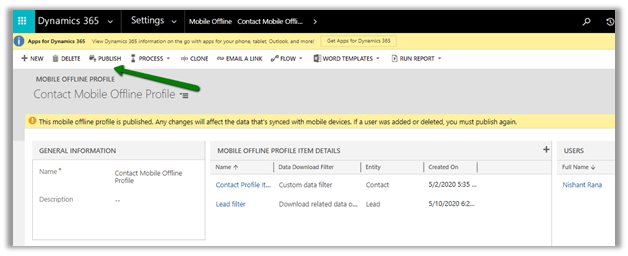
Let us publish this new profile.
The user can now select the contact record and can see the related lead record

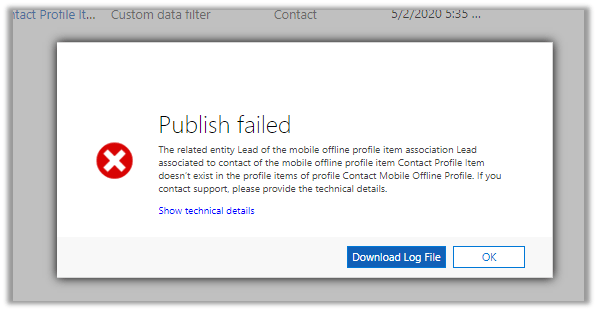
What happens if we delete the Lead Mobile Offline Profile and only keep the Contact offline profile having the lead association to it?

We’d get the below error
What happens if we keep the contact and lead profile and delete the lead association in the contact offline profile?

This will allows us to publish the profile.

So, for contact we have

  • Org filter as active contacts.
  • Data download filter as – Custom Data filter as Role equals Decision maker.

And for lead we have

  • Org filter as active leads.
  • Data download filter as – Download related data only.

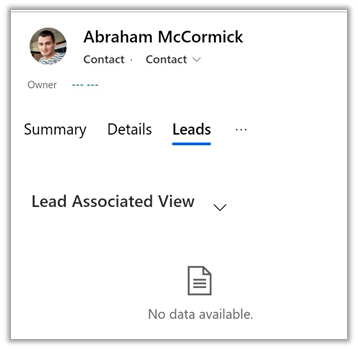
The result – only one contact record with a role as the decision maker will be available for the user.

No associated lead
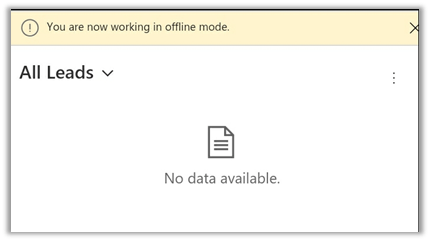
And no leads
Let us add back the mobile offline profile item association record of the lead in the contact offline profile.
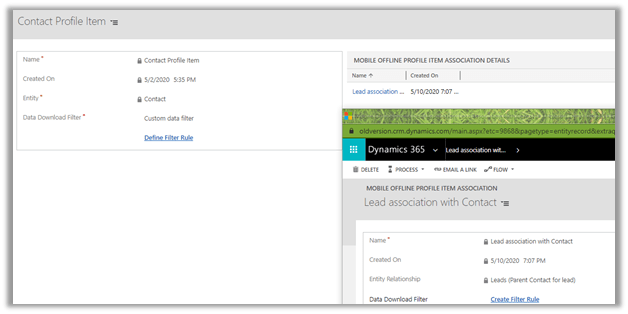
The result à only one active contact record having the role as a decision-maker, and only one associated lead record will be available for the user.

Thus we saw, how we can use Data Download Filter to define filtering, which would specify the total records that would be available to users offline, in the mobile app.

Hope it helps..

Using Xrm.Device pickFile to attach file to notes in Dynamics 365 for Phones and Tablet app


Check the other articles of this series

In the previous post we covered the captureImagemethod of Xrm.Device for taking picture and attaching it to notes.

In this post, we’d look into the pickFile method of Xrm.Device

pickFile works for both Web Client and Mobile Client unlike captureImage which is only works for Mobile Client (Dynamics 365 for Phone and Tablet app)

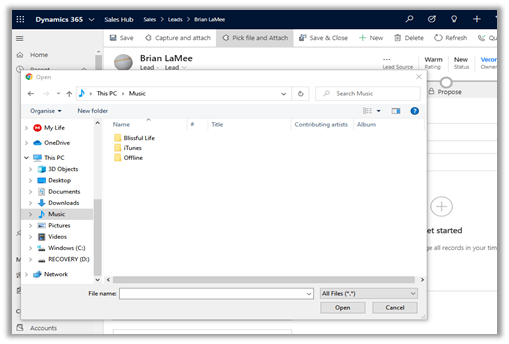
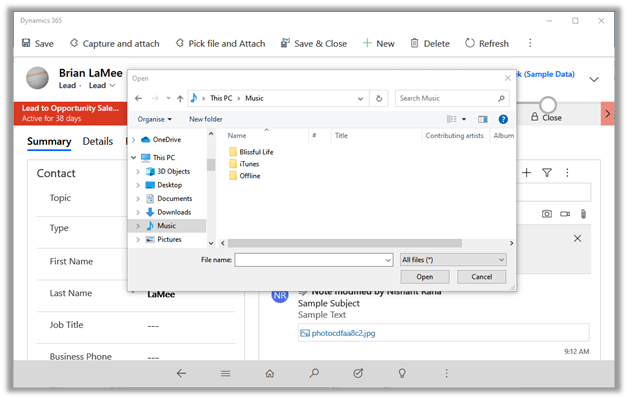
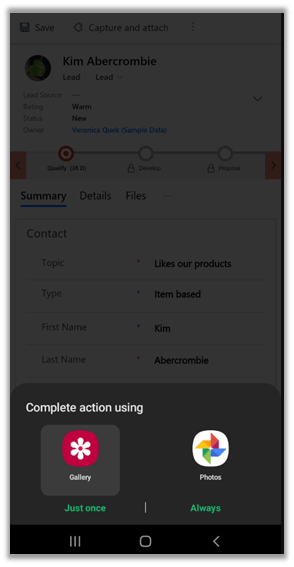
pickFile method of Xrm.Device allows us to select files from the computer (web client) (through FileDialog box) and images (gallery) in the case of mobile clients. (the exception being Windows Tablet App), which then can be attached to notes.

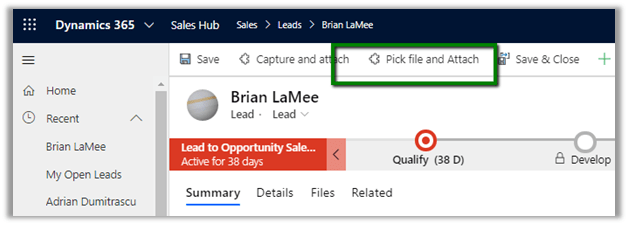
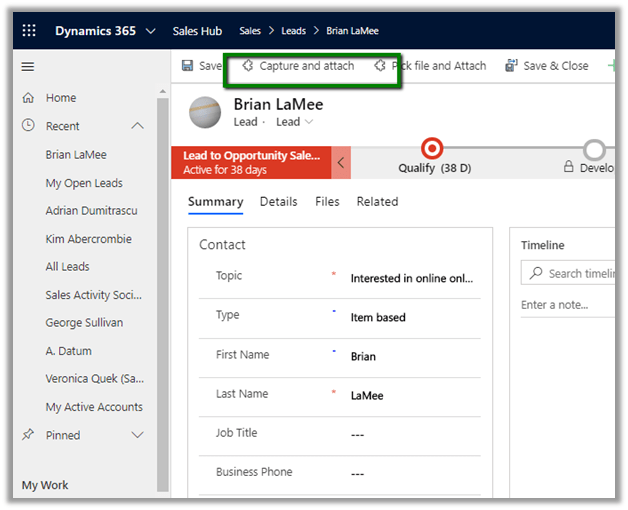
Here we have added a custom ribbon button named “Pick file and attach” on the Lead entity form.

In the case of Web Client, the File dialog box opens

In the case of Windows Tablet App also, the file dialog box opens.

For Phone App for Android (and iOS), users can select the existing image from the gallery.

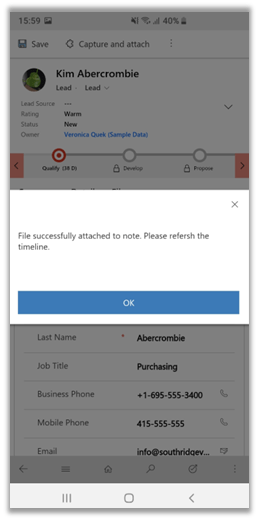
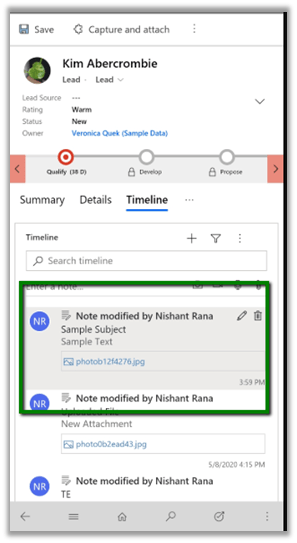
On successful attachment of file/image to notes, the user is presented with the below message.

Users can refresh the timeline to see the attached file.

The sample code using the pickFile method


function PickFile(entityId) {

entityId = entityId.replace(/[{}]/g,'');
Xrm.Device.pickFile().then(

function (data) {

// attach the uploaded file as attachment to note
var entity = {};
entity.subject = "Sample Subject";
entity.documentbody = data[0].fileContent;
entity.filename = data[0].fileName;
entity.mimetype = data[0].mimeType;
entity.notetext = "Sample Text";

// lead entity sample
entity["objectid_lead@odata.bind"] = "/leads(" + entityId + ")";

Xrm.WebApi.online.createRecord("annotation", entity).then(
function success(result) {
var newEntityId = result.id;

var alertStrings = { confirmButtonLabel: "OK", text: "File successfully attached to note. Please refersh the timeline." };
var alertOptions = { height: 200, width: 300 };
Xrm.Navigation.openAlertDialog(alertStrings, alertOptions);

},
function (error) {
Xrm.Utility.alertDialog("Error occured while attaching file to notes. Please try again");
}
);

},
function (error) {
Xrm.Utility.alertDialog("Error occured while picking file. Please try again");
}
);
}

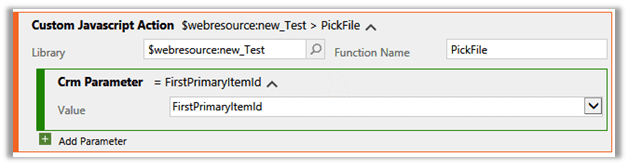
Add the Crm Parameter to pass the GUID of the record to the method.

Thus, using pickFile makes it easy for the end-user to capture and attach the file to notes through a click of a button.

Also check out the wonderful tool Notes Metadata Manager , which provides additional capabilities like adding metadata to the attachments, organise attachments using folder structure, drag and drop attachments, upload multiple attachments etc.

Hope it helps..

Using Xrm.Device captureImage to take picture using camera and attach it to notes in Dynamics 365 for Phones and Tablet App


Check the other articles of this series

captureImage method of Xrm.Device allows us to take the picture through the camera and work with that captured image in the code (in this post, we are saving the image in the notes as an attachment).

This method is only available for mobile apps.

Here we have added a custom ribbon button on the Lead entity form.

  • Capture and attach

The capture Image method will allow the user to capture an image using the device camera and attach it to the notes as shown below.

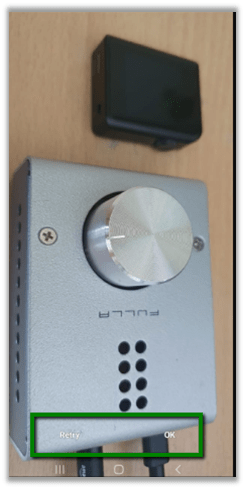
Clicking on “Capture and attach” ribbon button, opens the camera for the user to take the pic as shown below.

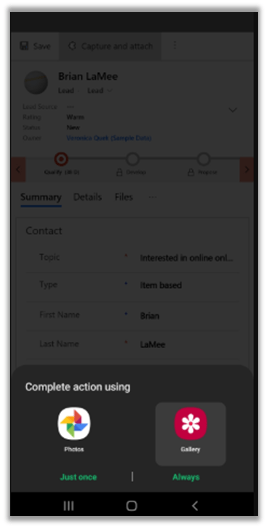
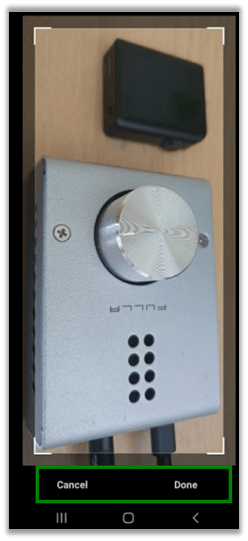
Clicking on OK will ask the user to choose the image editor.

Users can edit the image and click on done.

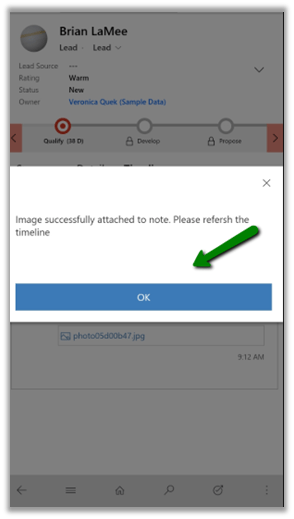
The dialog informs the user that images have been attached.

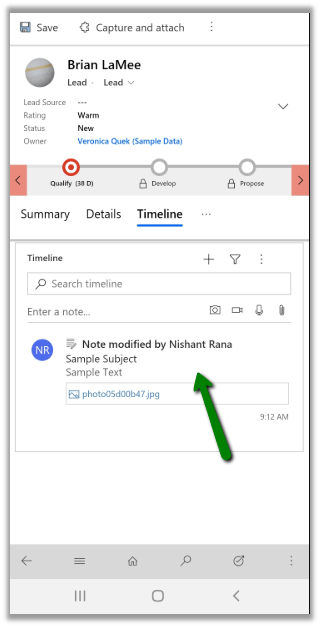
Users can refresh the timeline to see the attached image in notes.

If we try using the captureImage method inside the Dynamics 365’s web application, we get the below error, because it is only supported for mobile devices.

The method will throw the below error in case of Web Application

“Operation {0} is not supported by platform”

The sample code for captureImage


function CaptureImage(entityId) {

entityId = entityId.replace(/[{}]/g,'');

var imageOptions = {};
imageOptions.allowEdit = true;

Xrm.Device.captureImage(imageOptions).then(
function (data) {

// attach the captured image as attachment to note
var entity = {};
entity.subject = "Sample Subject";
entity.documentbody = data.fileContent;
entity.filename = data.fileName;
entity.mimetype = data.mimeType;
entity.notetext = "Sample Text";

// lead entity sample
entity["objectid_lead@odata.bind"] = "/leads(" + entityId + ")";

Xrm.WebApi.online.createRecord("annotation", entity).then(
function success(result) {
var newEntityId = result.id;

var alertStrings = { confirmButtonLabel: "OK", text: "Image successfully attached to note. Please refersh the timeline" };
var alertOptions = { height: 200, width: 300 };
Xrm.Navigation.openAlertDialog(alertStrings, alertOptions);

},
function (error) {

Xrm.Utility.alertDialog("Error occured while attaching image to notes. Please try again");
}
);

},
function (error) {
Xrm.Utility.alertDialog("Error occured while capturing image. Please try again");
}
);
}

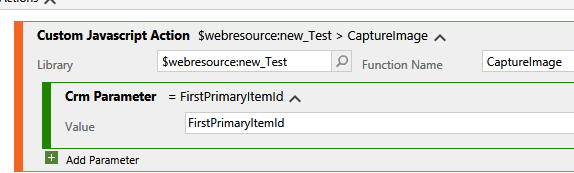
Add Crm Parameter to pass the GUID of the record to the method

CaptureImage

Thus, using captureImage makes it easy for the end-user to capture and attach the image to notes through a click of a button.

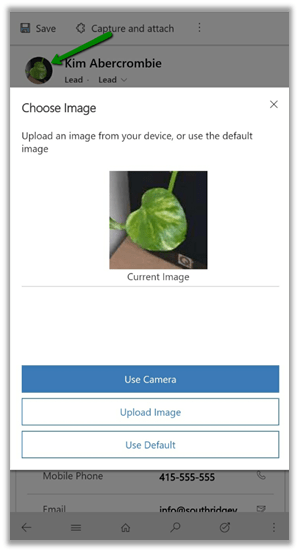
To update an entity’s image, we can click on the image itself which will open up the dialog to either use the camera, upload image from the gallery, or revert it to the default image (in not default).

Also check out the wonderful tool Notes Metadata Manager , which provides additional capabilities like adding metadata to the attachments, organise attachments using folder structure, drag and drop attachments, upload multiple attachments etc.

Hope it helps..

Your solution is too large. Reduce the number of entities to 5 or less message while publishing through Ribbon Workbench


To begin with, Ribbon Workbench is easily one of the best tools out there for CRM professionals for almost a decade now.

In CRM 4.0, to add a custom button on the form, we simply had to add a tag in ISV.Config file.

https://nishantrana.me/2009/03/20/adding-custom-menu-and-button-to-custom-entity-through-isvconfig/

The first time I tried adding a button in CRM 2011 (while it was in beta), it took nearly 8 hours.

https://nishantrana.me/2010/11/04/adding-my-first-custom-button-in-crm-2011/

With Ribbon Workbench, it has all come down to a matter of minutes. Thanks to Scott Durow

While working with the tool recently, we were getting the following message repeatedly while trying to publish the changes

The first thing we need to make sure is we are only having the required entity and solution components in the solution that we are working with inside the tool as suggested.

https://ribbonworkbench.uservoice.com/knowledgebase/articles/169819-speed-up-publishing-of-solutions

If we are already following that, another thing that we can make sure is, before we start working with the already loaded solution, is to reload the solution before making any changes.

E.g. I had the solution already loaded in the tool, and now I after a couple of hours I am trying to update a few things in it.

Before making any change, click on the Open Solution and load the solution again.

Load the solution, make any desired change, and publish.

This way we were able to avoid the error during publishing (also it will make sure we are working with the latest solution)

Hope it helps..

Fixed – An unsecured or incorrectly secured fault was received from the other party. See the inner FaultException for the fault code and detail while trying to connect using XrmToolBox


While trying to create a new connection in XrmToolBox, we got the below error

We had used the Connection Wizard as the connection method

After failing a couple of more times, we realised the mistake.

For the user who is trying to log in, MFA is enabled.

So, instead we opted for the SDK Login control connection method.

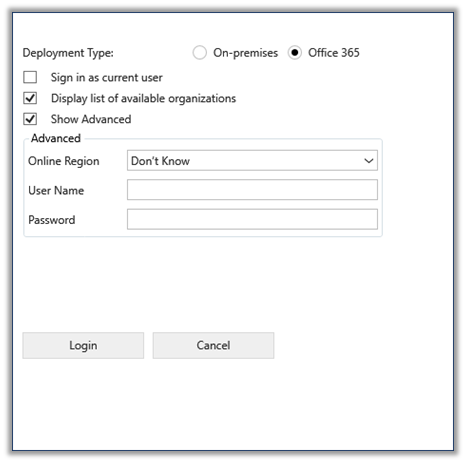
Clicking Open Sdk Login Control button opens up the standard login control to connect to Dynamics 365.

Provide username, password, and click on login.

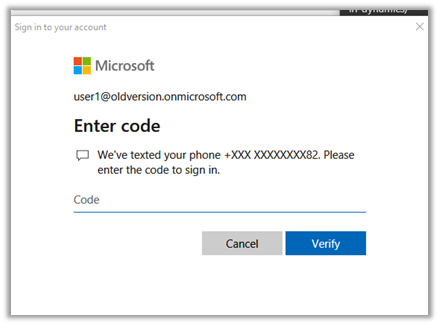
Enter the code (received on registered phone number).

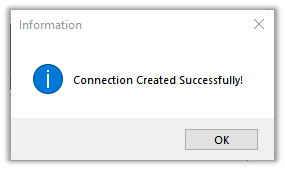
Thus, using the SDK Login Control, we were able to connect successfully.

You can also connect by registering the Azure AD App

https://alphabold.com/connecting-to-mfa-enabled-microsoft-dynamics-365-using-xrmtoolbox/

Check the below article for further details and different ways to connect to Dynamics 365 using XrmToolBox

https://www.xrmtoolbox.com/documentation/for-users/connecting-to-an-organization/

Hope it helps..

Advertisements

Notes on Dynamics 365 for Phones and Tablets app – Part 9 (Mobile Offline)


Check the other articles of this series

Continuing our previous post, where we configured the entity for the offline, mobile offline profile, and also enabled the offline option for the app, in this post we’d see the behavior of the apps in the offline mode within the Dynamics 365 for Phones App.

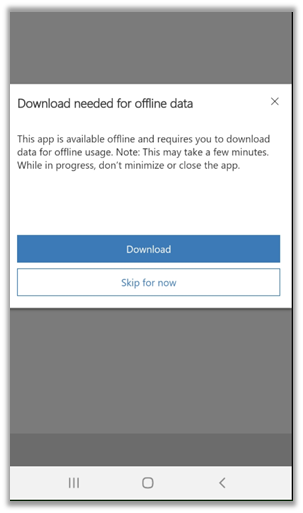
On opening the app, the user for which the mobile offline profile is configured will be presented with the below option to download the data for offline.

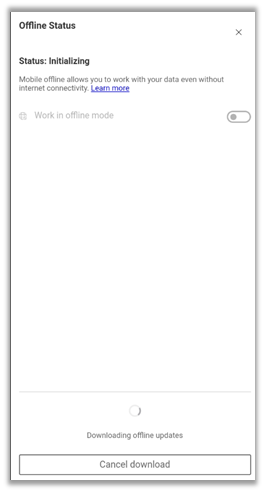
Clicking on Download will start the download process.

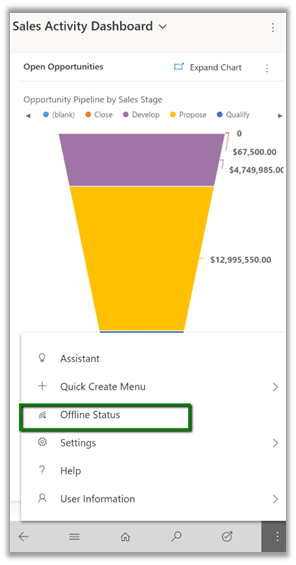
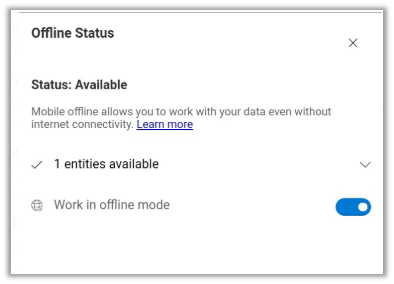
Navigate to Settings à Offline Status (this status will only be added for the apps enabled for offline)

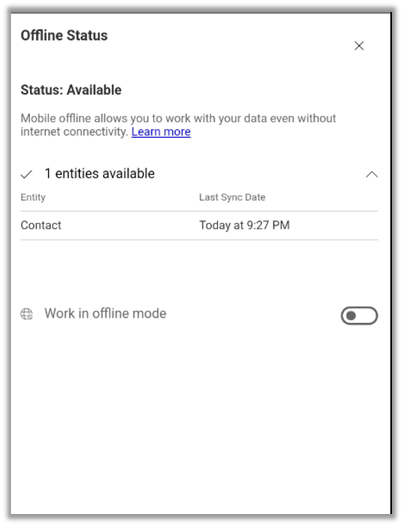
The Offline Status will show us the status of the download.

Once the download completes, we can see the Contact entity available and also the option of working offline enabled for it.

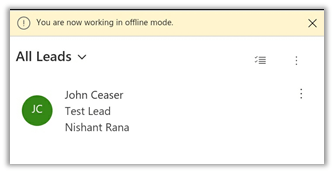
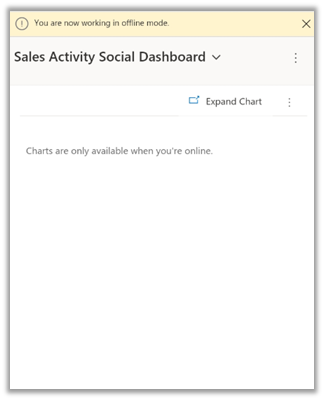
Enabling Work in offline mode, and navigating the dashboard displays the message as below

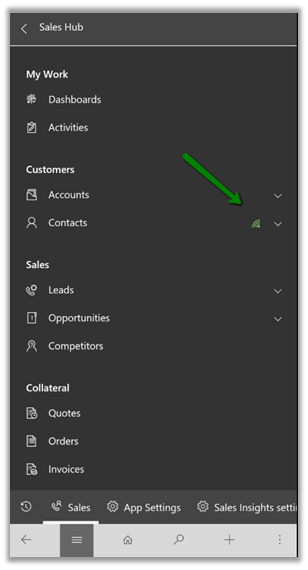
The phone app also shows the green connection symbol next to the contact entity.


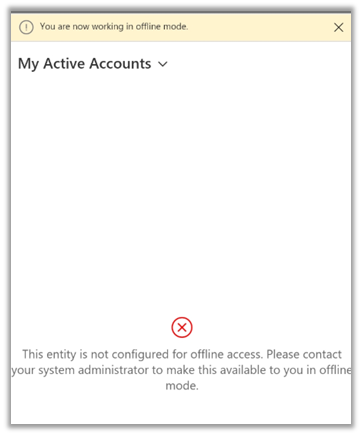
Navigating to the Account entity (which is not configured for offline) shows the below message.


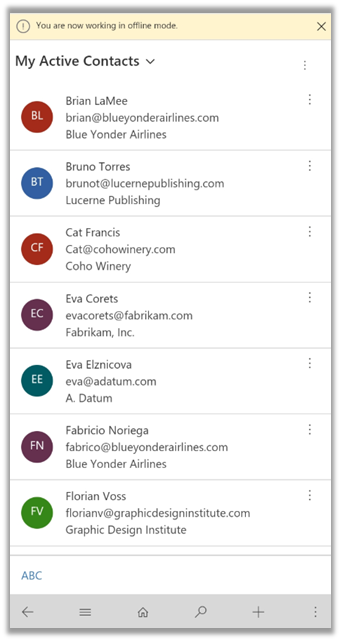
Navigating to Contact entity (configured for offline) displays the lists as expected.

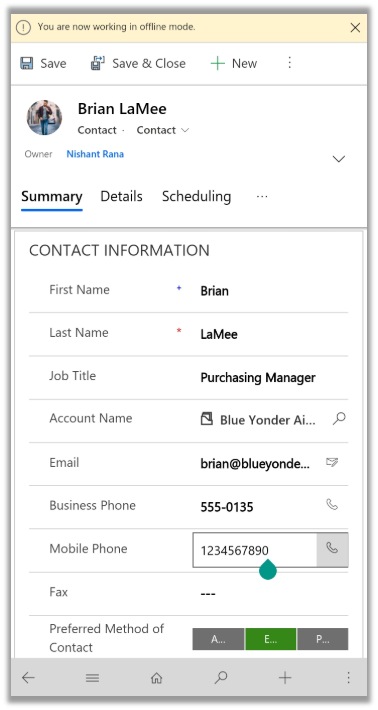
Now let us open one of the records and update the value of a field in it.

Here we have updated the mobile phone number field.

Let us navigate to the Offline Status option and disable Work in Offline Mode.

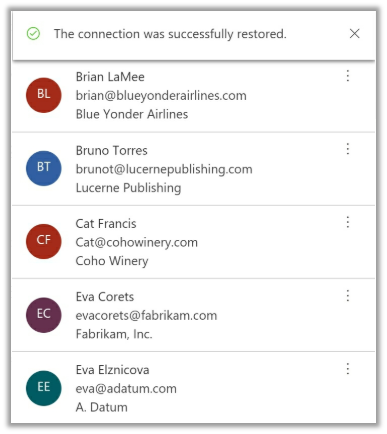
We see the “The connection was successfully restored” message.

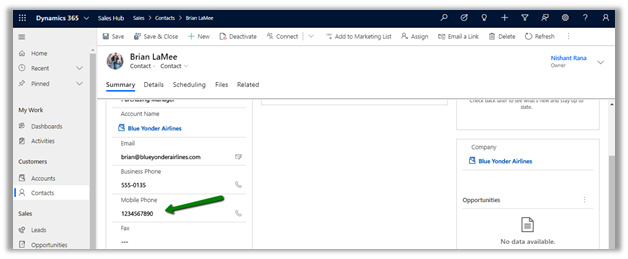
And also the record updated back in our Dynamics 365 Sales Hub App.

In this post, we saw the basic behavior of the phone app in the offline mode, in the next post, we will explore a few more features of the mobile app with regards to offline mode.

Hope it helps..

Nishant Rana's Weblog

Everything related to Microsoft .NET Technology

Skip to content ↓