Check Dynamics 365 App and Power Platform features availability at different geography


Recently we had to find out what all Dynamics 365 Apps and Power Platform features are available in our UAE region.

To get these details navigate to

https://dynamics.microsoft.com/en-cy/geographic-availability/

and open the report

Below are the different Products and Geography available.

Below is the report filtered for UAE for Power Platform.

For Dynamics 365 App

Hope it helps..

Implement character length validation in a Canvas Power App | Power Platform


priyeshwagh777's avatarD365 Demystified

Often times, you want to know the size of text entered in a field and want to indicate a user that they need to restrict the text to your specific size, like Twitter. And make sure the user is restricted within the limits. So, I’ve added a button to show that validation –

undefined

And you want to dynamically check the length as you type to see how much is remaining
undefined
And maybe also add some validation like disabling the button if the limit is reached
undefined

Let’s look at how we can implement this in Canvas Power App!

Setup

Let’s get to building this out!

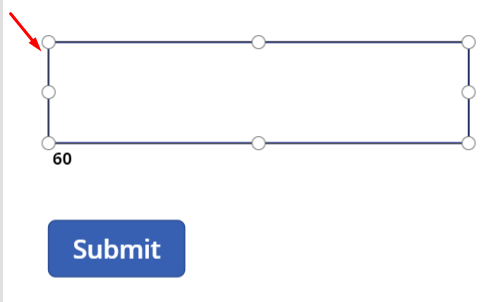
  1. Let’s say you have a Text Input. I’ve simply called it “Message
    undefined
    undefined
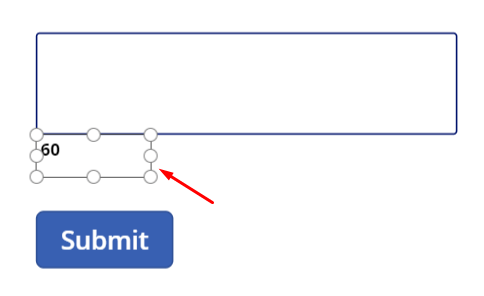
  2. Then, I have the Label field called as “CharLength“. This will be a place holder for our counter of characters in the Message textbox.
    undefined
    undefined
  3. And finally, a Submit button which…

View original post 340 more words

Using Data Anonymizer component (SSIS) to mask data in Dynamics 365


At times to ensure compliance, we need to mask the data, especially in our sandbox environments, while still maintaining the structure of the data.

Here we can make use of the Data Anonymizer component of KingswaySoft’s SSIS productivity pack to mask the existing data.

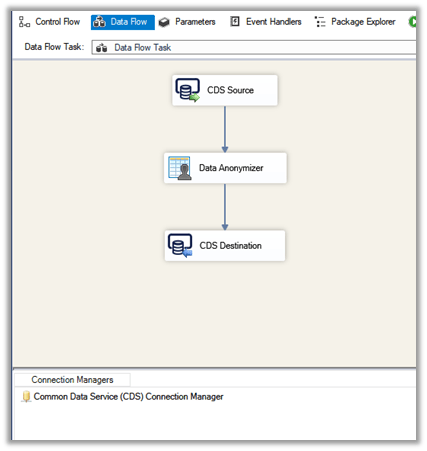
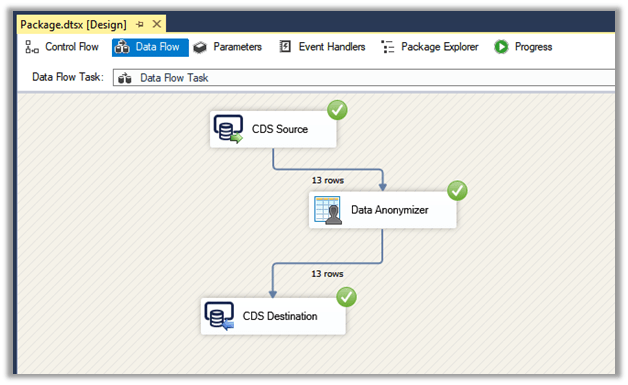
Create a new SSIS package, add CDS Source, Data Anonymizer, and CDS Destination component.

CDS Source and CDS Destination are connected to the same sandbox environment where we are going to mask the data.

We have selected email address1, mobile phone, website URL field of Contact entity to be masked in CDS source along with contactid primary key to be used for Upsert action in CDS Destination.

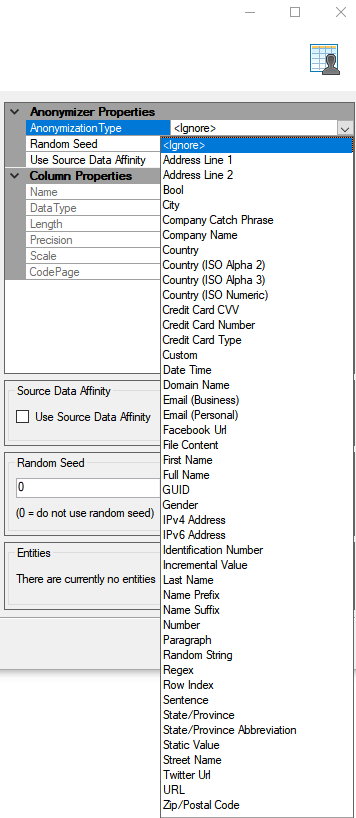
Open the Data Anonymizer component and specify the property for each of the fields.

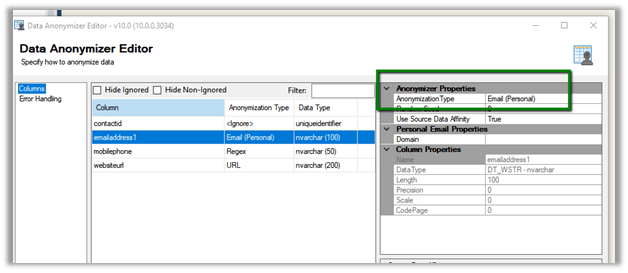
Email Address 1 –

Select Anonymization Type as Email (Personal)

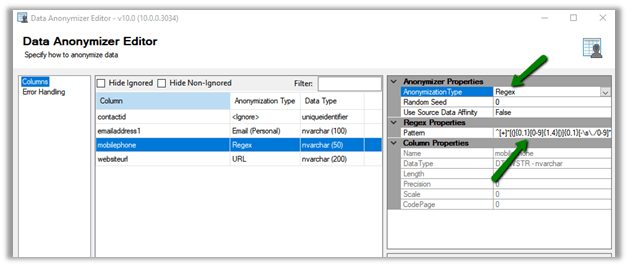
Mobile Phone –

Select Anonymization Type as Regex and specify the Pattern for the Regex.

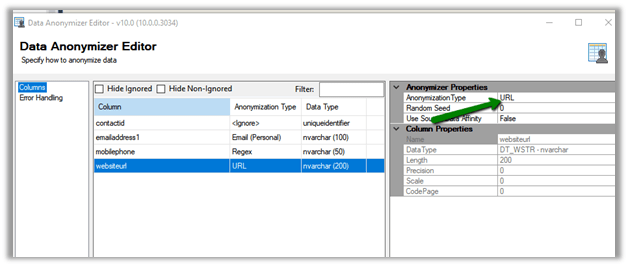
URL –

Select Anonymization Type as URL

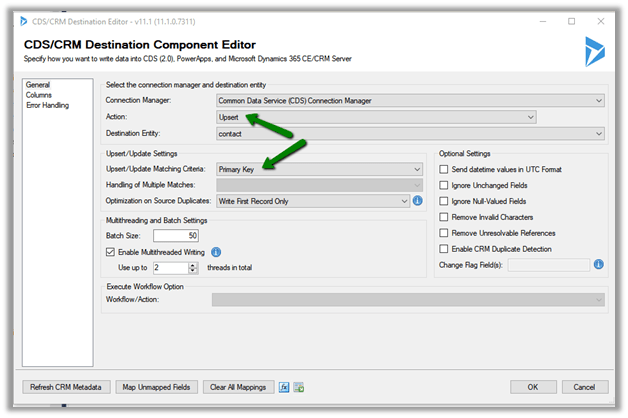
Inside the CDS Destination component, select Upsert Action with matching Criteria as Primary Key as we are using contactid.

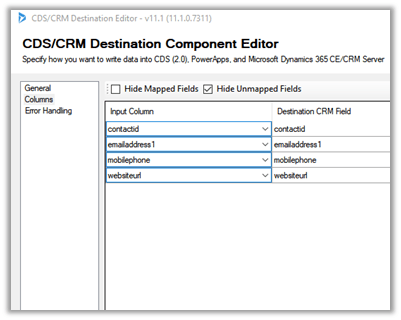
Map the fields

Execute the package

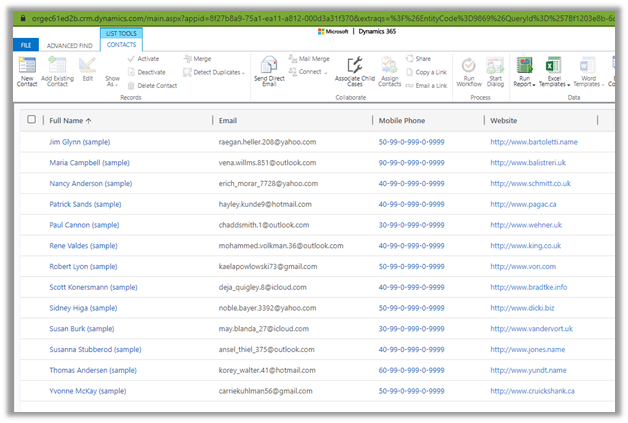
We’d see the updated contact records inside Dynamics 365

Get all the details of Data Anonymizer Component here

https://www.kingswaysoft.com/products/ssis-productivity-pack/help-manual/data-generation-and-anonymization/data-anonymizer

Here are few other articles on SSIS (KingswaySoft)

https://nishantrana.me/2018/11/26/ssis-and-microsoft-dynamics-365/

Hope it helps..

How to – Different ways of getting record count (total) in Dynamics 365


Let us take a scenario, where a data migration package is running, and it either creates or updates (or deletes) a large number of records into Dynamics 365, and we want to get the count of records created/updated/deleted in the last x hour or so.

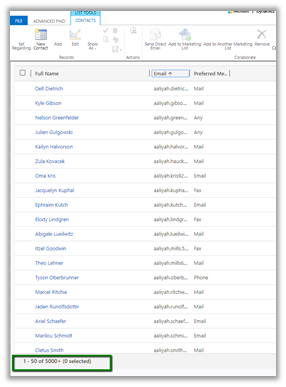
With views, we are limited to just 5000 records.

One option is to write the console app having the required QueryExpression or FetchXML condition using the Dynamics 365 SDK to get the count.

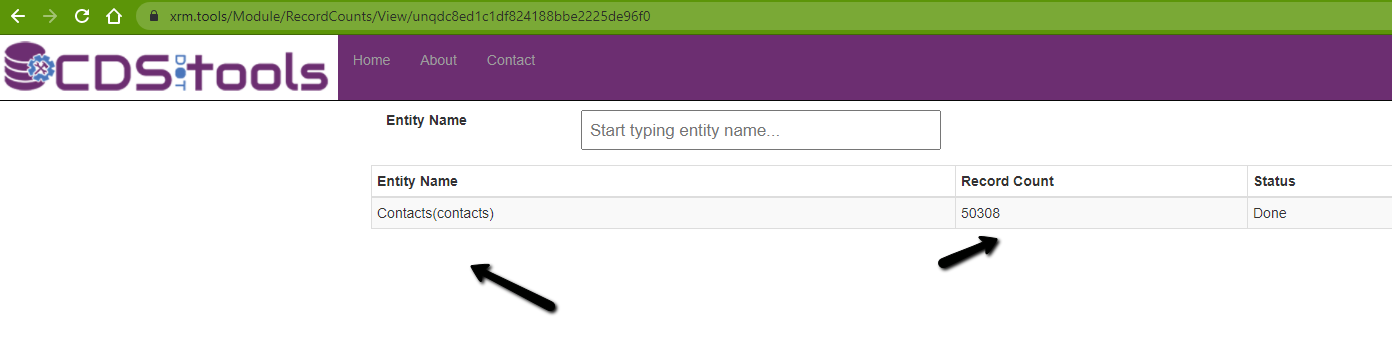
Or use the Record Counts tool of CDS.Tools

https://xrm.tools/RecordCounts

count

We can also make use of SSRS reports here.

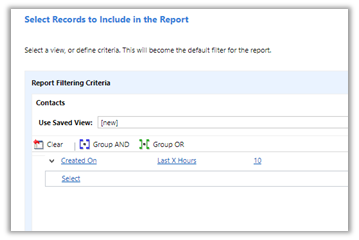
Create a report using the report wizard, specify the criteria

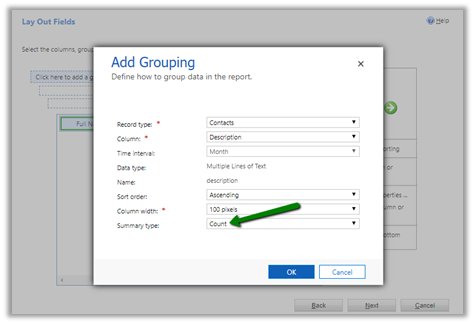
In the LayOut fields window, specify Count as the summary type for grouping.

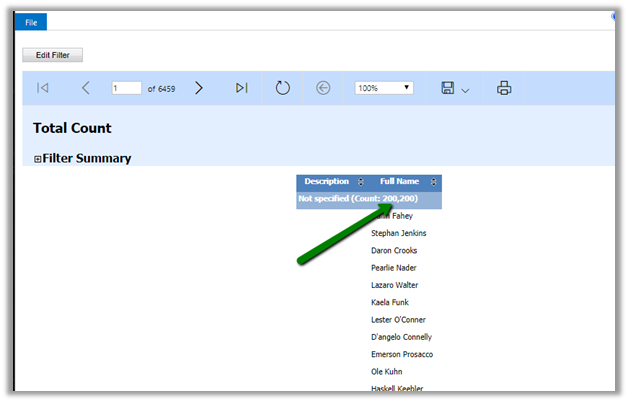
Run the report to get the count.

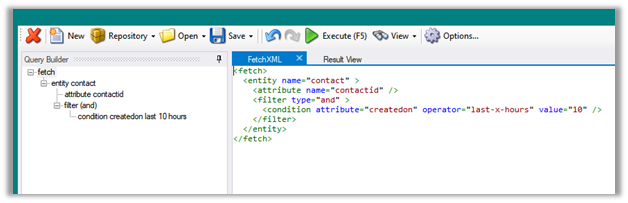
Another option that we have used the most is to use the FetchXML
Builder
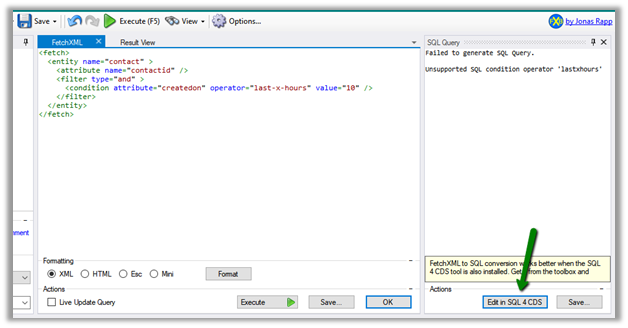
plugin to build the query, copy it.

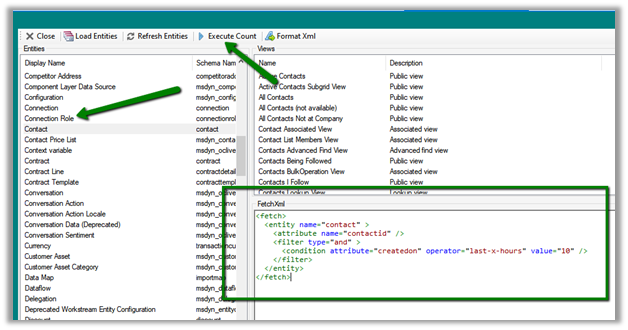
And use it in the FetchXML / View Record Counter plugin of XrmToolBox.

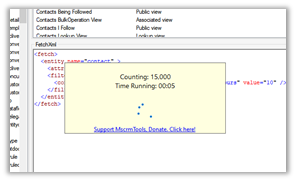
Select the entity, contact, in this case, paste the FetchXML query and click Execute Count.

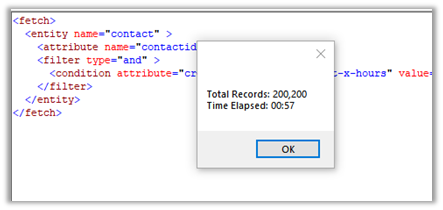
We will get the count.

Along with FetchXML / View Record Counter we can also use
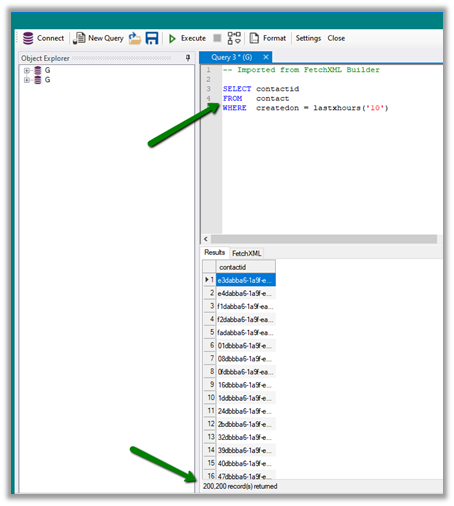
SQL 4 CDS plugin.

Within the FetchXML builder click on Edit in SQL 4 CDS button.

The result

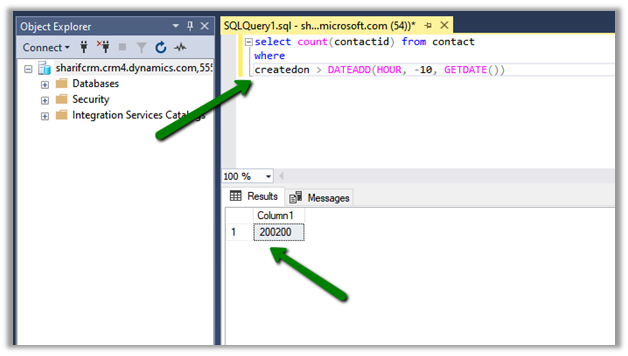
And now with CDS T-SQL endpoint (preview), we can use SQL Server Management Studio as well to directly write the T-SQL instead of fetch xml

https://nishantrana.me/2020/05/21/setting-up-using-sql-to-query-data-in-dynamics-365-preview/

We can also use the CDS T-SQL endpoint within the SQL 4 CDS Plugin.

https://markcarrington.dev/2020/05/24/sql-4-cds-2-1-0-the-t-sql-edition/

What if we want total record count for an Entity?

Apart from all the methods above,

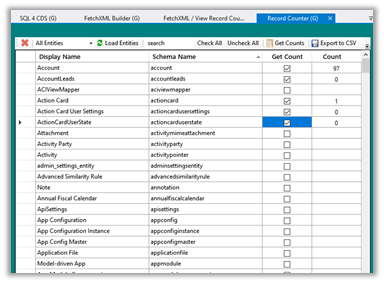
  • we can use Record Counter XrmToolBox Plugin for that

https://www.xrmtoolbox.com/plugins/AndyPopkin.RecordCounter/

  • or use RetrieveTotalRecordCountRequest

https://dreamingincrm.com/2019/07/22/getting-entity-record-counts/

  • or use Count aggregrate function

https://docs.microsoft.com/en-us/previous-versions/dynamicscrm-2016/developers-guide/gg309565(v=crm.8)?redirectedfrom=MSDN#count

however, it will fail in case of more than 50000 records


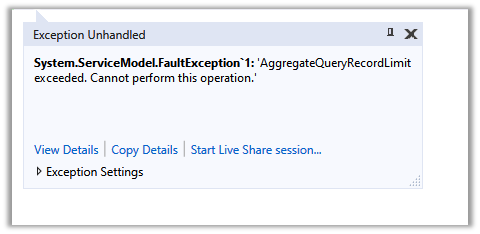
‘AggregateQueryRecordLimit exceeded. Cannot perform this operation.’

To increase the limit (on-premise)- https://nishantrana.me/2012/09/06/aggregatequeryrecordlimit-exceeded-cannot-perform-this-operation/

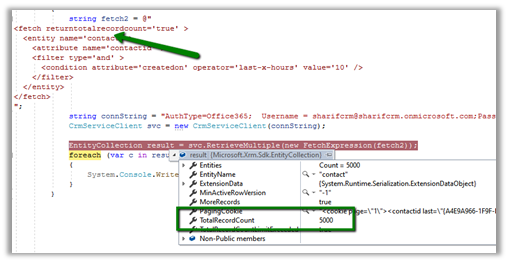
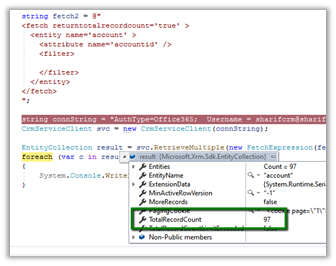
  • Will returntotalrecordcount property of FetchXML help ?


It will be helpful if total records are less than 5000.


Hope it helps..

Advertisements

Planning to show a custom multi-select lookup. Use the Xrm.Utility.lookupObjects to show a multi-select lookup control in Dynamics 365


Debajit's avatarDebajit's Dynamic CRM Blog

Recently in my project I had the requirement to show up a multiselect lookup for selecting records across multiple custom entities. The customer have created a PCF control where they have designed to show the selected records spanning entities. But the issue was to show a lookup control to allow the user to select multiple records spanning entities.

Thankfully there is a method now to do exactly the same using Client API.

The below code shows how to show up a multiselect lookup control from account and contact entity. However you can do the same for all custom entities.

Below is how it looks.

image

Hope this helps!

Debajit Dutta

(Dynamics MVP)

For consultation/ corporate training visit www.xrmforyou.com or reach out to us at info@xrmforyou.com

Our product offerings:

CRM-Sharepoint Attachment uploader and metadata manager (http://www.xrmforyou.com/sharepoint-integrator.html)

Notes Manager (https://debajmecrm.com/2019/02/28/add-metadata-to-your-notes-and-attachments-in-dynamics-notes-metadata-manager-from-xrmforyou-com/)

Role based views for Dynamics 365 (http://www.xrmforyou.com/role-based-views.html)

View original post 41 more words

Using Data Spawner component (SSIS) to generate sample data in Dynamics 365


At times we need to generate sample data for our entities in Dynamics 365 for various reasons, performance testing is one of them.

Data Spawner component which is part of KingswaySoft’s
SSIS Productivity Pack provides us the most efficient way of doing so.

Download the component here –

https://www.kingswaysoft.com/solutions/ssis-data-generation-anonymization-components/data-spawner-component

Let us generate the sample data for Contact Entity.

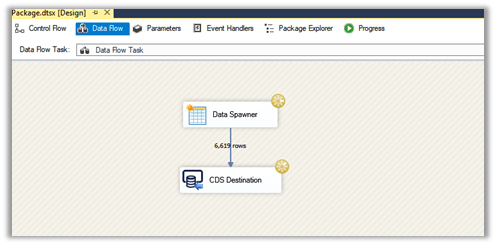
Add the Data Spawner component to the Data Flow along with the CDS Destination component in the integration service project.
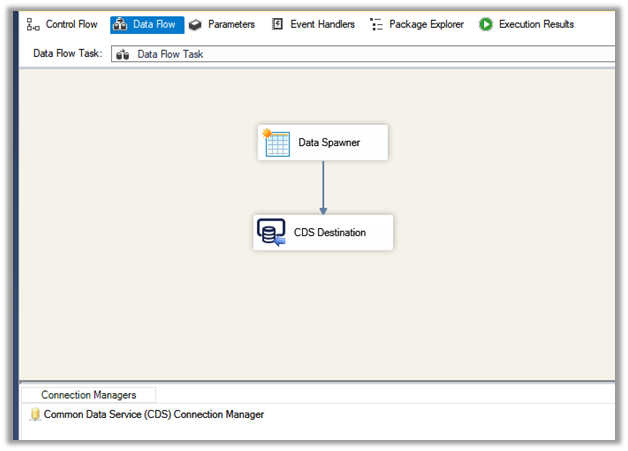
Double click the Data Spawner to open the editor.

Click on Add + button to specify the columns, here we have specified four different columns.

We have kept the name for each of the columns, same as the schema name so that it is easy to map them in CDS Destination.
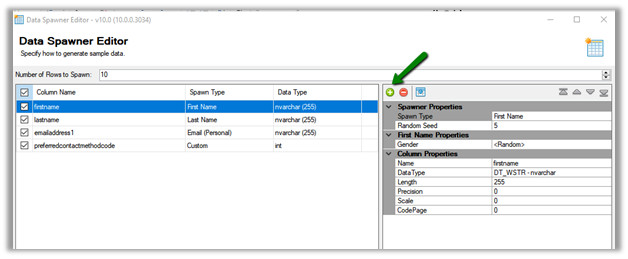
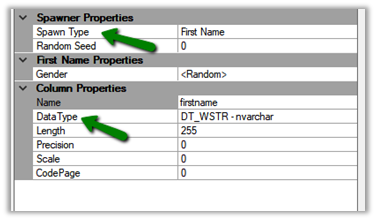
For the First Name column, we have specified Data Type as nvarchar and Spawn Type as the First Name, which will generate the string similar to first name value.

In Gender property for the First Name column, we can specify either to generate Male or Female first name.

Random will generate both Male and Female first name.
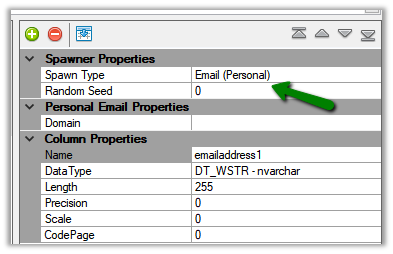
For the email address field, we have selected Spawn Type as email (personal), the other option is email (business).
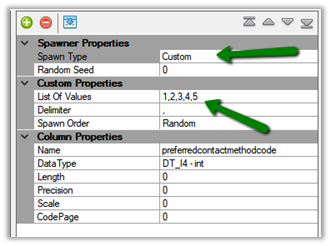
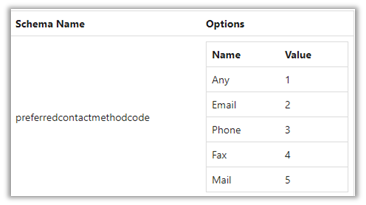
For our option set field preferred contact method, we have selected data type as an integer and Spawn Type as Custom, which will allow us to specify the list of available values, which is 1 to 5 in our case.
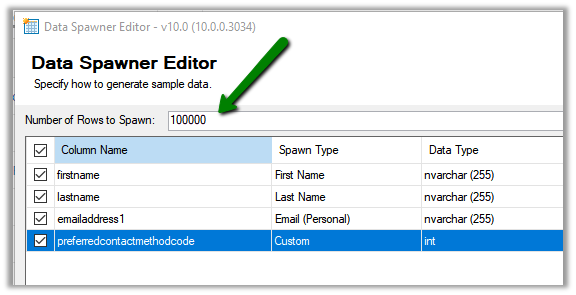
We have specified the total number of records to be generated as 100000.
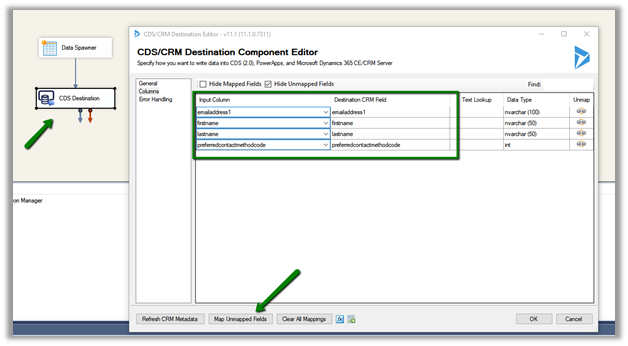
Lastly, we have set the output of Data Spawner to the CDS Destination component. (use the Map Unmapped fields to auto map the fields as we have set the column name same as the schema name of the attributes)
Execute the package

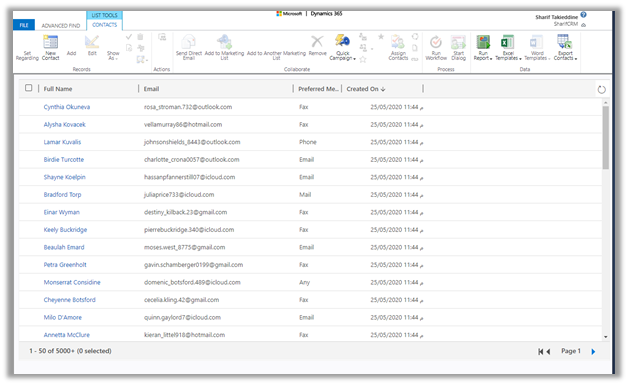
We can see our sample contact records start getting created.
Read more about Data
Spawner

https://www.kingswaysoft.com/products/ssis-productivity-pack/help-manual/data-generation-and-anonymization/data-spawner

Here are few other articles on SSIS (KingswaySoft)

https://nishantrana.me/2018/11/26/ssis-and-microsoft-dynamics-365/

Hope it helps..

Nishant Rana's Weblog

Everything related to Microsoft .NET Technology

Skip to content ↓