Error :- ‘ConvertUtcToLocalTime’ is not a member of ‘Microsoft.Crm.Reporting.RdlHelper.DateTimeUtility” while creating report using Report Wizard – CRM 2011


Hi,

I got the following error while creating report using report wizard

“Web service request CreateReport to Report Server http://servername/ReportServer/ReportService2005.asmx failed with SoapException. Error: The Value expression for the textrun ‘txtExecutionDateTimeLabel.Paragraphs[0].TextRuns[0]’ contains an error: [BC30456] ‘ConvertUtcToLocalTime’ is not a member of ‘Microsoft.Crm.Reporting.RdlHelper.DateTimeUtility'”

Re installing Reporting Extensions resolved the issue.

http://yellowduckguy.wordpress.com/2011/06/01/microsoft-dynamics-crm-2011-reporting-extensions-is-not-installed/

Hope it helps.

Using List control to show 1 to n related information in a repeated manner in SSRS report.


Suppose these are our two tables, Person and Person Details, having one to many relationships to each other.

Person:-

Person details:-

Now here we would like the report to show data in the following format (in repeated fashion)

1st record of Person Table

All details of that record

2nd record of Person Table

All details of that record

Now first create a report having following simple query for the data set

SELECT Id, [First Name], [Last Name], Email FROM Person

Now create one more report which we would be using as a Subreport with the following query

SELECT Hobby FROM [Person Details] WHERE (Id = @Id)

Now go to our main report,

Add a List Control to the report.

Drag the fields from the DataSet of the main Person table to the report.
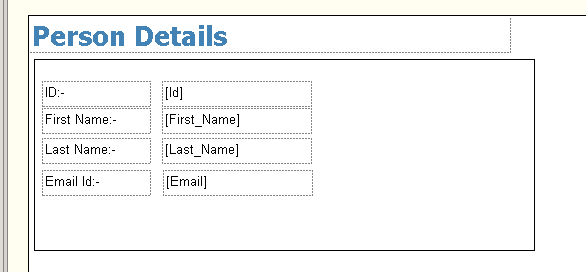
Next drag the Subreport control inside the list control of the report.

Specify properties for the Subreport.

Refer to my previous post for that (little lazy to put those stuffs again)

https://nishantrana.wordpress.com/2011/08/20/using-subreport-control-to-show-1-to-n-related-information-in-ssrs-report/

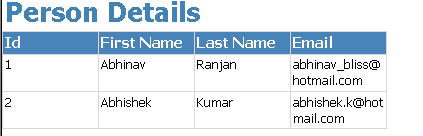
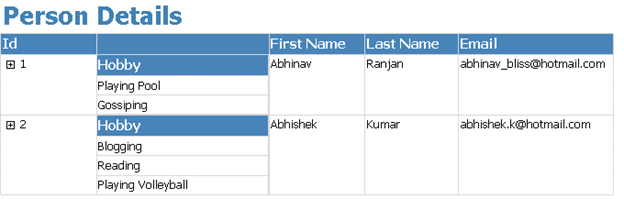
Our final report would look like this.
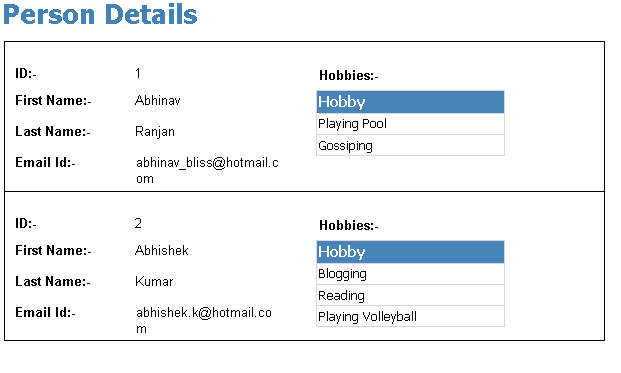
Hope it is helpful.

Using Subreport control to show 1 to n related information in SSRS report.


Suppose these are our two tables, Person and Person Details, having one to many relationships to each other.

Person:-

Person details:-

Now first create a report having following simple query for the data set

SELECT Id, [First Name], [Last Name], Email FROM Person

Now create one more report which we would be using as a Subreport with the following query

SELECT Hobby FROM [Person Details] WHERE (Id = @Id)

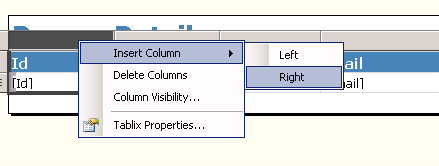
Now go to our main report, select id column, right click it and select add column to the right.

Drag Subreport control from the toolbox there in the new column added

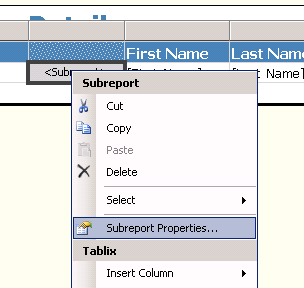
Next right click it and select Subreport properties

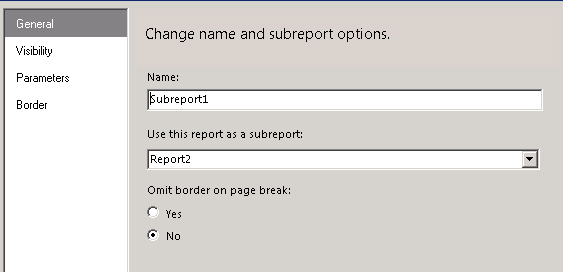
Specify the detail report as Subreport.

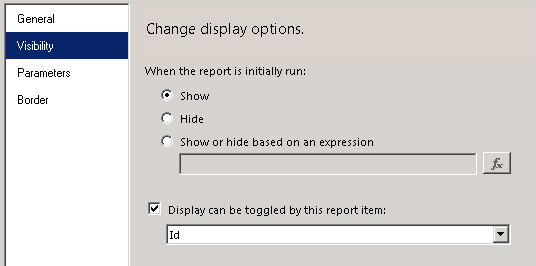
For visibility specify the following options (report would be auto expanded and we will have + sign in front of our id column through which we can toggle the visibility of the subreport)

For Parameters specify value for the id to be passed from the main report.

That’s it. We are done J

Hope it is helpful.

Export SSRS report as a proper PDF file


After we have created a report in SSRS, if we try to export it in PDF, we could find that our report might not be properly getting rendered in PDF. Instead of fitting in a single page, some part of the report may show up as a second page of the PDF.

These are things we need to keep in mind if we want to render our report properly in a single page

1. Click on Report > Report Properties > Layout tab
2. Make a note of the values for Page width, Left margin, Right margin
3. Close and go back to the design surface
4. In the Properties window, select Body
5. Click the + symbol to expand the Size node
6. Make a note of the value for Width
To render in PDF correctly Body Width + Left margin + Right margin must be less than or equal to Page width. When you see blank pages being rendered it is almost always because the body width plus margins is greater than the page width.
Remember: (Body Width + Left margin + Right margin) <= (Page width)

Below is the link where I got the solution.

http://www.sqlservercentral.com/Forums/Topic223897-150-2.aspx#bm833969

Hope it helps.

Fxied – Reporting error. Report cannot be displayed. (rsProcessingAborted)


I was getting the above error while running one of the custom SSRS report inside CRM 2011.


To resolve this issue I had to follow these steps

  1. Start SQL Server Management Studio
  2. Expand Security, then expand Logins
  3. Select and right click the account under which the SQL Server Reporting Services is running.
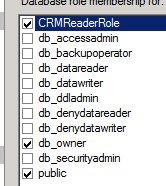
  4. Select User Mapping and select YouOrg_MSCRM database and specify following role membership
  • CRMReaderRole,
  • db_owner
  • public.


Hope it helps.

Advertisements

Displaying Image from File Attachment control in InfoPath form inside SSRS report.


I was assigned the task of displaying images attached to InfoPath form using file attachment control in one of the SQL Server Reporting Services Report.

For this we need to add an image control and set it’s property in the following manner

Image Source :- Database

Then select appropriate DataSet, Image Field and MimeType

Here to display the Image properly we need to write a Report Assembly with the following code.

public static class FileDecoder
    {
        /// <summary>
        /// Takes string value for image from the infopath form
        /// and converts it to proper bytes for displaying it as an image
        /// </summary>
        /// <param name="imageData">string representation of the image</param>
        /// <returns>corrected byte array</returns>
        public static byte[] GetCorrectedByte(string imageData)
        {
            byte[] attachmentNodeBytes = Convert.FromBase64String(imageData);
            // Position 20 contains a DWORD indicating the length of the
            // filename buffer. The filename is stored as Unicode so the
            // length is multiplied by 2.
            int fnLength = attachmentNodeBytes[20] * 2;
            // The file is located after the header, which is 24 bytes long
            // plus the length of the filename. 
            byte[] fileContents = new byte[attachmentNodeBytes.Length – (24 + fnLength)];

            for (int i = 0; i < fileContents.Length; ++i)
            {
                fileContents[i] = attachmentNodeBytes[24 + fnLength + i];
            }

            return fileContents;
        }

    }


And set the value for image control as

=(Namespace).FileDecoder.GetCorrectedByte(Fields!fieldName.Value)

ImageFromDB


Bye..