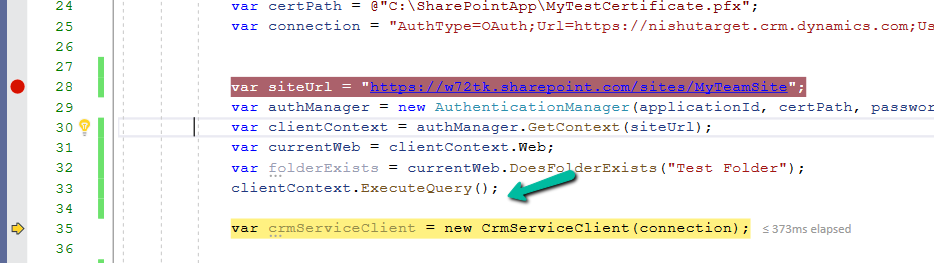
Sample Code to create and associate Folder / SharePoint Document Location (Dataverse /Dynamics 365 / SharePoint Online)


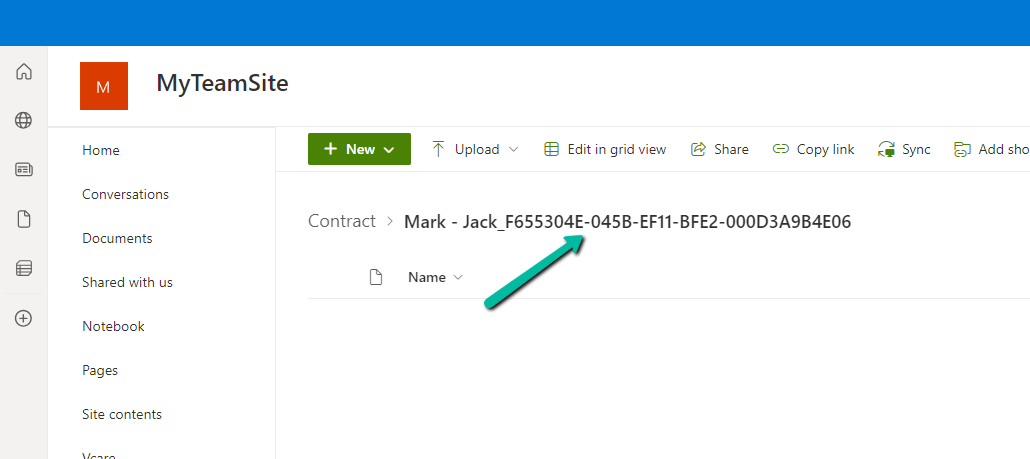
Below is our sample record for a custom table custom_contract for which we will be creating the folder in SharePoint and associated it with this record using the SharePoint Document Location record. We’d use the same naming pattern that CRM uses i.e. Name + ”_” + ”GUID”

A screenshot of a chat

Description automatically generated

Below we have passed the details of the record along with CrmServiceClient and SharePoint’s client context.
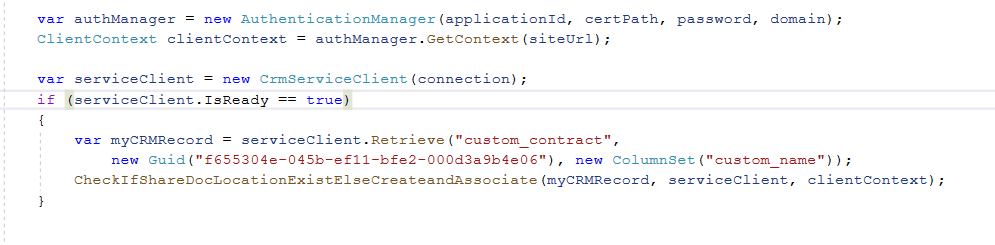
A screenshot of a computer code

Description automatically generated

The below code will first check if there is already a SharePoint Document Location created by CRM using ends with GUID condition. If it doesn’t exist, we are using the name field plus GUID of the record to create the folder in SharePoint and then associate using SharePoint Document Location record. Also we have used Regex to make sure we replace the special characters with “-“ similar to what CRM does. We are also checking if the Folder exists with that name in SharePoint before creating one.

Below is the GUID / record we have specified while creating the SharePoint Document Location record, the SharePoint Document location configured for that particular table.
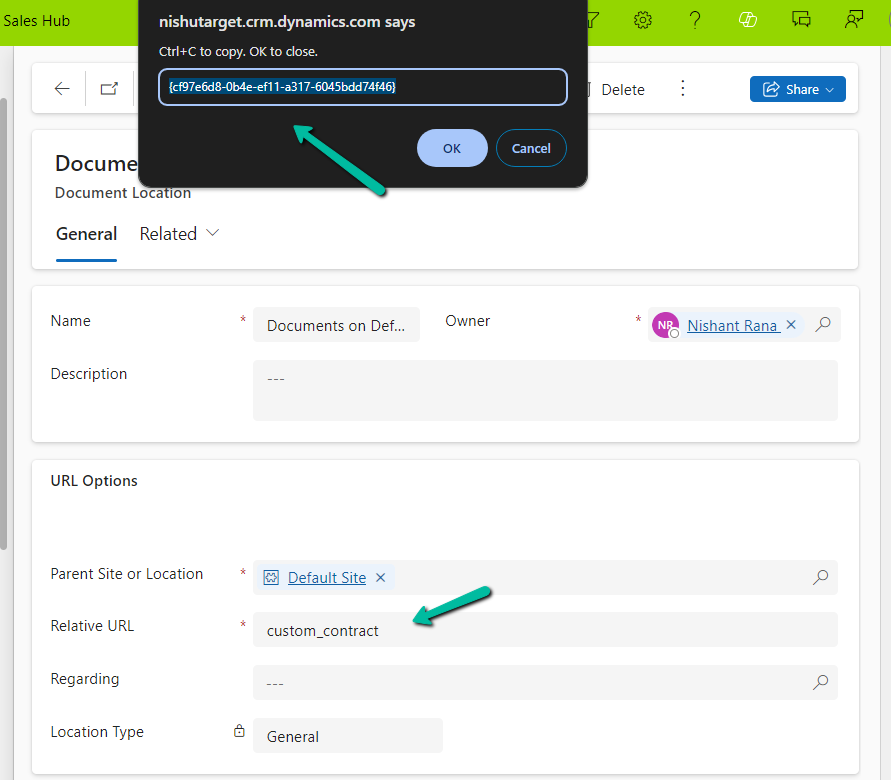
A screenshot of a computer

Description automatically generated

The sample code –

  var authManager = new AuthenticationManager(applicationId, certPath, password, domain);
            ClientContext clientContext = authManager.GetContext(siteUrl);

            var serviceClient = new CrmServiceClient(connection);
            if (serviceClient.IsReady == true)
            {
                var myCRMRecord = serviceClient.Retrieve("custom_contract", 
                    new Guid("f655304e-045b-ef11-bfe2-000d3a9b4e06"), new ColumnSet("custom_name"));
                CheckIfShareDocLocationExistElseCreateandAssociate(myCRMRecord, serviceClient, clientContext);
            }

 private static void CheckIfShareDocLocationExistElseCreateandAssociate(Entity myCrmRecord, CrmServiceClient serviceClient, ClientContext clientContext)
        {
            var querySharePointDocumentLocation = new QueryExpression("sharepointdocumentlocation");
            querySharePointDocumentLocation.ColumnSet.AddColumns("name", "relativeurl", "parentsiteorlocation", "regardingobjectid");
            querySharePointDocumentLocation.Criteria.AddCondition("regardingobjectid", ConditionOperator.Equal, myCrmRecord.Id);
            querySharePointDocumentLocation.Criteria.AddCondition("relativeurl", ConditionOperator.EndsWith, myCrmRecord.Id);
            var result = serviceClient.RetrieveMultiple(querySharePointDocumentLocation);
            if (result.Entities.Count == 0)
            {                
                var folderName = myCrmRecord.Attributes["custom_name"].ToString();
                // this makes sure we replace the special characters with - similar to what CRM does when autocreating the record.
                string regexPattern = @"[~#%&*:<>?/\\{|}.""-]";
                string replacement = "-";
                folderName = Regex.Replace(folderName, regexPattern, replacement) + "_" + myCrmRecord.Id.ToString().ToUpper();
                var folderRelativeURL = "custom_contract/" + folderName;

                Web currentWeb = clientContext.Web;
                var folderExists = currentWeb.DoesFolderExists(folderRelativeURL);
                if (!folderExists)
                {
                    var list = clientContext.Web.Lists.GetByTitle("Documents");
                    list.RootFolder.Folders.Add(folderRelativeURL);
                    clientContext.ExecuteQuery();
                }

                var documentLocation = new Entity("sharepointdocumentlocation");
                documentLocation["name"] = "Documents on Default Site 1";
                documentLocation["relativeurl"] = folderName;
                // specifying the GUID of the SharePoint Document Location configured for that table
                documentLocation["parentsiteorlocation"] = new EntityReference("sharepointdocumentlocation", new Guid("cf97e6d8-0b4e-ef11-a317-6045bdd74f46"));
                documentLocation["regardingobjectid"] = new EntityReference("custom_contract", myCrmRecord.Id);
                serviceClient.Create(documentLocation);
            }
        }

The result –
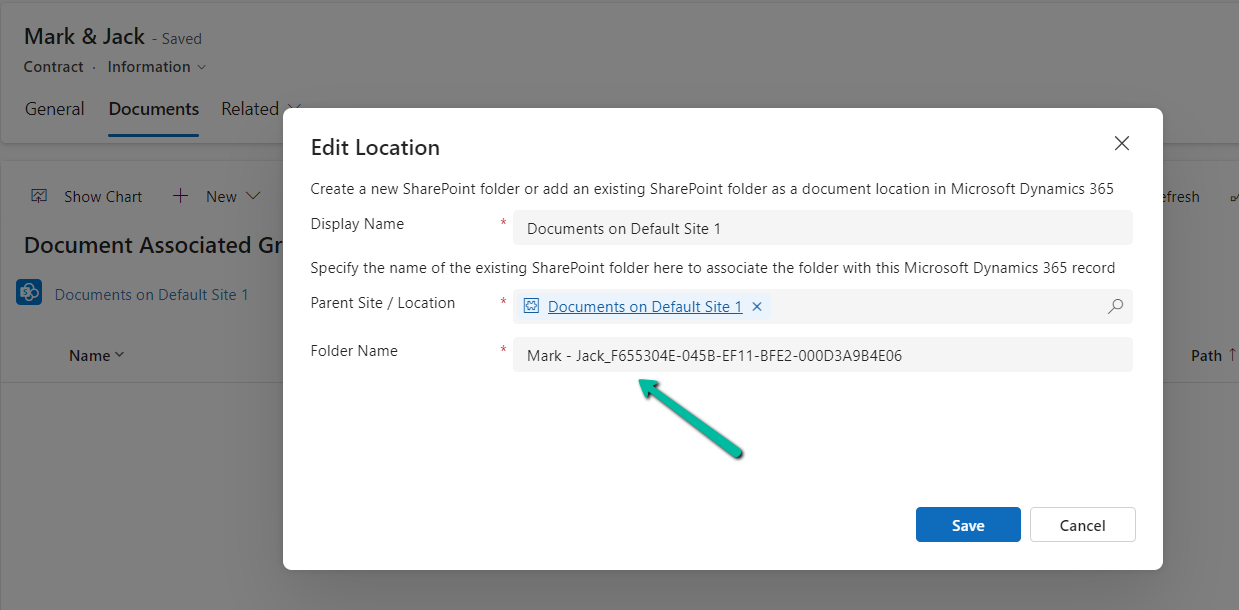
A screenshot of a computer

Description automatically generated

Also refer –

Hope it helps..

Advertisements

Fixed – The attempted operation is prohibited because it exceeds the list view threshold error– SharePoint Online


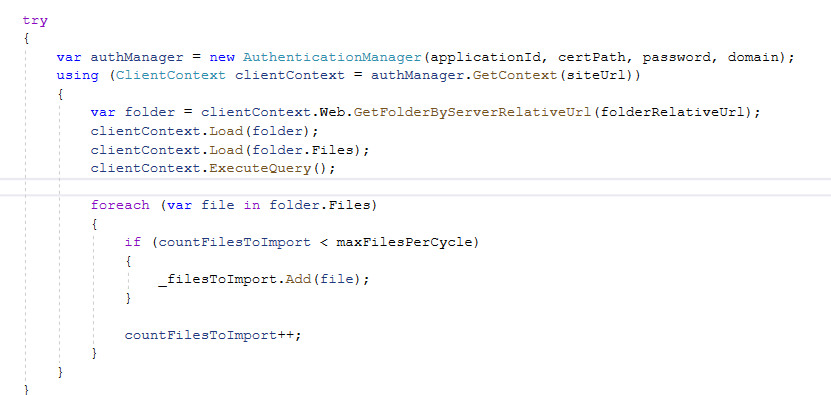
While trying to load all the files in a particular folder for processing, we got the below error

The attempted operation is prohibited because it exceeds the list view threshold – Microsoft.SharePoint.SPQueryThrottledException

The folder we were targeting contained 25K files in it. (the default threshold – 5000 items)

So we updated our code to make use of CamlQuery to retrieve the files in batch along with the listitemcollectionpostion object to loop and process through all the files.

Below is the sample code for reference –

var applicationId = "d7eaeeb7-ef0a-474d-9b94-567013576c14";
var password = "password";
var domain = "xyz.onmicrosoft.com";
var siteUrl = "https://xyz.sharepoint.com/sites/MyTeamSite";
var certPath = @"C:\SharePointApp\MyTestCertificate.pfx";
var folderRelativeUrl = "xyz/correspondences";
      
  var authManager = new AuthenticationManager(applicationId, certPath, password, domain);
        ClientContext clientContext = authManager.GetContext(siteUrl);
        var folder = clientContext.Web.GetFolderByServerRelativeUrl(folderRelativeUrl);
        clientContext.Load(folder);

        // replaced it with usage of CamlQuery
        //context.Load(folder.Files);
        //context.ExecuteQuery();

        ListItemCollectionPosition position = null;
        do
        {
            CamlQuery camlQuery = new CamlQuery
            {
                ViewXml = $@"<View Scope='RecursiveAll'>
                    <Query>                          
                        <OrderBy>
                            <FieldRef Name='ID' Ascending='TRUE'/>
                        </OrderBy>
                    </Query>
                    <RowLimit>500</RowLimit>
                </View>",
                ListItemCollectionPosition = position
            };

            var listItems = folder.ListItemAllFields.ParentList.GetItems(camlQuery);
            clientContext.Load(listItems);
            clientContext.ExecuteQuery();
            position = listItems.ListItemCollectionPosition;

            foreach (ListItem listItem in listItems)
            {
                // To process only the files (not folder)
                if (listItem.FileSystemObjectType == FileSystemObjectType.File)
                {
                    var file = listItem.File;
                    clientContext.Load(file);
                    clientContext.ExecuteQuery();
                    ProcessFiles(file);
                }
            }
        } while (position != null);

Also refer –

https://nishantrana.me/2024/07/30/calling-sharepoint-online-api-using-azure-ad-app-only-permissions-using-certificate-auth/

https://nishantrana.me/2024/07/31/sample-code-to-check-if-a-folder-exists-else-create-it-sharepoint-online-pnp-framework-c/

https://nishantrana.me/2024/08/01/fixed-access-denied-cryptographicexception-on-calling-sharepoint-online-apis-using-azure-ad-app-only/

Hope it helps..

Advertisements

Fixed – “The relative url contains invalid characters. Please use a different name. Valid relative url names cannot ends with the following strings: .aspx, .ashx, .asmx, .svc , cannot begin or end with a dot, cannot contain consecutive dots and cannot contain any of the following characters: ~ ” # % & * : ? / \ { | }. “ error while creating SharePoint Document Location – Dynamics 365 / Dataverse


We were using the below code to create a sharepointdoucmentlocation record through a C# Console App.

        private void CreateAssociateSharePointDocumentLocation(string folderName, Guid recordGuid, ServiceClient serviceClient)
        {            
            var documentLocation = new Entity("sharepointdocumentlocation");
            documentLocation["name"] = "Documents on Default Site 1";
            documentLocation["relativeurl"] = folderName;
            documentLocation["parentsiteorlocation"] = new EntityReference("sharepointdocumentlocation", new Guid(parentSiteorLocation));
            documentLocation["regardingobjectid"] = new EntityReference("schemanametable", recordGuid);
            serviceClient.Create(documentLocation);
        }

For folderName we were using the below format, similar to what CRM does, when someone opens the document tab for the record, to create the sharepointdocument location record.

{name} + “_” + {GUID}

However, while creating one particular record we got the below error which was because the name field had “&” in it.

The relative URL contains invalid characters. Please use a different name. Valid relative url names cannot end with the following strings: .aspx, .ashx, .asmx, .svc, cannot begin or end with a dot, cannot contain consecutive dots, and cannot contain any of the following characters: ~ ” # % & * : ? / \ { | }.

A screenshot of a computer

Description automatically generated

As the error message suggests we need to either remove/replace the special characters in the name field before creating the folder in SharePoint and associating it with the SharePoint Document Location record in the CRM.

Sample code to check if a Folder exists else create it (SharePoint Online / PnP Framework / C#)

Say for e.g. we have the following record having the name as

..N ” I & S * H : A | N T.aspx .ashx..

CRM / Dynamics 365 will create the corresponding folder and SharePoint document location record for it.

A screenshot of a computer

Description automatically generated

The folder created will have all the special characters replaced with ““ and suffixed with GUID of the record.

–N – I – S – H – A – N T-aspx -ashx–_03DED211E259EF11BFE2000D3A9B4E06

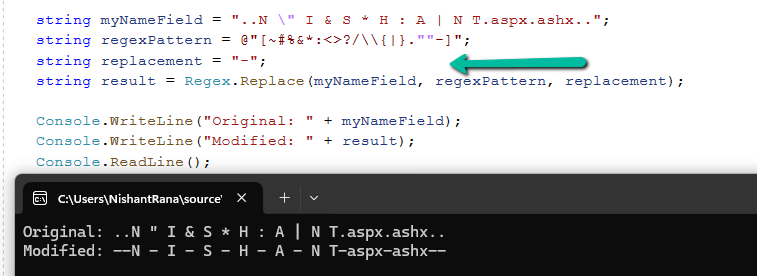
So if we are creating the folder / SharePoint document location record through code (C#), we can use the below Regular Expression to do the same.

 string myNameField = "..N \" I & S * H : A | N T.aspx.ashx..";
            string regexPattern = @"[~#%&*:<>?/\\{|}.""-]";
            string replacement = "-";
            string result = Regex.Replace(myNameField, regexPattern, replacement);

            Console.WriteLine("Original: " + myNameField);
            Console.WriteLine("Modified: " + result);
            Console.ReadLine();

Hope it helps..

Advertisements

How to configure Site.Selected API permissions – SharePoint Online / PnP PowerShell


Let us add/ update the API Permissions for the App

More on registering App – https://nishantrana.me/2024/07/30/calling-sharepoint-online-api-using-azure-ad-app-only-permissions-using-certificate-auth/

Here we have selected the Sites.Selected permission.

A screenshot of a computer

Description automatically generated

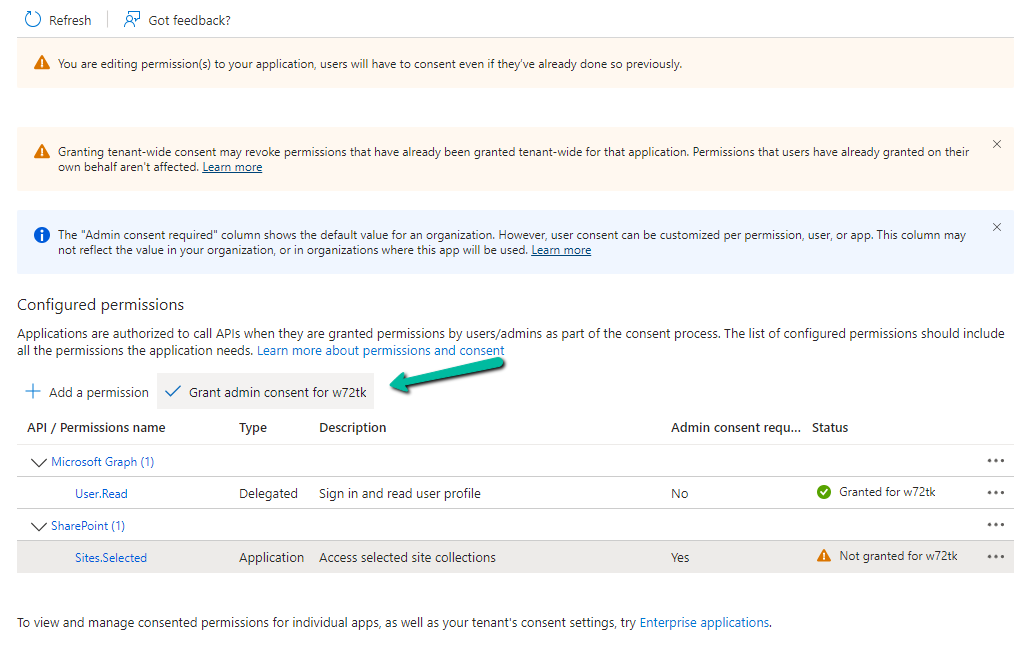
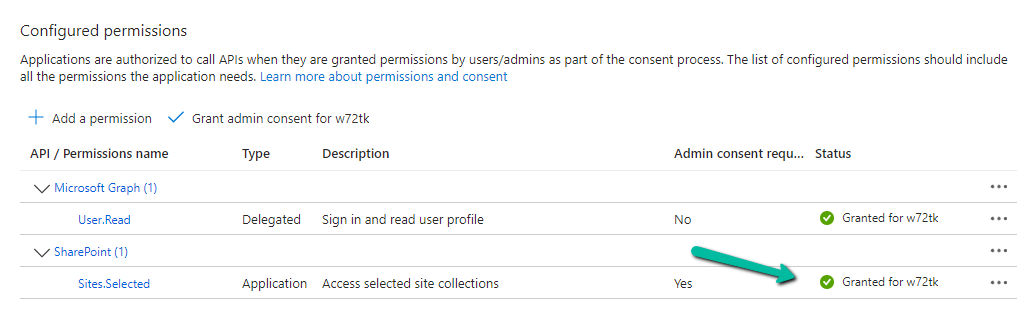
Also granted the Admin consent.

A screenshot of a computer

Description automatically generated
A screenshot of a computer

Description automatically generated

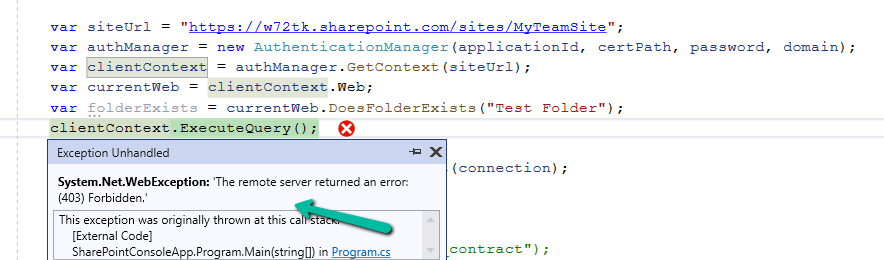
Now if we run our code we will get the 403 Forbidden error.

This is because we have selected the Sites.Selected permission, but have not specified the site and the permission.

For that, we can use either Graph API or PnP PowerShell.

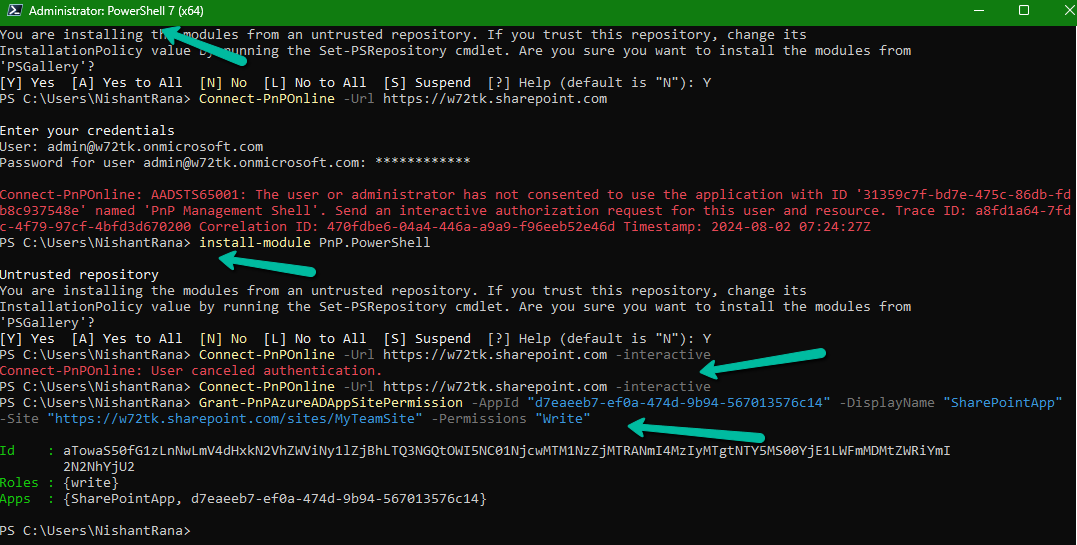
Let us use PnP PowerShell here.

Grant-PnPAzureADAppSitePermission -AppId “{app-id}” -DisplayName “{app-name}” -Site “https://{tenant}.sharepoint.com/sites/{site-name}” -Permissions “Write”

Grant-PnPAzureADAppSitePermission -AppId “d7eaeeb7-ef0a-474d-9b94-567013576c14” -DisplayName “SharePointApp” -Site “https://w72tk.sharepoint.com/sites/MyTeamSite&#8221; -Permissions “Write”

A computer screen with text and arrows

Description automatically generated

This time as expected we do not get the Forbidden error.

The other Permissions that we can specify are – Read, Manage, FullControl.

Get all the details here –https://pnp.github.io/powershell/cmdlets/Grant-PnPAzureADAppSitePermission.html

Hope it helps..
Advertisements

Fixed – The term ‘Connect-PnPOnline’ is not recognized as the name of a cmdlet, function, script file, or operable program – PowerShell


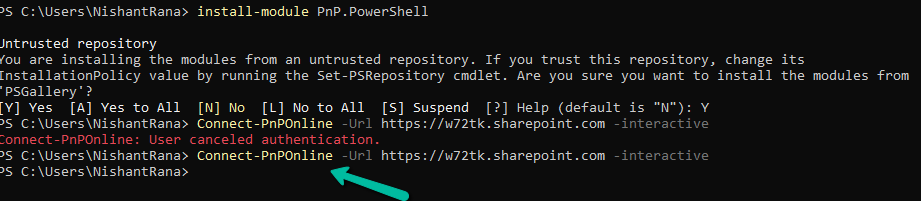
If you are getting the below error even after running the Install-Module PnP.PowerShell command, it could be because of the older version of PowerShell.

The minimum PowerShell version required for PnP.PowerShell is PowerShell 7.2.

Check the current version using the command – $PSVersionTable

A computer screen shot of a program

Description automatically generated

Below are different ways to get the latest version of PowerShell

https://learn.microsoft.com/en-gb/powershell/scripting/install/installing-powershell-on-windows?view=powershell-7.4

Here we have used the Winget (Windows Package Manager) tool to install it.

winget search Microsoft.PowerShell

winget install –id Microsoft.Powershell –source winget

A screenshot of a computer

Description automatically generated

We can see the PowerShell 7 installed.

Now we can install the PnP.PowerShell module and connect to our site successfully.

A computer screen with text

Description automatically generated

https://evolvous.com/learn-from-expert/how-to-install-pnp-powershell-and-connect-with-sharepoint-online/

1–2 minutes

Hope it helps..
Advertisements

Fixed – Access Denied (CryptographicException) on calling SharePoint Online APIs using Azure AD App-Only


While trying to call SharePoint Online APIs using Azure AD App-Only using Certificate Auth we were getting the Access Denied exception.

We were creating the ClientContext using the AuthenticationManager class of PnP the Framework and were using Certificate Auth as shown below.

A screenshot of a computer program
Description automatically generated

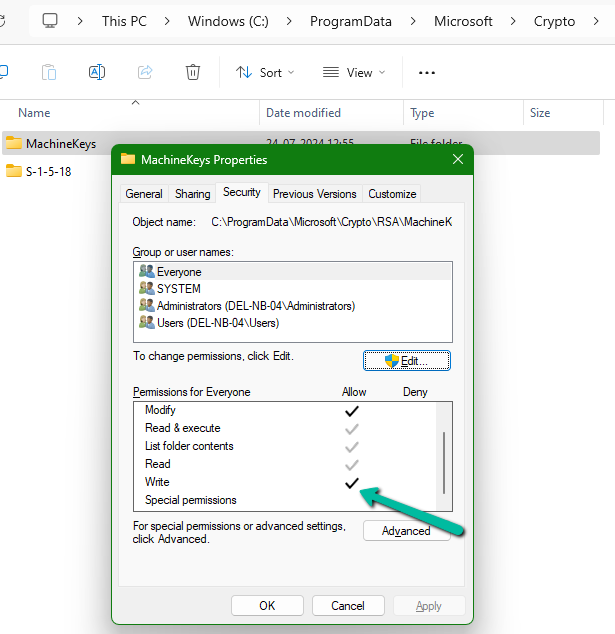
This was because the console app was trying to create a key in the machinekeys folder and the user did not have Write access to it.

C:\ProgramData\Microsoft\Crypto\RSA\MachineKeys

A screenshot of a computer

Description automatically generated

We provided the Write access, which fixed the issue.

A screenshot of a computer

Description automatically generated

We can see the keys added to that folder and SharePoint Online APIs called successfully

Hope it helps..