Reduce log storage: Delete audit logs – Power Platform Admin Center


Recently we had to copy our production environment to one of our sandbox environments for some analysis and testing.

But before we copied we made sure we deleted the data/attachments/ logs that are not required to save some storage space.

Get more information – https://nishantrana.me/2024/10/15/free-up-storage-space-activitypointerbase-and-workflowlogbase-dataverse-dynamics-365/

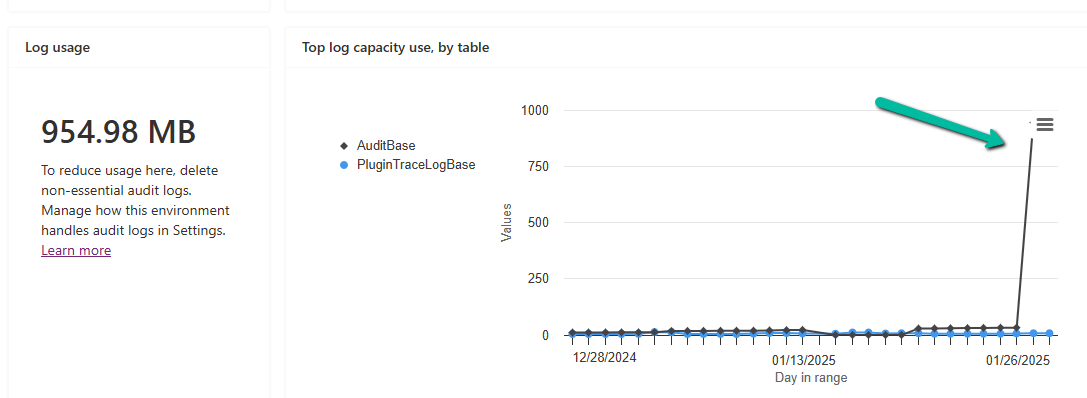
We had around 950 MB of Log data in it.

Below are the steps for deleting the audit logs –

Go to the Power Platform Admin Center, and sign in with the appropriate credentials.

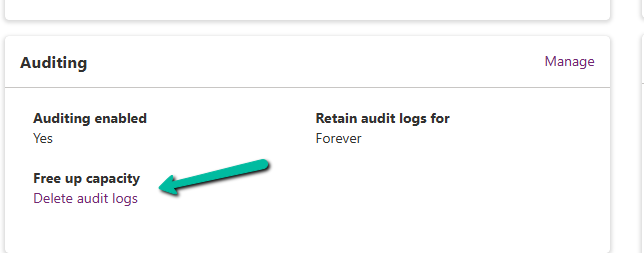
Select the Environment, and select Manage Audit Logs in the Auditing section.

A screenshot of a computer

Description automatically generated

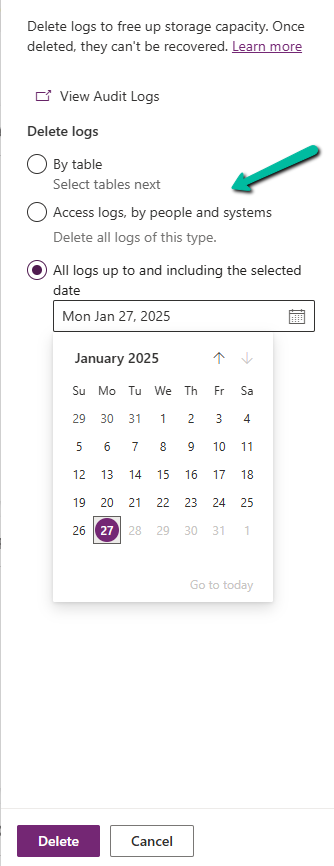
Click on Delete Audit Logs. We will be prompted to filter the logs to delete. Filter options may include:

  • By Table (e.g., logs related to a specific table or entity).
  • Delete logs, by people and systems.
  • Time (e.g., logs older than a specific date).
A screenshot of a calendar

Description automatically generated

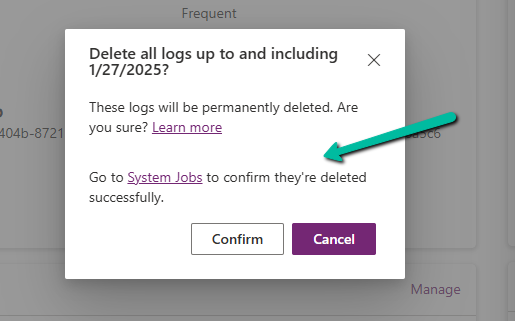
Confirm Deletion.

A screenshot of a computer

Description automatically generated

Review the summary of logs to be deleted. Click Delete to proceed. This action is irreversible.

Once the deletion is complete, the audit logs are permanently removed.

The storage won’t reflect it immediately.

A screen shot of a message

Description automatically generated
A screenshot of a computer

Description automatically generated
A screenshot of a computer

Description automatically generated

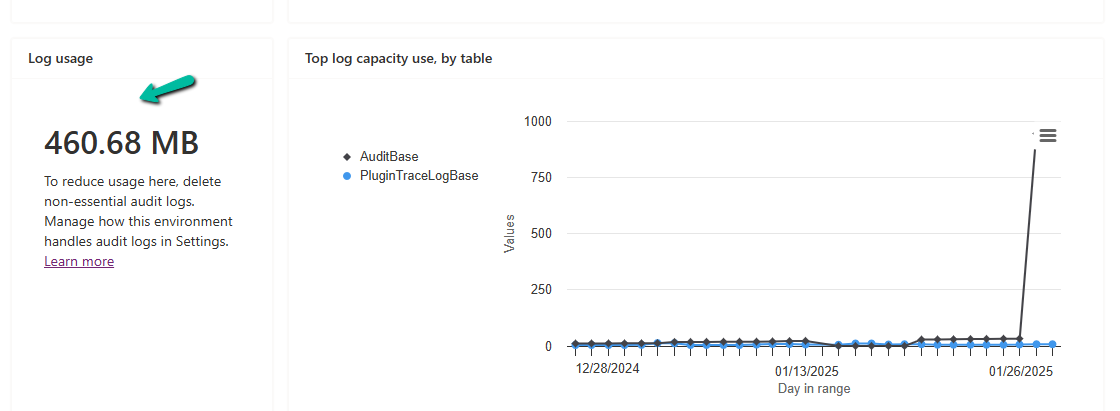
In our case, after 2 hours we could see log usage reduced to 460 MB from 954 MB.

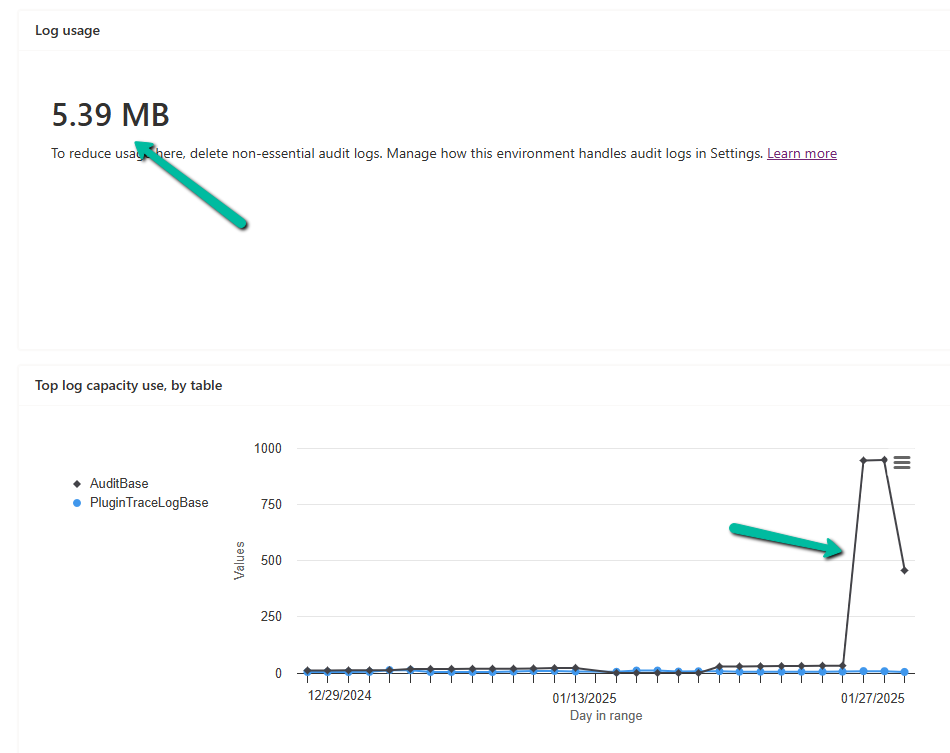
And almost after 24 hours, we could see it reduced to 5 MB.

A screenshot of a computer

Description automatically generated

Get all the details

Hope it helps..

Advertisements

Maximise Storage usage using Allocate Capacity (preview) in Dataverse / Dynamics 365


The new Allocate Capacity feature allows administrators to manage and optimize storage allocation across different environments. It allows administrators to strategically distribute available storage among the Dataverse environments based on each environment’s unique needs ensuring each has the right amount of storage to maintain performance and avoid service interruptions.

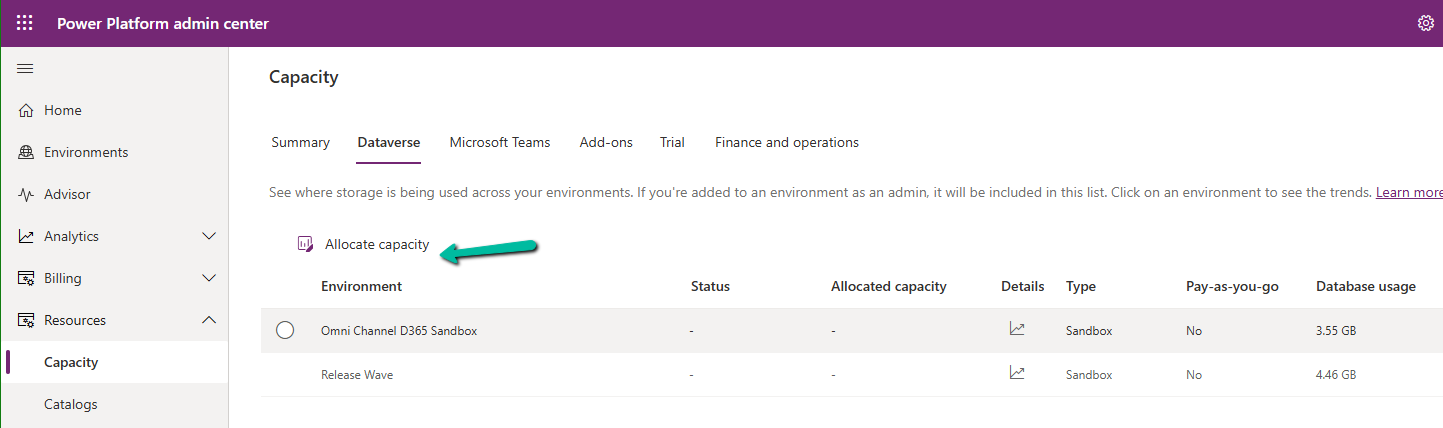
Navigate to Resources >> Capacity >> Dataverse inside the Power Platform Admin Center and select an environment to make the Allocate capacity option visible.

A close up of a pen

Description automatically generated

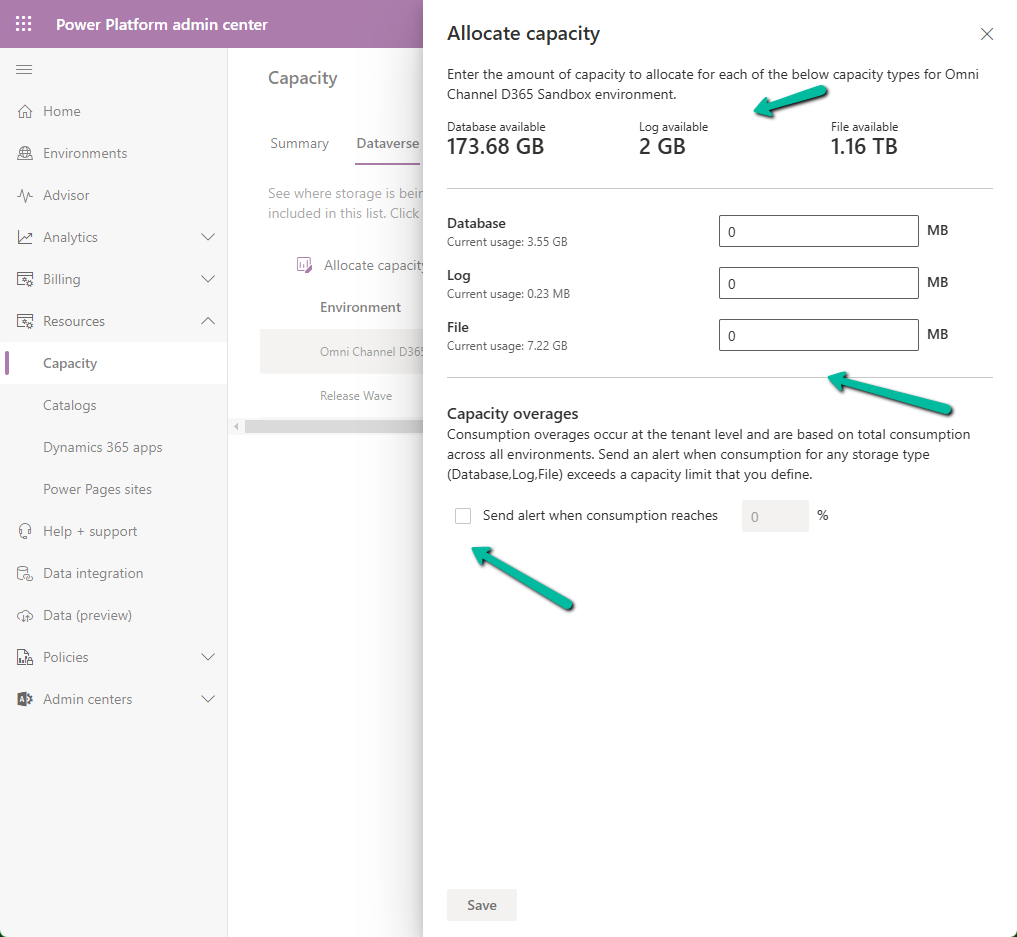
It shows the available storage, and current usage of the environment selected.

A screenshot of a computer

Description automatically generated

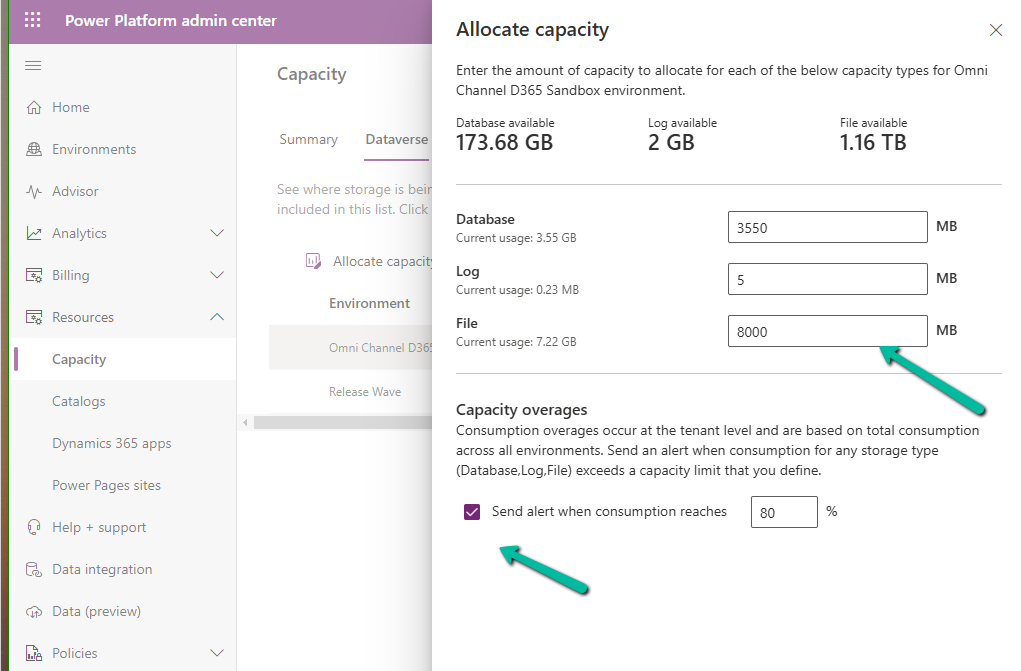
We can allocate Database, Log, and File-specific storage and also configure alerts.

A screenshot of a computer

Description automatically generated

If an environment exceeds, it shows up as “Overage” as shown below

A screenshot of a computer

Description automatically generated

Using this new feature, admins can Allocate Capacity effectively by monitoring the storage usage across environments, setting alerts when the environment nears its capacity limit, and allocating the capacity strategically e.g. production environment will get higher allocation compared to the development environment. Admins can also purchase additional storage and allocate it as required to ensure each environment runs smoothly.

Get more details

Hope it helps..

Advertisements

Free up Storage space – ActivityPointerBase and WorkflowLogBase (Dataverse / Dynamics 365)


Had shared the steps we had followed to reduce the storage space for one of our environments which was a copy of production below a few months back –https://nishantrana.me/2023/09/28/free-up-storage-space-dataverse-dynamics-365/

This time we followed more or less the same steps, the main difference was this time we used our favorite XrmToolBox plugin SQL4CDS to perform the delete operations instead of the bulk deletion job.

However, even after deleting all the Activity type records (except one appointment record which was giving some error on deletion), as shown below, the ActivityPointer was still showing 13 GB of space occupied.

select activitytypecodename,activitytypecode, Count(activitytypecode) as Total
from activitypointer
group by activitytypecode, activitytypecodename
order by Total desc

And the same was true for the WorkflowLogBase, we used a bulk deletion job for deleting the system jobs with status as succeeded which deleted around 1200 records, however running the same query in SQL4CDS showed us around 70K records with status as success.

On trying to run the following query it gave us an “Expected non-empty Guid” error and we could not delete the records.

Eventually, we raised the Support Ticket for it, and the team ran the script in the background to delete/reduce the size of the Activity Pointer and Workflow Log table and eventually we were able to reduce the database usage (we also deleted few other table records)

Before –

After –

A close up of a white background

Description automatically generated

Get more details

Hope it helps..

Advertisements

Use Recycle Bin to restore deleted records (Preview)– Dataverse / Dynamics 365


To enable the feature, log in to

Power Platform Admin Center https://admin.powerplatform.microsoft.com/environments

Environment >> Settings >> Features and enable it

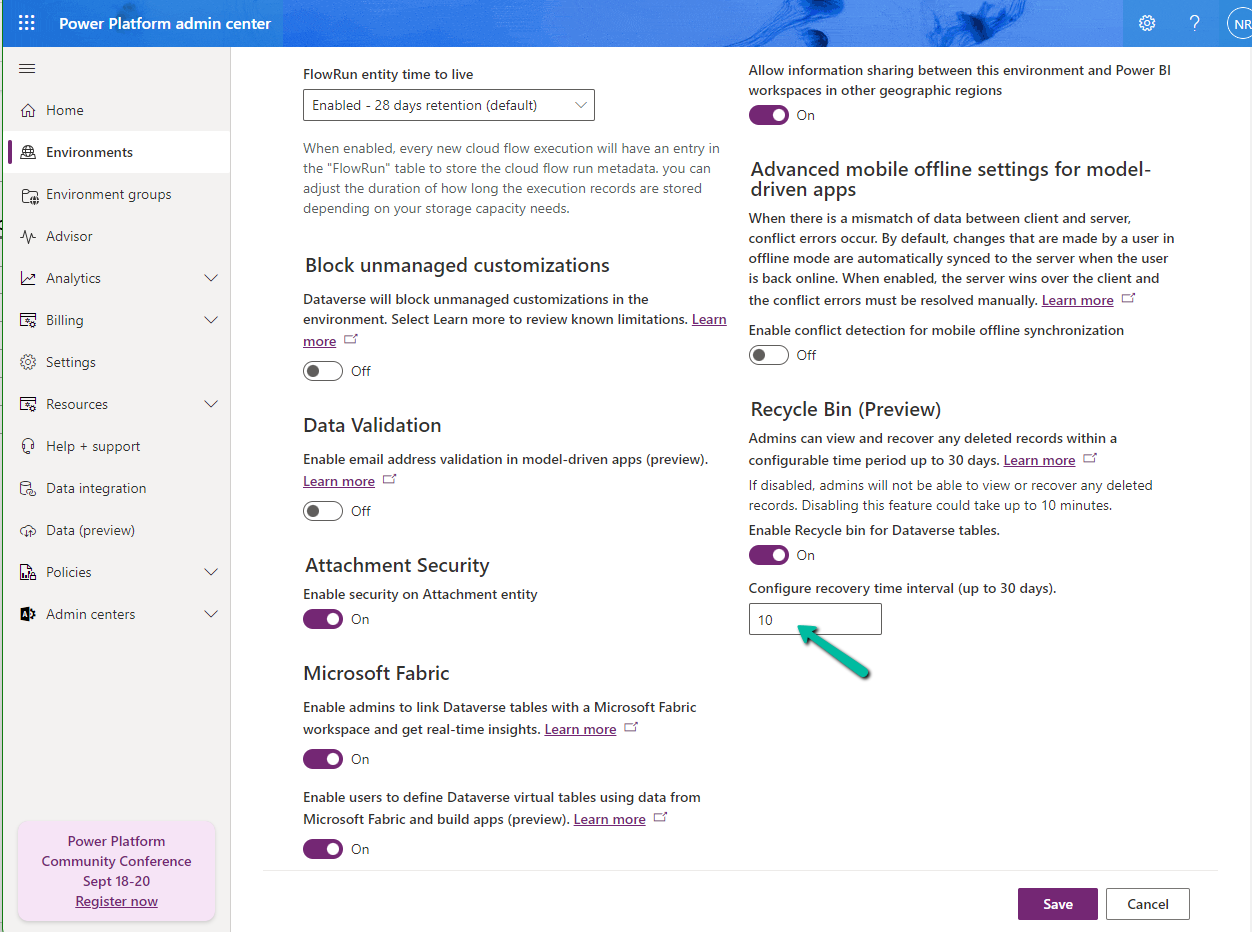
We can specify 30 days as the maximum recovery time.

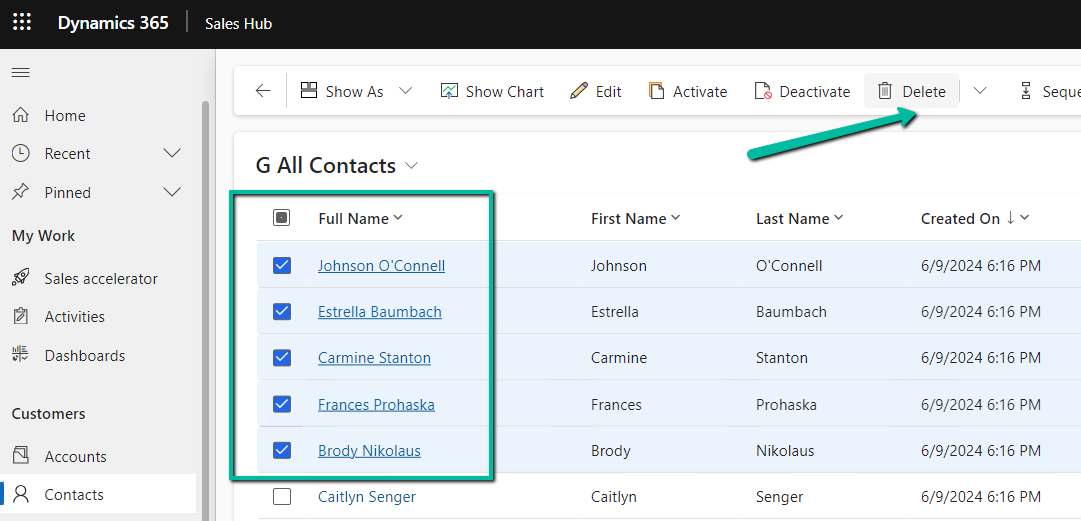
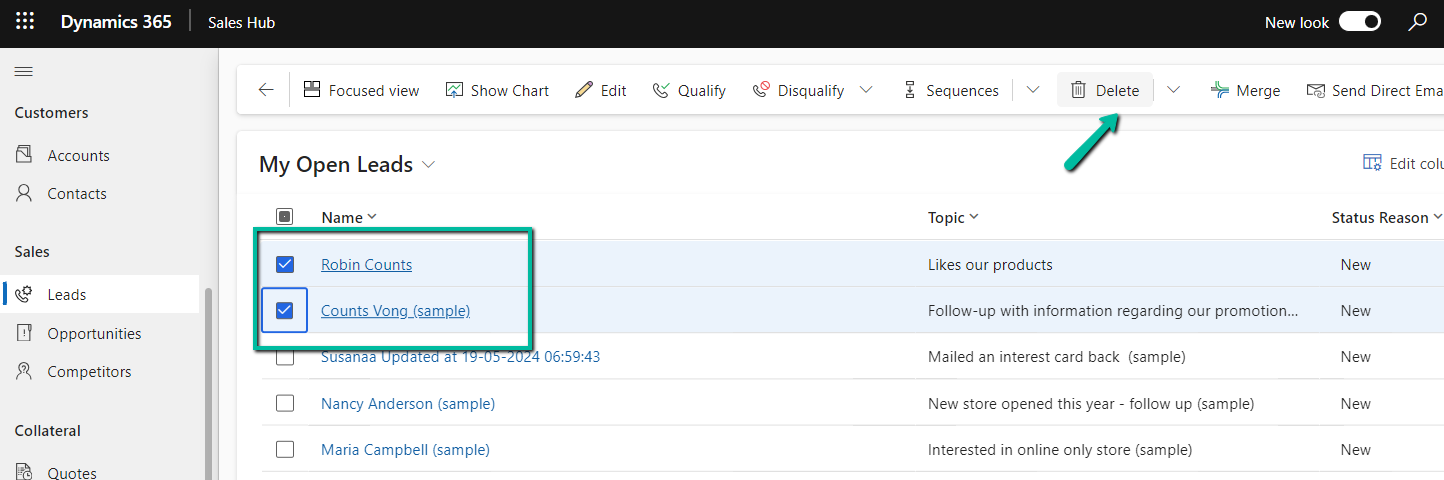
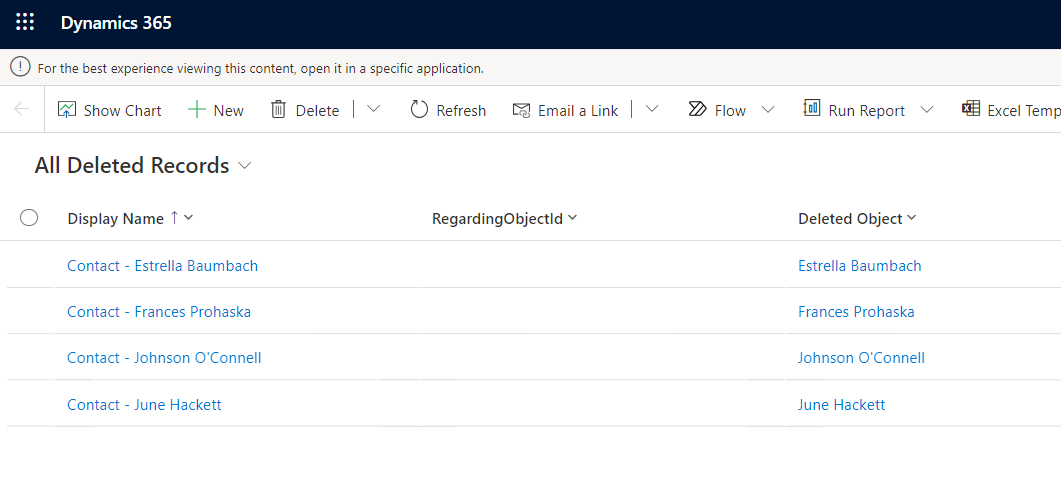
Let us delete some of the contact and lead records.

A screenshot of a computer

Description automatically generated
A screenshot of a computer

Description automatically generated

Navigate to Environment >> Settings >> Data Management >> View Deleted Records to view the deleted records.

A screenshot of a computer

Description automatically generated

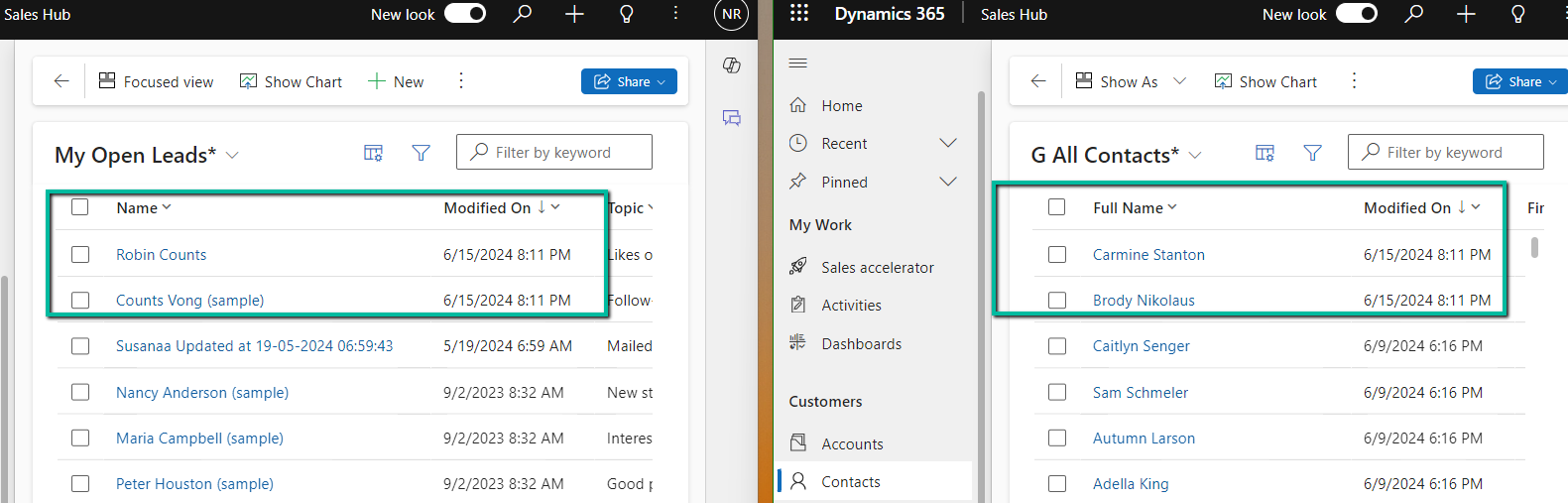
We can select the records and click on Restore to get the deleted records back

We can see the records removed from the Deleted Records view.

A screenshot of a computer

Description automatically generated

Below we can see the restored records – we can also see the Modified On updated.

A screenshot of a computer

Description automatically generated

The feature applies at the environment level, we cannot specify it for individual tables currently. Only the main deleted record and related records deleted via the cascaded relationship behavior will be restored. If a related record is deleted as part of custom business logic, it will not be restored.

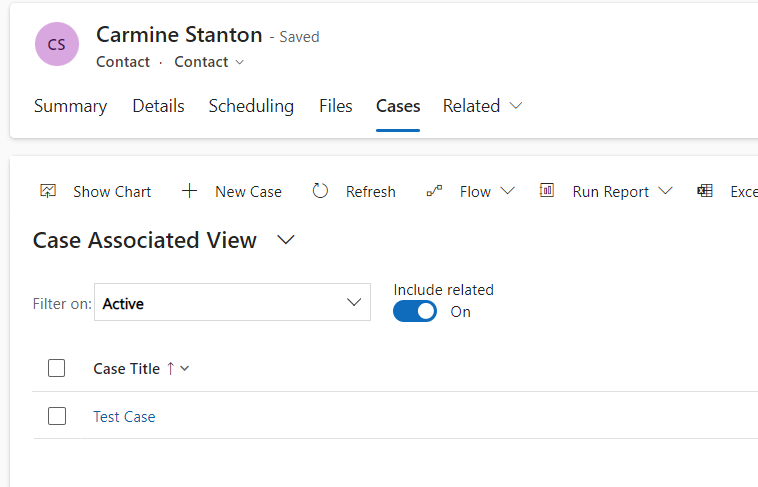
Below let us delete the Contact record which has a case and an opportunity record associated.

A screenshot of a computer

Description automatically generated

On deleting the Case the child case and lead records also get deleted.

A screenshot of a computer

Description automatically generated

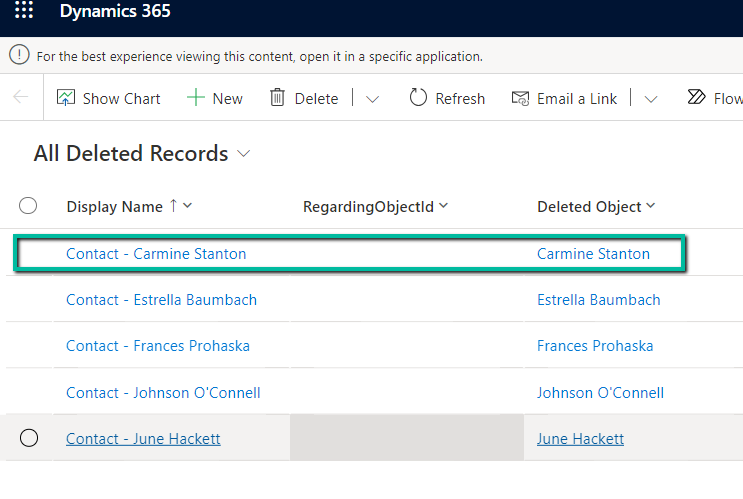
However, we do not see those records in the Deleted records list only the main (parent) Contact record.

A screenshot of a computer
Description automatically generated
On restoring the deleted contact restores the child case and opportunity record also.

A screenshot of a computer

Description automatically generated

More details on – Restore deleted records

Hope it helps..

Advertisements

This operation cannot be performed because there is an active lifecycle operation on the environment – Dataverse / Power Platform


While trying to enable Admin Mode for one of our Dataverse Environments,

we got the below error

“This operation cannot be performed because there is an active lifecycle operation on the environment”

A close-up of a message

Description automatically generated

This was because we had a copy operation going in the background, we were copying that particular environment to another environment.

After the copy operation was completed (around 1 hour, for the environment DB Usage – 45 GB, File Usage – 118 GB, and Log Usage – 21.63 GB), we were able to switch on the Admin mode.

Hope it helps..
Advertisements

ILMerge / Dependent Assemblies in Plugin – System.IO.FileNotFoundException: Could not load file or assembly ‘System.Memory.Data’ – Dynamics 365 / Dataverse


Recently in one of our Plugins, which was using Azure.Storage.Blobs and Azure.Storage.Common libraries to move attachments from notes to Azure Blob Storage suddenly started throwing the below exception. The Plugin had been working fine and had been deployed long back to the production environment.

System.TypeInitializationException: The type initializer for ‘Azure.Response’ threw an exception. —> System.IO.FileNotFoundException: Could not load file or assembly ‘System.Memory.Data, Version=1.0.2.0, Culture=neutral, PublicKeyToken=cc7b13ffcd2ddd51’ or one of its dependencies. The system cannot find the file specified.

We raised the Microsoft Support for it and were informed that the reason for this was there was a platform update over that particular weekend to stop loading the “System.Memory.Data” assembly on the plugin server. And as we hadn’t included that assembly in our package (ILMerge), we started getting the exception.

Also as per Microsoft Docs


So the quick fix at that time was to include (set Copy Local as True) for that System.Memory.Data along with Azure assemblies.

Also now we can look into using Plugin Package to package the dependent assemblies.

Hope it helps..

Advertisements