Update – use context instead of Xrm.Page
https://nishantrana.me/2019/10/22/using-pcf-custom-control-builder-xrmtoolbox-plugin-to-update-existing-control-in-dynamics-365-powerapps/
Also,
https://nishantrana.me/2020/01/20/best-resources-to-start-with-power-apps-code-component-pcf/
Go through below articles to get a better understanding
Below is the quick step by step guide to get started (sort of Hello World example)
- Install NPM (that comes with Node.js)
https://nodejs.org/en/
http://download.microsoft.com/download/D/B/E/DBE69906-B4DA-471C-8960-092AB955C681/powerapps-cli-0.1.51.msi
pac pcf init
– -namespace <namespace for the component>
– -name <name of the component>
– -template <component type>

It adds the following files in the folder.

- Next run npm install command to install the project dependencies.
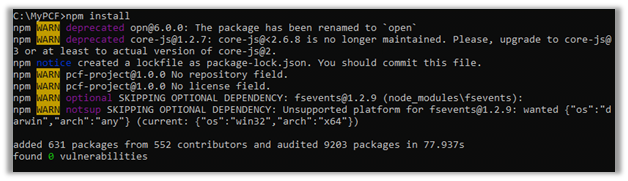
- Open the ControlManifest.Input.xml file created inside the folder created with the control’s name.
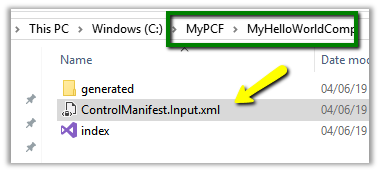

- Here we have opened it in Visual Studio Code, for this simple example purpose let us not change the default values.
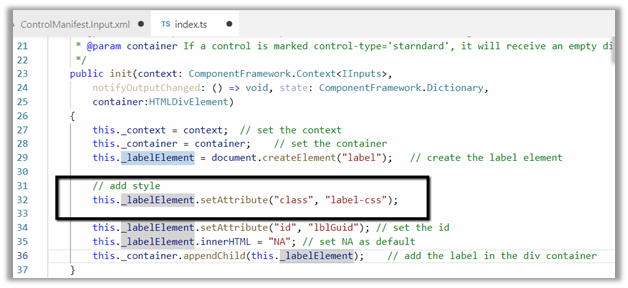
- Open the index.ts which wherein we’d be writing code for our custom control

- Add the following line of code to add a label control that will display that GUID of the record.

- Run npm run build command to build the control

- To test the control run npm start command

*Use ctrl + c è to terminate the job.

- Create a new folder to hold the solution

- Run the below command to define the publisher name and prefix and initialize the solution files creation
pac solution init – -publisherName [publisher name] – -customizationPrefix [publisher prefix]


- Run the below command to add reference to our custom control in the solution
pac solution add-reference – -path [path to pcfproj file]
i.e. reference of the below path.


- This creates the file with extension cdsproj

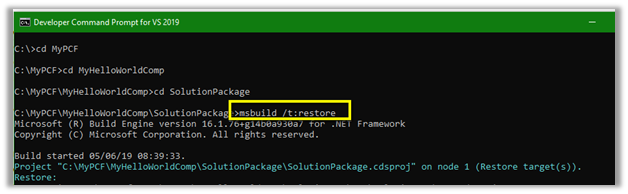
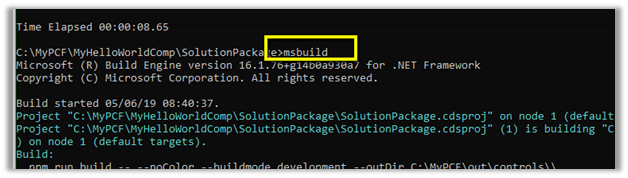
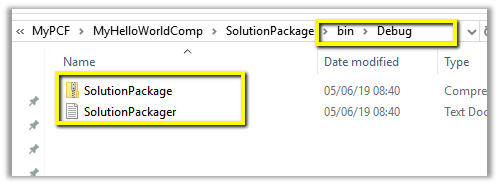
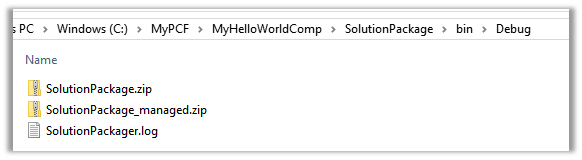
- This adds the Solution zip in the bin Debug folder.
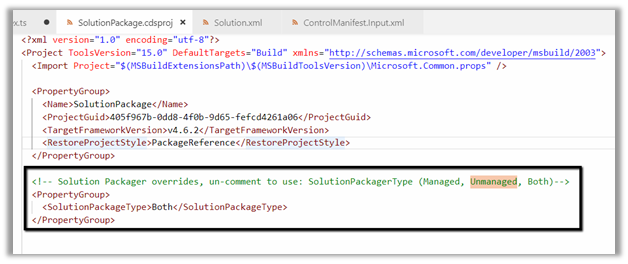
- To get both managed and unmanaged solution, update the cdsproj file
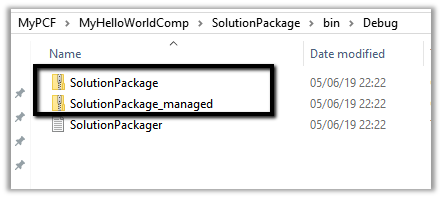
- We can see both managed and unmanaged solution created.
- Import the solution in Dynamics 365 CE and open any of the entity’s form. Here we have created a new text field named GUID in the Contact form and have set our custom control for that field.
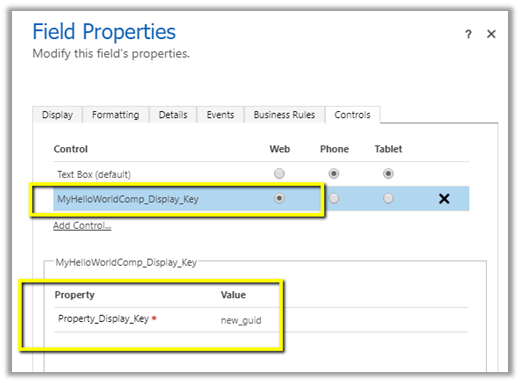
For reference à

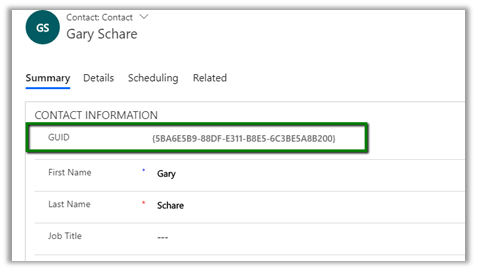
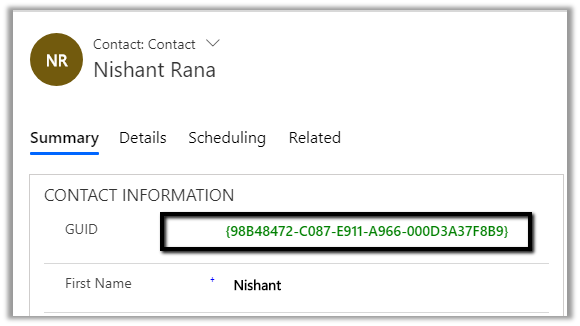
- After publishing the changes, we can see the GUID being displayed in the form.
- To update the control, change the version for it in the ControlManifest.Input.xml

Followed by
- npm run build
- msbuild
- Importing the new solution file generated
In a nutshell below are the high-level steps à
1. Install npm
2. Install PowerApps CLI
3. Install Visual Studio 2017 or later
4. Create a new folder for the project.
5. Navigate to the folder in Developer Command Prompt and run the following command to create the component project
pac pcf init –namespace <component namespace> –name <component name> –template <component type>

6. Install the project dependencies using below command
npm -install
7. Update ControlManifest.Input.xml
8. Update index.ts
9. Build the project
npm run build
10. Use the below command to test the component
npm start
11. Create a folder for holding the solution zip and related files. Navigate to that folder and run the below command.
pac solution init – -publisherName [publisher name] – -customizationPrefix [publisher prefix]

12. Add reference of the custom component in the solution
pac solution add-reference – -path [path to pcfproj file]

13. To create the Solution Zip File
MSBUILD /t:restore
MSBUILD

14. Import the solution file and use it inside Dynamics 365 CE.
lastly – Don’t forget to check the wonderful PCF Gallery
Hope it helps..





















 Nishant Rana's Weblog