

app
How to – Hide Approve / Reject Button in Approval Email in Power Automate Approval Workflow
Recently we had a requirement to remove or hide the Approve and Reject buttons from the approval email as we wanted the user to manage it all from the Approval Center. The way we implemented this is by replacing the Start and wait for an approval action with Create an approval, Send email notification and…

Approval / When a file is created (properties only) – when a file is added to the folder in the SharePoint library
Recently we had a requirement to implement an approval workflow when a document is added to a SharePoint library. Below is how we can implement it. Details – Trigger – When a file is created (properties only) Specify the Site Address, Library Name, and the Folder on which the flow should run. Initialize Variable Initialize…
Assign approvals to any user in the Tenant – Power Automate
We recently implemented Approvals, and we required that any user in the tenant should be able to provide approval. For one of the users, we got the below error while testing the flow. UserNotMemberOfCdsSecurityGroup This was because we were using the Security Group to control access to Dataverse Environment. So adding the user to the…
Fixed – ‘InvalidApprovalCreateRequestAssignedToNoValidUsers’. Error Message: ‘Required field ‘assignedTo’ contained no valid users in the organization’.
We would get the below error while using Approvals in Power Automate “BadRequest. The request failed. Error code: ‘InvalidApprovalCreateRequestAssignedToNoValidUsers’. Error Message: ‘Required field ‘assignedTo’ contained no valid users in the organization’” This error occurs if we are trying to send the approval to the user which doesn’t exist in the organization or to the external users.…
Fixed – Error code: ‘UserNotMemberOfCdsSecurityGroup’. Error Message: ‘The user ‘xyz’ cannot be created in Microsoft Dataverse because the account is not a member of group ‘abc’
We would get this error within Power Automate Approval Flow if we are using Security Group to control access to Dynamics 365 Environment and are sending Approval to a user who is not a member of that security group. Below is the User within the Tenant but is not member of the My CRM Group…
Approvals in Microsoft Teams / Power Automate
Approvals App for Teams was introduced early this year. To see it in action, let us start by first adding the Approval app in Teams. Search for the app. And click on Add. The Approval app shows all the Approvals Received and Sent within teams, which can be filtered based on status. We can also…
How to – Use markdown to format approval emails – Power Automate and Dynamics 365
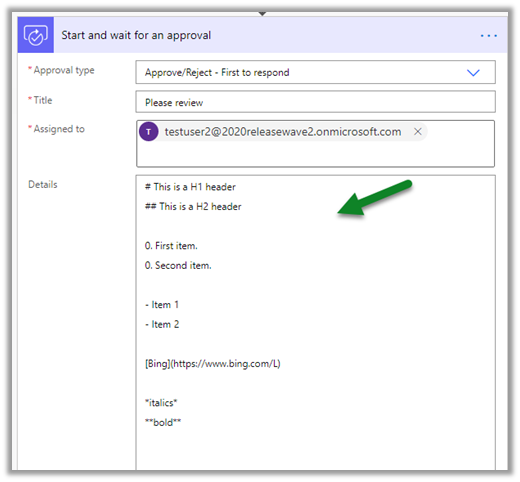
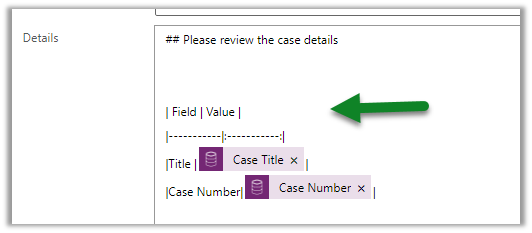
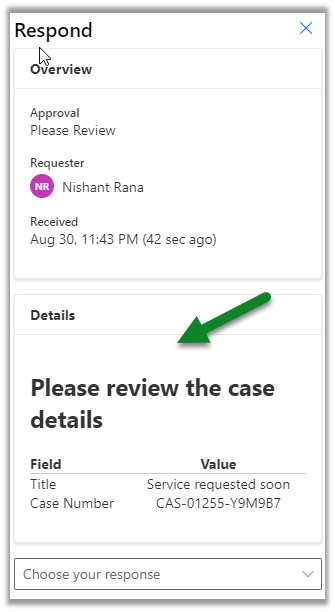
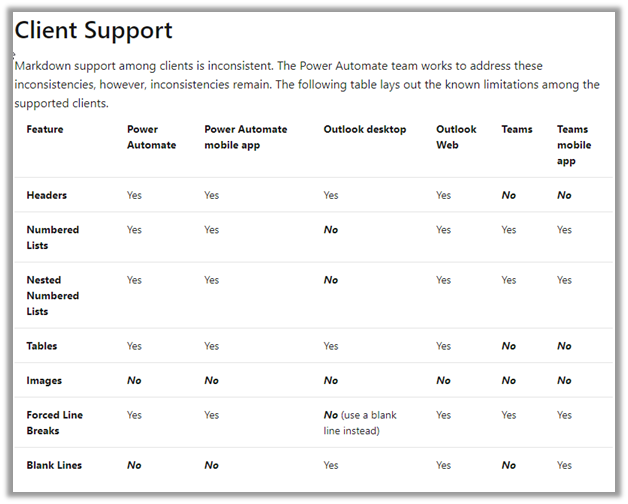
Let us update our previous flow, to use markdown to format the approval email. Check other posts on Approvals – https://nishantrana.me/2020/08/31/approvals-power-automate-dynamics-365/ Markdown is the lightweight mark-up language for adding formatting elements to the plain text. Refer the Markdown cheat sheet We’d update the Details property of Start and wait for an approval action. Below we…
Custom Responses in Approvals – Power Automate and Dynamics 365
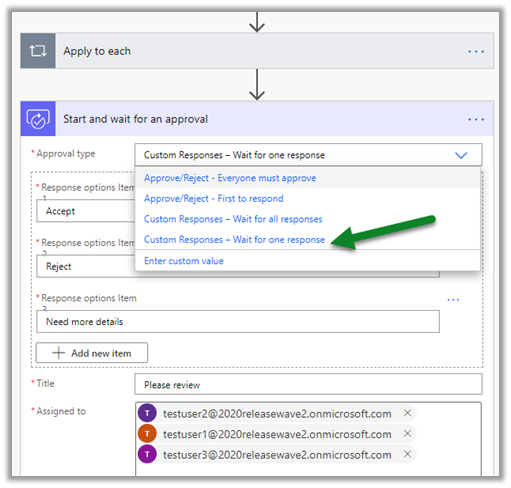
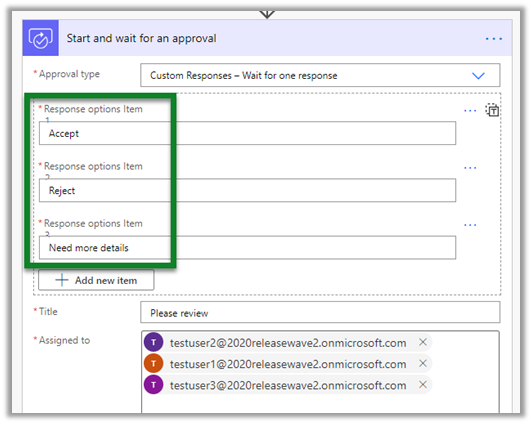
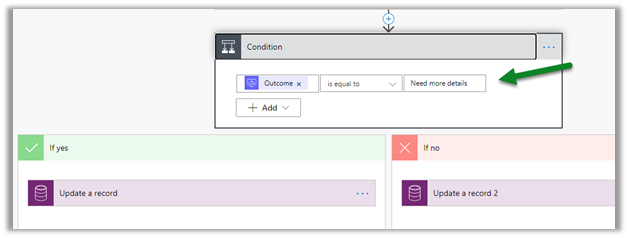
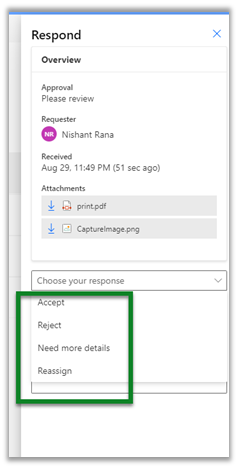
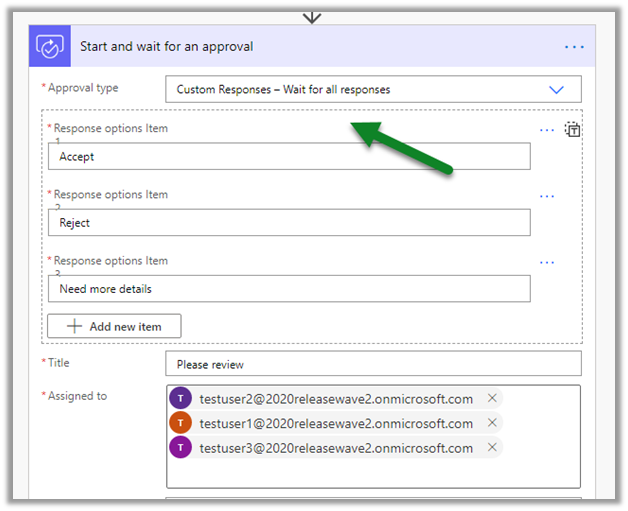
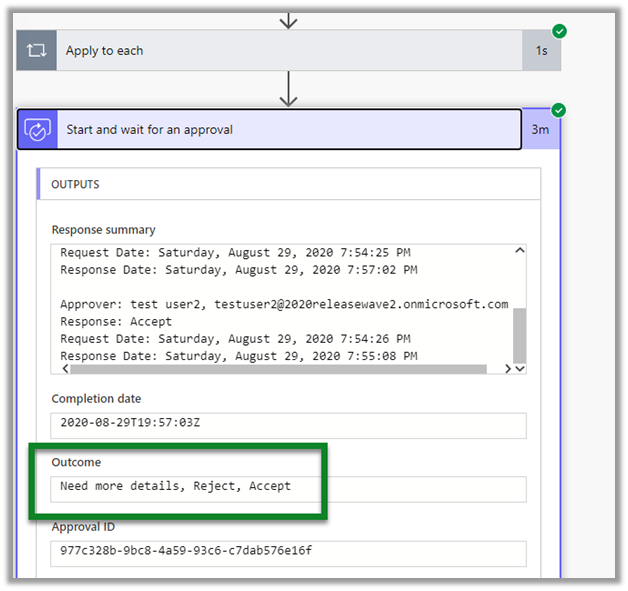
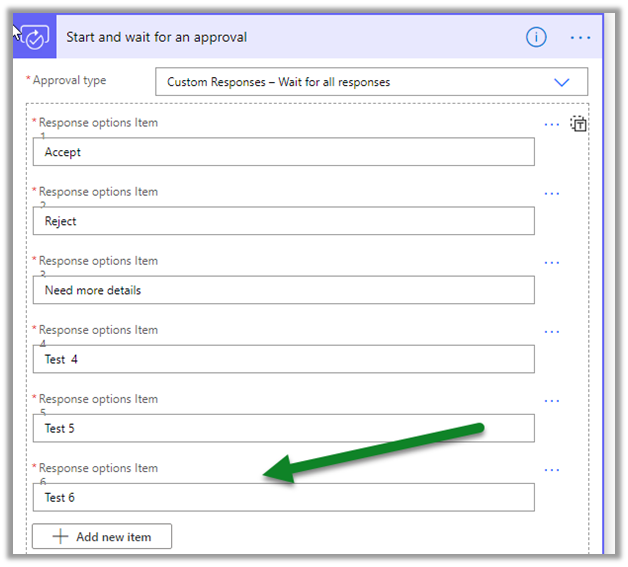
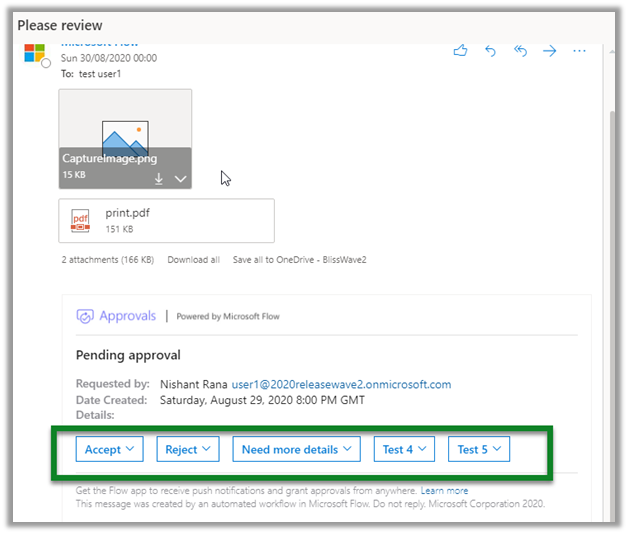
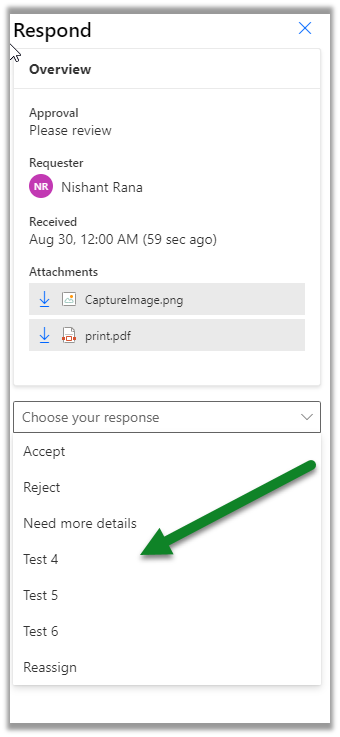
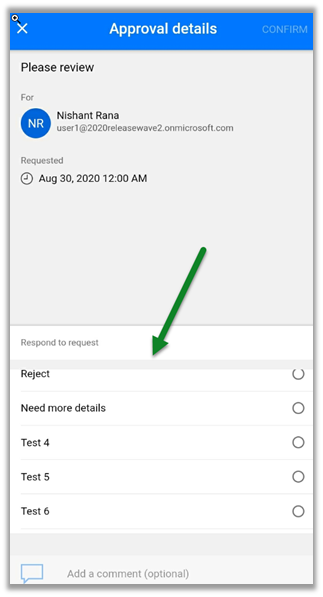
Let us update our previous flow to use Approval Type – Custom Responses, using which we can define our custom response options (instead of limiting ourselves to Approve and Reject) Check other posts on Approvals – https://nishantrana.me/2020/08/31/approvals-power-automate-dynamics-365/ Here we have updated the Start and wait for an approval action’s Approval Type from Approve / Reject…
Parallel Approvals – Power Automate and Dynamics 365
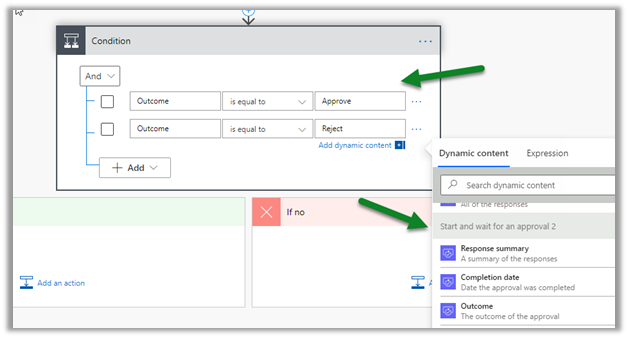
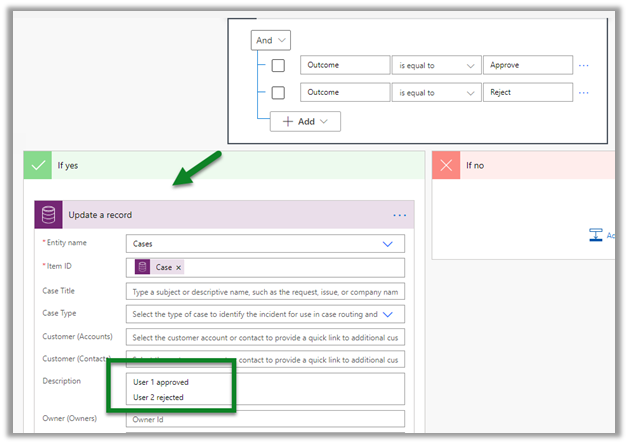
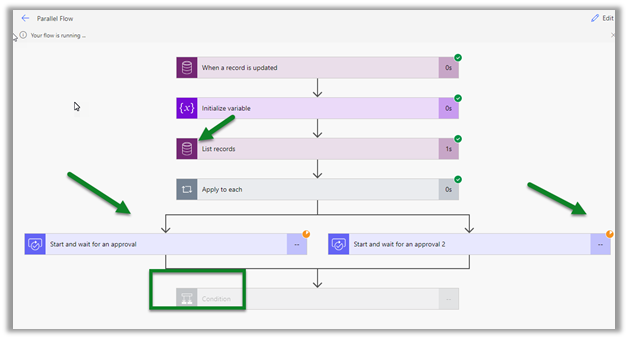
Let us update our previous flow to include parallel approvals. Check other posts on Approvals – https://nishantrana.me/2020/08/31/approvals-power-automate-dynamics-365/ The difference between Approve / Reject Type – Everyone must approve and parallel approvals would be that using parallel approvals we could wait for responses for all the approvers, be it approve or reject. In case of Everyone must…
Attachments in Approval – Power Automate and Dynamics 365
Let us update our previous sequential flow, to include file attachments to notes of the case record, as part of the approval. Check other posts on Approvals – https://nishantrana.me/2020/08/31/approvals-power-automate-dynamics-365/ First, we need to add Initialize variable action and define an Array variable to store all the attachments details. Next, we will use List records action,…
How to – Use Approval/Reject Type – Everyone must approve – Power Automate and Dynamics 365
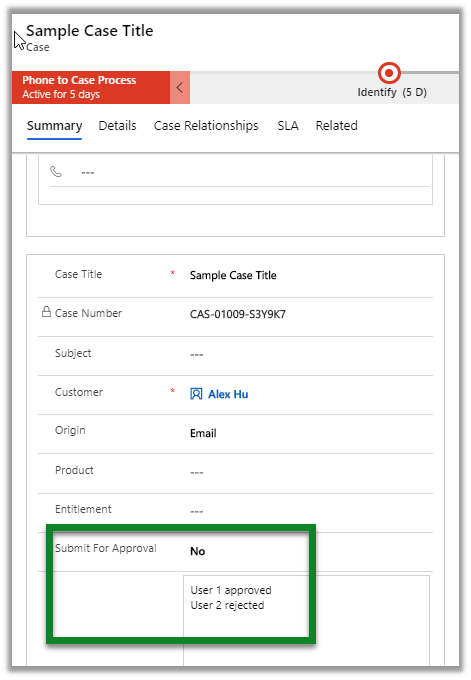
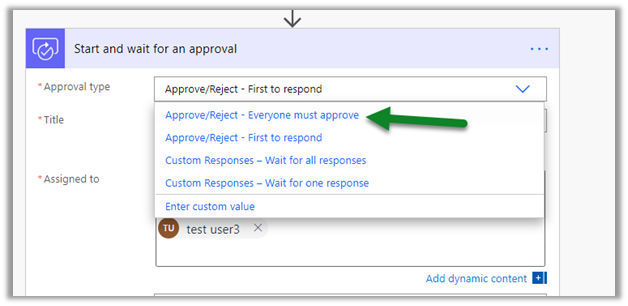
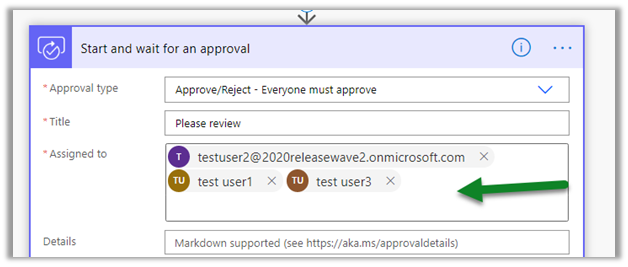
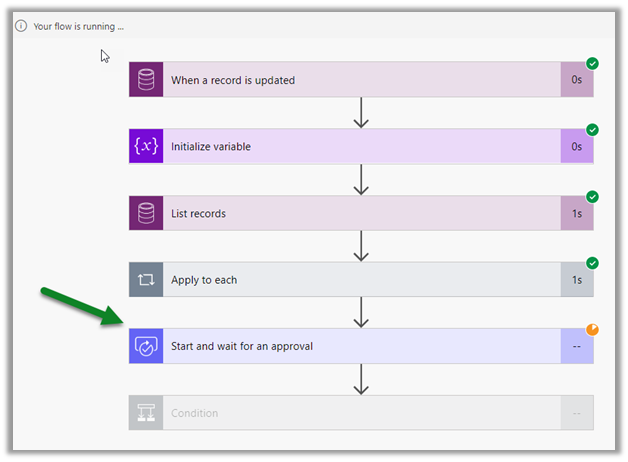
Let us update our previous flow from approval/reject type – First to respond to Everyone must approve type. Check other posts on Approvals – https://nishantrana.me/2020/08/31/approvals-power-automate-dynamics-365/ For First to respond, either Approval or rejection by any of the approver completes the request. In case of Everyone must approve, if any of the approvers rejects the request…
Manager approval – Power Automate and Dynamics 365
Continuing our previous basic approval flow, here we’d update it to send an approval request to the manager of the user. Check other posts on Approvals – https://nishantrana.me/2020/08/31/approvals-power-automate-dynamics-365/ First, we’d use the Get manager V2 action to get the user’s manager. Let us first update the profiles of the users to add their manager. Sign…
Approvals in Power Automate and Dynamics 365
Let us try implementing a basic scenario, where an agent can send a case for approval and the record is updated based on the approver’s response. Check other posts on Approvals – https://nishantrana.me/2020/08/31/approvals-power-automate-dynamics-365/ The agent here sets the Submit for Approval – custom field as Yes and saves the record for submitting it for approval.…







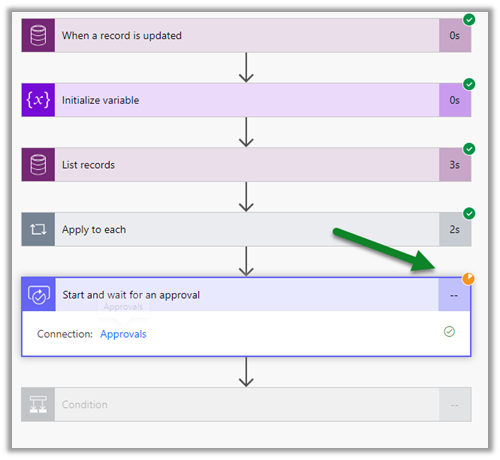


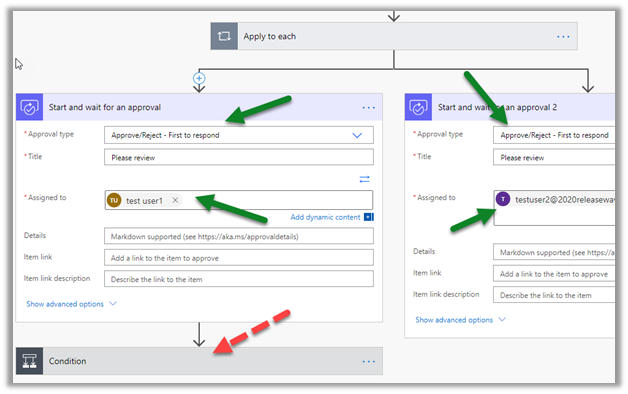
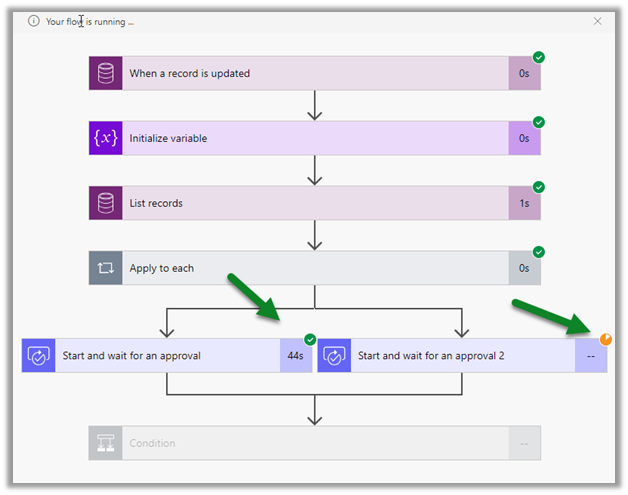



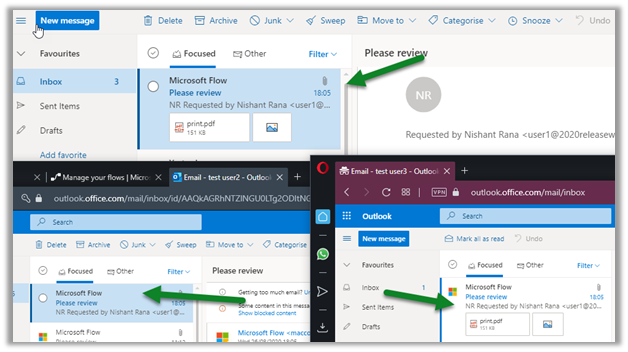
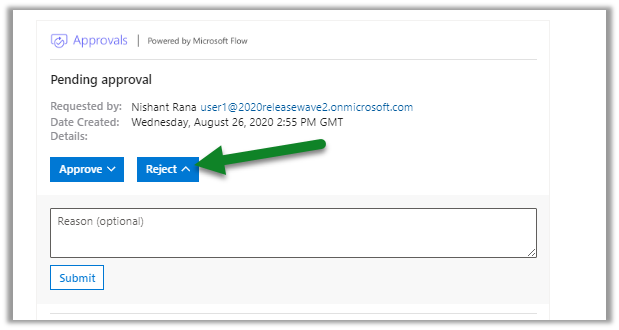 It completes the flow without waiting for responses from other approvers.
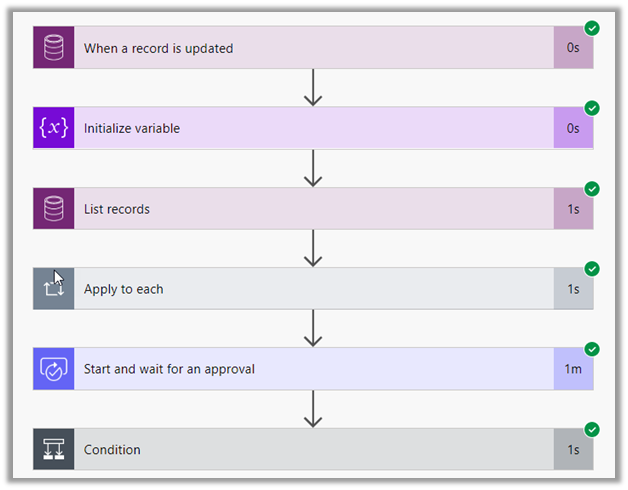 The other approvers will see the below message.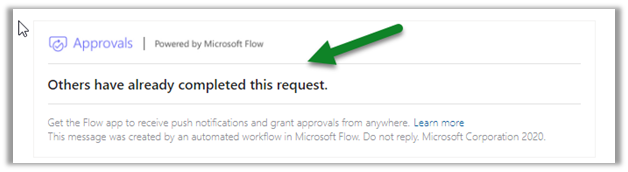

 Nishant Rana's Weblog