Using List control to show 1 to n related information in a repeated manner in SSRS report.


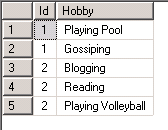
Suppose these are our two tables, Person and Person Details, having one to many relationships to each other.

Person:-

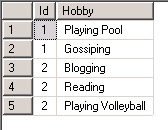
Person details:-

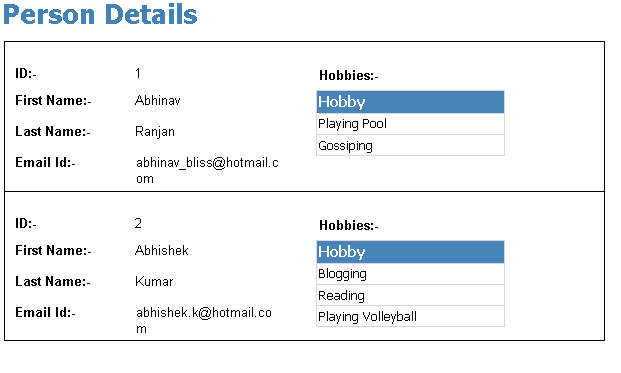
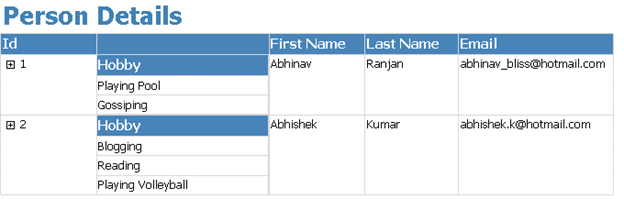
Now here we would like the report to show data in the following format (in repeated fashion)

1st record of Person Table

All details of that record

2nd record of Person Table

All details of that record

Now first create a report having following simple query for the data set

SELECT Id, [First Name], [Last Name], Email FROM Person

Now create one more report which we would be using as a Subreport with the following query

SELECT Hobby FROM [Person Details] WHERE (Id = @Id)

Now go to our main report,

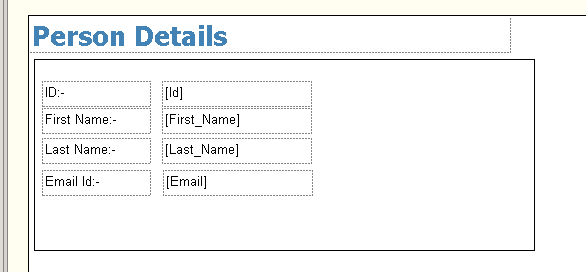
Add a List Control to the report.

Drag the fields from the DataSet of the main Person table to the report.

Next drag the Subreport control inside the list control of the report.

Specify properties for the Subreport.

Refer to my previous post for that (little lazy to put those stuffs again)

https://nishantrana.wordpress.com/2011/08/20/using-subreport-control-to-show-1-to-n-related-information-in-ssrs-report/

Our final report would look like this.

Hope it is helpful.

Using Subreport control to show 1 to n related information in SSRS report.


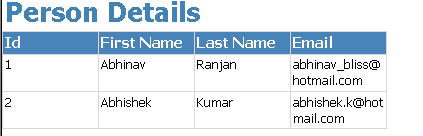
Suppose these are our two tables, Person and Person Details, having one to many relationships to each other.

Person:-

Person details:-

Now first create a report having following simple query for the data set

SELECT Id, [First Name], [Last Name], Email FROM Person

Now create one more report which we would be using as a Subreport with the following query

SELECT Hobby FROM [Person Details] WHERE (Id = @Id)

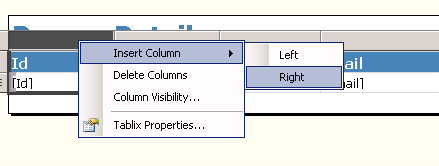
Now go to our main report, select id column, right click it and select add column to the right.

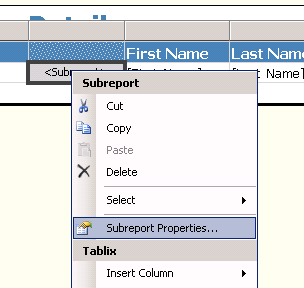
Drag Subreport control from the toolbox there in the new column added

Next right click it and select Subreport properties

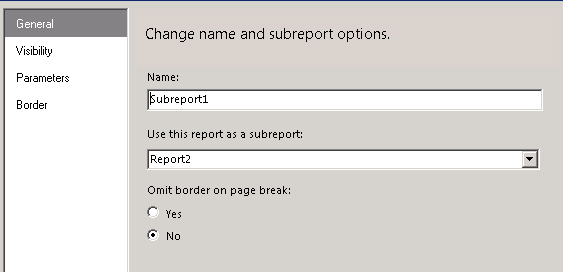
Specify the detail report as Subreport.

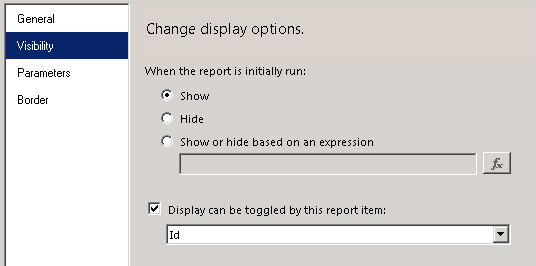
For visibility specify the following options (report would be auto expanded and we will have + sign in front of our id column through which we can toggle the visibility of the subreport)

For Parameters specify value for the id to be passed from the main report.

That’s it. We are done J

Hope it is helpful.

Helper Code for uploading a document to a SharePoint document library.


In one my projects we had a requirement to programmatically upload document to a SharePoint’s document library.

Below is the code we used to achieve that.


        // documentFileUrl would be :- http://server_name/doclibraryname/foldername (till doclibrary name or folder name to which doc
		// is to be uploaded
		// bytes :- byte array of the content
		// fileNameWithExtension would be :- test.docx
		// listName :- the display name of the list

	   public void UploadDoctofolder(string docfileurl, string fileNameWithExtension, byte[] bytes, string listName)
        {
            WebRequest request = WebRequest.Create(docfileurl + "/" + fileNameWithExtension);
            request.Credentials = this.credentials;
            request.Method = "PUT";

            byte[] buffer = new byte[1024];
            using (Stream stream = request.GetRequestStream())
            {
                using (MemoryStream ms = new MemoryStream(bytes))
                {
                    for (int i = ms.Read(buffer, 0, buffer.Length); i > 0; i = ms.Read(buffer, 0, buffer.Length))
                    {
                        stream.Write(buffer, 0, i);
                    }
                }
            }

            WebResponse response = request.GetResponse();
            response.Close();
        }

Hope it helps!

Helper Code to delete an existing document from a SharePoint document library.


In one my projects we had a requirement to programmatically delete document uploaded to SharePoint’s document library.

Below is the code we used to achieve that.


        // documentFullUrl would be :- http://server_name/sites/contact/volunteer/test.docx.
		// listName :- the display name of the list

		/// <summary>
        /// Deletes the existing document by URL.
        /// </summary>
        /// <param name="documentFullUrl">The document full URL.</param>
        /// <param name="listName">Name of the list.</param>
        public void DeleteExistingDocumentByUrl(string documentFullUrl, string listName)
        {
            //// Gets the file name with extension from the submitted document url
            string fileNameToBeDeleted = documentFullUrl.Substring(documentFullUrl.LastIndexOf("/") + 1);

            //// Removes the file name from url to get the folder name
            string folderUrl = documentFullUrl.Replace("/" + fileNameToBeDeleted, String.Empty);

            //// Get the file Id
            string fileId = this.GetListIdInSharePoint(listName, folderUrl, fileNameToBeDeleted);

            //// Delete the file
            if (!String.IsNullOrEmpty(fileId))
            {
                this.DeleteItem(fileId, documentFullUrl, listName);
            }
        }

		 /// <summary>
        /// Gets the list id of a file.
        /// </summary>
        /// <param name="documentLibraryName">Name of the document library.</param>
        /// <param name="folderUrl">The folder URL to search in e.g. "http://server_name/sites/contact/volunteer"</param>
        /// <param name="fileName">Name of the file to search for.</param>
        /// <returns></returns>
        public string GetListIdInSharePoint(string documentLibraryName, string folderUrl, string fileName)
        {
            this.CreateListService();

            //// Set up xml  doc for getting list of files under a folder
            XmlDocument doc = new XmlDocument();
            XmlElement queryOptions = doc.CreateElement("QueryOptions");
            queryOptions.InnerXml = "<Folder>" + folderUrl + "</Folder>";

            XmlNode listItemsNode = listService.GetListItems(documentLibraryName, null, null, null, null, queryOptions, null);

            XmlDocument xmlResultsDoc = new XmlDocument();
            xmlResultsDoc.LoadXml(listItemsNode.OuterXml);

            XmlNamespaceManager ns = new XmlNamespaceManager(xmlResultsDoc.NameTable);
            ns.AddNamespace("z", "#RowsetSchema");

            foreach (XmlNode row in xmlResultsDoc.SelectNodes("//z:row", ns))
            {
                if (fileName == row.Attributes["ows_LinkFilename"].Value)
                {
                    return row.Attributes["ows_ID"].Value;
                }
            }

            return String.Empty;
        }

        /// <summary>
        /// Deletes the item.
        /// </summary>
        /// <param name="listService">The list service.</param>
        /// <param name="fieldId">The field id.</param>
        /// <param name="fieldRef">The field ref.</param>
        /// <param name="listName">Name of the list.</param>
        public void DeleteItem(string fieldId, string fieldRef, string listName)
        {
            string strBatch = string.Empty;
            strBatch = "<Method ID='1' Cmd='Delete'>" + "<Field Name='ID'>" + fieldId + "</Field><Field Name='FileRef'>" + fieldRef + "</Field></Method>";

            this.CreateListService();
            XmlDocument xmlDoc = new System.Xml.XmlDocument();
            XmlElement batch = xmlDoc.CreateElement("Batch");
            batch.InnerXml = strBatch;

            XmlNode myNode = listService.UpdateListItems(listName, batch);
        }

Hope it helps.

Working with SharePointDocumentLocation in CRM 2011.


We had a requirement to associate a SharePointDocumentLocation with a case record when it is created. We wanted to use our own folder structure for it. Something similar to this

Sharepointdocumentlibraryurl/[CustomerName]/[CaseNumber]

i.e. folder name with Customer Name and a subfolder with the name of Case Number.

Normally SharePoint document location is created when we click on Documents on the left navigation pane for the record. It doesn’t get created or auto associated to a SharePoint folder on create of record.

So the solution was to write a plugin in on create event and then create a folder in SharePoint and then associate it with the created record.

The source code for implementing it (just posting the source code i hope it is self explanatory 🙂 )


// following logic within the Post Create plugin of Case (incident)
	 if (this.Context.MessageName.ToUpper() == "CREATE" && Context.InputParameters.Contains("Target")
                && Context.InputParameters["Target"] is Entity)
            {
                Entity targetIncident = (Entity)Context.InputParameters["Target"];

                //// Create doc folder for case
                Guid incidentId = Context.PrimaryEntityId;
                string ticketNumber = targetIncident["ticketnumber"].ToString();
                Guid customerId = ((EntityReference)targetIncident["customerid"]).Id;

                Contact contact = // code to get the contact's fullname

                SharePointHelper sharepoint = new SharePointHelper();
                sharepoint.CreateFolderForCase(organizationService, contact.FullName, ticketNumber, incidentId);
            }

// Helper functions used

	    public string CreateFolderForCase(OrganizationService coreCrmService, string contacFolderName, string caseFolderName, Guid incidentId)
        {
            string docLibraryUrl = "http://SharePointSiteCollection/incident";
            string applicantFolderUrl = docLibraryUrl + "/" + applicantFolderName;
            string caseUrl = applicantFolderUrl + "/" + caseFolderName;

            //// Create folder and subfolder inside SharePoint site
            this.CreateFolderStructure(applicantFolderUrl, caseUrl);

            //// create and associate the url of the folder to SharePointDocumentLocation and the incident record.
            this.CreateAndAssociateSharePointDocumentLocation(coreCrmService, incidentId, caseFolderName, caseUrl);
            return caseUrl;
        }

		private bool CreateFolderStructure(string applicantFolderUrl, string caseFolderUrl)
        {
            if (this.CreateFolder(applicantFolderUrl))
            {
                return this.CreateFolder(caseFolderUrl);
            }

            return false;
        }

		private bool CreateFolder(string folderUrl)
        {
            try
            {
                WebRequest request = WebRequest.Create(folderUrl);
                request.Credentials = this.credentials;
                request.Method = "MKCOL";
                WebResponse response = request.GetResponse();
                response.Close();
            }
            catch(Exception ex)
            {
                TraceHelper.TraceEvent(ex, "CreateFolder", folderUrl, TraceHelper.AMSApplication.AMSService);
            }
            return true;
        }

		public static bool CreateAndAssociateSharePointDocumentLocation(OrganizationService coreCrmService, Guid incidentId, string caseNumber, string sharePointDocumentUrl)
        {
            SharePointDocumentLocation sharePointDocumentLocation = new SharePointDocumentLocation();
            sharePointDocumentLocation.Name = "SharePoint Document Location for " + caseNumber;
            sharePointDocumentLocation.Description = "SharePoint Document Location created for storing documents related to case";
            sharePointDocumentLocation.AbsoluteURL = sharePointDocumentUrl;
            sharePointDocumentLocation.RegardingObjectId = new EntityReference("incident", incidentId);
			coreCrmService.Create(sharePointDocumentLocation);
            return true;
        }

Please refer these wonderful posts that were extremely helpful.

http://charlesemes.blogspot.com/2011/02/create-sharepoint-document-locations-in.html

http://geek.hubkey.com/2007/10/upload-file-to-sharepoint-document.html

Export SSRS report as a proper PDF file


After we have created a report in SSRS, if we try to export it in PDF, we could find that our report might not be properly getting rendered in PDF. Instead of fitting in a single page, some part of the report may show up as a second page of the PDF.

These are things we need to keep in mind if we want to render our report properly in a single page

1. Click on Report > Report Properties > Layout tab
2. Make a note of the values for Page width, Left margin, Right margin
3. Close and go back to the design surface
4. In the Properties window, select Body
5. Click the + symbol to expand the Size node
6. Make a note of the value for Width
To render in PDF correctly Body Width + Left margin + Right margin must be less than or equal to Page width. When you see blank pages being rendered it is almost always because the body width plus margins is greater than the page width.
Remember: (Body Width + Left margin + Right margin) <= (Page width)

Below is the link where I got the solution.

http://www.sqlservercentral.com/Forums/Topic223897-150-2.aspx#bm833969

Hope it helps.