Timeline control enhancements in Dynamics 365 – 2020 release wave 2


Check all the enhancements that were added in 2020 Release wave 1 in Timeline control https://nishantrana.me/2020/02/25/rich-notes-and-filter-enhancements-in-dynamics-365-timeline-control-2020-release-wave-1/

Below are some of the new features added in 2020 Release wave 2

Enable early access to 2020 release wave 2

Check other posts on Release 2020 Wave 2

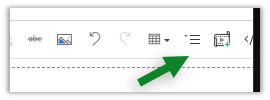
  • Expand and collapse records in timeline

All records expanded inside timeline control shows its content and the icons to perform action on them.
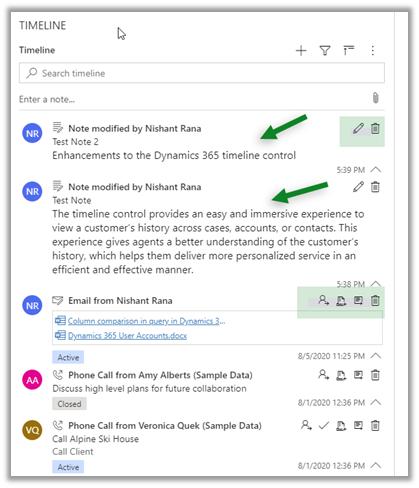
In 2020 Release wave 1, the option is not available
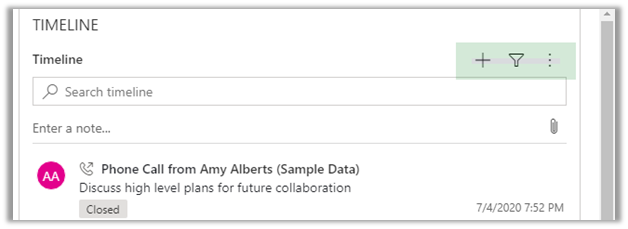
  • Enhancements related to Email within timeline control

https://nishantrana.me/2020/08/05/enhanced-email-for-timeline-in-dynamics-365-2020-release-wave-2/

  • Highlight of matching text for the search

Dynamics 365 2020 release wave 2 –https://docs.microsoft.com/en-us/dynamics365-release-plan/2020wave2/

Hope it helps..

Enhanced knowledge articles in Dynamics 365 – 2020 release wave 2


With 2020 release wave 1, we had new features added in Knowledge management for increased productivity

https://nishantrana.me/2020/02/19/enhancements-in-knowledge-capabilities-in-dynamics-365-customer-service-2020-release-wave-1/

Opt-in for release 2020 wave 2

https://nishantrana.me/2020/08/05/enable-early-access-2020-release-wave-2-dynamics-365/

Check other posts on Release 2020 Wave 2

Now with release 2020 wave 2, we have a few more changes added to editing and view experience related to Knowledge articles.

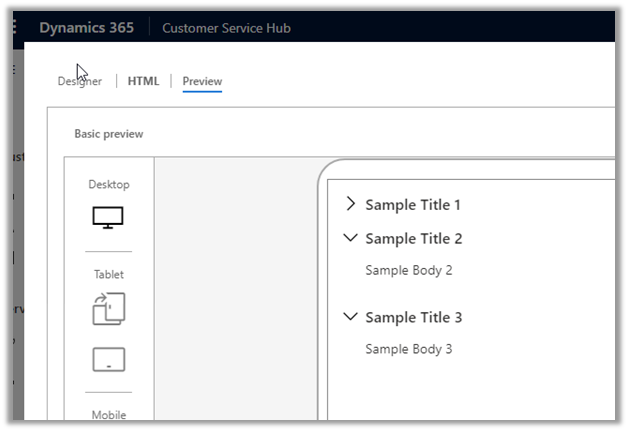
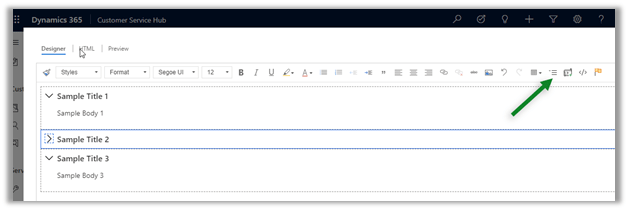
  • The authors can create a collapsible section

The same experience for the end-users within the case form à

  • The collapsible section option was not available in 2020 release wave 1

  • Warning message in the Preview tab, if an anchor is used, has been removed now.

With 2020 Release wave 1

  • Icons have been updated within the Knowledge search control.

In 2020 Release wave 1 ->

In 2020 Release wave 2 ->

Dynamics 365 2020 release wave 2 –https://docs.microsoft.com/en-us/dynamics365-release-plan/2020wave2/

Hope it helps..
Enhanced email for timeline in Dynamics 365 – 2020 release wave 2


With 2020 release wave 1, we had seen a couple of enhancements in Email experience

https://nishantrana.me/2020/02/24/enhanced-email-experience-for-agents-in-dynamics-365-customer-service-2020-release-wave-1/

now this has been extended to Email within the Timeline section

Enable early access to 2020 release wave 2

Check other posts on Release 2020 Wave 2

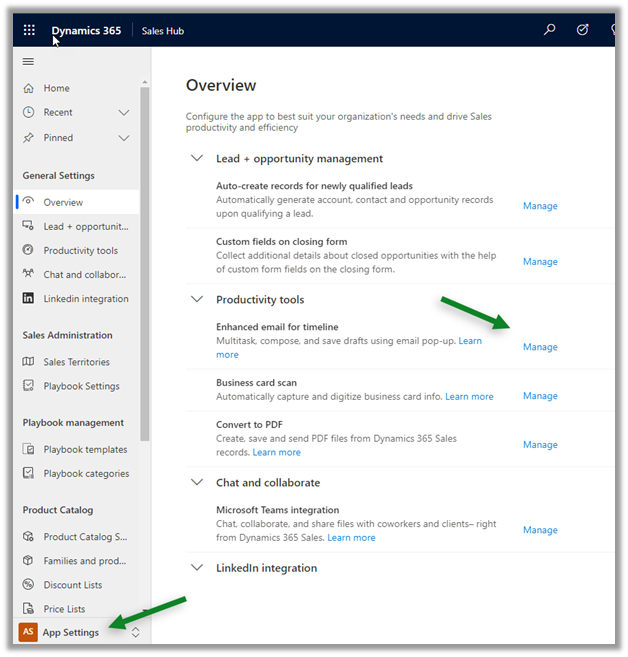
Navigate to App Settings in Sales Hub, and click Manage for Enhanced email for timeline

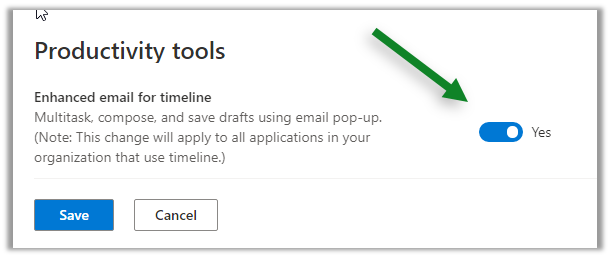
Enable it and save.

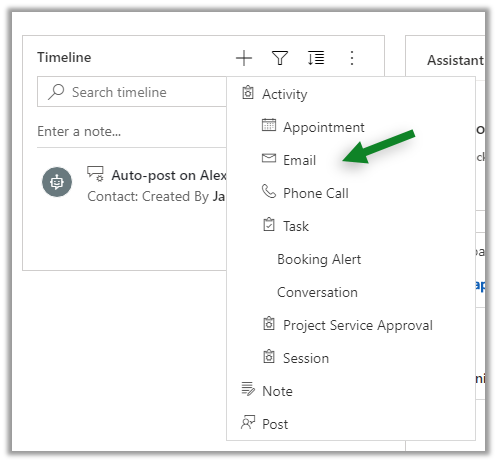
Let us now navigate to one of the contact records and try creating a new email from its Timeline control

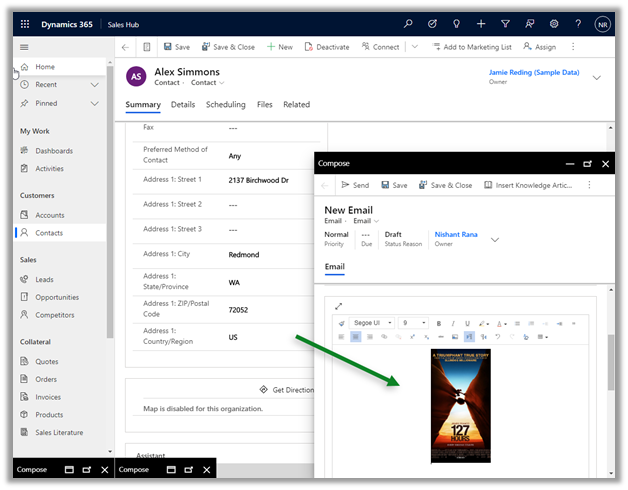
There we can now compose email in a pop-up and non-blocking window within the context of the record.

We can now work on a maximum of 3 active draft emails at a time.

The same rich edit experience which includes Drag and Drop / Copy and paste of the images is available.

In short, all the email enhancements that were added as part of Release 2020 Wave 1 is now available from within the Timeline control for email, making it a consistent experience for the users.

Hope it helps..
Enable early access 2020 release wave 2 – Dynamics 365


Check other posts on Release 2020 Wave 2

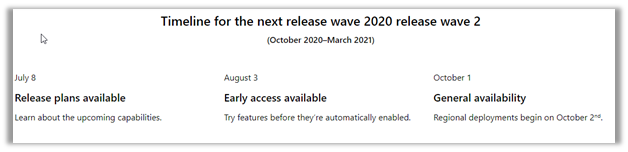
Finally, now we have the opportunity to opt-in for early access to release wave 2, to validate the new features in a non-production environment.

The features will be generally available on October 1, 2020.

Get all the details on the key dates and FAQ here

https://docs.microsoft.com/en-gb/dynamics365/get-started/release-schedule#key-dates-for-the-2020-release-wave-2

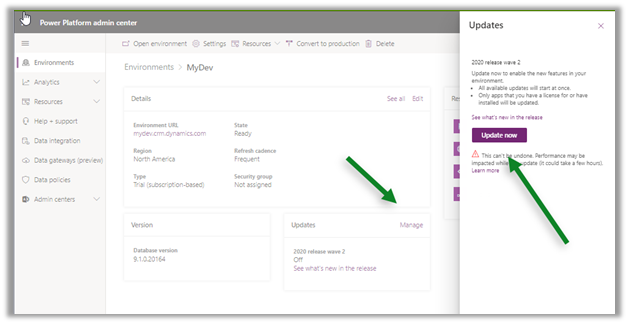
To opt-in

  • Log in to the Admin Portal

https://docs.microsoft.com/en-gb/dynamics365/get-started/release-schedule#key-dates-for-the-2020-release-wave-2

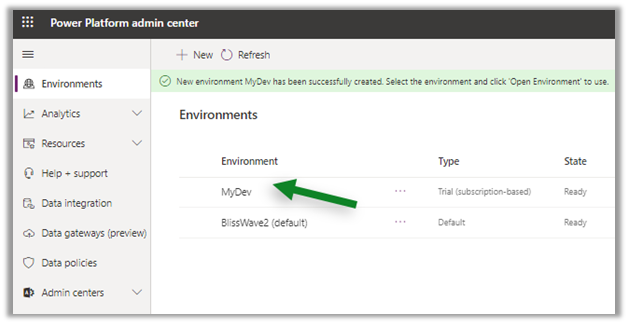
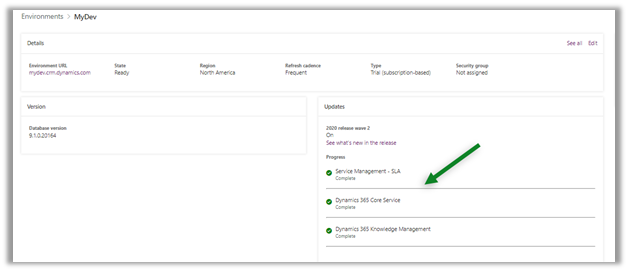
  • Select and open the environment to upgrade

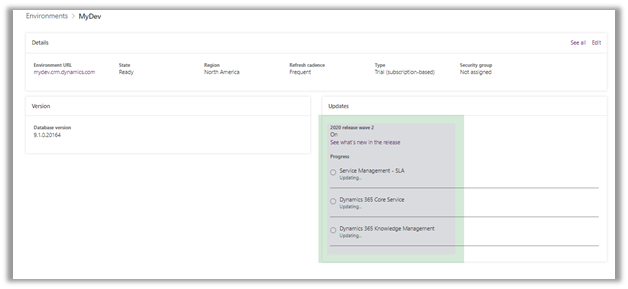
  • Click on Manage in the Updates section and click Update Now

  • The upgrade process will start

  • Retry in case if any of the application updates fails using the Retry button, for us Dynamics 365 Core service had failed.
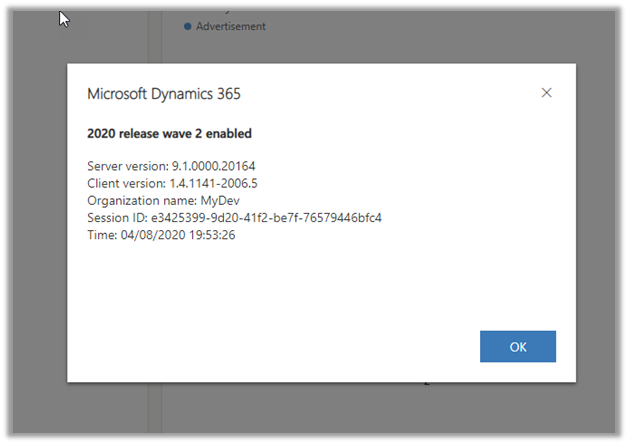
  • After a successful upgrade, the upgraded instance will show the 2020 release wave 2 enabled.

Hope it helps..
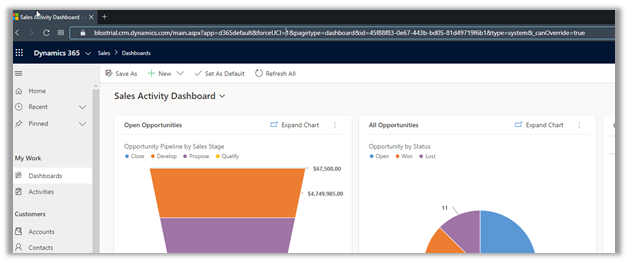
Show and hide the Dynamics 365 – custom app


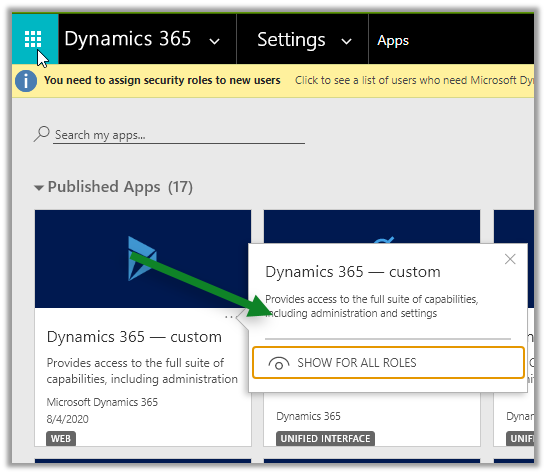
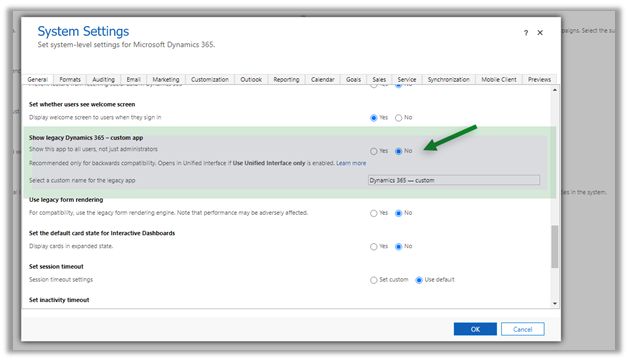
To show and hide the Dynamics 365 – custom app from users other than having a system administrator role, we can use the below option

Navigate to Settings – Apps

and specify either Hide / Show for all roles.


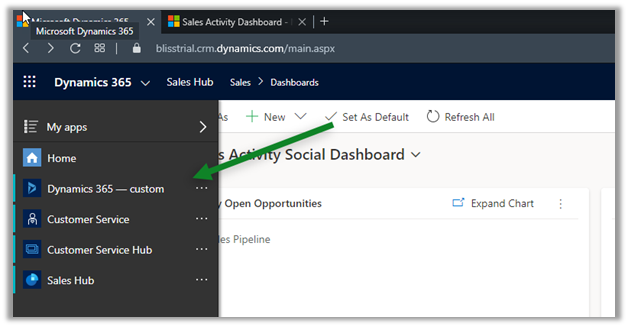
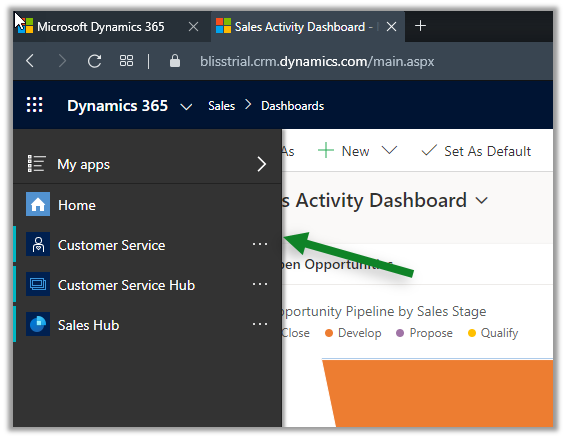
For the end-users, it will hide the app

App not listed for the user.

Users can still access the app through URL.

The same settings can be applied from the General tab of System Settings

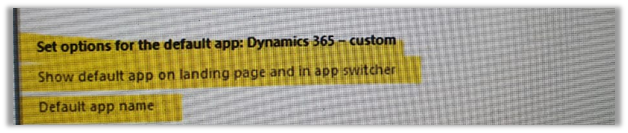
For Dynamics 365 On-Premise, we have a similar option in the General tab of System Settings

Hope it helps..
Adv Hands On Lab 5: Embedding PowerApps into Power BI


Step by step guide for embedding PowerApps within Power BI.
Key points to consider – https://docs.microsoft.com/en-us/powerapps/maker/canvas-apps/powerapps-custom-visual#limitations-of-the-power-apps-visual

Charles Sterling's avatarSterlings


Power BI Dashboard

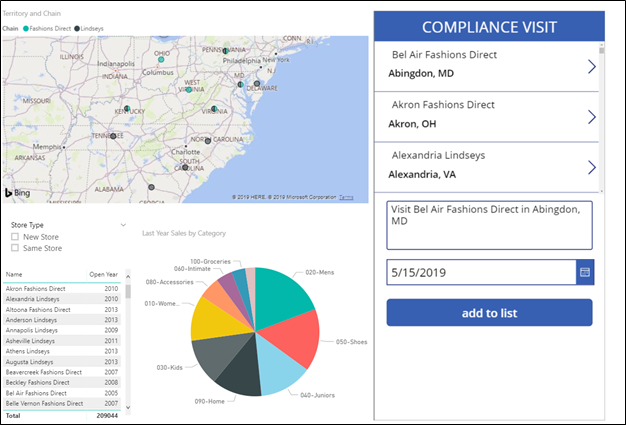
In this lab, you will create a Power BI dashboard with an embedded PowerApp. The final product will look like the image below.

Exercise 1: Build Power BI Report

High level tasks

    Task 1: Connect to PowerBI and enable sample data. Build PowerBI report

    Task 2: Import PowerApp visual for use in report

Task 1: Build Report

In this task, you will build the Power BI Report.

  1. Navigate to https://powerbi.microsoft.com and click Sign in.
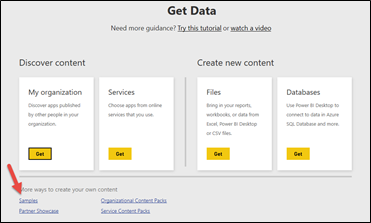
  2. At the bottom of the left navigation, click Get Data
  3. Select Samples.

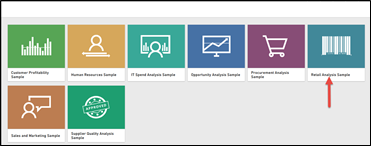
  1. Select the Retail Analysis Sample.

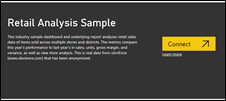
  1. Connect.

  1. Your sample dataset will take a moment to load.

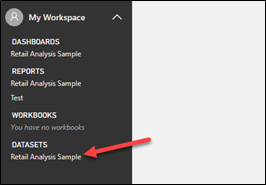
  1. Expand My Workspace and click to on the Retail Analysis Sample under the Datasets. If you have completed the prior steps and do not see this sample, refresh your browser.

  1. Go to the Fields pane, expand the Store table, and select the

View original post 924 more words