Fixe – Error – Access to the resource is forbidden while trying to connect to Azure Data Lake Storage Gen2 using Power BI Desktop


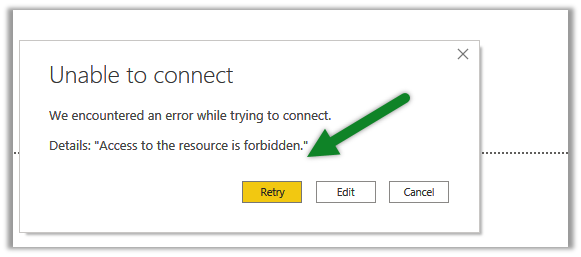
While trying to connect to Azure Data Lake Storage Gen2 through Power BI Desktop we got the below error

Came as surprise cause the user was had the owner role assigned to the container

It turned out we need to assign the Storage Blob Data Reader role to the user.

After assigning the role we were able to connect successfully.

Posts on Azure Data Lake

Hope it helps..

Advertisements

How to – Use Azure Synapse Link – Export data from Common Data Service to Azure Data Lake Storage Gen2


Azure Data lake store gen 2 can be described as a large repository of data, structured or unstructured built on top of Azure Blob storage, that is secure (encryption – data at rest), manageable, scalable, cost-effective, easy to integrate with.

Also check out – setup Azure Synapse with Dataverse – https://nishantrana.me/2021/06/16/how-to-setup-azure-synapse-link-microsoft-dataverse/

  • Export to Data Lake allows for continuous replication of CDS entities to Data Lake Storage Gen2, which involves initial write followed by incremental writes, which can be consumed by Power BI, Azure Data Factory, Azure Data Bricks, and Azure Machine Learning.
  • Replication of standard and custom entities having change tracking enabled and create, update, and delete operations.
  • Any changes in data and metadata are pushed automatically without the need of setting any refresh intervals.

Let us first create a general-purpose V2 storage account to access all of the Azure storage services like blobs, files, etc.

The storage account must be in the same Azure AD tenant.

Login to Azure Portal (with admin account)

https://portal.azure.com/

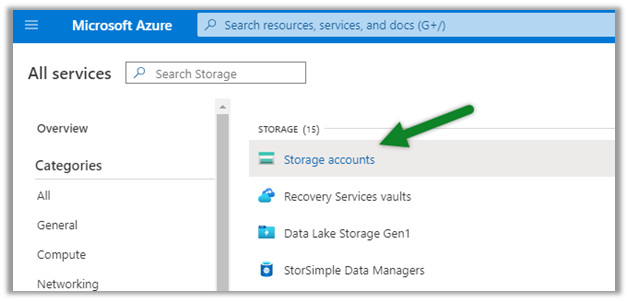
Search for Storage Accounts.
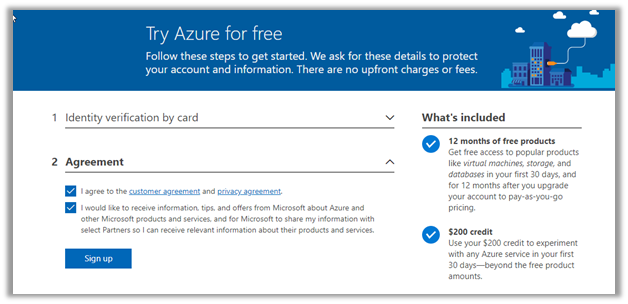
Here we have used a trial to create the storage account.
Leave the Account kind, Replication, and Blog Access as the default values while creating the storage account.

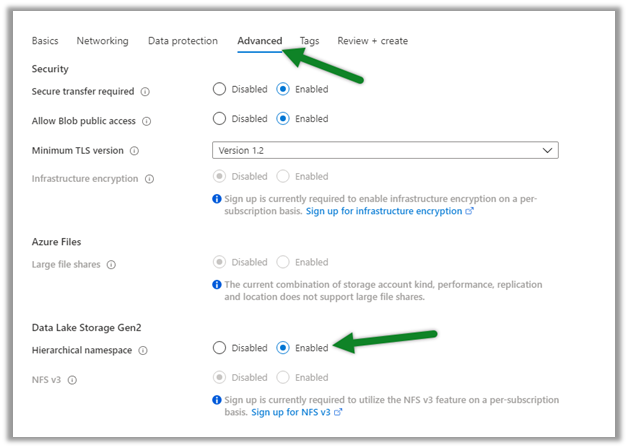
Before selecting Review + Create, navigate to the Advanced tab and enable the Hierarchical Namespace.

After validation is done and is successful, click on Create to create the storage account.


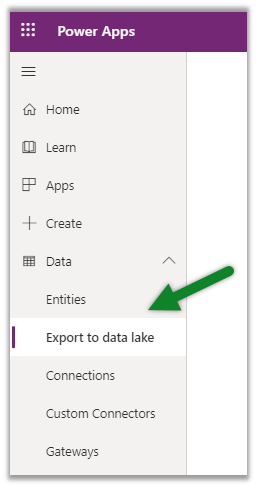
With the storage account created successfully, navigate to PowerApps select the option Export to data lake.
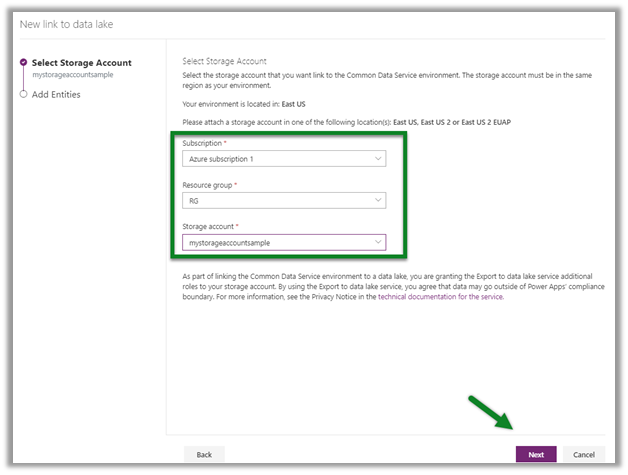
Select New link to data lake

Specify the storage account created earlier.
Select the entities to be exported to the data lake. Enable change tracking for the entities, as only these entities will be exported.
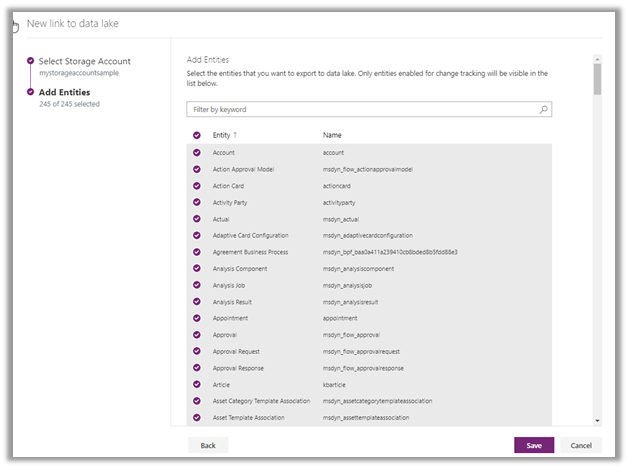
Clicking on save will link the CDS environment with Azure data lake storage.

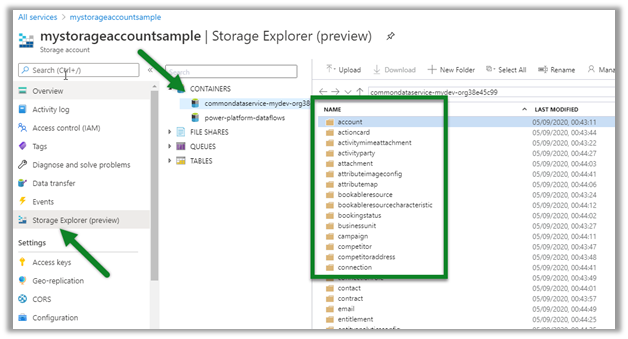
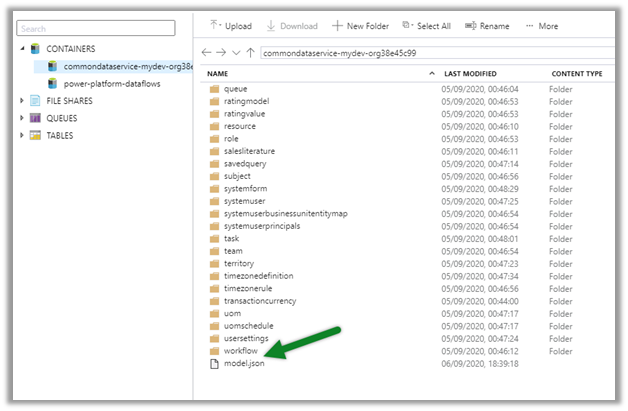
It will create the file system in the Azure storage account having a folder for each entity selected.
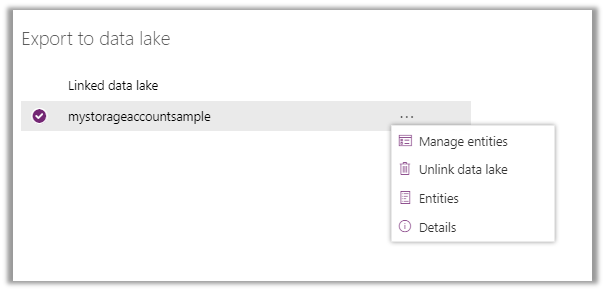
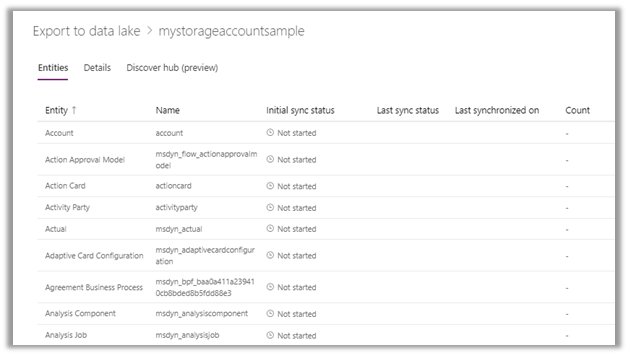
and will start the initial sync.
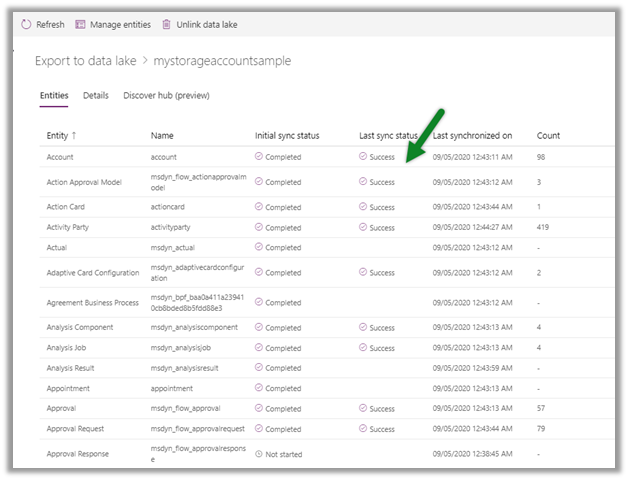
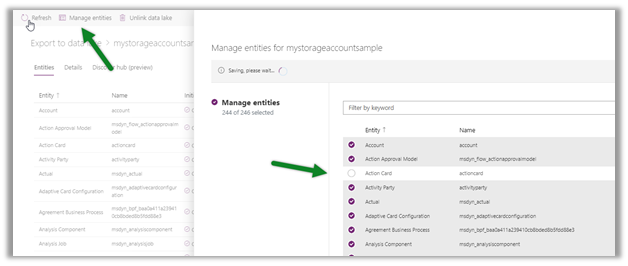
we can use the Manage entities option for adding or removing the linked entities.
Inside Azure Portal, we can navigate to the storage account and select the Storage Explorer.

Expand commondataservice-environmentName-org-Id
container to view the details.
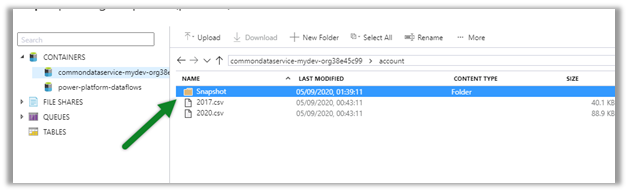
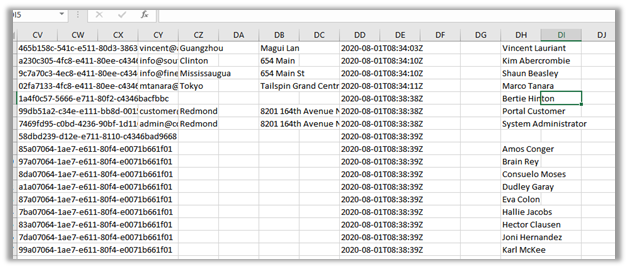
The CSV file will contain the data
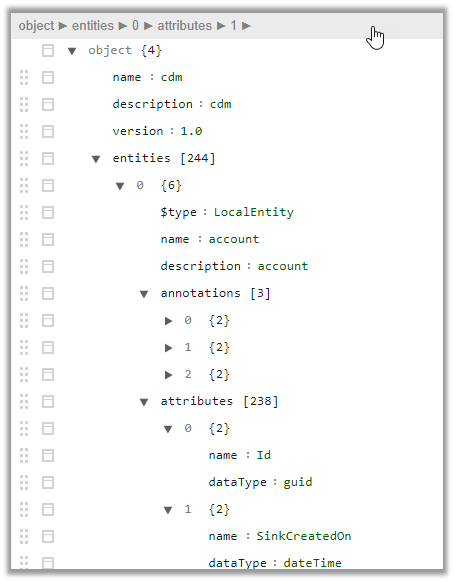
Here Model.json is the metadata file in the CDM folder
that describes the data in the folders, metadata, and location.
More details-

https://www.bluegranite.com/blog/10-things-to-know-about-azure-data-lake-storage-gen2

Posts on Azure Data Lake

Hope it helps.

Advertisements

How to create a unified profile (Golden Customer Record) using Dynamics 365 Customer Insights – Part 1


Virendra Agrawal's avatarVirendra Agrawal's Blog

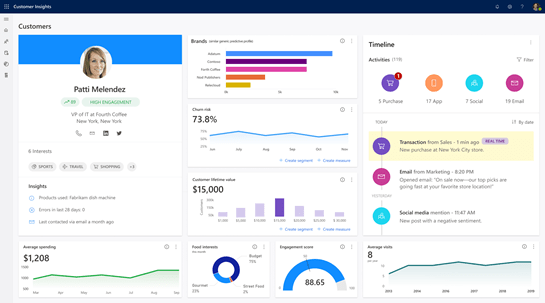
I recently had an opportunity to work on Dynamics 365 Customer Insights for a retail client who was envisioning to consolidate their customer’s information to achieve a true customer 360-degree view.

The main objective was to remove the silos of data that represents customer purchases, payments, website visits, marketing & social interactions and customer service requests.

With it’s pre-built AI model, Customer Insights was able to help with ingesting massive amounts of data from separate systems and leverage matching strategies to build a unique profile and showcase customer’s total lifetime value, churn risk, and more.

In this series of posts, I would like to put some light on how we can use Dynamics 365 CI to ingest this customer data from multiple sources and set the matching rules to create a unified customer profile or a golden customer record.

We’ll see how we can connect Customer Insights with various data…

View original post 918 more words

Use Monitor to troubleshoot forms in the model-driven app (preview)– Dynamics 365


The new monitor feature added for the Model-driven apps can be used for troubleshooting issues with form related events.

We have 2 ways to access the monitor option.

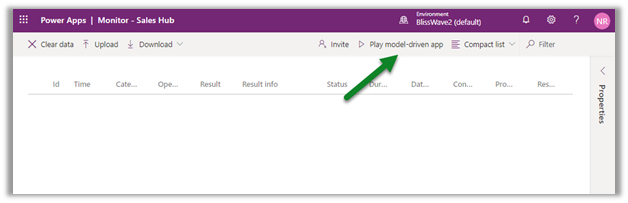
Select the Model-driven app inside Power Apps  and select Monitor in the command bar.

The other option is to  add the parameter &monitor=true to the end of the URL

And select the monitor option

This will open the monitoring session in a new tab.

Click on the Play model-driven app.

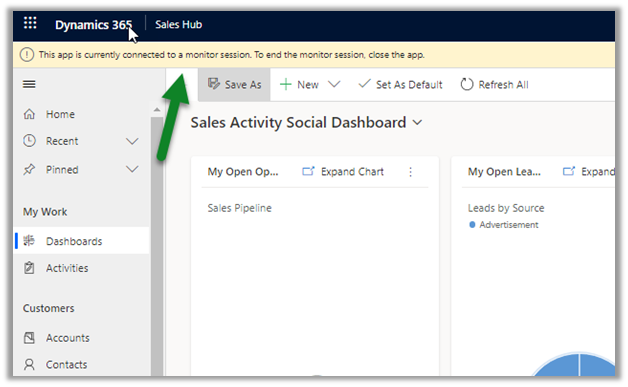
This opens the app connected to the monitor session.

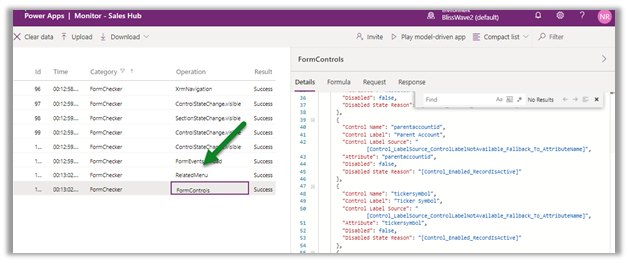
We can see any action performed tracked.

We can filter Category column to check specific events related to form.

Select the row to get the details populated on the right side.

Get all the details below

https://docs.microsoft.com/en-us/powerapps/maker/model-driven-apps/monitor-form-checker

Hope it helps..

Power Platform Dataflows


How to – Use Append and Merge to combine data from multiple data source in Power Platform dataflows

Let us continue with our previous post where we loaded the data from on-prem SQL DB to CDS using dataflows. https://nishantrana.me/2020/07/07/load-data-from-sql-on-premise-to-cds-common-data-service-using-power-platform-dataflows-in-power-apps/ Now suppose we have another table (or any other data source) having the contact details, which we would like to append/merge along with our previous data source. For simplicity, here we have created a…

Load data from SQL On-Premise to CDS (Common Data Service) using Power Platform dataflows

Let us continue our previous post where we created a connection to the below On-Premise SQL Server Database using an On-premises data gateway. https://nishantrana.me/2020/07/06/configuring-on-premises-data-gateway-to-connect-tosql-server-on-premise-data-source-power-platform/ Here we will use the Power Platform dataflows to load contact entity in CDS using that same on-prem table. Sign in to Power Apps https://make.powerapps.com/home Navigate to Data – Dataflows and…

Email experience now available in Dynamics 365 Mobile App – 2020 Release Wave 2


With 2020 Release Wave 2, users can now finally compose, edit, and send emails from the Dynamics 365 Mobile App.

Check other blog posts on Release 2020 Wave 2

Now mobile users can –

  • Compose and send email from Dynamics 365 Mobile app

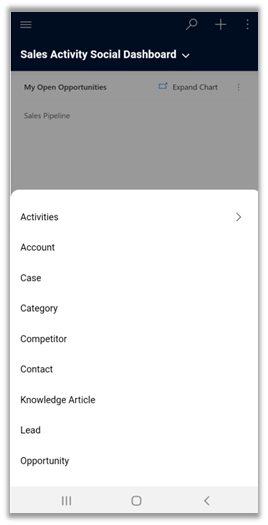
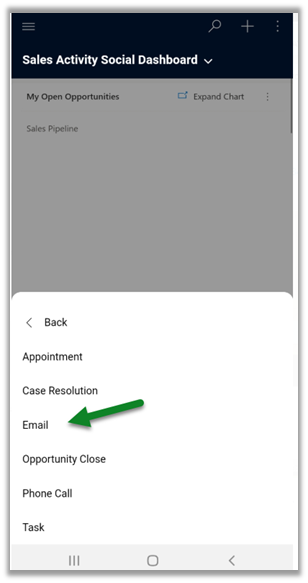
Navigate to Activities menu from the home page.

We can see the Email entity added there.

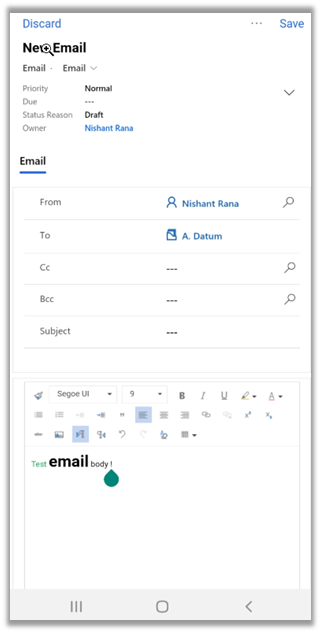
Clicking on it allows us to compose an email from within the app.

We have the full email editor formatting available.

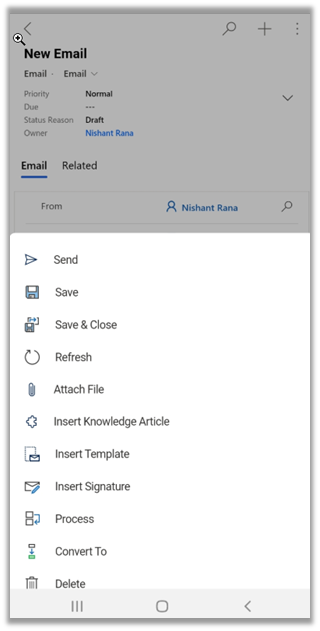
We also have the functionality of inserting template, signature, knowledge article, etc. available.

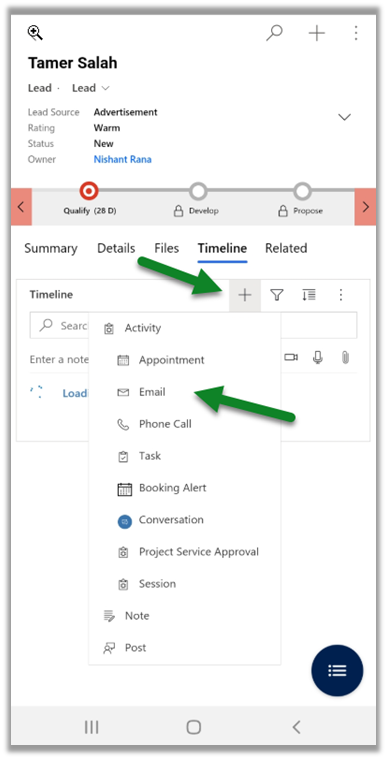
We can also create email records from within the Timeline section.

Check the other blog posts on Dynamics 365 Mobile App

Hope it helps..