Fixed – authorizationpermissionmismatch Azure Blob Storage


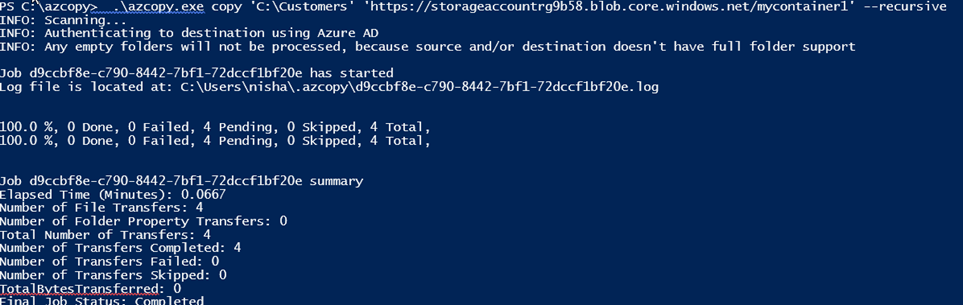
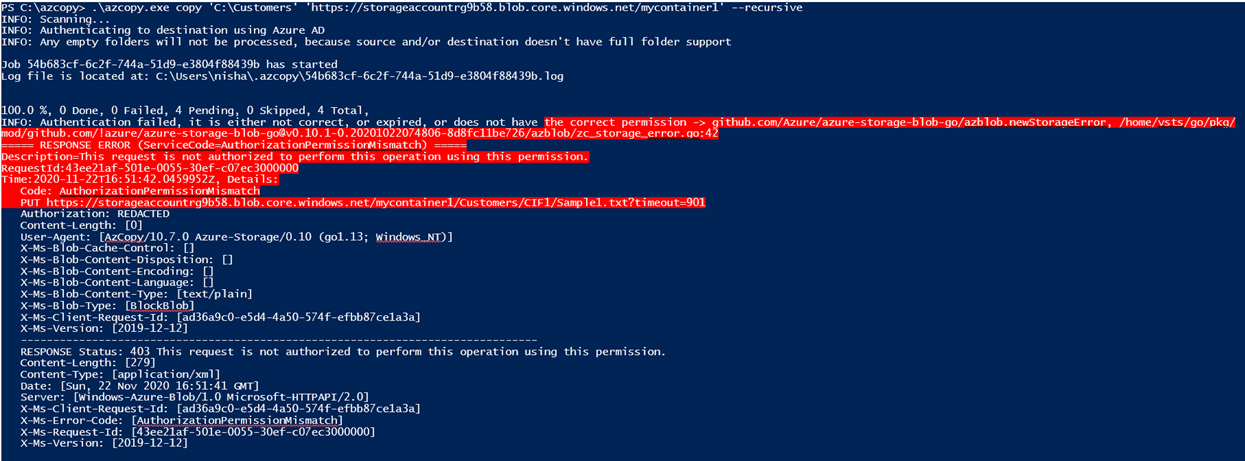
We got the below error while trying to transfer files to Azure Blob Storage using AzCopy

INFO: Authentication failed, it is either not correct, or expired, or does not have the correct permission -> github.com/Azure/azure-storage-blob-go/azblob.newStorageError, /home/vsts/go/pkg/mod/github.com/!azure/azure-storage-blob-go@v0.10.1-0.20201022074806-8d8fc11be726/azblob/zc_storage_error.go:42

===== RESPONSE ERROR (ServiceCode=AuthorizationPermissionMismatch) =====

Description=This request is not authorized to perform this operation using this permission.

RequestId:43ee21af-501e-0055-30ef-c07ec3000000

Time:2020-11-22T16:51:42.0459952Z, Details:

   Code: AuthorizationPermissionMismatch

   PUT https://storageaccountrg9b58.blob.core.windows.net/mycontainer1/Customers/CIF1/Sample1.txt?timeout=901

Here we were using Azure Active Directory to provide authorization credentials to AzCopy

https://docs.microsoft.com/en-us/azure/storage/common/storage-use-azcopy-v10#option-1-use-azure-active-directory

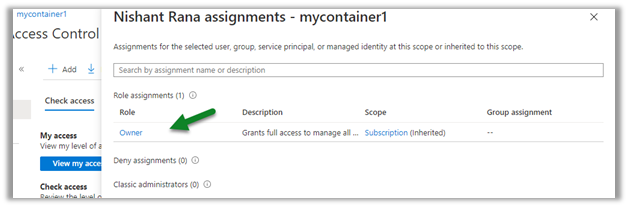
The account (service principal) we were using was having the Owner Role

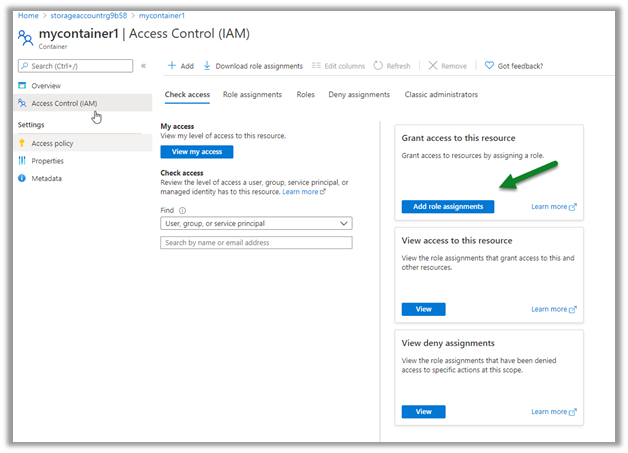
To fix this issue, we assigned the

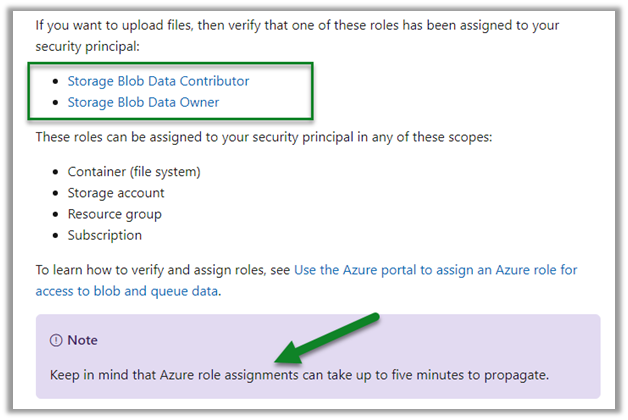
Storage Blob Data Contributor role to the account.

Retrying again after some time fixed the issue.

Points to keep in mind –

https://docs.microsoft.com/en-us/azure/storage/common/storage-use-azcopy-authorize-azure-active-directory#verify-role-assignments

Hope it helps..

Advertisements

Transfer files from local drive to Azure Blob using Premium File Transfer Task – SSIS


The Premium File Transfer Task component of KingswaySoft can be used to easily transfer files from local drive to Azure Blob storage.

https://www.kingswaysoft.com/products/ssis-productivity-pack/help-manual/premium-file-pack/premium-file-transfer-task

Let us take a simple example to see it in action.

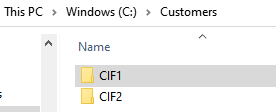
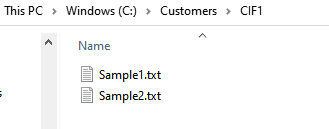
Here we will pick the folder Customers and its subfolders along with the files inside it and will transfer it’s content to the Azure Blob Container.

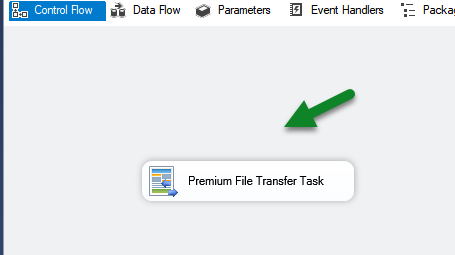
Create a new SSIS Package and drag the Premium File Transfer Task to the control flow designer.

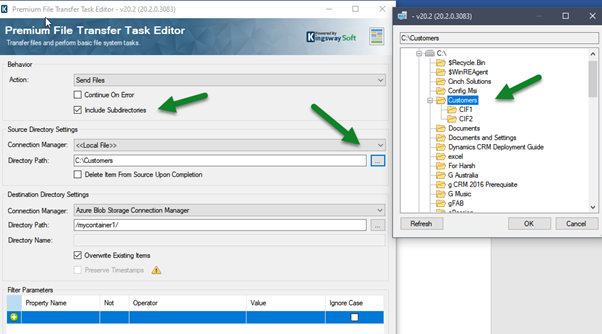
Double click the task and specify the following Source Properties

  • Action – Send Files – the other options are – Delete files, Create Directory, Remove Directory.
  • Check the option – Include Subdirectories
  • Connection Manager – Local File
  • Directory Path – specify the folder

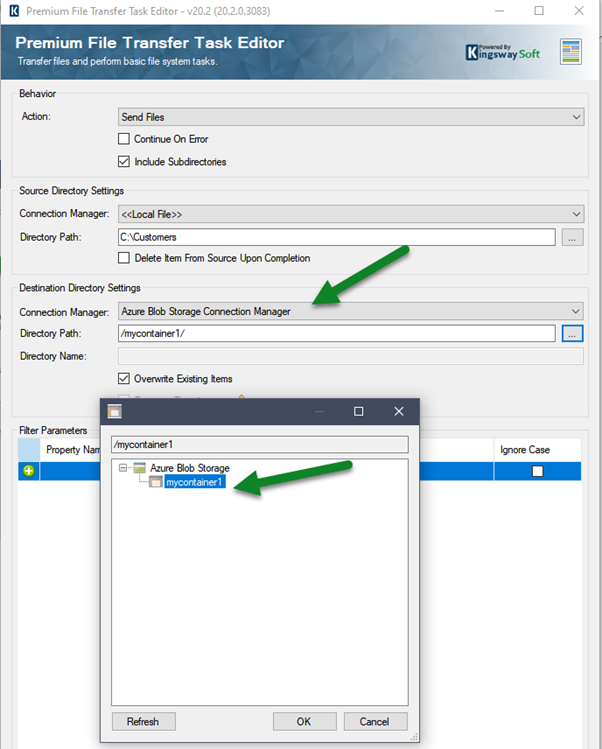
Similarly, for Destination, we can specify the Azure Blog Storage Connection Manager and the directory path as shown below

Note – Make sure we have already added the connection for it to be available inside the connection manager option of Premium File Transfer Task. The other connection types supported are FTPS, SFT, Amazon S3, Azure Data Lake Storage, Box, Dropbox, Hadoop, OneDrive, SharePoint.

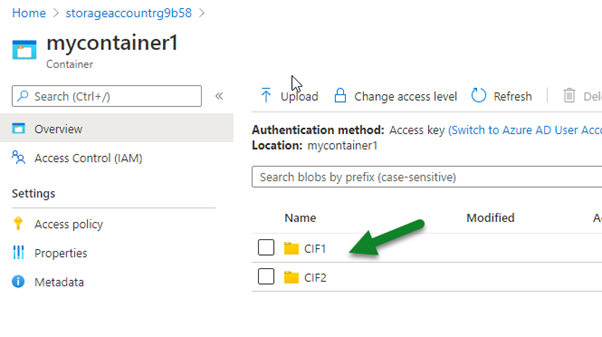
Let us run the package.

We can see the content transferred successfully to Azure Blog storage


Also, check out –

Using Azure Blob Storage component with Dynamics 365

https://nishantrana.me/2020/10/20/using-kingswaysoft-azure-blob-storage-component-with-dynamics-365/

https://nishantrana.me/2020/10/16/ssis-kingswaysoft-and-dynamics-365/

Hope it helps..

Always Encrypted feature in SQL Server


Always Encrypted is used for encryption at the column level rather than the entire database. It provides both data at rest as well in memory (in flight).

It is different from column (cell-level) and Transparent Data Encryption (TDE) which uses keys and certificates, which are stored in the database. In the case of Always Encrypted, keys are managed outside the database. SQL Server cannot decrypt on its own, as it is the client who encrypts / decrypts on the fly, separating those who own the data from the one who manages it.

To enable Always Encrypted we can use either T-SQL or the Always Encryption Wizard in SSMS. It supports both Randomized and Deterministic Encryption types.

  • Columns are encrypted using CEK – Column Encryption Key.
  • The encrypted versions of each CEK are stored in the database.
  • CMK – Column Master Key is used to encrypt all the CEKs.
  • Only the client possesses the CMK which is stored in either Azure Key Vault, Certificate Store, HSM.
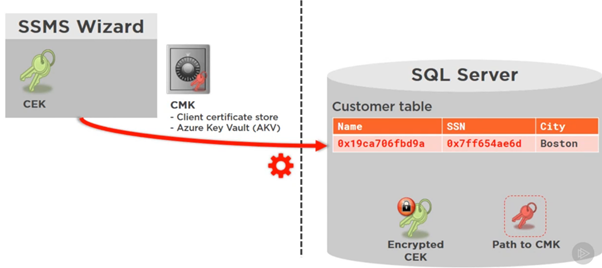
SSMS Wizard generates both CEK and CMK. CMK is stored in the Client certificate or Azure Key Vault.

CMK is used to encrypt CEK. The encrypted CEK along with Path to CMK is what is stored in the database. So, the database has no way of decrypting the data.

Next SSMS Wizard begins the encryption process, where it creates a new temporary table, transfers the data from the table and encrypts it on the fly, and then drops and replaces the main table.

All of this occurs on the fly at the client side which is SSMS in this case.

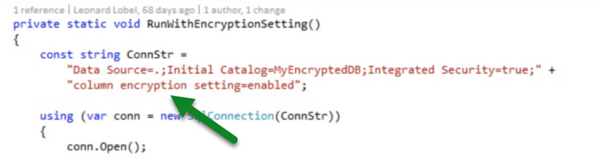
The client will pass the ‘Column Encryption Setting=Enabled’ in the connection string, which fetches the Encrypted CEK and Path to CMK from the database.

The client uses the Path to CMK to get the CMK and uses it to decrypt the encrypted CEK received and then uses the CEK to decrypt the encrypted data.

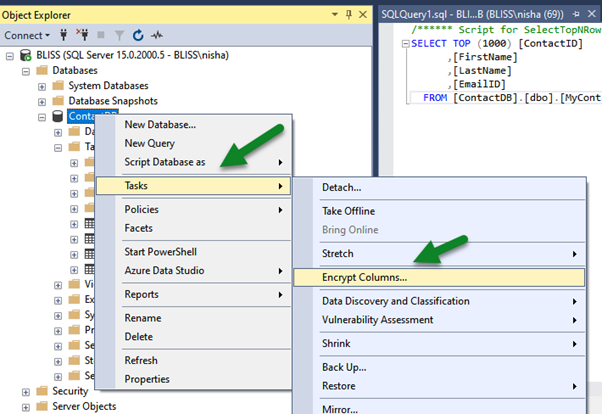
To apply Always Encrypted, within SSMS, right-click the database and select Tasks > Encrypt Columns…
Below we have selected the Email Id column of MyContact table.

The below wizard step is used for generating CMK which can be either stored in Windows Certificate Store or Azure Key Vault with the client.

We can either run the encryption at that time or choose to generate a PowerShell Script which we can run later.
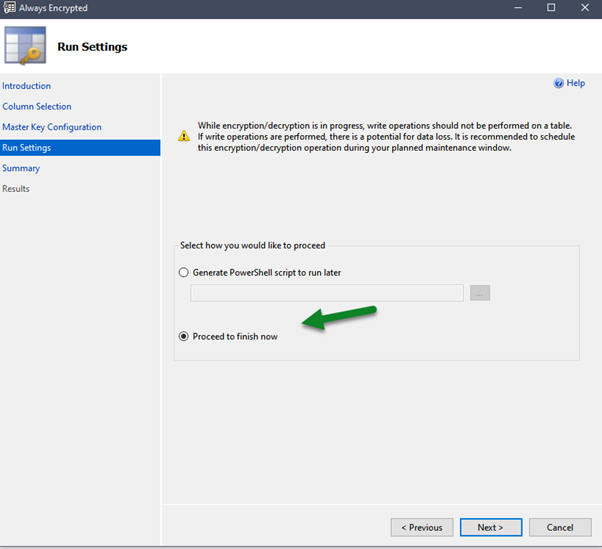
Below is the summary of steps that will be performed

  • Before encryption

  • After encryption

To decrypt here, at the client which is our SSMS in this case, right-click in the query window and select Connection > Choose Connection…
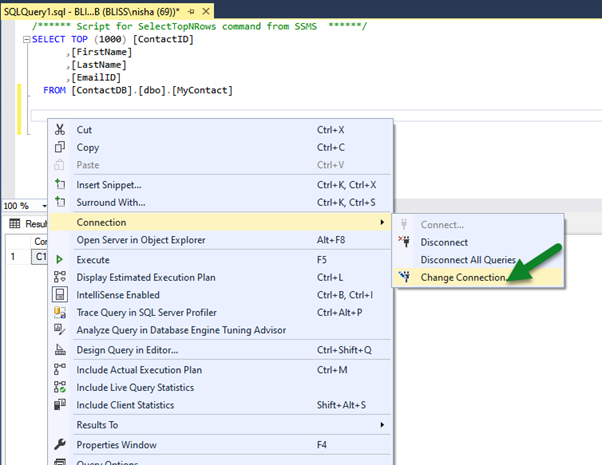

Specify column encryption setting=enabled in the Additional Connection Parameters tab.

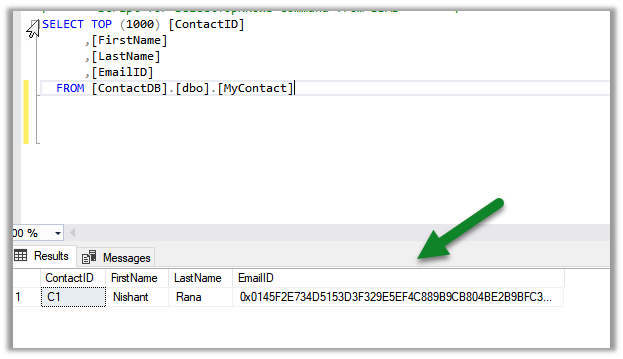
We can see the actual data as the client SSMS in this case, peforms the decryption at the run time using the path to CMK and encrypted CEK details received from the database.
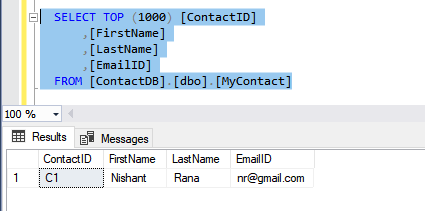
  • Usage within a console application –

Few points to consider while planning to use Always Encrypted –

https://www.sentryone.com/blog/aaronbertrand/t-sql-tuesday-69-always-encrypted-limitations

Reference – Pluralsight – SQL Server Course 

Hope it helps..

Dynamic Data Masking (DDM) in SQL Server


Through the Dynamic Data Masking feature in SQL Server, we can hide the sensitive data by masking the data from the user who does not have permissions. (Here the data in the database is not changed).

There are 4 different functions to do that –

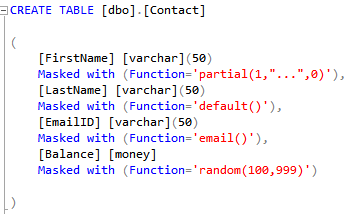
  • default – Entire column is masked.
  • partial – only works with string, for masking staring and / or ending characters of the column data.
  • email – shows only the first character of the column data and masks the rest.
  • random – only works with numeric, the column data is replaced by random values.

  • e.g. Create Table

  • e.g. Alter Table

  • To find the masking details applied on columns –

  • Mask permissions – 

  • Unmask and mask permission –

Granting UNMASK permission to the user allows to see the unmasked data.

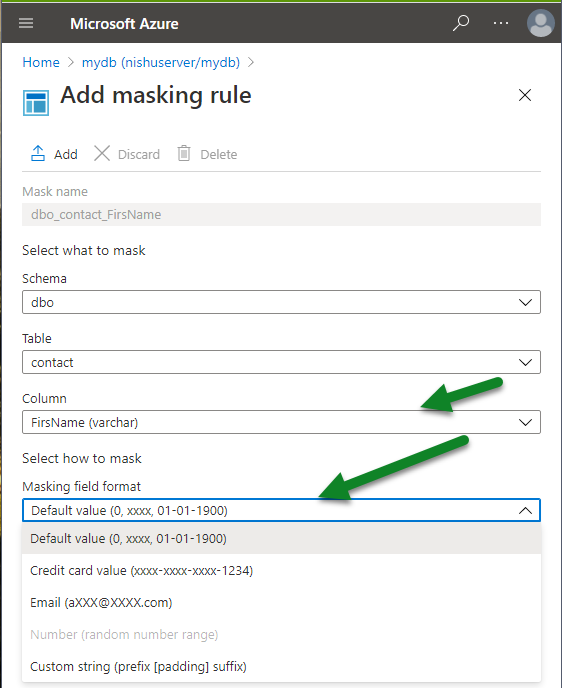
  • For Azure SQL Database, we can enable and specify masking through the interface itself, select the Dynamic Data Masking option for the table, click on the Add mask button

Apply the masking format as needed.

Reference – Pluralsight – SQL Server Course 

Hope it helps..
Azure Architecture and Management – Introduction


Below are few key points on Azure architecture and management

  • Check availability of Azure products region-wise

https://azure.microsoft.com/en-us/global-infrastructure/services/

Below we have filtered it to see products available in UAE

We can also filter it further if we are looking for a specific product or service.

  • We can refer to the Data residency document to see where the data is being stored

https://azure.microsoft.com/en-us/global-infrastructure/data-residency/

  • We can use the Pricing Calculator for estimation.

https://azure.microsoft.com/en-us/pricing/calculator/

  • A resource inside Azure can be thought of manageable item in Azure that includes Virtual Machines, Web App, Database, etc.
  • A resource group is a container (contains metadata) of the resources.
  • It is through ARM – Azure Resource Manager the resources within Azure are managed.

Azure Portal, Azure PowerShell, Azure CLI, REST APIs are different ways of interacting with Azure Resource Manager.

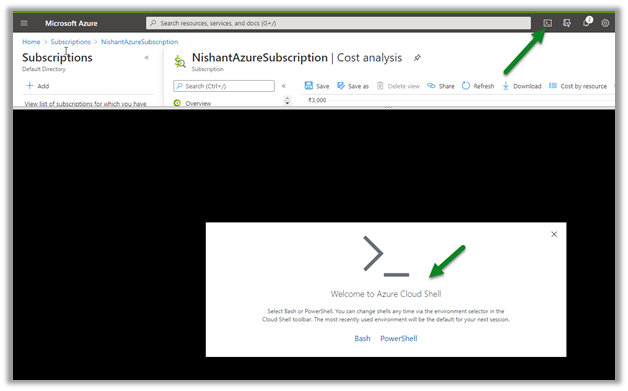
  • Within Azure Portal, we can use Azure Cloud Shell to run PowerShell or CLI commands.

It will ask us to create a storage account if there aren’t any

  • To implement Infrastructure-as-Code, Azure has Azure Resource Manager Templates which are written in JSON, that uses a declarative syntax to define infrastructure and configuration for Azure resources for automating deployments.

https://docs.microsoft.com/en-us/azure/azure-resource-manager/templates/overview

  • Azure Advisor is a recommendation service that analyzes the configurations and usage of the Azure Resources and provides recommendations / best practices on different categories to optimize the Azure Deployment.

The advisor can be configured to run only on specific resources along with the option to edit the existing rules and set up alerts.

  • We can also use Azure Mobile App

https://azure.microsoft.com/en-us/features/azure-portal/mobile-app/

to monitor the health and status of Azure resources, run commands to manage Azure resources, etc.

Reference – Pluralsight Course – Microsoft Azure Services and Concepts

Hope it helps..
Microsoft Azure / Cloud Computing – Introduction


Cloud Computing enables companies to consume a complete resource – such as virtual machine, storage, or an application as a utility – just like electricity – rather than having to build and maintain computing infrastructure in-house.
Cloud provider provides the cloud infrastructure which is shared across multiple clients. Clients can select which service to use and only need to pay for that service, which is billed on-demand.

Cloud provider takes care of high availability (disk failure, power supply) and disaster recovery (natural or human disaster like fire, flood, etc.)

Advantages of using cloud computing

Rapid elasticity, only pay for the services used, reliability, economics of scale, etc.

Azure Regions Interactive Map

https://build5nines.com/map-azure-regions/

Types of Cloud Computing Services.

  • IaaS – Infrastructure as a service – Azure Virtual Machines, Azure Storage.
  • PaaS – Platform as a service – Azure Functions, Logic Apps, Azure Automation.
  • SaaS – Software as a service – Dynamics 365, SharePoint, Power Platform.

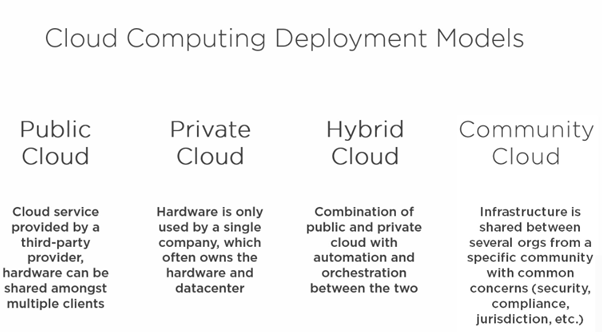
Types of Cloud computing deployment models.

Hope it helps..