Concurrency Control – Apply to each for improving performance (Power Automate / Dataverse)


Let us fetch 5000 contact records using List Rows, and then update it using Apply To Each.

It took around – 37 minutes

Now let us enable concurrency control for Apply To Each action, and let it run under 20 (default) degree of parallelism.

This time it took around 4 minutes.

Let us increase it to the maximum this time, i.e. 50.

This time it took around 2:45 minutes.

Thus Concurrency Control option can help in processing records faster by processing records in parallel instead of one by one by using parallel threads. However, if the ordering of the way records need to be processed is critical, then we need to be careful before using it and also at times it can cause the API’s request limit to be hit.

Get more details on Concurrency limits

Hope it helps..

Advertisements
Implementing No Code Dynamics 365 Service Bus Listener using Logic Apps


Fix – Cannot write more bytes to the buffer than the configured maximum buffer size: 104857600 (Power Automate / Dataverse)


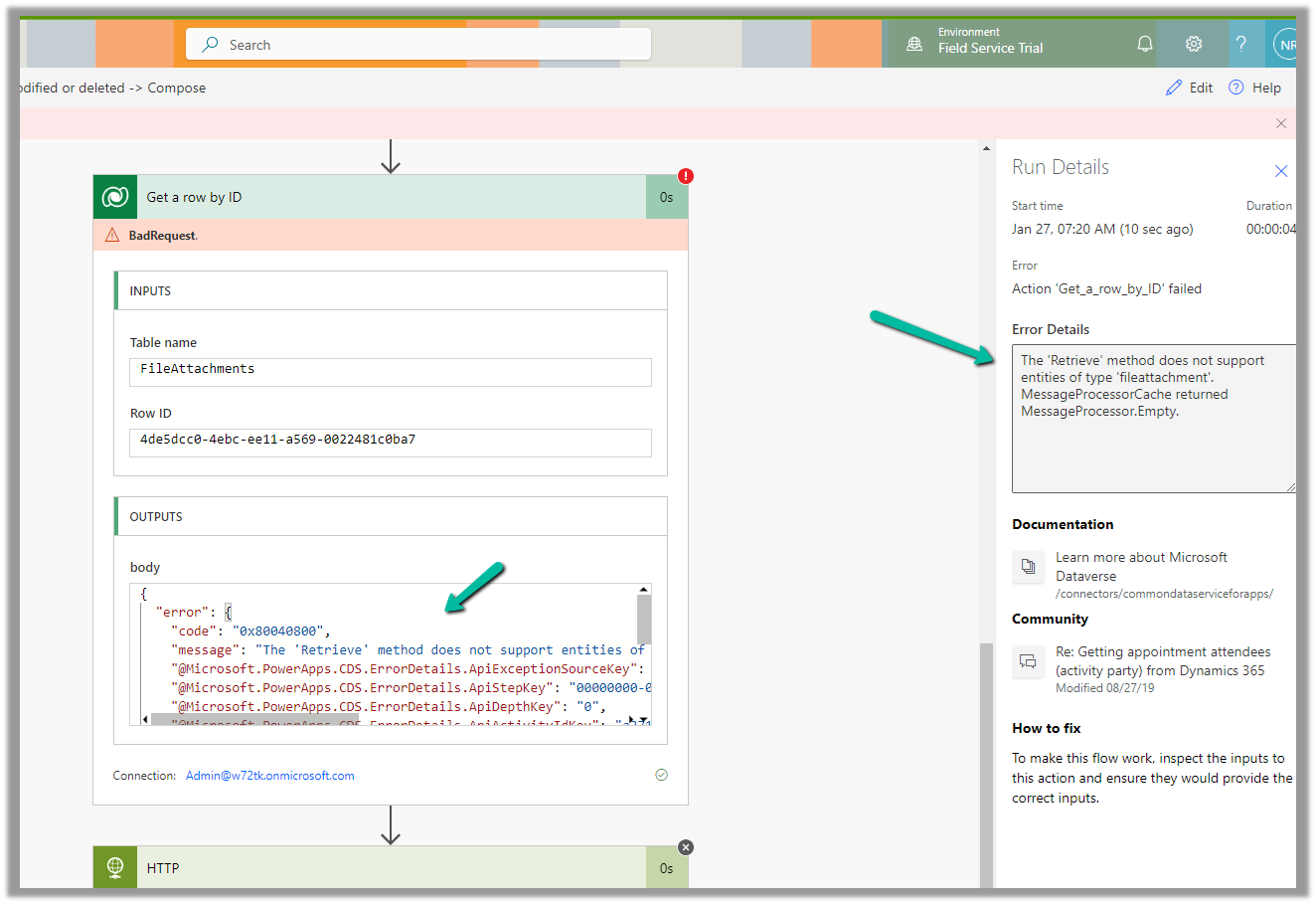
We might below error in our flow –
BadRequest
. Http request failed as there is an error: ‘Cannot write more bytes to the buffer than the configured maximum buffer size: 104857600.’.

This is because of the 100 MB Message Size limits in Power Automate.

We can enable Allow chunking option if supported by the action.

Or we can fix it by specifying Select columns and Filter Rows to limit the data returned as in the case of the List Rows action of Dataverse.

Hope it helps..

Advertisements
Custom Actions missing in the “Perform Action” step of the workflow (Dataverse / Dynamics 365)


We might see some of the custom actions not appearing in the Actions list inside the Perform Action step of the workflow.

This is because the Custom Action would be using one of the following parameter types, which is not supported for Perform Action like

  • Picklist (Optionset)
  • Entity
  • Entity Collection

E.g. we have the following actions defined few are bound to the Contact table, some are Global, and have different types specified as either Input or output parameter.

Out of the above actions defined, we can see only the following actions listed inside the perform actions step of the workflow.

The action which has input as Entity Reference are the ones listed, as it is one of the supported types. For the unsupported types, if used as an output parameter, the actions are listed.

https://learn.microsoft.com/en-us/dynamics365/customerengagement/on-premises/developer/create-own-actions?view=op-9-1#execute-an-action-using-a-process

Hope it helps..

Advertisements
Use Solution Health Hub to troubleshoot issues in Dynamics 365 Apps (Sales, Marketing, Field Service, Customer Service..)


Using Solution Health Hub we can validate the environment’s configuration, which might get modified over time, to get an idea about the state of that environment and detect and resolve any issues. Solution Health Hub enables rules-based validations, which we can run periodically or manually if we encounter any issues. The rules also get triggered automatically when solutions are installed or updated by Microsoft. The rules check if some of the required processes are disabled or owned by a disabled user, if some of the required web resources are missing, if certain plugin steps are not active etc.

Let us open the Solution Health Hub app and see it in action.

We can see the Rule Sets created specific to different areas (app) like Sales, Marketing, Customer Service, etc.

For an environment where Field Service is configured, we can see the following rule sets.

Let us open the Field Service Rule Set and see the rules defined for it.

We can see around 31 rules defined for Field Service

For Sales, we can see around 6 rules.

Around 22 rules for Customer Service.

And around 5 rules for Marketing

To run the Rules, we need to create a new Analysis Job record and select the corresponding Rule Set.

A summary of rule-set executions will be shown in a few seconds. (runs asynchronously)

We can see one of the rules failed.

Opening the record, we can see the details.

Back in our solution, we can see the steps in the disabled state.

Back in our Analysis Job, let us select the failed rule and click on Resolve.

We can see the message “Resolution is completed.” and the rule passed.

Back inside our solution, we can also see the status as On for those steps.

Now let us run an analysis job for Field Service

On opening the record, we can see the user for which the roles are missing.

For Field Service, we can see an out-of-the-box cloud flow that runs at midnight on Saturdays to trigger the analysis job for the Field Service Rule Set.

And sends the In-app notifications.

Now if a rule fails, we can get the in-app notifications, e.g. we had set the Service Account field as optional on the Work Order form.

That caused the below rule to fail.

This also sent the notification in the app.

More details on it – https://powerusers.microsoft.com/t5/Power-Apps-Community-Blog/In-App-Notifications-on-concerns-related-to-Solution-Health-and/ba-p/1287680

Also, for each of the rules, we can see a corresponding Action that holds the logic.

Hope it helps..

Advertisements
Deploy Web Resources and Plugin directly from Visual Studio using Kupp Code Analytics


In the previous posts, we covered the Overview and Key Features of Kupp Code Analytics, the installation and setup process of the extension, its Intellisense capabilities, and the analytics capabilities.

In this blog post, we will cover deploying Web Resources and Plugin directly from Visual Studio using the Kupp Code Analytics extension, which makes the process more efficient and less error-prone compared to doing it manually.

Suppose we have the following JavaScript and Image file that we want to deploy to our Dataverse / Dynamics 365.

We can right-click the file and select the option “Deploy to D365

In the Output window, we can see both the Web Resources created.

Now let us make changes to our JavaScript file – MySample.cs and click on Deploy to D365.

This time in the output window we can see the file getting updated instead of getting created.

We can see the Web Resources files created and updated for the connected environment inside the Maker Portal.

Similarly, we can deploy or update our Plugins from within Visual Studio. Here we need to make sure our Plugin Assembly is already registered.

Below we have the following assembly already registered.

Let us update our Plugin Class and select the “Deploy to D365” option for the plugin project. We have added a new plugin class called MySamplePlugin.

As expected we can see our plugin updated from the Output window.

From Plugin Registration Tool we can see our plugin assembly updated.

Hope it helps..

Advertisements