Azure: Execute Stored Procedure using Azure Data Factory


Ajit Patra's avatarAjit Patra

In this blog post, we’ll see how to execute Stored Procedure in Azure SQL Database inside Azure SQL Server. Let’s go through the steps to see it in action.

  • Login to Azure Portal.
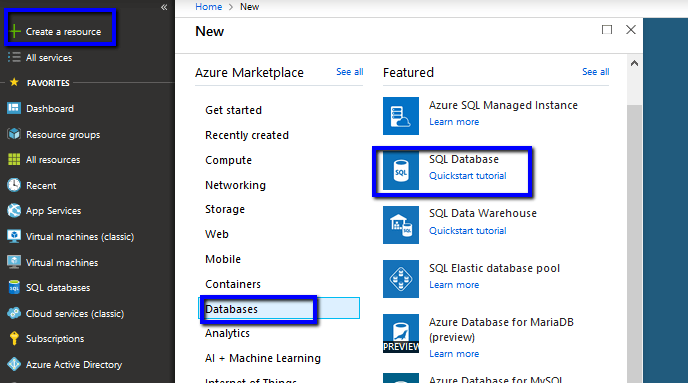
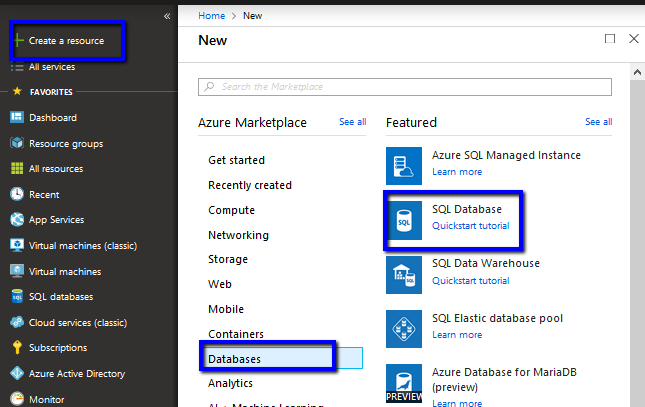
  • Click Create a resource –> Databases –> SQL Database.

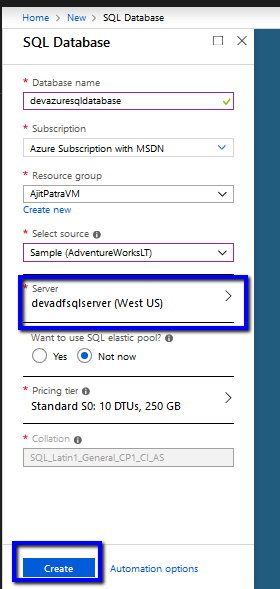
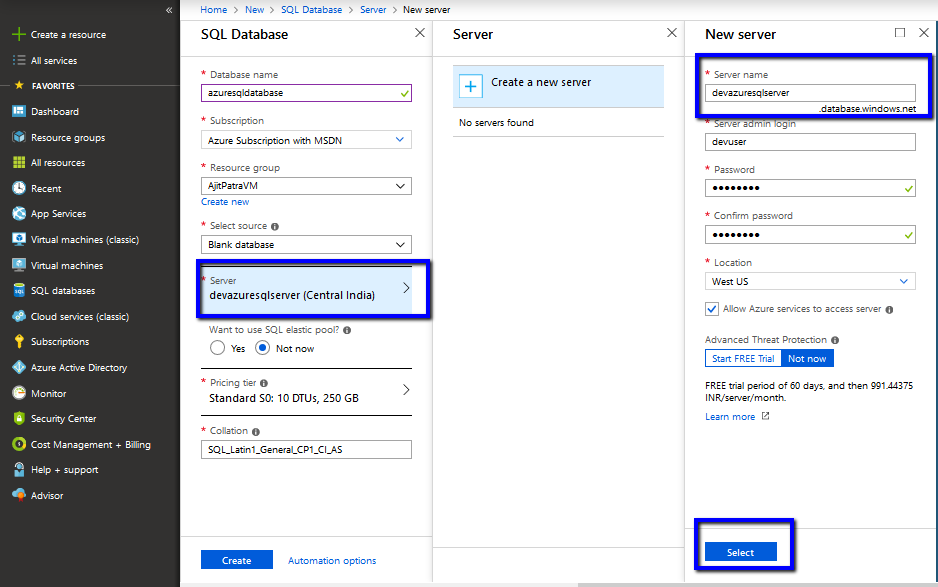
  • Give a unique name to the Azure SQL Database. Click on Server field to create Azure SQL Server on the fly. 
  • Give a unique name to the Azure SQL Server, provide credential for login and click Select.

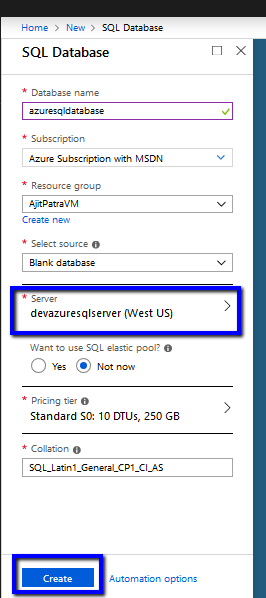
  • Make sure the Azure SQL Server that we just created is selected as Server while creating Azure SQL Database. Fill the mandatory fields and click Create.

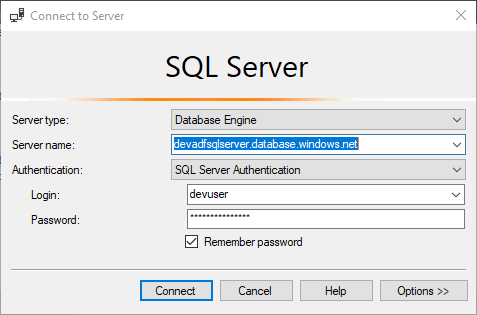
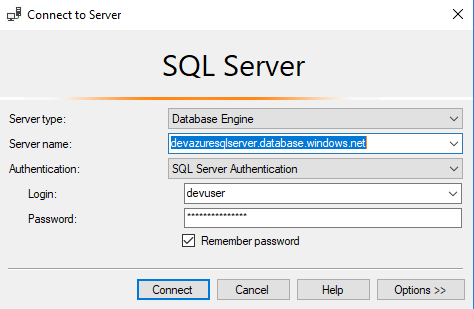
  • Let’s connect to the Azure SQL Server using SSMS. On clicking Connect a new pop up will open where we need to put Azure subscription credential to login.

  • Using Azure subscription credential we need to create a firewall rule so that…

View original post 272 more words

SSIS and Microsoft Dynamics 365


Listing down the posts on SSIS and Microsoft Dynamics 365 for quick reference

Advertisements

Using Azure Bot Service to create Bot


Using Microsoft Bot Framework

Azure Bot Service is an integrated environment that allow us to easily register, build, deploy our bots. It provides the required components and hosting environment for creating bots through Bot Builder SDK using either C# or JavaScript and connector service to connect to various channels.

Login to Azure Portal.

https://portal.azure.com

Search for Web App Bot

We have selected Basic Bot template.

After the Bot Web App is created, we have the option to either Download Bot Source Code to keep developing using Visual Studio or we can open it in online code editor.

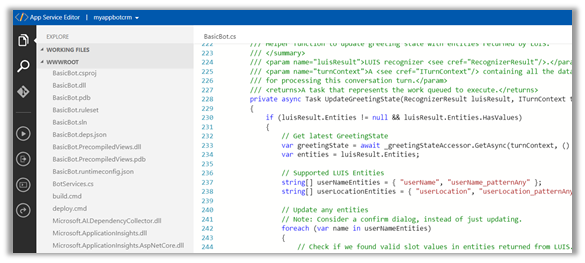
Online Code Editor allows to update the source code within the App Service Editor

As the basic bot app template uses the Language Understanding Intelligent Services, we can log on to the Luis

https://www.luis.ai/welcome

There we can see the app.

With all the corresponding Intents, Entities and Utterances.

To test the bot either we can either download the emulator for testing locally or can test online using Web Chat.

Select Test in Web Chat

After we have tested it, next we add channel to our Bot, here we will add Skype.

Below are some of the configuration that can be applied for Skype.

Messaging gives the option of enabling the messaging, Calling let us to enable calling, groups allows us to add the bot to groups and Publish option allows to publish the bot and also submit it for review if it to be used by more than 100 contacts as shown below.

Clicking on Save publishes the bot and we can see the Skype added as one of the channels.

Click on Skype icon to add it to skype.

Add to contacts will add it to Skype and can start our conversation.

Hope it helps..

Power BI and Microsoft Dynamics 365


Listing down the posts on Power BI and Microsoft Dynamics 365 for quick reference


Azure: Copy Data from D365 CE to Azure SQL Database using Azure Data Factory


Ajit Patra's avatarAjit Patra

In this blog post, we’ll see how to copy data of an entity “Contact” in D365 CE to Azure SQL Database. Let’s follow the below steps to see it in action.

  • Login to Azure portal.
  • Create Azure SQL Database where we need to copy the data. Click Create a resource –> Databases –>  SQL Database

  • Give a unique name to the database. Click on server field to create a Azure SQL Server. Give a unique name to the Azure SQL server, username and password for logging in. Click Select.

  • Make sure the Azure SQL Server just created is selected as Server while creating the Azure SQL Database –> Click on Create.

  • Connect to the Azure SQL Server just created using SSMS. Here, we’ll have to add machine IP or range of IP address after clicking Connect.

  • After signing in using Azure credential, select range…

View original post 366 more words

Above and Under operator to query hierarchical data in Dynamics 365


above and under were the 2 new operators introduced with Dynamic CRM 2015.

Let us see some of the examples.

Suppose I have the following hierarchy defined, wherein User 2 is manager of user Nishant Rana who in turn is manager of User 1.

And following are the contacts record owned by them.

In context of user Nishant Rana, if I apply Under operator, we’d get the following result

Only the records owned by child

And for Not Under

All the records owned by the user and its manager(s) or parent.

Now we do not have the Above operator in Advanced Find

So, using our favorite tool Fetch XML Builder, the above operator shows only the records owned by the parent(s) of current user.

We also have Above or equal, Under or equal operator which aren’t there in Advanced Find.

Hope it helps..