Fixed – Copy Paste not working in Remote Desktop Connection – Windows 10


Copy and Paste which was working as usual suddenly stopped working one fine day.

Other common Windows issue –RDP not saving credentials 

https://nishantrana.me/2018/10/28/fixed-windows-10-remote-desktop-rdp-not-saving-credentials/

Had the following setting enabled

Restarted the following process on the remote machine, but that also didn’t help.


Finally updating the following setting on the remote machine helped fix the issue

Go to command prompt – open Local Group Policy Editor

gpedit

Navigate to: Computer Configuration \ Administrative Templates \ Windows Components \ Remote Desktop Services \ Remote Desktop Session Hosts \ Device and Resource Redirection \ Do not allow clipboard redirection

Although it was not configured so it should not have affected the setting, however explicitly set is as Disabled.

Restart the remote server. This fixed the issue. (do the same for the client machine as well if that doesn’t work).

Hope it helps..


Advertisements
Advertisements

{Advanced Customization}10 Tips to design CRM Views like a Pro


Nice tips !

deepeshsomani2013's avatarMSDYNAMICSBLOG BY DEEPESH

Here are a set of 10 Tips to design CRM Views like a Pro:

  1. Try to limit the number of columns on the View and limit the number of scrolls that are required to be done on the View. Usually, end users do not like to scroll more than 2 times even on the Web client. Also, more the number of columns, slower the view will load as it has performance implications.
  2. In case views show All Records then out of box status field (Active/Inactive) makes sense to be put on the View. As an example, for “Active Accounts does not make sense to show status field since this is self-explanatory and applied at the filter level itself. The column space can be saved to add another relevant column.
  3. Place generic fields such as Created On/ Modified On, Created By/Modified by towards the end of your View column definition. This…

View original post 317 more words

Filter, Search, and Lookup functions in PowerApps compared.


Very informative !

Olena Grischenko (she/her)'s avatarOlena's Dynamics Blog (post-AI)

These are functions to find one or more records in a table.

 Matches by a formula or a single string *Multiple formulas acceptedReturns multiple

records or a single record

Returns the subset of the original dataset or one valueNo record foundFunction to check if no record found
FilterFormulaYesMultipleSubsetEmpty tableIsEmpty
SearchStringNoMultipleSubsetEmpty tableIsEmpty
LookupFormulaNoFirst SingleOne valueBlankIsBlank

*The formula is evaluated for each record of the table. Records that result in true are included in the result. Besides the normal formula operators, you can use the in and exactinoperators for substring matches.

Fields of the record currently being processed are available within the formula. You simply reference them by name as you would any other value. You can also reference control properties and other values from throughout your…

View original post 287 more words

Scribe Online – Working with Upsert Block in Dynamics 365 CE


Continuing our previous posts on Scribe Online, let us look at the Upsert block for Dynamics 365 CRM Connector.

The way it works is à

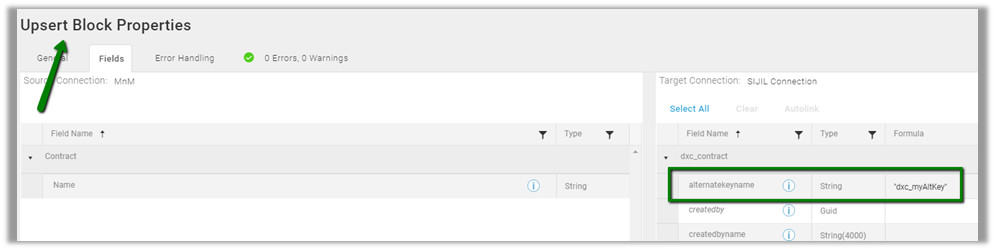
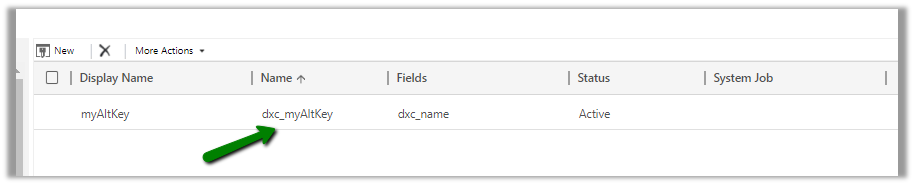
The Upsert block will have a field called alternatekeyname where we need to provide the name of the alternate key as shown below.

In CRM à

Along with passing the value for the field(s) involved in the alternate key.

The way to achieve the same in Informatica Cloud

https://nishantrana.me/2018/05/18/using-alternate-key-to-upsertupdate-using-dynamics-365-for-sales-connector-of-infomatica-cloud/

Do check out this wonderful article that explains the usage of Upsert Block, Custome Update + Insert and Update/Insert block.

https://www.scribesoft.com/blog/2014/11/updateinsert/

Hope it helps..
D365: Dynamics 365 Developer Toolkit for VS 2017


Ajit Patra's avatarAjit Patra

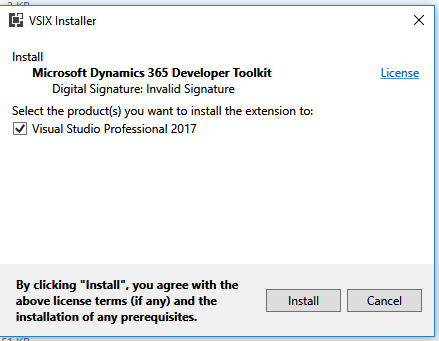
Dynamics 365 Developer toolkit for Visual Studio 2017 can be installed by following the below steps:

  1. Download Dynamics 365 Developer Toolkit for VS 2015 from here.
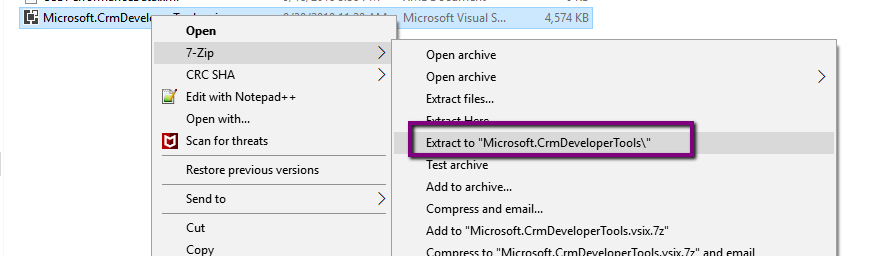
  2. Once it is downloaded, extract the content of it to a foldera
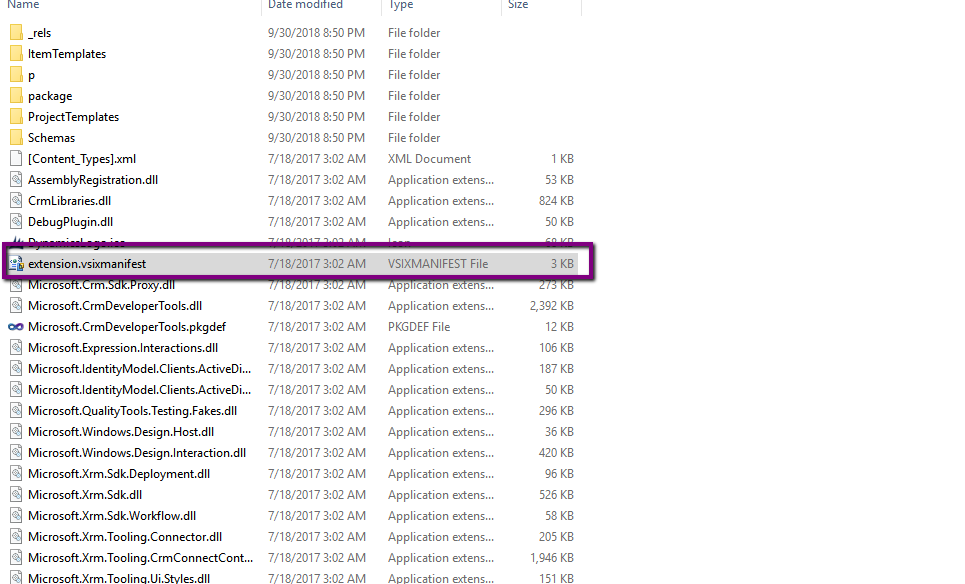
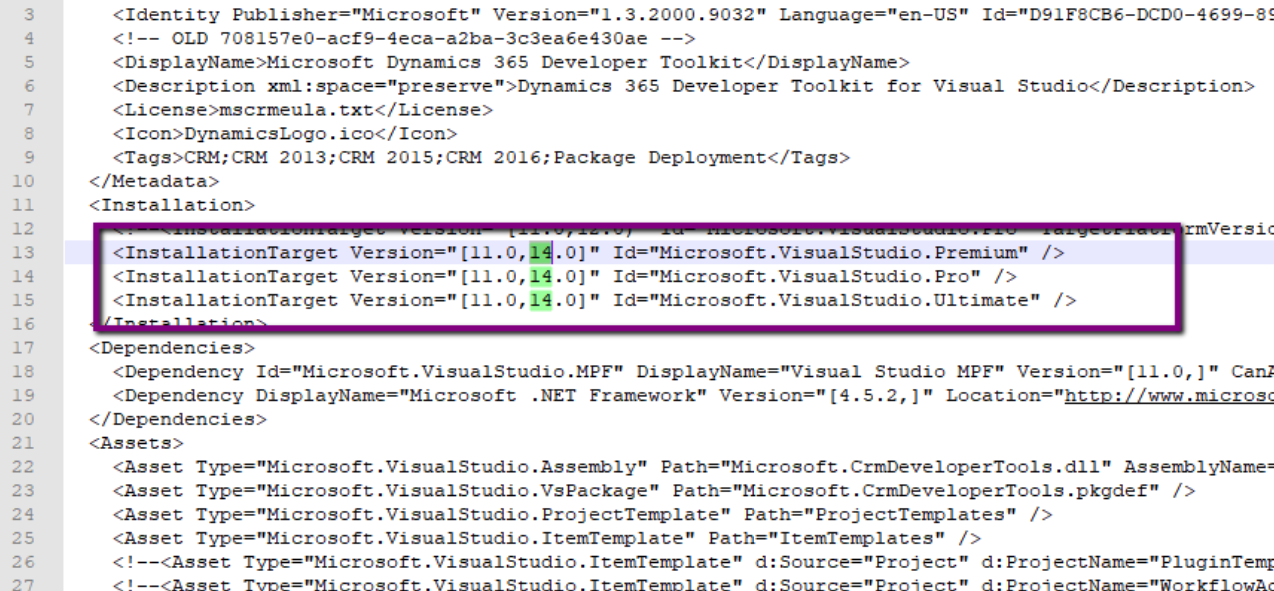
  3. Open the folder to which the content has been extracted and open the file “extension.vsixmanifest” in a notepad or text editor.b
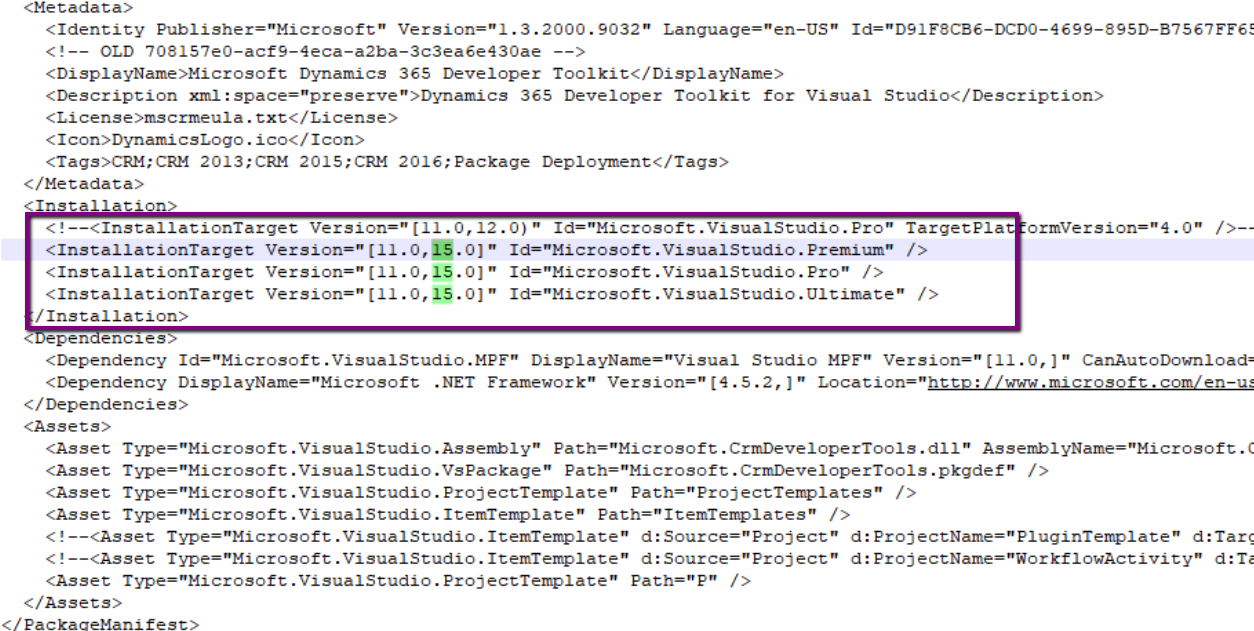
  4. Change the version number number from 14.0 to 15.0 as highlighted below and save the file:l
  5. After changing, it looks like below:m
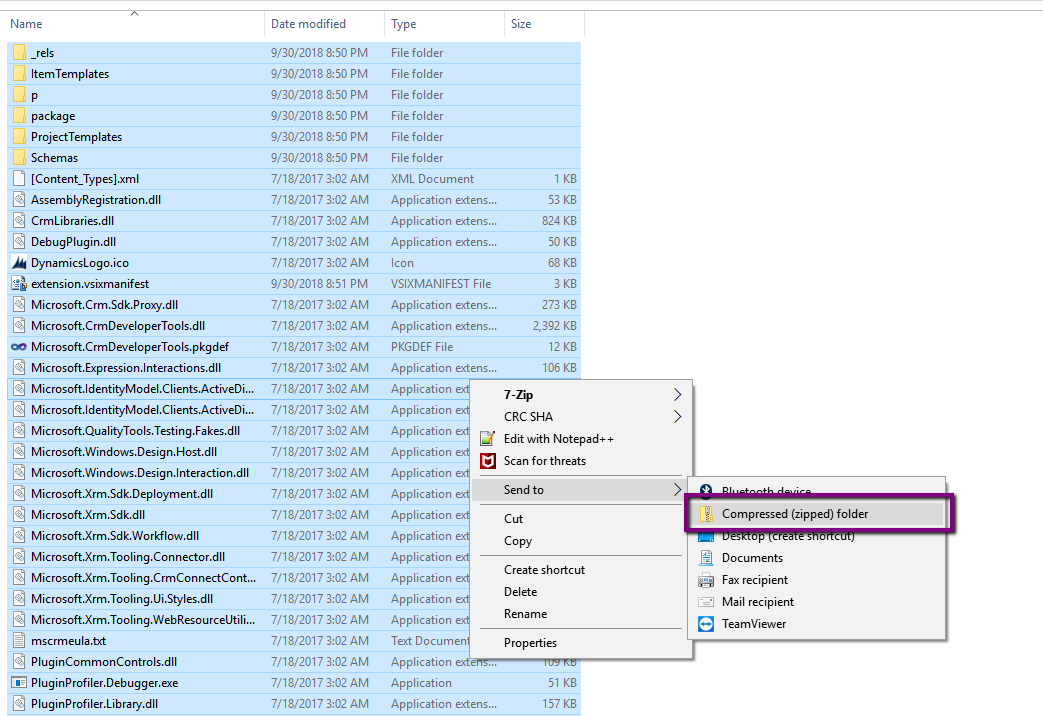
  6. Select all the content in the extracted folder (from Step 2 above) and zip ite
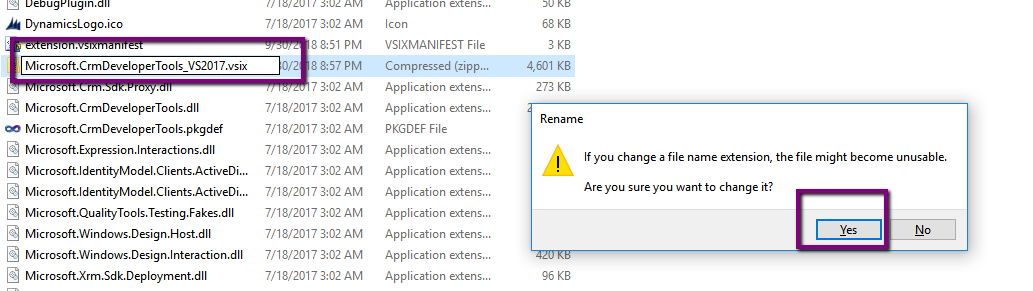
  7. Rename the file to a [unique name].vsix and save it. Click Yes on Rename pop up.f
  8. Double click on the vsix file created in the step above and click on Install.g
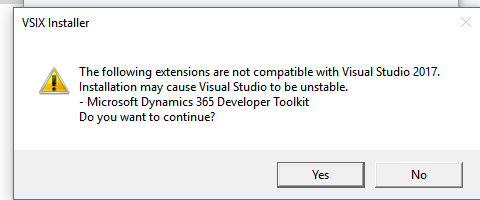
  9. It’ll show a warning for incompatibility with VS 2017. Click on Yes and Proceed.h
  10. Installation will be started for VS 2017.

View original post 40 more words

Scribe Online – Working with Hierarchical Data in Dynamics 365 CE


In the previous post, we saw how to create XML connection and using it as a source to create records in Dynamics 365 CE.

https://nishantrana.me/2019/01/11/scribe-online-xml-to-dynamics-365-ce/

In this post, we will see how to consume the hierarchical XML data as a source and create parent-child records in Dynamics 365 CE.

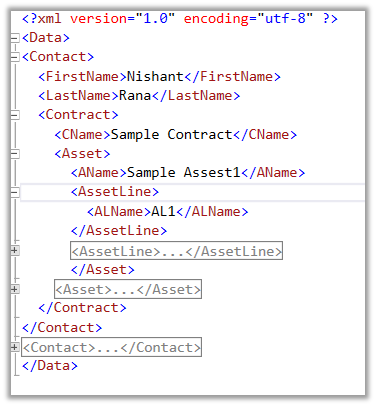
Suppose this is our source data with the following relationship

Contact à n Contract à n Asset à n Asset Line

As a first step we need to get the XSD for it, which we will use while defining the XML connection.

https://www.freeformatter.com/xsd-generator.html

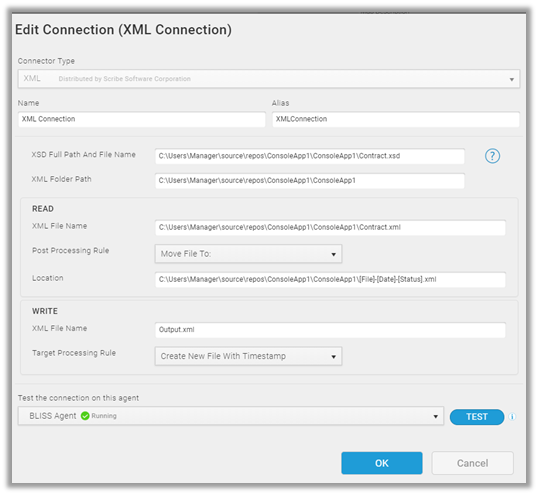
Our XML connection

Similarly, add the CRM Connection.

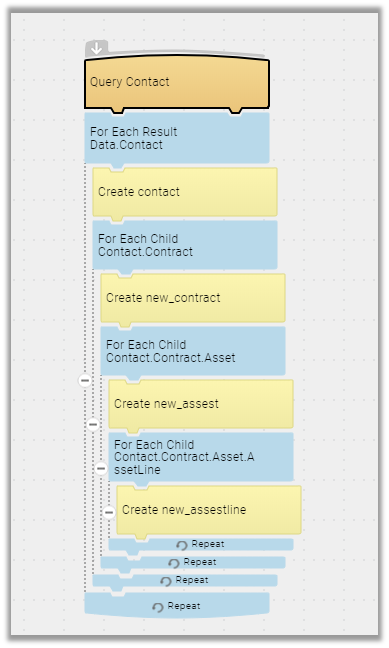
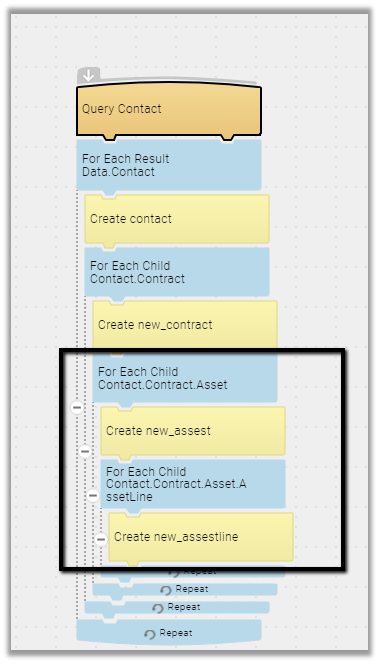
This is how our final mapping will look like

For Query Contact Block (xml) à select Entity as Contact.

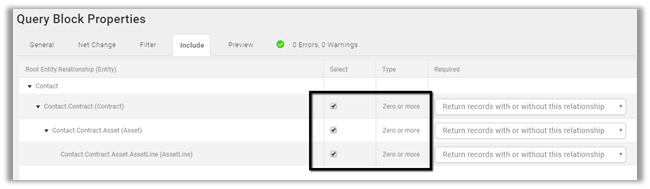
For the Include tab, we have selected all the child (tag) entities to be included.

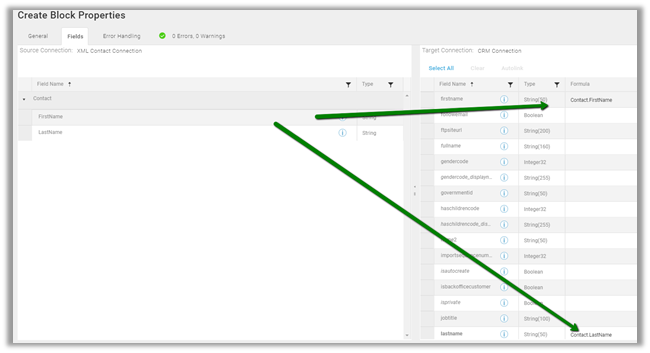
For Create Contact (CRM) block we have mapped the first name and last name field

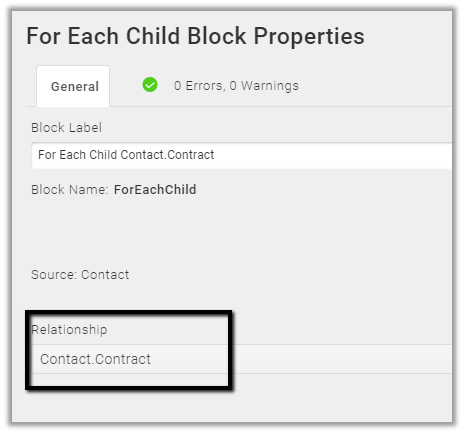
For For Each Child block select the relationship.

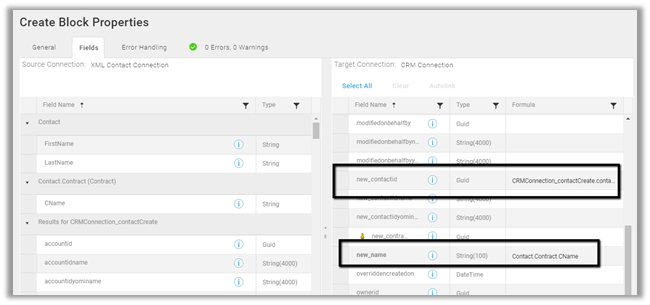
Followed by Create Contract block with following fields mapping.

Here we are setting the contact’s lookup in the contract entity using the Results from Contact Create steps.

Repeat the same steps for remaining child entities like Asset and Asset Line by selecting the relationship in for each child block and in the next create step setting the fields appropriately.

Validate and close the map and run the solution.

On successful run, we can see the records created in CRM

Hope it helps..