{Dynamics 365 for Sales AI} How are relationship analytics calculated? Let Microsoft Docs tell you


Debajit's avatarDebajit's Dynamic CRM Blog

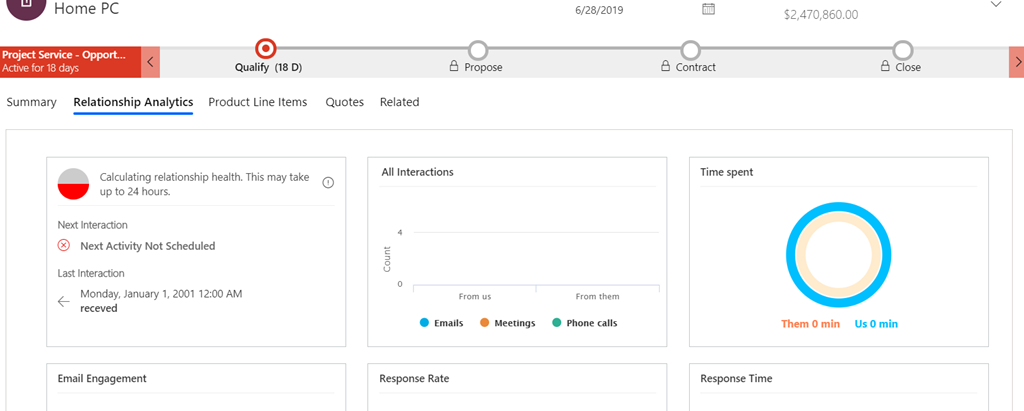
Recently I have been working on setting up various features of Sales AI for a customer and I have to tell you that there is so much to it than meets the eye. And one of them is the Relationship Analytics. If you go to Account/ Contact/ Lead/ Opportunity form then you would see some Relationship Analytics showing up. Below is the screenshot for an opportunity.

image

But the question is – “How is Microsoft showing up all these values? After all they must be based on some logic right?”.

Then answer is – “ Yes they are.” But believe me, if you are not aware of the logic behind it, it may be very difficult to understand. And frequently when we are distress we come home to find salvation. And so you should come back to Microsoft Docs to understand what the complexity is all about.

When I asked my…

View original post 109 more words

Fixed – Error: The “Derived Column” failed because truncation occurred, and the truncation row disposition on “Derived Column.Outputs[Derived Column Output].Columns[FilePath]” specifies failure on truncation. A truncation error occurred on the specified object of the specified component.


We might get the error while using Derived Column in our SSIS Package

To fix it right click the Derived Column component and select Show Advanced Editor ..

Go to Input and Output Properties tab, expand Derived Column Output and select the field and update the length in the properties window.

Hope this helps..

Advertisements

Fixed – Workflows not firing “Waiting For Resources” in Dynamics 365 On-Premise


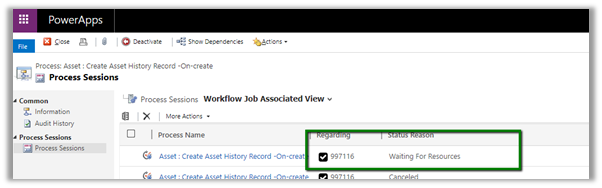
Recently in one of our environments, we started getting the issue that all our workflows were getting stuck at “Waiting for resources”.

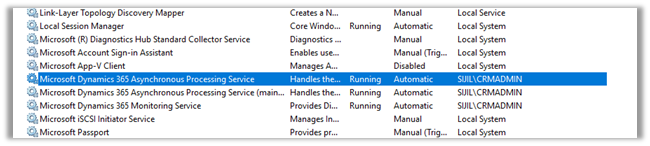
As usual first step was to check if Microsoft Dynamics 365 Asynchronous Processing Service is running it or not.

The service was disabled, so we enabled it. But still, it didn’t fix the issue.

Next thing we tried was as suggested in the below article

https://www.powerobjects.com/blog/2013/03/28/how-to-fix-a-crm-workflow-stuck-in-progress/

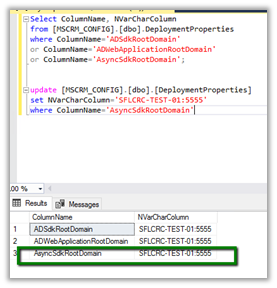
The value for AsyncSdkRootDomain was blank which we updated followed by a restart of the service. Still no luck.

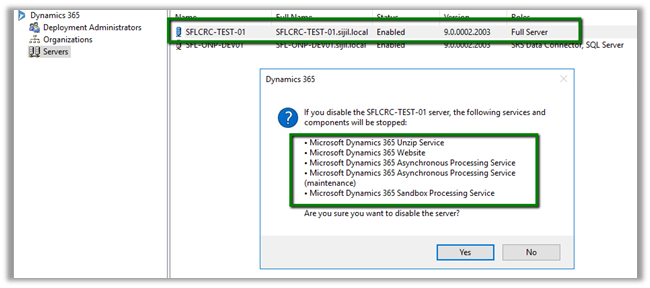
Eventually, we came to know that Servers setting for the roles Full Server were in the disabled state inside the Deployment Manager for the organization.

The reason CRM was still working because these services (including IIS Web Site) were already manually started earlier, however, the status was still disabled for this setting within Deployment Manager. (These settings were done by the network team who were planning to create the replica of these machines, and they wanted to disable the applications and our CRM technical team was unaware of it.)

Enabling it fixed the issue for it.

Hope it helps..

Fixed – DTS_E_PROCESSINPUTFAILED. The Process input method on component “Script Component” failed with error code 0x80131501 in SSIS


Recently I had written an article for Nigel Frank that list down step by step process of using XML Source Component of KingswaySoft for integration with Dynamics 365 CE

https://www.nigelfrank.com/blog/integrate-dynamics-365-for-customer-engagement-with-xml/

We have used XML Source Component to read the XML files.

The packages that we developed were running fine from Visual Studio SSDT but on deployment for one of our package that was using Script Component we were getting the below error while running from within SQL.

After a lot of debugging and spending a good amount of time to figure out the issue, we realized that the value of one of the input columns was not being passed to Script Component from XML Source component i.e. _ParentKeyField

This is a special column which XML Source Component adds for the child records through which we can associate it to the parent record.

This happens when we are running it from SQL and only for the Script Component. This worked fine while running it from within SSDT and in other packages even from SQL when we weren’t using Script Component.

As a quick fix, we applied XLST Transformation to put the same tag for the child records also and to refer that instead of _ParentKeyField

In parallel, we also asked the same question to the KingswaySoft Support team (info@kingswaysoft.com)

One thing I would like to explicitly mention is that KingswaySoft support team is one of the best out there, not only you will get the response immediately, but also their team is very knowledgeable.

Below is the response we got

As suggested after setting the RunInOptimizedMode property to False for the Data Flow components the issue got fixed.

This property indicates whether the Data Flow task runs in optimized mode (RunInOptimizedMode property). Optimized mode improves performance by removing unused columns, outputs, and components from the data flow.

Hope it helps..

Advertisements

Fixed – The Script Task uses version 15.0 script that is not supported in this release of Integration Services


Recently after deploying the SSIS packages, on one of the packages that uses Script Component, we started getting below error message

This happened because SSIS packages had target version SQL 2017 and the SQL Server version was 2016 (select @@VERSION)

The fix is to update the target version that matches the SQL Server Version.

Right click and go to project properties and update the Target Version to match and redeploy the project.

Hope this helps..

Advertisements

Fixed – Script Component has encountered an exception in user code. Value cannot be null. Parameter name: keyword in SSIS


Recently while trying to use KingswaySoft’ s CRM Connection Manager in the Script Component we got the below error

error

Turned out the issue was because of the wrong version of KingswaySoft.IntegrationToolkit.DynamicsCrm assembly being referred.

C:\Windows\Microsoft.NET\assembly\GAC_MSIL\KingswaySoft.IntegrationToolkit.DynamicsCrm

Referencing the correct one fixed it.

Hope it helps..