Resolve – This environment can’t be copied because your org (tenant) is over capacity. Request an extension (Dataverse / Dynamics 365)


When trying to overwrite another environment with a copy of Prod, the system prevented the operation due to exceeding tenant capacity limits. This copy operation is subject to environment and storage capacity constraints.
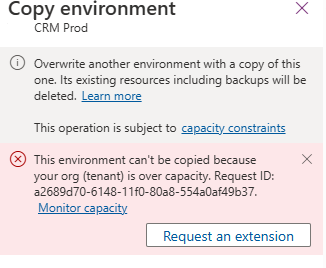
We raised a Microsoft Support Ticket and learned that we can resolve this issue by either purchasing additional storage or requesting free temporary storage to complete the copy operation.

We need to raise another support ticket for temporary storage, that includes below details

  • The amount of storage we need
  • The duration for which it should be available
  • The reason for the request

The maximum duration that can be requested is 6 months.

The maximum storage that can be requested is 200 % of what is purchased.

Thanks to Microsoft, within few mins of raising the support ticket we were provided the additional temporary storage.

We got our environment extended for 6 months with 200 GB additional capacity that allowed us to complete our copy environment.

Also check – https://nishantrana.me/2024/10/15/free-up-storage-space-activitypointerbase-and-workflowlogbase-dataverse-dynamics-365/

Hope it helps..

Advertisements

Maximise Storage usage using Allocate Capacity (preview) in Dataverse / Dynamics 365


The new Allocate Capacity feature allows administrators to manage and optimize storage allocation across different environments. It allows administrators to strategically distribute available storage among the Dataverse environments based on each environment’s unique needs ensuring each has the right amount of storage to maintain performance and avoid service interruptions.

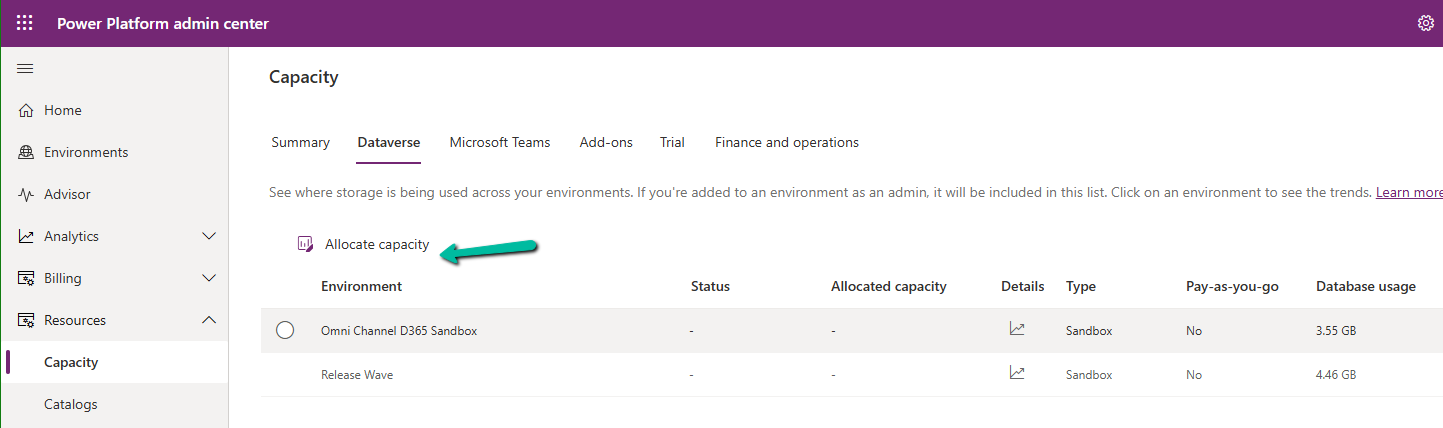
Navigate to Resources >> Capacity >> Dataverse inside the Power Platform Admin Center and select an environment to make the Allocate capacity option visible.

A close up of a pen

Description automatically generated

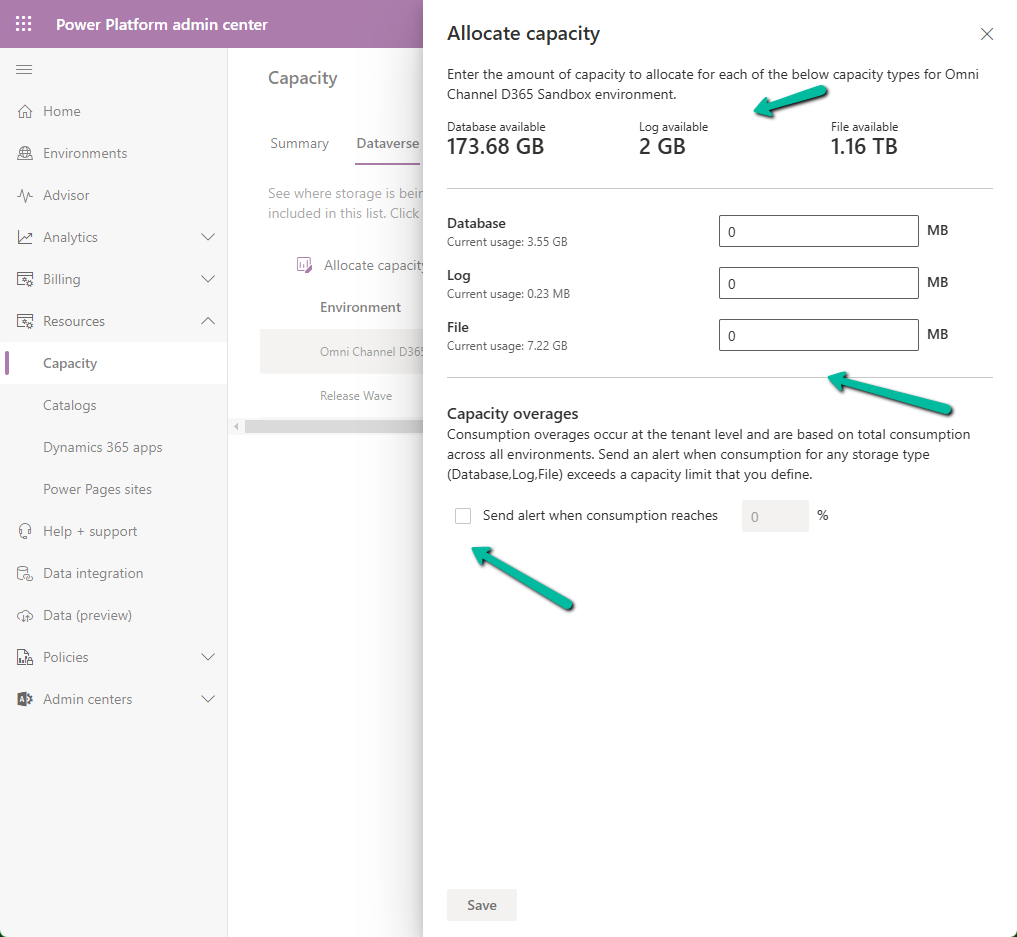
It shows the available storage, and current usage of the environment selected.

A screenshot of a computer

Description automatically generated

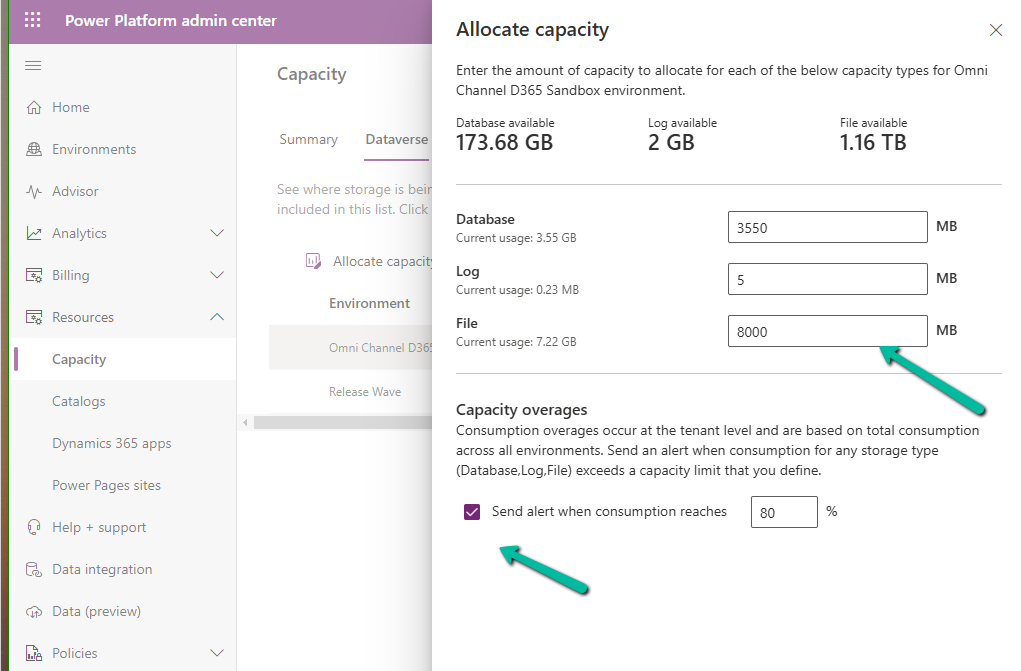
We can allocate Database, Log, and File-specific storage and also configure alerts.

A screenshot of a computer

Description automatically generated

If an environment exceeds, it shows up as “Overage” as shown below

A screenshot of a computer

Description automatically generated

Using this new feature, admins can Allocate Capacity effectively by monitoring the storage usage across environments, setting alerts when the environment nears its capacity limit, and allocating the capacity strategically e.g. production environment will get higher allocation compared to the development environment. Admins can also purchase additional storage and allocate it as required to ensure each environment runs smoothly.

Get more details

Hope it helps..

Advertisements