Fixing the “Only 1 of 2 keys provided for lookup, provide keys for dataAreaId, ProjectID / Not found” Error in Power Automate (Fin & Ops Apps)


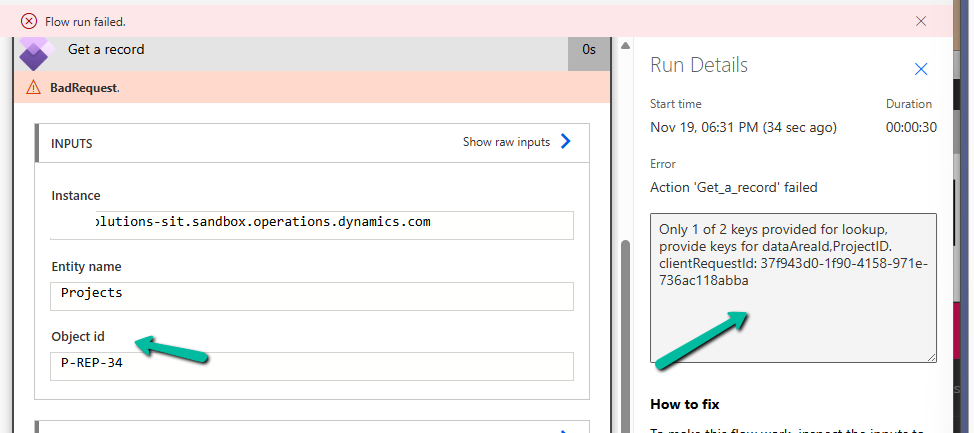
Recently, while working with the Projects table from a Finance & Operations (F&O) environment, we ran into an error while using the Get a record action in Power Automate. (BTW this was the first we were using the Fin & Ops connector)

The flow kept failing with the following message:

Only 1 of 2 keys provided for lookup, provide keys for dataAreaId, ProjectID.

This error appears when we try to fetch a record from an F&O using only the ProjectID. But unlike normal Dataverse tables, F&O tables often come with composite keys.

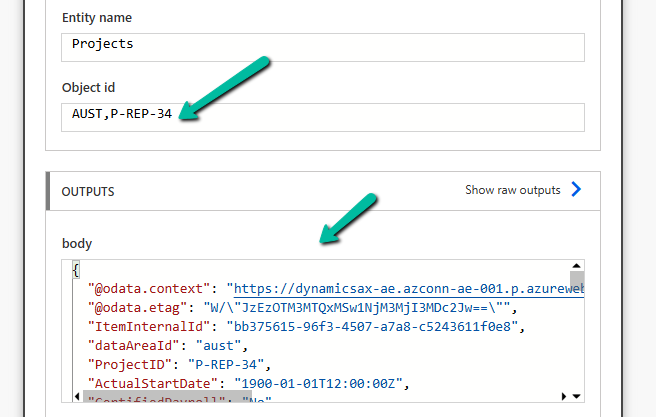
Instead of passing just the ProjectID, we must pass the full composite key in the format:

dataAreaId,ProjectID

In our case, the correct value was:

AUST P-REP-34

Below, we can see it working properly

A screenshot of a computer

AI-generated content may be incorrect.

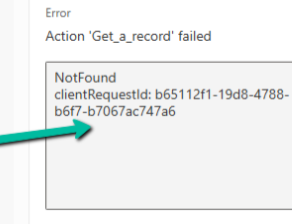
At one point, even after passing the correct composite key, we started getting a NotFound error:

Action ‘Get_a_record’ failed – NotFound

A screen shot of a computer error

AI-generated content may be incorrect.

Nothing had changed in the inputs — it was just not working. The fix was surprisingly simple..

We deleted the Get a record step, re-added it, provided the same inputs again, and the error disappeared. It could be related to the connection reference not being updated properly in the background.

Hope it helps..

Advertisements

Troubleshoot “Something happened, and we couldn’t copy to this environment” error – Dataverse /Dynamics 365 


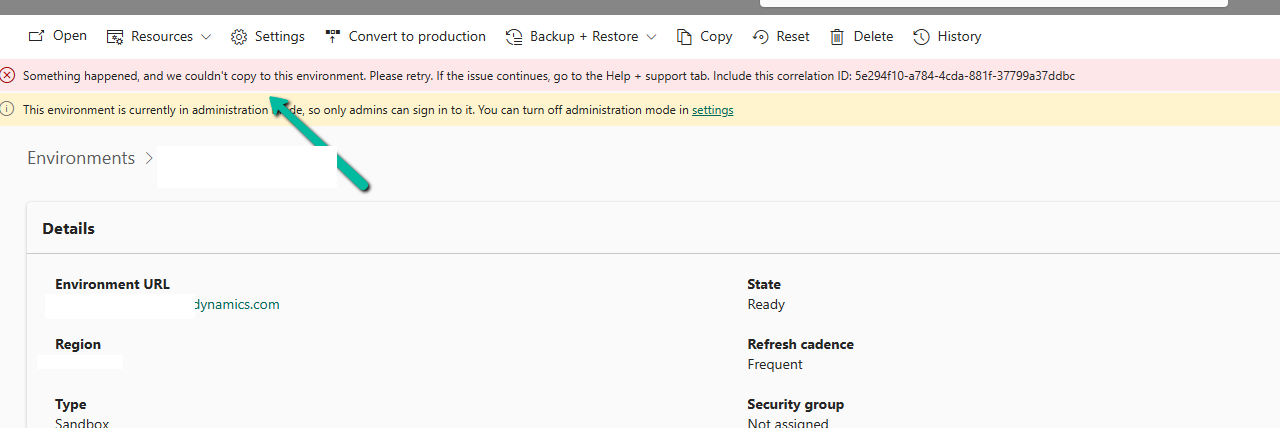
Recently, while trying to copy an environment, we got the following issue –

Something happened, and we couldn’t copy to this environment. Please retry. If the issue continues, go to the Help + support tab. Include this correlation ID: 5e294f10-a784-4cda-881f-37799a37ddbc

At first glance, this seemed serious, especially because it mentioned a correlation ID and hinted at contacting Microsoft support.

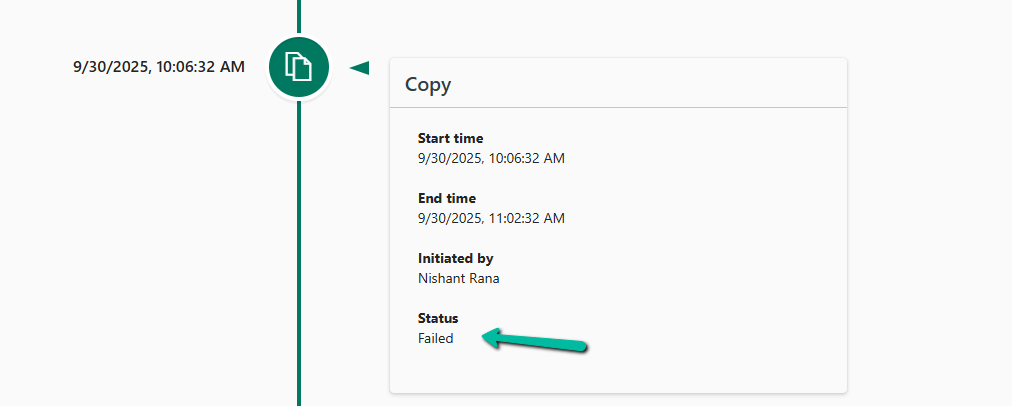
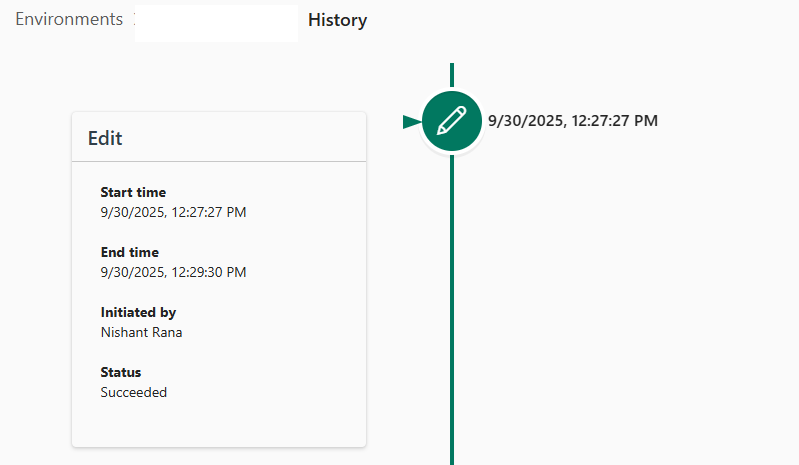
In History also we can see it showing the status as failed.

A screenshot of a computer

AI-generated content may be incorrect.

We simply retried the copy operation — and this time, it worked flawlessly.

This indicates that the issue was likely transient, possibly caused by temporary backend resource availability or network hiccups.

Takeaway: Not every red error banner means a deep technical issue. Sometimes, it’s just the system asking for another try.

Hope it helps..

Advertisements

Resolved – Environment Operation Error, while trying to copy environment (Dataverse / Power Platform)


Recently we created a new environment, and when we tried copying our production environment to it, it gave the below error.

“Environment Operation Error -Sorry, something went wrong while requesting the details of an ongoing operation”

A screenshot of a message

AI-generated content may be incorrect.

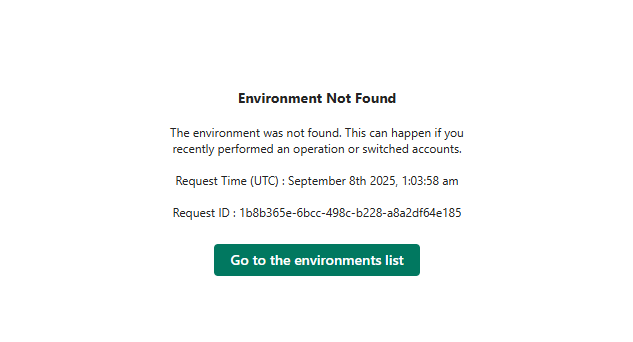
On trying to open the newly created environment, we got the below error.

“Environment Not Found -The environment was not found. This can happen if you recently performed an operation or switched accounts”

A screenshot of a computer error message

AI-generated content may be incorrect.

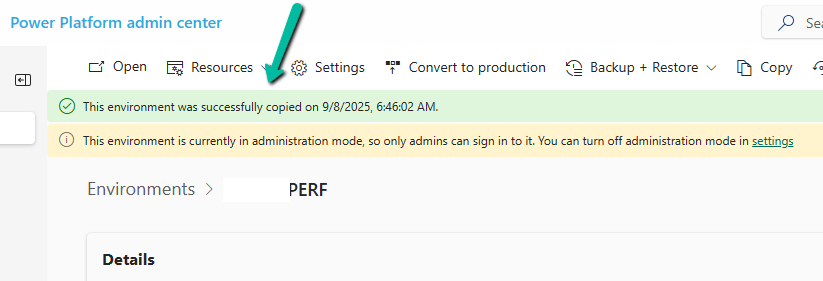
Shortly after that, we noticed the environment disappeared from the list of environments in the Power Platform Admin Center. To investigate what might have gone wrong, we raised a support ticket. However, after about an hour, the Admin Center began displaying the newly created environment we were copying to, and upon opening it, we saw the message – “The environment was successfully copied.”

A screenshot of a computer

AI-generated content may be incorrect.

We got the below explanation from Microsoft Support which clarified the behaviour – “If a copy operation begins but does not complete, particularly when using the “Copy over everything” option, the target environment may enter a missing or soft-deleted state. This is a known behavior in Power Platform, where environments can temporarily disappear from the environment list during long-running or interrupted operations.”

Hope it helps..

Advertisements

How We Reclaimed Storage from the WebResourceBase Table in Dataverse


While reviewing our Dataverse environment’s storage usage, we noticed something surprising—over 13 GB of our file capacity was being consumed by the WebResourceBase table alone. This table typically stores JavaScript files, HTML web resources, images, and other files tied to customizations in Dynamics 365. However, the volume was unexpectedly high, prompting us to investigate further.

We started by examining the capacity usage charts available under:

Power Platform Admin Center > Resources > Capacity > File Usage

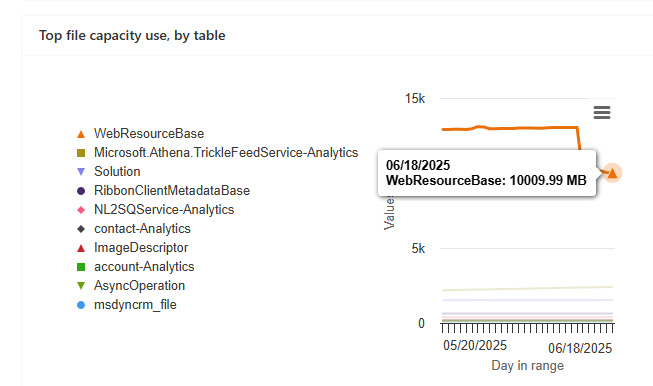
It was evident that the WebResourceBase table was consistently occupying around 13,027 MB (13 GB), far more than any other table.

Realizing that this wasn’t just normal customization data, we raised a support request with Microsoft to understand what was happening behind the scenes.

After a quick investigation, Microsoft Support responded with the following:

“Upon review, we have found that the WebResourceBase table is indeed occupying a significant amount of storage—13.027 GB. There are instances of ‘orphaned’ WebResourceBase records, which can occur due to solution uninstalls or as leftover artifacts from other entities that depend on WebResources. To address this issue, we can run a script to remove these orphaned web resources, which will help in reducing the storage used in your environment.”

These “orphaned” records are essentially detached or unused web resources—files that are no longer tied to any solution or customization but remain in storage. They commonly appear in environments where unmanaged solutions are frequently installed and removed.

Upon our approval, Microsoft executed a backend script to safely identify and remove these orphaned entries.

Post-Cleanup Results –

Before: 13,027 MB

After: 10009MB

Recovered: 3,018 MB (~3 GB)

A screenshot of a computer

AI-generated content may be incorrect.

This led to around a 24 percent reduction in the file capacity used by the WebResourceBase table.

Microsoft also confirmed that no further reduction was possible at this time—the remaining content is either actively referenced or structurally required by the platform.

Hope it helps..

Advertisements

The async operation was skipped because the org is in “Disable Background Processing” mode – Dataverse / Dynamics 365


While testing one scenario we observed one of the plugins (asynchronous) was not updating the record as expected.

Checking the System Jobs, we saw the below error.

The async operation was skipped because the org is in “Disable Background Processing” mode.

Well, this was because we had recently created this environment by copying our UAT environment and had forgotten to disable the Admin mode / enable Background operations.

A screenshot of a computer screen

AI-generated content may be incorrect.

Get more details – Administration Mode.

Hope it helps..

Cloud Flows are disabled or turned off after copying a Dataverse Environment ? (Power Automate / Power Platform)


Recently we copied our UAT environment to one of the testing environments. After copying, we saw that all the cloud flows were in Off / Disabled state.

A screenshot of a computer

Description automatically generated

This was because during copy the environment is set in administration mode and background operations are also disabled.

Flows are automatically turned off to prevent –

  • Accidental execution of automation in a copied/test environment
  • Potential integration issues due to different connectors or authentication.
  • Unintended data modifications (e.g., flows interacting with external systems like SharePoint, SQL, or APIs).

If required, we can disable the administration mode or at least enable the background operations.

A screenshot of a computer

Description automatically generated

However, the flows will not automatically switch On even if we enable either the Administration Mode or Background operations.

Here we need to switch them On manually or use PowerShell scripts or API to do so.

Refer to blog posts for details on it –

PowerShell https://www.syskit.com/blog/managing-microsoft-powerapps-and-flow-like-a-pro-part-3-managing-flows/

Console App / APIhttps://nishantrana.me/2024/06/12/enable-disable-turn-on-turn-off-multiple-cloud-flows-using-code-power-automate/

Additional Considerations –

Connection References: If the flows use connection references (like SharePoint, Dataverse, Outlook, etc.), we need to verify them in Solution > Connection References and update them if necessary.

Environment Variables: If the flows depend on environment variables (e.g., API URLs, credentials), we need to update them the new environment.

Reassign Flow Owners: If the original owner of a flow is missing from the copied environment, we need to assign a new owner.

Lastly, if flows are not behaving correctly, check the callback registration records

https://nishantrana.me/2024/06/11/fixed-flow-not-getting-triggered-callback-registration-power-automate-dataverse/

Get more details around copying the environment.

Hope it helps..

Advertisements