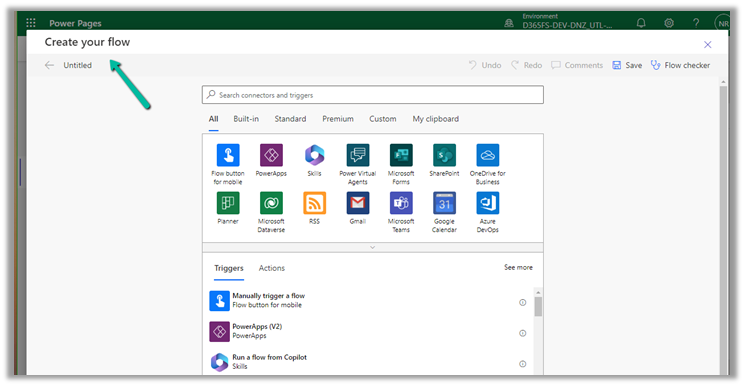
Use Solution Health Hub to troubleshoot issues in Dynamics 365 Apps (Sales, Marketing, Field Service, Customer Service..)


Using Solution Health Hub we can validate the environment’s configuration, which might get modified over time, to get an idea about the state of that environment and detect and resolve any issues. Solution Health Hub enables rules-based validations, which we can run periodically or manually if we encounter any issues. The rules also get triggered automatically when solutions are installed or updated by Microsoft. The rules check if some of the required processes are disabled or owned by a disabled user, if some of the required web resources are missing, if certain plugin steps are not active etc.

Let us open the Solution Health Hub app and see it in action.

We can see the Rule Sets created specific to different areas (app) like Sales, Marketing, Customer Service, etc.

For an environment where Field Service is configured, we can see the following rule sets.

Let us open the Field Service Rule Set and see the rules defined for it.

We can see around 31 rules defined for Field Service

For Sales, we can see around 6 rules.

Around 22 rules for Customer Service.

And around 5 rules for Marketing

To run the Rules, we need to create a new Analysis Job record and select the corresponding Rule Set.

A summary of rule-set executions will be shown in a few seconds. (runs asynchronously)

We can see one of the rules failed.

Opening the record, we can see the details.

Back in our solution, we can see the steps in the disabled state.

Back in our Analysis Job, let us select the failed rule and click on Resolve.

We can see the message “Resolution is completed.” and the rule passed.

Back inside our solution, we can also see the status as On for those steps.

Now let us run an analysis job for Field Service

On opening the record, we can see the user for which the roles are missing.

For Field Service, we can see an out-of-the-box cloud flow that runs at midnight on Saturdays to trigger the analysis job for the Field Service Rule Set.

And sends the In-app notifications.

Now if a rule fails, we can get the in-app notifications, e.g. we had set the Service Account field as optional on the Work Order form.

That caused the below rule to fail.

This also sent the notification in the app.

More details on it – https://powerusers.microsoft.com/t5/Power-Apps-Community-Blog/In-App-Notifications-on-concerns-related-to-Solution-Health-and/ba-p/1287680

Also, for each of the rules, we can see a corresponding Action that holds the logic.

Hope it helps..

Advertisements

Deploy Web Resources and Plugin directly from Visual Studio using Kupp Code Analytics


In the previous posts, we covered the Overview and Key Features of Kupp Code Analytics, the installation and setup process of the extension, its Intellisense capabilities, and the analytics capabilities.

In this blog post, we will cover deploying Web Resources and Plugin directly from Visual Studio using the Kupp Code Analytics extension, which makes the process more efficient and less error-prone compared to doing it manually.

Suppose we have the following JavaScript and Image file that we want to deploy to our Dataverse / Dynamics 365.

We can right-click the file and select the option “Deploy to D365

In the Output window, we can see both the Web Resources created.

Now let us make changes to our JavaScript file – MySample.cs and click on Deploy to D365.

This time in the output window we can see the file getting updated instead of getting created.

We can see the Web Resources files created and updated for the connected environment inside the Maker Portal.

Similarly, we can deploy or update our Plugins from within Visual Studio. Here we need to make sure our Plugin Assembly is already registered.

Below we have the following assembly already registered.

Let us update our Plugin Class and select the “Deploy to D365” option for the plugin project. We have added a new plugin class called MySamplePlugin.

As expected we can see our plugin updated from the Output window.

From Plugin Registration Tool we can see our plugin assembly updated.

Hope it helps..

Advertisements
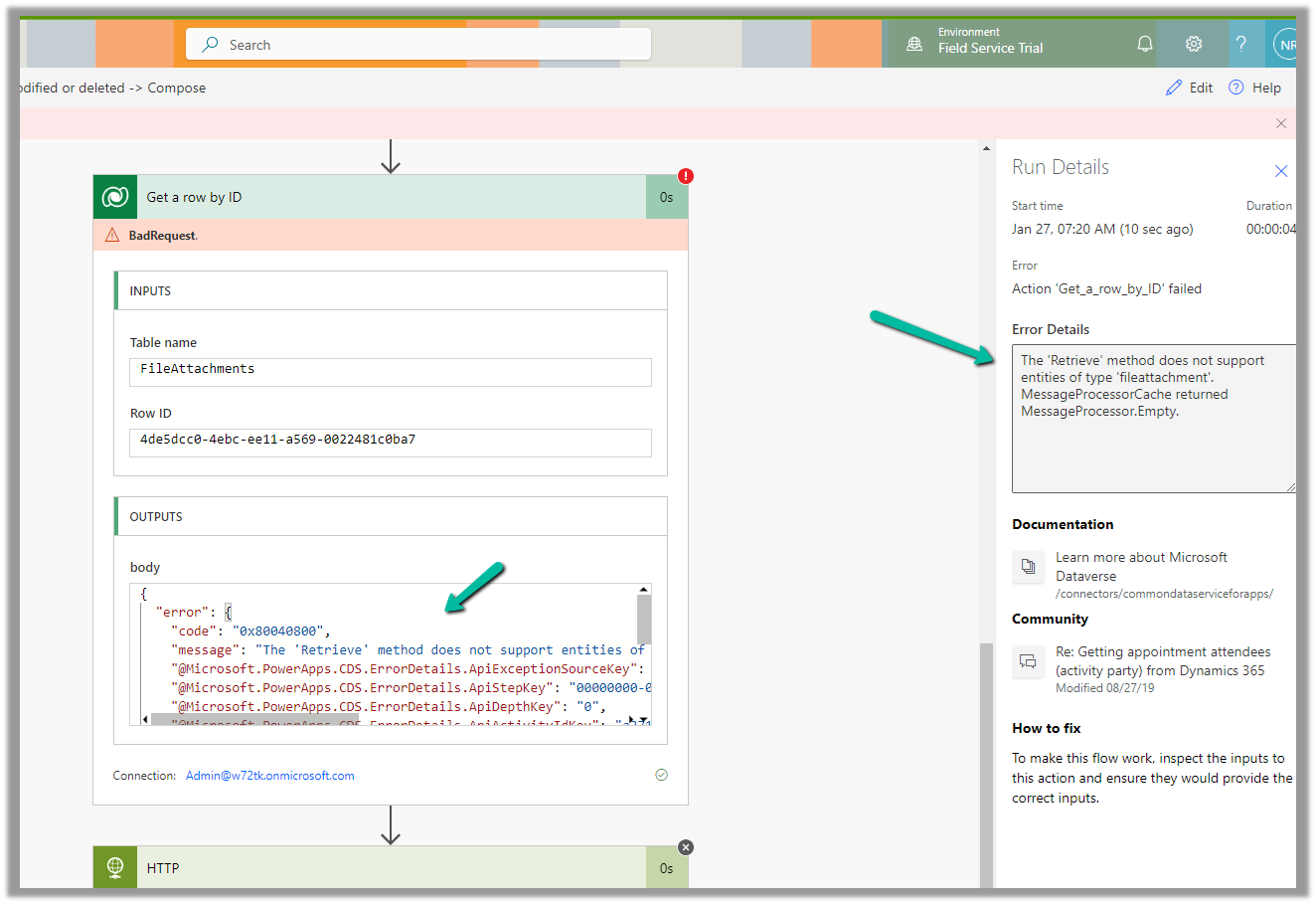
Use Sales Copilot to prepare for upcoming meetings


Sales Copilot can help salespersons prepare for upcoming meetings using the “Prepare for upcoming meetings / Prepare me for today’s meetings” prompt.

Make sure you have Sales Copilot enabled.

Navigate to Sales Hub >> App Settings >> Copilot (General Settings)

Check the “Try our newest preview features before they’re rolled out to everyone” option and select the Apps on which we want to enable the copilot.

Within Sales Copilot, we could select the prompt “Prepare me for today’s meetings

or select the Sparke Icon and select “Prepare for upcoming meetings

Copilot will list down the appointments in the next 24 hours.

Select one of the appointments and click on Prepare.

The Copilot will generate the summary using the notes from the last 3 months and recent emails from the Regarding record of the appointment.

Check other posts on Copilot –

Hope it helps..

Advertisements
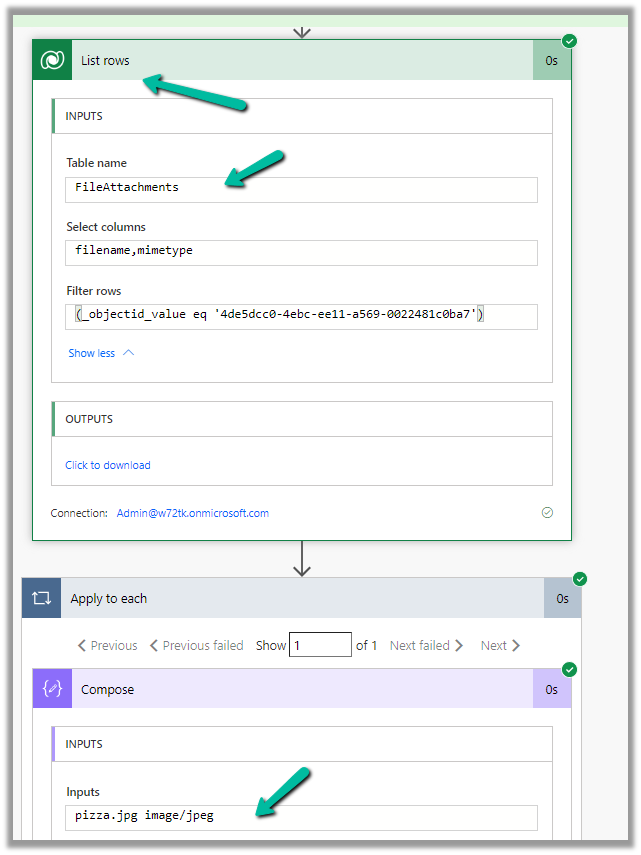
Enable / Disable (turn on / off) multiple business rules – Dataverse / Dynamics 365


Within the Maker Portal, we can only turn on / turn off one business rule at a time.

If we select multiple business rules, we do not see that option.

Here we can make use of XrmToolBox’s Bulk Update Plugin.

Get the required business rules, using the FetchXML and use the Set State option to update the status of the business rule.

Here Category = 2 is Business Rule and Type = 1 is Activated.

The other values for type are Definition and Template.

Get more details on the type – https://sachinbansal.blog/2018/05/02/error-while-deactivating-workflows-should-be-exactly-1-messageprocessingstep-registered-for-workflow-dynamics-365/

We can also use the Advanced Find editor to activate/deactivate the business rules.

We can see our business rule activated.

Similarly, we can enable and disable multiple cloud flows –

Hope it helps..

Advertisements

Business Rules in Bulk Edit and Import (Dataverse / Dynamics 365)


Let us see an example of a Business Rule with scope as Table (Entity) triggering on Bulk Edit as well as Data Import.

Below is our Business Rule – It shows the error message if the First Name is equal to the Last Name of Contact.

Here we are bulk updating the contact records and setting the last name same as the first name.

We can see the exception being thrown.

Below are the exception details –

Now let us try exporting/importing these records by setting the same value for both the first name and last name fields.

On Importing the Excel, we can see the records as partially failed.

We can see our error message in the Failures tab of the import record.

Similarly, let us check another Business Rule that sets’s description value based on the value of the First Name field.

Below we are bulk updating the contact record’s first name field.

We can see the Description field updated.

Now let us try the export and import of some of the records after updating its first name

Before –

After –

The import record status shows success

As expected that triggered the business rule

Hope it helps..

Photo by Monstera Production on Pexels.com
Advertisements
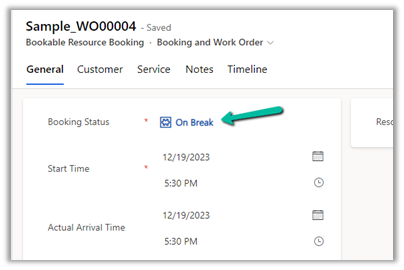
The webhook call failed because the Http request timed out at client side. Please check your webhook request handler – Dataverse / Dynamics 365


Recently we were getting the below for one of our webhooks registered on Update of lead.

Exception Message: The webhook call failed because the Http request timed out at client side. Please check your webhook request handler.

To test the timeout, we created a below Microsoft Flow with HTTP trigger, Delay and actions to be used as Webhook.

Helpful post – https://d365demystified.com/2021/11/23/call-flow-from-webhooks-in-dynamics-365-crm-power-automate/

Let us register this through the Plugin Registration tool.

We can get the values from the HTTP Post URL Generated.

For the Endpoint URL, enter URL Path and use Params for Key and Values.

Register the synchronous step on the update of the lead for the webhook

Let us trigger the flow, right now we have Delay set as 10 seconds.

The flow runs successfully as expected.

Now let us update the delay to 61 seconds and trigger the flow again by updating the lead record.

As expected we get the time-out error this time.

The same is the case if we register the plugin step asynchronously.

For the asynchronous step, we can check the corresponding system job for the error.

https://learn.microsoft.com/en-us/dynamics365/customerengagement/on-premises/developer/use-webhooks?view=op-9-1#possible-causes-for-failure

Hope it helps..

Advertisements