
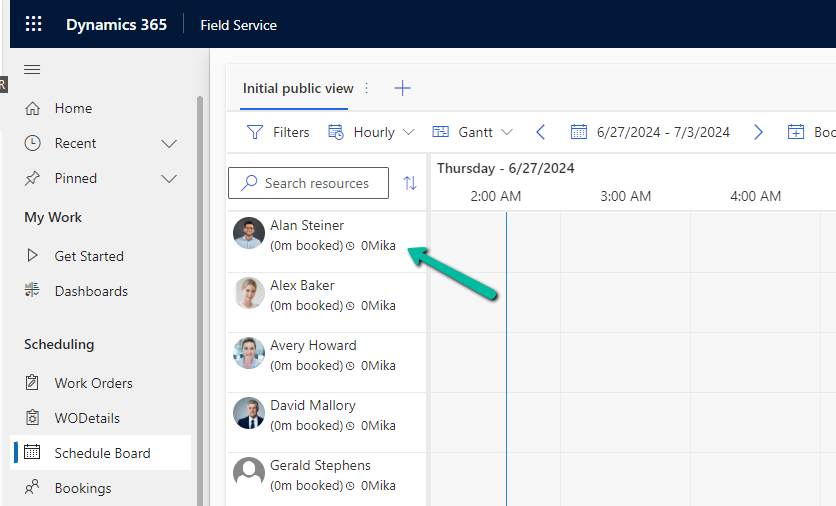
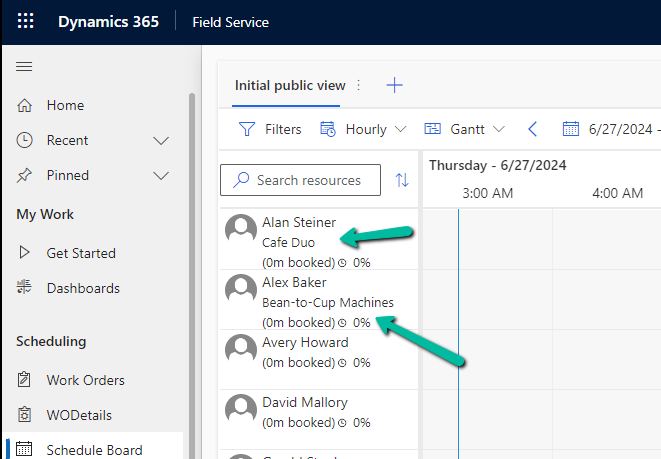
Below we can see the resource cell template (or view) applied that defines the images, values, and fields displayed for the resource in the Schedule Board.
Now suppose we want to show the Account (custom field) value also, that would make it easy for the Dispatcher to schedule them from within the Schedule board.

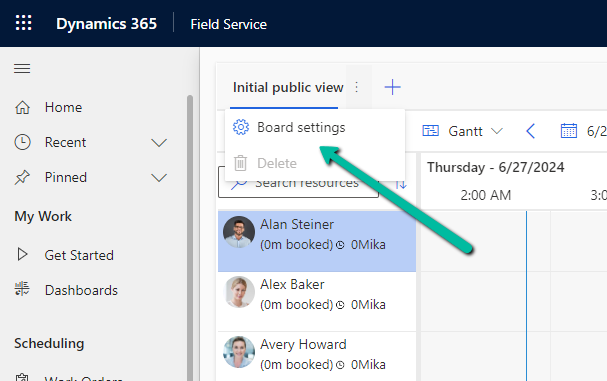
For this, we need to select Board Settings for the Schedule Board.
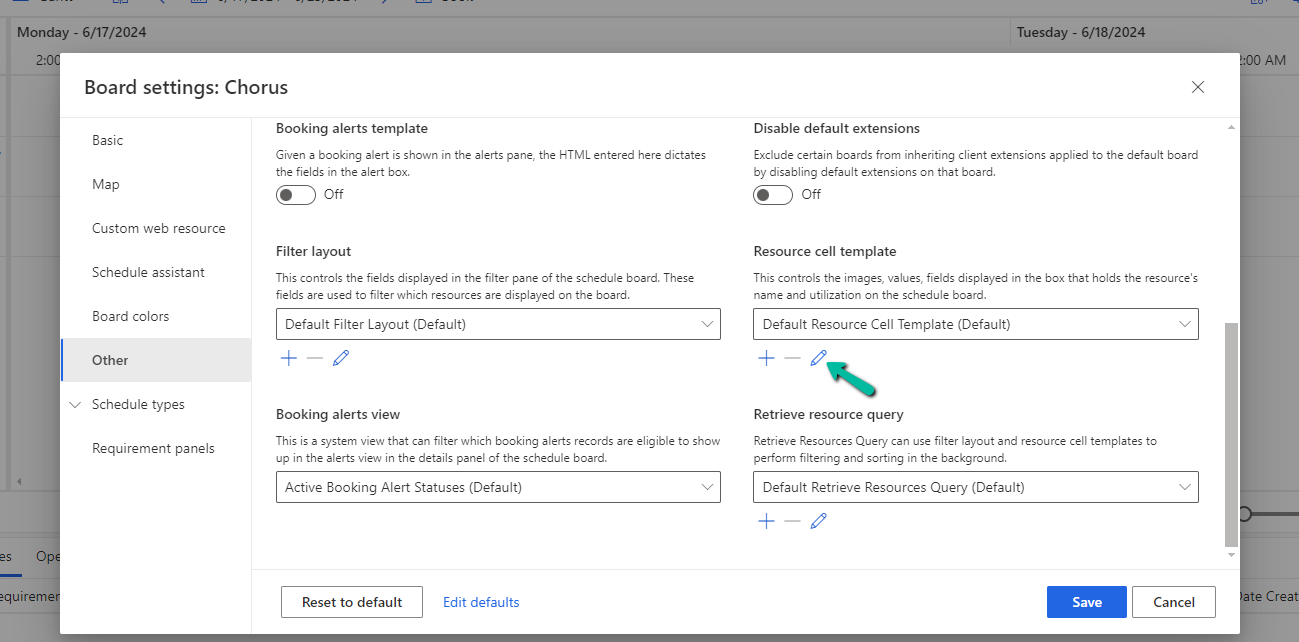
Navigate to the Other section within the Board Settings.
We’d first start by adding/defining a new Resource Cell Template and a new Retrieve resource query template.
We have added below Div tag below to show the account name.
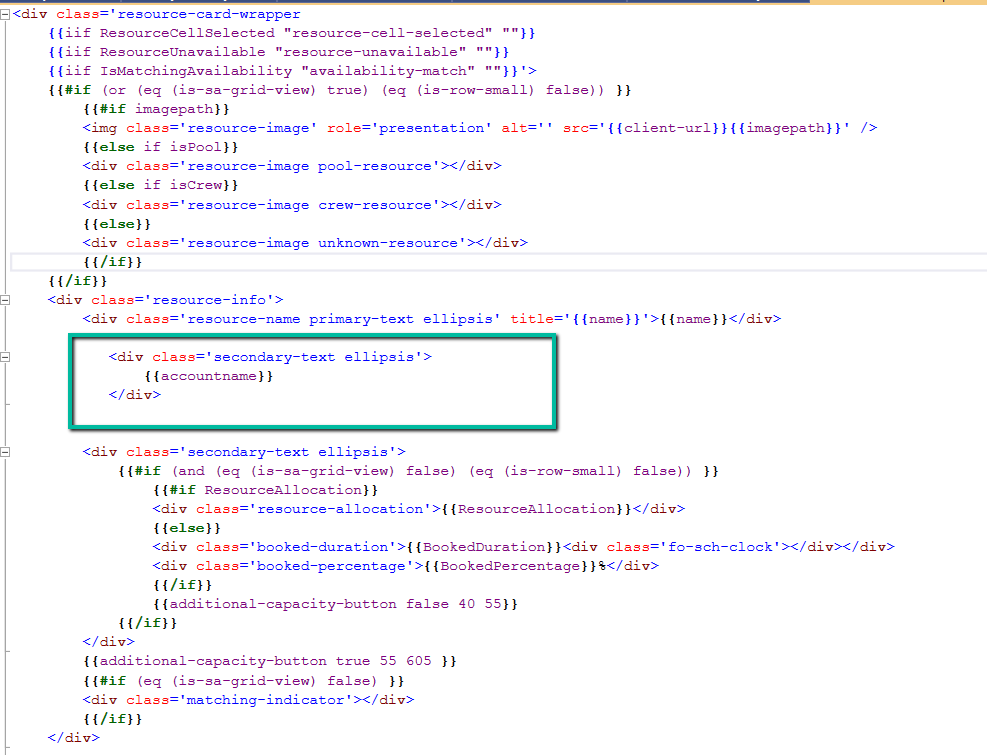
Save this new template
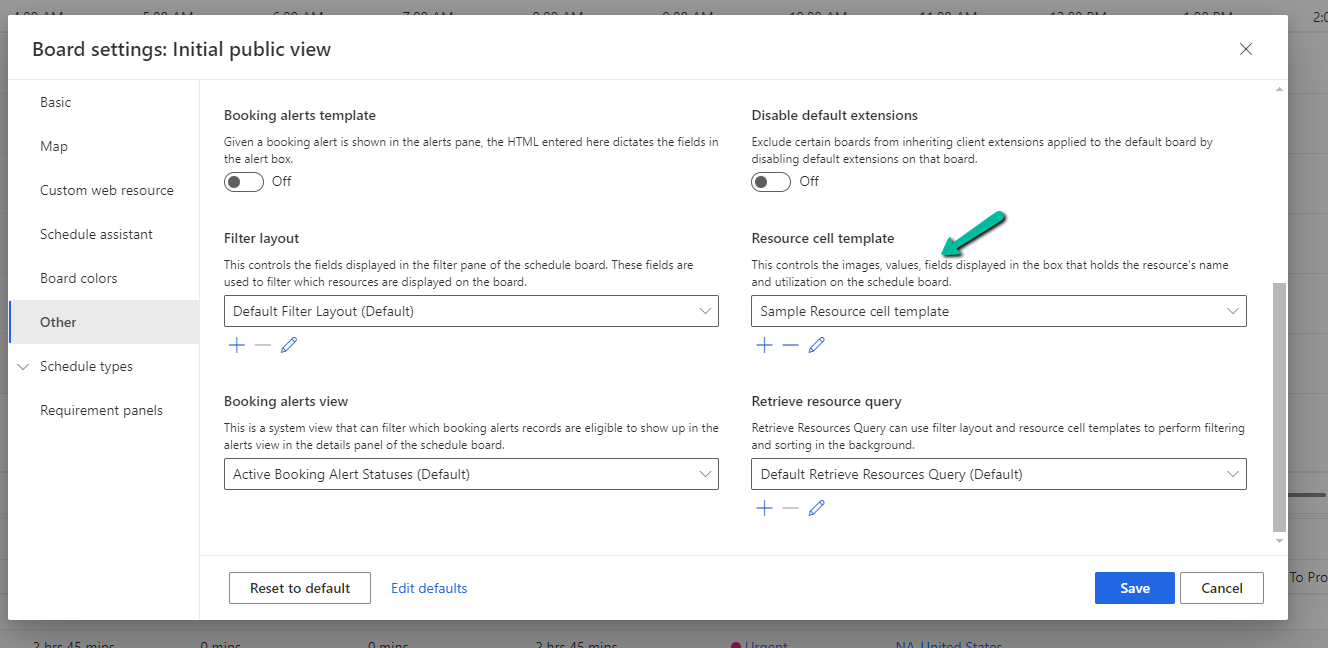
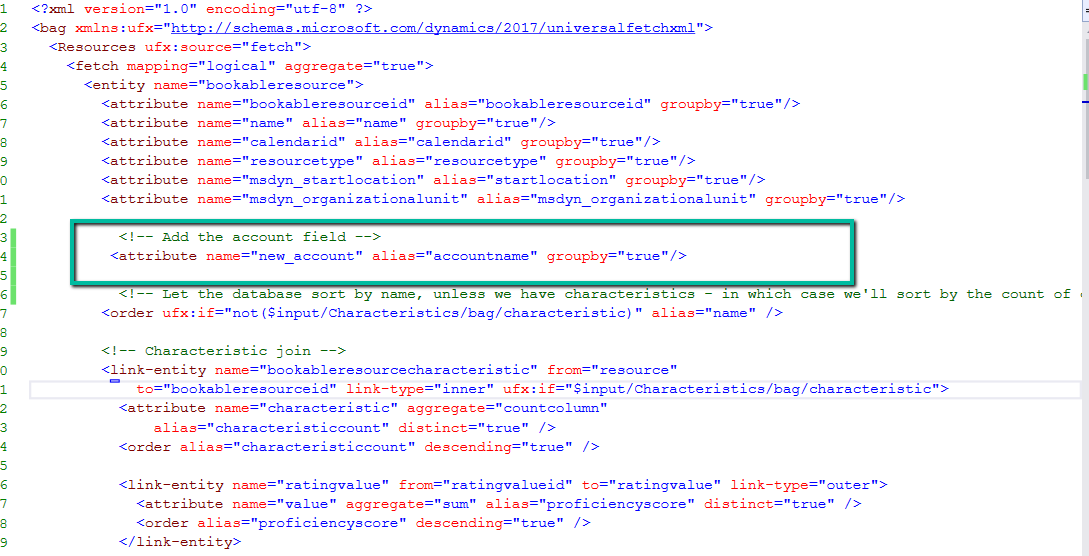
Next, add the below attribute tag for the account field in the Fetch XML for it to retrieve the value of the account, here name property holds the schema name of the field.
Select Save as new to add the new template.

On refreshing the Schedule Board we can see the Account value added to the view, however, it shows the Guid of the account record.
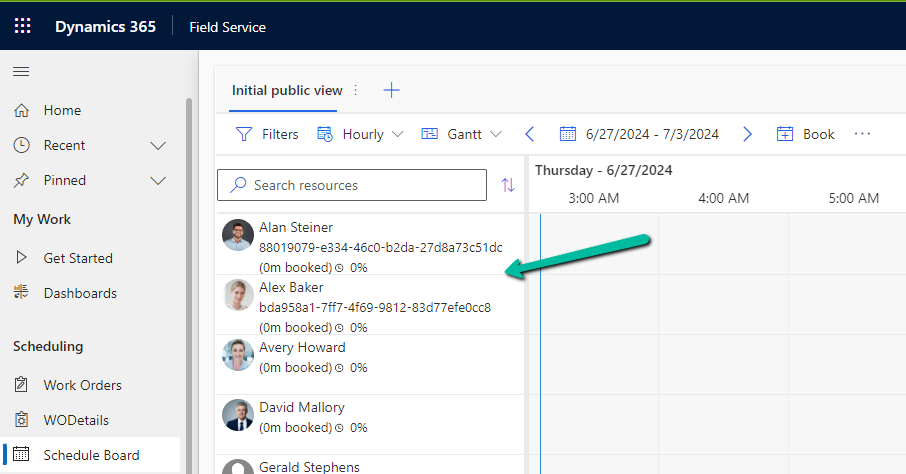
To get the label /name, edit the Resource Cell Template and add the below UFX Bag (UFX directives for querying the data) to fetch the name of the account.

Update the Sample Resource Query, Save the changes, and refresh the schedule board.
We can see the Guid replaced by the Account name there.
Resource Cell Template –
<?xml version="1.0" encoding="utf-8" ?>
<bag xmlns:ufx="http://schemas.microsoft.com/dynamics/2017/universalfetchxml">
  <Resources ufx:source="fetch">
    <fetch mapping="logical" aggregate="true">
      <entity name="bookableresource">
        <attribute name="bookableresourceid" alias="bookableresourceid" groupby="true"/>
        <attribute name="name" alias="name" groupby="true"/>
        <attribute name="calendarid" alias="calendarid" groupby="true"/>
        <attribute name="resourcetype" alias="resourcetype" groupby="true"/>
        <attribute name="msdyn_startlocation" alias="startlocation" groupby="true"/>
        <attribute name="msdyn_organizationalunit" alias="msdyn_organizationalunit" groupby="true"/>

          <!-- Add the account field -->
         <attribute name="new_account" alias="accountname" groupby="true"/>

          <!-- Let the database sort by name, unless we have characteristics - in which case we'll sort by the count of characteristics -->
        <order ufx:if="not($input/Characteristics/bag/characteristic)" alias="name" />

        <!-- Characteristic join -->
        <link-entity name="bookableresourcecharacteristic" from="resource"
            to="bookableresourceid" link-type="inner" ufx:if="$input/Characteristics/bag/characteristic">
          <attribute name="characteristic" aggregate="countcolumn"
              alias="characteristiccount" distinct="true" />
          <order alias="characteristiccount" descending="true" />

          <link-entity name="ratingvalue" from="ratingvalueid" to="ratingvalue" link-type="outer">
            <attribute name="value" aggregate="sum" alias="proficiencyscore" distinct="true" />
            <order alias="proficiencyscore" descending="true" />
          </link-entity>

          <filter>
            <condition attribute="statecode" operator="eq" value="0" />
          </filter>
        </link-entity>

        <!-- Characteristic filter -->
        <filter type="or" ufx:if="$input/Characteristics/bag/characteristic">
          <ufx:apply select="$input/Characteristics/bag">
            <filter type="and">
              <condition entityname="bookableresourcecharacteristic" attribute="characteristic" operator="eq">
                <ufx:value select="characteristic" attribute="value" />
              </condition>
              <condition entityname="ratingvalue" attribute="value" operator="ge" ufx:if="ratingvalue">
                <ufx:value select="ratingvalue" attribute="value" />
              </condition>
            </filter>
          </ufx:apply>
        </filter>

        <!-- Category join -->
        <link-entity name="bookableresourcecategoryassn" from="resource" to="bookableresourceid" link-type="inner" ufx:if="$input/Roles/bag">
          <attribute name="resourcecategory" aggregate="countcolumn" alias="rolecount" distinct="true" />

          <filter>
            <condition attribute="statecode" operator="eq" value="0" />
            <condition operator="in" attribute="resourcecategory">
              <ufx:apply select="$input/Roles/bag">
                <value>
                  <ufx:value select="@ufx-id" />
                </value>
              </ufx:apply>
            </condition>
          </filter>
        </link-entity>

        <!-- Territory join -->
        <link-entity ufx:if="$input/Territories/bag | $input/UnspecifiedTerritory[. = 'true']" name="msdyn_resourceterritory" from="msdyn_resource" to="bookableresourceid" alias="territory" link-type="outer">
          <filter>
            <condition attribute="statecode" operator="eq" value="0" />
            <condition attribute="msdyn_territory" operator="not-null" />
          </filter>
        </link-entity>

        <!-- Territory filter -->
        <filter type="or">
          <condition ufx:if="$input/UnspecifiedTerritory[. = 'true']" entityname="territory" attribute="msdyn_territory" operator="null" />

          <condition ufx:if="$input/Territories/bag" entityname="territory" attribute="msdyn_territory" operator="in">
            <ufx:apply select="$input/Territories/bag">
              <value>
                <ufx:value select="@ufx-id" />
              </value>
            </ufx:apply>
          </condition>
        </filter>

        <filter type="and">
          <condition attribute="statecode" operator="eq" value="0" />

          <!-- Must choose from resource filter -->
          <condition ufx:if="$input/MustChooseFromResources/bag" attribute="bookableresourceid" operator="in">
            <ufx:apply select="$input/MustChooseFromResources/bag">
              <value>
                <ufx:value select="@ufx-id" />
              </value>
            </ufx:apply>
          </condition>

          <!-- Restricted resource filter -->
          <condition ufx:if="$input/RestrictedResources/bag" attribute="bookableresourceid" operator="not-in">
            <ufx:apply select="$input/RestrictedResources/bag">
              <value>
                <ufx:value select="@ufx-id" />
              </value>
            </ufx:apply>
          </condition>

          <!-- DisplayOnScheduleBoard and DisplayOnScheduleAssistant filter -->
          <condition attribute="msdyn_displayonscheduleboard" operator="eq" value="1" ufx:if="$input/DisplayOnScheduleBoard[. = 'true']" />
          <condition attribute="msdyn_displayonscheduleassistant" operator="eq" value="1" ufx:if="$input/DisplayOnScheduleAssistant[. = 'true']" />

          <!-- Organizational unit filter -->
          <condition operator="in" attribute="msdyn_organizationalunit" ufx:if="$input/OrganizationalUnits/bag">
            <ufx:apply select="$input/OrganizationalUnits/bag">
              <value>
                <ufx:value select="@ufx-id" />
              </value>
            </ufx:apply>
          </condition>

          <!-- Resource & Pool type filter -->
          <condition attribute="resourcetype" operator="in" ufx:if="$input/ResourceTypes/bag/option">
            <ufx:apply select="$input/ResourceTypes/bag/option">
              <value>
                <ufx:value select="." />
              </value>
            </ufx:apply>
          </condition>
          <filter type="or" ufx:if="$input/PoolTypes/bag/option">
            <condition attribute="msdyn_pooltype" operator="null" />
            <condition attribute="msdyn_pooltype" operator="contain-values">
              <ufx:apply select="$input/PoolTypes/bag/option">
                <value>
                  <ufx:value select="." />
                </value>
              </ufx:apply>
            </condition>
          </filter>
        </filter>

        <link-entity name="systemuser" from="systemuserid" to="userid" link-type="outer">
          <!-- If Business Units or Teams are supplied, assume only users are to be returned -->
          <ufx:value ufx:if="$input/BusinessUnits/bag | $input/Teams/bag" select="'inner'" attribute="link-type" />

          <attribute name="systemuserid" alias="systemuserid" groupby="true" />
          <attribute name="entityimage_url" alias="userimagepath" groupby="true"/>

          <!-- User and Teams filter -->
          <link-entity name="teammembership" from="systemuserid" to="systemuserid" link-type="inner" ufx:if="$input/Teams/bag">
            <filter type="and" >
              <condition operator="in" attribute="teamid">
                <ufx:apply select="$input/Teams/bag">
                  <value>
                    <ufx:value select="@ufx-id" />
                  </value>
                </ufx:apply>
              </condition>
            </filter>
          </link-entity>

          <!-- User Businessunits filter -->
          <filter type="and" ufx:if="$input/BusinessUnits/bag">
            <condition operator="in" attribute="businessunitid">
              <ufx:apply select="$input/BusinessUnits/bag">
                <value>
                  <ufx:value select="@ufx-id" />
                </value>
              </ufx:apply>
            </condition>
          </filter>
        </link-entity>

        <link-entity name="contact" from="contactid" to="contactid" link-type="outer">
          <attribute name="contactid" alias="contactid" groupby="true"/>
          <attribute name="entityimage_url" alias="contactimagepath" groupby="true"/>
        </link-entity>

        <link-entity name="account" from="accountid" to="accountid" link-type="outer">
          <attribute name="accountid" alias="accountid" groupby="true"/>
          <attribute name="entityimage_url" alias="accountimagepath" groupby="true"/>
        </link-entity>
      </entity>
    </fetch>

     <!-- Add the account field, to show Lookup' Name / Label and not the Guid -->
    <bag>
        <accountname ufx:select="accountname/@ufx-formatvalue"></accountname>
    </bag>


    <bag>
      <imagepath ufx:select="accountimagepath | contactimagepath | userimagepath" />
      <accountimagepath ufx:select="$null" />
      <contactimagepath ufx:select="$null" />
      <userimagepath ufx:select="$null" />

    </bag>


  </Resources>

  <Resources ufx:if="$input/Characteristics/bag/characteristic" ufx:select="list(Resources/bag[characteristiccount = count($input/Characteristics/bag/characteristic)])" />
  <Resources ufx:select="order(Resources, iif($input/Orders/bag, $input/Orders, 'name'))" />
</bag>
Resource Query –
<?xml version="1.0" encoding="utf-8" ?>
<bag xmlns:ufx="http://schemas.microsoft.com/dynamics/2017/universalfetchxml">
  <Resources ufx:source="fetch">
    <fetch mapping="logical" aggregate="true">
      <entity name="bookableresource">
        <attribute name="bookableresourceid" alias="bookableresourceid" groupby="true"/>
        <attribute name="name" alias="name" groupby="true"/>
        <attribute name="calendarid" alias="calendarid" groupby="true"/>
        <attribute name="resourcetype" alias="resourcetype" groupby="true"/>
        <attribute name="msdyn_startlocation" alias="startlocation" groupby="true"/>
        <attribute name="msdyn_organizationalunit" alias="msdyn_organizationalunit" groupby="true"/>

          <!-- Add the account field -->
         <attribute name="new_account" alias="accountname" groupby="true"/>

          <!-- Let the database sort by name, unless we have characteristics - in which case we'll sort by the count of characteristics -->
        <order ufx:if="not($input/Characteristics/bag/characteristic)" alias="name" />

        <!-- Characteristic join -->
        <link-entity name="bookableresourcecharacteristic" from="resource"
            to="bookableresourceid" link-type="inner" ufx:if="$input/Characteristics/bag/characteristic">
          <attribute name="characteristic" aggregate="countcolumn"
              alias="characteristiccount" distinct="true" />
          <order alias="characteristiccount" descending="true" />

          <link-entity name="ratingvalue" from="ratingvalueid" to="ratingvalue" link-type="outer">
            <attribute name="value" aggregate="sum" alias="proficiencyscore" distinct="true" />
            <order alias="proficiencyscore" descending="true" />
          </link-entity>

          <filter>
            <condition attribute="statecode" operator="eq" value="0" />
          </filter>
        </link-entity>

        <!-- Characteristic filter -->
        <filter type="or" ufx:if="$input/Characteristics/bag/characteristic">
          <ufx:apply select="$input/Characteristics/bag">
            <filter type="and">
              <condition entityname="bookableresourcecharacteristic" attribute="characteristic" operator="eq">
                <ufx:value select="characteristic" attribute="value" />
              </condition>
              <condition entityname="ratingvalue" attribute="value" operator="ge" ufx:if="ratingvalue">
                <ufx:value select="ratingvalue" attribute="value" />
              </condition>
            </filter>
          </ufx:apply>
        </filter>

        <!-- Category join -->
        <link-entity name="bookableresourcecategoryassn" from="resource" to="bookableresourceid" link-type="inner" ufx:if="$input/Roles/bag">
          <attribute name="resourcecategory" aggregate="countcolumn" alias="rolecount" distinct="true" />

          <filter>
            <condition attribute="statecode" operator="eq" value="0" />
            <condition operator="in" attribute="resourcecategory">
              <ufx:apply select="$input/Roles/bag">
                <value>
                  <ufx:value select="@ufx-id" />
                </value>
              </ufx:apply>
            </condition>
          </filter>
        </link-entity>

        <!-- Territory join -->
        <link-entity ufx:if="$input/Territories/bag | $input/UnspecifiedTerritory[. = 'true']" name="msdyn_resourceterritory" from="msdyn_resource" to="bookableresourceid" alias="territory" link-type="outer">
          <filter>
            <condition attribute="statecode" operator="eq" value="0" />
            <condition attribute="msdyn_territory" operator="not-null" />
          </filter>
        </link-entity>

        <!-- Territory filter -->
        <filter type="or">
          <condition ufx:if="$input/UnspecifiedTerritory[. = 'true']" entityname="territory" attribute="msdyn_territory" operator="null" />

          <condition ufx:if="$input/Territories/bag" entityname="territory" attribute="msdyn_territory" operator="in">
            <ufx:apply select="$input/Territories/bag">
              <value>
                <ufx:value select="@ufx-id" />
              </value>
            </ufx:apply>
          </condition>
        </filter>

        <filter type="and">
          <condition attribute="statecode" operator="eq" value="0" />

          <!-- Must choose from resource filter -->
          <condition ufx:if="$input/MustChooseFromResources/bag" attribute="bookableresourceid" operator="in">
            <ufx:apply select="$input/MustChooseFromResources/bag">
              <value>
                <ufx:value select="@ufx-id" />
              </value>
            </ufx:apply>
          </condition>

          <!-- Restricted resource filter -->
          <condition ufx:if="$input/RestrictedResources/bag" attribute="bookableresourceid" operator="not-in">
            <ufx:apply select="$input/RestrictedResources/bag">
              <value>
                <ufx:value select="@ufx-id" />
              </value>
            </ufx:apply>
          </condition>

          <!-- DisplayOnScheduleBoard and DisplayOnScheduleAssistant filter -->
          <condition attribute="msdyn_displayonscheduleboard" operator="eq" value="1" ufx:if="$input/DisplayOnScheduleBoard[. = 'true']" />
          <condition attribute="msdyn_displayonscheduleassistant" operator="eq" value="1" ufx:if="$input/DisplayOnScheduleAssistant[. = 'true']" />

          <!-- Organizational unit filter -->
          <condition operator="in" attribute="msdyn_organizationalunit" ufx:if="$input/OrganizationalUnits/bag">
            <ufx:apply select="$input/OrganizationalUnits/bag">
              <value>
                <ufx:value select="@ufx-id" />
              </value>
            </ufx:apply>
          </condition>

          <!-- Resource & Pool type filter -->
          <condition attribute="resourcetype" operator="in" ufx:if="$input/ResourceTypes/bag/option">
            <ufx:apply select="$input/ResourceTypes/bag/option">
              <value>
                <ufx:value select="." />
              </value>
            </ufx:apply>
          </condition>
          <filter type="or" ufx:if="$input/PoolTypes/bag/option">
            <condition attribute="msdyn_pooltype" operator="null" />
            <condition attribute="msdyn_pooltype" operator="contain-values">
              <ufx:apply select="$input/PoolTypes/bag/option">
                <value>
                  <ufx:value select="." />
                </value>
              </ufx:apply>
            </condition>
          </filter>
        </filter>

        <link-entity name="systemuser" from="systemuserid" to="userid" link-type="outer">
          <!-- If Business Units or Teams are supplied, assume only users are to be returned -->
          <ufx:value ufx:if="$input/BusinessUnits/bag | $input/Teams/bag" select="'inner'" attribute="link-type" />

          <attribute name="systemuserid" alias="systemuserid" groupby="true" />
          <attribute name="entityimage_url" alias="userimagepath" groupby="true"/>

          <!-- User and Teams filter -->
          <link-entity name="teammembership" from="systemuserid" to="systemuserid" link-type="inner" ufx:if="$input/Teams/bag">
            <filter type="and" >
              <condition operator="in" attribute="teamid">
                <ufx:apply select="$input/Teams/bag">
                  <value>
                    <ufx:value select="@ufx-id" />
                  </value>
                </ufx:apply>
              </condition>
            </filter>
          </link-entity>

          <!-- User Businessunits filter -->
          <filter type="and" ufx:if="$input/BusinessUnits/bag">
            <condition operator="in" attribute="businessunitid">
              <ufx:apply select="$input/BusinessUnits/bag">
                <value>
                  <ufx:value select="@ufx-id" />
                </value>
              </ufx:apply>
            </condition>
          </filter>
        </link-entity>

        <link-entity name="contact" from="contactid" to="contactid" link-type="outer">
          <attribute name="contactid" alias="contactid" groupby="true"/>
          <attribute name="entityimage_url" alias="contactimagepath" groupby="true"/>
        </link-entity>

        <link-entity name="account" from="accountid" to="accountid" link-type="outer">
          <attribute name="accountid" alias="accountid" groupby="true"/>
          <attribute name="entityimage_url" alias="accountimagepath" groupby="true"/>
        </link-entity>
      </entity>
    </fetch>

     <!-- Add the account field, to show Lookup' Name / Label and not the Guid -->
    <bag>
        <accountname ufx:select="accountname/@ufx-formatvalue"></accountname>
    </bag>


    <bag>
      <imagepath ufx:select="accountimagepath | contactimagepath | userimagepath" />
      <accountimagepath ufx:select="$null" />
      <contactimagepath ufx:select="$null" />
      <userimagepath ufx:select="$null" />

    </bag>


  </Resources>

  <Resources ufx:if="$input/Characteristics/bag/characteristic" ufx:select="list(Resources/bag[characteristiccount = count($input/Characteristics/bag/characteristic)])" />
  <Resources ufx:select="order(Resources, iif($input/Orders/bag, $input/Orders, 'name'))" />
</bag>
Get more details –
https://www.linkedin.com/pulse/extending-schedule-boardif-i-can-do-you-too-scott-lefante/
Customize the schedule board with a custom resource attribute
Schedule Board Extensibility in Microsoft Dynamics 365 Field Service
Hope it helps..












 Nishant Rana's Weblog