How to – Migrate multi-select option sets in Dynamics 365 – SSIS (KingswaySoft)


Let us take a very simple example to understand how to migrate the multi-select option set in Dynamics 365.

Few points to consider before we use Multi-select option set

https://nishantrana.me/2018/04/27/limitations-of-multi-select-option-sets-in-dynamics-365-ce/

Here we will take excel as our source.

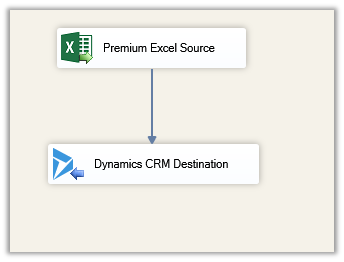
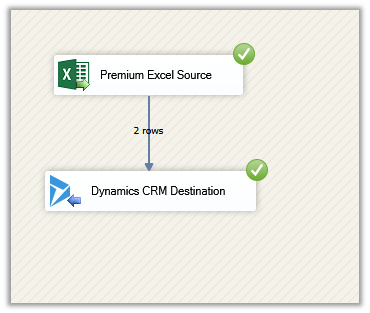
Create a new SSIS package, add the Excel Source component and Dynamics CRM Destination component in the Data Flow.

https://www.kingswaysoft.com/products/ssis-productivity-pack

https://www.kingswaysoft.com/products/ssis-integration-toolkit-for-microsoft-dynamics-365

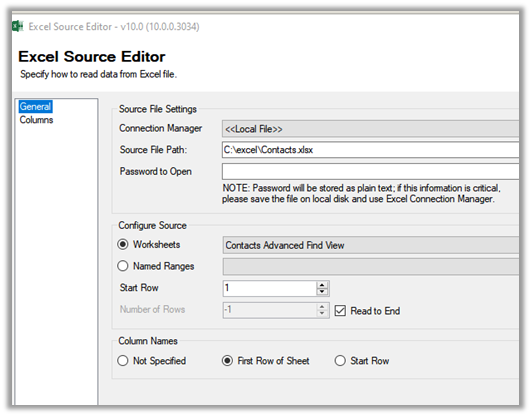
Specify the source file path.

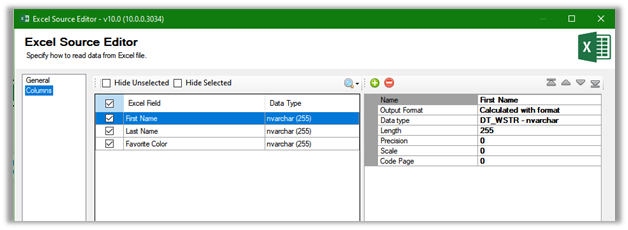
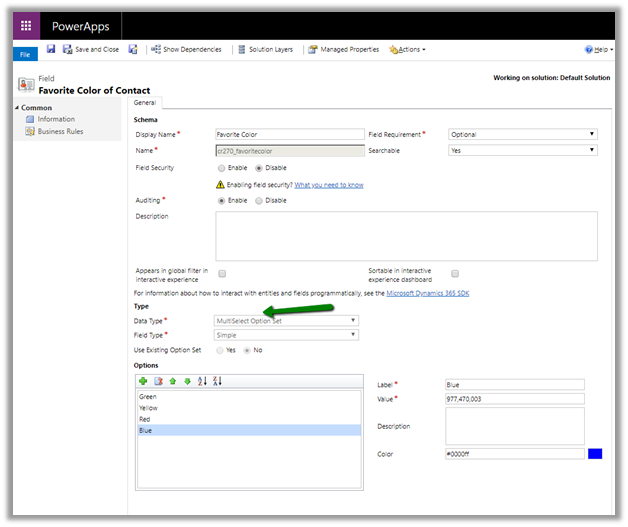
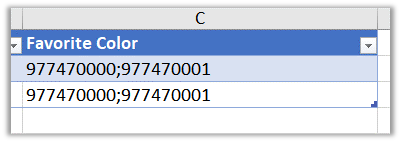
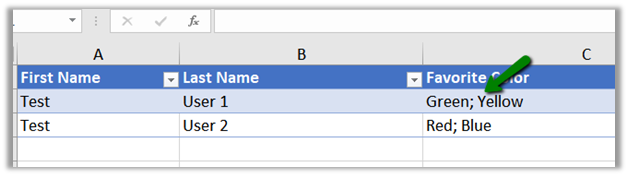
Here Favourite Color column will be mapped to multi-select option set field

Source excel file

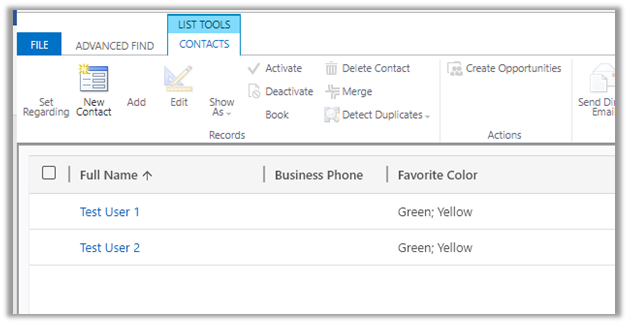
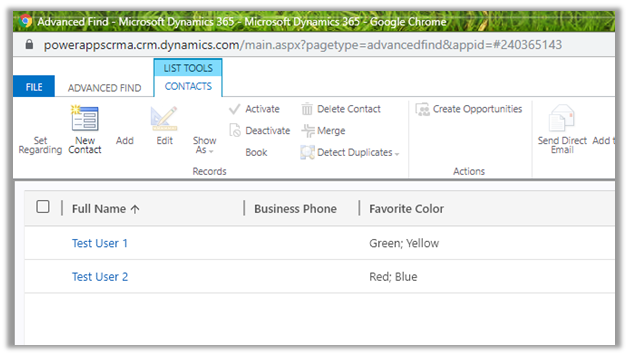
The field in CRM

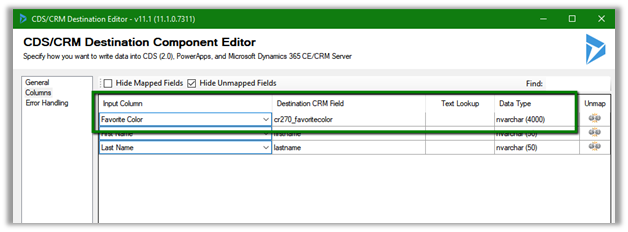
Within the Dynamics CRM Destination, specify the mapping. As the field is of nvarchar type in CRM we need to make sure that we are passing multiple values to it separated by a semicolon.

The way we map the normal option-set field is quite different than the multi-select

https://nishantrana.me/2018/09/20/easily-map-optionset-using-crm-optionset-mapping-editor-in-ssis/

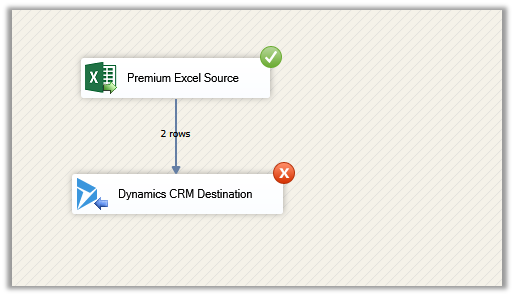
Let us run the package.

After successful execution, we can the records created with the options specified.

Now let us take another scenario, where we have text or label specified instead of values in the source

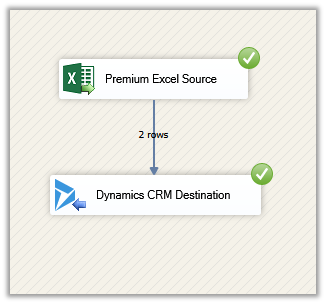
On successful execution

We can see the records created.

Thus, we can specify either values or labels separated by a semicolon (if multiple) for migration to work seamlessly with the multi-select option set.

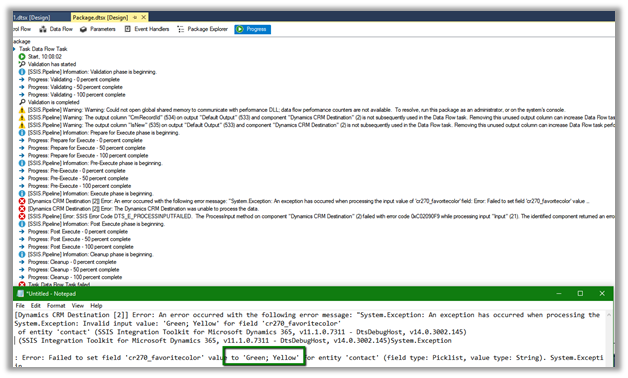
We need to make sure there are no spaces after the semicolon else we would get the exception

Error message

To get started with SSIS with Dynamics 365

https://nishantrana.me/2018/11/26/ssis-and-microsoft-dynamics-365/

Hope it helps..

Advertisements

High Density Headers in Dynamics 365 – 2019 Release Wave 2 (Unified Interface)


New high-density headers have been introduced for Dynamics 365 Entity Forms as part of 2019 Release Wave 2 for Unified Interface.

Let us try to understand various settings available for it

Log in to

https://make.powerapps.com/

select the environment, and select Data à Entities à Forms

Click on Edit Header Density to open the properties section for the Header. This setting is only available in the new form model app form designer.

Let us first uncheck High density option and see how it renders in the Contact Main Form.

Result:

  • The first 3 fields appear on the form within the Header section and the remaining 6 fields appear in the flyout section of the header.
  • The editable fields are rendered as editable and read-only fields as read-only.

On resizing the browser, the fields in the header are rendered in the Summary tab.

Now let us check with only High-density option enabled

Result:

Only the first 4 fields appear, there is no fly out section and all the fields are read only.

On resizing the browser, the fields in the header are rendered properly.

Now let us check with both the options enabled

Result:

The 4 fields appearing in the form are still read-only.

However, we can see all the fields being available in the flyout section both editable as well as read-only.

On resizing the browser, the fields in the header are rendered properly

Along with the flyout section

Thus, based on the total number of fields and types of fields i.e. read-only or editable, we can select the appropriate options of rendering for the Header in the new Unified Interface.

Meanwhile, the headers in our legacy web client

Legacy_001

Hope it helps..


Save and New Button in Quick Create Form – 2019 Release Wave 2 (Unified Interface)


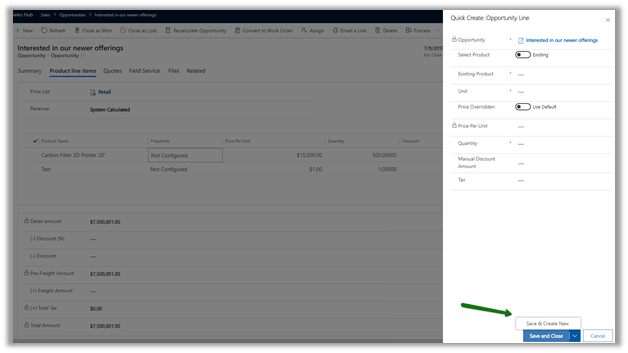
With 2019 Release wave 2, now we have Save and New button available in Unified Interface.

However, for now, it is limited to the Quick Create Form.

For our main form, for both legacy web client and unified interface form, the Save and New button is not available in the command bar.

  • Unified Interface –

  • Legacy Web Client –

Let us try unhiding the button using our favorite XrmToolBox Plugin – Ribbon Workbench.

Select the Save & New button on the form and click on the Customize
Button.

Remove the below display rules and publish the changes

  • Mscrm.HideOnCommandBar
  • Mscrm.HideOnModern

We now have the button available in our legacy web client’s form.

And also, it is working as expected.

We can also use the shortcut CTRL + Shift + S
to save the form and open a new form for our legacy web client form.

We also have the button appear in our new Unified Interface however it throws the below script error.

The below answer from Linn Zaw explains the reason for it not working in Unified Interface.

Below is the screenshot of the form (with Save & New button) in CRM 2011 before it was hidden in the product starting from CRM 2013 with the introduction of the new command bar.

Hope it helps..
Advertisements

Contextual Email Communication in Dynamics 365 for Sales – 2019 Release Wave 2 (Unified Client)


The new capability allows salespeople to write an email in the context of the record. Email opening in the non-blocking pop window allows salespeople to refer to the data without navigating away from it, easily attach documents and can leave the drafts record open.

The existing experience à

Clicking on the email

takes us to the new entity create form

To enable the new experience, navigate to App Settings and apply the Enhanced email

Now with new enhanced email, we can easily refer/copy values from the main record, attach files, insert templates, etc.

We can also navigate to other records, with the popup email windows still open.

Below we have navigated to the account record and we still have our email window open.

A salesperson can also have multiple active draft emails open simultaneously.

Thus, the new enhanced contextual email feature makes working with email much more intuitive / productive for the salesperson

Hope it helps..
Lead Enhancements in Dynamics 365 for Sales – 2019 Release wave 2


Below are some of the capabilities added in Dynamics 365 for Sales with lead management.

It applies to both Unified Client Interface and Classic Web Client 

When creating a new lead, for Qualify sales stage,

on the selection of Existing Contact

First Name, Last Name, Job Title, Business Phone, Mobile Phone, and Email field will be populated

On selection of Existing Account

Company Name will be populated.

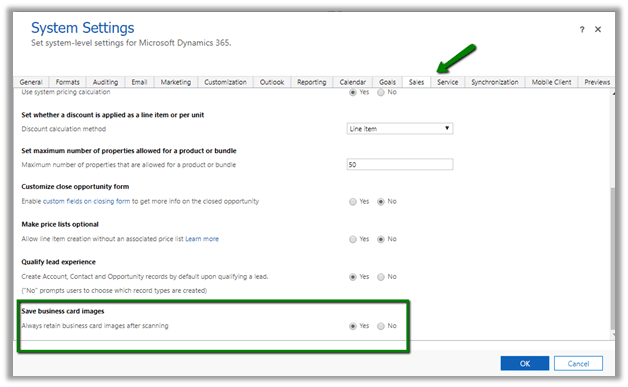
Ability to choose which records to create (Account, Contact and / or Opportunity)

To enable go to Sales Tab of Administration à System Settings

Qualify lead dialog box à

The Qualify Lead dialog box was always part of the product which was removed later, and the contact, account and opportunity records were auto-created based on certain conditions which are nicely explained here.

https://www.crminnovation.com/blog/qualify-lead-crm-2011-vs-crm-2015/

https://ledgeviewpartners.com/blog/how-to-qualify-a-lead-in-microsoft-dynamics-365-crm/

This is how the old dialog box looked like.

Notes and attachments associated with the lead are displayed in the opportunity record that is qualified from it.

Lead Record à

Opportunity records created from the lead have the notes associated.

Thus, these capabilities bring faster capture of lead information, more control of which records to be created as part of lead qualification and also quick reference on the opportunity records created through lead qualification.

Hope it helps..
Customize Opportunity Close Dialog Box – Dynamics 365 For Sales


With the 2019 release wave 2 plan, finally, we can customize the opportunity close dialog box (Unified Interface only)

Enable it from the Sales tab of System Settings dialog box.
The default out of the box Close Opportunity Dialog Box à

Now to add or remove fields to the dialog box, we need to customize the Quick Create form of Close Opportunity entity.

Change the ordering of the fields, added a custom field, removed Competitor and Description dialog box.

Updated Close Opportunity Dialog Box

We can use client-side validation on it

We can specify business rules

We can also customize the Main (Information) form.

This form can be used to check the details of closed opportunities.

Entity Relationships cannot be customized.

Great to see the feature available as it was one of the most requested features in the product.

https://experience.dynamics.com/ideas/idea/?ideaid=4792dfee-121a-e611-80e2-c4346badc228

Hope it helps..