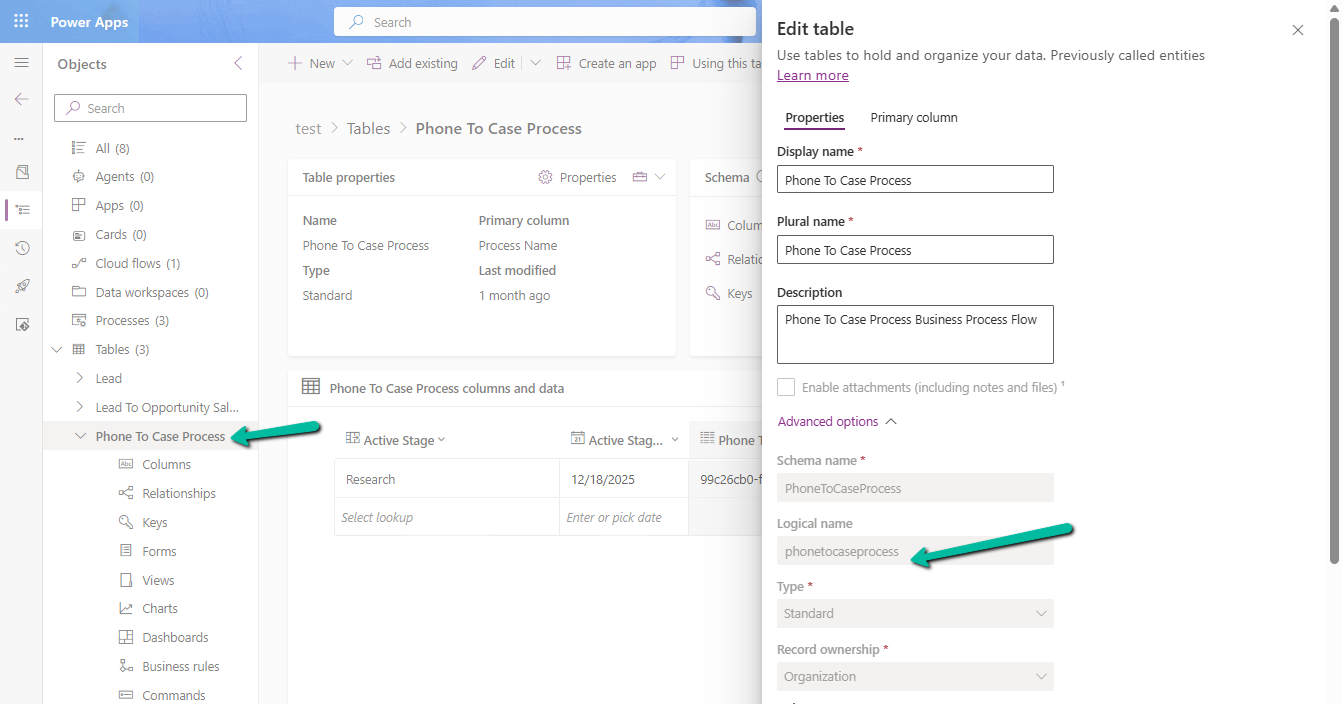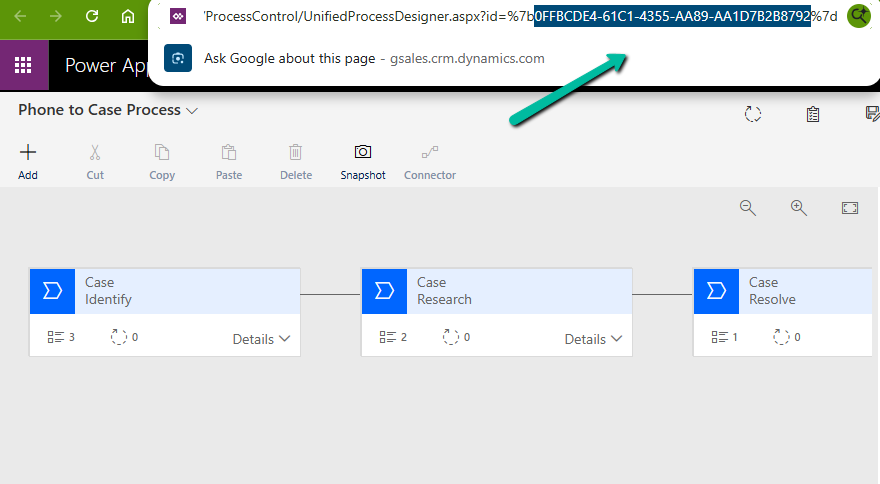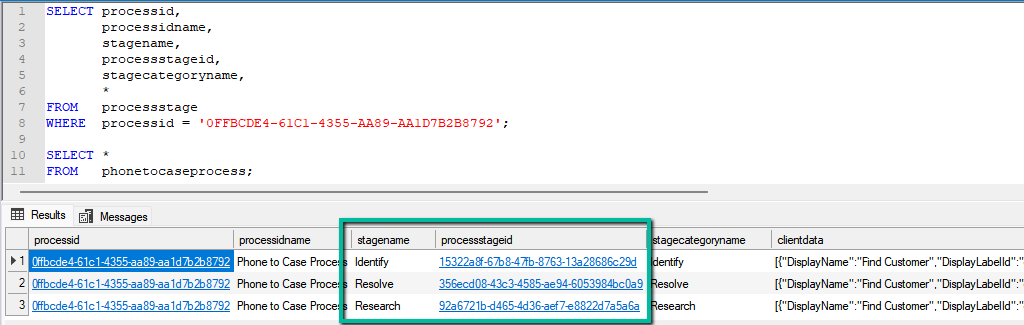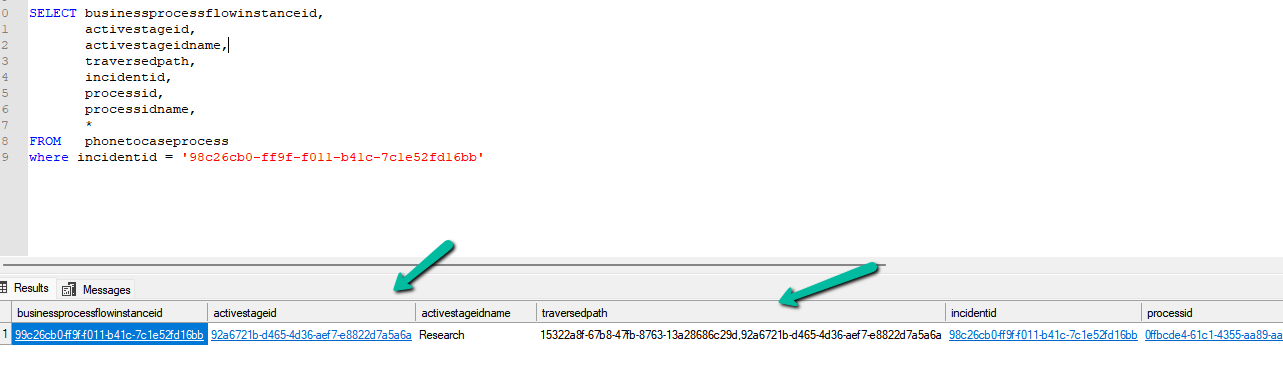
Fixing the “Only 1 of 2 keys provided for lookup, provide keys for dataAreaId, ProjectID / Not found” Error in Power Automate (Fin & Ops Apps)


Recently, while working with the Projects table from a Finance & Operations (F&O) environment, we ran into an error while using the Get a record action in Power Automate. (BTW this was the first we were using the Fin & Ops connector)

The flow kept failing with the following message:

Only 1 of 2 keys provided for lookup, provide keys for dataAreaId, ProjectID.

This error appears when we try to fetch a record from an F&O using only the ProjectID. But unlike normal Dataverse tables, F&O tables often come with composite keys.

Instead of passing just the ProjectID, we must pass the full composite key in the format:

dataAreaId,ProjectID

In our case, the correct value was:

AUST P-REP-34

Below, we can see it working properly

A screenshot of a computer

AI-generated content may be incorrect.

At one point, even after passing the correct composite key, we started getting a NotFound error:

Action ‘Get_a_record’ failed – NotFound

A screen shot of a computer error

AI-generated content may be incorrect.

Nothing had changed in the inputs — it was just not working. The fix was surprisingly simple..

We deleted the Get a record step, re-added it, provided the same inputs again, and the error disappeared. It could be related to the connection reference not being updated properly in the background.

Hope it helps..

Advertisements

Fixed – Error occurred while loading document template / Error occurred while loading preview error in Dynamics 365


Recently, one of the users reported the following error while trying to generate a PDF for a Quote record in Dynamics 365:

Initially, the Export to PDF option was showing a blank list of templates.

A screenshot of a computer

AI-generated content may be incorrect.

This happened because the user was missing a few essential privileges on the Document Template tables.

To fix the blank template list, we updated the user’s custom security role with the appropriate privileges on the following tables:

  • Document Template
  • Personal Document Template
A screenshot of a computer

AI-generated content may be incorrect.

After adding these, the templates started appearing in the “Export to PDF” dialog.

Even though the templates were now visible, the user still got the following error while trying to preview or export:

A screenshot of a computer

AI-generated content may be incorrect.

This was due to one missing privilege in the Customization area of the security role.

We added: DocumentGeneration privilege

A screenshot of a computer

AI-generated content may be incorrect.

Once this privilege was granted, the preview and PDF generation started working as expected.

If we are unsure which privilege might be missing in similar situations, a quick way to find out is by using Developer Tools (F12) and monitoring the Network tab while reproducing the error. The failed request, such as ExportPdfDocument, usually reveals the missing privilege directly in its Response section (for example, missing prvDocumentGeneration privilege). This saves time and avoids trial and error when troubleshooting permission issues.

Hope it helps..

Advertisements

Understanding “Block Deletion of Out-of-the-box Attribute Maps” in Dataverse / Dynamics 365


In Dynamics 365, attribute maps define how data flows from one record to another when creating related records. For example, when creating a Contact from an Account, fields like Address, Phone Number, and Website are copied automatically through predefined mappings. These mappings are part of standard Microsoft solutions like Sales, Customer Service, and Marketing.

If we try deleting these out-of-the-box (OOB) mappings, we will encounter an error — the platform restricts the deletion of system mappings to protect standard data flow and solution integrity.

A screenshot of a computer error

AI-generated content may be incorrect.
A screenshot of a computer

AI-generated content may be incorrect.

Using the Block Deletion of Out-of-the-box Attribute Maps feature setting, we can govern this behavior. Navigate to Environment → Settings → Features to locate this option.

A screenshot of a computer

AI-generated content may be incorrect.

When we disable this setting, the platform allows the deletion of OOB mappings.

A screenshot of a computer

AI-generated content may be incorrect.

A screenshot of a computer

AI-generated content may be incorrect.

In some scenarios, it could be applicable, like during lead conversion, where we may want to remove OOB mappings (like Address, Job Title, or Description) to populate these fields using external data. Some organizations use a custom quoting process instead of the OOB Opportunity → Quote flow. They remove the standard attribute maps that automatically copy data into Quote fields to prevent conflicts with their own automation.

However, even if these mappings are deleted, they can reappear when Microsoft pushes future solution updates. The recommendation is to only disable this setting if there is a specific and controlled use case, typically in a non-production environment, and with a backup plan in place. Keeping this setting enabled ensures consistency and prevents loss of important system logic that underpins Dynamics 365’s standard data flow.

Hope it helps..

Advertisements

Flows getting triggered multiple times / missing callbackregistration record – Power Automate / Dataverse


Recently, we observed that one of our flows was getting triggered multiple times in our UAT environment; however, the flow was working properly in our Development environment.

A screenshot of a computer

AI-generated content may be incorrect.

On comparing the flows trigger, we didn’t find any differences.

A screenshot of a computer

AI-generated content may be incorrect.

However, when checking for the callbackregistration record, we observed that for the Dev env, we had the callbackregistration record available.

A screenshot of a computer

AI-generated content may be incorrect.

However, it was missing for our UAT environment.

A screenshot of a computer

AI-generated content may be incorrect.

Turning the flow on and off didn’t create the corresponding callbackregistration record.

https://nishantrana.me/2025/09/02/fixed-flow-not-getting-triggered-incorrect-callback-registration-record-power-automate-dataverse/

Eventually, we deleted the trigger and recreated it in the UAT.

A screenshot of a computer

AI-generated content may be incorrect.

After recreating the trigger, we could see our flow getting triggered only once as expected.

A screenshot of a computer

AI-generated content may be incorrect.

However, we also noticed that the name of the callbackregistration record was not just the GUID, but it also had MTA suffixed to it in our UAT.

daf9fae3-a405-ee11-8f6e-00224817f864:MTA

A screenshot of a computer

AI-generated content may be incorrect.

So may this record was already existing and had an incorrect filter expression, which got fixed when we deleted and created a new trigger.

We also deleted this callbackregistration record, and turned our flow on and off. This created a new callbackregistration record with the same MTA suffixed to it.

A screenshot of a computer

AI-generated content may be incorrect.

So the solution here could be to find the callbackregistration record either with a GUID or with MTA suffixed to it, delete the record found, and turn the flow on and off.

Hope it helps..

Advertisements

JavaScript Gotcha: Why [x == (a || b)] Fails


Recently we observed that our JavaScript code was not working as expected.

Now when we write conditions in JavaScript, it’s natural to want to check if a variable equals one of multiple values. A common mistake is to write the condition like this:

if (loanType == (CareFeeDeferralFeesShort || CareFeeDeferralFeesLong)) {
    // do something
}

At first glance, it seems like this would check if ‘loanType’ is equal to either ‘CareFeeDeferralFeesShort’ or ‘CareFeeDeferralFeesLong’`’. Unfortunately, that’s not what JavaScript actually does.

The ‘||’ operator in JavaScript doesn’t return a boolean. Instead, it returns the first truthy value it encounters.

For example:

console.log(1 || 2); // 1

console.log(0 || 2); // 2

So in our case:

If ‘CareFeeDeferralFeesShort’ is ‘1’, then ‘(CareFeeDeferralFeesShort || CareFeeDeferralFeesLong)’ becomes ‘1’.

If it’s ‘0’ (falsy), then the expression becomes ‘CareFeeDeferralFeesLong’.

This means the condition effectively reduces to checking only one value, not both.

The right way is to compare the variable separately against both values:

if (loanType == CareFeeDeferralFeesShort ||
    loanType == CareFeeDeferralFeesLong) {
    // do something
}

Here, JavaScript evaluates each equality independently:

‘loanType == CareFeeDeferralFeesShort’

‘loanType == CareFeeDeferralFeesLong’

If either is true, the whole condition passes.

Takeaway

(x == (a || b)) is not the same as `x == a || x == b`.

Hope it helps..

Advertisements

What are Partial Merges in Business Process Flow (BPF), and what can we do about it – Dataverse / Dynamics 365


Let’s take an example.

Suppose we have the following Business Process Flow (BPF) for Leads:

If the Lead Type = Grade A, we want the Grade A Details stage to appear. For other grades (B, C, D), we skip that stage and continue. So far, this is simple.

A screenshot of a computer

AI-generated content may be incorrect.

Now, say we have a new business requirement :

For Grade D, the process should only have the Initial Review and its own Closed stage. For Grades B and C, the process should follow Other Details + Closed.

To handle this, we added a condition:

If Lead Type = B or C → go to Other Details

Else (Grade D) → go directly to Grade D (Closed)

A computer screen shot of a computer

AI-generated content may be incorrect.

However, when we try to connect the B/C path to Other Details, the D path (Closed) also gets merged into it.

A screenshot of a computer
AI-generated content may be incorrect.
This is because of the way branching works in BPF.

Dataverse does not support “partial merges.” That means we can’t end one branch early and merge another branch later. If we merge one branch, Dataverse forces all branches to merge into the same stage.

A screenshot of a computer

AI-generated content may be incorrect.

One Branch Ends, One Branch Merges (Not Supported) – If we try to design a BPF where one branch terminates in its own last stage while the other continues and merges into a later stage, the platform will not allow it.

There are two ways to solve this:

Option 1: Repeat the stages : Instead of trying to merge one path and end another, duplicate the stages where needed.

For example, create a separate Other Details and Closed stage for Grades B and C.

A computer screen shot of a computer

AI-generated content may be incorrect.

Option 2: Simplify with fields / scripts

If we don’t want to repeat too many stages, we can:

Move the Lead Type field and Grade A Details fields into the Initial Review stage. Use business rules or form logic to show/hide those fields based on Lead Type. Delete the extra Grade A Details stage.

Update the condition so that the flow only needs one condition (A/B/C vs D).

A computer screen shot of a computer screen

AI-generated content may be incorrect.

Key Takeaway –

In Dataverse BPF:

One branch ending while another merges is not supported.

Either all branches merge or each branch must have its own end stage.

The solution is to repeat stages where needed, or simplify the design using fields and conditions.

Hope it helps..

Advertisements