Error :- ‘ConvertUtcToLocalTime’ is not a member of ‘Microsoft.Crm.Reporting.RdlHelper.DateTimeUtility” while creating report using Report Wizard – CRM 2011


Hi,

I got the following error while creating report using report wizard

“Web service request CreateReport to Report Server http://servername/ReportServer/ReportService2005.asmx failed with SoapException. Error: The Value expression for the textrun ‘txtExecutionDateTimeLabel.Paragraphs[0].TextRuns[0]’ contains an error: [BC30456] ‘ConvertUtcToLocalTime’ is not a member of ‘Microsoft.Crm.Reporting.RdlHelper.DateTimeUtility'”

Re installing Reporting Extensions resolved the issue.

http://yellowduckguy.wordpress.com/2011/06/01/microsoft-dynamics-crm-2011-reporting-extensions-is-not-installed/

Hope it helps.

Accessing Xrm.Page or CrmForm through JavaScript from an html page showing CRM form in an IFrame


Suppose we have an html page having an iframe that shows a crm record. If we want to access the attributes on the form or call the save function from our html page, we can do it in the following manner.

var  crmForm =document.getElementById("myIframe").contentWindow.document.getElementById("contentIFrame").document.frames[0].document.forms['crmForm'];
var XrmPage =document.getElementById("myIframe").contentWindow.document.getElementById("contentIFrame").document.frames[0].Xrm.Page;

Hope it helps.

Data Audit (Auditing) in CRM 2011 – New Features.


Let us take an example,

Suppose we have created a new organization and we want to enable auditing on “Topic” field of Lead what do we need to do here?
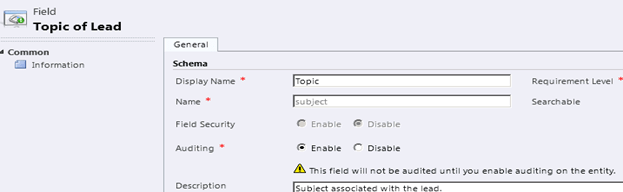
First to enable auditing let us open the field for customization.

There we can see that it is already enabled for auditing. However below we have warning icon that tells us that “This field will not be audited until you enable audition on the entity”.

That means we need to first enable it for our lead entity. So let us open our lead entity for customization.
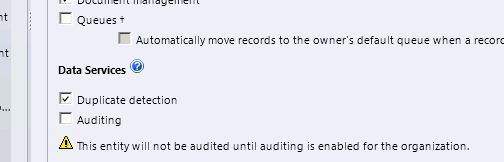
For the entity it is not enabled by default, we need to check the Auditing checkbox to enable it. However there we again see a message below that asks us to enable auditing for the organization first.

On checking the Auditing checkbox,

we get a note over there that tells us that by default auditing will get enabled for all the fields.

But we want auditing for only the topic field, and obviously we are not going to open each field and disable auditing there. So what can we do here?

Here we can select all the fields from our customization area and click on edit button to open the dialog box that will allow us to bulk edit the customization information for them.
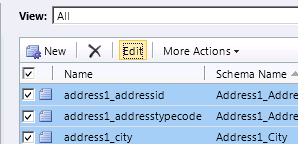
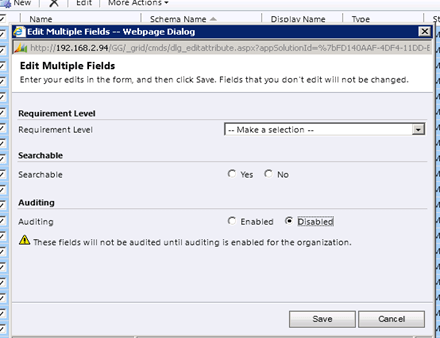
So let us first disable it for all fields and then select those fields for which we want to enable it. Remember to click on Next to select all the fields on each page and disable them.

While doing so we might get this error
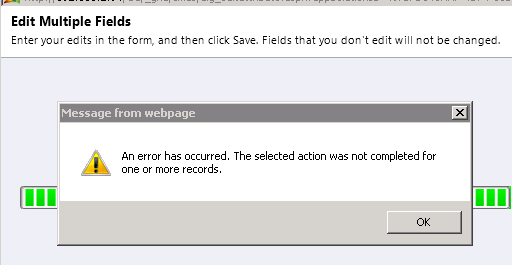
What it means is that Auditing cannot be set for some fields. (Not Applicable)

Following are the fields in lead entity to which audit is not applicable
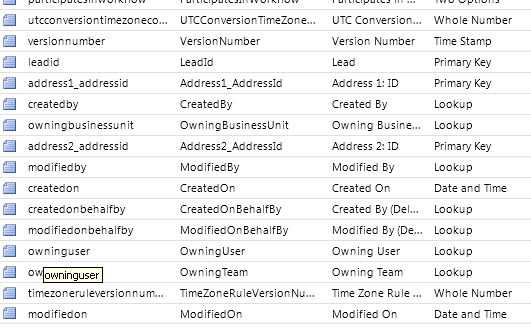
Mostly it would be GUID fields, fields internally used by CRM, CreatedOn, ModifiedOn etc.

Now let us go back and enable Auditing system wide,
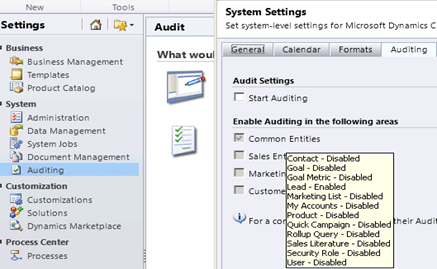
Check Start Auditing and Click Ok button to close the dialog.

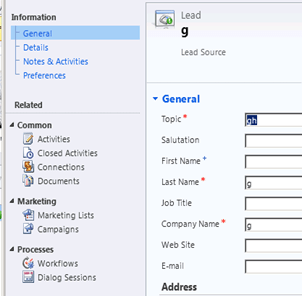
Now let us change the topic field in our lead record and check its audit history. (From the left navigation pane of the record’s form)

Apart from change in the name of the topic we can see one more record in our Audit History that shows when the Audit was enabled for the Entity.

Right now we saw record level auditing, we can also see the system wide auditing. For this we need to go to “Audit Summary View”


Opening the record will give us more detail

Now I log in with another user having Sales Person role,

I don’t see Audit History link on left navigation pane.
And from settings, I get the message the I don’t have enough permissions.
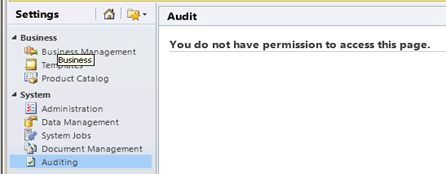
So here we have four permissions related to auditing.
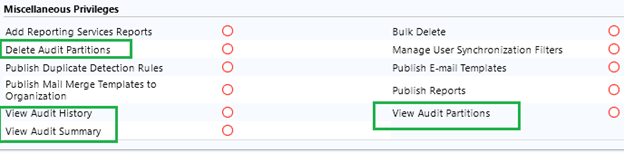
We understand Audit History and Audit Summary, let us check Audit Partitions, for this click on Audit Log Management.
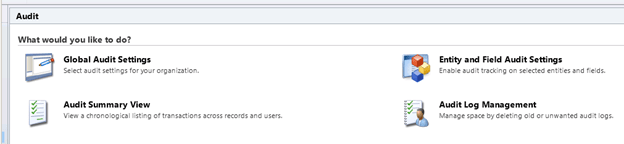
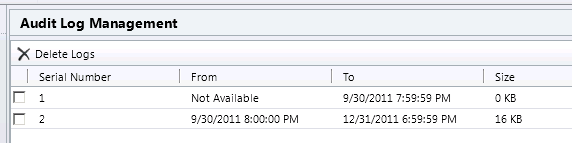
Here each audit log stores audit records for one calendar quarter. If we try to delete log with serial number 2, we get the following message
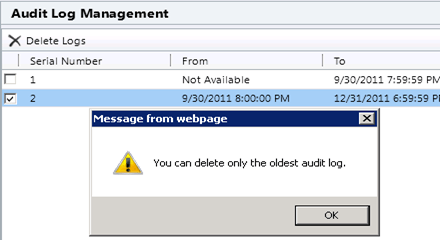
i.e. only the oldest partition can be deleted, the current active partition cannot be deleted.

Now the question is what all things we can audit apart from change in the record’s field?

  1. Changes to security roles:-

I have enabled auditing on Security Roles entity, and now I go and change the Access Level of Sales Person role on View Audit History privilege. So that should be tracked now…

Now as the Security Role entity doesn’t have a form similar to our other entities, I expect to see the audit for it in “Audit Summary View”. Let us open it.
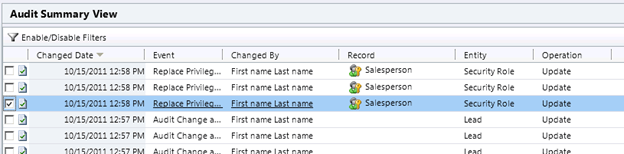
It does have record for our access level change, let us open it
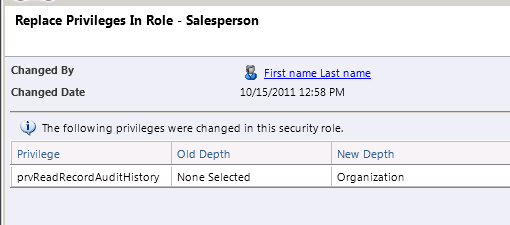
  1. Changes to Shared Privileges of a record:-

Ok so now I opened a lead record and shared it with the other user, so that should be audited?

.
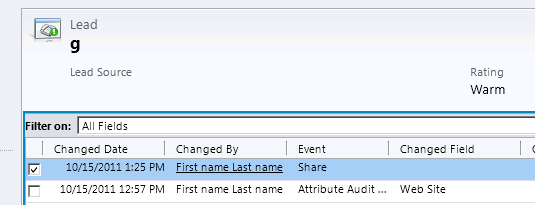
Yes it is there. Let us open it
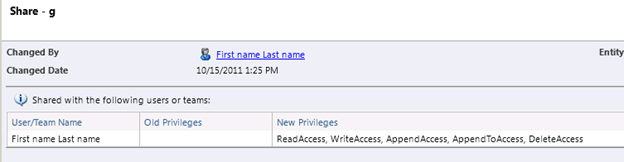

  1. Audit changes at attribute, entity and organization level: –

Now let us try disabling audit for the entity, and open the audit history
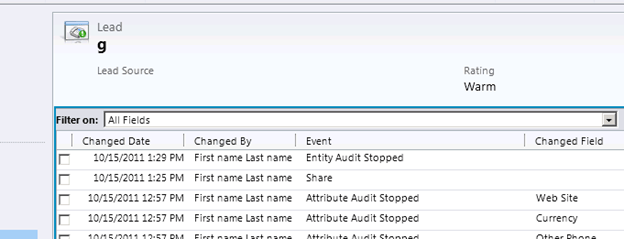
It says that entity/attribute audit has stopped; now let us open the last Share log
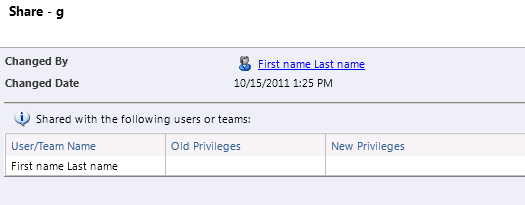
So by disabling the audit we will lose our old information as well.

  1. Deletion of Audit logs:-

Let us delete audit log from Audit Log Management, and check the audit summary view. It is being logged.

  1. N: N association or disassociation of the records:-

Let us create a new N-N relationship between lead entity and one of our custom entities (name G), and then associate there records. We can see one entry in our Audit History for that event.
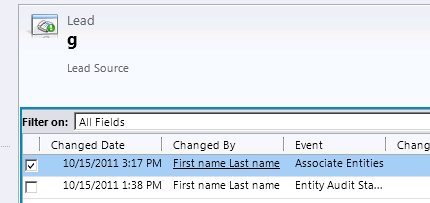
On opening the record we can get the details.
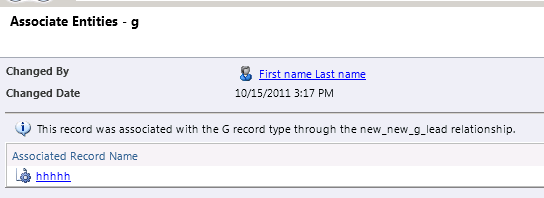
Here as we have not enabled auditing on the G Entity (our custom entity) we won’t see any audit information there in its Audit History link.

Now let us find out what happens in the case of 1-N relationship.

For this delete the existing N-N relationship between lead and custom entity, and create a new N-1 relationship between lead and the custom entity g. so that our custom entity appears as a lookup in lead entity.

Now let us open any of the lead record and set value for our lookup there.

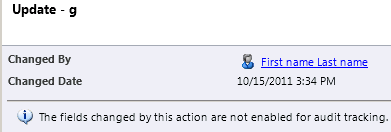
On doing so we can see a new event update being added to our audit history.
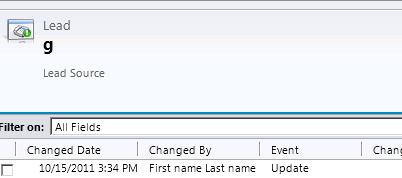
However we can’t see old value new value there as we have not enabled that field for auditing. So let us open that field from customization area and enable auditing for it and change the lookup value in the lead entity.
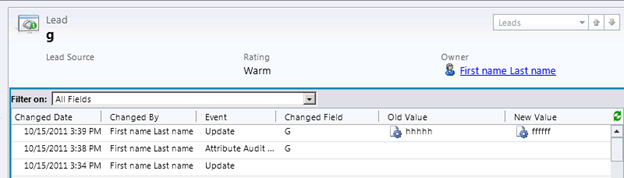
Now if we update the lookup we can see the old value and new value both.

Hope it helps.


Solutions in CRM 2011 – New Features.


Hi,

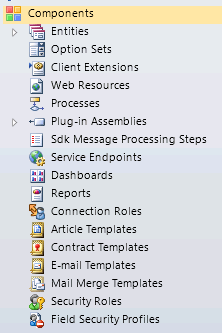
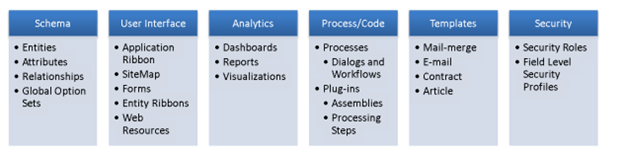
The different components that can be part of a solution are

Grouped by type:-

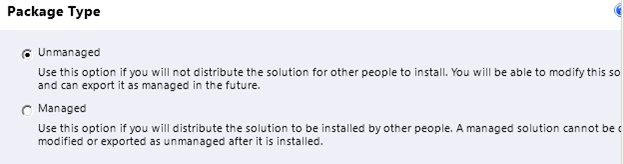
What are the differences between managed solution and unmanaged solution?

Unmanaged solution during export can be exported either as a managed solution or unmanaged solution.


If exported as managed and imported in the other organization, we don’t have to publish them. Unmanaged solutions after import have to be published.

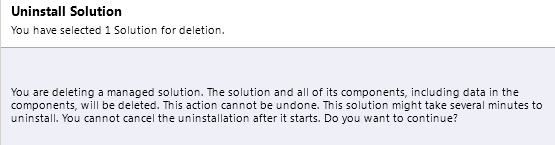
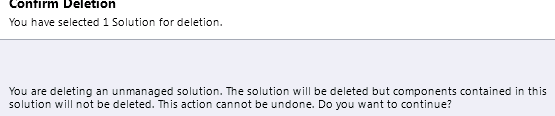
Managed solution can be uninstalled/deleted.


For unmanaged solution we get the following message.


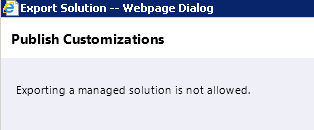
Managed solution cannot be exported.


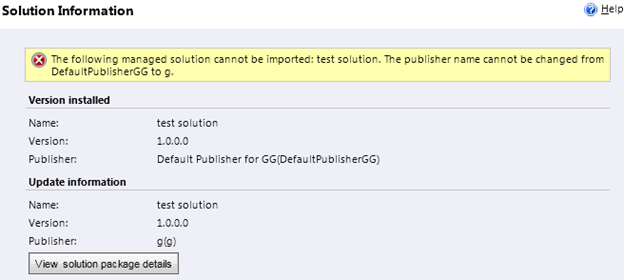
What happens if we change the publisher of the original solution that we exported as managed solution and try to import the same?


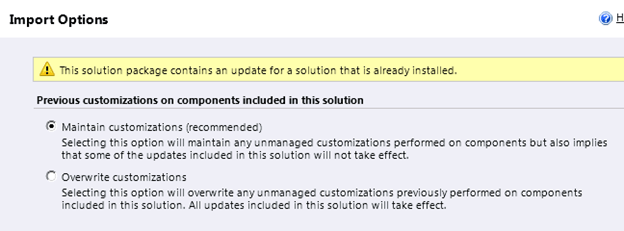
What happens if we try importing the same solution that we have already imported as managed now as unmanaged?


And the unmanaged one as managed?


While importing the managed solution that have already been imported into the system as managed we get the following message


Some versioning information that I could find


http://www.dynamicscrmtrickbag.com/2011/05/28/dynamics-crm-2011-solutions-part-1/


http://www.slideshare.net/jukkan/microsoft-dynamics-crm-2011-walkthrough-part-2

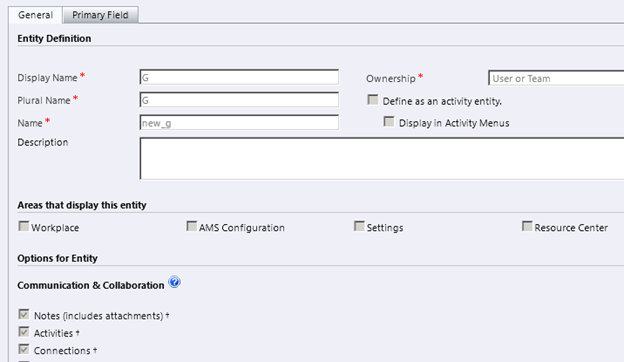
Now let us create a solution having an existing entity lead and a new custom entity.

If we export this solution as managed and import it in my new organization and if we want to make changes to either the lead or the custom entity what do we need to do?

Well we get this message if we open the managed solution after importing it in other organization.


It says that we can’t directly edit the components within the managed solution, but if we want to do that then we can always do that from customization area or create a new unmanaged solution, add those components and then make changes to them.

But what if we want to restrict that?

Well we can do that using Managed Properties.

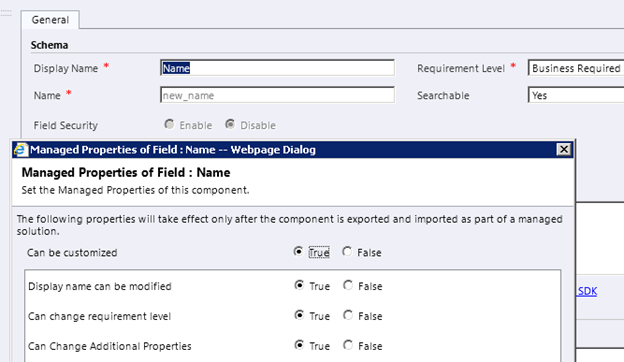
So we go back to our original unmanaged solution click on lead entity there and select Managed Properties option from the tool bar.


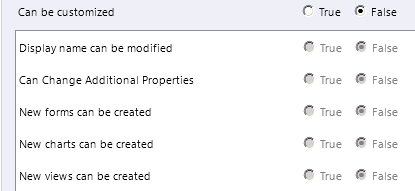
So by default the “Can be customized” option is set to true and all the other options are also set as true and disabled. We can’t edit it. So we have no control over the system entities, even if we export them as managed they can still be modified or further customized.

So what about our custom entity?

For our custom entity we can set the managed properties.


Now let us set it as false and again export the same unmanaged solution as managed and import in our other organization.

Let’s open the custom entity from customization area,


As expected we can see all the fields are disabled for our custom entity.

So what are the different managed properties that we can set for our custom components?

At entity level


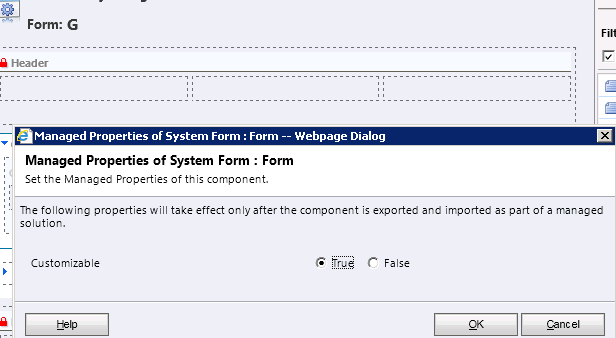
Form level


Field level


View


Same for Charts and Relationship and other components of Solution like web resources, charts etc.

Although we can’t set managed properties for our system entities, we can definitely set the manage properties for any of the custom component created for those entities.

Also please check out these posts for more information like Conflict resolution and Dependency Tracking.


http://crm.davidyack.com/journal/2010/9/20/exploring-crm-2011-solution-framework-update-scenarios.html

http://www.resultondemand.nl/support/blog/post/Tips-in-using-managed-and-unmanaged-solutions-in-CRM-2011-%28MSCRM-2011%29.aspx

And of course MSDN

http://msdn.microsoft.com/en-us/library/gg334576.aspx

Hope it helps.


Teams in CRM 2011 – New Features


Hi, 

Records in CRM 2011 can either be user owned or team owned.

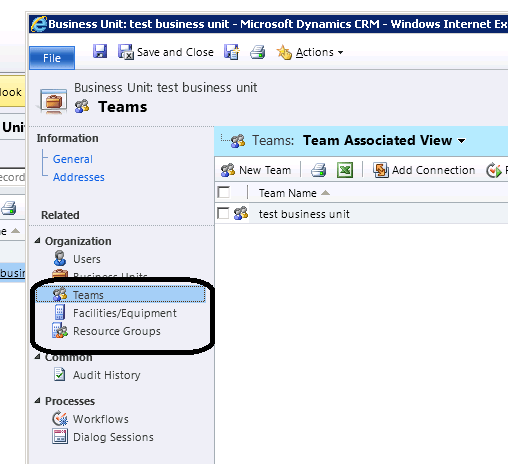
A default team gets created when a business is created with the same name. The users that are in business unit automatically become member of that default team.


Default team cannot be deleted, renamed, moved to other business unit.

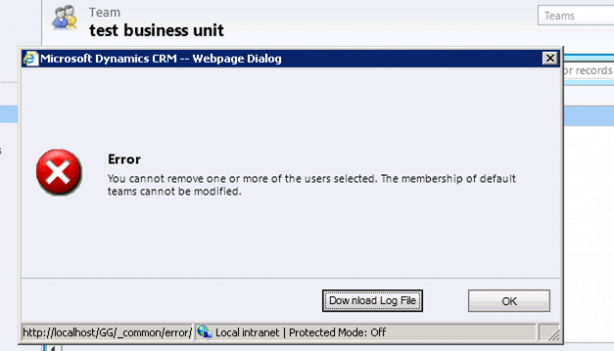
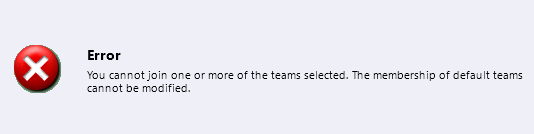
We can neither add nor remove member from the default team.


We can write dialogs and workflows against team

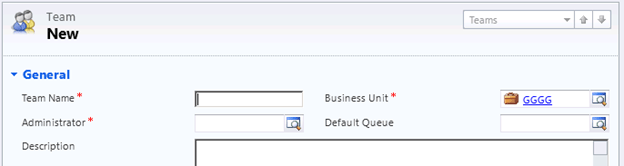
While creating a new team we need to specify Team Name, Administrator and Business Unit.


We can also specify Default Queue for the team, if we do not specify and save the record, queue with the name same as Team name gets created.

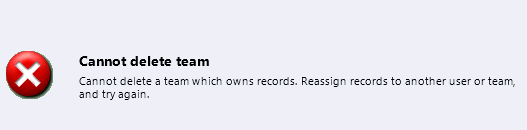
Team can now be deleted (except default team which gets deleted when we delete the business unit). To delete the team, we need to first remove all the records owned by the team by either deleting those records or assign those records to a different owner.

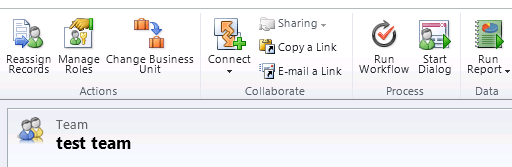
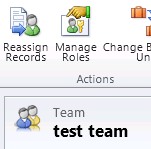
We can also use Reassign Records option to reassign them.

If we try deleting the team that owns the record we get the following error

The team record got deleted after I re-assigned the record owned by the team.

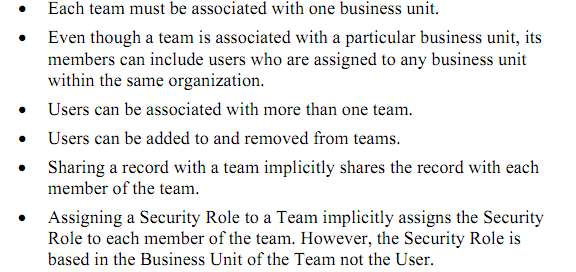
Finally few things to remember while working with team

Hope it helps.

Client Access Licenses (CAL) in CRM 2011 – New Features


Hi,

In CRM 4 for CAL we had the following options :-

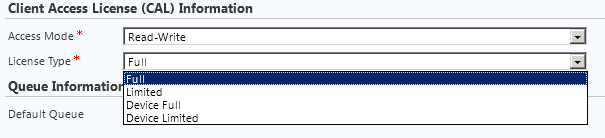
In CRM 2011 it has changed,

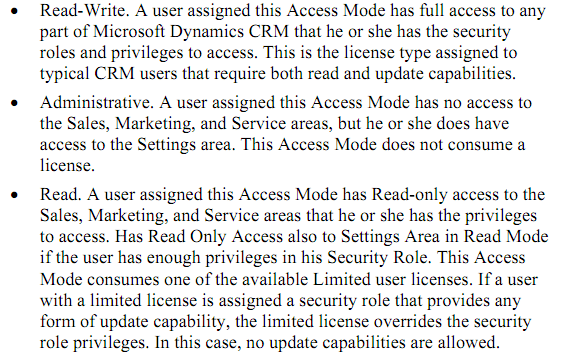
We now have License Type associated with the Access Mode.

Read-Write:-

Administrative:-

Read:-

Device CAL – With a device CAL, the CAL is assigned to a device and may be shared by non-concurrentusers over time, such as in a shift worker or call center scenario.

http://crmdynamics.blob.core.windows.net/docs/Pricing_Licensing_Guide.pdf

Hope this helps.