Generic SQL Error – RetriveMultiple with ConditionOperator.Contains in CRM


Hi,

Was getting Generic SQL Error while using ConditionOperator.Contains in the ConditionExpression. The requirement was to get all the incident records based on the title attribute value.

condExp.AttributeName = “title”;

condExp.Operator = ConditionOperator.Contains;

condExp.Values.Add(“test”);

The correct way to perform this kind of search is by using Like operator with %.

condExp.AttributeName = “title”;

condExp.Operator = ConditionOperator.Contains;

condExp.Values.Add(“%test%”);

http://social.microsoft.com/Forums/en-US/ede5932b-5ac9-4fc9-86d9-12ef5b2b305d/crm-2011-getting-generic-sql-error-when-performing-retrievemultiple-with?forum=crmdevelopment

Hope it helps.


Microsoft Dynamics CRM Compatibility List


Hi,

Found this article that lists the minimum version of products compatible with Microsoft Dynamics CRM 4.0 and 2011.

Do check it out

http://support.microsoft.com/kb/2669061

Bye.


Newly Created Entity not appearing in Stunnware’s Tool (Fetch XML Wizard)


Hi,

I created two new entities in my CRM 2011 development server and thought of writing a fetch xml query using the Fetch XML Wizard tool of Stunnware.

But much to my surprise while trying to add Entities for the query, I was not able to find them in the list. This happens because of the Metadata Cache not getting refreshed. The tool maintains the cache of the metadata. This post helped me in resolving the issue.

http://luckyabhishek.blogspot.in/2011/05/stunnware-fetch-xml-doesnt-show.html

Bye.

Sample Code to Retrieve all the members of a Static Marketing List in CRM 2011


Hi,

Below is the code that we could use to retrieve the GUIDs of all the members associated to a STATIC marketing list.

 private void GetAllMembers_Click(object sender, EventArgs e)
 {
 ArrayList memberGuids = new ArrayList();
 IOrganizationService orgService = GetOrganizationService();

PagingInfo pageInfo = new PagingInfo();
 pageInfo.Count = 5000;
 pageInfo.PageNumber = 1;

QueryByAttribute query = new QueryByAttribute("listmember");
 // pass the guid of the Static marketing list
 query.AddAttributeValue("listid", new Guid("2CA7881F-3EDA-E111-B988-00155D886334"));
 query.ColumnSet = new ColumnSet(true);
 EntityCollection entityCollection = orgService.RetrieveMultiple(query);

foreach (Entity entity in entityCollection.Entities)
 {
 memberGuids.Add(((EntityReference) entity.Attributes["entityid"]).Id);
 }

// if list contains more than 5000 records
 while (entityCollection.MoreRecords)
 {
 query.PageInfo.PageNumber += 1;
 query.PageInfo.PagingCookie = entityCollection.PagingCookie;
 entityCollection = orgService.RetrieveMultiple(query);

foreach (Entity entity in entityCollection.Entities)
 {
 memberGuids.Add(((EntityReference)entity.Attributes["entityid"]).Id);
 }
 }

}

public IOrganizationService GetOrganizationService()
 {
 Uri organizationUri = new Uri("http://servername/orgname/XRMServices/2011/Organization.svc");
 Uri homeRealmUri = null;
 ClientCredentials credentials = new ClientCredentials();
 credentials.Windows.ClientCredential = System.Net.CredentialCache.DefaultNetworkCredentials;
 OrganizationServiceProxy orgProxy = new OrganizationServiceProxy(organizationUri, homeRealmUri, credentials, null);
 IOrganizationService _service = (IOrganizationService)orgProxy;
 return _service;
 }

Hope it helps.

Hierarchical report in SSRS to show users and their managers (CRM)


Hi,

Just created a simple SSRS report that shows the Hierarchy of the users and their manager.

This is how the report looks like

The DataSet query used

Select the row, right click and select group properties option

Select Grouping based on systemuserid

Toggle the visibility based on FullName

Select parentsystemuserid as Recursive Parent from the Advanced option

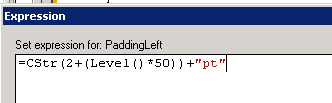
Set the Left Padding property for the fullname TextBox.

Set the expression for level as Level()

The posts from which I learned creating the hierarchical reports

http://blog.infotoad.com/post/2009/08/10/Working-with-a-Recursive-Hierarchy-Group-in-SQL-Reporting-Services-2008.aspx

http://blog.davyknuysen.be/2010/04/16/parent-child-hierarchies-in-reporting-services/

Bye.

Installing Microsoft Dynamics CRM 4.0 in Windows Server 2008 R2 machine having Microsoft SQL Server 2008 database.


Hi,

These are the steps we followed to install Microsoft Dynamics CRM 4.0 in Windows Server 2008 R2 machine (Here we had the Microsoft SQL Server 2008 installed on a different server)

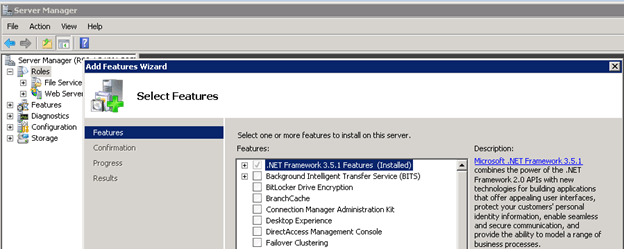
Before running the setup, first we added the .NET Framework 3.5.1 Features from Server Manager.
After running the installer we got the following error in the Environment Diagnostics Wizard.

 ERROR : (provider: Named Pipes Provider, error: 40 – Could not open a connection to SQL Server) (Microsoft SQL Server, Error: )

We followed the step mentioned in this article to resolve this issue.

http://blog.sqlauthority.com/2009/05/21/sql-server-fix-error-provider-named-pipes-provider-error-40-could-not-open-a-connection-to-sql-server-microsoft-sql-server-error/

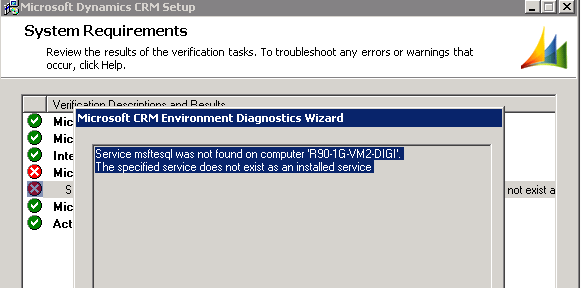
On running the installer again, we got this issue

Error : Service msftesql was not found on computer …… The specified service does not exist as an installed service.

We followed the below mentioned steps to resolve the issue

  1. Run > Regedit
  2. HKEY_LOCAL_MACHINE\SYSTEM\CurrentControlSet\Services
  3. Rename MSSQLFDLauncher Folder to msftesql
  4. Reboot System
  5. Administrative Tools > Services > SQL Full-text Filter Daemon Launcher (MSSQLSERVER) and Check START Status
  6. Rename back msftesql Folder to MSSQLFDLauncher

http://social.microsoft.com/Forums/eu/crm/thread/d8dda562-aae6-47b7-9c81-86f98d2b77f6

Bye.