Get value for OptionSet in CRM 2011


To get the value for OptionSet we can use the following function

private
string GetOptionsSetTextOnValue(IOrganizationService service, string entityName, string attributeName, int selectedValue)
{

RetrieveAttributeRequest retrieveAttributeRequest = new
RetrieveAttributeRequest
{

EntityLogicalName = entityName,

LogicalName = attributeName,

RetrieveAsIfPublished = true

};
// Execute the request.

RetrieveAttributeResponse retrieveAttributeResponse =(RetrieveAttributeResponse)
service.Execute(retrieveAttributeRequest);
// Access the retrieved attribute.

Microsoft.Xrm.Sdk.Metadata.PicklistAttributeMetadata retrievedPicklistAttributeMetadata =(Microsoft.Xrm.Sdk.Metadata.PicklistAttributeMetadata)

retrieveAttributeResponse.AttributeMetadata;// Get the current options list for the retrieved attribute.
OptionMetadata[] optionList =
retrievedPicklistAttributeMetadata.OptionSet.Options.ToArray();
string selectedOptionLabel = string.Empty;

foreach (OptionMetadata oMD in optionList)
{
if (oMD.Value == selectedValue)
{selectedOptionLabel = oMD.Label.UserLocalizedLabel.Label;

}

}
return selectedOptionLabel;

}

http://www.codeproject.com/Tips/553178/Get-the-OptionsetValue-and-OptionsetText-for-Dynam


Hope it helps !

JavaScript to hide left navigation from form in CRM 2011


Use this

http://rajeevpentyala.wordpress.com/2011/12/12/hide-navigation-items-pane-on-form-in-crm-2011/

Things below were applicable for CRM 2011’s CTP Version (unsupported)

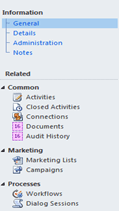
We can use the following JavaScript to hide the left navigation pane from form in CRM 2011

function LeftNav() {


// hide the left navigation pane

document.getElementById(“crmNavBar”).parentElement.style.display = “none”;


// after hiding the crmform’s content panel moves to left


// to set it back to full width set the colspan

document.getElementById(“tdAreas”).parentElement.parentElement.parentElement.parentElement.colSpan = 2;


// show only information section in the form


// hide the related section and the table below it.


document.getElementById(“crmFormNavSubareas”).parentElement.style.display = “none”;

document.getElementById(“crmFormNavSubareas”).parentElement.parentElement.previousSibling.style.display = “none”;


}

Hope it helps !

Using OrganizationServiceClient in CRM 2011


 Add Service Reference to the Organization WCF service in the application.

URL àhttp://servername:port/OrganizationName/xrmServices/2011/organization.svc 

Use the following code to perform various functions using OrganizationServiceClient 


Entity myContact = new Entity();

myContact.LogicalName = “contact”; 

AttributeCollection myAttColl = new AttributeCollection();

myAttColl.Add(new KeyValuePair<string, object>(“lastname”, “Rana”));

myContact.Attributes = myAttColl;
ClientCredentials credentials = new ClientCredentials();

Uri organizationUri = new Uri(http://servername:port/organizationname/xrmServices/2011/organization.svc&#8221;);

try
{
OrganizationServiceClient orgClient = new OrganizationServiceClient();
 

orgClient.ClientCredentials.Windows.ClientCredential = new System.Net.NetworkCredential(“username”, “password”, “domain”); 

orgClient.Create(myContact);

}
catch (Exception ex)
{

throw ex;

} 

Hope it helps.

CRM Shortcut in CRM 2011 Dialogs


Hi I was just wondering how we can use CRM Shortcut radio button option that appears in Insert Hyperlink dialog box of Dialogs in CRM 2011.

After searching for it, I found the following post which says that we should ignore that button as it won’t be there in the final release.

http://social.microsoft.com/Forums/en/crm2011beta/thread/d012ae9e-4bc5-4bdb-ae6f-c58da16882dc

Hope it helps !

Sample code to add a custom group to lead form in CRM 2011


For adding a custom group to a lead form we can make use of the following sample code.

Just replace the lead with your entity’s schema name to use it

<RibbonDiffXml>

<CustomActions>

<CustomAction
Id=Sample.lead.form.CustomGroup.MaxSize.CustomAction
Location=Mscrm.Form.lead.MainTab.Scaling._children
Sequence=120>

<CommandUIDefinition>

<MaxSize
Id=Sample.lead.form.CustomGroup.MaxSize
GroupId=MyLeadCustomGroup
Sequence=21
Size=LargeLarge/>

</CommandUIDefinition>

</CustomAction>

<CustomAction
Id=MyLeadCustomAction
Location=Mscrm.Form.lead.MainTab.Groups._children
Sequence=110>

<CommandUIDefinition>

<Group
Id=MyLeadCustomGroup
Title=My Lead Custom Group
Sequence=39
Template=Mscrm.Templates.Flexible2>

<Controls
Id=MyCustomControls>

<Button
Id=MyCustomButton1
Sequence=10
LabelText=My Custom Button1
ToolTipTitle=My Custom Button1
ToolTipDescription=My Custom Button1
TemplateAlias=o1/>

</Controls>

</Group>

</CommandUIDefinition>

</CustomAction>

</CustomActions>

<Templates>

<RibbonTemplates
Id=Mscrm.Templates/>

</Templates>

<CommandDefinitions>

</CommandDefinitions>

<RuleDefinitions>

<TabDisplayRules/>

<DisplayRules/>

<EnableRules/>

</RuleDefinitions>

<LocLabels/>

</RibbonDiffXml>


Hope it helps!


Using JavaScript in a custom button in CRM 2011


Now let us built on our existing example of adding custom button.

https://nishantrana.wordpress.com/2010/11/04/adding-my-first-custom-button-in-crm-2011/

Now on click of the button I want to show alert message “Hello World” i.e. call JavaScript.

This is our existing Button Definition

<Button
Id=B_MyFirstButton
LabelText=My First Button
ToolTipTitle=My First Button Tool Tip Title
ToolTipDescription=My First Button Tool Tip Description
TemplateAlias=o1
Image16by16=/_imgs/ribbon/saveandclose16.png
Image32by32=/_imgs/ribbon/saveandclose32.png/>

(Add a new Jscript web resource to the solution named MyJavaScript)

function HelloWorld() {

alert(‘Hello World’);

}

Now add a Command attribute to Button

    <Button Id=”B_MyFirstButton


Command=”Cmd_JavaScript


                            LabelText=”My First Button ToolTipTitle=”My First Button Tool Tip Title ToolTipDescription=”My First Button Tool Tip Description TemplateAlias=”o1 Image16by16=”/_imgs/ribbon/saveandclose16.png Image32by32=”/_imgs/ribbon/saveandclose32.png“/>

Now we need to define this Command.

This is how we can define it

<CommandDefinitions>

<CommandDefinition
Id=Cmd_JavaScript>

<EnableRules/>

<DisplayRules/>

<Actions>


<JavaScriptFunction
Library=$webresource:new_MyJavaScript
FunctionName=HelloWorld>

</JavaScriptFunction>

</Actions>

</CommandDefinition>

</CommandDefinitions>

However if we zip and import this solution, the button would appear disabled.

To enable it we need to add EnableRule to it.

<CommandDefinitions>

<CommandDefinition
Id=Cmd_JavaScript>


<EnableRules>

<EnableRule
Id=Mscrm.Enabled/>

</EnableRules>

<DisplayRules/>

<Actions>

<JavaScriptFunction
Library=$webresource:new_MyJavaScript
FunctionName=HelloWorld>

</JavaScriptFunction>

</Actions>

</CommandDefinition>

</CommandDefinitions>

Now after importing and publishing it
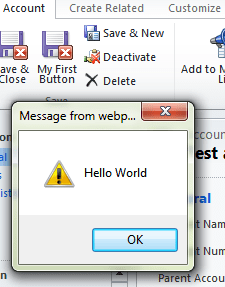
The final RibbonDiffXml looks like this

<RibbonDiffXml>
<CustomActions>
<CustomAction
Id="CA_MyFirstButton"
Location="Mscrm.Form.account.MainTab.Save.Controls._children"
Sequence="31">
<CommandUIDefinition>
<Button
Id="B_MyFirstButton"
Command="Cmd_JavaScript"
LabelText="My First Button"
ToolTipTitle="My First Button Tool Tip Title"
ToolTipDescription="My First Button Tool Tip Description"
TemplateAlias="o1"
Image16by16="/_imgs/ribbon/saveandclose16.png"
Image32by32="/_imgs/ribbon/saveandclose32.png"/>
</CommandUIDefinition>
</CustomAction>
</CustomActions><Templates>
<RibbonTemplates
Id="Mscrm.Templates"/>
</Templates>
<CommandDefinitions>
<CommandDefinition
Id="Cmd_JavaScript">
<EnableRules>
<EnableRule
Id="Mscrm.Enabled"/>
</EnableRules>
<DisplayRules/>
<Actions>
<JavaScriptFunction
Library="$webresource:new_MyJavaScript"
FunctionName="HelloWorld">
</JavaScriptFunction>
</Actions>
</CommandDefinition>
</CommandDefinitions>
<RuleDefinitions>
<TabDisplayRules/>
<DisplayRules/>
<EnableRules/>
</RuleDefinitions>
<LocLabels/>
</RibbonDiffXml>

Hope it helps!