Fixing the “Only 1 of 2 keys provided for lookup, provide keys for dataAreaId, ProjectID / Not found” Error in Power Automate (Fin & Ops Apps)


Recently, while working with the Projects table from a Finance & Operations (F&O) environment, we ran into an error while using the Get a record action in Power Automate. (BTW this was the first we were using the Fin & Ops connector)

The flow kept failing with the following message:

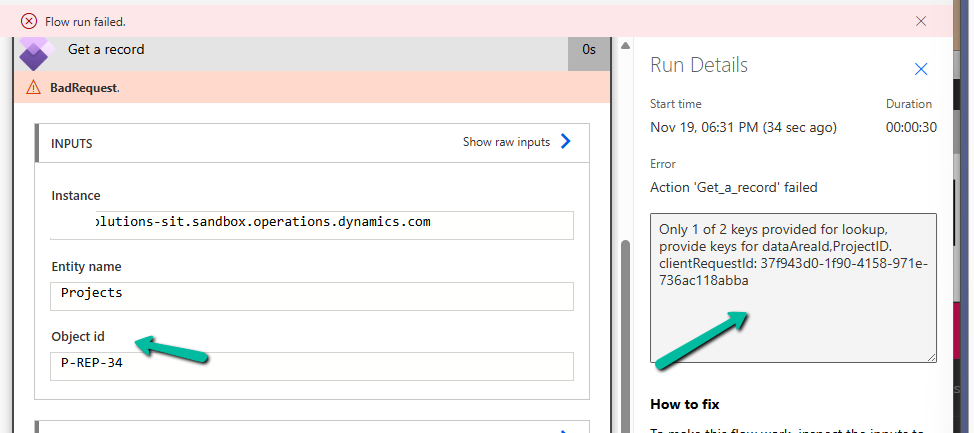
Only 1 of 2 keys provided for lookup, provide keys for dataAreaId, ProjectID.

This error appears when we try to fetch a record from an F&O using only the ProjectID. But unlike normal Dataverse tables, F&O tables often come with composite keys.

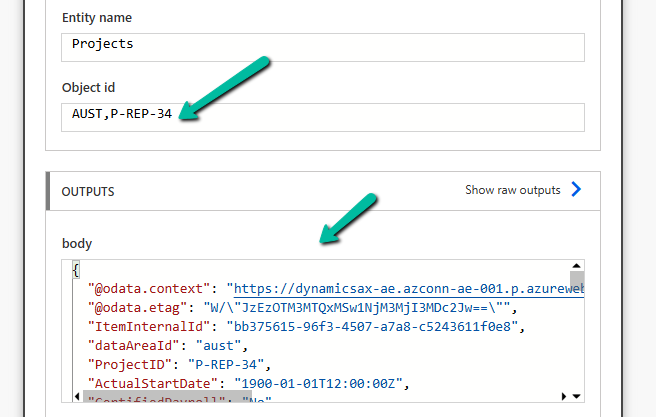
Instead of passing just the ProjectID, we must pass the full composite key in the format:

dataAreaId,ProjectID

In our case, the correct value was:

AUST P-REP-34

Below, we can see it working properly

A screenshot of a computer

AI-generated content may be incorrect.

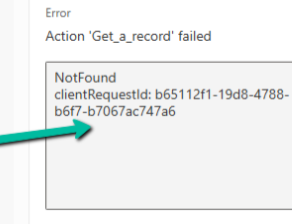
At one point, even after passing the correct composite key, we started getting a NotFound error:

Action ‘Get_a_record’ failed – NotFound

A screen shot of a computer error

AI-generated content may be incorrect.

Nothing had changed in the inputs — it was just not working. The fix was surprisingly simple..
We deleted the Get a record step, re-added it, provided the same inputs again, and the error disappeared. It could be related to the connection reference not being updated properly in the background.

Hope it helps..

Advertisements

Flows getting triggered multiple times / missing callbackregistration record – Power Automate / Dataverse


Recently, we observed that one of our flows was getting triggered multiple times in our UAT environment; however, the flow was working properly in our Development environment.

A screenshot of a computer

AI-generated content may be incorrect.

On comparing the flows trigger, we didn’t find any differences.

A screenshot of a computer

AI-generated content may be incorrect.

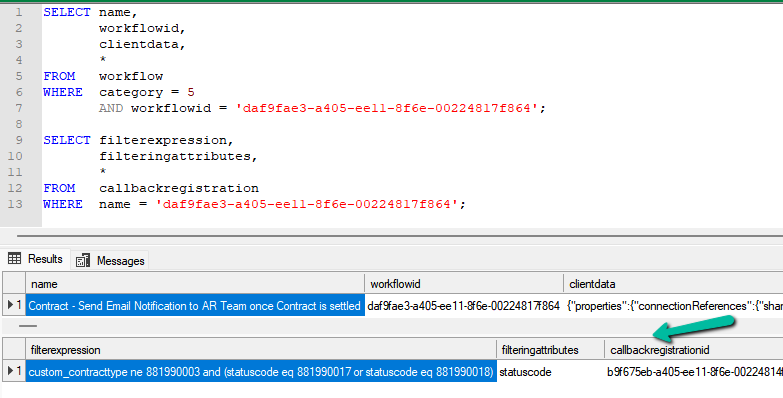
However, when checking for the callbackregistration record, we observed that for the Dev env, we had the callbackregistration record available.

A screenshot of a computer

AI-generated content may be incorrect.

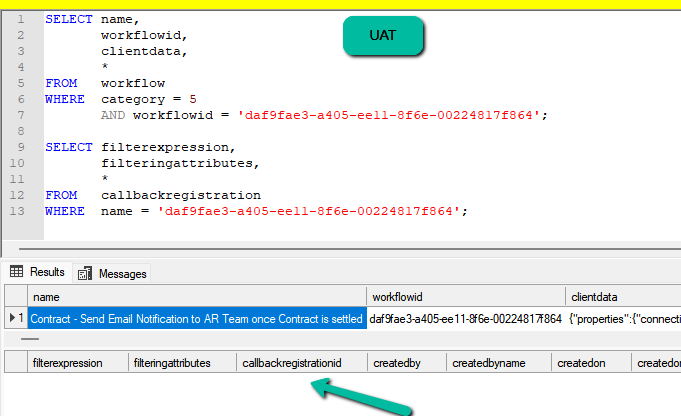
However, it was missing for our UAT environment.

A screenshot of a computer

AI-generated content may be incorrect.

Turning the flow on and off didn’t create the corresponding callbackregistration record.

https://nishantrana.me/2025/09/02/fixed-flow-not-getting-triggered-incorrect-callback-registration-record-power-automate-dataverse/

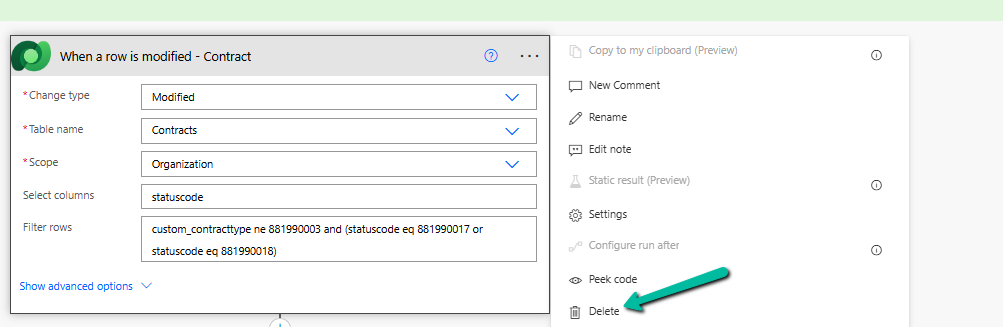
Eventually, we deleted the trigger and recreated it in the UAT.

A screenshot of a computer

AI-generated content may be incorrect.

After recreating the trigger, we could see our flow getting triggered only once as expected.

A screenshot of a computer

AI-generated content may be incorrect.

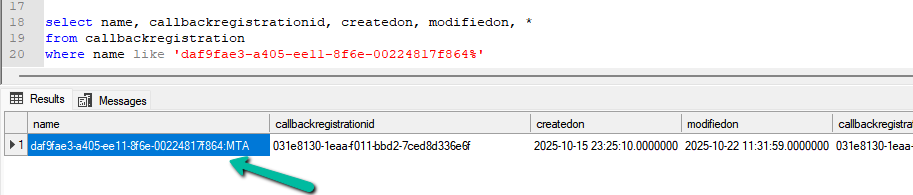
However, we also noticed that the name of the callbackregistration record was not just the GUID, but it also had MTA suffixed to it in our UAT.

daf9fae3-a405-ee11-8f6e-00224817f864:MTA

A screenshot of a computer

AI-generated content may be incorrect.

So may this record was already existing and had an incorrect filter expression, which got fixed when we deleted and created a new trigger.

We also deleted this callbackregistration record, and turned our flow on and off. This created a new callbackregistration record with the same MTA suffixed to it.

A screenshot of a computer

AI-generated content may be incorrect.

So the solution here could be to find the callbackregistration record either with a GUID or with MTA suffixed to it, delete the record found, and turn the flow on and off.

Hope it helps..

Advertisements

Fixed – Flow not getting triggered / incorrect callback registration record (Power Automate / Dataverse)


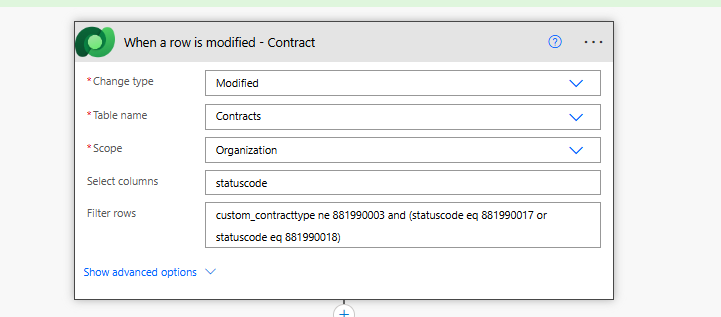
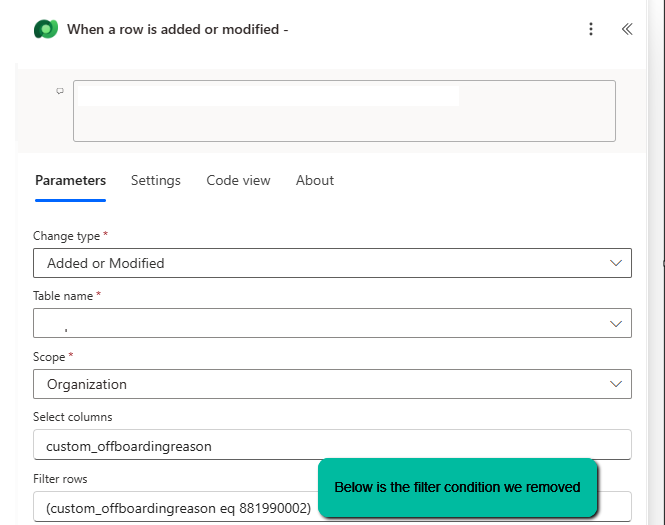
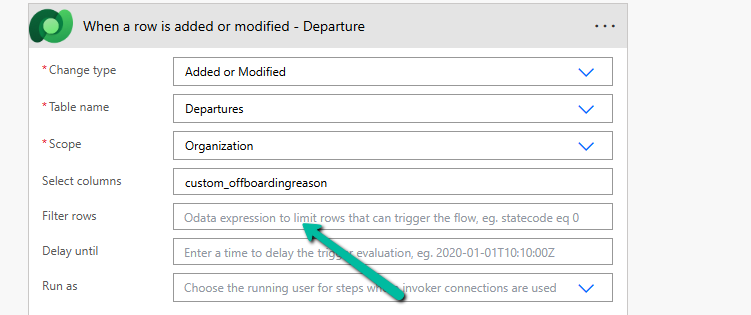
Recently, we faced an interesting issue, where we updated an existing flow in our Dev, basically we removed the Filter Rows condition and deployed it to UAT.

Before

Now

In our Dev, it was working fine, getting triggered on the update of the field specified in the Select Columns; however, after deployment to UAT, it was still getting triggered only on the old filter condition, which we had already removed.

Turning off and on the Cloud Flow didn’t help.

The client data did not have the Filter rows condition.

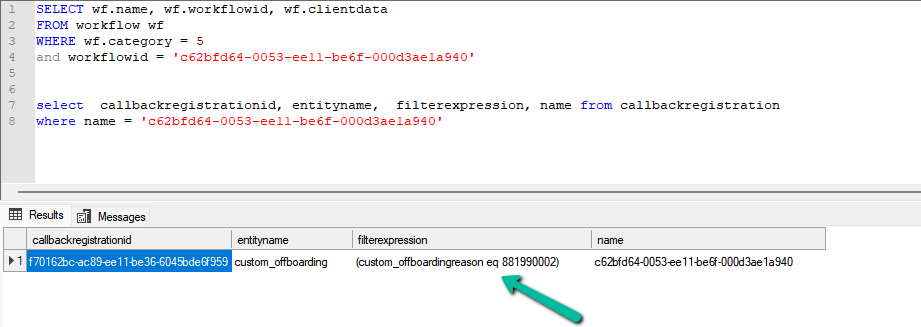
Interestingly, we can still see the filter expression existing for the callback registration record of that flow in our UAT.

A screenshot of a computer

AI-generated content may be incorrect.

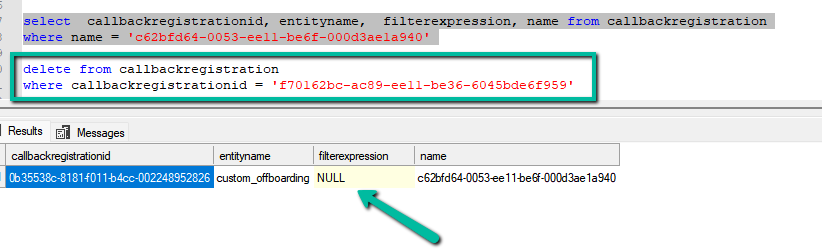
Eventually, we deleted the Callback registration record, turned the flow off and on, and it created the correct Callback Registration record with filter expression as null this time.

A computer screen shot of a computer

AI-generated content may be incorrect.

This fixed the issue, and our flow got triggered correctly.

More on Callback Registration

Fixed- Flow not getting triggered (Callback Registration)– Power Automate / Dataverse

Hope it helps.

Advertisements

When Do We Use the ActivityParty.AddressUsed Property for Emails in Power Automate (Dataverse)


When we automate emails in Dataverse using Power Automate, we deal with something called Activity Party. It manages the participants of an email—whether they are To, CC, BCC, or the Sender. Normally, we use the partyid field to point to a Dataverse record like a Contact, Lead, User, or Queue.

Every participant in an email is stored as a row in the Activity Party table.

Key fields include:

partyid → Reference to the actual record (Contact, Account, User, Queue, etc.)

participationtypemask → Role (1 = Sender, 2 = To, 3 = CC, 4 = BCC)

addressused → The raw email address used

Normally, if a Contact or User is referenced in partyid, Dataverse automatically pulls their primary email.

But there are situations where this is not enough. That’s where addressused becomes important.

Multiple Email Addresses on a Record – A Contact, Lead, or User might have more than one email (work, personal, secondary). By default, Dataverse always uses the primary email field. But if we need to send an email to a specific alternate address, we can set it directly in addressused.

Unresolved Recipients – There are times when we need to send an email to someone who doesn’t exist in Dataverse at all—for example, an external consultant, new partner, or temporary vendor.

Recenlty we had to send email to particular email address not stored as actual record in CRM, below is how we specified the email address in the Add a new Row (Email) action of Power Automate.

"to": [
  { "partyid@odata.bind": "/contacts(11111111-2222-3333-4444-555555555555)" },
  { "addressused": "external.partner@example.com" }
],
"cc": [
  { "addressused": "manager@example.com" }
]

More on activity party

Also check – https://nishantrana.me/2021/02/02/sending-an-email-using-addressused-attribute-of-activityparty-entity-in-dynamics-365/

Hope it helps..

Advertisements

Update Business Process Flow Stage using Excel Import with Power Automate – Dataverse / Dynamics 365


In some business scenarios, we might need to update the Business Process Flow (BPF) stage of a record during an Excel import — especially during data migration or bulk record manipulation. In this blog post, we’ll walk through how to set a desired BPF stage (based on the stage name) and automatically move the record to that stage using Power Automate.

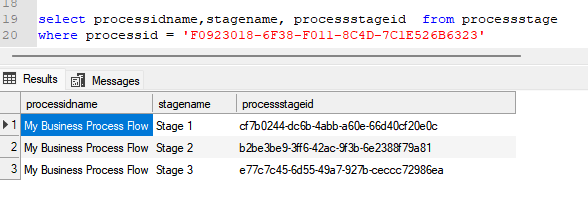
We’re working with a custom Dataverse table called Test(cr1a7_test) and a Business Process Flow named My Business Process Flow, which includes the following stages:

“select processidname,stagename, processstageid from processstage where processid = [processGUID]”

A screenshot of a computer

AI-generated content may be incorrect.

Our goal is to allow users to specify the stage name (e.g., “Stage 2”) through Excel import, and have a Power Automate flow update the record’s BPF instance to the corresponding stage automatically.

For this –

  • We’ll add a field called the Desired BPF Stage choice field on our table to store the desired stage name.
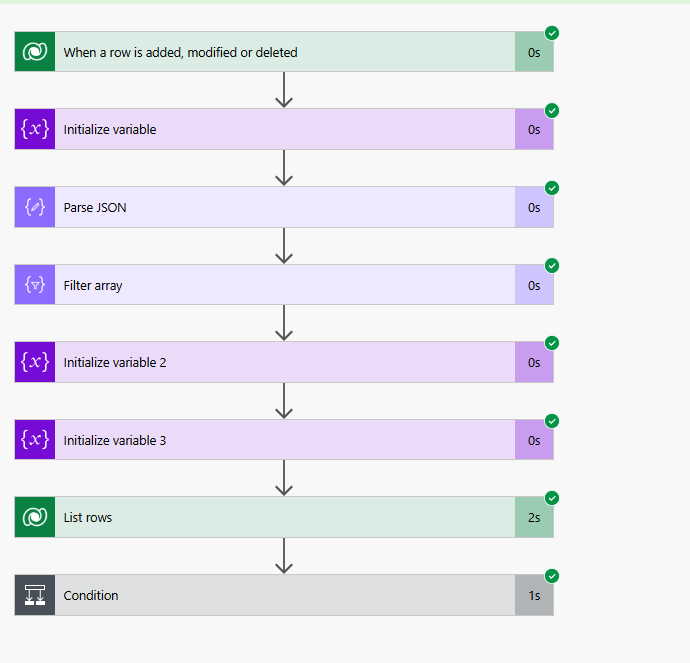
  • We’ll create a Power Automate flow that triggers on create or update.
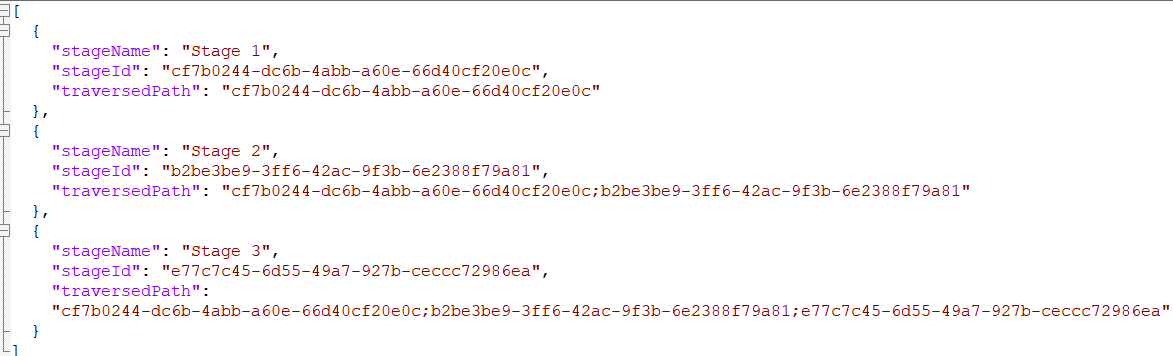
  • We’ll maintain a static JSON mapping of stage names to stage IDs and their traversed paths.
  • We’ll look up the corresponding stage ID and traversed path from the JSON.
  • We’ll fetch the BPF instance for the record.
  • We’ll update the BPF instance with the new active stage and traversed path.

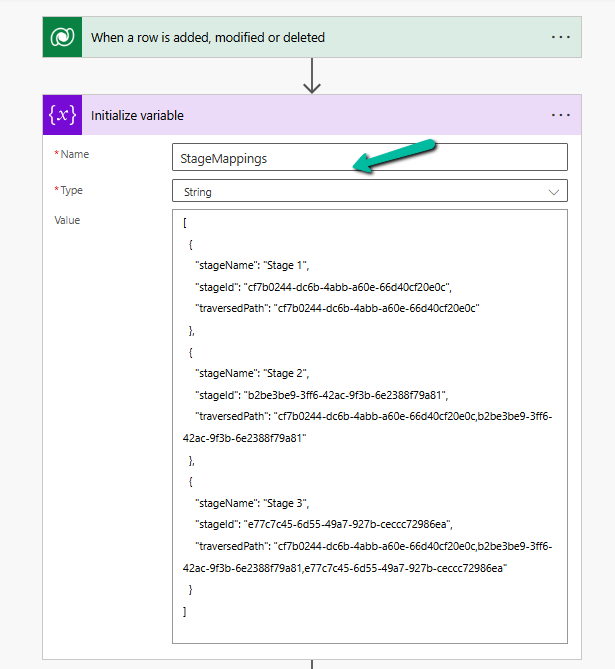
Below is how we can define our JSON structure for mapping, which we will store either in a variable inside Power Automate or save as an environment variable.

A computer code on a white background

AI-generated content may be incorrect.

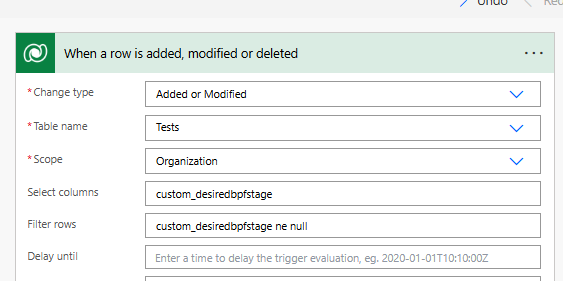
Trigger – When a row is added or modified.

A screenshot of a computer

AI-generated content may be incorrect.

Initialize Variable with JSON mapping

A screenshot of a computer

AI-generated content may be incorrect.

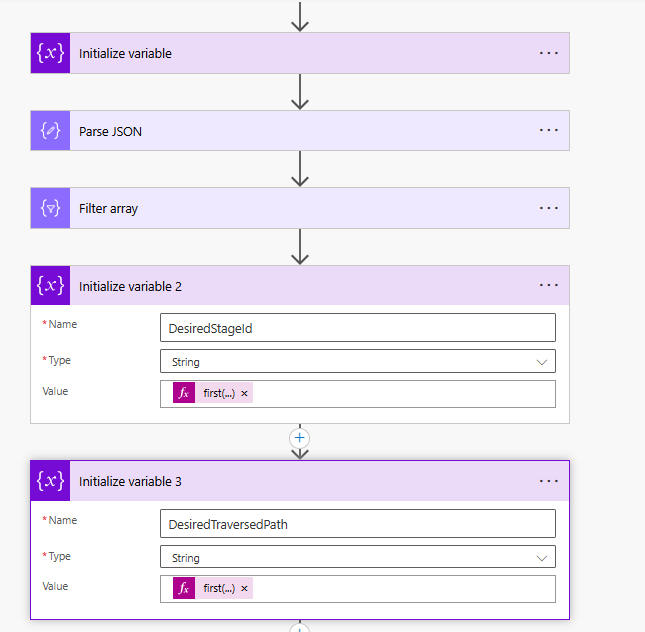
Parse JSON – using the sample data

A screenshot of a computer

AI-generated content may be incorrect.

Use a “Filter array” action to find the object where stageName matches custom_desiredbpfstage.

A screenshot of a computer

AI-generated content may be incorrect.

Initialize variables to store the Stage ID and traversed path.

  • first(body(‘Filter_array’))?[‘stageId’]
  • first(body(‘Filter_array’))?[‘traversedPath’]
A screenshot of a computer

AI-generated content may be incorrect.

Use List Rows to check if BPF Instance exists or not, if not we will create it or update it.

  • length(outputs(‘List_rows’)?[‘body/value’]) > 0
A screenshot of a computer

AI-generated content may be incorrect.

Update or Create a new BPF instance associated with the record.

A screenshot of a computer

AI-generated content may be incorrect.

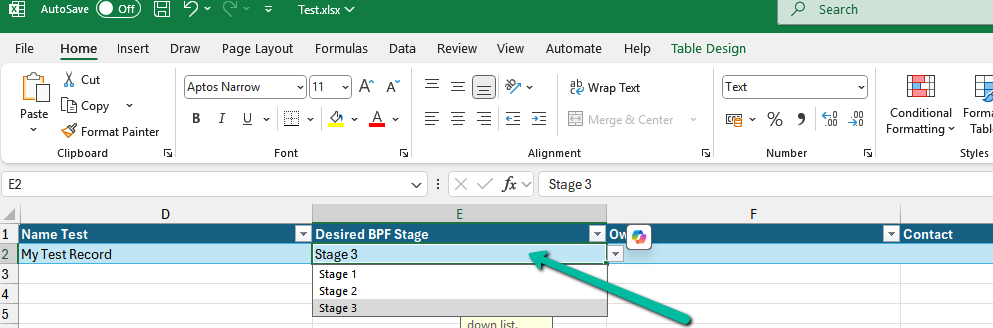
Below we can see the user specifying the Stage 3 value for the Desired BPF Stage column in the Excel to be imported.

A screenshot of a computer

AI-generated content may be incorrect.

We can see the Excel imported successfully.

A screenshot of a computer

AI-generated content may be incorrect.

Below we can see our flow running successfully.

A screenshot of a computer

AI-generated content may be incorrect.

And the record in Stage 3 of the BPF.

A screenshot of a computer

AI-generated content may be incorrect.

Hope it helps..

Advertisements

Identify the Event That Triggered the Flow using the SdkMessage in Dataverse / Power Automate.


When working with Power Automate (Cloud Flows) for Dataverse, a common scenario is handling multiple triggers efficiently. By default, we often create separate flows for different events, such as Create, Update, or Delete. However, using the SdkMessage field, we can identify the event that triggered the flow and handle different scenarios within a single flow. This approach reduces redundancy and simplifies flow management.

When a row change occurs in Dataverse, the SdkMessage value represents the operation that triggered the event e.g. Create, Update, and Delete.

Benefits of using SdkMessage –

Avoid multiple flows: Instead of separate flows for Create, Update, and Delete, use one flow and branch logic accordingly.

Improve maintainability: Less duplication means fewer flows to update when business logic changes.

Enhance performance: Fewer active flows reduce execution overhead and clutter.

Let us see it in action, we have created a flow with the “When a row is added, modified, or deleted” Trigger.

And a switch action on SdkMessage with Case for Create, Update, and Delete.

triggerOutputs()?[‘body/SdkMessage’]

On creating the lead record we can see the corresponding action being triggered.

A screenshot of a computer

AI-generated content may be incorrect.

Same for the update.

A screenshot of a computer

AI-generated content may be incorrect.

Using SdkMessage in a single Dataverse flow allows you to consolidate multiple triggers into one, making your automation cleaner and more efficient.

Additionally, we should use the Select columns and the Filter rows properties to avoid unnecessary flow runs and improve efficiency.

A screenshot of a computer

AI-generated content may be incorrect.

Hope it helps..

Advertisements