Fixed – AADSTS65001: The user or administrator has not consented to use the application with ID


The below error occurs for the application registered with Azure AD (Delegated Permissions), which requires either user or an administrator’s consent for the permissions it needs.
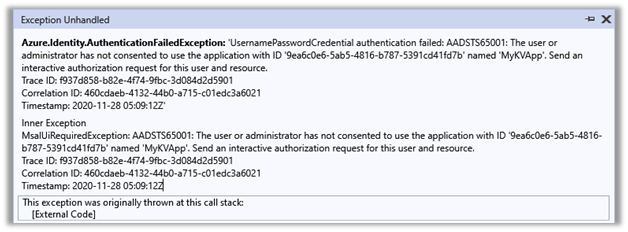
“Azure.Identity.AuthenticationFailedException: ‘UsernamePasswordCredential authentication failed: AADSTS65001: The user or administrator has not consented to use the application with ID ‘9ea6c0e6-5ab5-4816-b787-5391cd41fd7b’ named ‘MyKVApp’. Send an interactive authorization request for this user and resource.”

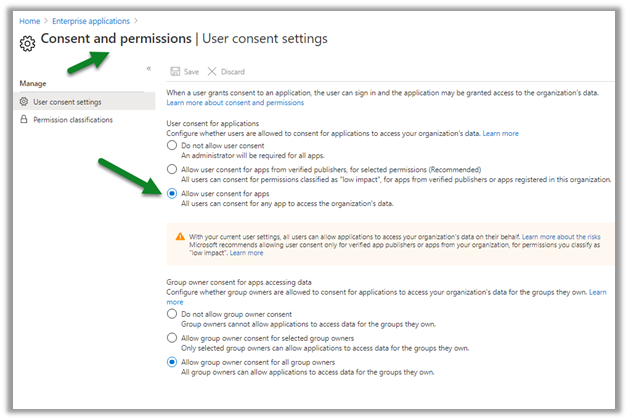
The below setting specifies that all users can allow applications to access the organization’s data on their behalf.

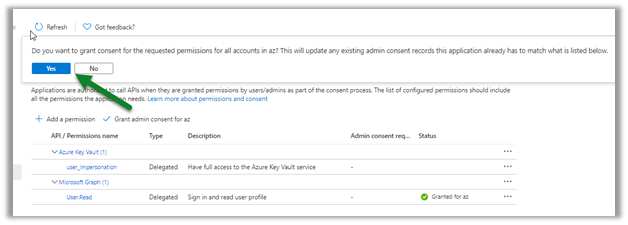
Here the admin can grant the consent through the portal as shown below from Home > App > API Permissions


or can also use Consent URL

https://docs.microsoft.com/en-us/azure/active-directory/manage-apps/grant-admin-consent#construct-the-url-for-granting-tenant-wide-admin-consent

https://login.microsoftonline.com/{tenant-id}/adminconsent?client_id={client-id}


When trying to access the consent URL using another non-admin user, we might get the below message, which means that only the admin can provide the required consent.


Signing in with the Admin account presents the below message for granting the app the required permissions.


Admin can also revoke the admin consent (along with the permission as shown below) from the portal as shown below through Remove admin consent option.


Get all the details here –

https://docs.microsoft.com/en-us/azure/active-directory/develop/application-consent-experience#consent-and-permissions

Hope it helps..


Advertisements

How to – Use Azure AD Conditional Access to block access by country (Dynamics 365)


In the previous post, we covered conditional access based on the device platform, here we’d look into how we can use the network location to block the access.

We can either use IP ranges or Countries / Regions for defining the location.

Login into the Azure Portal

https://portal.azure.com/

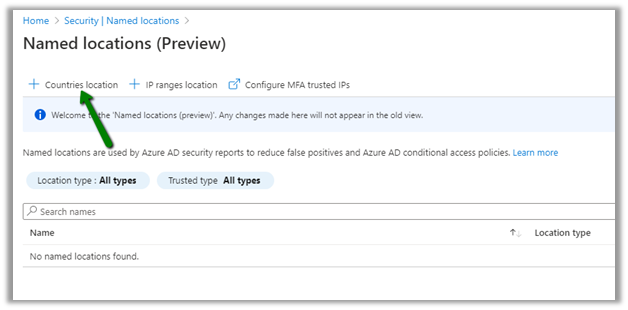
Navigate to Azure Active Directory – Security – Named locations to define the location.


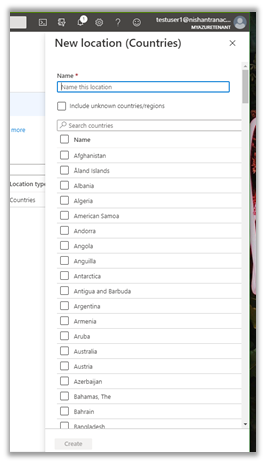
Here we are adding a new countries location record.


For the new location, we have selected India and UAE.


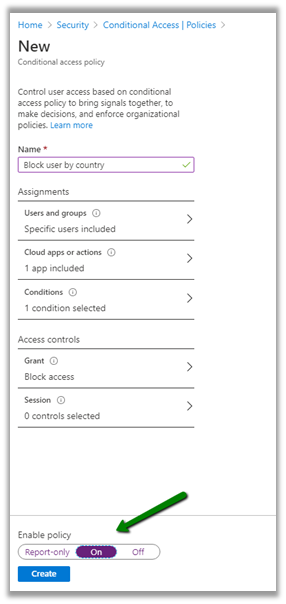
Next click on Conditional Access to define a new policy.


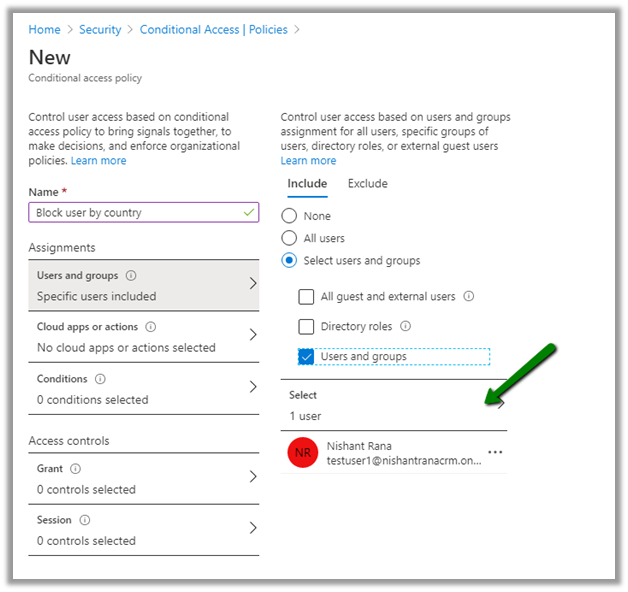
For Users and groups, we have selected a user named testuser1.


For Cloud Apps or actions, we have selected Common Data Service.


For Conditions, we have specified Locations condition with the Restricted Locations record that we had created earlier.


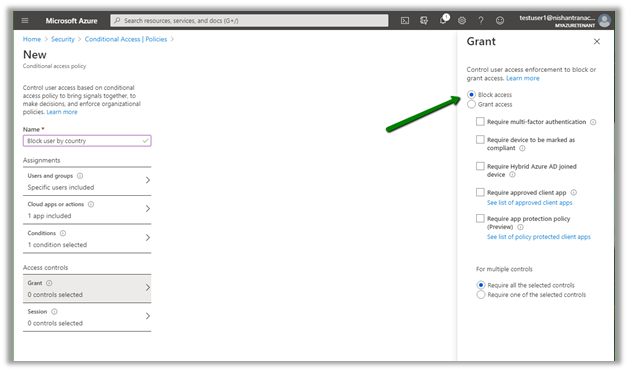
For Access Controls, we have selected Block access.


Enable and create the policy.


Before the policy was enabled, test user1 was able to access Dynamics 365.


After enabling the policy if we try accessing Dynamics 365 from either UAE or India location, we’d get the below message.


Same for the Dynamics 365 for Phones app.


Test user 3 to which policy doesn’t apply can still access Dynamics 365.


Hope it helps..

Advertisements