Adding refiner count in Refinement Web Part in SharePoint 2013.


Hi,

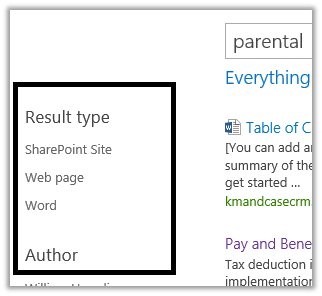
Out of the box the Refinement web part shows the different filters, but it doesn’t show the number of count for the results.

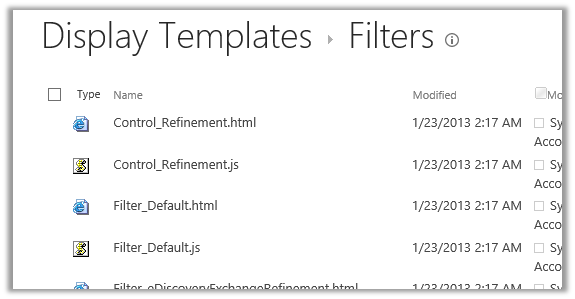
For this we need to modify Filter_Default.html page that is being used by these filters.

Go to the master page gallery

https://test.sharepoint.com/sites/contoso/_catalogs/masterpage/Forms/AllItems.aspx

Select Display Template à Filters à Filter_Default.html

Download the file

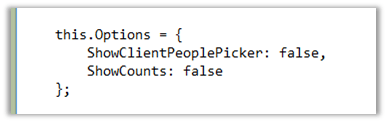
Make the following change in it

Change the ShowCounts to true and upload the file.

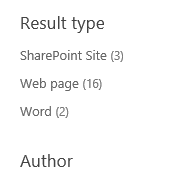
Do the search again and we will see the count

Hope it helps.

The ‘label’ attribute is not declared error while importing solution in CRM 2011


Hi,

We got this “The ‘label’ attribute is not declared” while importing one of our solutions in CRM 2011. It gave the following details for the error

ame” /><attribute name=”parentcustomerid” /><attribute name=”telephone1″ /><attribute name=”emailaddress1″ /><attribute name=”statecode” /><order attribute=”fullname” descending=”false” /><link-entity name=”postfollow” from=”regardingobjectid” to=”contactid” alias=”aa”><filter type=”and”><condition attribute=”ownerid” operator=”eq-userid” /></filter></link-entity><attribute name=”contactid” /></entity></fetch></fetchxml><LocalizedNames><LocalizedName description=”Contacts I Follow” languagecode=”1033″ /></LocalizedNames><Descriptions><Description description=”Contacts that you follow.” languagecode=”1033″ /></Descriptions></savedquery></savedqueries></SavedQueries><Visualizations><visualization><savedqueryvisualizationid>{889CE563-1263-E211-8BE5-984BE17C6693}</savedqueryvisualizationid><datadescription><datadefinition><fetchcollection><fetch mapping=”logical” aggregate=”true”><entity name=”contact”><attribute groupby=”true” alias=”_CRMAutoGen_groupby_column_Num_0″ name=”address1_city” label=”City” /><attribute alias=”_CRMAutoGen_aggregate_column_Num_0″ name=”fullname” aggregate=”countcolumn” /></entity></fetch></fetchcollection><categorycollection><category alias=”_CRMAutoGen_groupby_column_Num_0″><measurecollection><measure alias=”_CRMAutoGen_aggregate_column_Num_0″ /></measurecollection></category></categorycollection></datadefinition></datadescription><presentationdescription><Chart Palette=”None” PaletteCustomColors=”149,189,66; 197,56,52; 55,118,193; 117,82,160; 49,171,204; 255,136,35; 168,203,104; 209,98,96; 97,142,206; 142,116,178; 93,186,215; 255,155,83″><Series><Series ChartType=”Bar” IsValueShownAsLabel=”True” Color=”purple” BackGradientStyle=”TopBottom” BackSecondaryColor=”112, 142, 50″ Font=”{0}, 9.5px” LabelForeColor=”59, 59, 59″ CustomProperties=”PointWidth=0.75, MaxPixelPointWidth=40, DrawingStyle=Wedge”></Series></Series><ChartAreas><ChartArea BorderColor=”White” BorderDashStyle=”Solid”><AxisY LabelAutoFitMinFontSize=”8″ TitleForeColor=”59, 59, 59″ T

We saw one attribute tag with label attribute in it. Removing the label attribute and importing the solution back resolved the issue.

Hope it helps

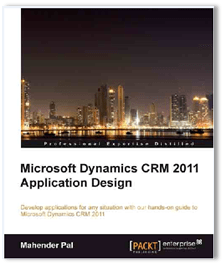
Reviewed Book: Microsoft Dynamics CRM 2011 Application Design


Hi,

Last year I got an opportunity to review the “Microsoft Dynamics CRM 2011 Application Design” book http://bit.ly/135Wi8J
written by Mahendar Pal (Packt Publishing). Mahendar is Most Valuable Professional (MVP) for Microsoft Dynamics CRM. He is a good friend of mine and we stay in touch with each other and mostly discuss things around CRM. The review process was roughly around 6 months.

Now about the book, I found it to be quite unique in regards that it talks about the design and implementation aspect of Microsoft Dynamics CRM 2011. There are other good books available in the market on Microsoft Dynamics CRM, but they mostly talk about and explains the features available within the product. This makes the book helpful to both readers who are new to CRM as well as experienced.

There are total 8 chapters in the book in which readers will learn the basics of CRM 2011 and will also learn how to implement and create applications like Project Training Enrolment System, Employee Recruitment Management System, Hotel Management System etc. using CRM 2011. The readers will also get to learn how to create Silverlight applications, ASP.NET pages which integrates with CRM 2011.

Reading books is my hobby so was happy to get early access to the chapters for reading and reviewing and thanks to Mahendar and Packt Publishing for giving me this opportunity.

Lastly and most importantly I would also like to thank my friend and colleague Hina Mehta who helped me during the review process. She is an expert in CRM and CCA (which is an integral part of CRM now and there are very few people who have expertise on it). So her opinion and suggestions mattered a lot. You can subscribe to her blog here http://hinamehta14.wordpress.com/

All said and done,

Order a copy for yourself

http://www.packtpub.com/microsoft-dynamics-crm-2011-application-design/book

Bye.

SharePoint Designer 2013 Preview issue while creating External Content Type.


Hi,

Check out the following discussion before trying to create External Content Type using SharePoint Designer 2013 preview.

There seems to be a bug in it and unfortunately i have wasted enough time to get it working.

http://social.msdn.microsoft.com/Forums/en-US/sharepointdevpreview/thread/30a9c124-0bf5-4896-8871-412af7b795f0

Hope it saves your time.

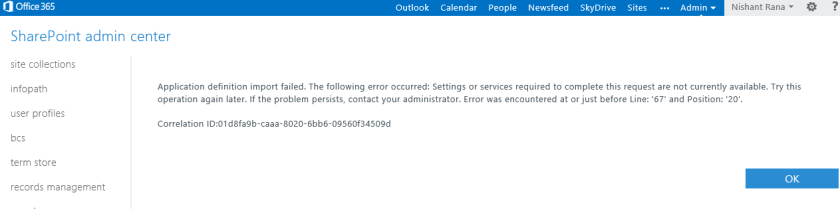
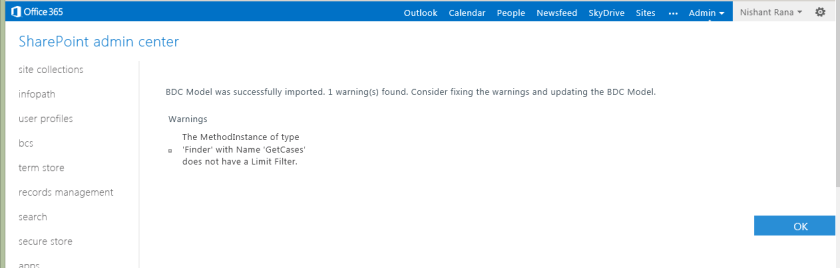
“Application definition import failed. The following error occurred: Settings or services required to complete this request are not currently available” error while importing BDC model file in SharePoint 2013 online.


Hi,

I created a BDC model file for one of my projects (Using SharePoint Designer 2010) and now when I am trying to import it in SharePoint 2013 online (Office 365 Preview) environment I am getting the below error.


And the surprising part is I am able to import the same file without any issues in my other Office 365 preview environment.

Not sure why I am getting the above, may be the service is down as the message suggests for that particular environment or something. Will post the solution if I am able to find one.

Bye.

Hiding SharePoint:FormField in list forms


The easiest way to hide a SharePoint form field inside form is to wrap up it in inside XSl:IF condition,

In the below example, we are giving a condition which would always be true to hide the form field named Country in the form.

<xsl:if test=”1 = 2″>

<SharePoint:FormField runat=”server” id=”ff1{$Pos}” ControlMode=”New” FieldName=”Country” __designer:bind=”{ddwrt:DataBind(‘i’,concat(‘ff1′,$Pos),’Value’,’ValueChanged’,’ID’,ddwrt:EscapeDelims(string(”)),’@Country’)}” />

</xsl:if>

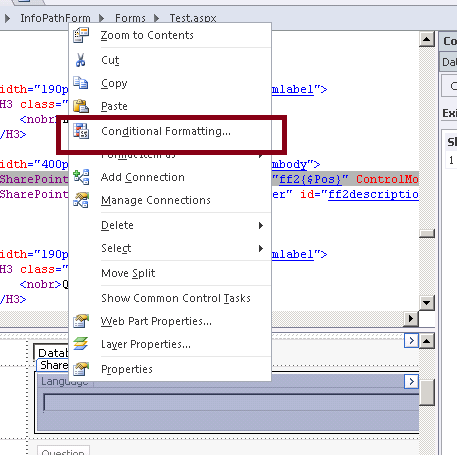
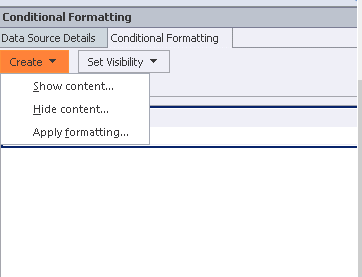
Select the Field within SharePoint designer, right click and select Conditional Formatting

And specify the show or hide condition in the Conditional Formatting dialog box

Hope it helps.

Nishant Rana's Weblog

Everything related to Microsoft .NET Technology

Skip to content ↓