Building a Scheduler within Dynamics CE


Using Bulk deletion job as a scheduler ! #nocode

Shobhit Bhatnagar's avatarShobhit's D365 CE blog

One of the talking points during my conversations with customers (be it workshops or 1:1) is to have an ability to perform a business process periodically based on a trigger.

Out of the box D365 CE does not have any way of scheduling a recurring job/process that can execute so usually we start looking outside to avail options of a Azure Web job or a Console Application or something similar.

In this post, I will try to explain a near Out of the box way of simulating Scheduling processes within the realm of D365 CE itself which will only require configurations and no coding at all.

Examples of some of the common business processes that requires a scheduled background process to execute at a specific interval of time could be:

  1. Sending birthday cards/greetings through D365 CE to your customers or contacts.
  2. Setting up reminders X number of days in advance…

View original post 420 more words

Identify deleted entity and attributes in Audit Summary View – Dynamics 365


We recently had an issue where all the data for certain entities got deleted, which is only possible if that entity has been deleted, which could have been triggered by the deletion of the managed solution.

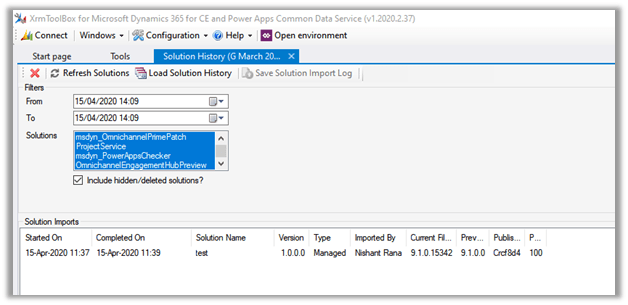
As it was on-premise, we started our analysis with the wonderful Solution History plugin of XrmToolBox.

The Solution History had the information of new managed solution being imported.

But it didn’t capture the delete event for the solution or the entities.

The good thing was that we had the audit enabled, which helped us to figure out the entities deleted and account that was responsible for this delete (accidental).

For online, it is straightforward to track the solution import and delete event, now with the Solution History available in the product itself.

Another thing to remember with regards to the deletion of the managed solution is,

If Solution A has entity A and entity B and this has been imported as managed in Production first, followed by Solution B that has entity A only.

If Solution B is deleted only Entity A will be deleted as entity B is still being referenced by Solution A.

Check the below blog post to understand the installation order and solution layering.

https://nishantrana.me/2018/11/11/installation-order-for-solutions-patches-in-dynamics-365-customer-engagement/

https://debajmecrm.com/2019/05/23/unearthing-solution-layering-feature-of-dynamics-365-how-are-the-good-old-concepts-of-patching-and-cloning-related-to-it/

Hope it helps..

Timeline control enhancements in Dynamics 365 Customer Service – 2019 Release wave 2 (Unified Interface)


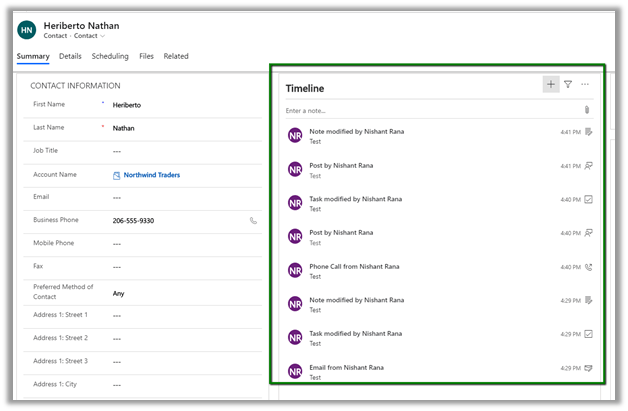
The new timer control shows more customer interactions/records compared to the old version of the control, thus enabling to seem much more information without the need for scrolling.

The user can hover over the activity to find the menu options

The filter button next to the + button allows users to easily filter and find the appropriate records.

Comparing to the older version (shown below), we also have less whitespace in the newer version along with the change in the location of the filter pane and different actions option for the records.

https://nishantrana.me/2020/02/25/rich-notes-and-filter-enhancements-in-dynamics-365-timeline-control-2020-release-wave-1/

https://nishantrana.me/2019/12/31/dynamics-365-2019-release-wave-2-blog-posts/

https://nishantrana.me/2020-release-wave-1/

Hope it helps..

DataFlow – Behind the Scenes


Thomas Sandsør's avatarCRM Keeper

I have been posting a lot from the Data Flow in Power Platform, because I needed to use it internally. So far this tool is extremely interesting, but I am not sure it is 100% clear to me how it all works.

This is why i decided to import 94.000 contacts to 1 account, to see how fast/slow it was. I also wanted to monitor how much this affects the API or any other stuff in the CDS/Dynamcis base. This post is mostly for my own curiosity.

I decided to start with a Dynamics instances that didn’t have any users active, and no data. The following data is gathered from https://admin.powerplatform.microsoft.com.

Data:
Excel rows = 94884
Excel file size 4,7 megabytes

Excel File for Sample Data – Source for my list. I did clean it a bit before importing it in, and added a column for Account Number =…

View original post 404 more words

Notes on Dynamics 365 for Phones and Tablets app – Part 5 (Dashboards)


Check the other articles of this series

Continuing the previous post,

In this post let us try configuring the Dashboard for mobile.

We have created a custom dashboard having the test entity and have kept the “Enable for mobile” option as unchecked
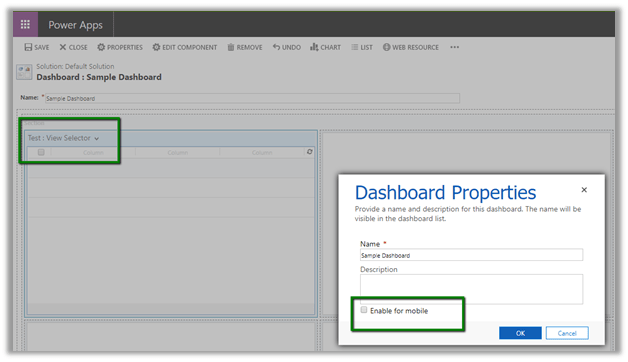
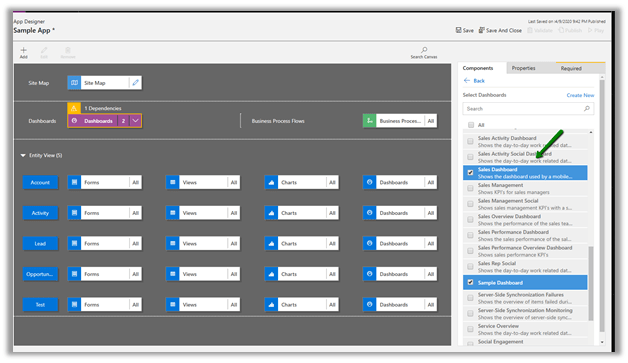
Now let us add this dashboard in our model-driven app and update the sitemap.
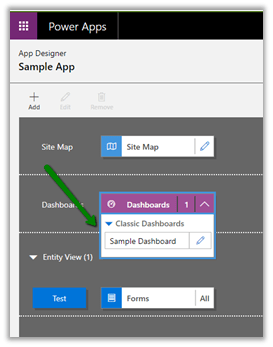
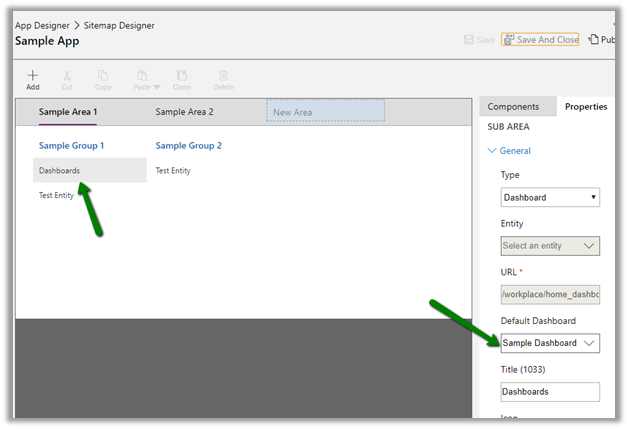
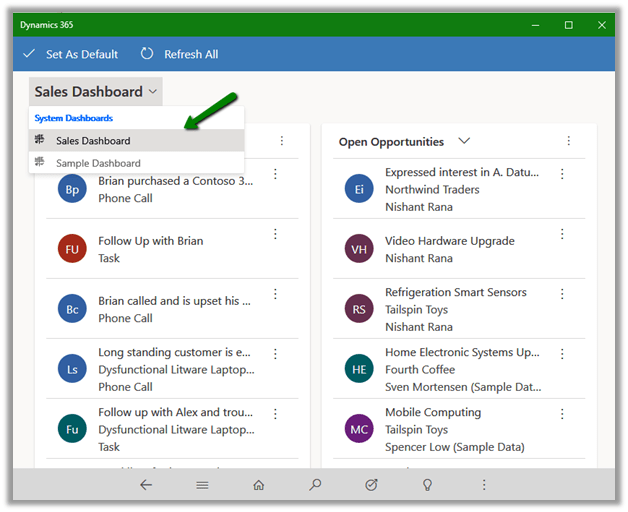
Publish the changes and open the app in the mobile app.
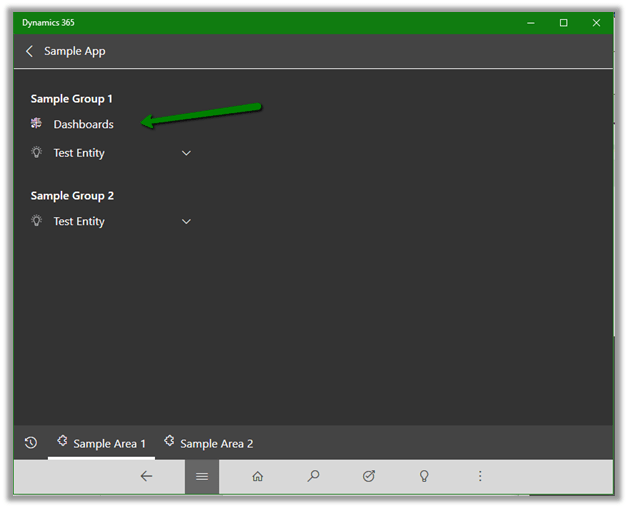
The Dashboard is available within the app, even though the option “Enable for mobile” was unchecked.
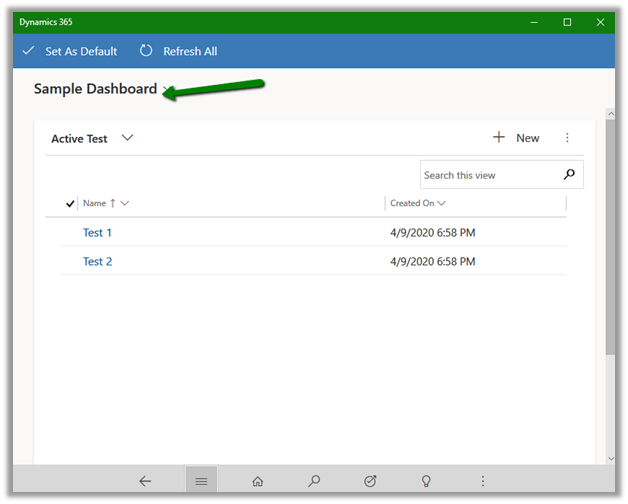
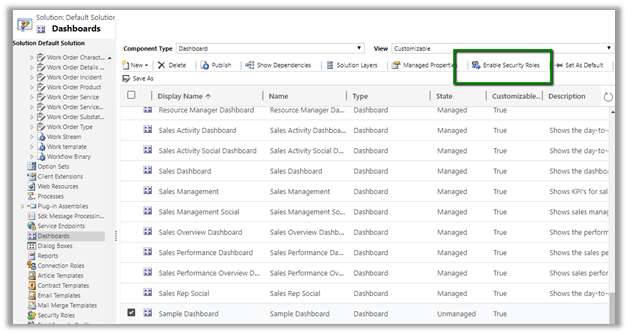
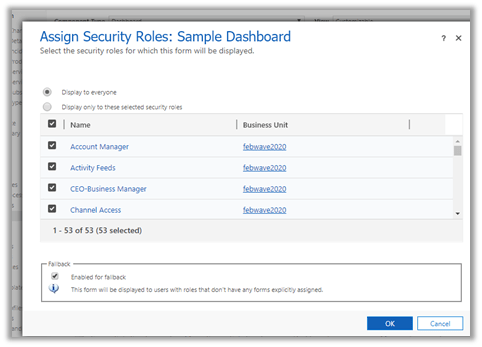
Here we need to make sure the user has the Dashboard is accessible for the security roles(s).
Some of the system dashboards will have “Enable for mobile” property already checked and greyed out.
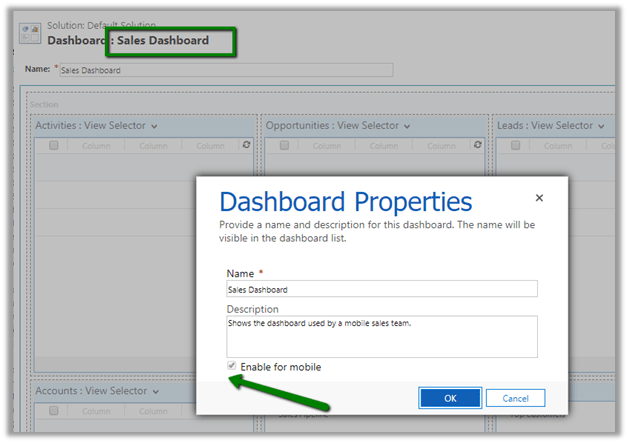
As we already saw, this property doesn’t have any effect in the case of the model-driven app, so to make these dashboards available for the end-user, we just need to add them to the App.
The dashboard within the mobile app.
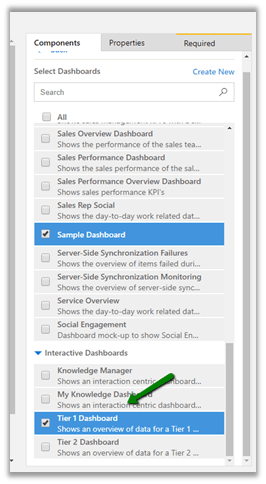
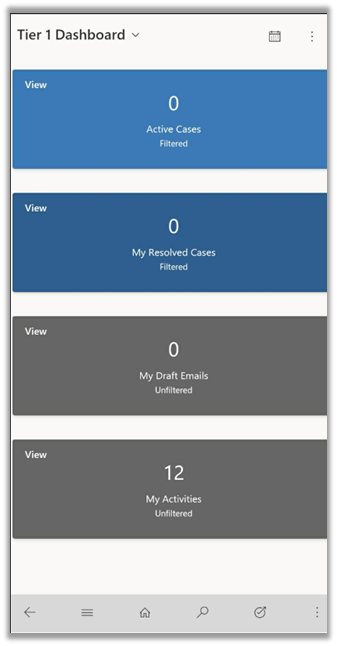
Now let us try adding an Interactive Dashboard to the app.
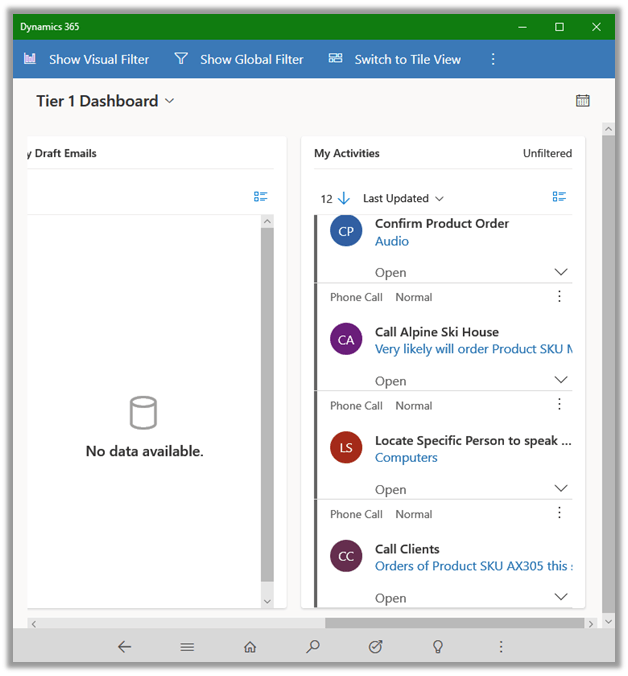
The Interactive Dashboard shows up within the tablet app for windows, with a horizontal scroll bar.
And the same inside the phone app for android, displayed vertically considering the screen size.
Now let us check the behavior with the personal dashboard.

Say e.g. user1 (system admin) has created the following personal dashboard named personal dashboard.
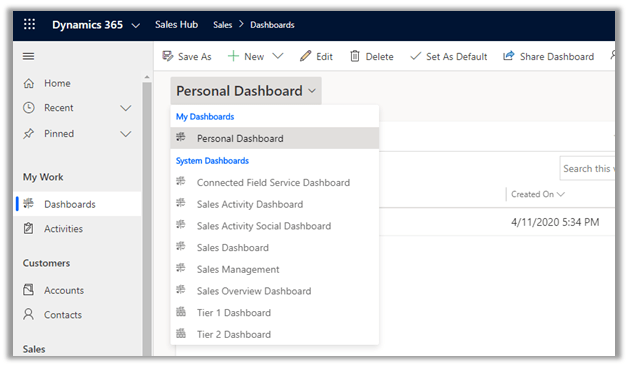
The same is displayed for the user within the mobile app.
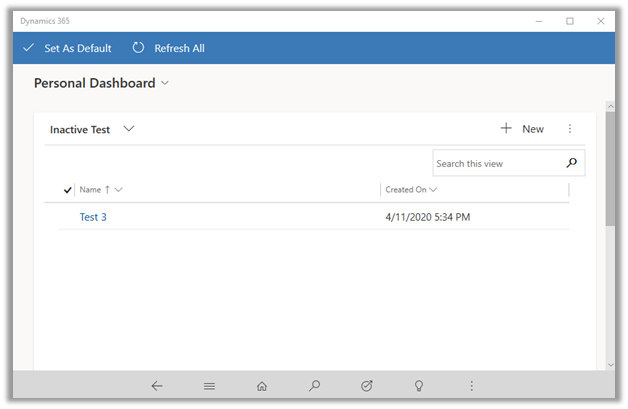
As expected, it is not available to another user, considering it is a personal dashboard.
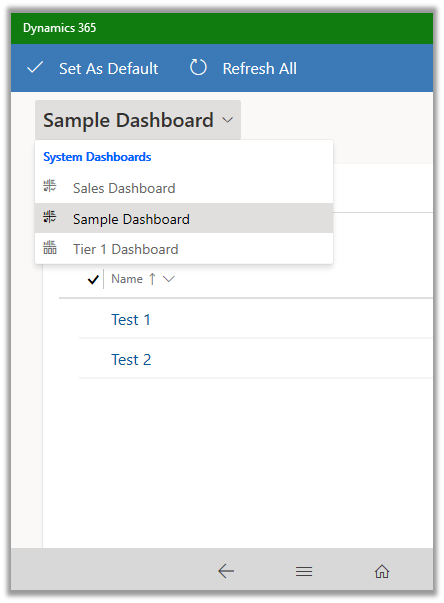
Let us share the dashboard and check.
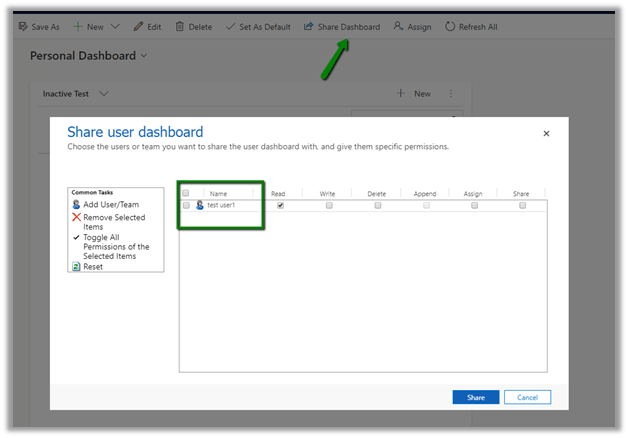
The personal dashboard will be available to the user to who it has been shared.
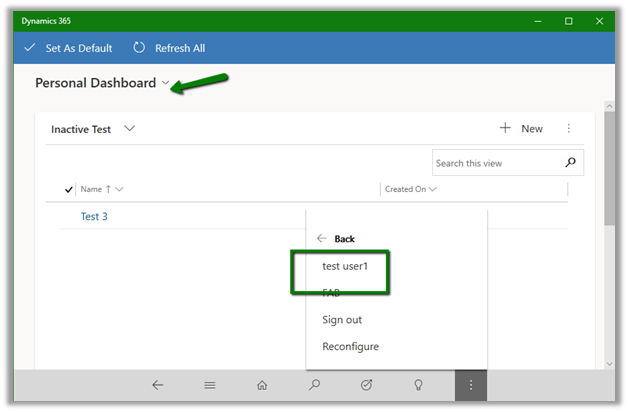
It seems like with earlier version it was not possible

https://community.dynamics.com/crm/f/microsoft-dynamics-crm-forum/208534/crm-dashboard—viewing-shared-dashboard-on-mobile

Thus, we covered how to add the dashboards to the app and the way they render within the mobile app.

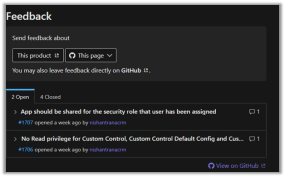
We have also shared our feedback on some of our findings on Microsoft docs
Hope it helps..

Notes on Dynamics 365 for Phones and Tablets app – Part 4 (Entity Configuration)


Check the other articles of this series

Continuing the previous post,

Now let us see how do we enable a specific entity for mobile.

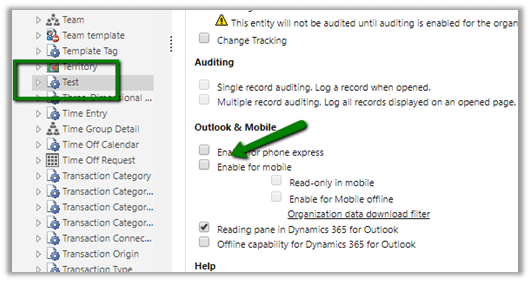
To begin with, let us first create a custom entity named Test. For now, let us leave the Enable for mobile option unchecked.

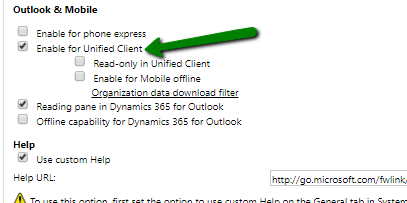
[Update – Enable for mobile has been renamed to Enable for Unified client]

EnableForMobile

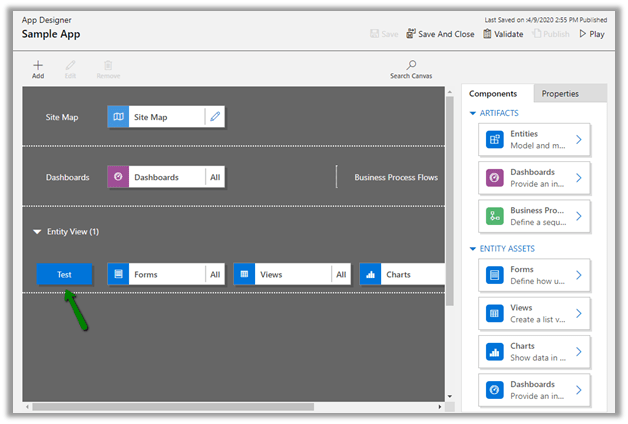
We have created a new model-driven app and added that entity in the sitemap.

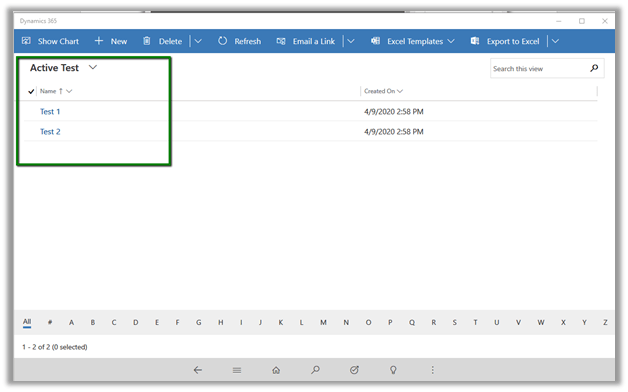
Let us publish the changes and try accessing the app from Dynamics 365 mobile app.

Even without checking “Enable for mobile” option, the Entity is available as it is part of Model-Driven App and we are accessing it using System Administrator that has rights on both the app as well the custom entity.

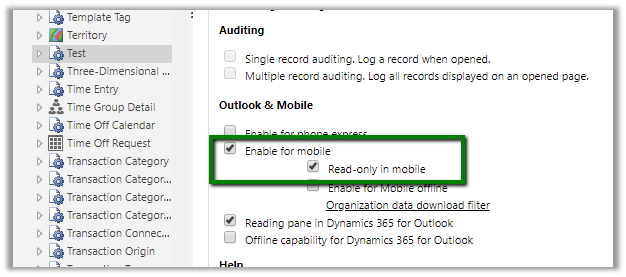
Now let us check that option along with read-only option on the custom entity and publish the changes

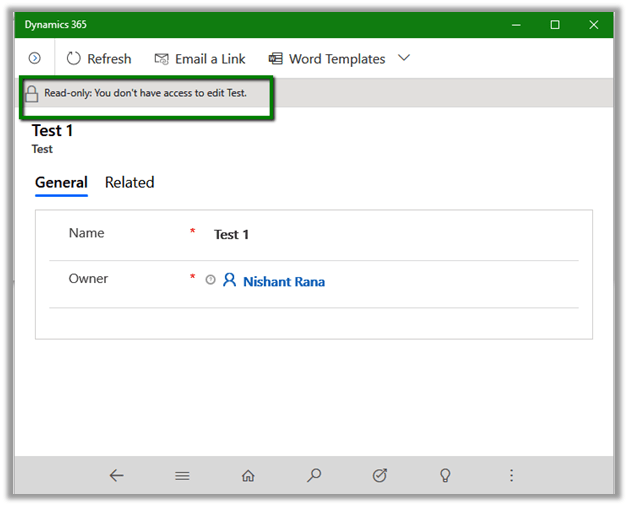
This setting makes the entity as read-only for the user (even System Administrator)

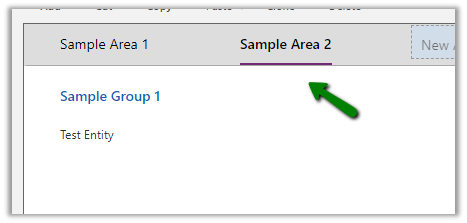
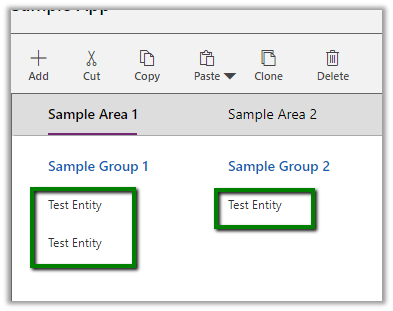
Now let us update the site map, add the same entity inside sub-area, also create a new group and new area and add the same entity.

Let us save and publish the changes and see how it gets rendered inside the mobile app.

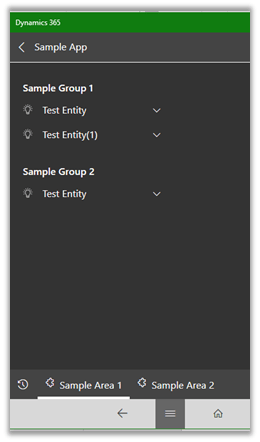
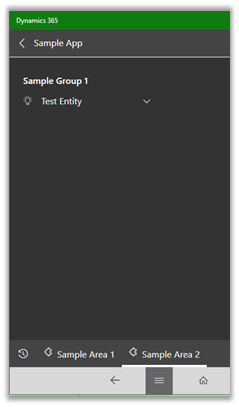
Below how it displays the navigation, exactly as specified in the Sitemap, inside Dynamics 365 for the Tablet app and Phone app.

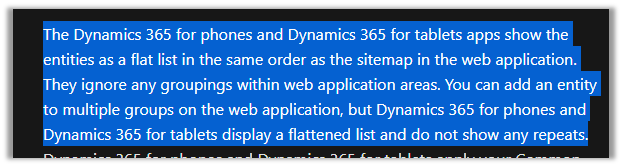
Microsoft Documentations says

https://docs.microsoft.com/en-us/dynamics365/mobile-app/set-up-dynamics-365-for-phones-and-dynamics-365-for-tablets#navigation-bar

which it seems it doesn’t apply with the Model-Driven app anymore.

Hope it helps..
Nishant Rana's Weblog

Everything related to Microsoft .NET Technology

Skip to content ↓