
Here we will be creating an ASP.NET Data Service and host it in azure. This ASP.NET Data Service will be used to generate BCS Model in SharePoint 2013 online. The service will allow basic CRUD operation on Contact record in CRM 2011 from SharePoint 2013 online.
- Create a new Windows Azure Cloud Service project in VS 2012

- Select WCF Service Web Role

- Remove the System.Data.Services.Client.dll from the References

- Add a new item ASP.NET Data Service to the WCFServiceWebRole1 project

- Add a new class to the project

- Specify the class name in the ASP.NET Data Service class

- Add references to the following dll’s
- Microsoft.crm.sdk.proxy
- Microsoft.xrm.sdk
- Microsoft.IdentityModel
- Set Copy Local as true for the Micrsoft.IdentityModel

- Source Code for CrmContext.cs, for CRUD Operation (we need to implement IUpdatable Interface for CRUD)
</pre>
using Microsoft.Xrm.Sdk;
using Microsoft.Xrm.Sdk.Client;
using Microsoft.Xrm.Sdk.Query;
using System;
using System.Collections.Generic;
using System.Configuration;
using System.Data.Services;
using System.Data.Services.Common;
using System.Linq;
using System.Reflection;
using System.Runtime.Serialization;
using System.Web;
namespace WCFServiceWebRole1
{
 [DataServiceKey("ContactId")]
 [Serializable]
 public class Contact
 {
 [DataMemberAttribute()]
 public Guid ContactId
 {
 get;
 set;
 }
 [DataMemberAttribute()]
 public string FirstName
 {
 get;
 set;
 }
 [DataMemberAttribute()]
 public string LastName
 {
 get;
 set;
 }
 }

public class CrmContext : IUpdatable
 {
 public static List<Contact> lstContacts;
 public static OrganizationServiceProxy orgProxy = GetOrganizationService();

public static List<Contact> GetContacts()
 {
 List<Contact> lstContact = new List<Contact>();
 QueryExpression queryExpression = new QueryExpression("contact");
 ConditionExpression conditionExpression = new ConditionExpression("statuscode", ConditionOperator.Equal, 1);
 queryExpression.ColumnSet = new ColumnSet(new String[] { "contactid", "firstname", "lastname" });
 EntityCollection contactCollection = orgProxy.RetrieveMultiple(queryExpression);

Contact contactRecord;
 foreach (Entity entity in contactCollection.Entities)
 {
 contactRecord = new Contact();
 contactRecord.ContactId = (Guid)entity.Attributes["contactid"];
 if (entity.Contains("firstname"))
 {
 contactRecord.FirstName = entity.Attributes["firstname"].ToString();
 }
 if (entity.Contains("lastname"))
 {
 contactRecord.LastName = entity.Attributes["lastname"].ToString();
 }

lstContact.Add(contactRecord);
 }

return lstContact;
 }

public IQueryable<Contact> Contacts
 {
 get
 {
 return lstContacts.AsQueryable();
 }
 }

Contact currentEntry;
 bool NewEntry = false;
 bool Delete = false;

#region implemented methods
 object IUpdatable.CreateResource(string containerName, string fullTypeName)
 {
 var objType = Type.GetType(fullTypeName);
 var resourceToAdd = Activator.CreateInstance(objType);
 lstContacts.Add((Contact)resourceToAdd);
 currentEntry = (Contact)resourceToAdd;
 NewEntry = true;
 return resourceToAdd;
 }

void IUpdatable.DeleteResource(object targetResource)
 {
 orgProxy.Delete("contact", ((Contact)targetResource).ContactId);
 lstContacts.Remove(targetResource as Contact);
 Delete = true;
 }

object IUpdatable.GetResource(IQueryable query, string fullTypeName)
 {
 object result = null;
 var enumerator = query.GetEnumerator();
 while (enumerator.MoveNext())
 {
 if (enumerator.Current != null)
 {
 result = enumerator.Current;
 break;
 }
 }
 if (fullTypeName != null && !fullTypeName.Equals(result.GetType().FullName))
 {
 throw new DataServiceException();
 }

return result;
 }

object IUpdatable.GetValue(object targetResource, string propertyName)
 {
 return targetResource.GetType().GetProperty(propertyName).GetValue(targetResource, null);

}

object IUpdatable.ResolveResource(object resource)
 {
 return resource;
 }

void IUpdatable.SaveChanges()
 {
 if (!Delete)
 {
 if (!NewEntry)
 {
 Entity contactNewRecord = new Entity();
 contactNewRecord.LogicalName = "contact";
 contactNewRecord.Attributes["contactid"] = currentEntry.ContactId;
 contactNewRecord.Attributes["firstname"] = currentEntry.FirstName;
 contactNewRecord.Attributes["lastname"] = currentEntry.LastName;
 orgProxy.Update(contactNewRecord);
 }
 else if (NewEntry)
 {
 Entity contactUpdateRecord = new Entity();
 contactUpdateRecord.LogicalName = "contact";
 contactUpdateRecord.Attributes["contactid"] = currentEntry.ContactId;
 contactUpdateRecord.Attributes["firstname"] = currentEntry.FirstName;
 contactUpdateRecord.Attributes["lastname"] = currentEntry.LastName;
 orgProxy.Create(contactUpdateRecord);
 }
 }

}

void IUpdatable.SetValue(object targetResource, string propertyName, object propertyValue)
 {
 Type TargetType = targetResource.GetType();
 PropertyInfo property = TargetType.GetProperty(propertyName);
 property.SetValue(targetResource, propertyValue, null);
 currentEntry = targetResource as Contact;
 }
 #endregion

#region not implemented methods

void IUpdatable.RemoveReferenceFromCollection(object targetResource, string propertyName, object resourceToBeRemoved)
 {
 throw new NotImplementedException();
 }

void IUpdatable.AddReferenceToCollection(object targetResource, string propertyName, object resourceToBeAdded)
 {
 throw new NotImplementedException();
 }

void IUpdatable.ClearChanges()
 {
 throw new NotImplementedException();
 }
 object IUpdatable.ResetResource(object resource)
 {
 return resource;
 }
 void IUpdatable.SetReference(object targetResource, string propertyName, object propertyValue)
 {
 throw new NotImplementedException();
 }
 #endregion
 public static OrganizationServiceProxy GetOrganizationService()
 {

 IServiceManagement<IOrganizationService> orgServiceManagement =
 ServiceConfigurationFactory.CreateManagement<IOrganizationService>(new Uri(ConfigurationManager.AppSettings["OrganizationService"]));
 AuthenticationCredentials authCredentials = new AuthenticationCredentials();
 authCredentials.ClientCredentials.UserName.UserName = ConfigurationManager.AppSettings["UserName"];
 authCredentials.ClientCredentials.UserName.Password = ConfigurationManager.AppSettings["Password"];
 AuthenticationCredentials tokenCredentials = orgServiceManagement.Authenticate(authCredentials);
 return new OrganizationServiceProxy(orgServiceManagement, tokenCredentials.SecurityTokenResponse);

}

}
}
<pre>
Source Code for CRMDataService.svc
using System;
using System.Collections.Generic;
using System.Data.Services;
using System.Data.Services.Common;
using System.Linq;
using System.ServiceModel.Web;
using System.Web;

namespace WCFServiceWebRole1
{
 public class CrmContactService : DataService<CrmContext>
 {
 // This method is called only once to initialize service-wide policies.
 public static void InitializeService(DataServiceConfiguration config)
 {
 config.SetEntitySetAccessRule("*", EntitySetRights.All);
 config.SetServiceOperationAccessRule("*", ServiceOperationRights.All);
 config.DataServiceBehavior.MaxProtocolVersion = DataServiceProtocolVersion.V3;
 }

protected override CrmContext CreateDataSource()
 {
 CrmContext.lstContacts = CrmContext.GetContacts();
 return base.CreateDataSource();
 }
 }
}
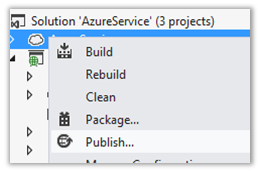
- Build and Publish the service to Azure

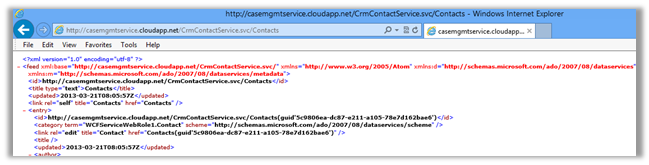
- Test the service in browser
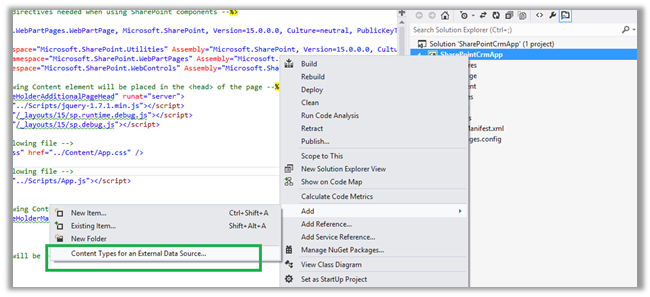
- Create a new SharePoint App project in Visual Studio

- Right click the App Project and select the option “Content Types for an External Data Source”
- Specify the URL for the WCF Data Service and give a Data Source Name and select Next

- Select the Contacts data entity

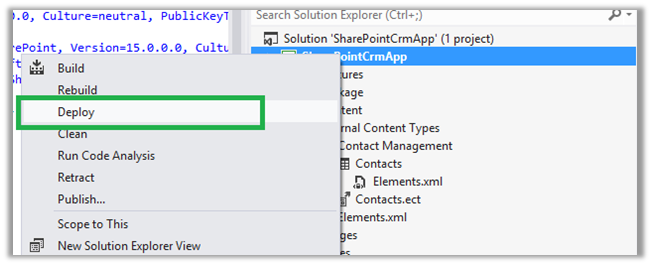
- Deploy the app
- Get the URL where the app is installed

- Append the External List path to the URL

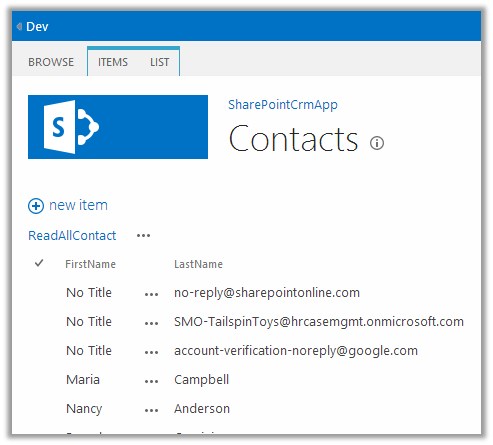
- The Contact records will be displayed in the list in SharePoint.
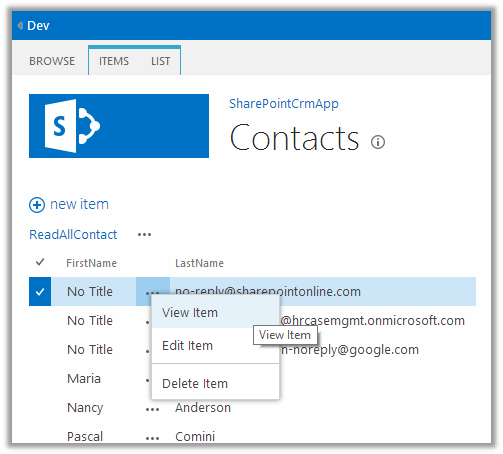
- The list item also support update and delete operation
Hope it helps.








 Nishant Rana's Weblog