How to Identify and Update Power Automate HTTP Request Trigger Flows Before November 2025


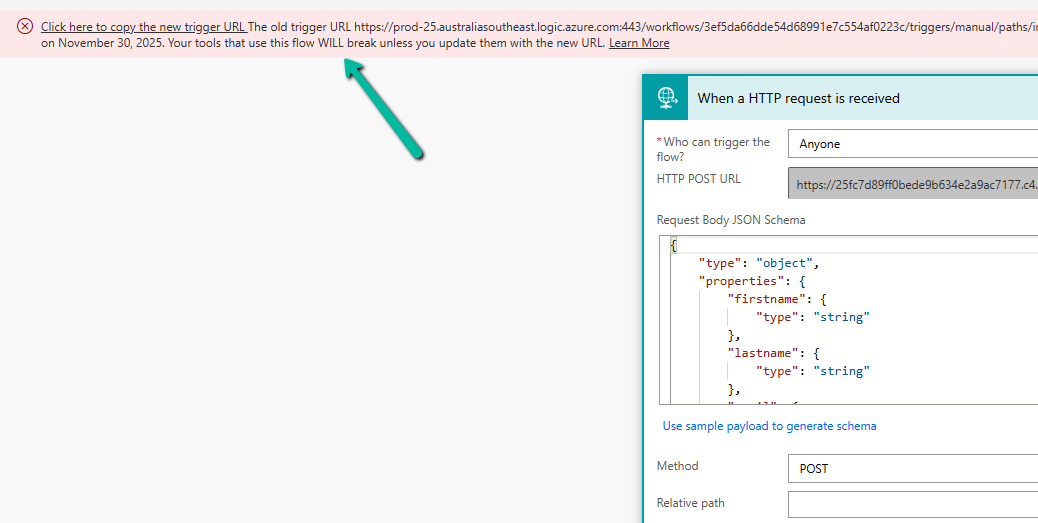
Few weeks back, while working on one of our Power Automate flows, we noticed a banner warning on the HTTP Request trigger step. Microsoft has announced that starting August 2025, all flows using HTTP or Teams Webhook triggers with logic.azure.com URLs will move to a new endpoint under environment.api.powerplatform.com. The old URLs will stop working after November 30, 2025.

The screenshot below shows the banner that appears when the flow is opened in the designer.

A screenshot of a computer

AI-generated content may be incorrect.

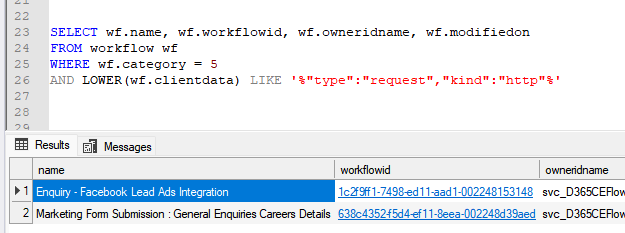
When we saw this, we wanted to make sure no other flow across environments was using the old logic.azure.com–based URLs. Instead of checking each flow manually, we used SQL4CDS to quickly identify all such flows.

We ran the following query in SQL4CDS:

SELECT wf.name, wf.workflowid, wf.owneridname, wf.modifiedon
FROM workflow wf
WHERE wf.category = 5
AND LOWER(wf.clientdata) LIKE '%"type":"request","kind":"http"%'
A screenshot of a computer

AI-generated content may be incorrect.

This query returns all flows that have an HTTP Request trigger. It checks the clientdata column in the workflow table where the flow definition is stored as JSON and looks for the trigger type “Request” and kind “Http”.

This helped us identify every flow that exposes an HTTP endpoint — typically used for integrations, webhooks, or form submissions from external systems. Once we had this list, we opened each flow and copied the new trigger URL from the message banner.

The same can be achieved using PowerShell with the command: This lists all flows in a given environment that are part of Microsoft’s trigger URL migration.

Get-AdminFlowWithMigratingTriggerUrl -EnvironmentName

A screen shot of a computer

AI-generated content may be incorrect.

After copying the new URL, we updated our calling applications (for example, the website forms and marketing integrations) to replace the old endpoint with the new one. The new URLs are hosted under the Power Platform domain environment.api.powerplatform.com, replacing the older logic.azure.com endpoints.

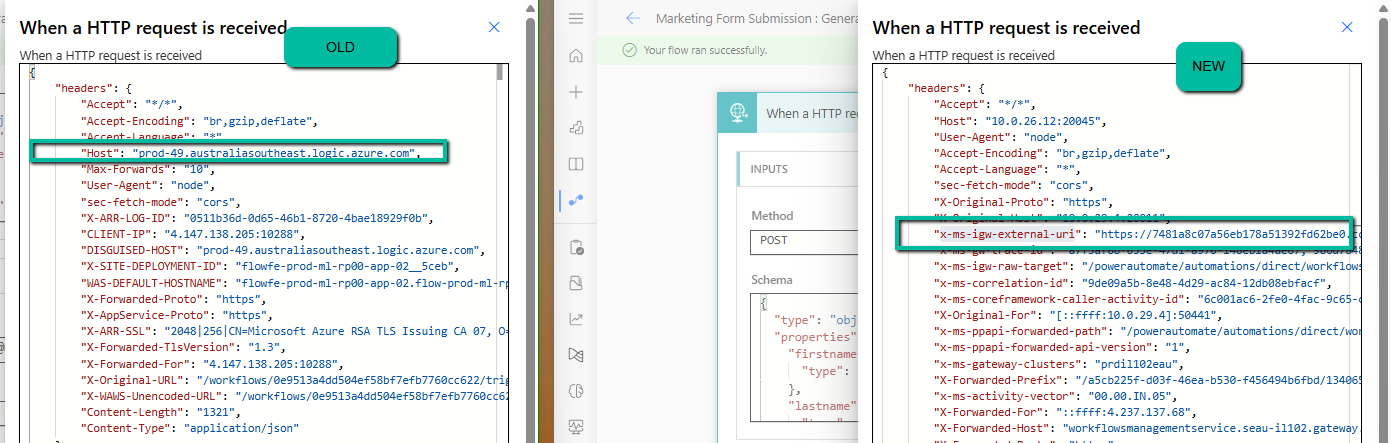
To confirm that the requests were now reaching the new infrastructure, we captured the request headers after updating the URL.

This header (x-ms-igw-external-uri) is the easiest and most reliable way to confirm that your flow is now routed through the new Power Platform ingress gateway.

A screenshot of a computer

AI-generated content may be incorrect.

If this header is present and points to environment.api.powerplatform.com, the flow has been successfully migrated. If you still see logic.azure.com under the Host or DISGUISED-HOST headers, that flow or calling application still needs to be updated.

In our case, after replacing the URLs and testing, all flows were confirmed to be running on the new platform, and the integrations worked as expected.

So if we see this warning in your environment, you can either use the SQL4CDS query or the PowerShell command to locate such flows, update the calling systems with the new URL, and then verify by checking for the x-ms-igw-external-uri header in the request. That’s all you need to ensure your integrations continue to work smoothly past November 2025.

Hope it helps..
Advertisements

Troubleshoot “Something happened, and we couldn’t copy to this environment” error – Dataverse /Dynamics 365 


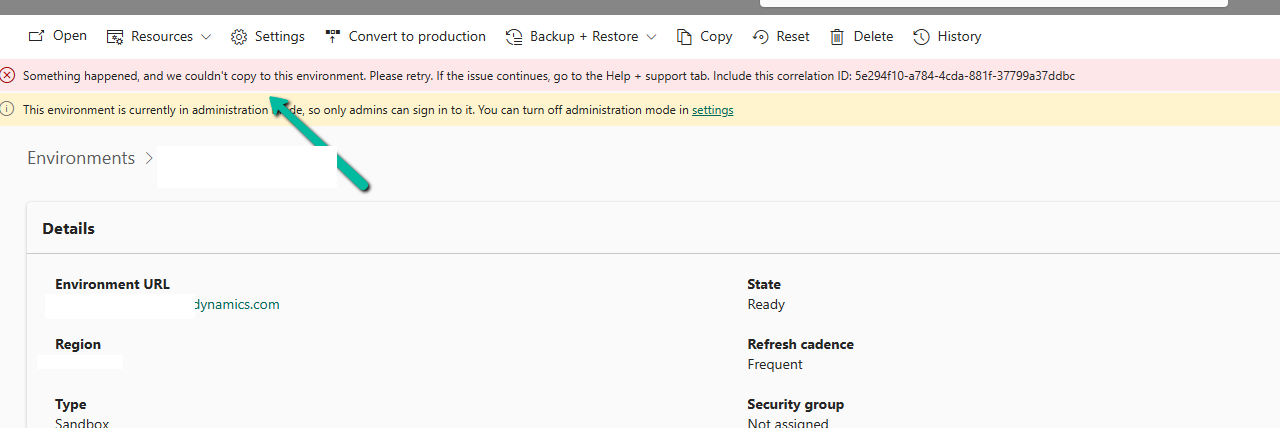
Recently, while trying to copy an environment, we got the following issue –

Something happened, and we couldn’t copy to this environment. Please retry. If the issue continues, go to the Help + support tab. Include this correlation ID: 5e294f10-a784-4cda-881f-37799a37ddbc

At first glance, this seemed serious, especially because it mentioned a correlation ID and hinted at contacting Microsoft support.

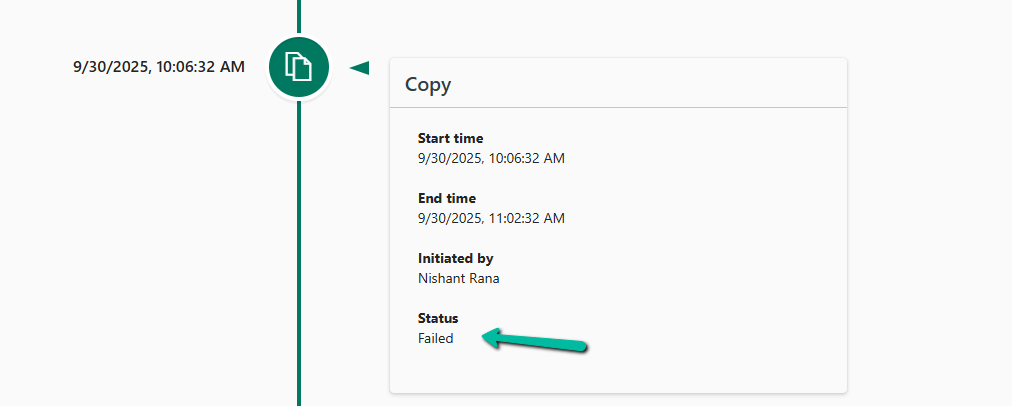
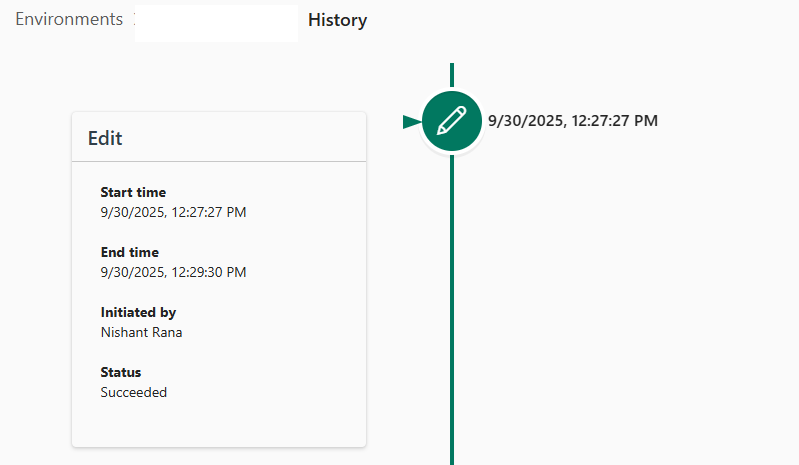
In History also we can see it showing the status as failed.

A screenshot of a computer

AI-generated content may be incorrect.

We simply retried the copy operation — and this time, it worked flawlessly.

This indicates that the issue was likely transient, possibly caused by temporary backend resource availability or network hiccups.

Takeaway: Not every red error banner means a deep technical issue. Sometimes, it’s just the system asking for another try.

Hope it helps..

Advertisements

Resolved – Environment Operation Error, while trying to copy environment (Dataverse / Power Platform)


Recently we created a new environment, and when we tried copying our production environment to it, it gave the below error.

“Environment Operation Error -Sorry, something went wrong while requesting the details of an ongoing operation”

A screenshot of a message

AI-generated content may be incorrect.

On trying to open the newly created environment, we got the below error.

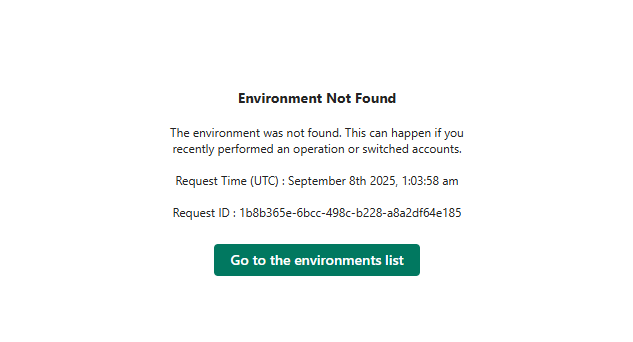
“Environment Not Found -The environment was not found. This can happen if you recently performed an operation or switched accounts”

A screenshot of a computer error message

AI-generated content may be incorrect.

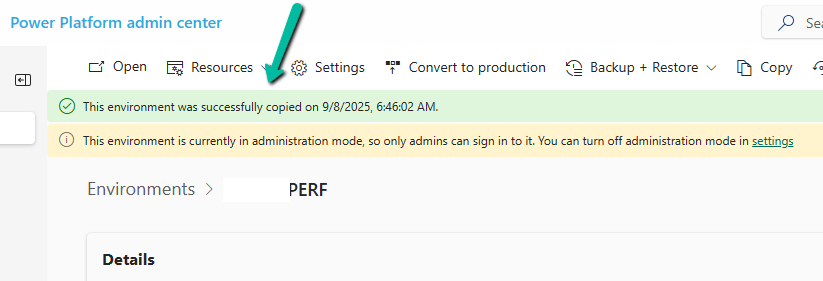
Shortly after that, we noticed the environment disappeared from the list of environments in the Power Platform Admin Center. To investigate what might have gone wrong, we raised a support ticket. However, after about an hour, the Admin Center began displaying the newly created environment we were copying to, and upon opening it, we saw the message – “The environment was successfully copied.”

A screenshot of a computer

AI-generated content may be incorrect.

We got the below explanation from Microsoft Support which clarified the behaviour – “If a copy operation begins but does not complete, particularly when using the “Copy over everything” option, the target environment may enter a missing or soft-deleted state. This is a known behavior in Power Platform, where environments can temporarily disappear from the environment list during long-running or interrupted operations.”

Hope it helps..

Advertisements

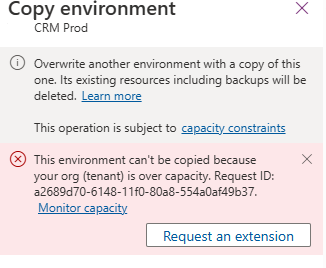
Resolve – This environment can’t be copied because your org (tenant) is over capacity. Request an extension (Dataverse / Dynamics 365)


When trying to overwrite another environment with a copy of Prod, the system prevented the operation due to exceeding tenant capacity limits. This copy operation is subject to environment and storage capacity constraints.

We raised a Microsoft Support Ticket and learned that we can resolve this issue by either purchasing additional storage or requesting free temporary storage to complete the copy operation.

We need to raise another support ticket for temporary storage, that includes below details

  • The amount of storage we need
  • The duration for which it should be available
  • The reason for the request

The maximum duration that can be requested is 6 months.

The maximum storage that can be requested is 200 % of what is purchased.

Thanks to Microsoft, within few mins of raising the support ticket we were provided the additional temporary storage.

We got our environment extended for 6 months with 200 GB additional capacity that allowed us to complete our copy environment.

Also check – https://nishantrana.me/2024/10/15/free-up-storage-space-activitypointerbase-and-workflowlogbase-dataverse-dynamics-365/

Hope it helps..

Advertisements

How We Reclaimed Storage from the WebResourceBase Table in Dataverse


While reviewing our Dataverse environment’s storage usage, we noticed something surprising—over 13 GB of our file capacity was being consumed by the WebResourceBase table alone. This table typically stores JavaScript files, HTML web resources, images, and other files tied to customizations in Dynamics 365. However, the volume was unexpectedly high, prompting us to investigate further.

We started by examining the capacity usage charts available under:

Power Platform Admin Center > Resources > Capacity > File Usage

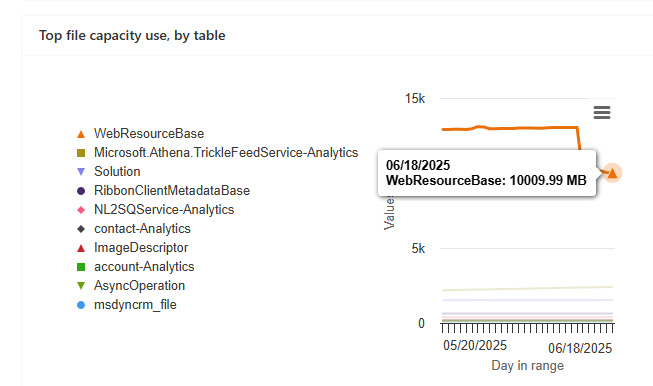
It was evident that the WebResourceBase table was consistently occupying around 13,027 MB (13 GB), far more than any other table.

Realizing that this wasn’t just normal customization data, we raised a support request with Microsoft to understand what was happening behind the scenes.

After a quick investigation, Microsoft Support responded with the following:

“Upon review, we have found that the WebResourceBase table is indeed occupying a significant amount of storage—13.027 GB. There are instances of ‘orphaned’ WebResourceBase records, which can occur due to solution uninstalls or as leftover artifacts from other entities that depend on WebResources. To address this issue, we can run a script to remove these orphaned web resources, which will help in reducing the storage used in your environment.”

These “orphaned” records are essentially detached or unused web resources—files that are no longer tied to any solution or customization but remain in storage. They commonly appear in environments where unmanaged solutions are frequently installed and removed.

Upon our approval, Microsoft executed a backend script to safely identify and remove these orphaned entries.

Post-Cleanup Results –

Before: 13,027 MB

After: 10009MB

Recovered: 3,018 MB (~3 GB)

A screenshot of a computer

AI-generated content may be incorrect.

This led to around a 24 percent reduction in the file capacity used by the WebResourceBase table.

Microsoft also confirmed that no further reduction was possible at this time—the remaining content is either actively referenced or structurally required by the platform.

Hope it helps..

Advertisements

The async operation was skipped because the org is in “Disable Background Processing” mode – Dataverse / Dynamics 365


While testing one scenario we observed one of the plugins (asynchronous) was not updating the record as expected.

Checking the System Jobs, we saw the below error.

The async operation was skipped because the org is in “Disable Background Processing” mode.

Well, this was because we had recently created this environment by copying our UAT environment and had forgotten to disable the Admin mode / enable Background operations.

A screenshot of a computer screen

AI-generated content may be incorrect.

Get more details – Administration Mode.

Hope it helps..