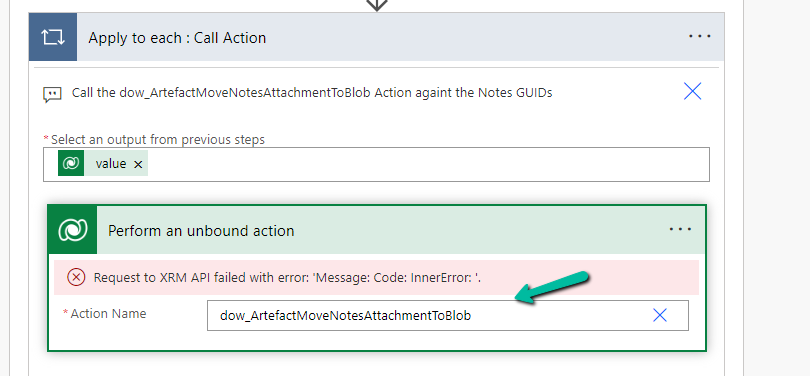
Recently we got the error for one of our flows – Resource not found for the segment ‘dow_ArtefactMoveNotesAttacmentToBlob’.
The flow was running fine with no errors a couple of days back.
On trying to edit the flow we can see it not listing the action in the Perform an unbound action step, instead giving “Request to XRM API failed with error: ‘ Message:Code:InnerError:’.
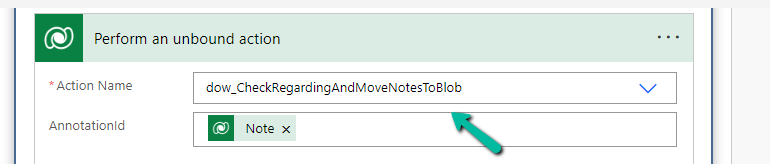
Eventually, as the error message suggests, we realized that the dev team had unregistered the action and registered a new action in its place. Updating the action to use the correct / new action fixed the issue for us.
The error could also show up if the action is in the disabled state.
For one of our flows while testing we realized it was not getting triggered.
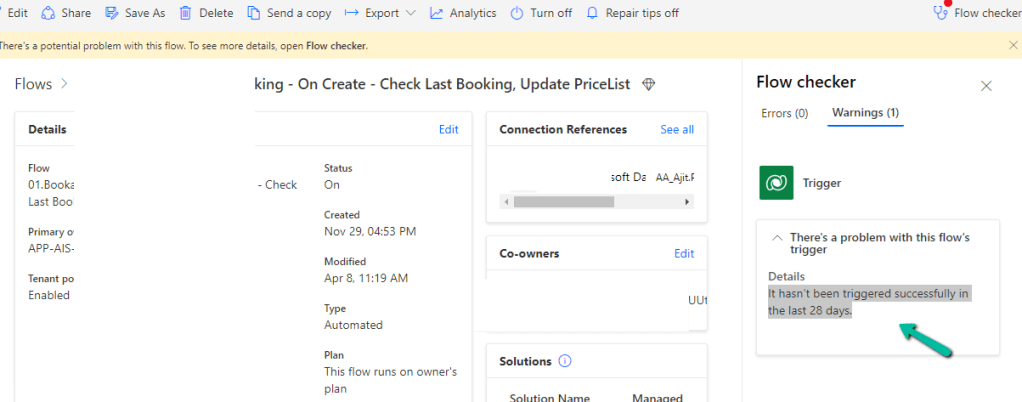
We could see it giving below error –
There’s a problem that needs to be fixed to trigger this flow – It hasn’t been triggered successfully in the last 28 days.
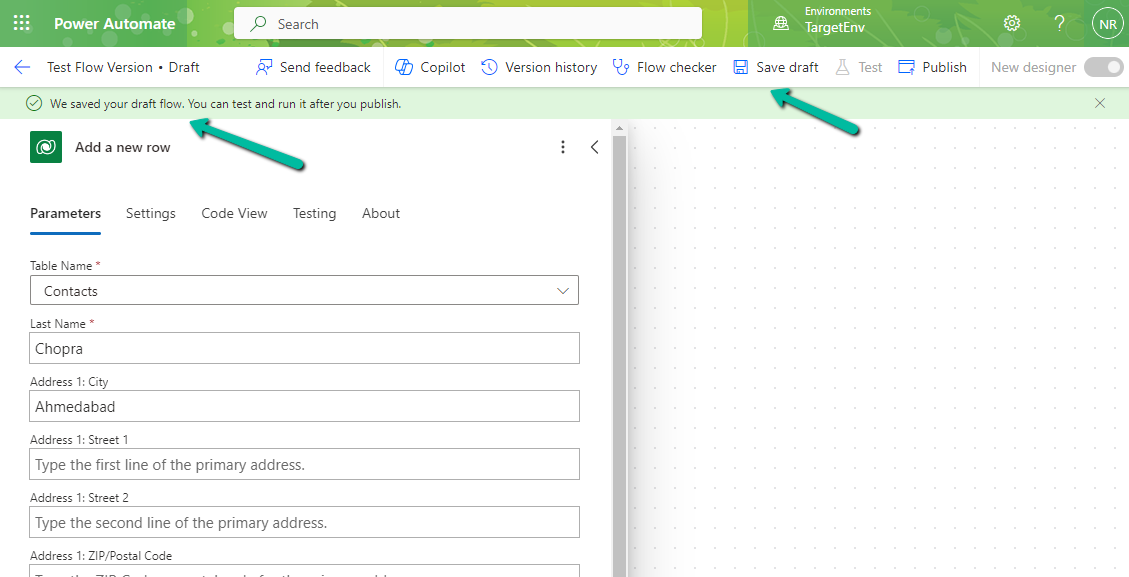
We tried a couple of things and I think either switching it on and off and/or updating the trigger condition and saving it temporarily seems to have fixed the issue. Either of these would have created the correct corresponding Callback registration records.
Suppose we have below array variable – varTestVariable having a list of GUIDs in it.
And we have another array variable varWorkOrderGuidToBeRemoved which has the list of GUIDs we want to remove from our first variable varTestVariable
For this, we can make use of the Filter array action
In From, first we have specified the array variable from which we want to remove the values, followed by the variable that holds the values to be removed. Next, we have specified the “does not contain” operator and finally specified the item()
We can also click on Edit in advanced mode to see or edit the expression.
We can use the Body of the Filter array action that will hold the result in subsequent actions.
On running the flow, we can see that the values that existed in the second array variable were removed from the first array variable.
Recently in one of our flow triggers – When a row is modified (Dataverse), we got the below error
Exception parsing _msdyn_billingaccount_value eq ‘a84c5028-ecdf-ed11-a7c7-00224893b2b0’ submitted for attribute filterexpression of callback registration. Target entity: msdyn_workorder. Exception: Microsoft.OData.ODataException: A binary operator with incompatible types was detected. Found operand types ‘Edm.Guid’ and ‘Edm.String’ for operator kind ‘Equal’.
This is because we were using single quotes around the GUID value in the Filter rows property.
We need to remove the single quotes around the GUID
GUIDs are considered a primitive data type in OData and should be represented as raw values without quotes. By removing the single quotes, we’ll ensure that the GUID is treated as a valid identifier in our filter condition.
Recently we had to change the password of the user account being used as an owner of the cloud flows as well as the used for connection/connection reference.
So we tried it on a trial environment first, below is our flow that runs every 5 minutes and creates a contact record (Dataverse), sends an email (Office 365 Outlook), and creates a file (SharePoint) owned by the same account along with the connection reference.
Below is our cloud flow
We can see the details around Connection References and Owner. We can also see it running successfully getting triggered after every 5 minutes.
Now let us update the password of the account that is being used in the flow.
Interestingly after password change our Flow kept running successfully without any errors.
Contact records are created in the Dataverse.
Mail sent using the Send an email action.
Files getting uploaded using the Create file action of SharePoint.
Also, we see the status of the connections showing as Connected.
It could be because Power Automate might be using cached credentials for a certain period after the password change, and/or the connections that use the refresh tokens to maintain authentication, have their tokens still valid.
Here what we can do immediately after changing the password is open the connections and click on Switch Account, sign in again using that account. That will referesh the connection.
That is exactly what we did for our Prod and other environments after we updated the password and we didn’t face connection failed issues or any other error for all our exiting flows.
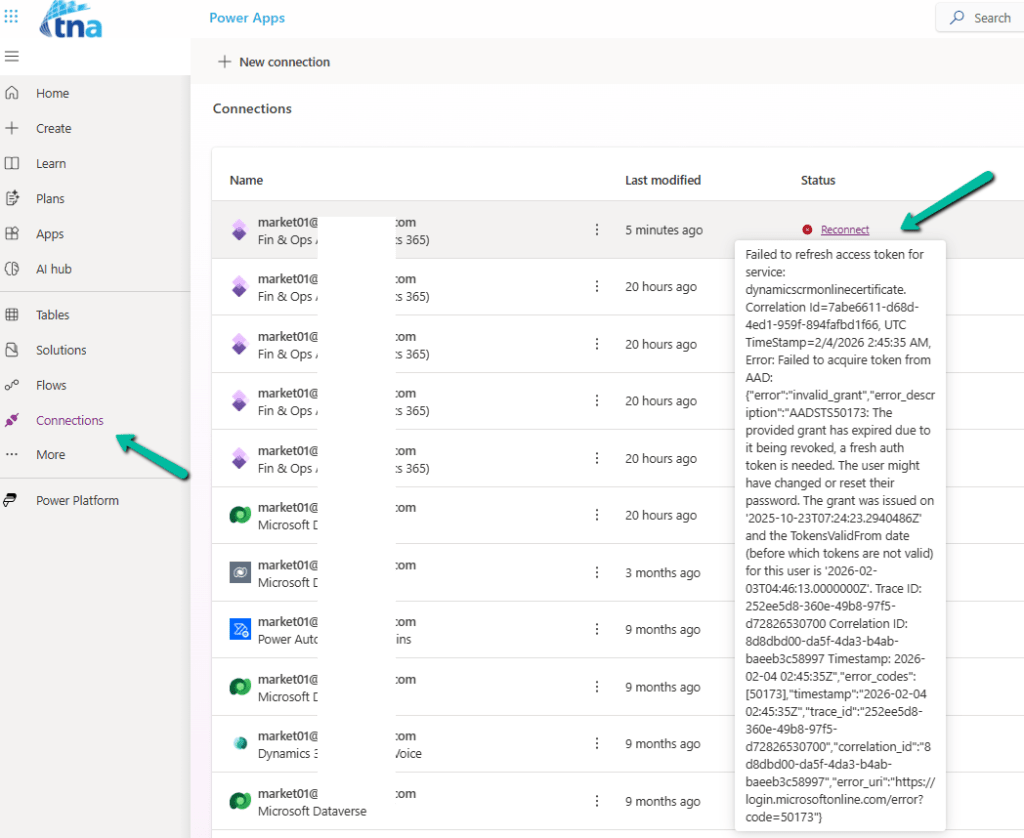
Below is an example where we didn’t refresh the connection and got the below reconnect / failure message after the password was changed.









 Nishant Rana's Weblog