Hi,
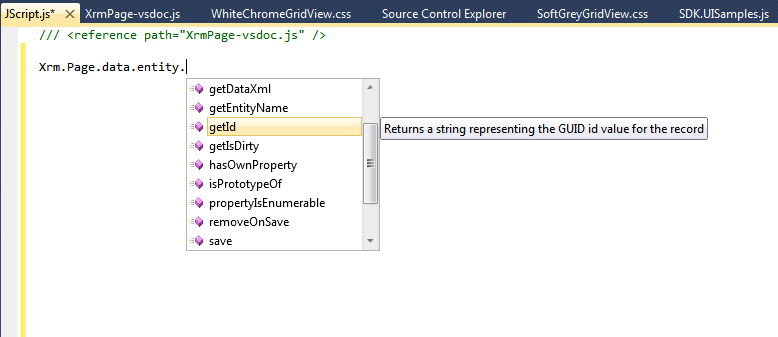
Follow the instructions in the following post to have the IntelliSense while writing JavaScript for CRM 2011.
http://www.patrickverbeeten.com/pages/ContentItemPage.aspx?id=9&item=118&p=true
Bye..

Hi,
Follow the instructions in the following post to have the IntelliSense while writing JavaScript for CRM 2011.
http://www.patrickverbeeten.com/pages/ContentItemPage.aspx?id=9&item=118&p=true
Bye..

The stats helper monkeys at WordPress.com mulled over how this blog did in 2010, and here’s a high level summary of its overall blog health:

The Blog-Health-o-Meter™ reads Wow.
The Louvre Museum has 8.5 million visitors per year. This blog was viewed about 290,000 times in 2010. If it were an exhibit at The Louvre Museum, it would take 12 days for that many people to see it.
In 2010, there were 86 new posts, growing the total archive of this blog to 346 posts. There were 72 pictures uploaded, taking up a total of 158mb. That’s about 1 pictures per week.
The busiest day of the year was November 10th with 1 views. The most popular post that day was Creating Word document using C#.
The top referring sites in 2010 were google.co.in, google.com, social.microsoft.com, social.msdn.microsoft.com, and eggheadcafe.com.
Some visitors came searching, mostly for wpf hyperlink, sharepoint javascript, could not load all isapi filters for site/service. therefore startup aborted., oracle left, and unable to generate a temporary class (result=1)..
These are the posts and pages that got the most views in 2010.
Creating Word document using C# November 2007
32 comments
Using Hyperlink in WPF application March 2009
3 comments
Unable to generate a temporary class (result=1). error CS2001: Source file ‘C:\WINDOWS\TEMP\filename.cs’ could not be found error CS2008: No inputs specified February 2008
30 comments
(Service Unavailable) Could not load all ISAPI filters for site/service. Therefore startup aborted. September 2008
18 comments
Using Left and CharIndex in Oracle October 2007
4 comments

Accessing IFrame through JavaScript
window.frames[0].location
window.frames[“myframename”].location // through name
document.getElementById(‘myframeid’).src // through id
Accessing a div element name myDiv within Iframe
window.frames[“myframename”].document.getElementById(‘myDiv’).innerHTML
document.getElementById(‘myframeid’).contentDocument.getElementById(‘myDiv’).innerHTML
Accessing a div element name myDivInside within Iframe(myfframeid) which itself is inside an Iframe(myframeid)
document.getElementById(‘myframeid’).contentDocument.getElementById(‘myfframeid’).contentWindow.document.getElementById(‘myDivInside’).innerHTML
http://www.dyn-web.com/tutorials/iframes/
Bye.

To get the value for OptionSet we can use the following function
private
string GetOptionsSetTextOnValue(IOrganizationService service, string entityName, string attributeName, int selectedValue) {
RetrieveAttributeRequest retrieveAttributeRequest = new
RetrieveAttributeRequest {
EntityLogicalName = entityName,
LogicalName = attributeName,
RetrieveAsIfPublished = true
};
// Execute the request.
RetrieveAttributeResponse retrieveAttributeResponse =(RetrieveAttributeResponse) service.Execute(retrieveAttributeRequest);
// Access the retrieved attribute.
Microsoft.Xrm.Sdk.Metadata.PicklistAttributeMetadata retrievedPicklistAttributeMetadata =(Microsoft.Xrm.Sdk.Metadata.PicklistAttributeMetadata)
retrieveAttributeResponse.AttributeMetadata;// Get the current options list for the retrieved attribute.
OptionMetadata[] optionList =retrievedPicklistAttributeMetadata.OptionSet.Options.ToArray();
string selectedOptionLabel = string.Empty;
foreach (OptionMetadata oMD in optionList) {
if (oMD.Value == selectedValue){selectedOptionLabel = oMD.Label.UserLocalizedLabel.Label;
}
}
return selectedOptionLabel;
}
http://www.codeproject.com/Tips/553178/Get-the-OptionsetValue-and-OptionsetText-for-Dynam
Hope it helps !

Suppose this is our custom entity named “new_mycustomentity” and we would like to show it in inside iframe within a custom aspx page.
Users can create the new record from within the custom page.
So we set the Iframe src to the url for creating new my custom entity record i.e.
<iframe
id=”IFRAME_NEWCUSTOMENTITY” frameborder=”0″ runat=”server“
src=”http://localhost/Contoso/main.aspx?etn=new_mycustomentity&pagetype=entityrecord”>
However this is how it appears within in IFrame with no ribbons in it.
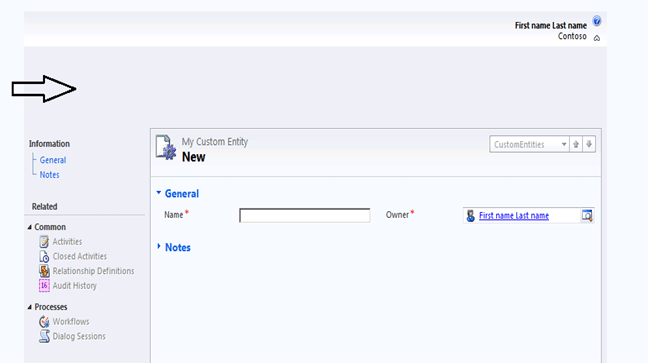
So the next step would be to hide the blank space on the top as well as left navigation bar.
Now we can use the following JavaScript that will hide the left navigation pane and blank ribbon.
http://bingsoft.wordpress.com/2010/09/09/mscrm-2011-hide-areas-of-a-form/
function HideArea() {
// Hide the Ribbon Toolbar and move the form Content area to the top of the window
window.parent.document.getElementById(“crmTopBar”).style.display = “none”;
// Move Form Content area up to top of window, initial style.top is 135px
// set it to the height of the iframe
window.parent.document.getElementById(‘contentIFrame’).style.height = “400px”;
// Hide Left Hand Nav bar / pane
document.getElementById(“crmNavBar”).parentElement.style.display = “none”;
document.getElementById(“tdAreas”).parentElement.parentElement.parentElement.parentElement.colSpan = 2;
// Hide the Form Footer Bar
document.getElementById(“crmFormFooter”).parentElement.style.display = “none”;
}
Now the form looks like this within the IFrame
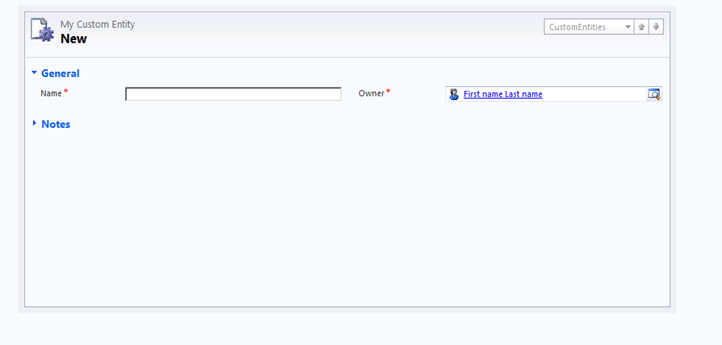
Next we will add an iframe in the entity’s form that will display a custom html page which has a Save Button in it to save the record.
However here we need to set the src of the IFrame dynamically through JavaScript in the form load otherwise our IFrame page won’t appear in the form.
So in form’s onload event add the following line
// set the IFrame src through JavaScript
crmForm.all.IFRAME_SAVE.src = “http://server:port/CustomCRMPage/SavePage.htm”;
This is how our custom page will now

On the save button click add the following Jscript code to save the record.
<input
id=”btnSave” type=”button” value=”Save” onclick=”return Save()”
/>
function Save() {
// call crmForm.Save
parent.document.forms[0].Save();
}
Now let’s click on save and try to save the record,
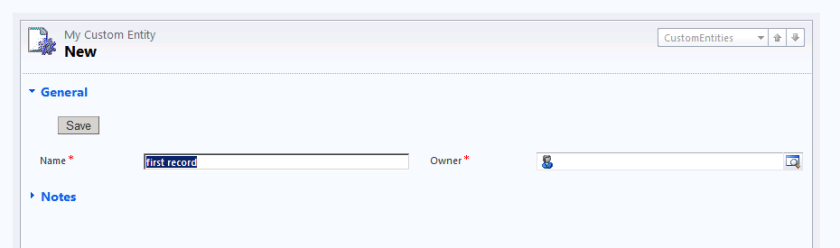
The record gets saved but here we can see two issues.
The top bar still shows “My Custom Entity – New” there.
And value for Owner field shows blank.
So here first we need to remove the Top Bar from the form using the following jScript in form’s onload
// hide the top bar
document.getElementById(“recordSetToolBar”).parentElement.parentElement.parentElement.parentElement.parentElement.parentElement.parentElement.parentElement.parentElement.parentElement.parentElement.style.display = “none”;
Now for the owner field ( lookup) we will have to do the following workaround.
Create a text field on the form, on save of form assign the Owner lookup’s name value to it. Hide this text field in the form onload.
Now in the onload event of the check if crmForm.ObjectId is null or not.
If not null than set the value of name for the owner’s lookup to this new hidden field’s value.
In form’s on save event à
function setOwner() {
var lookupItem = new Array;
lookupItem = crmForm.all.ownerid.DataValue;
// set the owner name in a separated text field
crmForm.all.new_hf.DataValue = lookupItem[0].name;
}
And in the onload do the following à
if (crmForm.ObjectId != null) {
var lookupItemOwner = new Array;
lookupItemOwner = crmForm.all.ownerid.DataValue;
var lookupData = new Array();
//Create an Object add to the array.
var lookupItem = new Object();
//Set the id, typename, and name properties to the object.
lookupItem.id = lookupItemOwner[0].id;
lookupItem.typename = lookupItemOwner[0].typename;
lookupItem.name = crmForm.all.new_hf.DataValue;
// Add the object to the array.
lookupData[0] = lookupItem;
// Set the value of the lookup field to the value of the array.
crmForm.all.ownerid.DataValue = lookupData;
}
Hope this helps …

Use this
http://rajeevpentyala.wordpress.com/2011/12/12/hide-navigation-items-pane-on-form-in-crm-2011/
Things below were applicable for CRM 2011’s CTP Version (unsupported)
We can use the following JavaScript to hide the left navigation pane from form in CRM 2011
function LeftNav() {
// hide the left navigation pane
document.getElementById(“crmNavBar”).parentElement.style.display = “none”;

// after hiding the crmform’s content panel moves to left
// to set it back to full width set the colspan
document.getElementById(“tdAreas”).parentElement.parentElement.parentElement.parentElement.colSpan = 2;
// show only information section in the form
// hide the related section and the table below it.
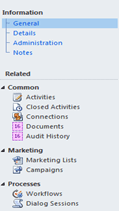
document.getElementById(“crmFormNavSubareas”).parentElement.style.display = “none”;
document.getElementById(“crmFormNavSubareas”).parentElement.parentElement.previousSibling.style.display = “none”;

}
Hope it helps !

 Nishant Rana's Weblog